
iSmartta Face Swap
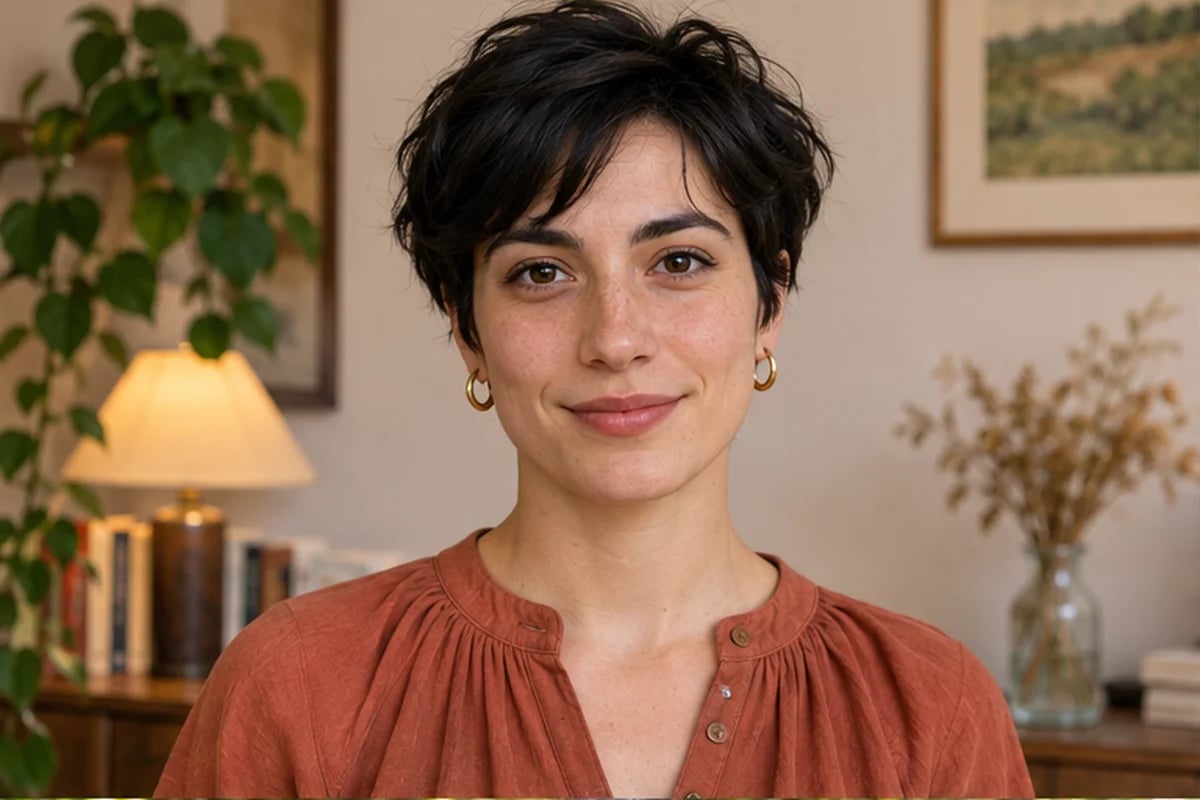
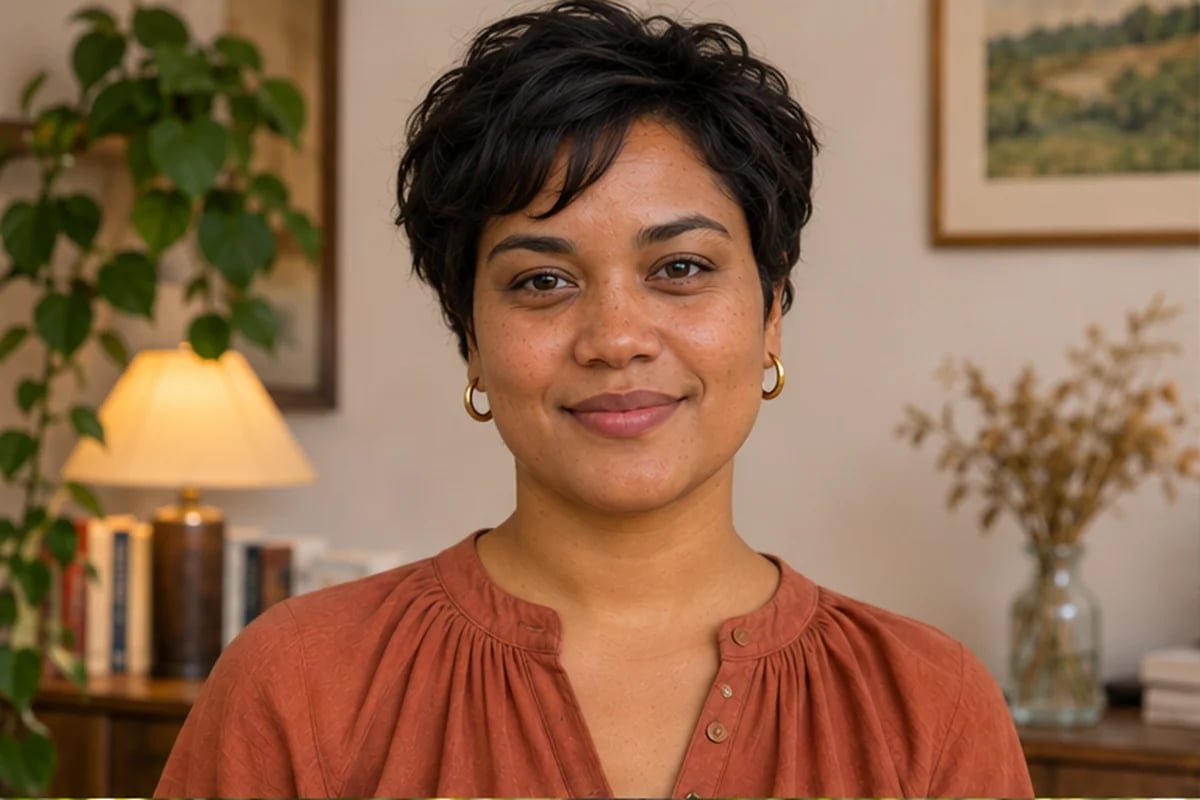
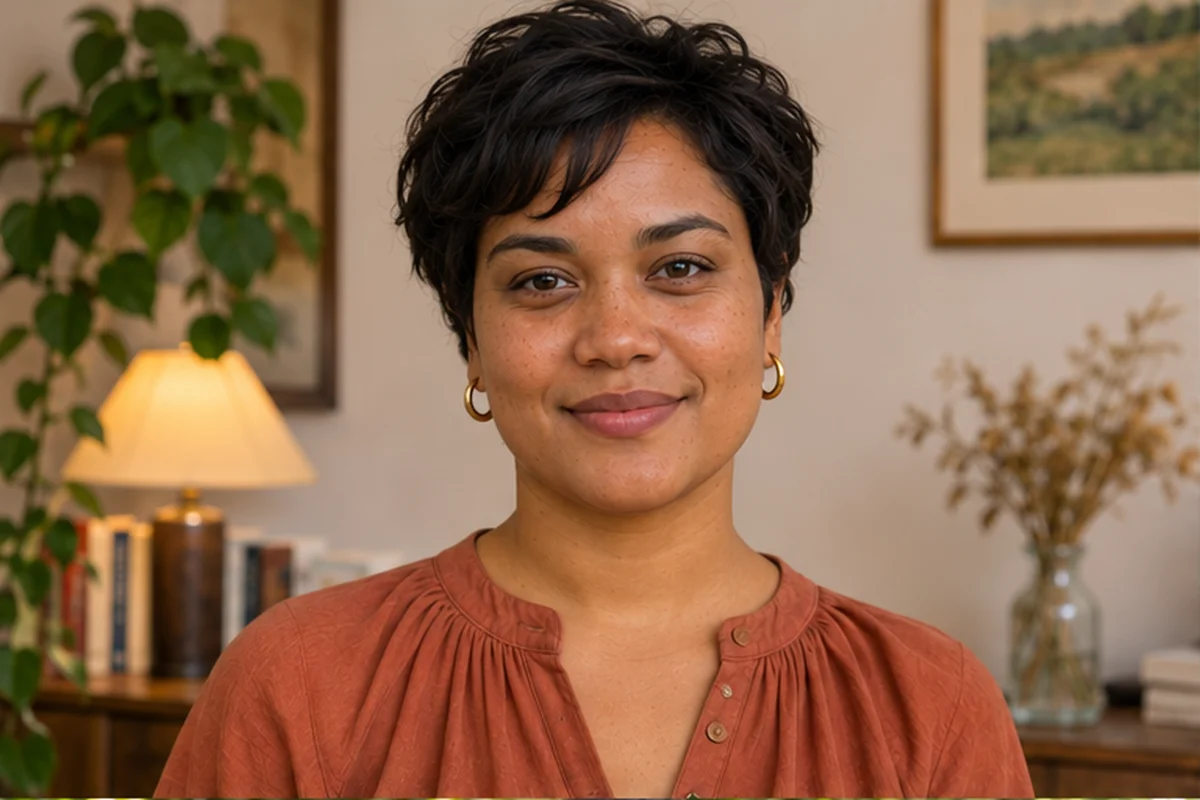
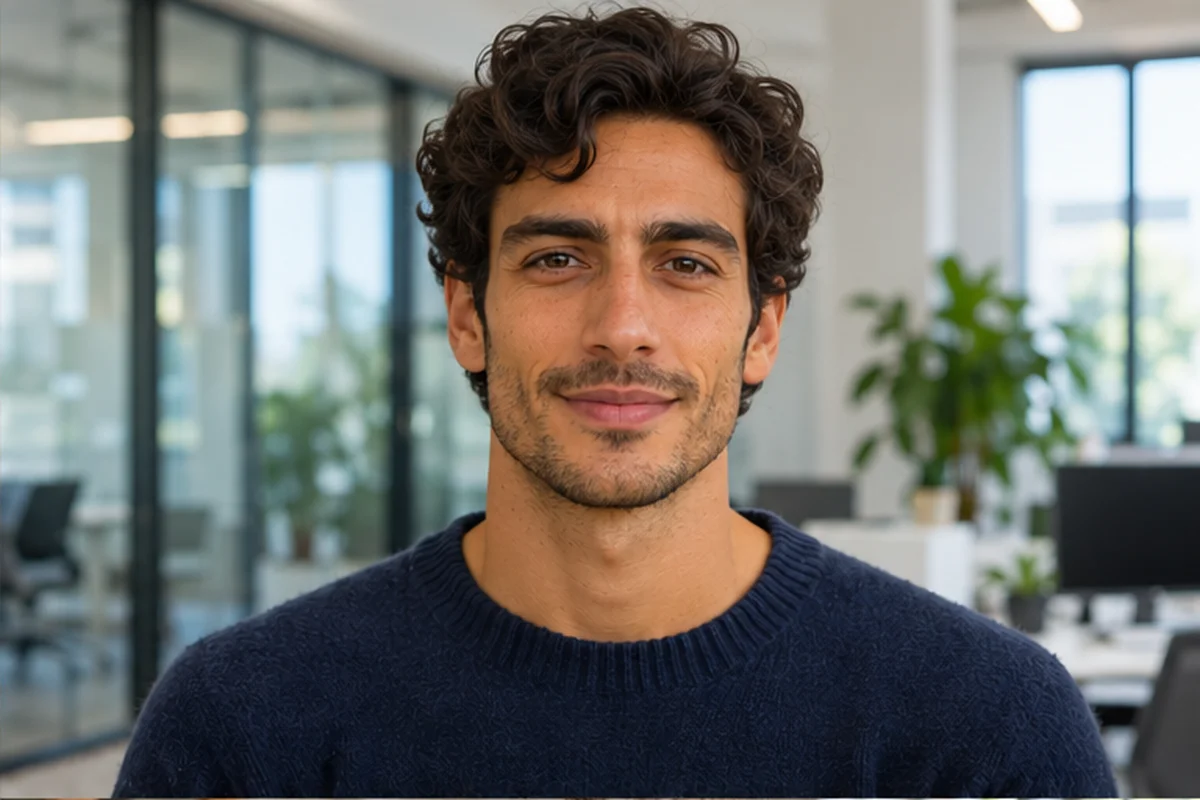
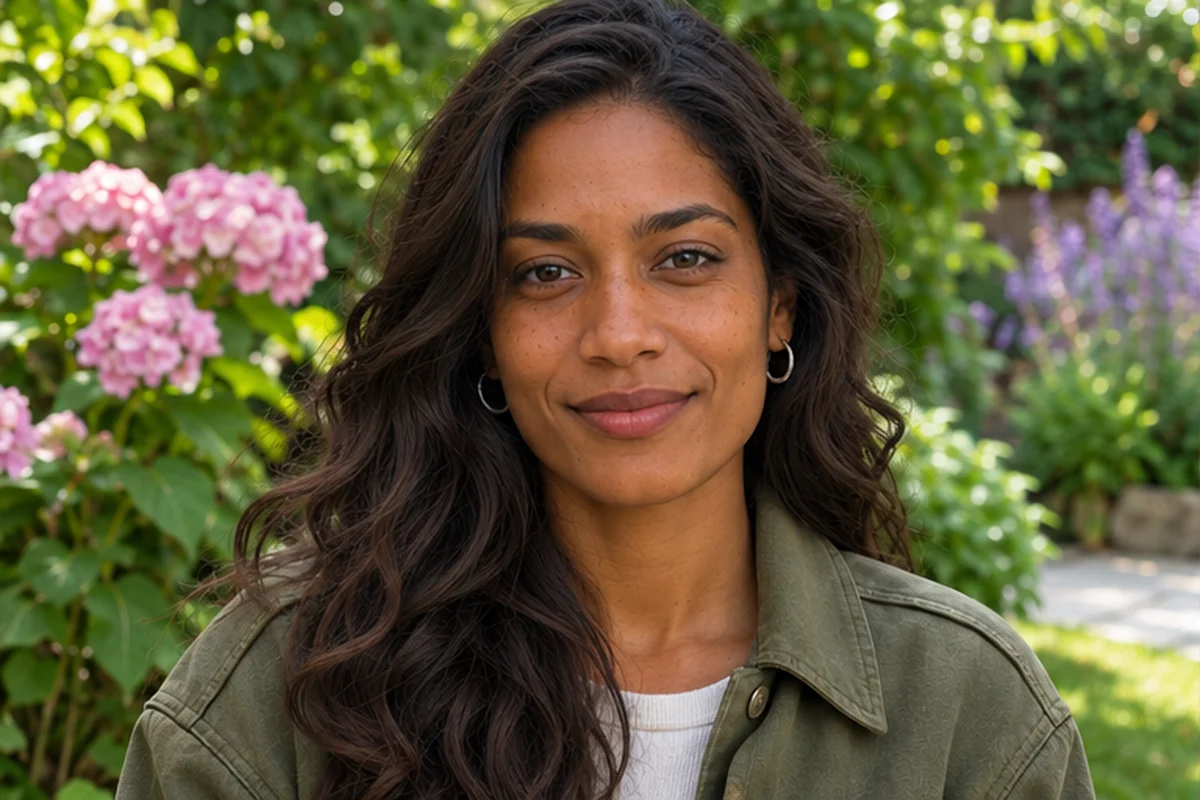
Explore iSmartta Face Swap Modes
Video Face Swaps for Moving Clips
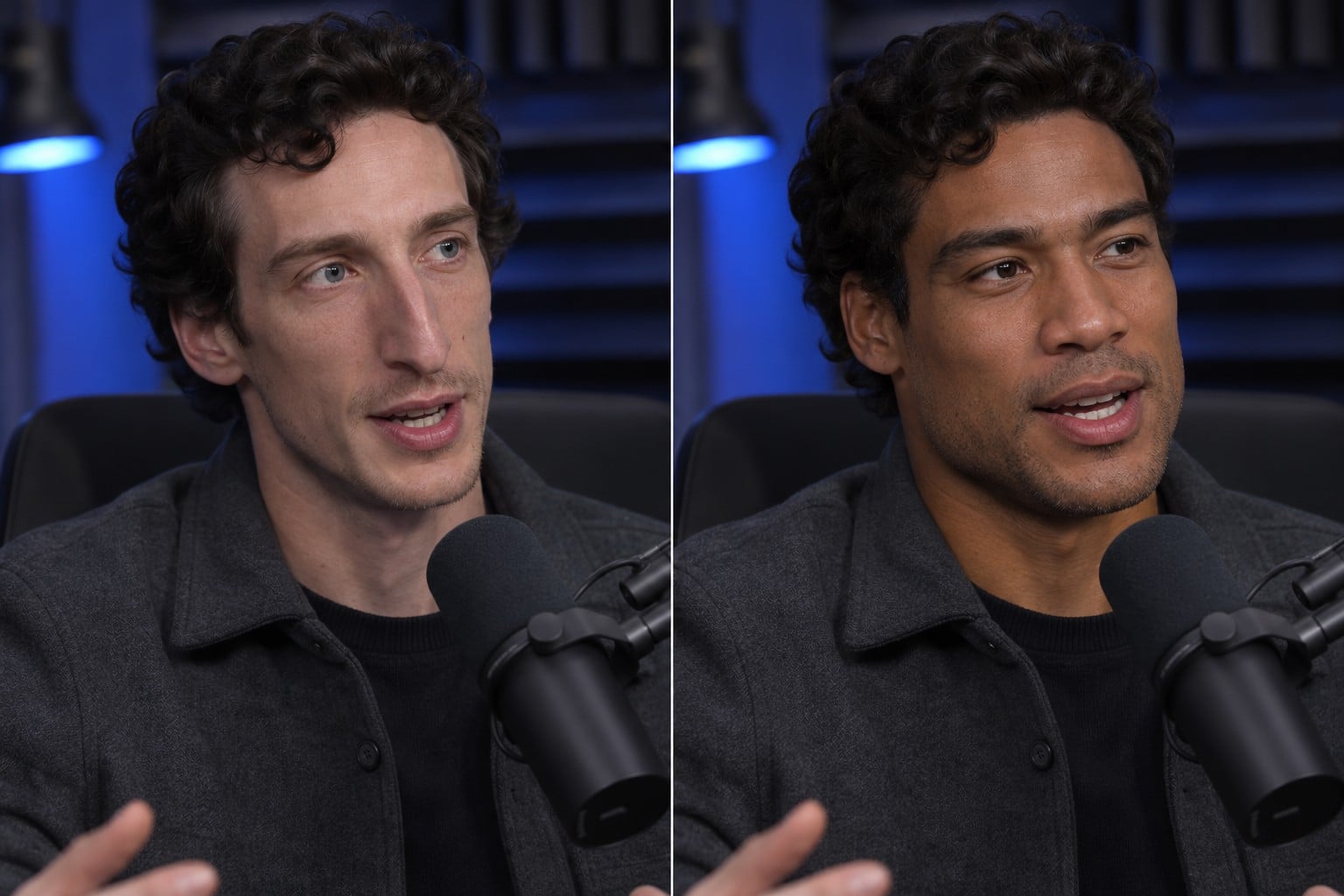
The iSmartta feature page includes video face changing for short moving scenes as well as still portraits. Add the target clip and source face in the video workflow, then review the result at several points. Watch for changes during turns, speech, and motion, since facial placement can look different from one frame to the next. Check the current listing for upload and duration details before choosing a clip. Review the full sequence before exporting the edited clip.
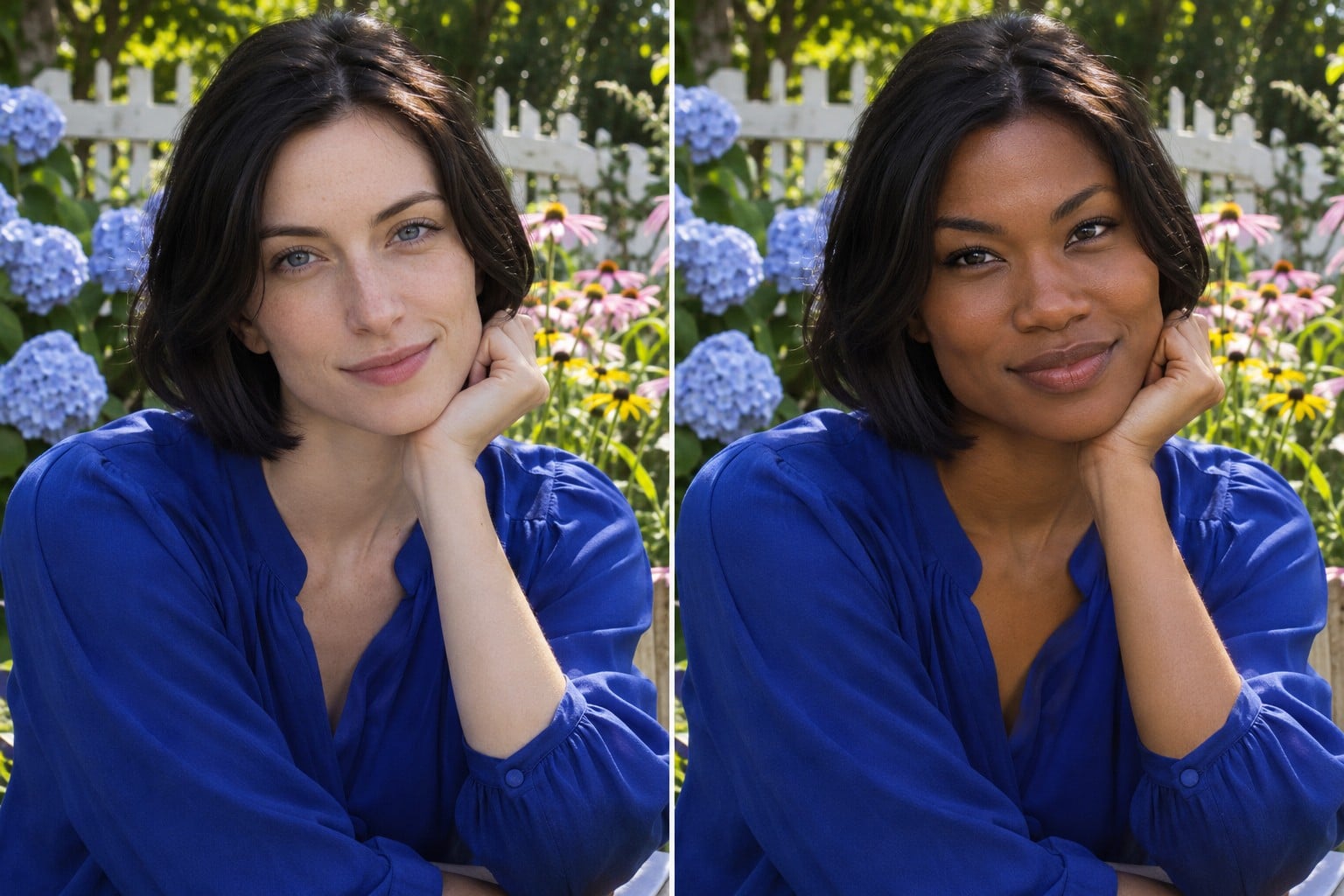
GIF Face Swaps for Animated Reactions
iSmartta lists GIFs among its face-changing use cases. A short loop can carry an expression or reaction that a still image cannot, so preview the entire animation before saving. Check that the face remains aligned across frames and that the return to the first frame does not create a noticeable jump. Use the GIF workflow for animated media and assess it at normal playback speed. Watch at normal playback speed before exporting the finished animation.
Single-Object and Multi-Object Processing
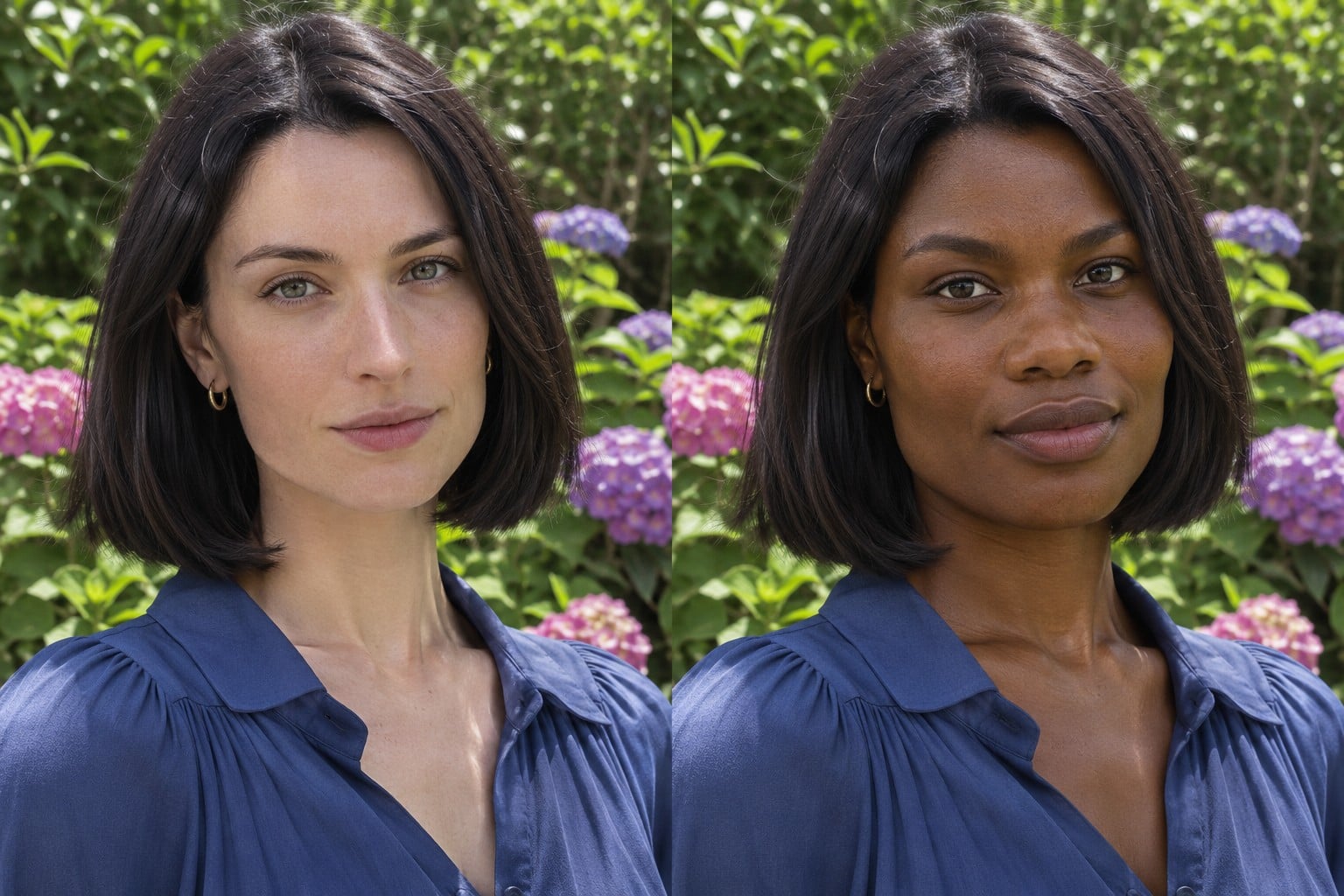
The iSmartta page presents single-object and multi-object choices for face changing. Single-object processing focuses on one target person, while multi-object processing is intended for a target with more than one person. Review each source-to-target mapping in a group image and make sure every face is assigned as intended. For a dedicated GoEnhance group workflow, see the multiple face swap page. This distinction helps when planning edits for portraits, group photos, and other targets with more than one visible face.
Explore More Face Swap Tools
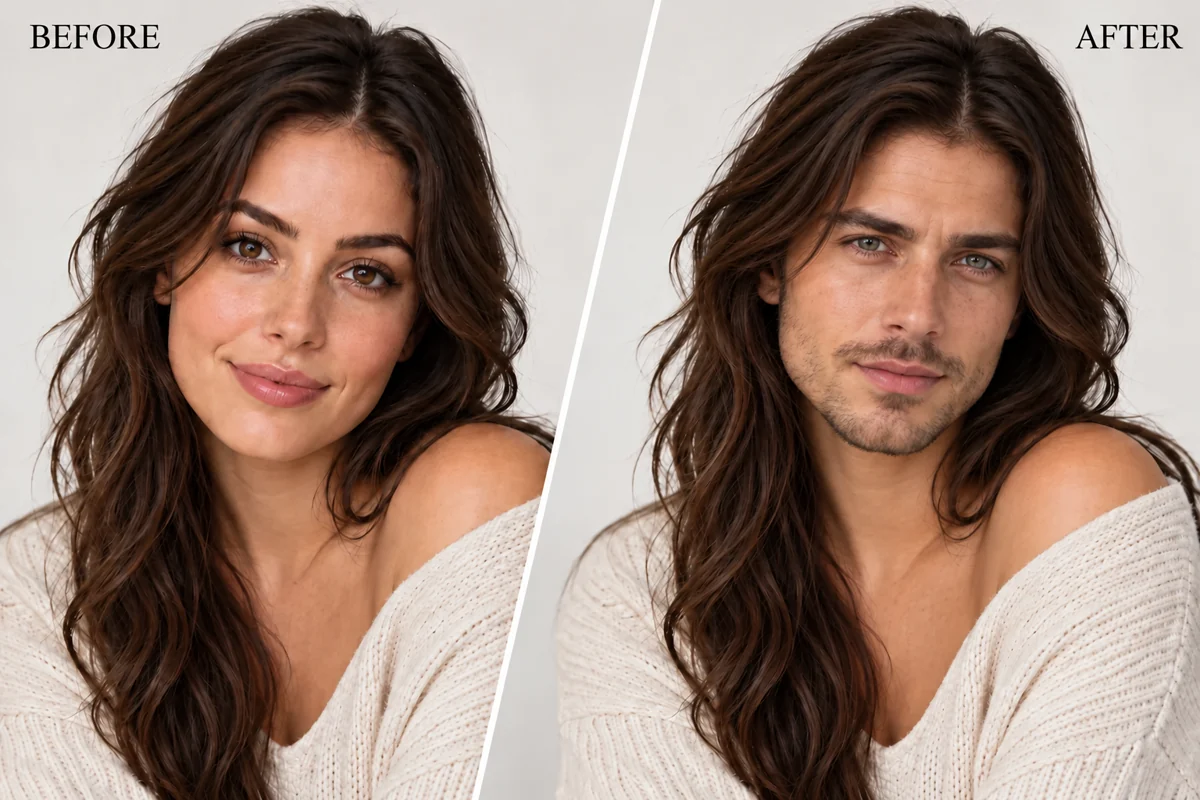
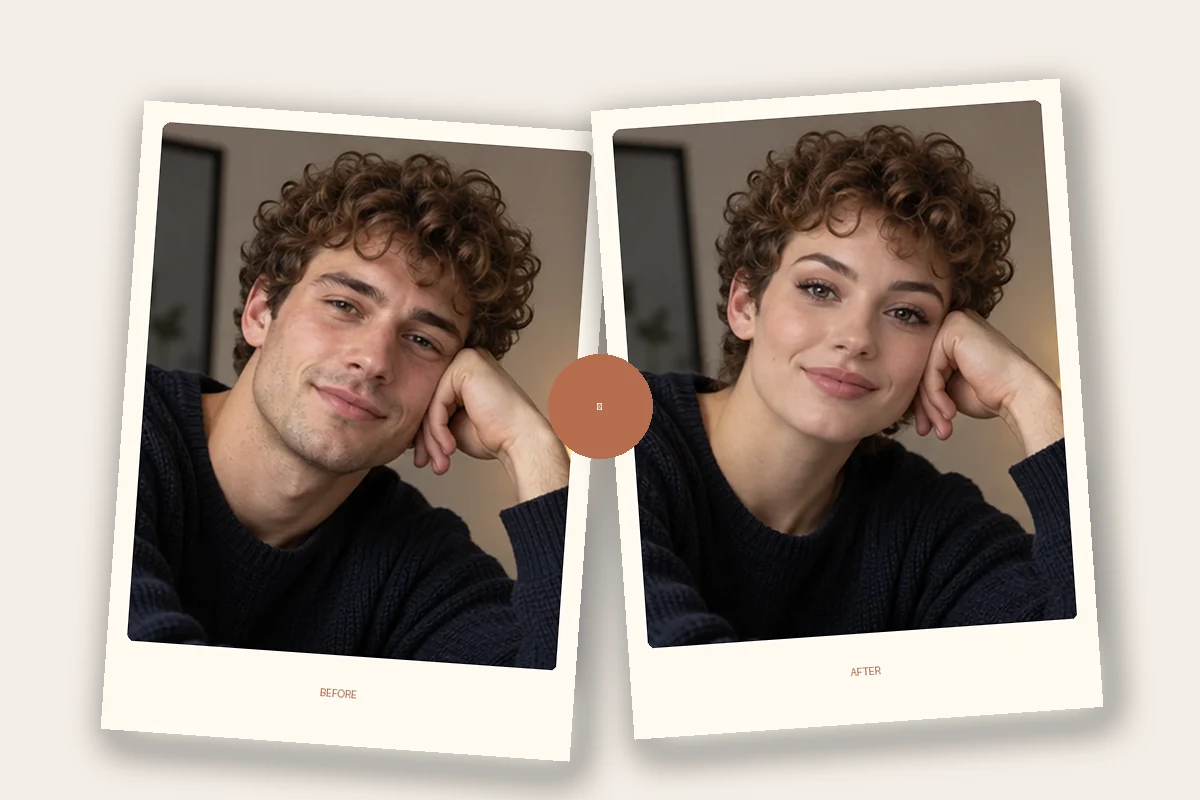
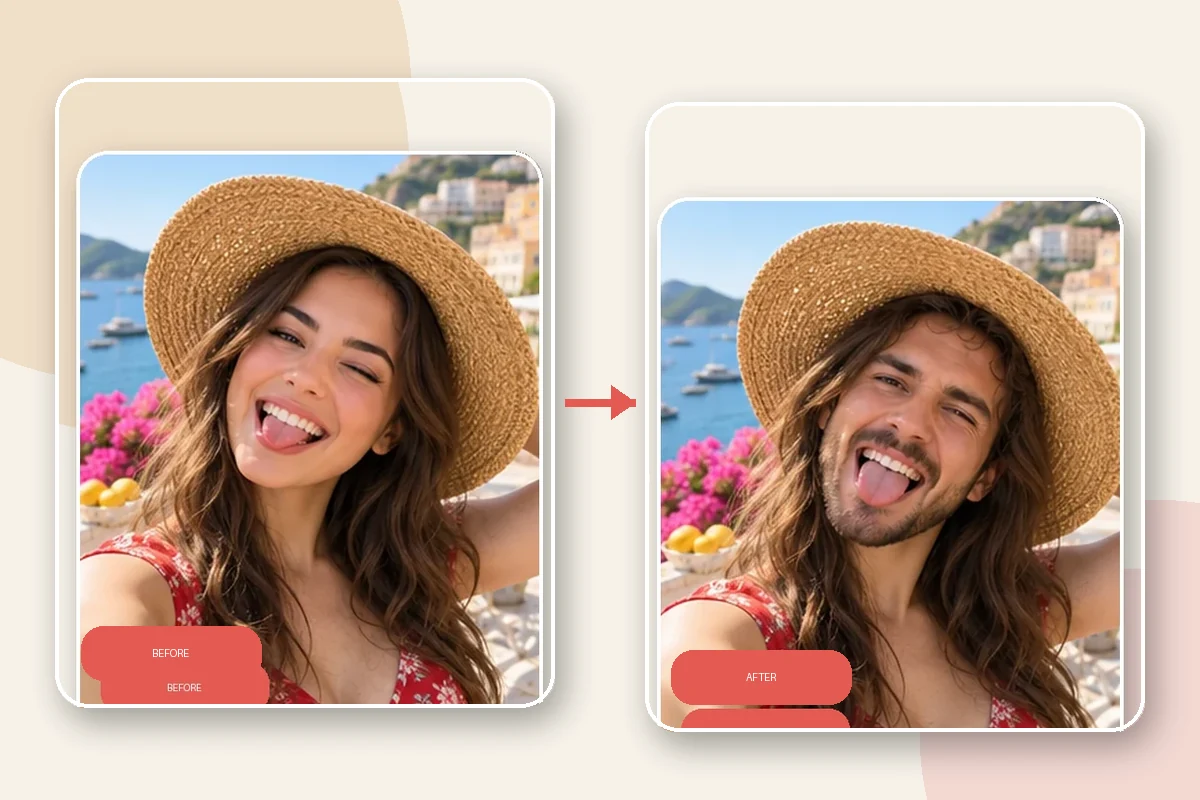
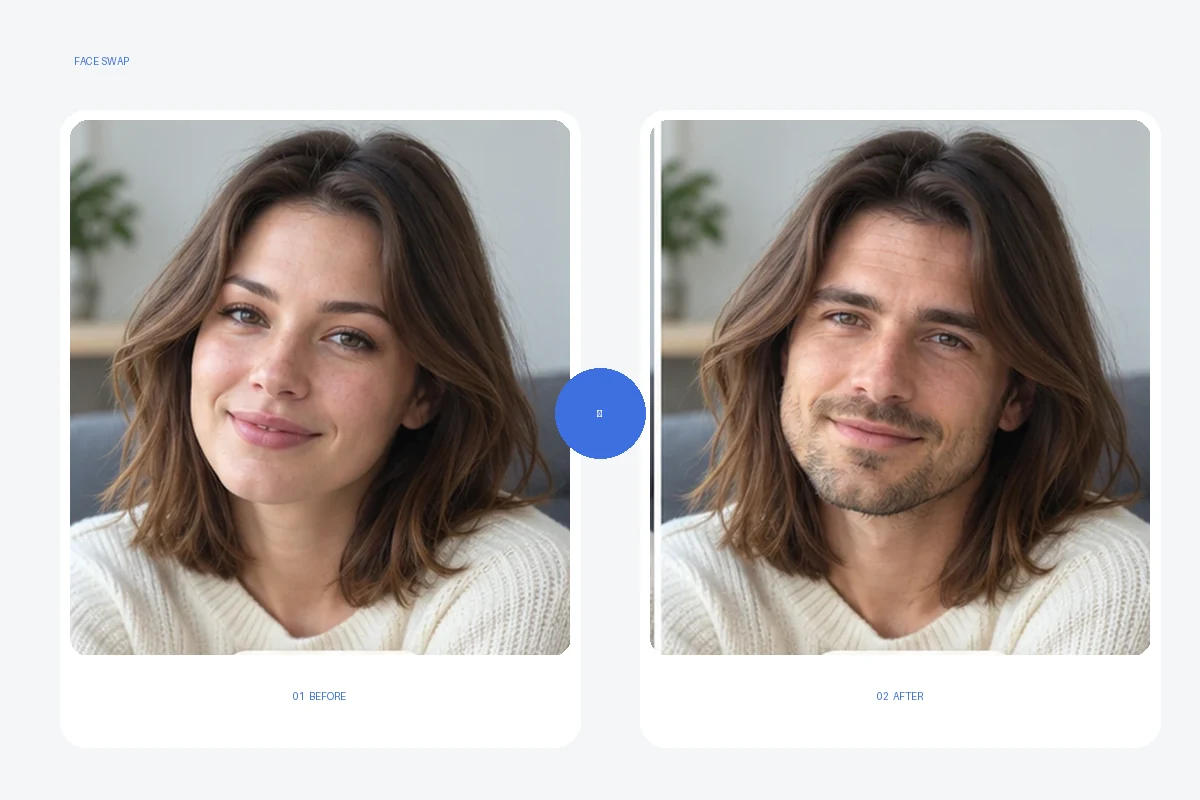
What You Can Do with iSmartta Face Swap
Photo Face Changing
Video Face Changing
GIF Face Changing
Single-Object Mode
Multi-Object Mode
Preview Before Saving
iSmartta Face Swap FAQ
What Is iSmartta Face Swap?
Is iSmartta Face Swap Free?
How Do I Use iSmartta Face Swap?
Can iSmartta Swap Faces in Photos, Videos, and GIFs?
What Is the Difference Between Single-Object and Multi-Object?
How Can I Get a More Natural Face Swap?
What File Types and Limits Are Supported?
Can I Share or Publish an iSmartta Face Swap?
Create a Photo or Video Face Swap
Open GoEnhance face swap, add a target image or clip and a source face, then preview your result.
Try GoEnhance AI face swap