
Fotor Face Swap Features for Photos and Videos
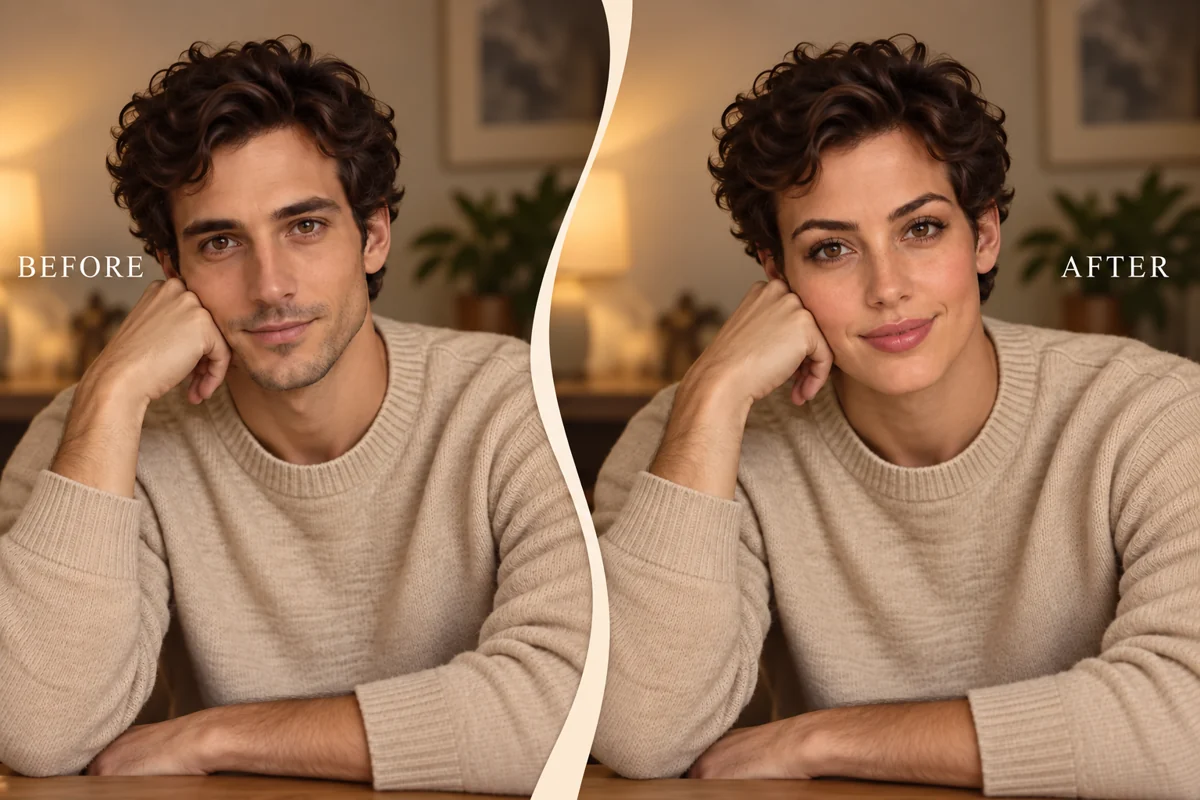
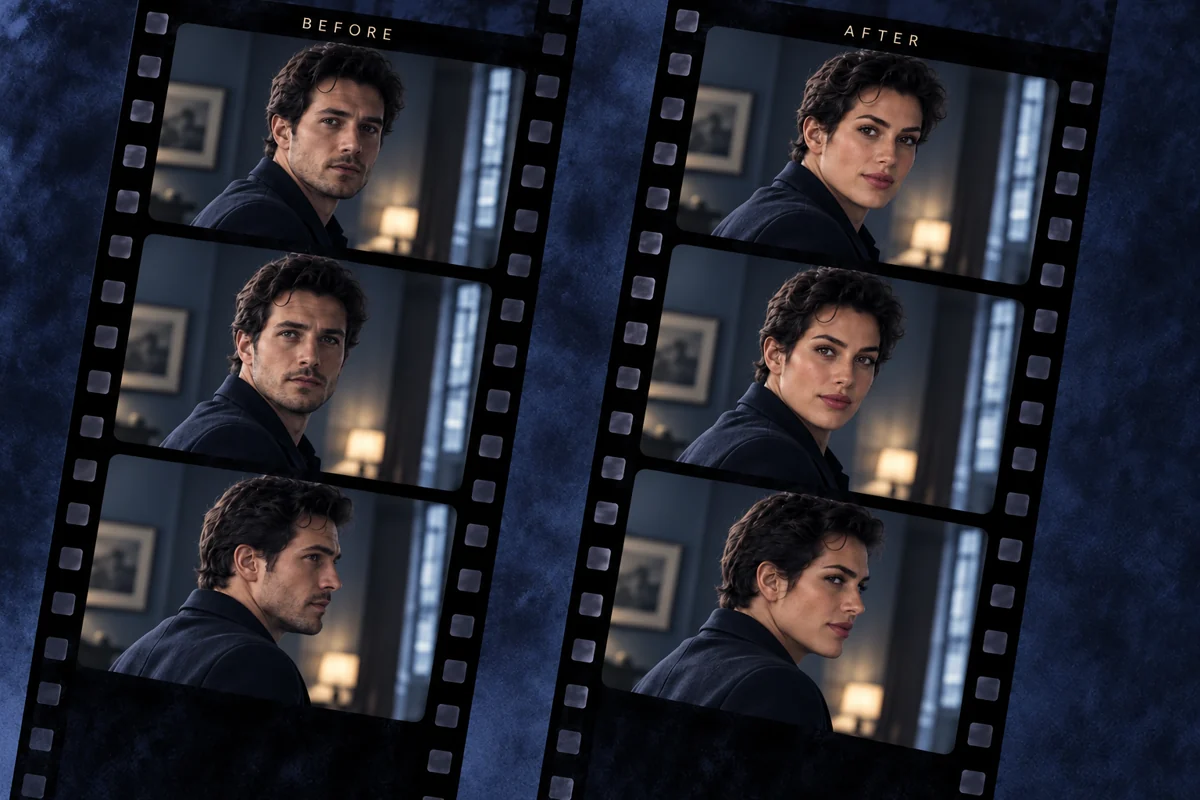
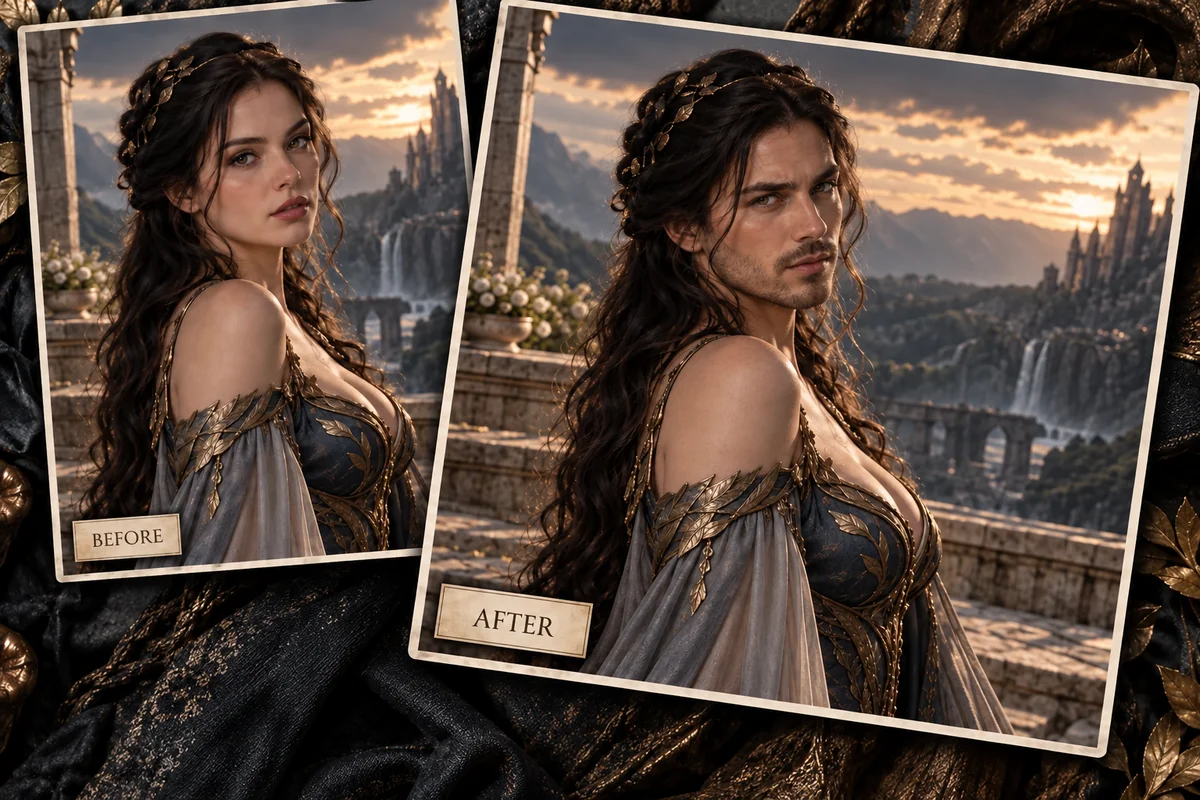
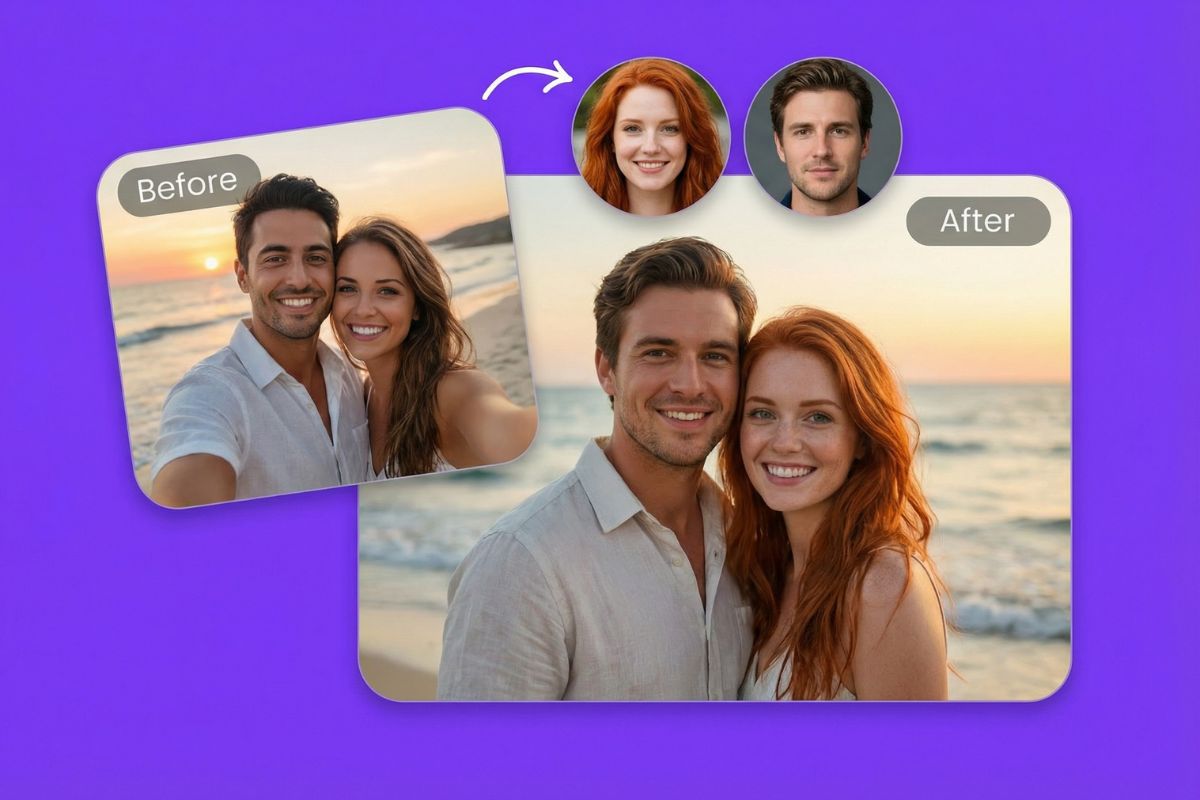
Fotor offers single-person photo swaps, multi-person swaps for up to five faces in one photo, and video face swapping. Its Face-in-Hole tool places a selfie into themed images and blends facial features and expression into the target. Use it for playful portraits, character scenes, costumes, and seasonal edits without manual cutouts.
Try Face Swap Online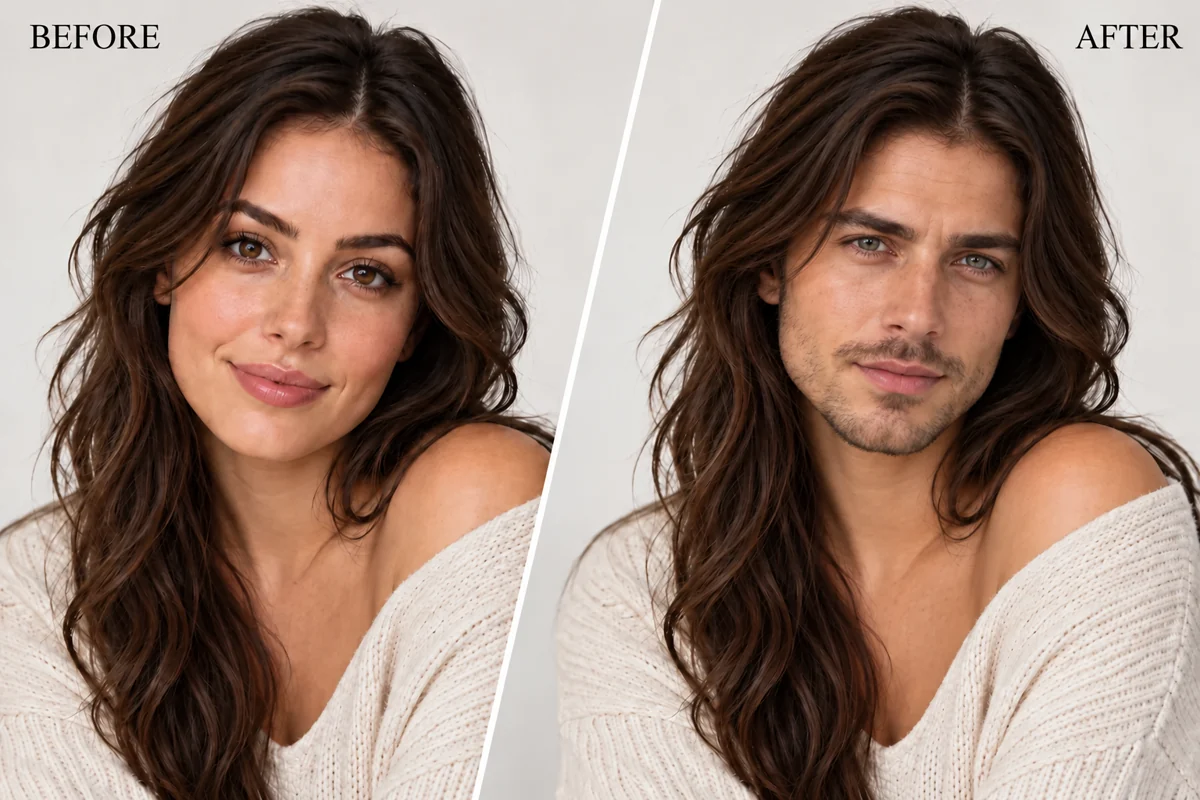
Fotor Face Swap Features and Benefits
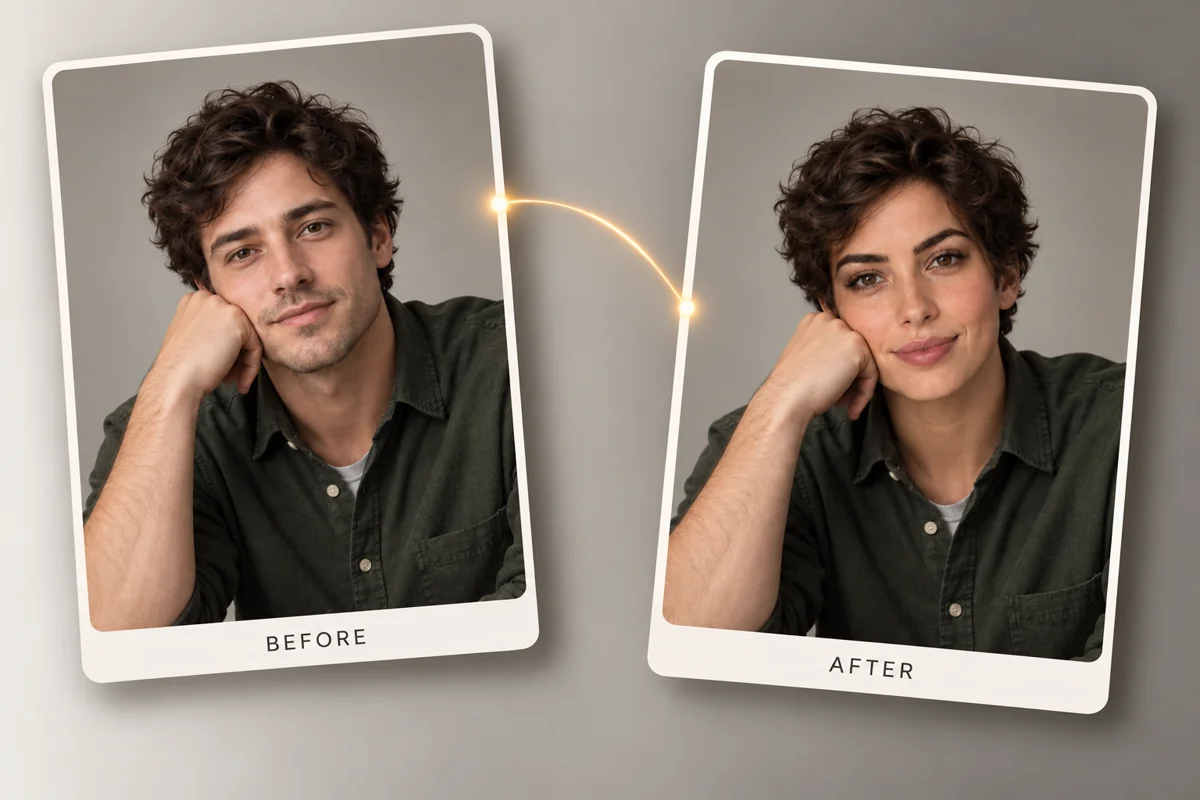
How to Use Fotor Face Swap
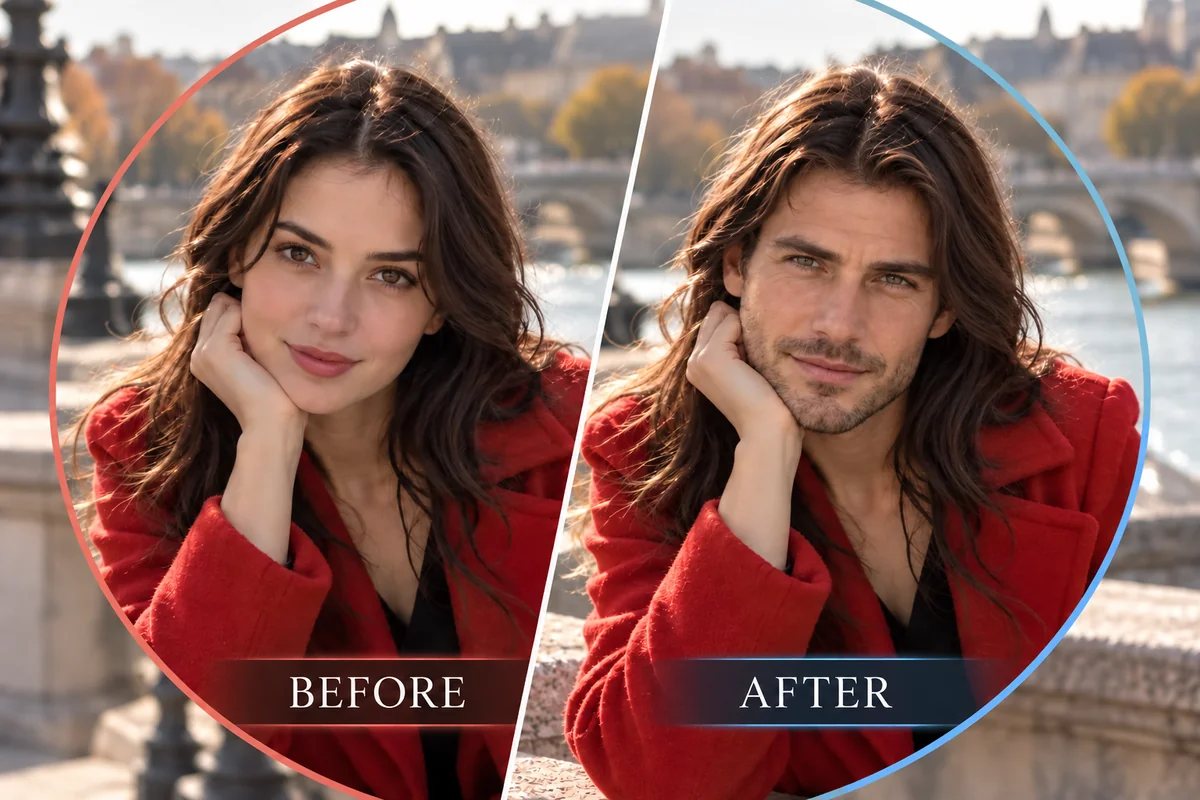
Step 1 1
Choose a Clear Source Face
Upload a front-facing, well-lit selfie where the facial features are easy to see. Fotor recommends clear lighting and an unobstructed face for its face-in-hole edits.
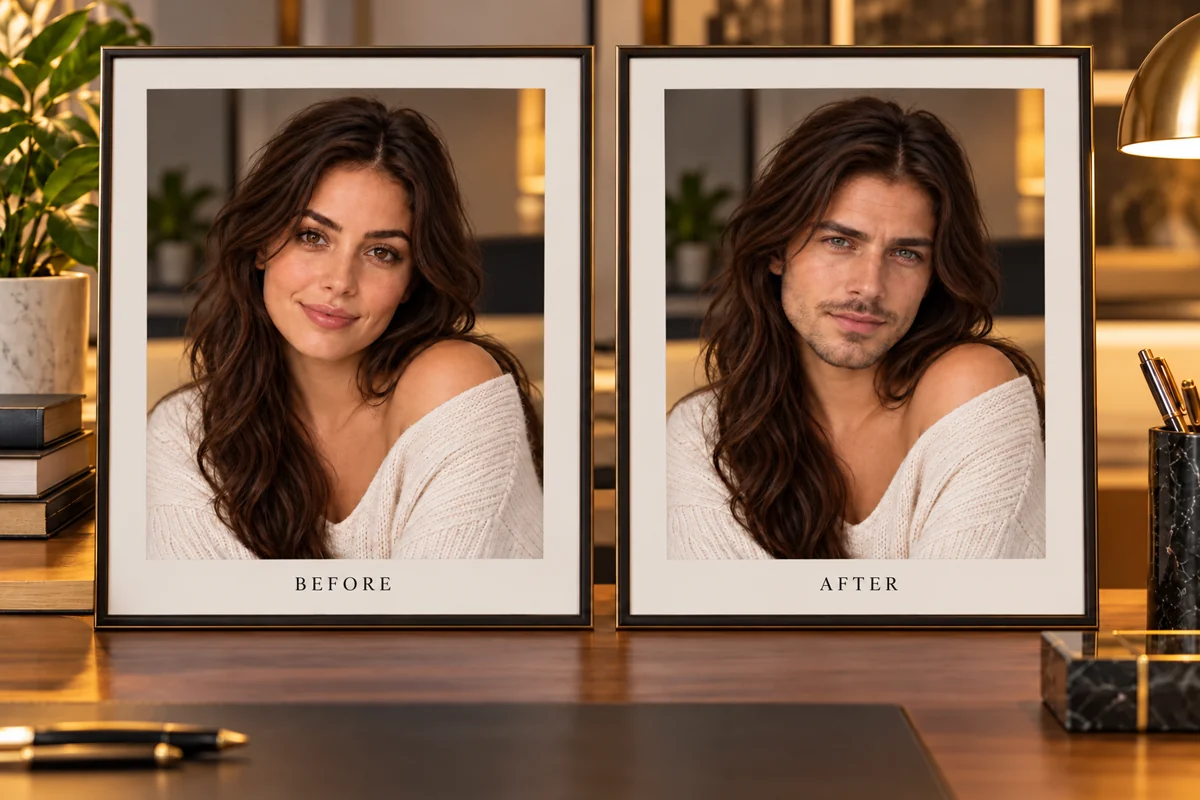
Step 2 2
Add a Target Photo or Video
Choose an image, themed template, or clip as the target, depending on the kind of face swap you want to make.
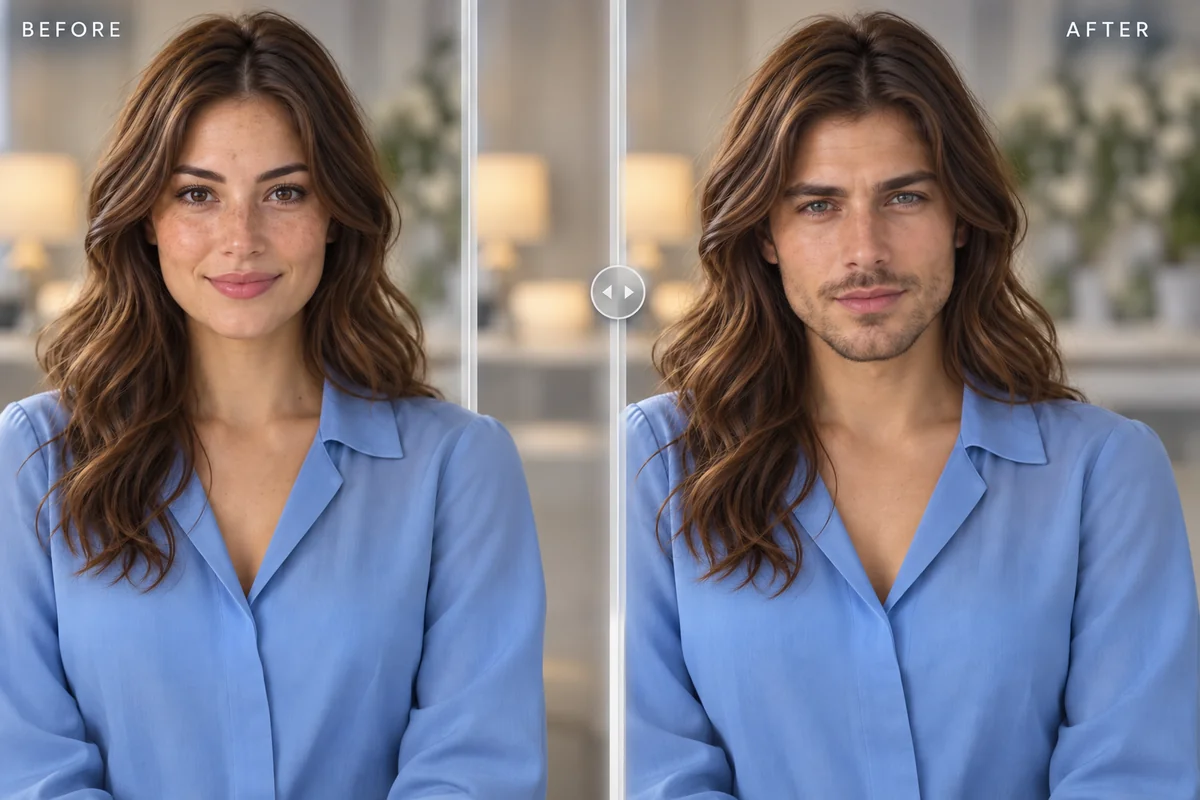
Step 3 3
Generate and Review the Edit
Generate the face swap, review how the face fits the target scene, then download or share the result when it looks right.
Explore More Face Swap Tools
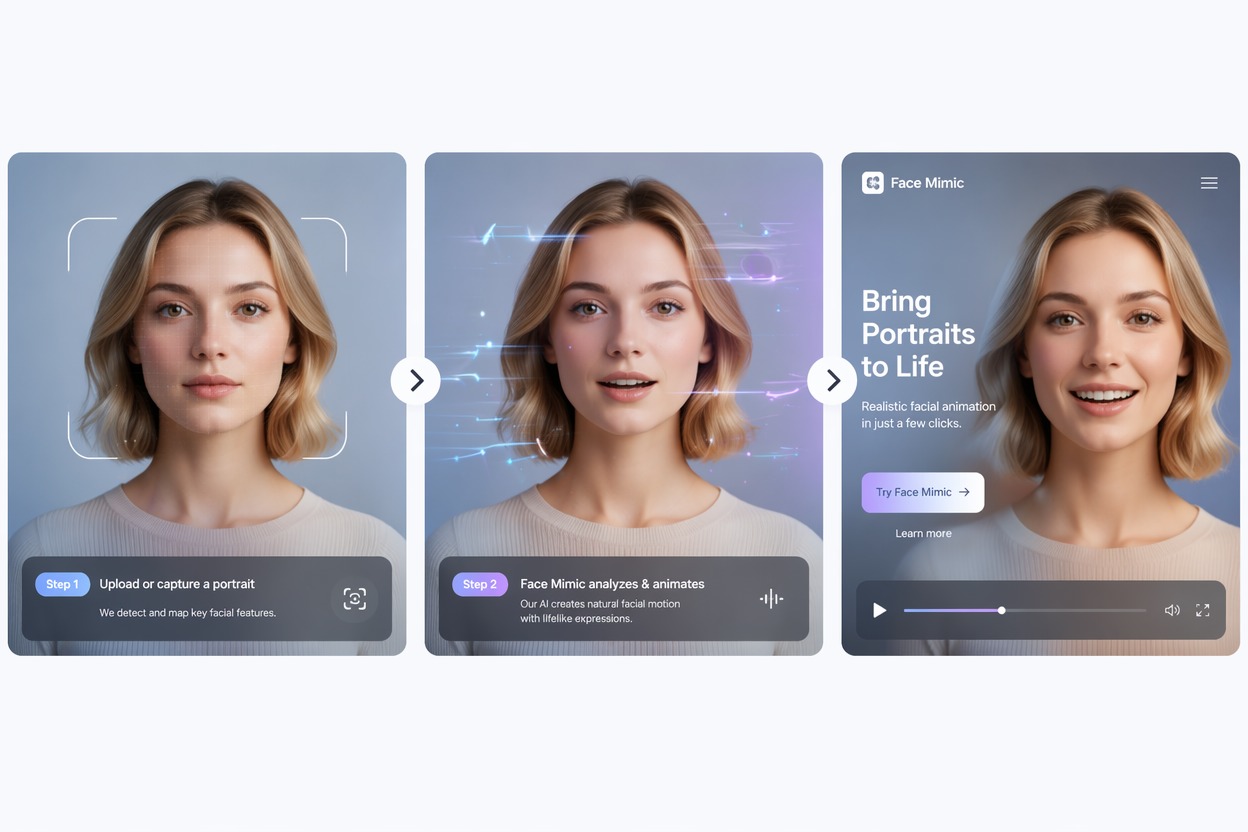
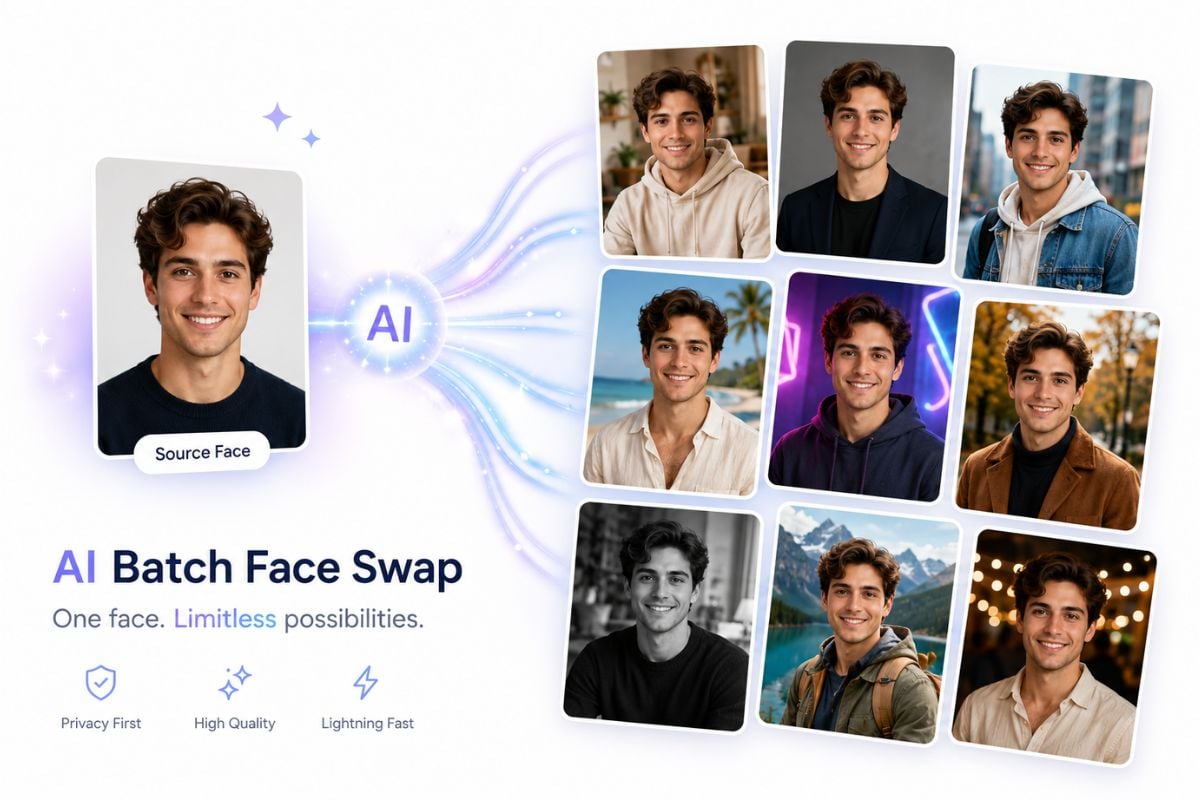
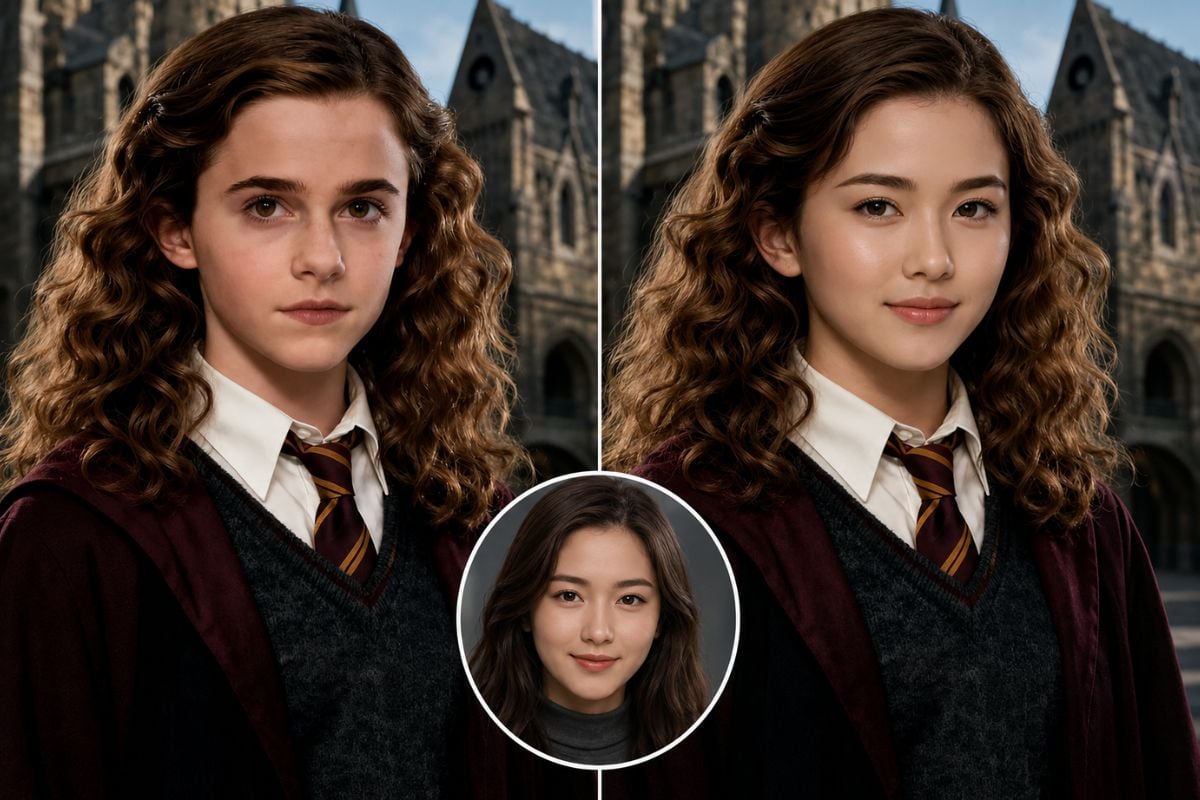
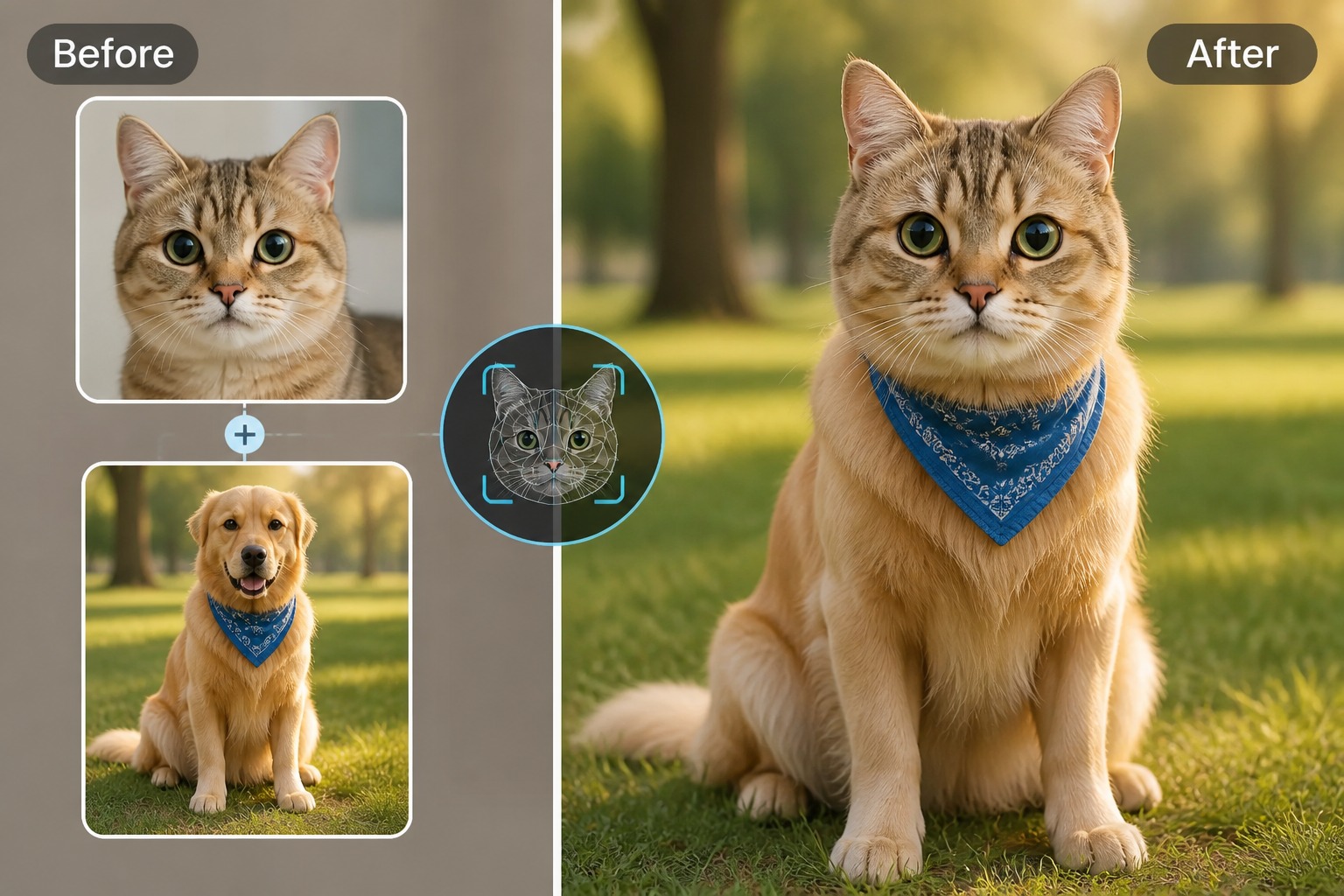
Where GoEnhance Face Swap Stands Out from Fotor
GIF Face Swaps Alongside Photo and Video
Fotor's documented face-swap categories cover photos and video. GoEnhance also supports GIF face swaps, giving you an animated target format for reactions and short loops.
More Named Face-Swap Modes
GoEnhance lists Faces & Heads, Male/Female, Famous Face, and Portrait Painting modes. These ready-made directions make it easier to choose a specific style for a clip or image.
A Simple Source-and-Target Flow
Upload a source face, add a target image or clip, and generate. The three clear steps make it easy to start a swap without manual masking.
Open API for Face-Swap Integrations
GoEnhance advertises an Open API for connecting face-swap technology to apps and production workflows, with automation options for teams and developers.
30 Free Tokens to Try
GoEnhance offers 30 free tokens for trying face-swap images and videos, so you can test the workflow before choosing a paid plan.
Ready-Made Ideas for Creators
GoEnhance groups everyday photos, memes, paintings, movie characters, and short-video ideas under its face-swap tool, making it quick to explore different creative directions.
Fotor Face Swap Online Free: FAQ
What is Fotor face swap?
Can I try Fotor face swap online free?
How do I swap a face in a photo?
What kind of source face photo works best?
Can I use my own video as the target?
Why can a face swap look unnatural?
Does GoEnhance support GIF face swaps?
Create a Photo or Video Face Swap
Start with a clear source face, choose a target photo or clip, then review your GoEnhance AI face-swap result before sharing.
Try GoEnhance AI Face Swap