AI Ease Face Swap

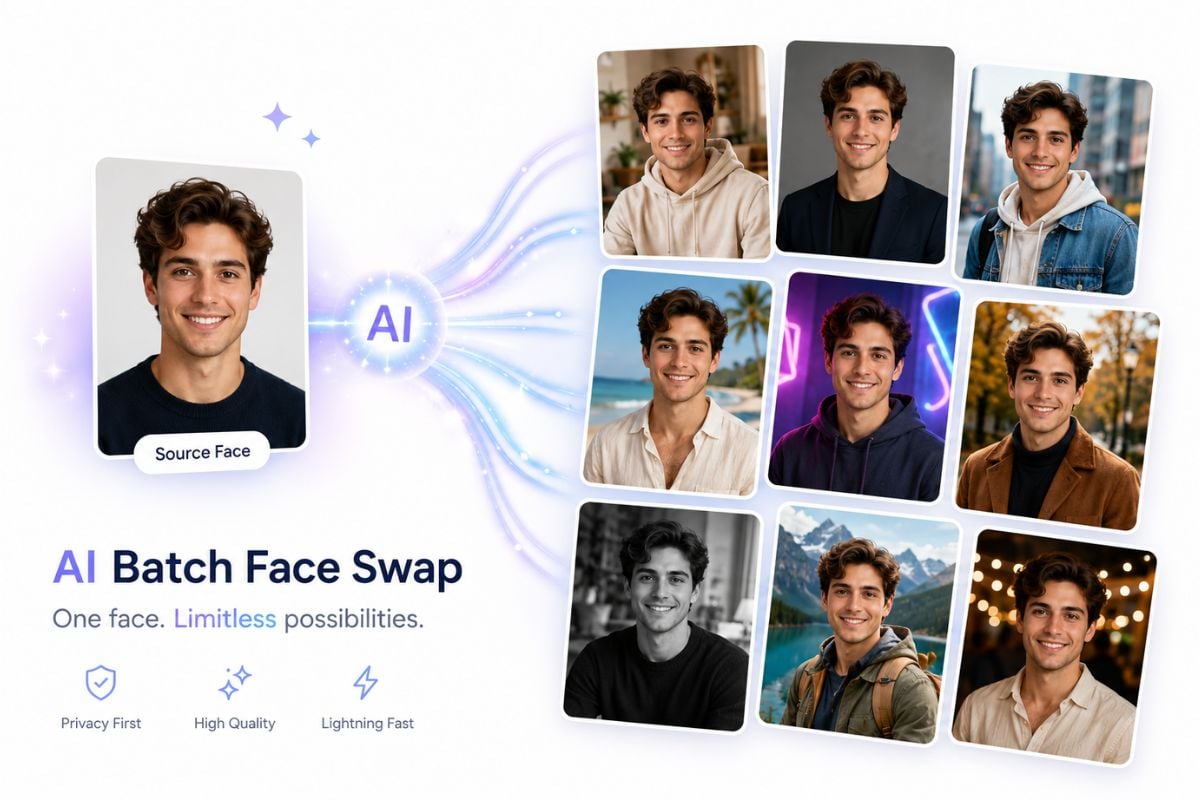
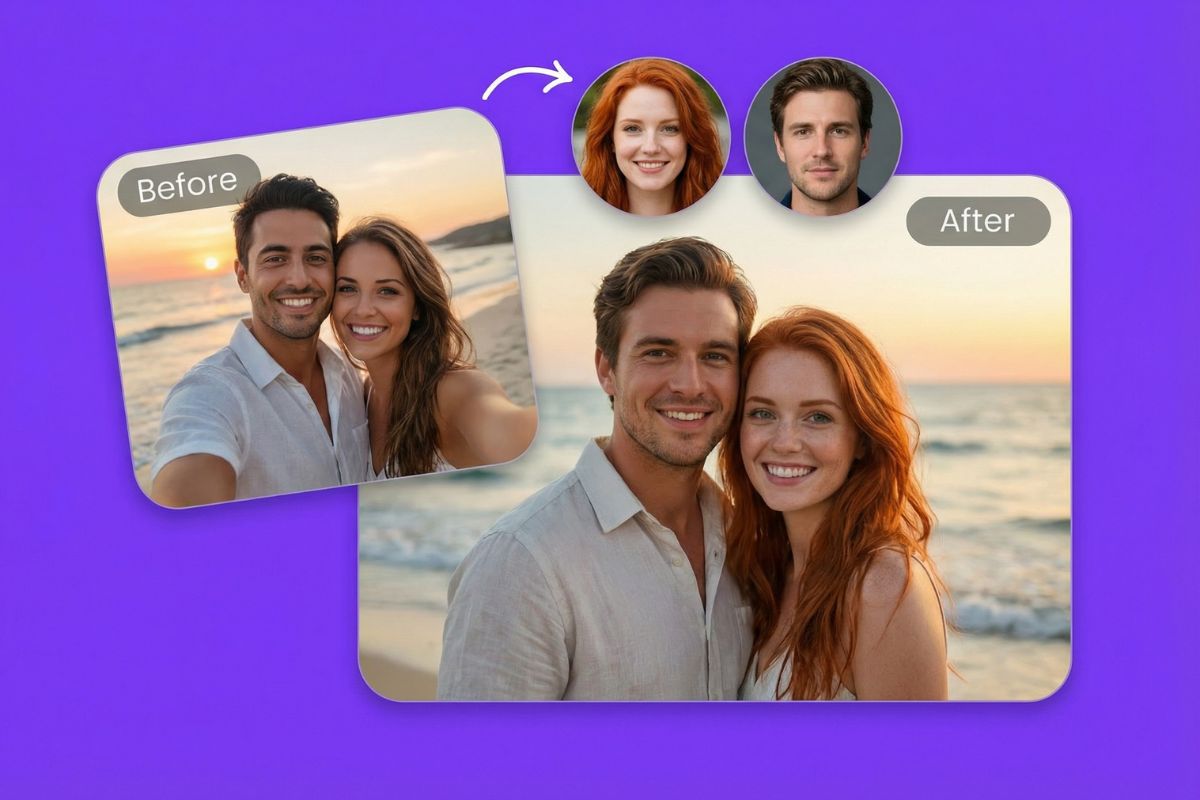
AI Ease face swap supports photo edits, multi-face swaps, and video scenes. Upload a face source and target media, or choose a template when you want to start from a ready-made idea.
Try Face Swap Online
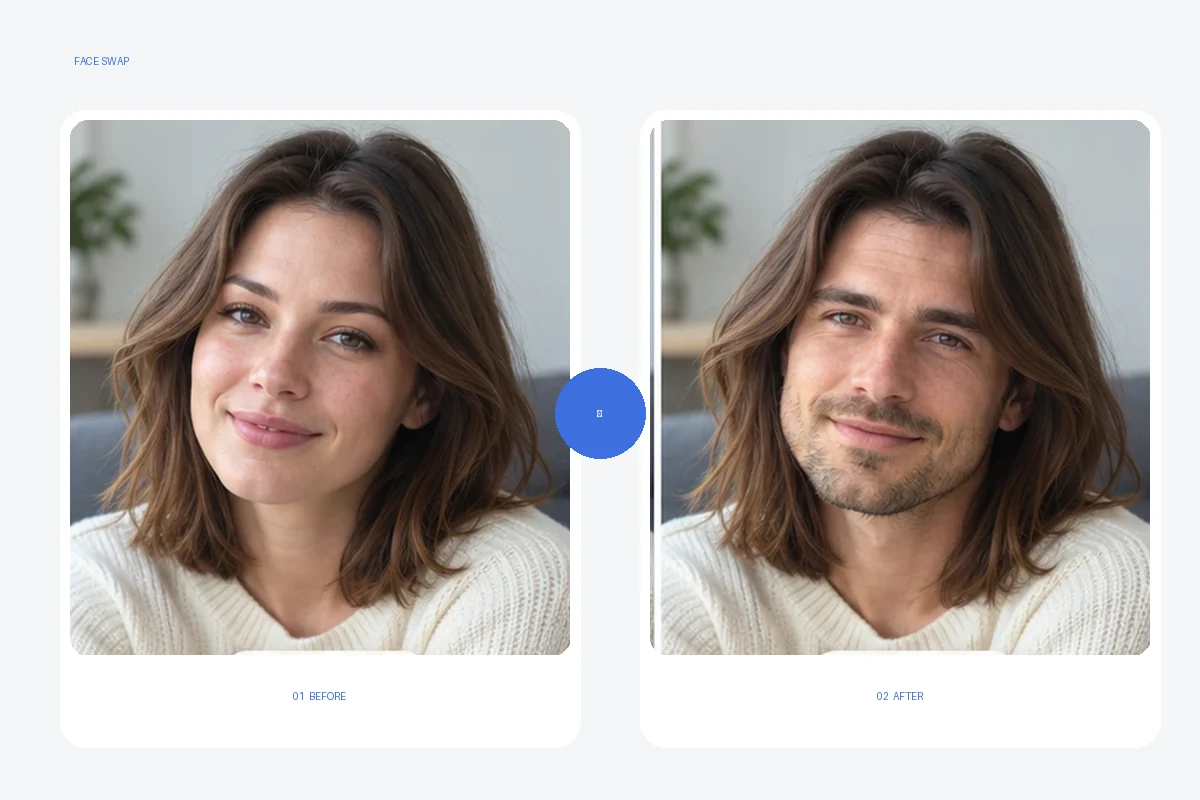
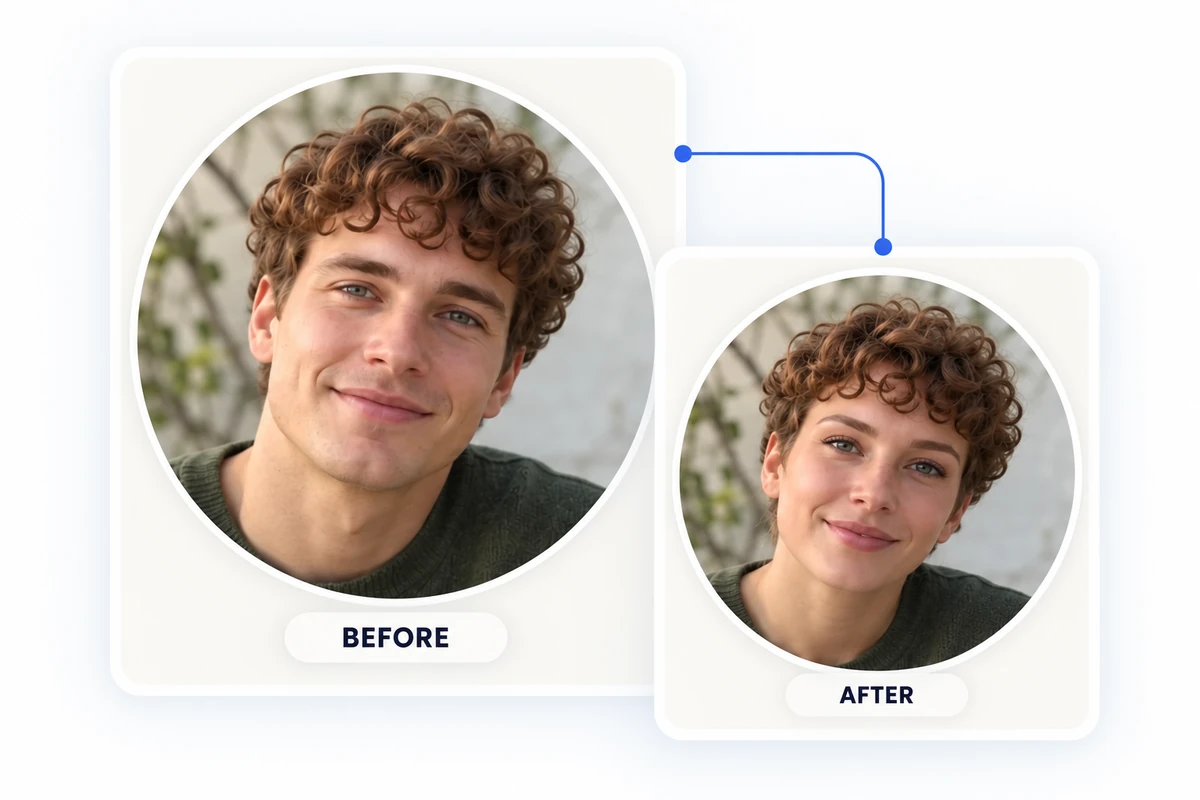
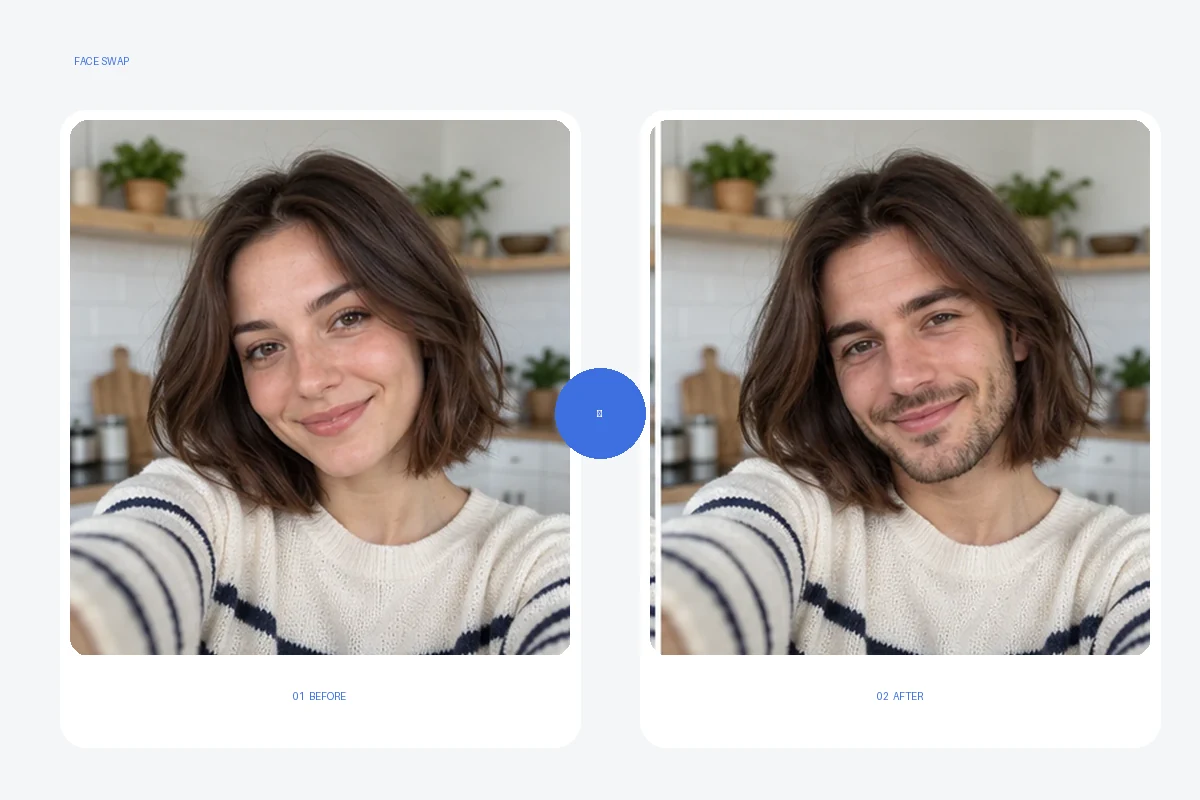
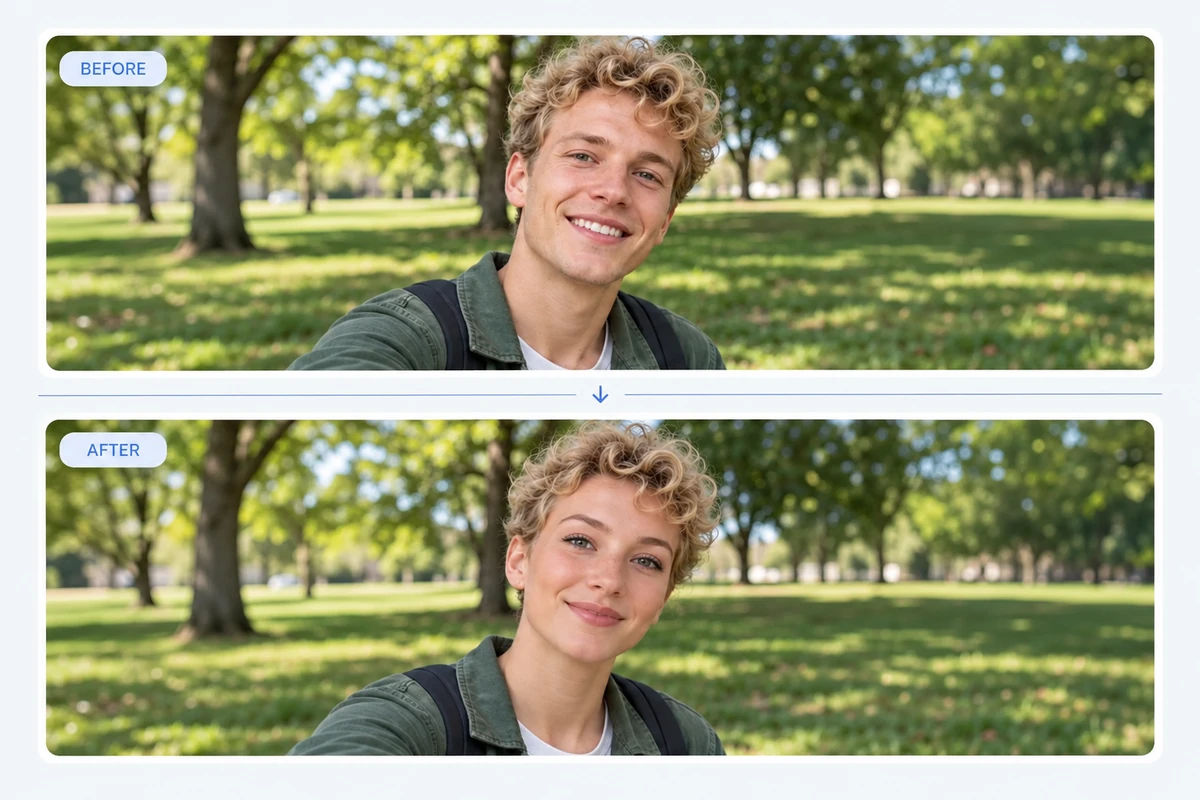
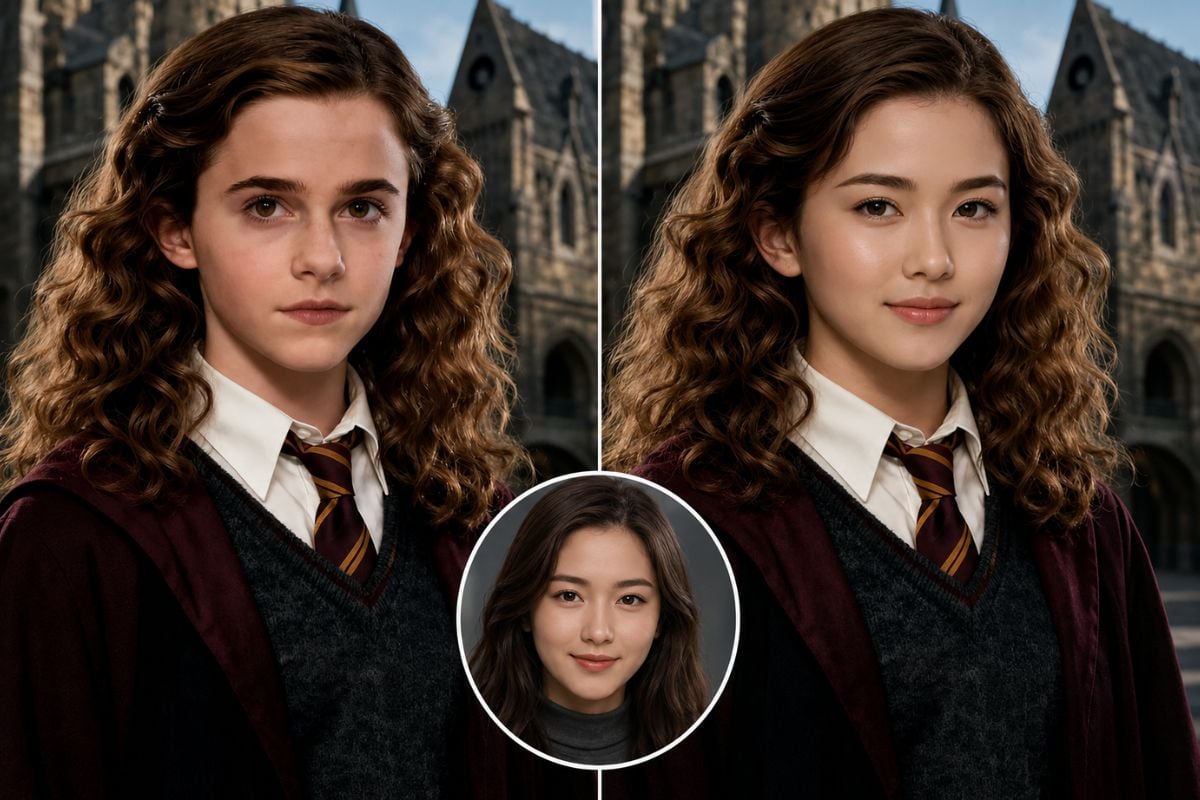
Before-and-after AI Ease face swap, with the target hairstyle and scene unchanged

AI Ease Face Swap Features

Create a Photo Face Swap

Combine a source face image with a target photo to make a new portrait, character scene, painting edit, or social post. Use the face swap tool when you want to explore how one face looks in a different visual setting.
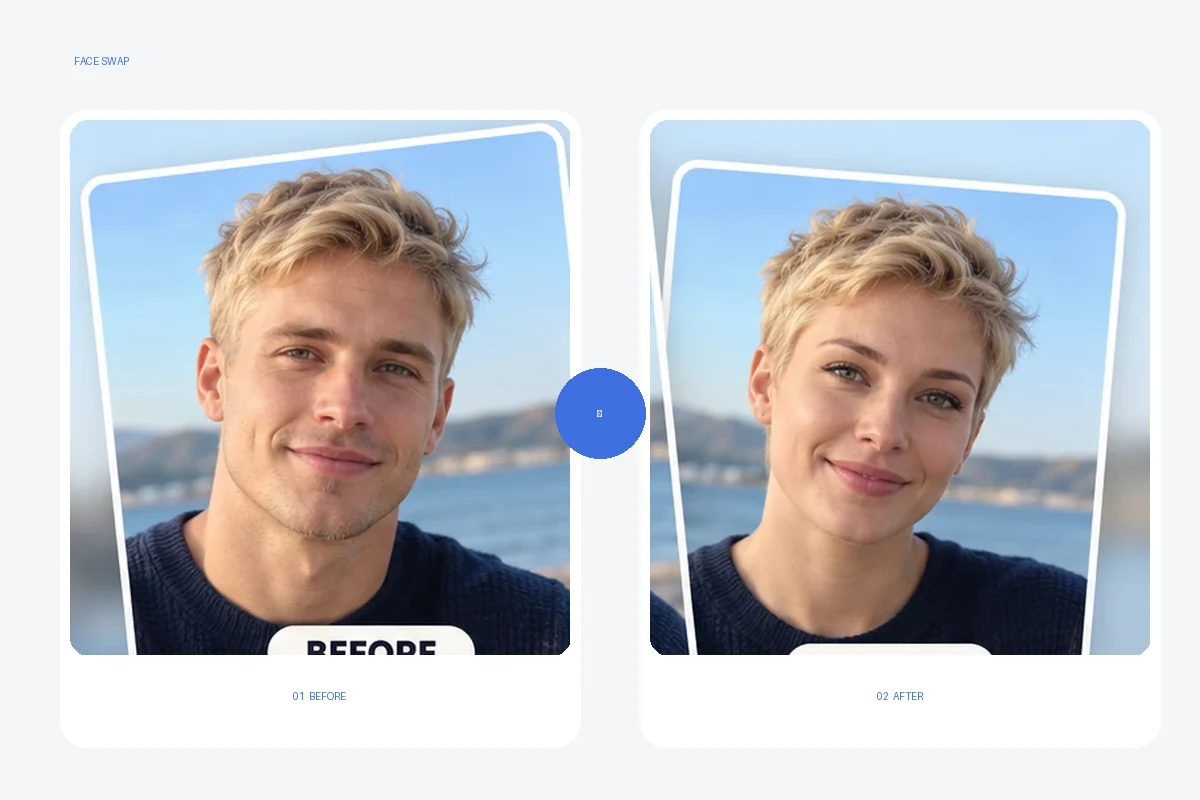
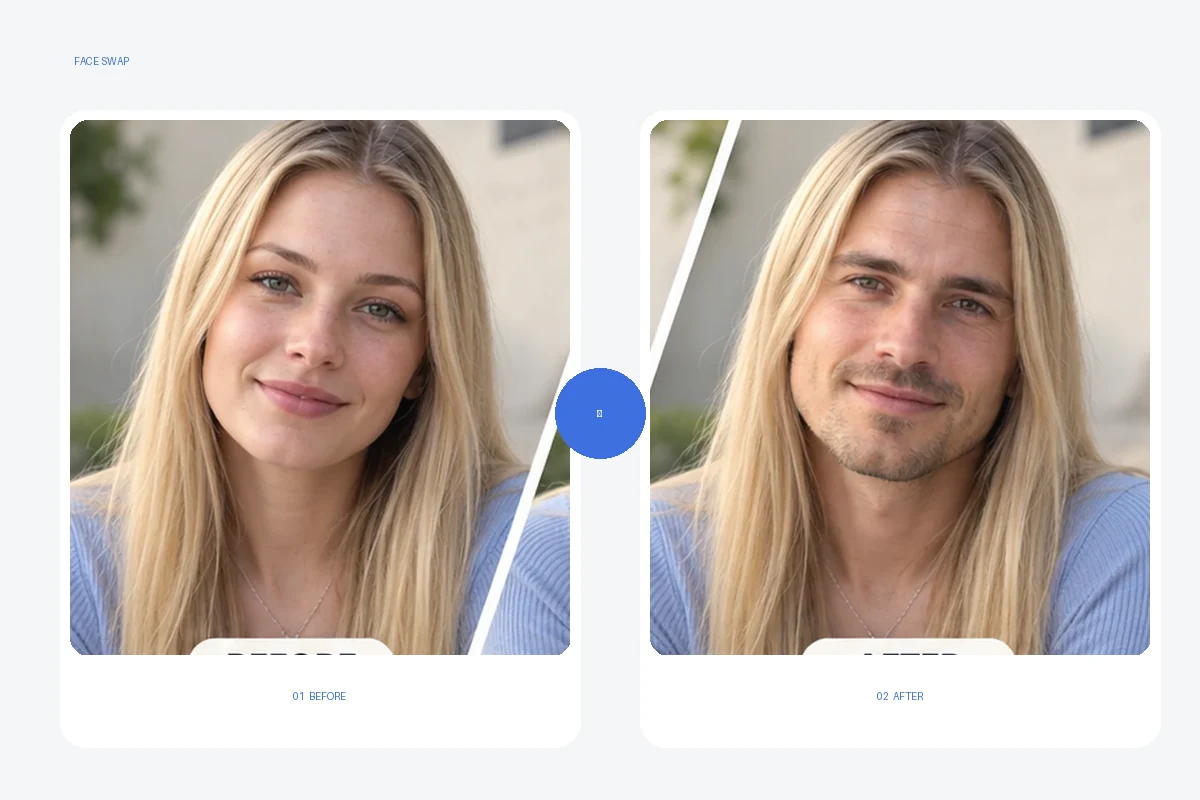
Before-and-after illustration: AI Ease create a photo face swap

Swap Multiple Faces

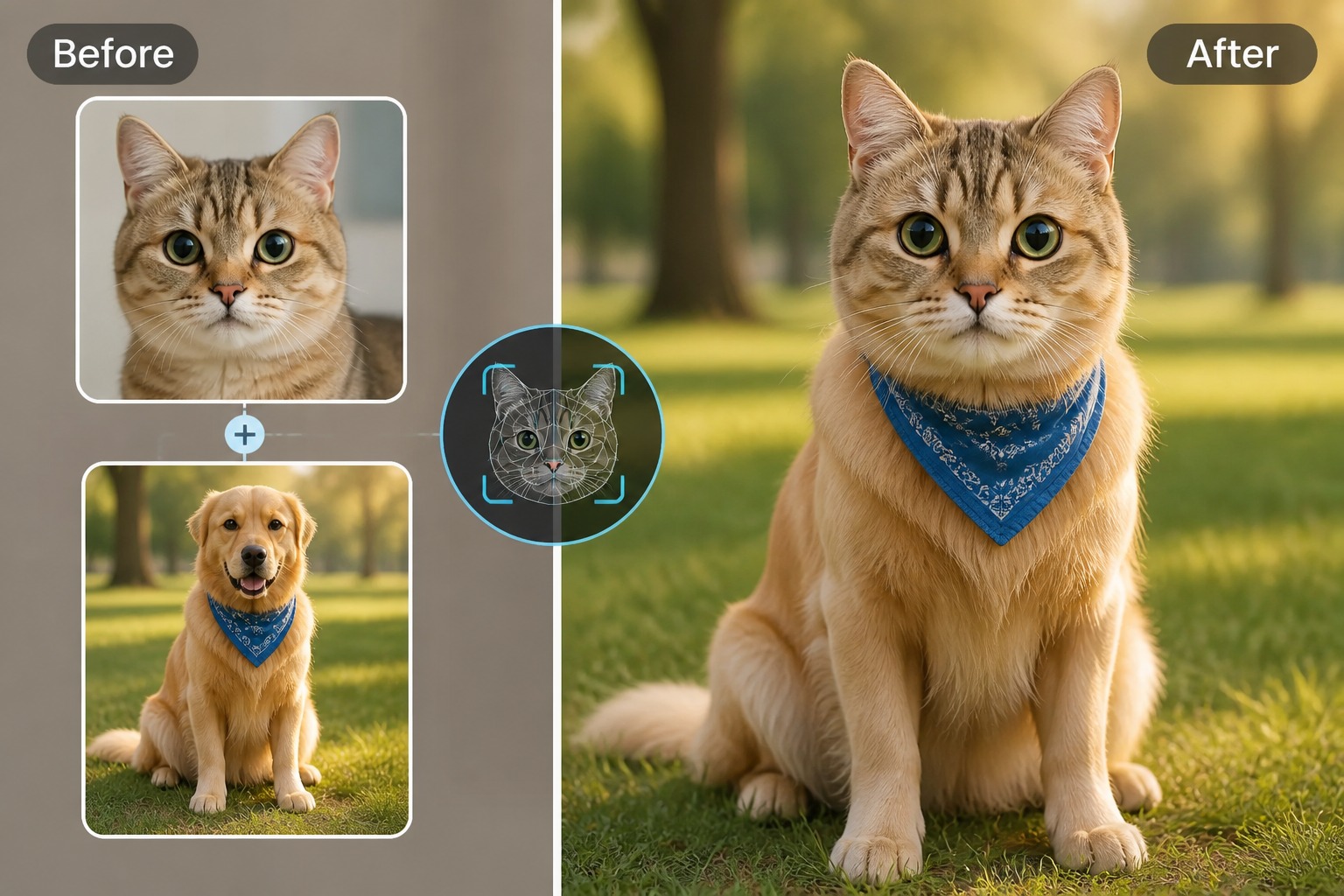
For a group image, use the multiple-face workflow when more than one person should receive a new face. Matching each target face to its source helps you plan a coordinated group edit rather than a single-person portrait.

Before-and-after illustration: AI Ease swap multiple faces

Try a Face Swap Video

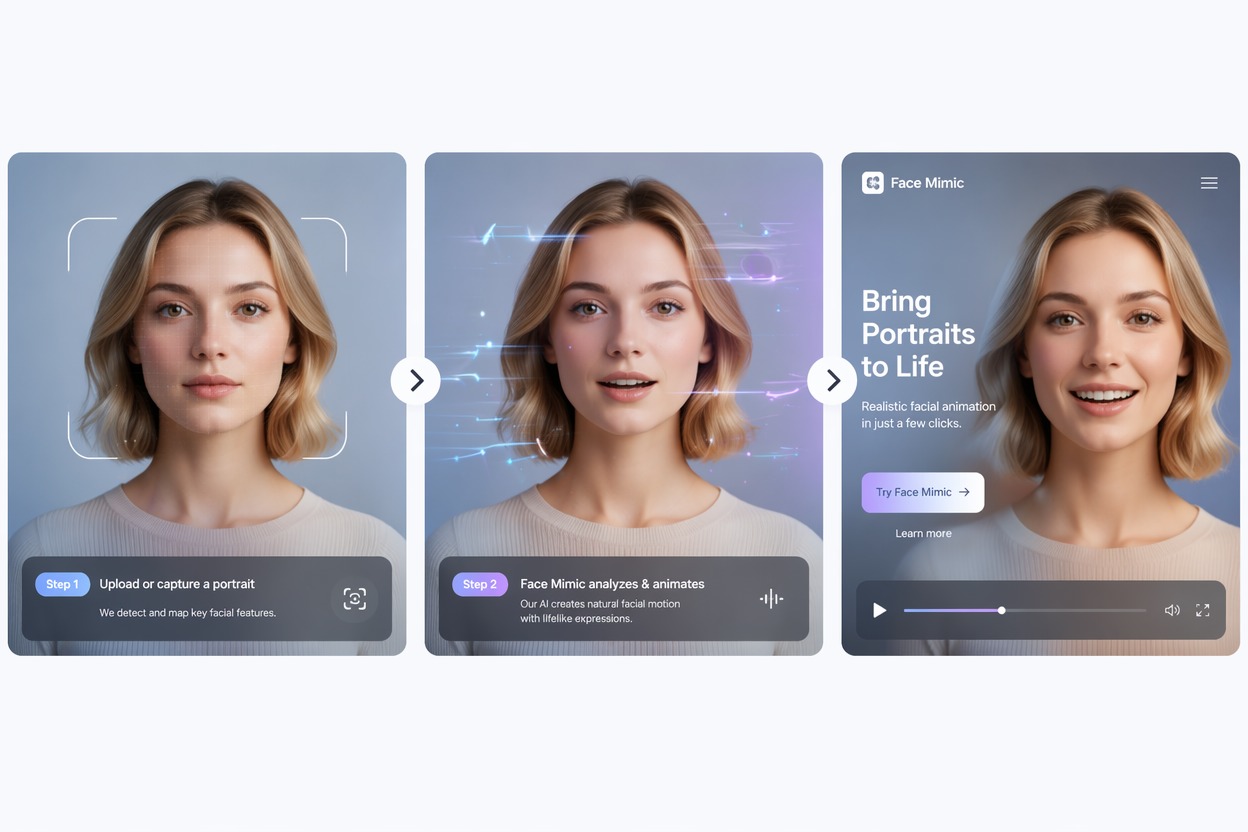
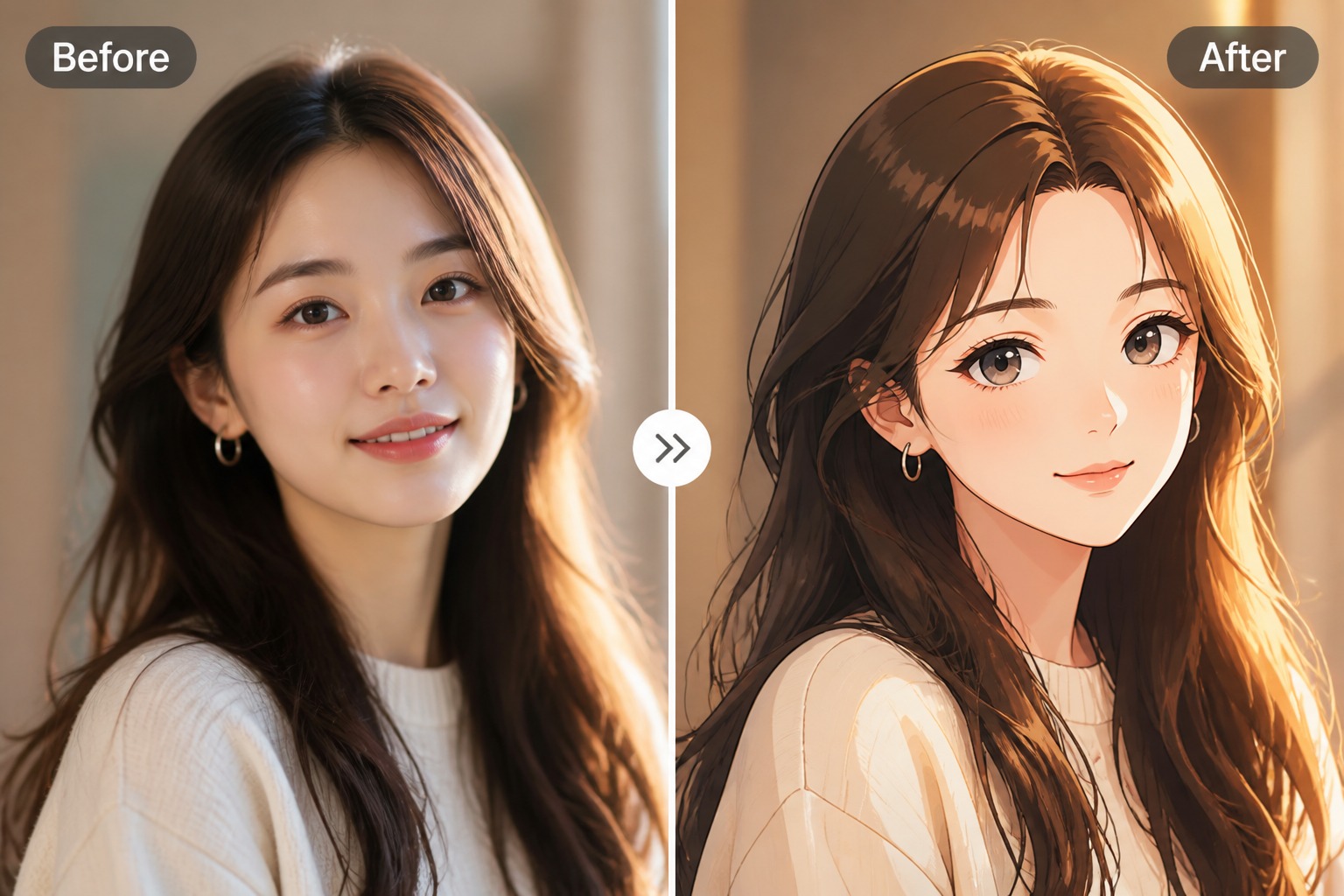
Choose a video template or bring your own clip, then add the face photo and generate a moving result. This format works for short reactions, character remixes, and other ideas that depend on motion.

Before-and-after illustration: AI Ease try a face swap video

Trim a Clip for the Edit

Timeline controls let you set the portion of a clip you want to use. Trimming to the relevant moment helps focus the swap on the action or expression that matters in the final video.

Before-and-after illustration: AI Ease trim a clip for the edit

How to Use AI Ease Face Swap

Pick a Target Image or Video

Choose a photo, upload a clip, or select a preset video template to use as the scene.
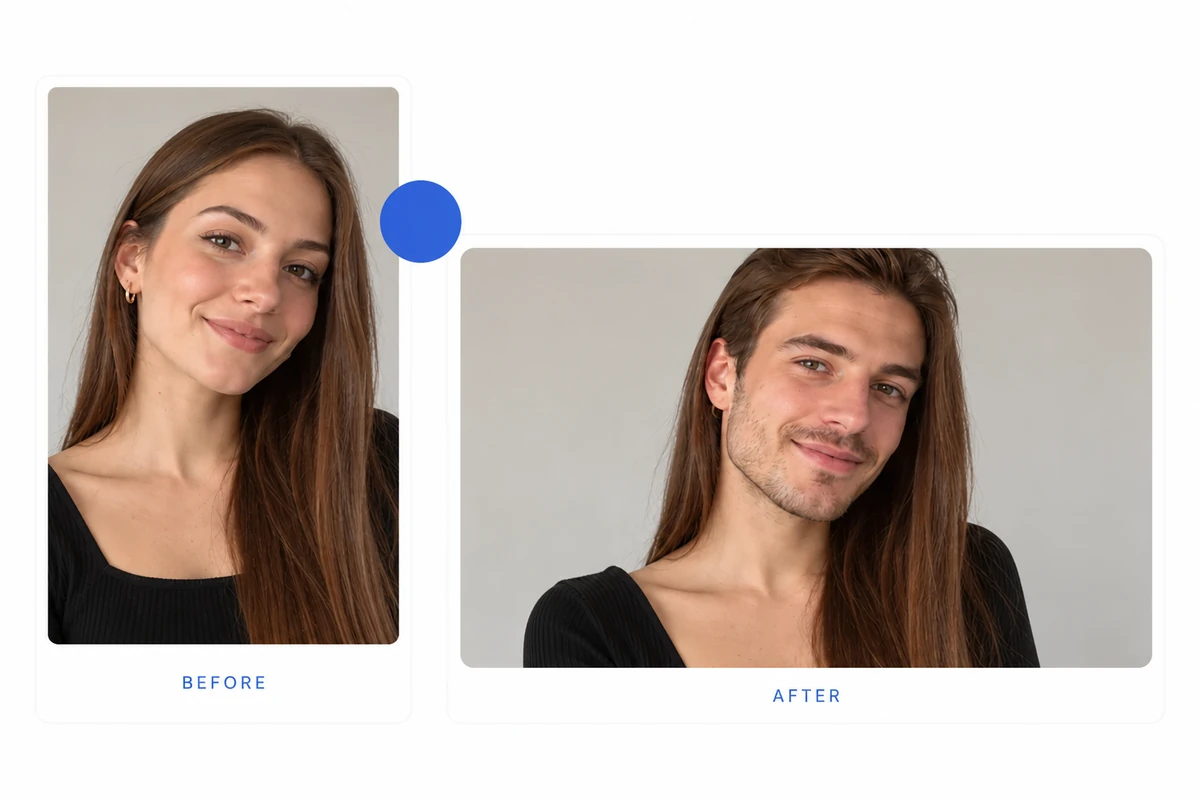
Upload the Face Photo

Add a sharp, front-facing portrait of the face you want to place into the target.
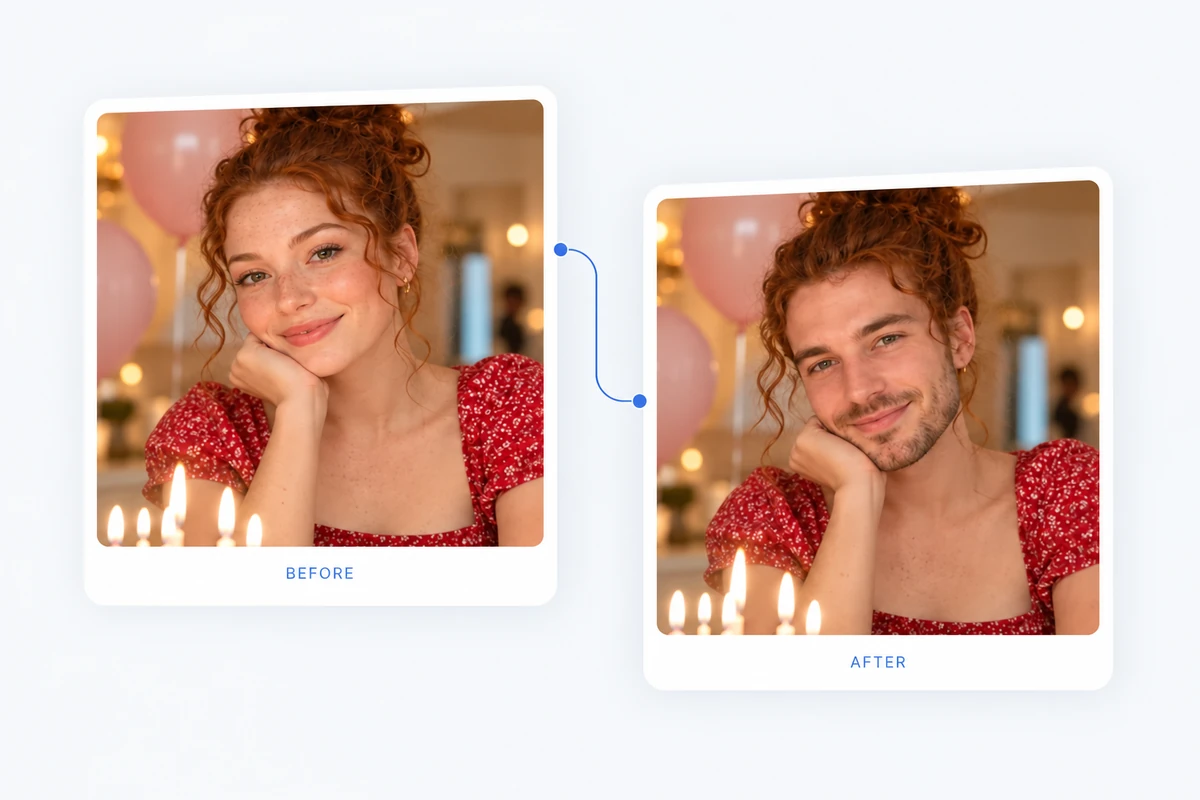
Generate and Review

Start the swap, preview the result, and check the face through the full clip or group image.

AI Ease Face Swap: FAQs

What is AI Ease face swap?

AI Ease face swap replaces a face in a photo or video. Its photo tools include multiple-face and gender-swap options, and it also provides video templates.

Can AI Ease face swap multiple faces?

Yes. AI Ease describes a multiple face-swap option for photo edits. Use its current selection controls to choose the faces to change.

Does AI Ease support video face swaps?

Yes. AI Ease provides a video face-swap workflow with templates and upload options for target clips.

Can I choose the part of a video to swap?

AI Ease’s video page describes trimming the clip with timeline controls or start and end times before generating.

What photo should I upload?

Use a clear, front-facing face photo with good lighting and minimal obstruction. It should be easy to distinguish from the target face.

Can I use a preset video template?

Yes. AI Ease offers preset video scenes that can be selected as the target before adding the face photo.

Why might a video swap look inconsistent?

Fast movement, side profiles, blur, or a face blocked by an object can make tracking harder. Try a clearer clip and review the full result.

Can GoEnhance swap faces in GIFs?

Yes. GoEnhance lists GIF face swaps alongside photo and video workflows.

Start a Photo or Video Face Swap

Choose a target scene and add a clear source portrait to try the GoEnhance face-swap workflow.

Try GoEnhance Face Swap