Remove Person from Photo

Take tourists, photobombers and strangers out of your pictures. Upload a photo, say who should go, for example "remove the people in the background", and the AI repaints the scene without them while keeping the people you want. Use the editor below to start; the default setting costs 8 tokens per image.
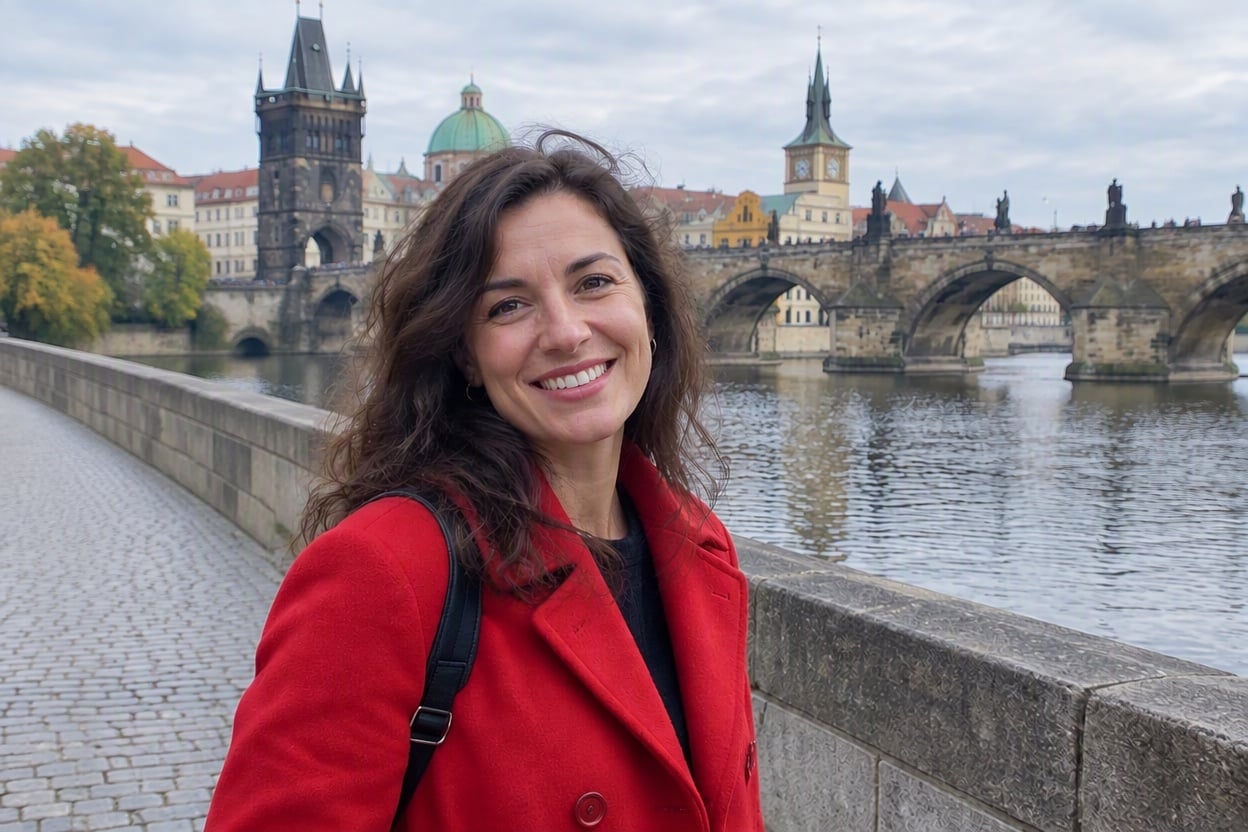
Tourist-Free Landmark
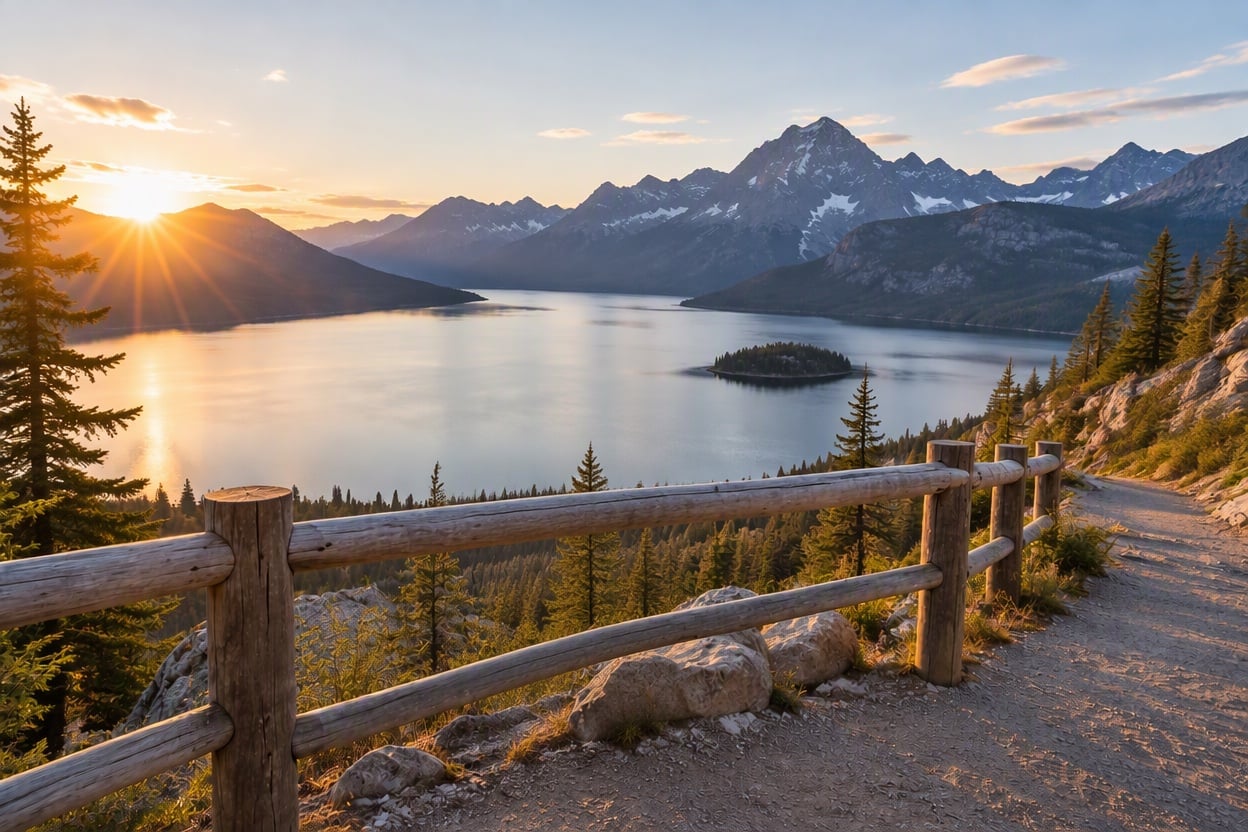
Empty Lake Viewpoint
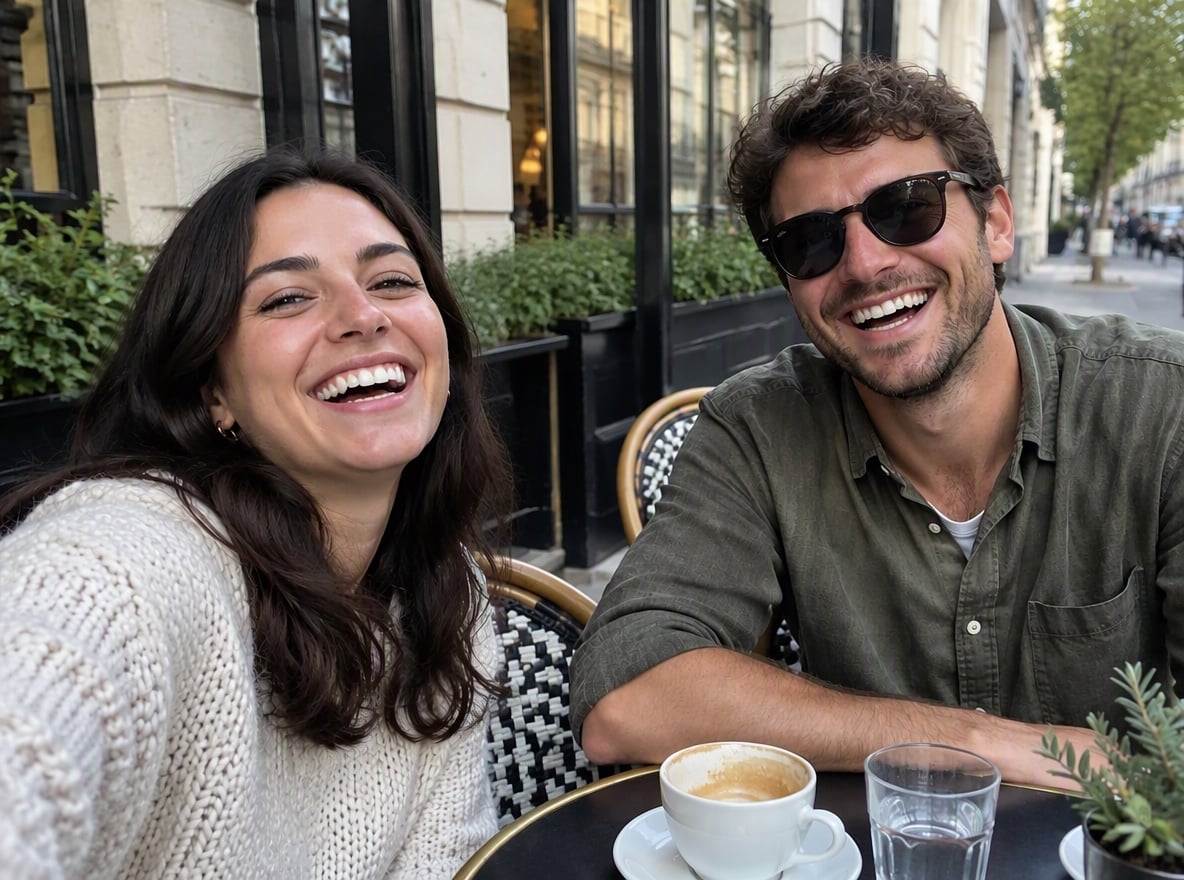
Photobomber Gone
Photobomber Gone
Upload a photo with people to remove
Who to remove
By uploading a file, you agree to GoEnhance's Terms of Use and Privacy Policy

How to Remove a Person from a Photo

Describe who should go, and who should stay.
01

Upload your photo

A travel shot, a group picture or a street scene. Photos where the people you keep are large and clear work best.

02

Say who to remove

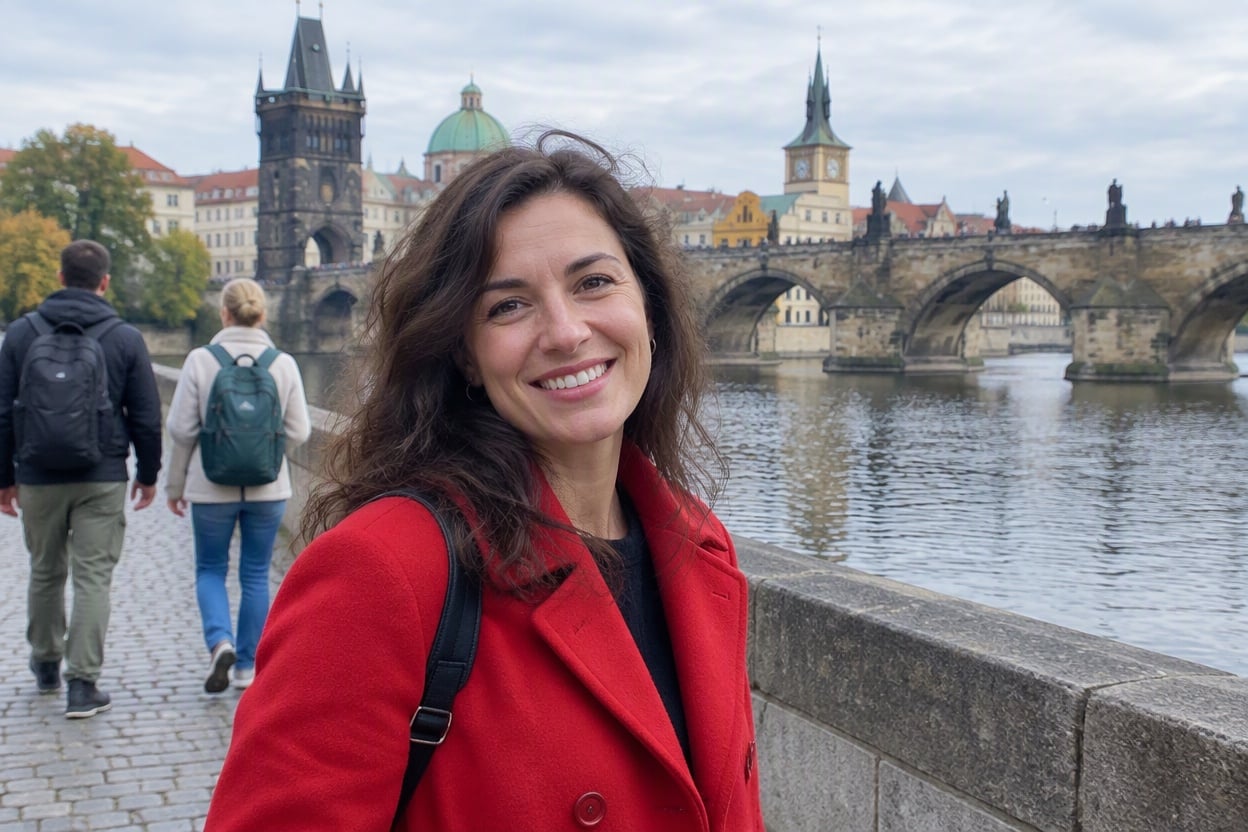
Edit the instruction, for example "remove the two tourists with backpacks behind the woman in the red coat". Naming clothing or position helps the AI pick the right people.

03

Generate and download

The AI fills in the space where they stood. Not quite right? Adjust the wording and generate again.

What to Expect

SituationWhat you get
A few tourists walking behind youThey are removed and the street, bridge or path is filled in
A photobomber leaning into a group shotThe stranger is gone and the background behind your friends is restored
Everyone removed from a landscapeAn empty scene, with the railing, path or shoreline continued naturally
A person overlapping the person you keepHarder: describe both clearly, and expect to try more than once
Small details elsewhere in the photoThe whole image is repainted, so tiny details such as text on signs can shift slightly
What was behind the personRedrawn to fit the scene, not recovered from the original

GoEnhance vs Photoshop Remove Tool vs Canva Magic Eraser

GoEnhancePhotoshop Remove toolCanva Magic Eraser
How you mark the personDescribe them in wordsBrush over them or loop around themBrush, or click an object
Where it runsIn your browserIn the Photoshop appIn the Canva editor
Price per image8 tokens by default (6 at Low quality)No generative credits used—
Best forClearing tourists or a photobomber in one step, without careful selectionDetailed retouching when you already work in PhotoshopCleaning up a photo inside a Canva design

People It Clears

Tourist-Free Landmark

Two tourists with backpacks walked behind a woman posing on an old stone bridge. Both are removed, the bridge, river and street are filled in where they stood, and the woman in the red coat stays as she was.

a travel photo of a woman on a stone bridge with the background tourists removed

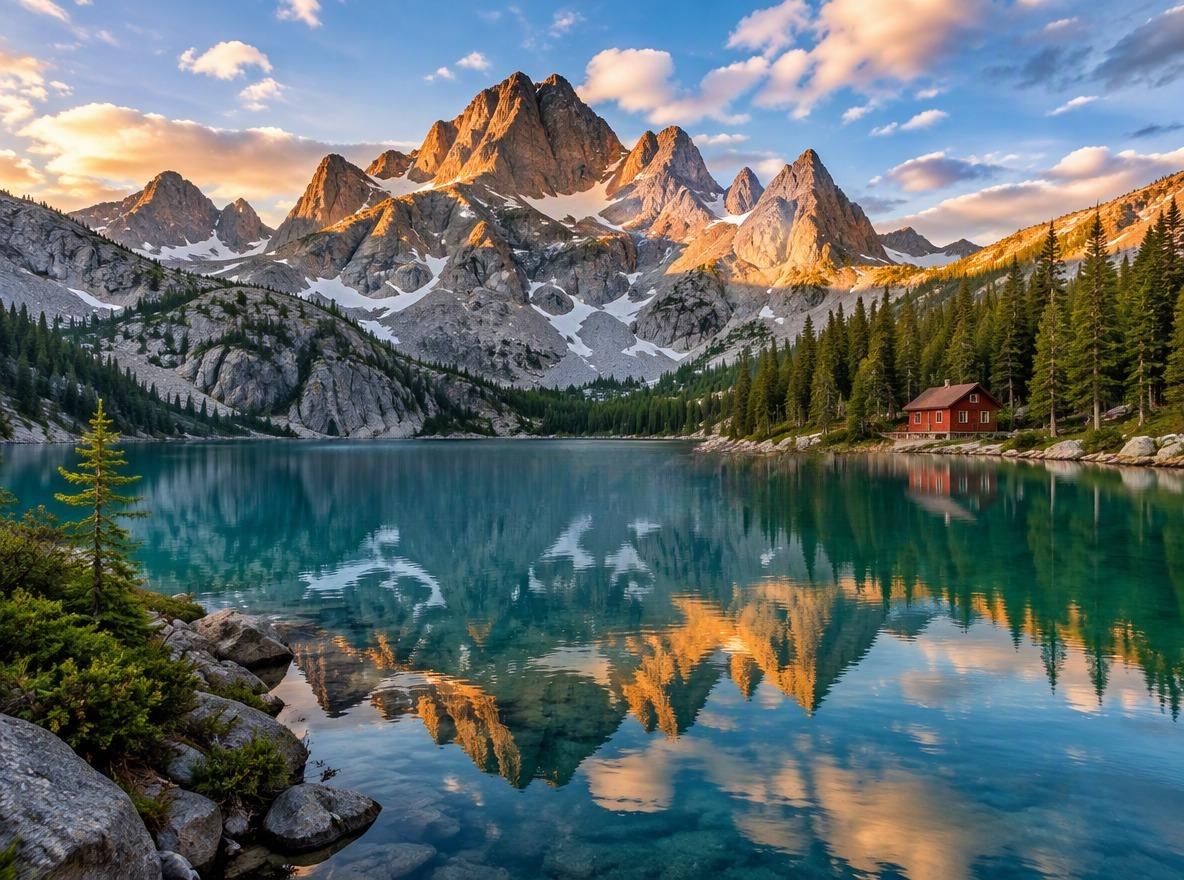
Empty Lake Viewpoint

A couple at the railing and a man walking along the path were all removed, leaving an empty viewpoint. The railing, path, lake and mountains continue naturally through the gaps.

a mountain lake viewpoint at sunrise with all hikers removed

Photobomber Gone

A stranger in a gray hoodie leaned in behind two friends at a sidewalk café and pulled a face. He is removed, the café background behind them is restored, and the two friends are unchanged.

two friends at a café table with the photobomber removed

Good to Know

Say It in Words

No brushing or lasso. Describe who to remove by clothing, position or number.

One or Many

Remove a single photobomber or everyone in the background in one instruction.

Redrawn, Not Recovered

The space behind each person is painted to match the scene.

Choose the Output

Pick 1K, 2K or 4K, and an aspect ratio such as auto, 3:2, 4:3 or 9:16.

Remove Person from Photo FAQ
How do I remove a person from a photo?

Upload the photo to the GoEnhance image editor, keep or edit the instruction so it says who to remove, for example "remove the man in the blue jacket on the right", and generate. The AI, running on GPT Image 2.5, repaints the photo without that person and fills in the background.

How much does it cost?

The default setting (High quality, 1K) costs 8 tokens per image, and Low quality at 1K costs 6 tokens. Larger outputs cost more: High quality at 2K is 17 tokens and at 4K is 29 tokens. New accounts get free tokens at sign-up, so you can try it before paying.

Will it change the rest of my photo?

It is a generative edit: the model repaints the whole image, so the people you keep and the scene should stay the same, but very small details can shift slightly. For the best result, keep the main subject large and clear, and say in the instruction what must not change, for example "keep the woman in the red coat unchanged".

Can it remove several people or a whole crowd?

Yes. Describe them together, such as "remove all the tourists in the background" or "remove everyone, leave the viewpoint empty". The more people you remove, the more of the scene the AI has to redraw, so busy crowds in front of detailed buildings are harder than a few people on a path. If someone is missed, generate again on the result with a more specific instruction.

Can it bring back what was behind the person?

No. Nothing behind a person exists in the photo, so the AI draws what most likely fits: more water, more railing, more street. On simple backgrounds that looks natural. Where the person covered something unique, such as a sign or another face, the AI's version will not be the original.

How is this different from Photoshop or Canva?

Photoshop's Remove tool and Canva's Magic Eraser ask you to brush over or select what to remove. With GoEnhance you describe the people in words, which is quicker when several strangers are spread across the frame. For pixel-precise retouching of small areas, a brush tool gives you more control.

Is my photo private?

We do not sell your content. Your photo is processed on GoEnhance servers to make the edit, and the result stays in your account until you delete it. See our Privacy Policy for details.

Get the Shot Without the Crowd

Upload your photo, say who should go, and keep only the people you want.

Remove a Person Now