Remove Shadow from Photo

Clear unwanted shadows from documents, faces and product shots. Upload a photo, describe the shadow, for example "remove the shadow of my hand and phone", and the AI relights the area evenly while keeping the subject the same. Use the editor below to start; the default setting costs 8 tokens per image.
Shadow-Free Document
Even Portrait Light
Even Portrait Light
Clean Product Photo
Clean Product Photo
Upload a photo with a shadow to remove
Which shadow to remove
By uploading a file, you agree to GoEnhance's Terms of Use and Privacy Policy

How to Remove a Shadow from a Photo

Name the shadow, and what it falls on.
01

Upload your photo

A document, a portrait or a product shot with a shadow you did not want.

02

Describe the shadow

Edit the instruction, for example "remove the leaf shadows from his face, keep his expression the same". Saying where the shadow falls helps the AI fix the right area.

03

Generate and download

The AI evens out the light. If some shadow is left, make the instruction more specific and generate again.

What to Expect

SituationWhat you get
Hand or phone shadow on a document or cardThe page is evenly lit, as if the shadow was never there
Harsh sun or leaf shadows on a faceSofter, even light, with the face and expression kept
Window or silhouette shadows on a product shotA clean surface, with a soft natural shadow under the product if you ask for one
Text or handwriting under a dark shadowThe page is relit, but very faint or tiny writing may not come back exactly as it was
Deep shadow that hides detail completelyHarder: the AI has to redraw what is hidden, so check the result closely
Small details elsewhere in the photoThe whole image is repainted, so tiny details can shift slightly

GoEnhance vs Photoshop Remove Tool vs Canva Magic Eraser

GoEnhancePhotoshop Remove toolCanva Magic Eraser
How you mark the shadowDescribe it in wordsBrush over it or loop around itBrush, or click an object
Where it runsIn your browserIn the Photoshop appIn the Canva editor
Price per image8 tokens by default (6 at Low quality)No generative credits used—
Best forRelighting a whole document, face or product shot in one stepDetailed retouching when you already work in PhotoshopCleaning up a photo inside a Canva design

Shadows It Clears

Shadow-Free Document

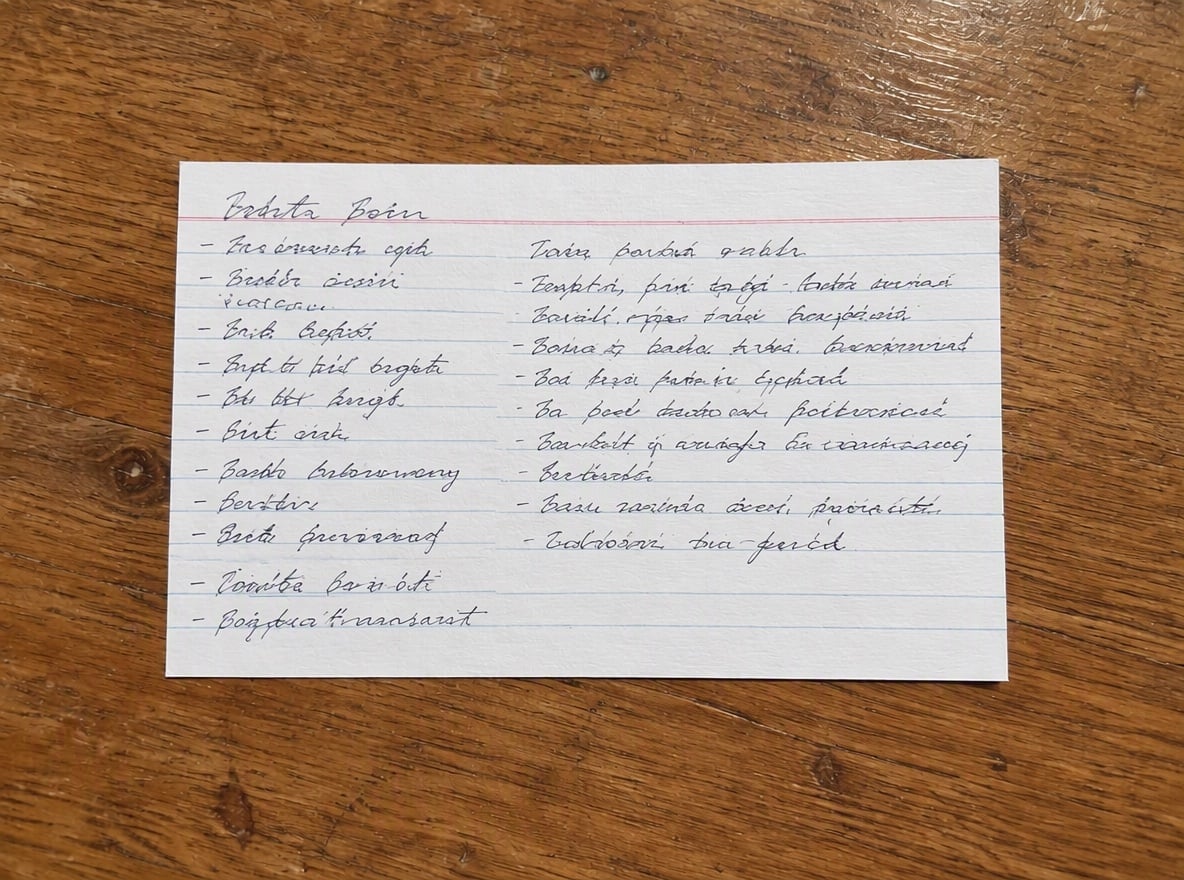
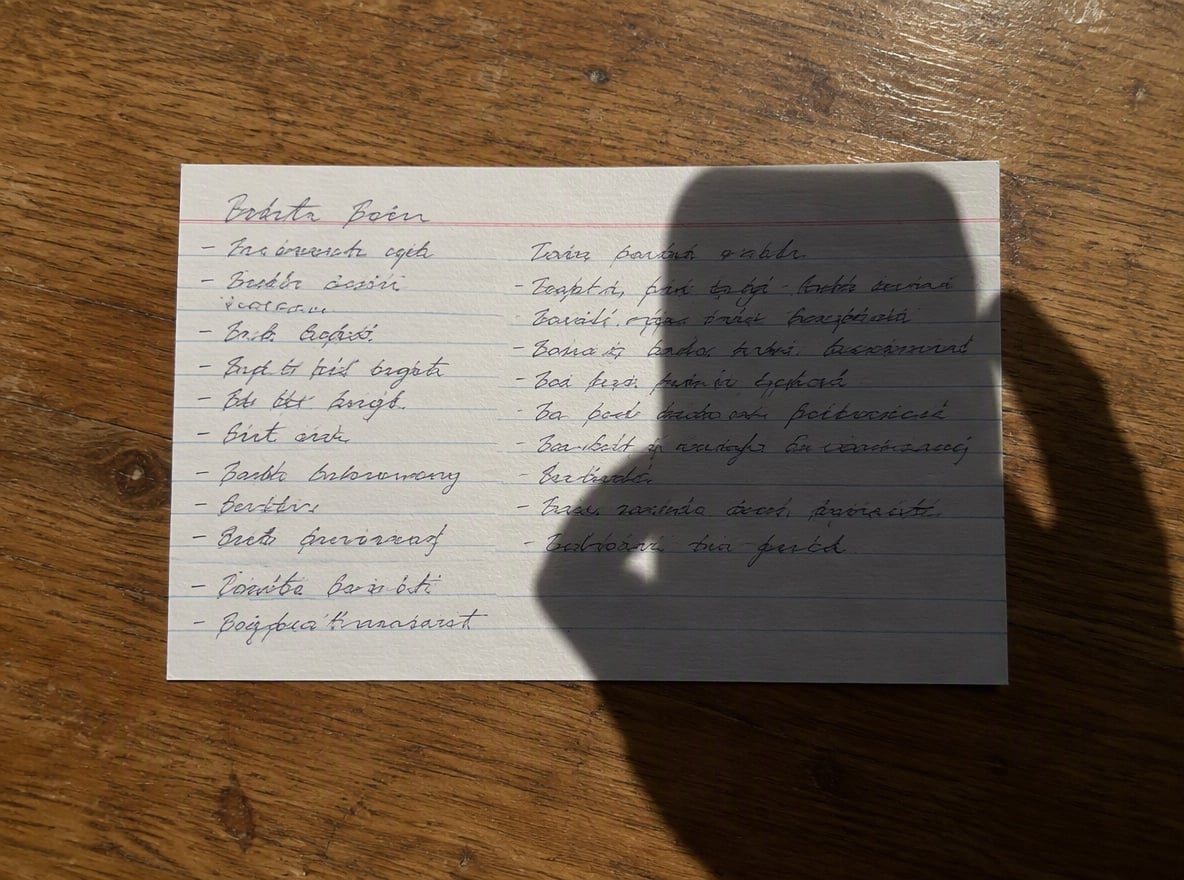
A top-down phone photo of a recipe card had the shadow of the photographer's hand and phone across half of it. The shadow is gone and the whole card and table are evenly lit, with the card and handwriting left as they were.

a handwritten recipe card with the hand and phone shadow removed

Even Portrait Light

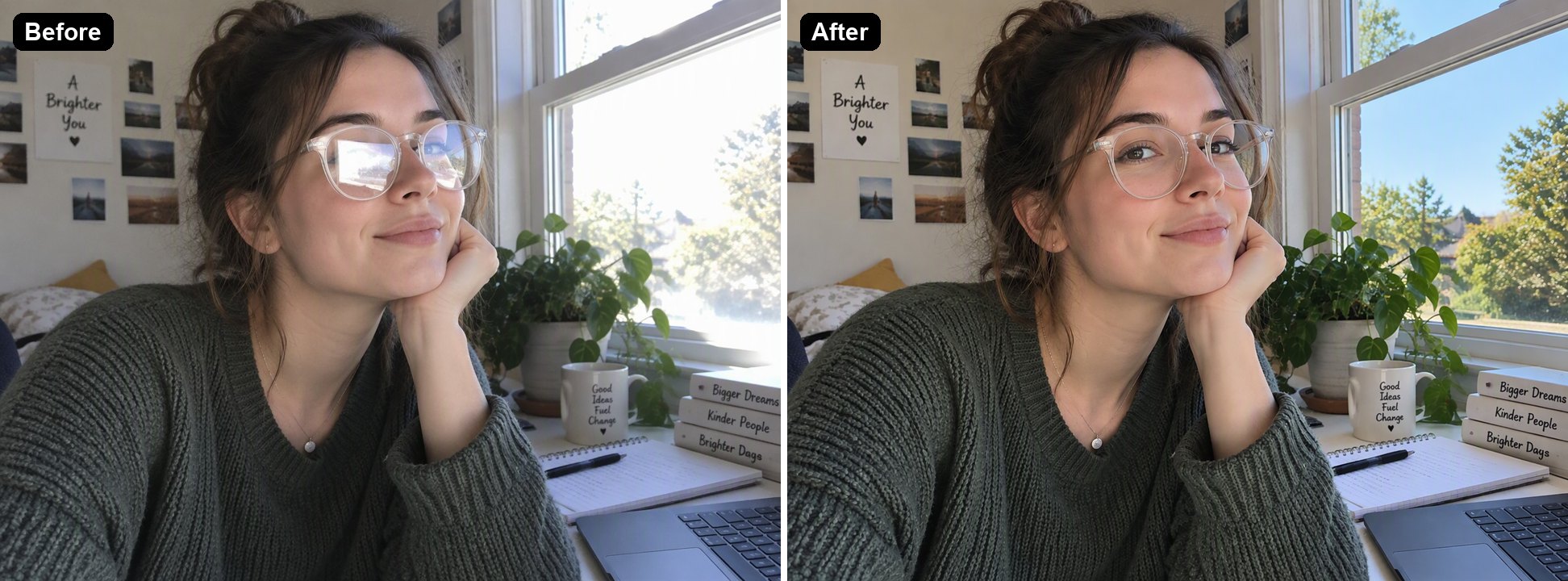
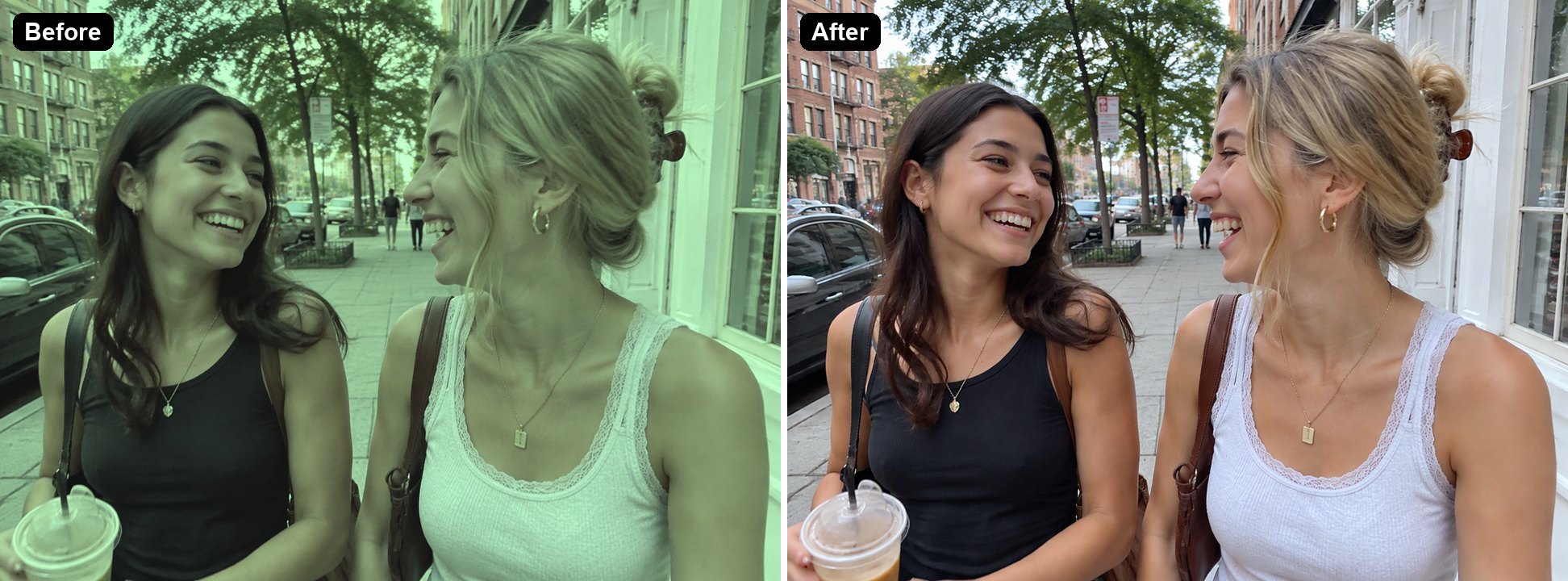
Midday sun through tree leaves left dark, dappled shadows across a man's face and white shirt. They are removed and the light is soft and even, while his face and expression stay the same.

an outdoor portrait with harsh leaf shadows removed from the face

Clean Product Photo

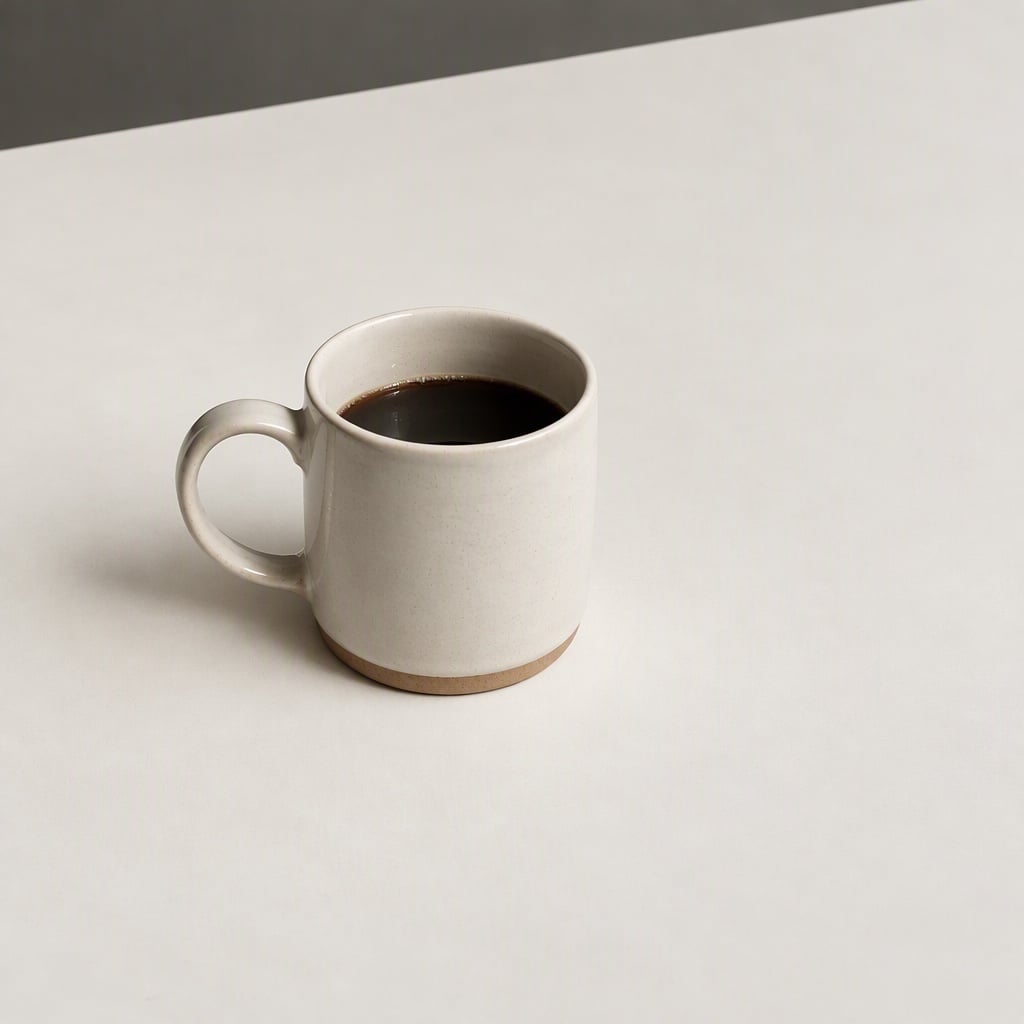
A window frame and a person's silhouette cast hard shadows across a ceramic mug and the white table. Both are removed, leaving a clean, evenly lit surface with only a soft contact shadow under the mug.

a ceramic mug product photo with window and silhouette shadows removed

Good to Know

Say It in Words

No masking. Describe the shadow and where it falls.

Keep What Belongs

Ask to keep a soft natural shadow under an object so it still looks grounded.

Faces Stay Faces

Add "keep the face and expression the same" when you fix a portrait.

Choose the Output

Pick 1K, 2K or 4K, and an aspect ratio such as auto, 1:1, 3:4 or 16:9.

Remove Shadow from Photo FAQ
How do I remove a shadow from a photo?

Upload the photo to the GoEnhance image editor, keep or edit the instruction so it describes the shadow, for example "remove the shadow of the hand across the page", and generate. The AI, running on GPT Image 2.5, repaints the photo with even light where the shadow was.

How much does it cost?

The default setting (High quality, 1K) costs 8 tokens per image, and Low quality at 1K costs 6 tokens. Larger outputs cost more: High quality at 2K is 17 tokens and at 4K is 29 tokens. New accounts get free tokens at sign-up, so you can try it before paying.

Is removing a shadow from a face different from a document?

Yes, so describe them differently. On a document or receipt the goal is flat, even light across the page, so say "evenly lit, keep the text unchanged". On a face the goal is softer light, not no light at all, so say "soft, even light, keep his face and expression the same". Faces need the person to look like themselves, so keep the face large in the frame.

Will it change the rest of my photo?

It is a generative edit: the model repaints the whole image, so the subject should stay the same, but very small details can shift slightly. For documents, check that numbers and small text still read correctly before you rely on the result.

Can it remove several shadows at once?

Yes. Name them in one instruction, such as "remove the window-frame shadow and the person's silhouette from the table and mug". If one is left behind, generate again on the result and mention only that shadow.

How is this different from Photoshop or Canva?

Photoshop's Remove tool and Canva's Magic Eraser ask you to brush over or select what to remove, which works for a small, separate shadow. A shadow across a face or a whole page changes the light on everything under it; with GoEnhance you describe it in words and the AI relights the area. For precise local retouching, a brush tool gives you more control.

Is my photo private?

We do not sell your content. Your photo is processed on GoEnhance servers to make the edit, and the result stays in your account until you delete it. See our Privacy Policy for details.

Even Light in One Step

Upload your photo, describe the shadow, and get a clean, evenly lit picture.

Remove a Shadow Now