AI Multiple Angles from One Photo

Turn one photo into new viewpoints with GoEnhance AI. Upload a portrait, product, character, or room image, adjust horizontal rotation, vertical tilt, and zoom, then generate multiple camera angles for your project.
Create Multiple Angles

See the Same Subject from Multiple Camera Angles
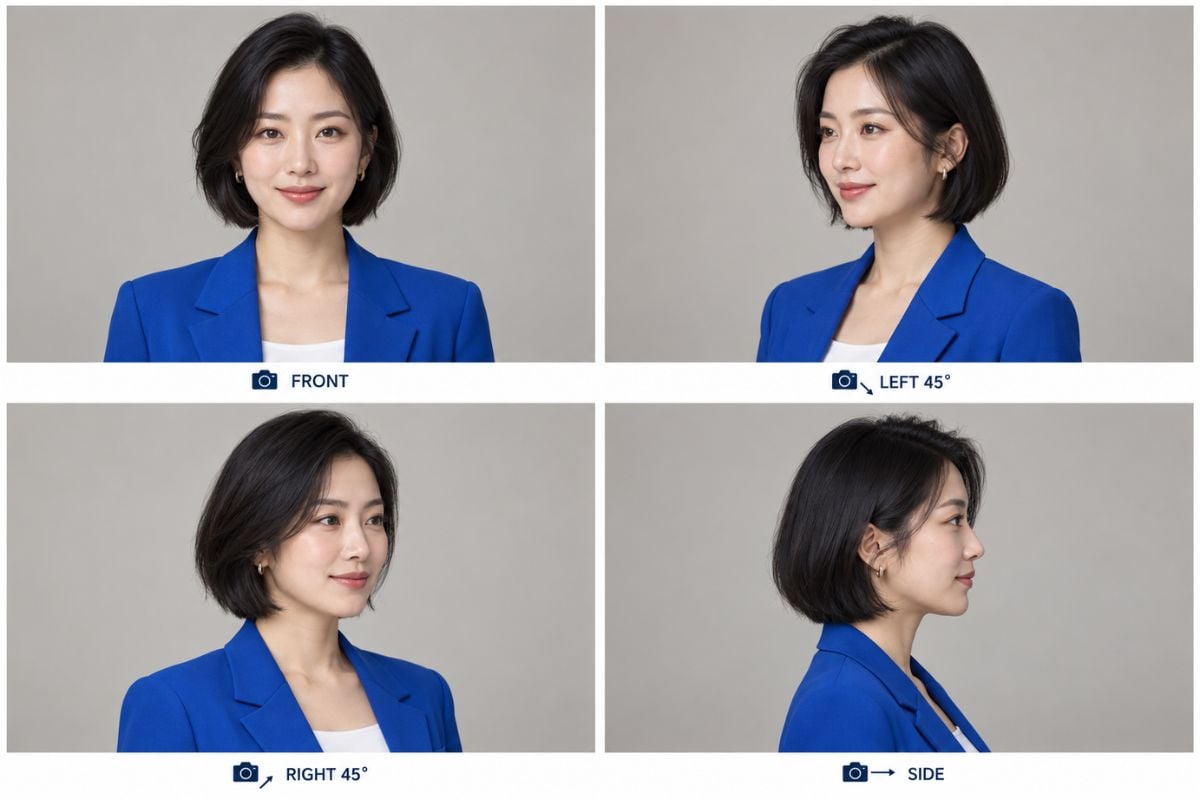
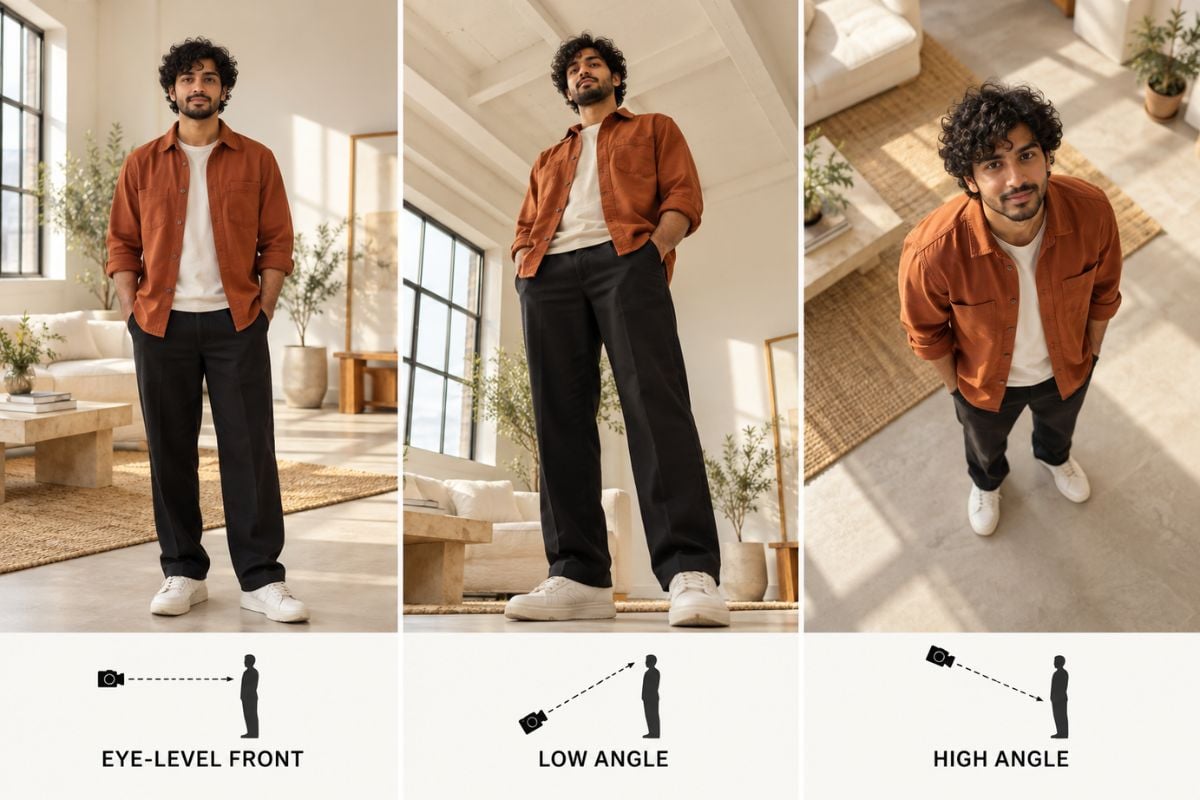
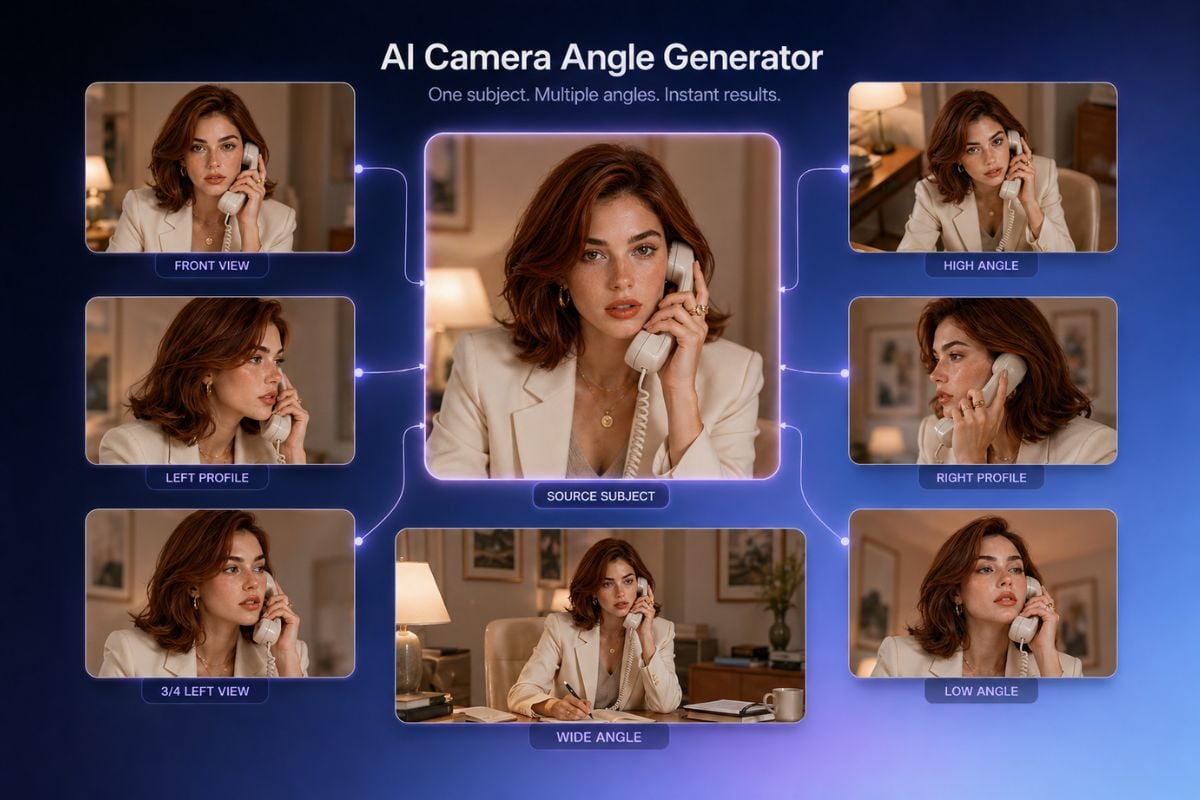
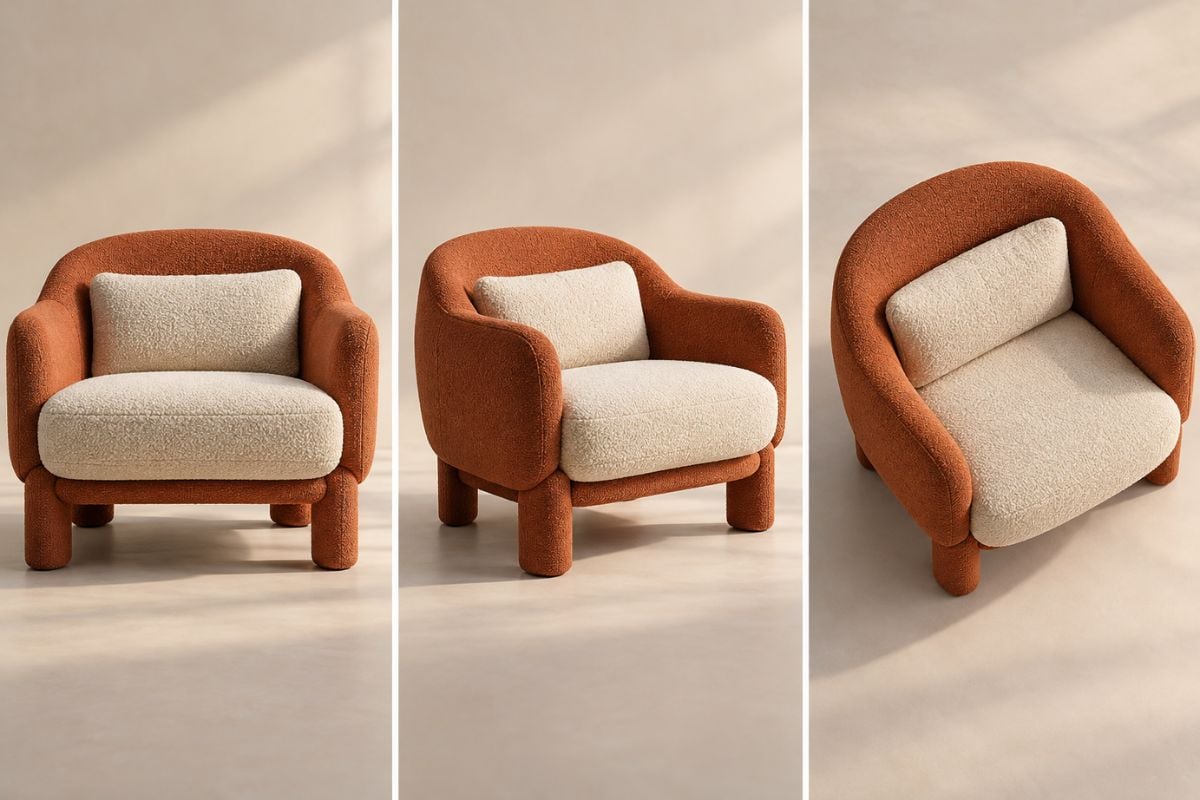
Explore multiple photo angles for portraits, products, and interiors. Each image illustrates how a change in camera position alters the view.

Portrait: Front, Three-Quarter, and Profile
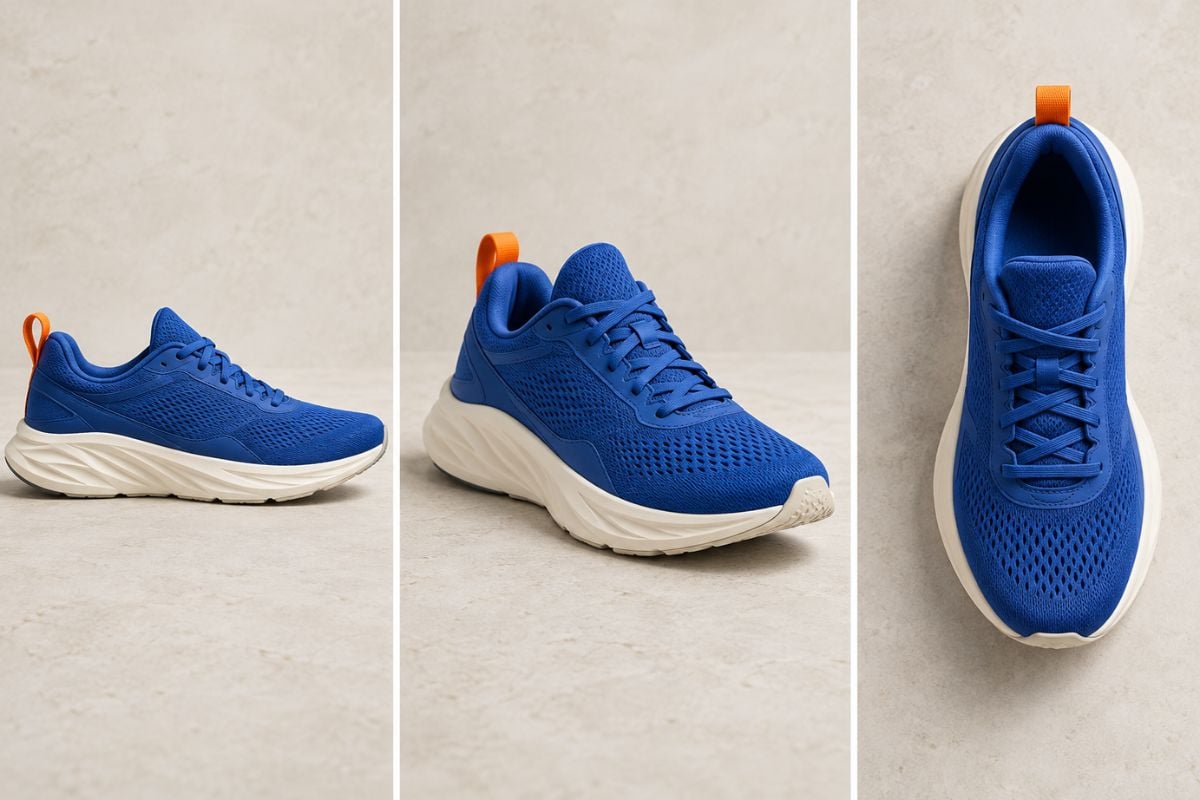
Product: Side, Three-Quarter, and Overhead
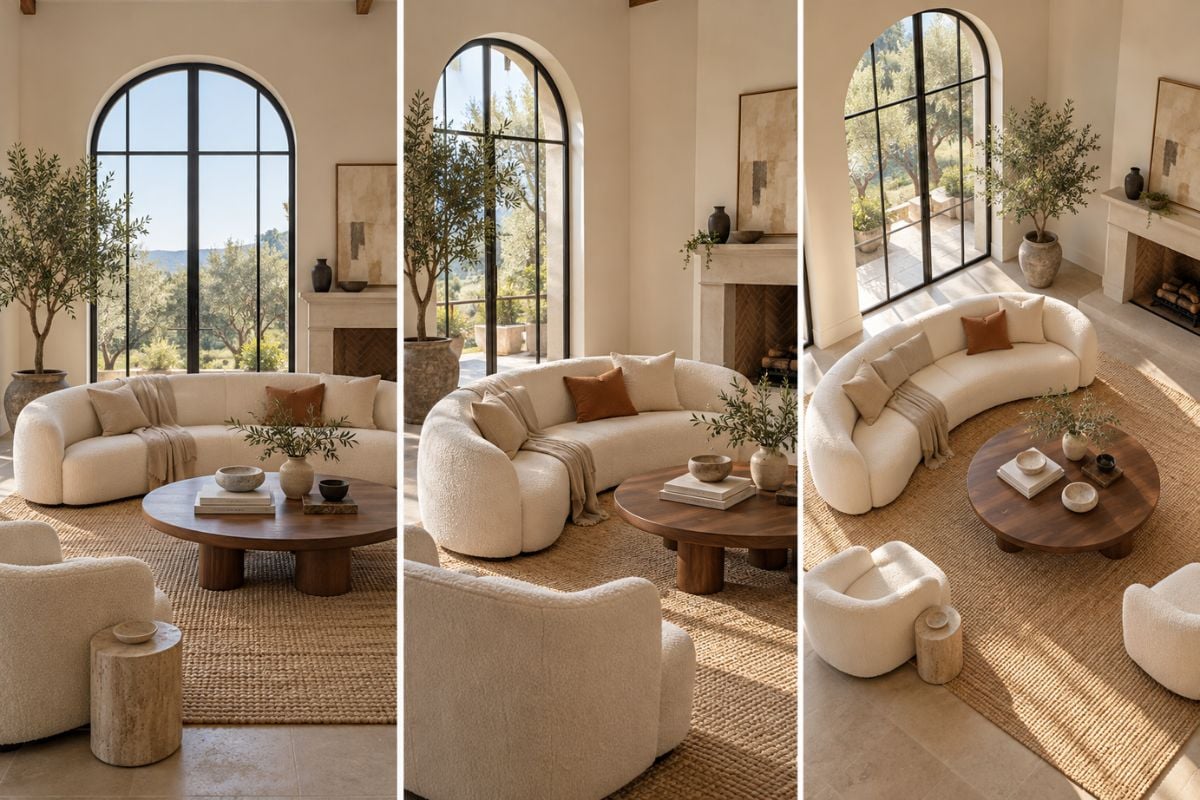
Interior: Eye-Level and Elevated Perspectives

Make One Image Work from More Angles

Explore Front, Side, and Three-Quarter Portraits

Start with a clear portrait and try nearby camera positions for profile images, editorial concepts, or character references. Compare face shape, hairstyle, and accessories across each view. You can also create a portrait with the AI image generator before exploring different angles.
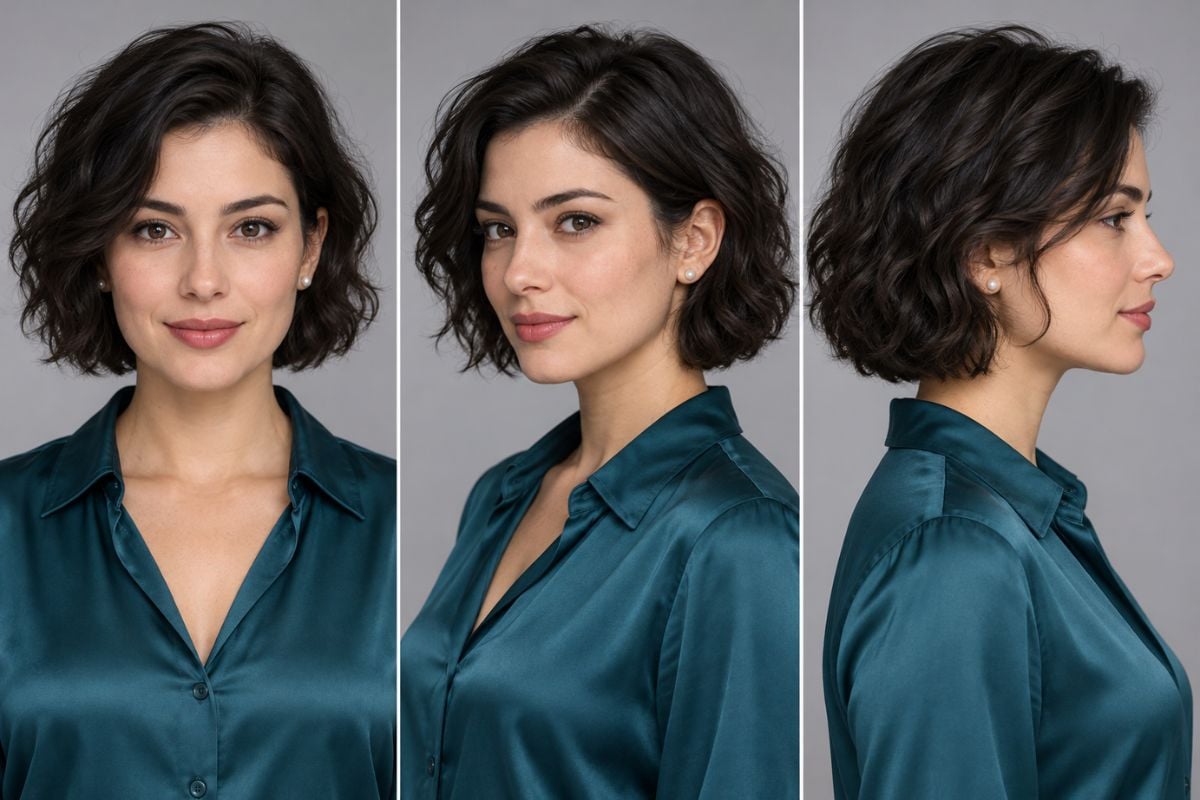
The same woman shown from front, three-quarter and profile camera positions.

Build More Product View Concepts

See a shoe, bag, or other item from a higher, lower, or side view using the same source photo. Multiple camera angles help you plan a gallery or product shoot; check seams, labels, and shape before using the results as product images.

The same blue sneaker viewed from side, three-quarter and overhead angles.

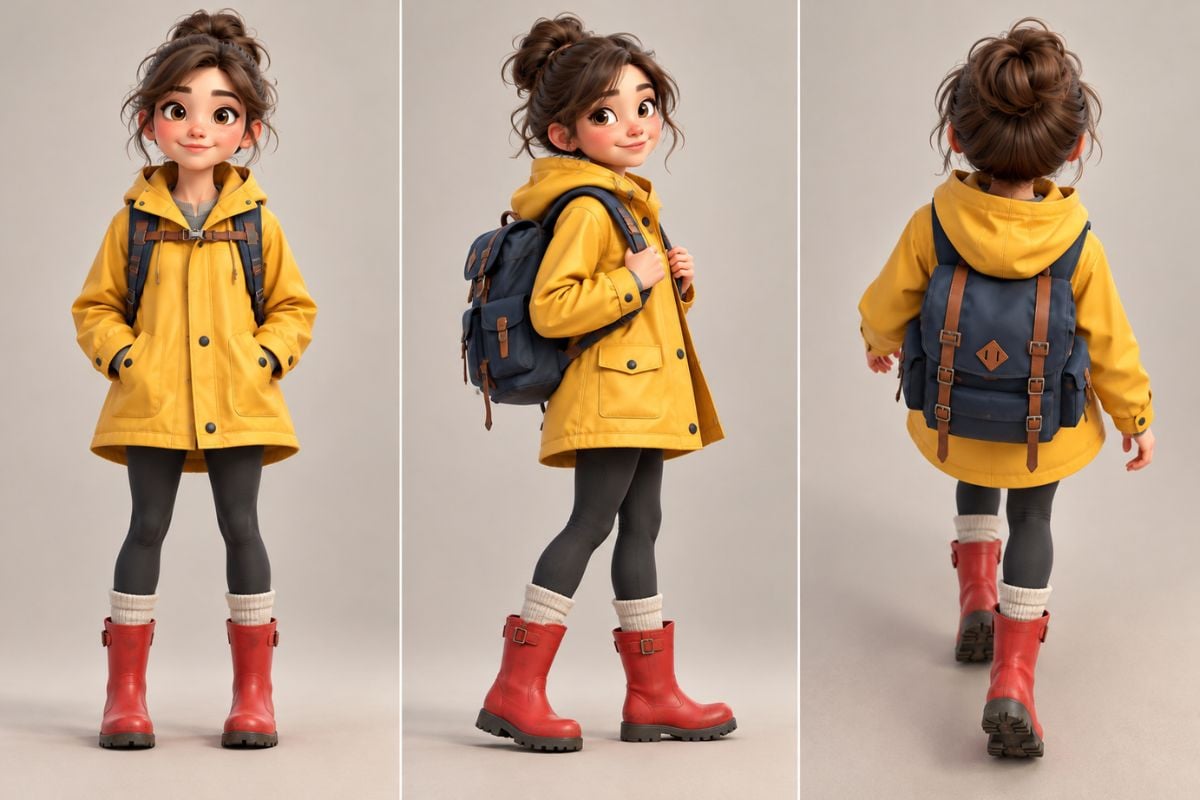
Create Character Turnaround References

Generate front, three-quarter, side, and rear concepts for a character. Keep the outfit, colors, and silhouette in view as you test a new camera position for storyboards or animation planning.

One illustrated character shown at front, three-quarter and rear views.

Reframe Rooms and Scene Layouts

Try a new perspective for interiors or visual planning without rebuilding the scene from scratch. Compare major objects, architectural lines, and furniture positions, then use AI image-to-image to explore further changes to the source.

A living room seen from front, corner and elevated camera angles.

How to Create Multiple Angles on GoEnhance AI?
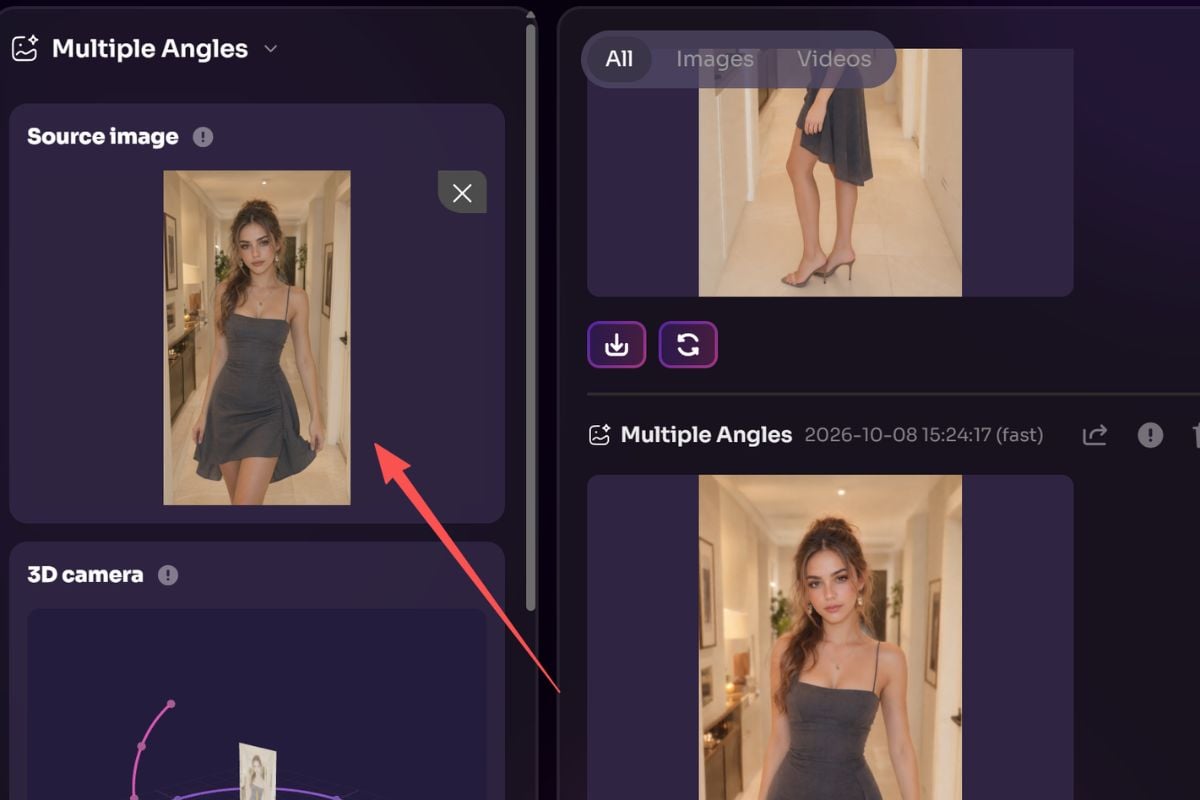
Upload a Clear Source Photo
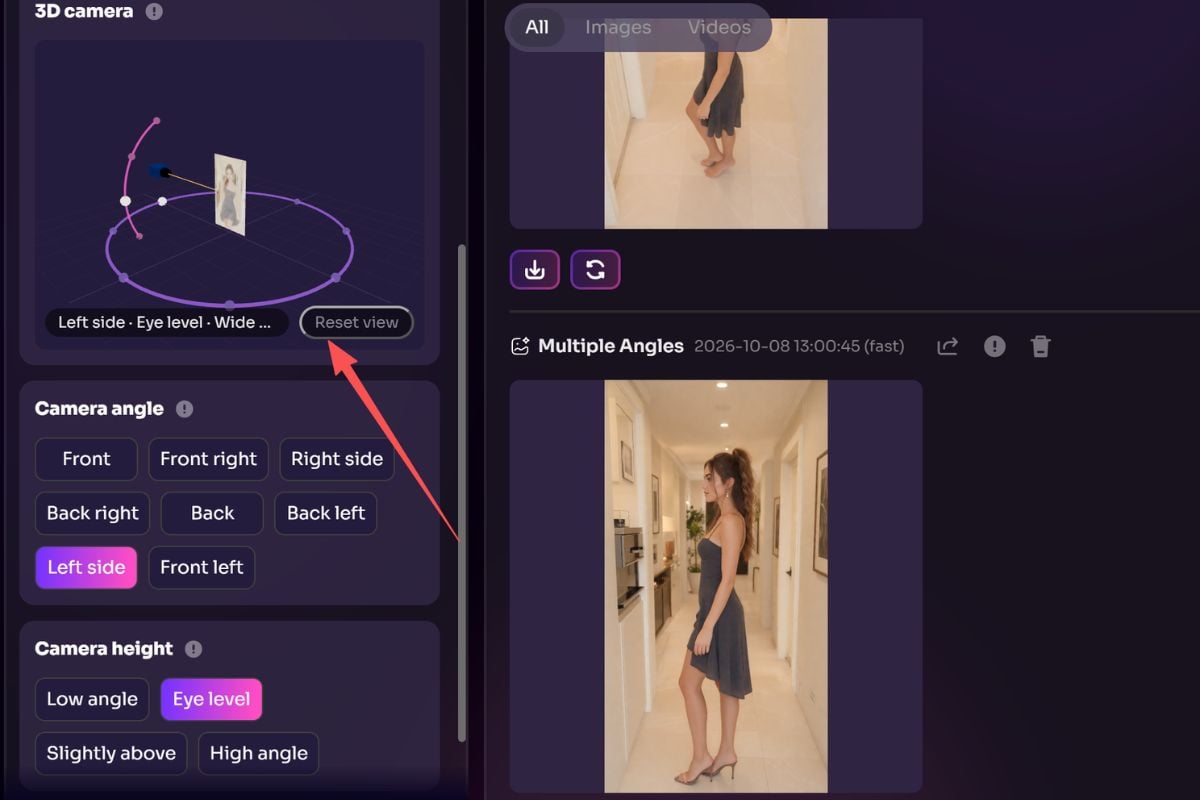
Open Camera Angle Control and upload a well-lit image with the subject visible. A simple background makes it easier to compare results.

Adjust the View with the Direction Control
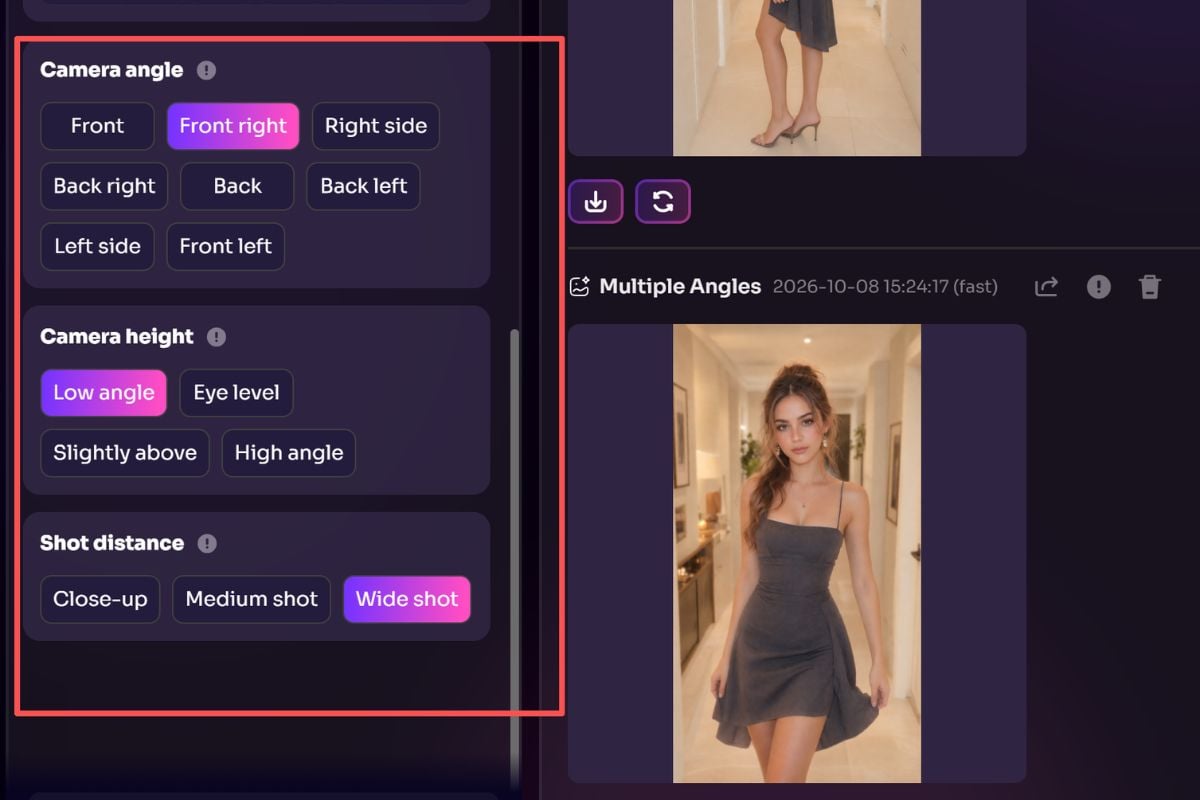
Use the direction control to move the camera around your subject and adjust the viewing angle. Fine-tune the direction until you find the perspective you want.

Choose a Direction and Camera Distance

Select a camera direction and set how close or far the camera should be. Generate the new view, then try other settings to create more angles from the same source photo.

What Our Users Say?

Camera Angle Control for Creative Work

Start from One Reference Photo

Upload a portrait, product, character, or room image and reuse it to try another camera position.

Adjust Horizontal Rotation

Move the virtual camera to explore side and three-quarter perspectives around your subject.

Adjust Vertical Tilt

Compare an eye-level photo with a higher or lower viewpoint for a different sense of depth.

Control Zoom and Framing

Make room for more of the scene or move closer to emphasize the subject.

Generate More Than One View

Change the settings and generate again from the original photo to collect multiple camera angles.

Compare Key Details Across Views

Inspect faces, clothing, product construction, and room geometry when selecting a final image.

AI Multiple Angles FAQ

What is an AI multiple angles tool?

It creates a new view of a subject in a photo by changing the virtual camera perspective. You can generate several views from the same source image by adjusting the camera settings between runs.

Can I create multiple camera angles from one photo?

Yes. Upload one image, choose a viewpoint, generate a result, and repeat with different rotation, tilt, or zoom settings to build a series.

Which subjects work for multiple photo angles?

Clear photos of people, products, characters, and rooms are useful starting points. A visible subject, simple lighting, and enough space around the edges generally help.

How do I change camera perspective without a new shoot?

Use GoEnhance AI Camera Angle Control to upload a photo and adjust horizontal rotation, vertical tilt, and zoom before generating the new perspective.

Will the person or product stay exactly the same?

The tool aims to keep the subject recognizable, but new views require AI to infer areas hidden in the original photo. Compare faces, accessories, product details, and shadows across results.

Is the result a real 3D model or a video?

The output is a generated still image from a selected viewpoint. Generate more still views by changing the controls and running the tool again.

Can I use multiple angles for product listings or storyboards?

Yes, they can be useful for visual concepts, layout decisions, and references. For product listings or final client work, inspect all visual details against the real item or approved design.

See Your Photo from a New Angle

Upload one image, adjust rotation, tilt, and zoom, then generate the views your project needs with GoEnhance AI.

Create Multiple Angles