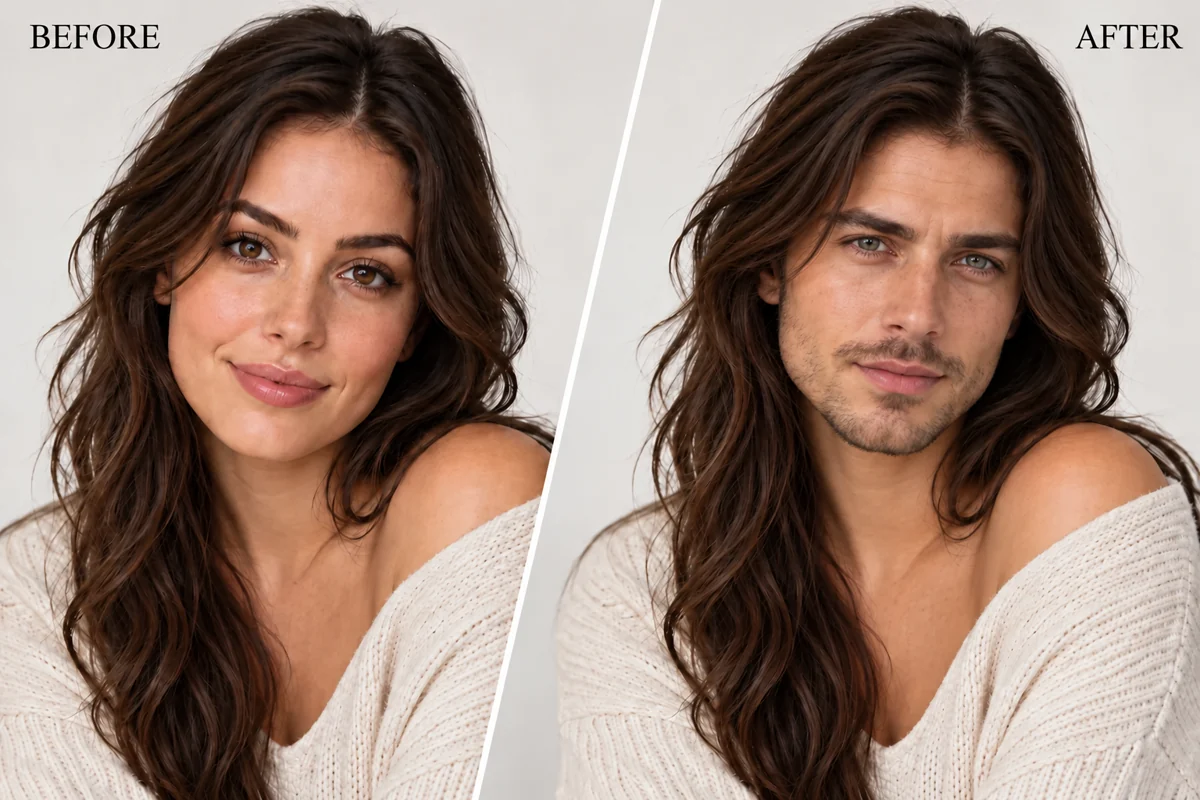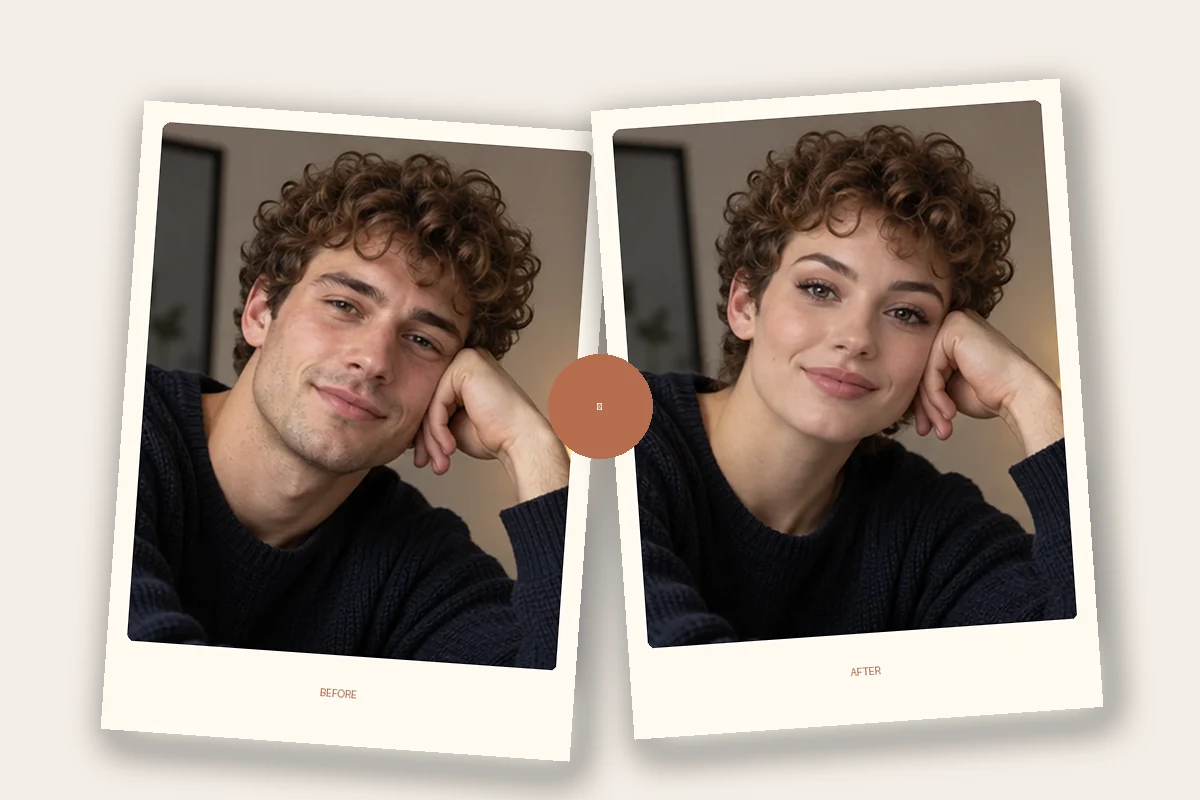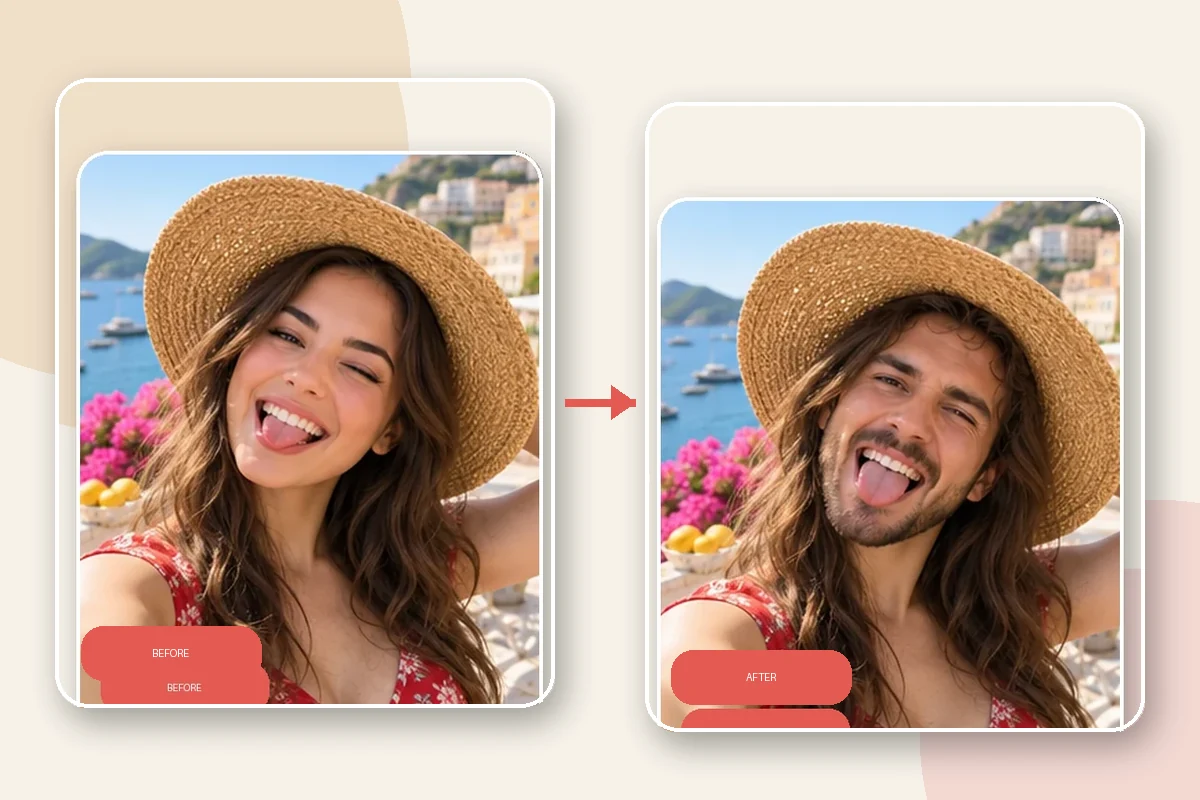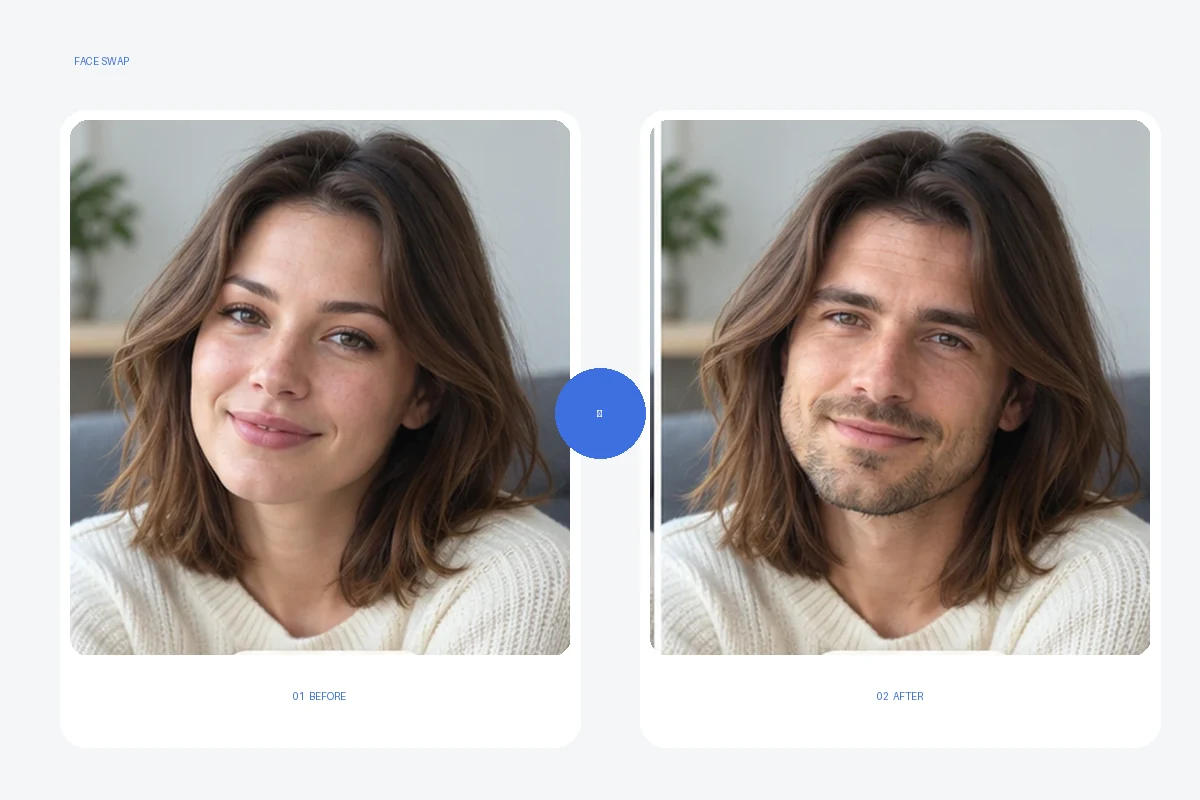
Magic Hour Face Swap

Magic Hour brings photo, video, and GIF face swaps into one place, with single-face and multi-face modes for portraits, group images, and moving clips. Pick the format that fits your idea, add a source face, and create an edit for a meme, short-form post, or creative scene.
Try Face Swap Online
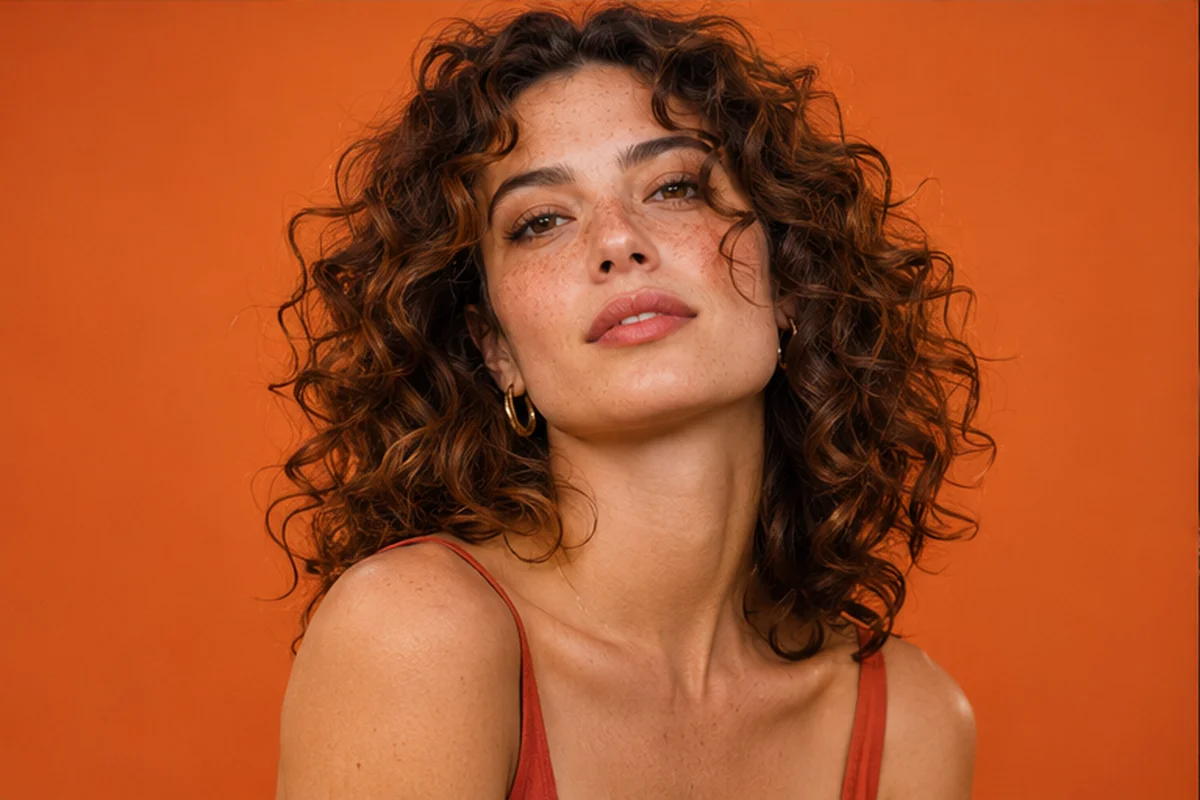
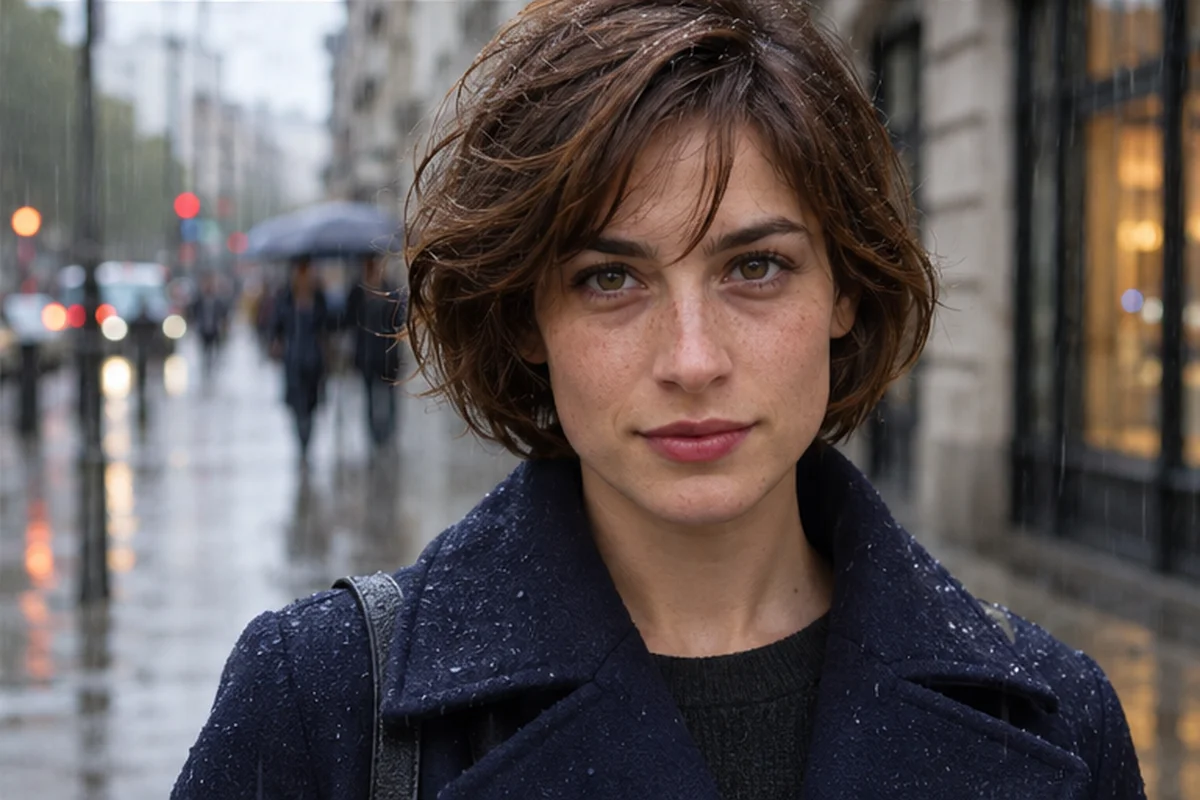
Evening portrait
Evening portrait
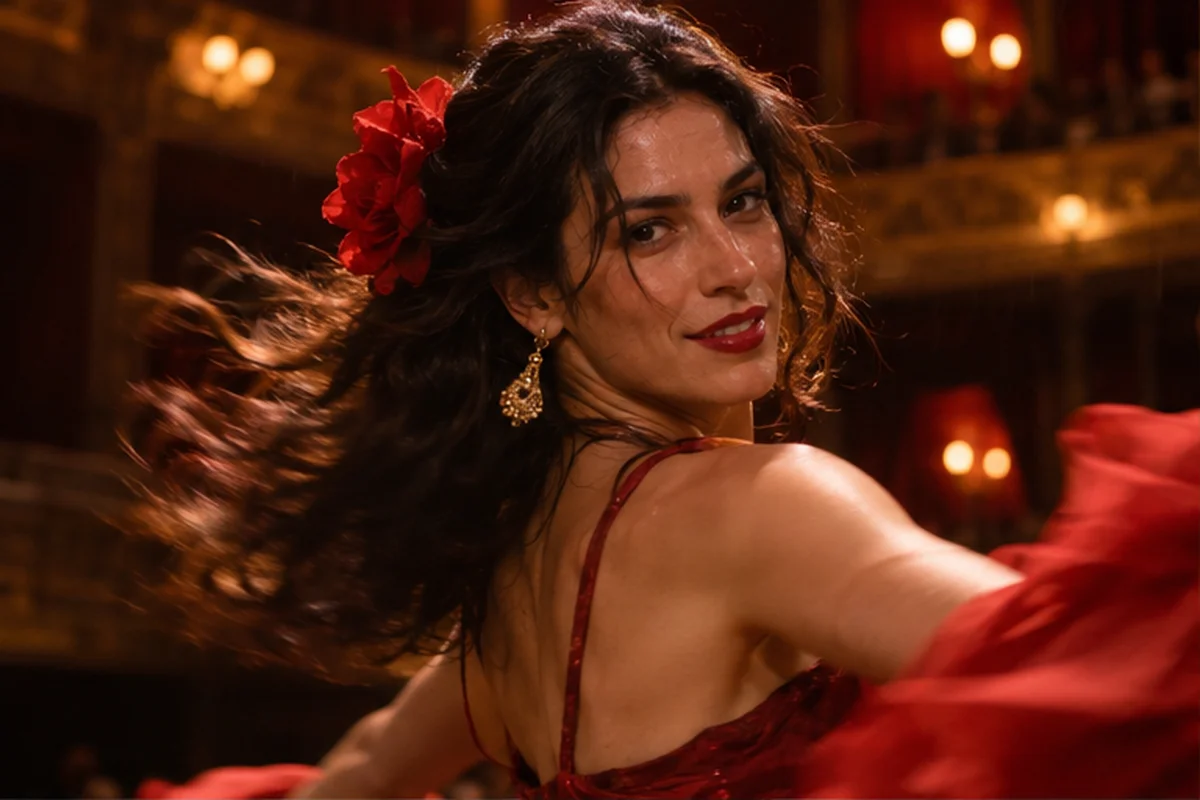
Lobby portrait
Lobby portrait
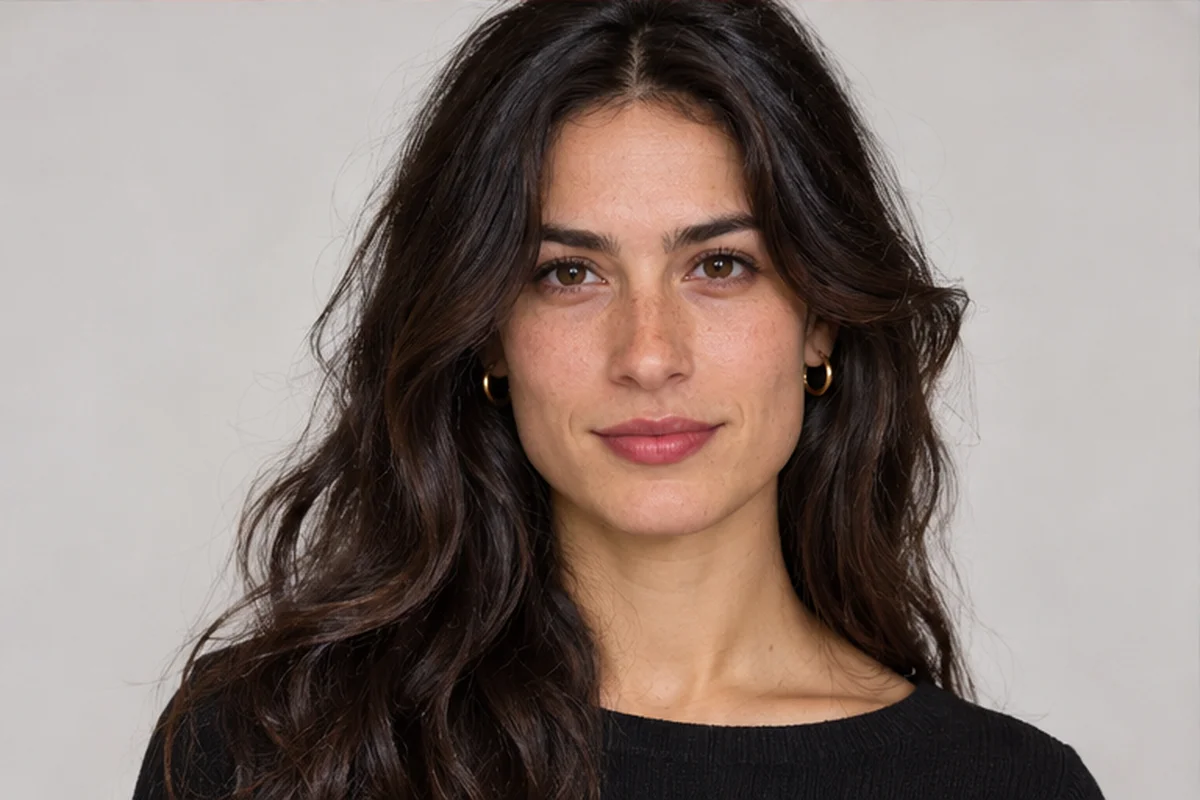
Park portrait
Park portrait
Upload an image to enhance
By uploading a file, you agree to GoEnhance's Terms of Use and Privacy Policy

Explore Magic Hour Face Swap Features

Photo Face Swaps for Portraits and Scenes

Magic Hour's photo mode supports single and multiple face swaps for portraits, group images, and themed scenes. Add an original photo, choose the replacement face, and the tool blends the new identity into the target while retaining the surrounding composition. This flow works well for personal edits, reaction images, and creative portraits. If you want a focused still-image workflow, the image face swap app provides a separate place to create a photo edit.

Fictional adult portrait with warm cinematic lighting, illustrating a photo face swap

Video Swaps Across Moving Frames

Magic Hour's video mode applies a selected face to moving footage, so expressions, lighting, and motion continue through the clip. Single- and multi-face workflows can fit solo scenes or videos with several people. Clips with visible faces make the change easier to follow from one moment to the next. The dedicated route keeps the moving-media process distinct from still-photo editing. For a focused video workflow, open the video face swap app and work from a target clip.

Fictional performer turning toward camera in a cinematic video scene

GIF Swaps for Short Animated Moments

Magic Hour's GIF face swap is suited to short reaction loops and expressive moments that read at a glance. The animated format can carry a face change through repeated expressions, gestures, and quick scene beats. It works well for playful character edits, reaction posts, and looping social content. The loop format makes every frame part of the finished result. Review the animation as a whole so the transformation stays coherent from the opening frame through the loop.

Fictional adult laughing at an evening event, illustrating a short GIF reaction

Multiple Faces in a Group Scene

Magic Hour's multi-face mode lets you assign replacement faces to several people in one target image or clip. It is useful for friend-group portraits, cast scenes, and creative edits where each person needs a different identity. Select the intended faces and map each replacement clearly before generating. The page also separates single-face and multi-face options, so you can choose the setup that fits the number of people in your scene.

Two fictional adult friends at a night event, illustrating a multiple-face edit

How to Use Magic Hour Face Swap
Step 1

Choose a Media Format

Select Photo, Video, or GIF based on the finished edit you want. Use photo mode for a still portrait or group image, video mode for a moving scene, and GIF mode for a short looping reaction. Each format has a focused workflow, so choose the mode before adding files.
Step 2

Add the Target and Source Face

Add the target photo, video, or GIF, then choose the face to place into it. For group scenes, select whether to change one person or several and map the replacement face to each intended subject. Clear, well-lit face images help the selected features read in the target.
Step 3

Generate and Review the Result

Generate a preview and review the full output. In a photo, look at facial alignment and the blend around the edges. In a video or GIF, check multiple moments to see how the face follows expressions, turns, and changes in lighting. Save the version that best fits your intended post or project.

Magic Hour Face Swap FAQs
What Is Magic Hour Face Swap?

Magic Hour Face Swap is an online tool for replacing faces in photos, videos, and GIFs. It offers single-face and multi-face workflows for still images and moving media.
Is Magic Hour Face Swap Free?
Yes. The free photo tool offers up to five swaps per day without sign-in or a watermark. Free video and GIF tools share up to three generations per day and add watermarks; current limits can vary by route.

How Do I Use Magic Hour Face Swap?

Choose Photo, Video, or GIF, add the target media and a source-face image, then generate and review the result. For a group scene, select the people to edit and assign each replacement face.

Can I Swap Faces in a Video?

Yes. Use the video face swap mode to add a target clip and source-face image. Magic Hour also provides a multi-face workflow for mapping replacements to different people in a video.

Does Magic Hour Support GIF Face Swaps?

Yes. Choose the GIF mode, add the animated target and the replacement face, then generate the loop.

Can Magic Hour Swap Multiple Faces at Once?

Yes. Its multi-face mode can assign replacement faces to several people in a photo, video, or GIF. The free routes support mappings for up to three faces; signed-in dashboard options can support more.

Why Can a Face Look Different Across Video Frames?

Changes in head angle, expression, lighting, and face visibility affect how a swap appears over time. Review several moments in the clip, including turns and close-ups, to see how the result holds across the full sequence.

Can I Use Face Swap Results Commercially?

Commercial use depends on the current plan or credit arrangement. Magic Hour states that paid subscriptions and credit packs permit commercial use; users without a paid arrangement are limited to personal, non-commercial use. You also need rights to the source media and faces.

Create a Photo or Video Face Swap

Choose a target image or clip, add a source face, and create a face swap for your next project.

Try Face Swap Now