How to Create an AI Sway Dance Video from a Photo?
- What makes a sway dance different?
- Choose a photo that can animate cleanly
- How to make an AI Sway dance video in GoEnhance
- What I check before sharing
- Troubleshooting a wobbly sway
- Frequently asked questions
- Create a version you can stand behind
An AI sway dance video animates a still photo with a small, rhythmic body movement. In GoEnhance, the Sway page shows a one-photo workflow: upload a clear person image, choose a dance style, generate the clip, and review the motion before downloading. The result works best when the person’s outline is easy to read and the reference movement is gentle rather than fast or highly choreographed.
GoEnhance AI is an online platform for creating and editing AI images and videos. I checked both its public Sway page and the AI Dance workspace. The public page presents Sway examples and an upload panel; the app workspace exposes a reference-image area, a reference-video selector, a Move v2 model option, resolution controls, and a Generate button.
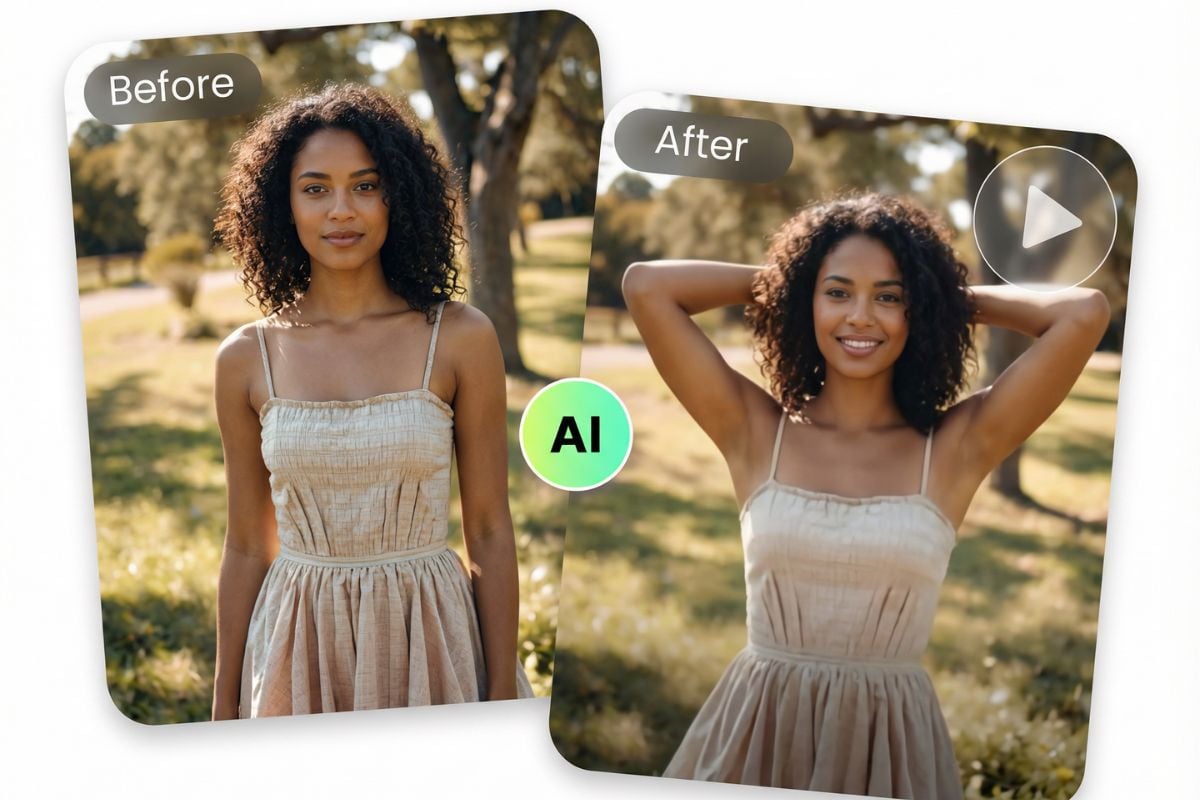
Example image from the GoEnhance AI Sway Dance page. Its public examples include gentle sway variations.
What makes a sway dance different?
A sway clip is subtler than a full dance transfer. The body moves to a steady rhythm—often a slight shoulder roll or hip shift—while the person remains recognizable. That restraint is useful for a short social post or a loop, but it also means small errors at the hands, hair, or body outline can stand out.
Before starting, decide what you want the movement to feel like: relaxed, playful, or more energetic. Use one clear still image and a reference clip with a similar pace. If the photo is cropped at the shoulders but the reference moves the full body, the result may look unstable around the crop.
Choose a photo that can animate cleanly
The input photo has a large effect on the result. I look for:
- One person with the face and body clearly visible.
- A three-quarter or full-body composition when the intended movement involves the torso or hips.
- Even light, a sharp subject, and a readable edge against the background.
- Hands, hair, and clothing that do not merge into nearby objects.
- Enough space around the subject so movement does not run into the edge of the frame.
Avoid a group shot, a heavily cropped body, motion blur, or a busy scene with people crossing behind the subject. These conditions do not make generation impossible, but they give the motion model less clear information to work with. Use a photo you own or have permission to animate, especially if the finished clip will be shared publicly.
How to make an AI Sway dance video in GoEnhance
1. Open the Sway page
Go to the GoEnhance AI Sway Dance page. The page presents sample looks such as Sunset Sway, Smooth Sway, and Rooftop Sway, alongside an upload area. Use the Make a Sway Dance Video button to open the creation flow.
2. Upload a reference photo
Choose one clear photo of the person you want to animate. The current public interface asks for a clear photo of one person and recommends a full-body image. If the photo is a portrait crop, choose a gentler reference movement that stays within the visible area.
3. Choose a sway-style movement
The AI Dance workspace separates the Reference Image from the Reference Video. Select a sway-style clip from the available examples if one is shown, or upload a reference video with the movement you want to borrow. For a gentle sway, choose a clip with a similar crop and a restrained rhythm. Avoid a fast dance reference if you want the final video to feel calm.
The workspace I reviewed showed Move v2 as a model option, plus resolution and cost controls before generation.
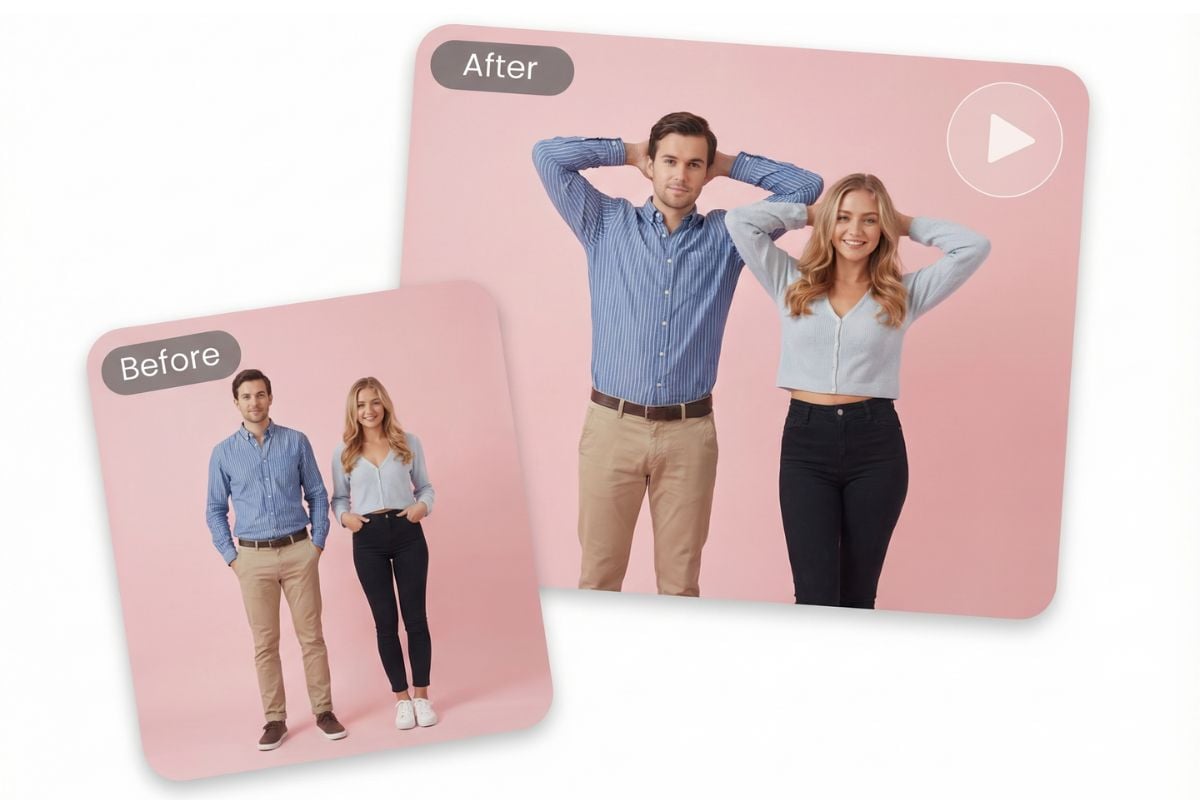
The GoEnhance page also shows variations made from the same image. Changing the reference movement or crop can produce a different feel.
4. Generate and inspect the full clip
Select Generate after checking the source image, reference clip, model, and output resolution. When the result is ready, watch the whole clip rather than judging it from the first frame. Look for jitter at the shoulders, drifting around the face, hands that change shape, hair that flickers, or a loop that jumps at the end.
If the motion looks floaty, change one thing at a time. Try a calmer reference clip, use a tighter crop, or replace the input with a photo that has a cleaner outline. Making one adjustment per attempt helps you see which change improved the result.
5. Download the version that holds together
Download only after the subject remains recognizable through the movement. Keep the source photo and the generated clip together so you can compare them later. If you plan to add captions or a sound track, review the crop in the editor where the final post will be assembled; platform controls may cover part of the frame.
What I check before sharing
| Check | What I look for |
|---|---|
| Face | The person’s expression and features stay recognizable |
| Hands | Fingers do not merge, multiply, or disappear between frames |
| Body outline | Shoulders, clothing, and hips move without rubbery edges |
| Background | Objects behind the subject do not bend with the body |
| Loop point | The last moment connects naturally to the first |
| Framing | The face and body remain clear after a vertical crop |
A clip can look convincing in a still frame and still wobble during playback. I watch once at normal speed, then replay any section where the outline or face shifts. If the motion error is part of the source reference, changing the photo alone may not fix it; choose a cleaner reference clip instead.
Troubleshooting a wobbly sway
The subject drifts in the frame
Use a photo with more space around the person and a simpler background. A reference clip with similar framing also helps keep the motion inside the visible area.
Hands or hair flicker
Pick a source where hands and hair are separated from the background. If the chosen reference has fast arm movement, try a slower sway clip before changing the model.
The movement feels too large
Choose a gentler reference. A sway style depends on small, repeated movement; a large dance motion can make the body look distorted when applied to a still portrait.
The loop ends abruptly
Check the first and last seconds before posting. If the app’s result does not loop smoothly, trim the clip or make a short crossfade in a video editor rather than claiming the generated file is a seamless loop.
Frequently asked questions
What photo works best for an AI sway dance?
A sharp photo of one person with a visible silhouette works well. Three-quarter and full-body images give the motion more room, while a simple background makes the outline easier to track.
Can I make a sway video from one photo?
Yes. The GoEnhance Sway page describes a one-photo workflow. In the AI Dance workspace, the current creation interface also provides a reference-video control; choose or upload a sway-style motion reference when the interface asks for one.
Why does my AI sway video look wobbly?
The source may be blurry, cropped too tightly, or hard to separate from its background. A fast or mismatched reference movement can also make the body outline drift.
Is an AI sway video the same as a full dance transfer?
No. A sway is a smaller, rhythmic movement. A full dance transfer follows a more active reference performance, which may move the arms, legs, and body through a wider range.
Can I post someone else’s photo as an AI dance?
Use an image only when you have permission to animate and share that person’s likeness. Make clear that the clip is AI-generated if viewers could mistake it for real footage.
Create a version you can stand behind
Start with a clean photo, choose a reference that matches the movement you want, and review the result in motion. The preview is part of the workflow: if the face, hands, or background shift, adjust the source or reference before sharing. Open the GoEnhance AI Dance workspace to try the current controls.