
goenhance logo

Red Eye Remover

Upload a flash portrait and fix red eye without rebuilding the whole photo. Use it for party pictures, family photos, pet snapshots, event images, and profile-ready portraits where eyes should look natural again.

Try It Free Now
Text zu Bild
Bild zu Bild
Select Model
Image

Red Eye Photo Problems You Can Fix
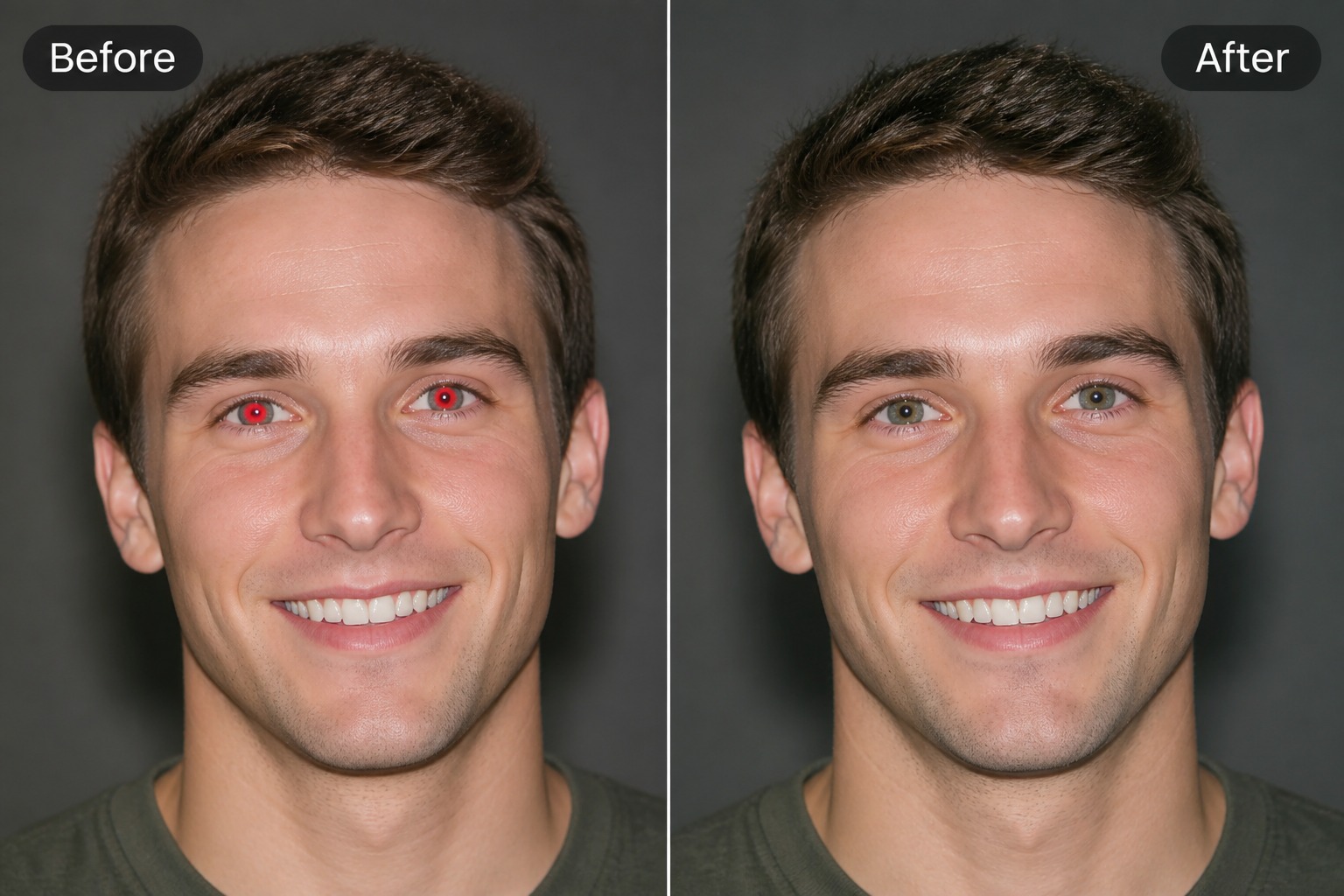
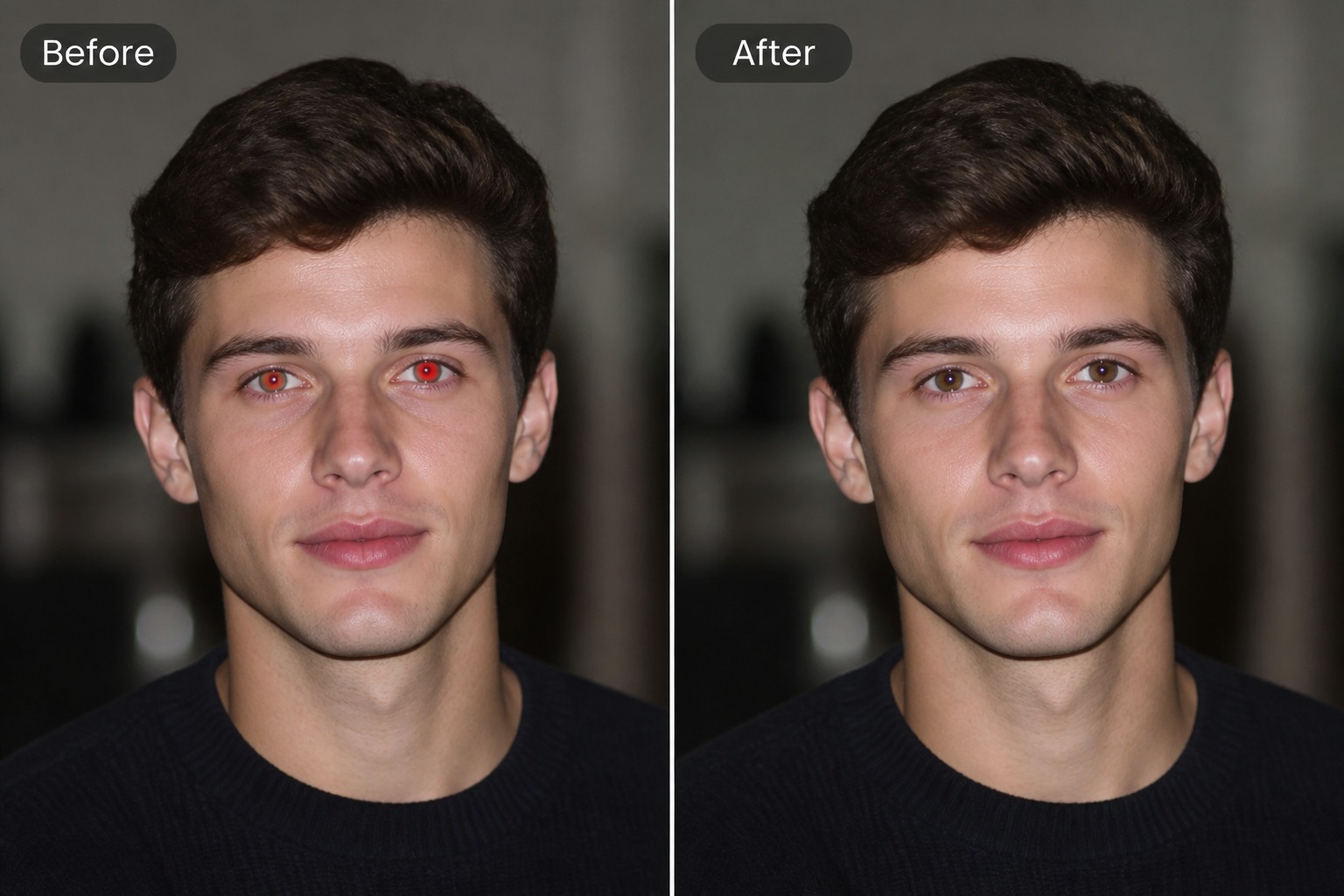
red eye photo remover for flash portrait

Flash Portrait Repair

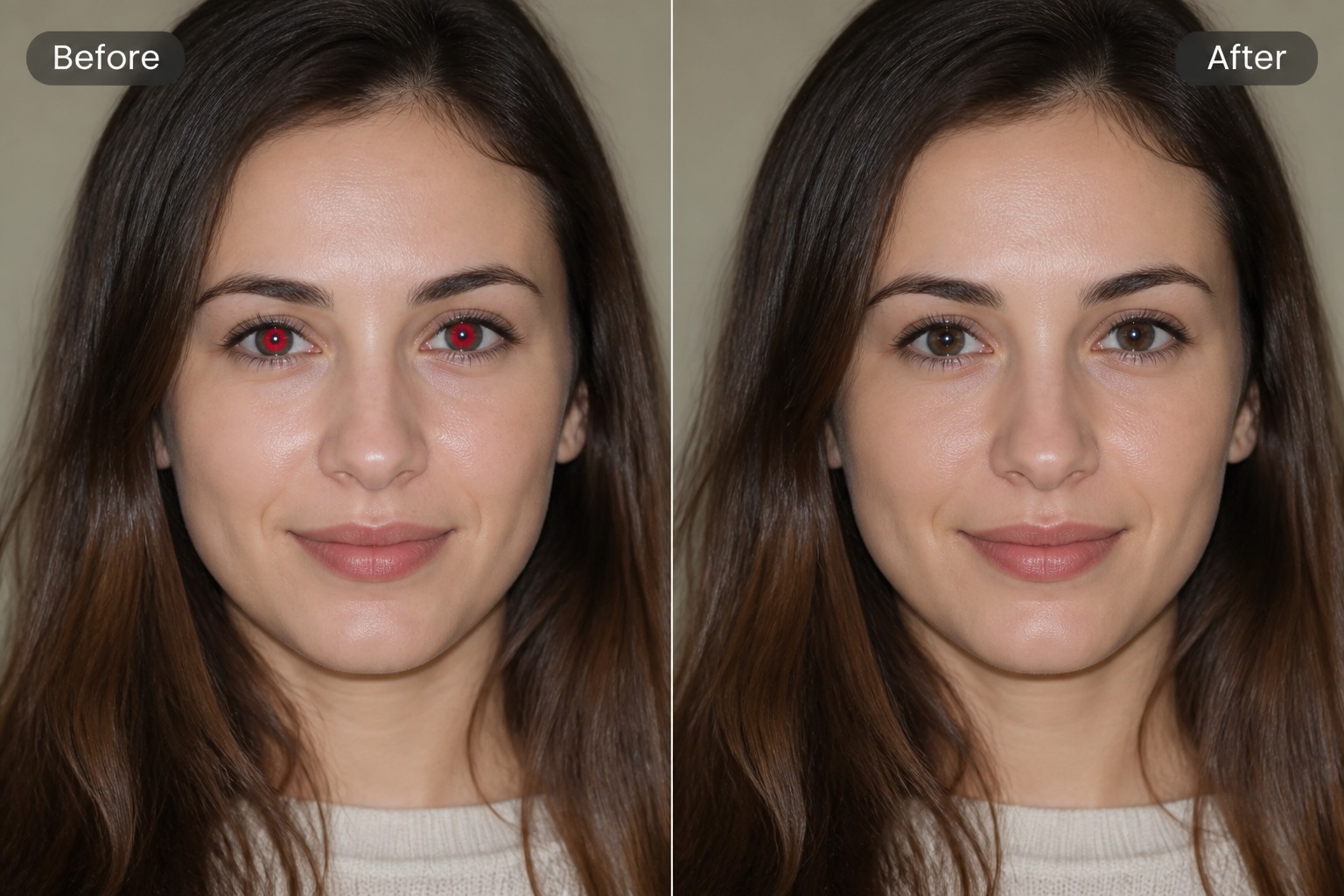
fix red eye in family photos

Family Photo Cleanup

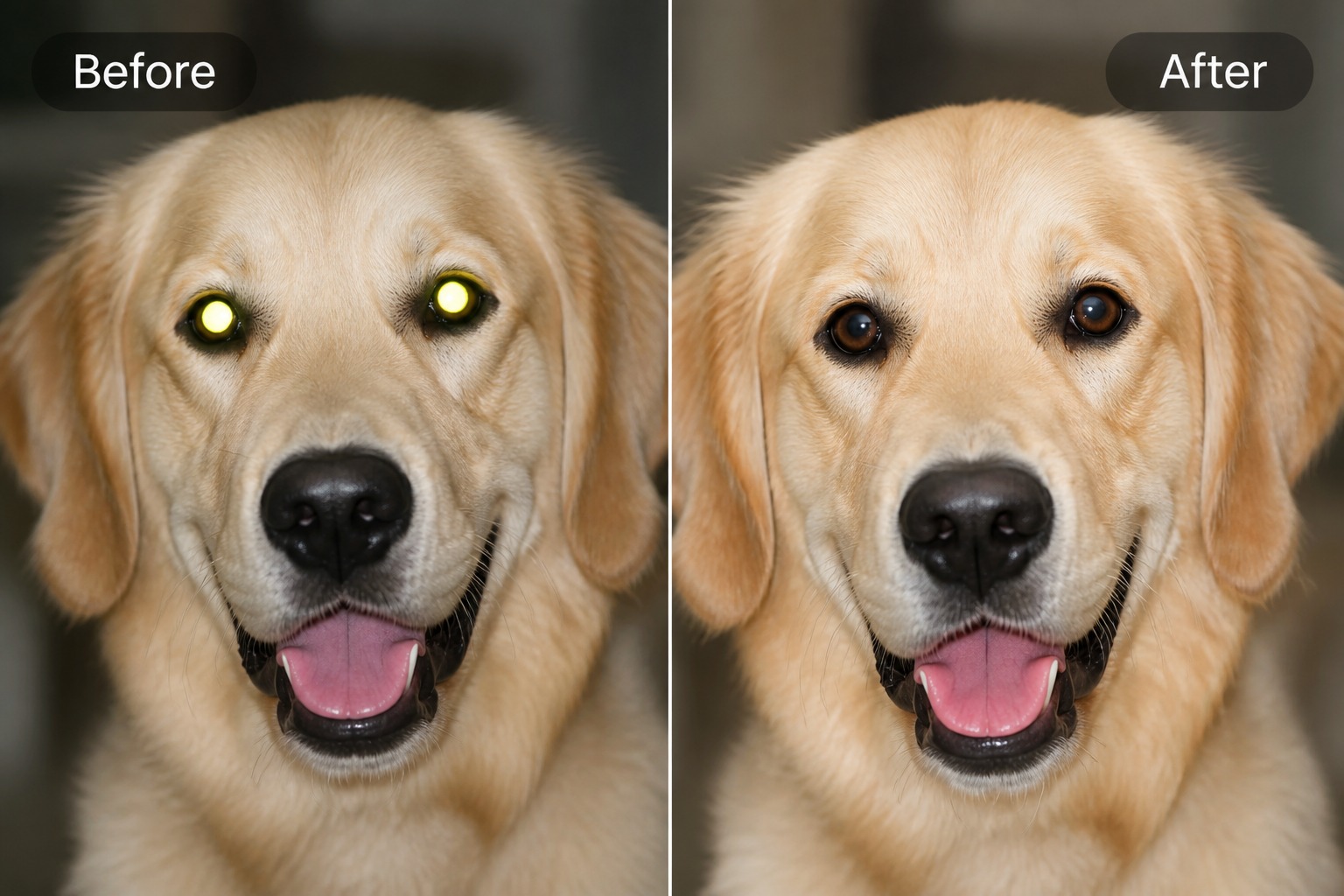
red eye picture editor for pet photo

Pet Eye Correction

Fix Red Eye While Keeping Portraits Natural
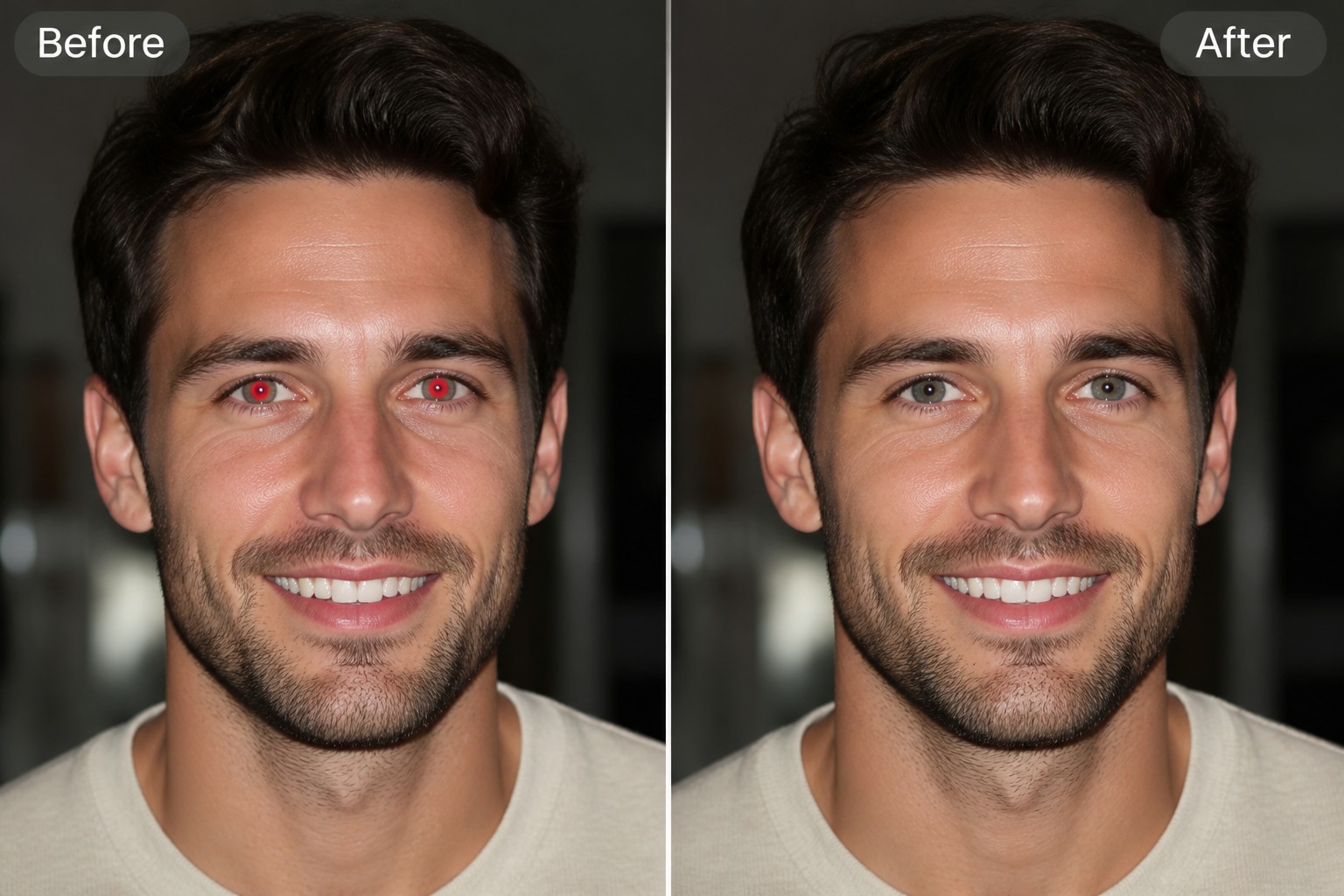
Repair Flash Eyes

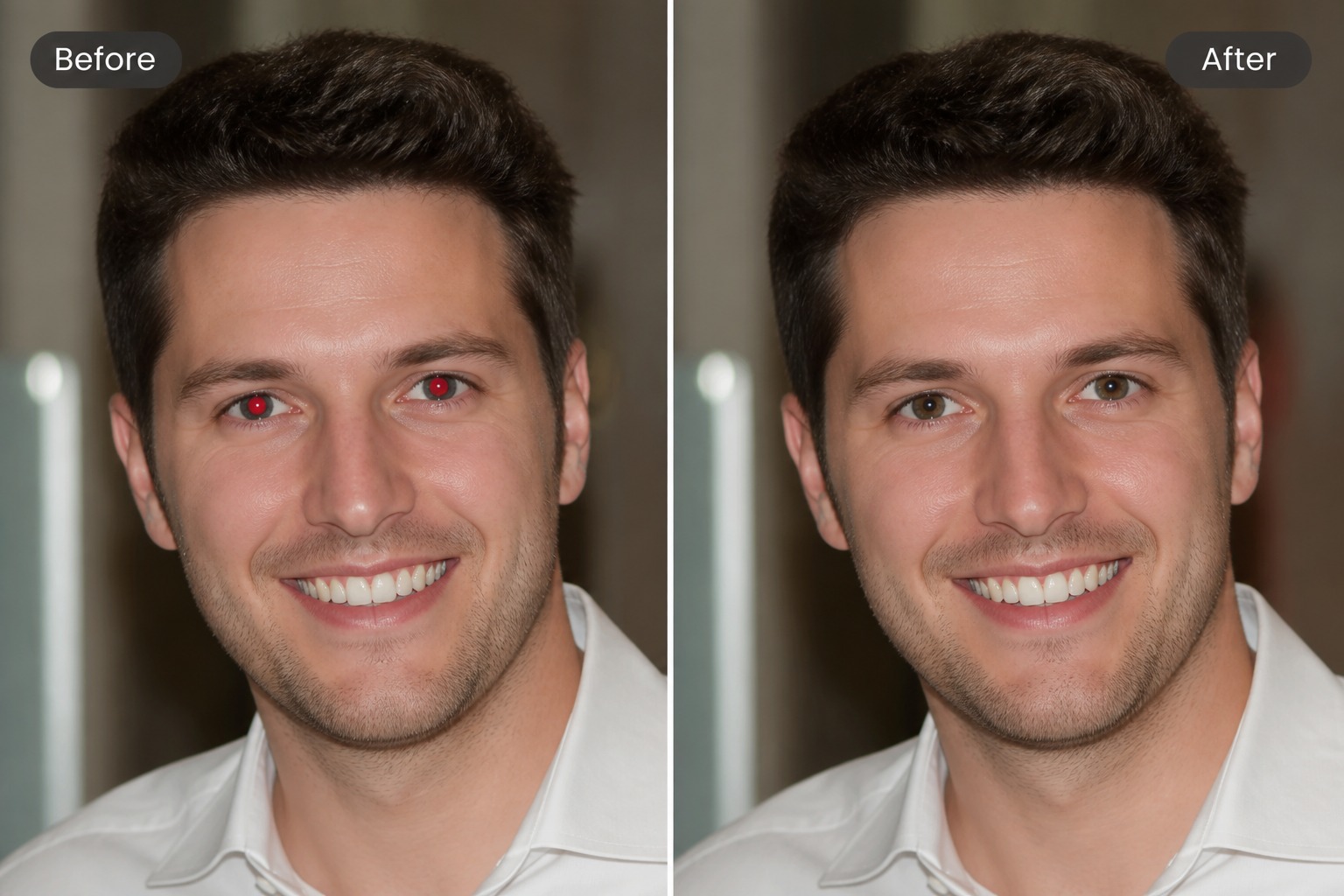
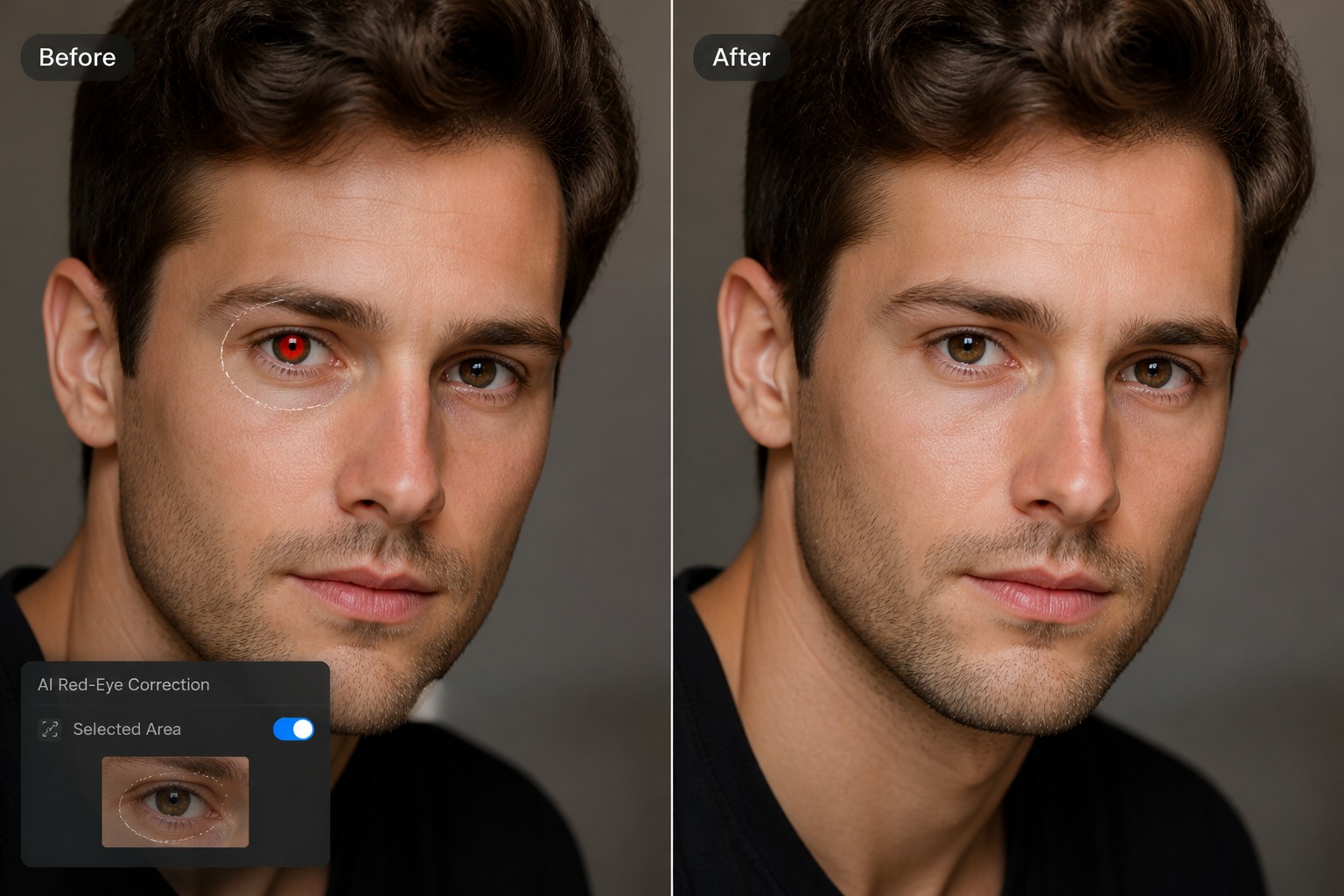
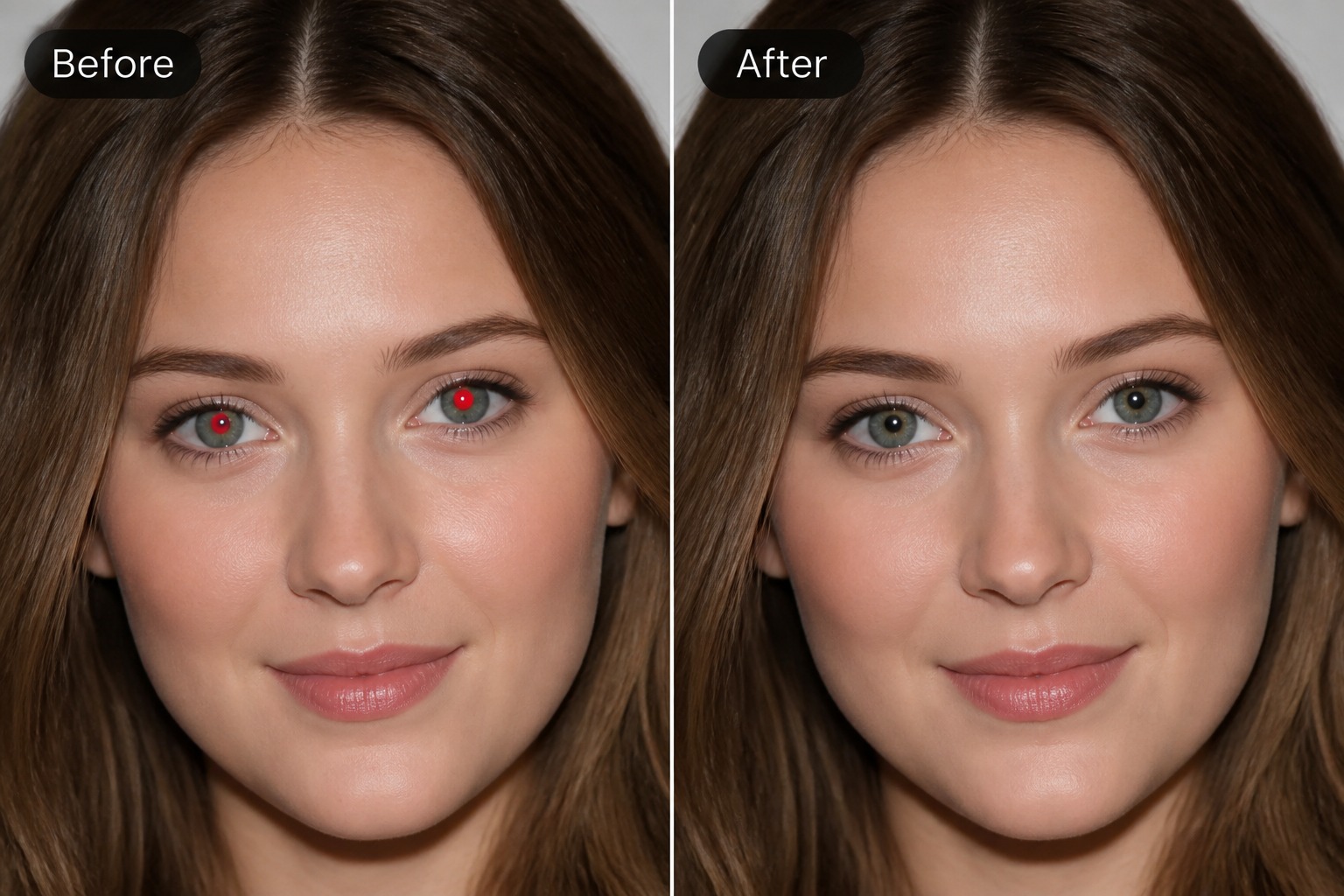
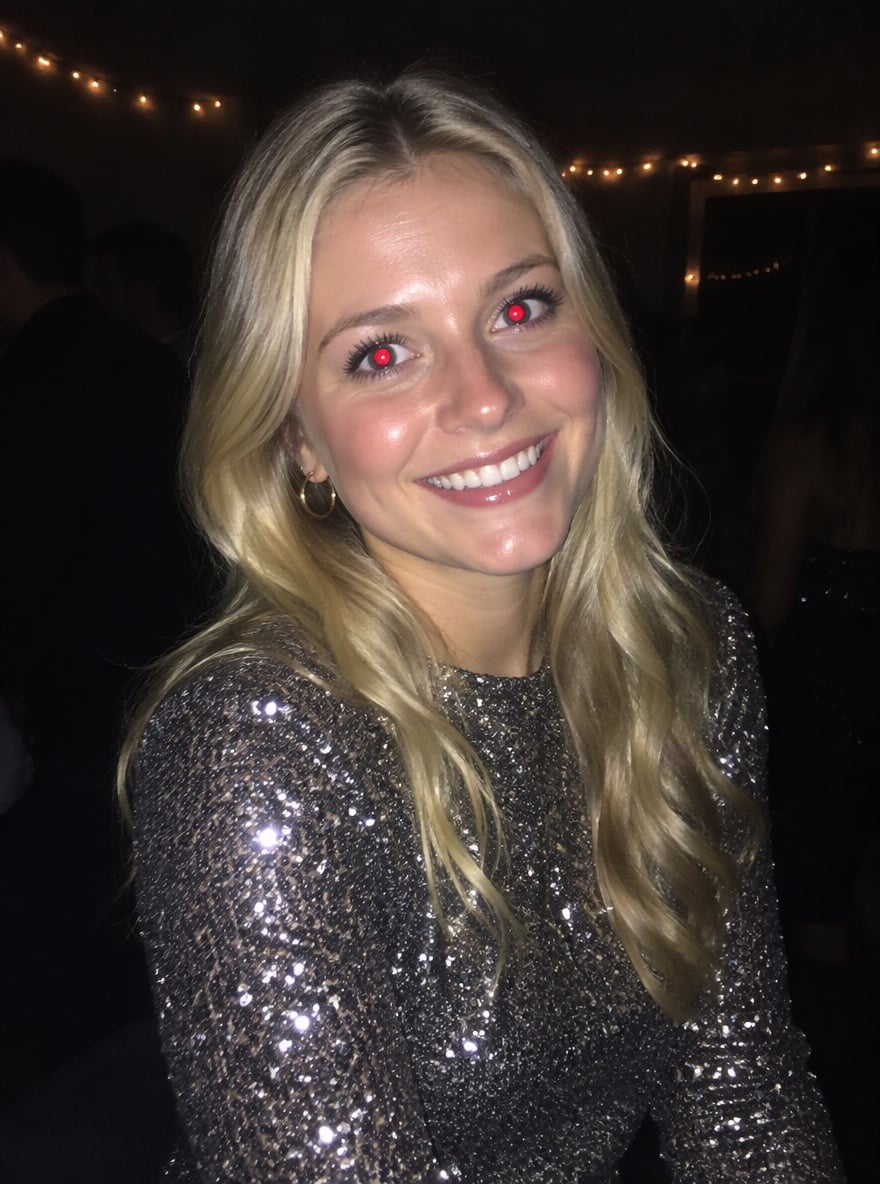
Clean the bright red pupil effect caused by camera flash while keeping the rest of the portrait intact. A good red eye photo remover should correct the eye color without changing facial expression, skin tone, or the mood of the image.

Refresh Event Photos

Fix red eye in party shots, school photos, travel pictures, and family gatherings that are otherwise worth keeping. The strongest fit is a clear face with visible eyes; tiny faces or heavy blur may need manual review after correction.

Clean Portrait Details

Use a red eye picture editor when only the pupil color needs repair and the rest of the photo should stay the same. For broader retouching, an image to image AI workflow can help refine lighting, background, or portrait style too.
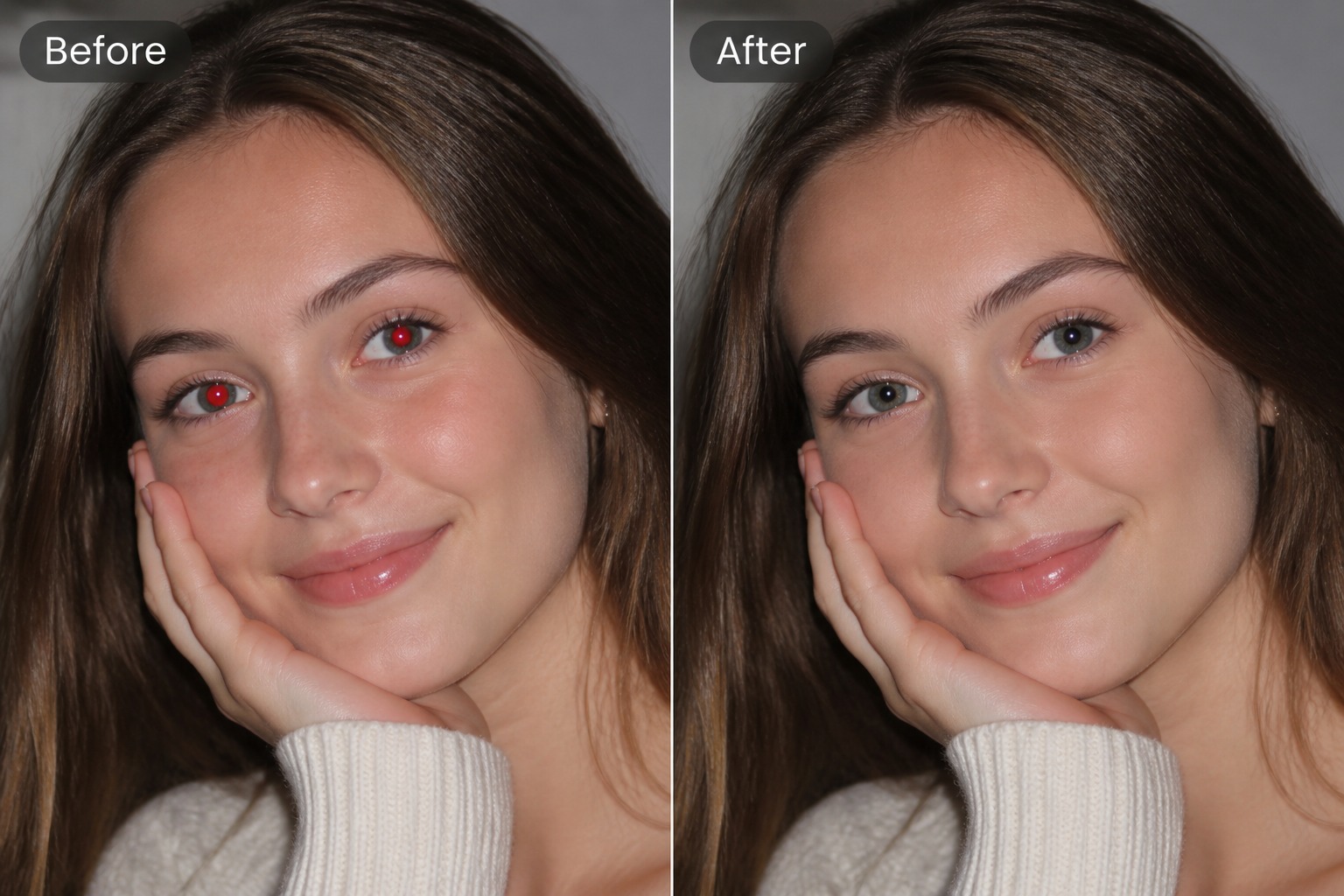
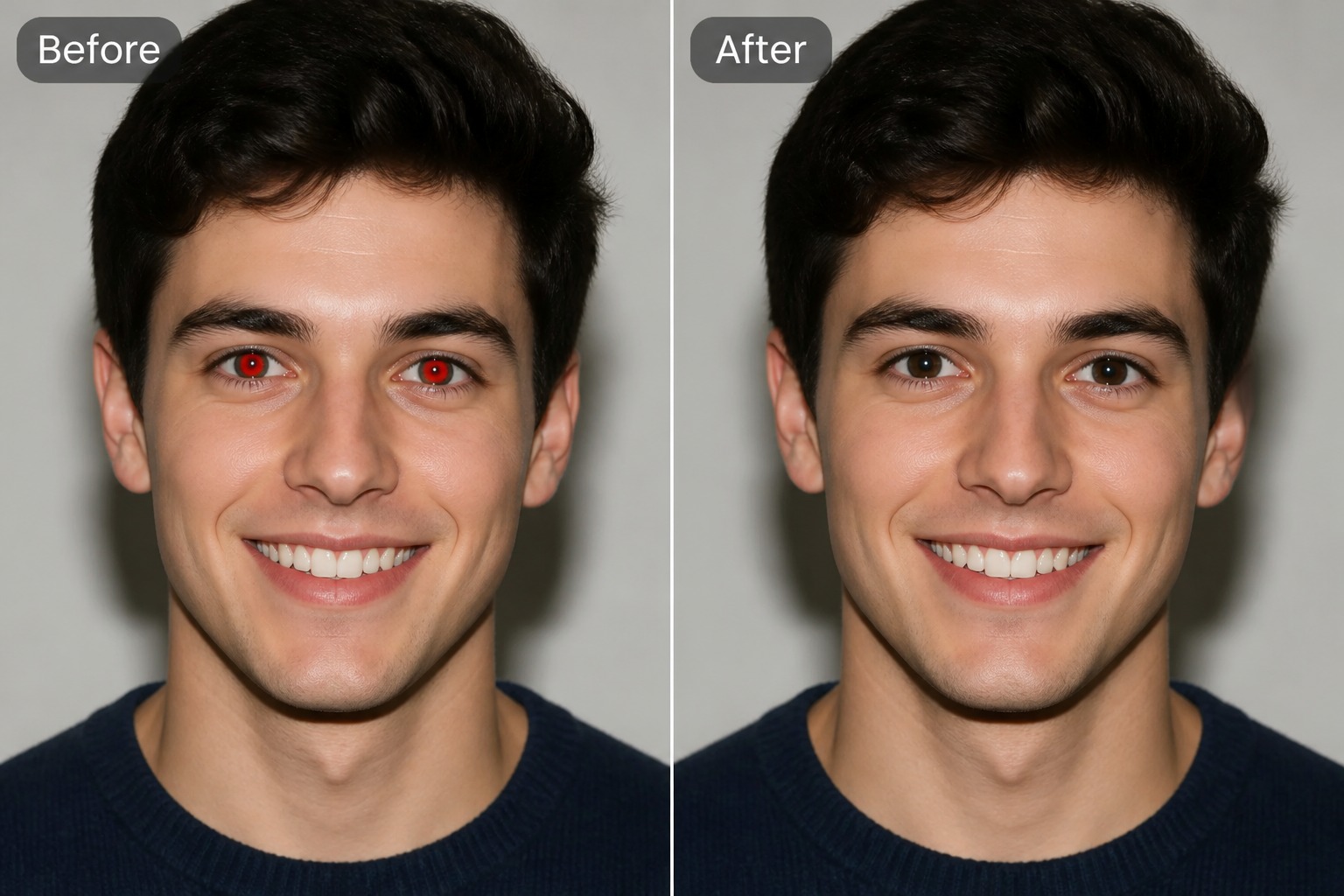
Prepare Shareable Images

Turn distracting flash-eye photos into cleaner images for albums, social posts, profile photos, and printed keepsakes. Review the result for matching eye direction, natural iris color, and whether both eyes were corrected evenly.

Why Use an AI Red Eye Photo Remover?

Keep the Original Photo

Correct the eye problem while preserving the pose, background, lighting, clothing, and emotional value of the original image.

Faster Than Manual Retouching

Avoid zooming into each eye with brush tools when you need a cleaner portrait draft quickly.

Works for Real Memories

Repair family snapshots, birthday photos, travel portraits, school images, event pictures, and casual flash-camera moments.

Useful for Profile Photos

Fix a distracting red-eye issue before using a portrait for avatars, social profiles, bios, or personal branding.

Focused Eye Correction

Target the red-eye artifact without over-editing the whole face or turning the portrait into a different style.

Easy Review Before Sharing

Compare the corrected image with the original to make sure the eyes look natural and the person remains recognizable.

How to Remove Red Eye in Photos

Step 1 1

Upload the Flash Photo

Start with a photo where the eyes are visible enough to correct. Clear portraits, group photos with larger faces, and pet images usually work better than blurry or tiny subjects.
Step 2 2

Mark the Red Eye Goal

Ask for red-eye correction while keeping the face, expression, lighting, and background unchanged. Keep the request focused so the edit does not over-retouch the portrait.
Step 3 3

Review the Eye Result

Check both eyes for matching color, natural iris detail, and no dark overcorrection. Regenerate or refine if the eyes look flat, uneven, or too different from the original photo.

Red Eye Remover FAQ

What is a red eye remover?

A red eye remover is a photo editing workflow that corrects the bright red pupil effect caused by camera flash, usually while keeping the rest of the image unchanged.

How do I remove red eye in photos?

Upload the image, ask for red-eye correction, generate the edited version, and compare the eyes with the original photo to make sure the color and shape look natural.

What photos work best for red eye correction?

Photos work best when the eyes are visible, the face is not too small, and the photo is not heavily blurred. Group photos can work if the affected eyes are clear enough.

Can it fix red eye in pet photos?

It can help with pet-eye flash artifacts when the eyes are visible. Pet eyes may reflect in different colors, so review the result for natural color and matching gaze direction.

Will it change the whole face?

The goal is focused eye correction, not a full face transformation. Use a prompt that asks to keep the face, skin, expression, and background unchanged.

Can I use the corrected photo for profiles or printing?

Yes, after reviewing the result. Check eye color, pupil shape, and overall portrait quality before using the image for profiles, albums, prints, or event galleries.

Is the red eye picture editor free to try?

GoEnhance AI may provide free credits for trying image edits. Credit amounts, export limits, and plan rules can change, so check the current app details before editing a batch.

Fix Red Eye in Photos With GoEnhance AI

Upload a flash portrait, correct glowing red pupils, and create a cleaner photo for albums, profiles, social posts, prints, or everyday sharing.

Remove Red Eye