
AI Remove Glasses From Photo



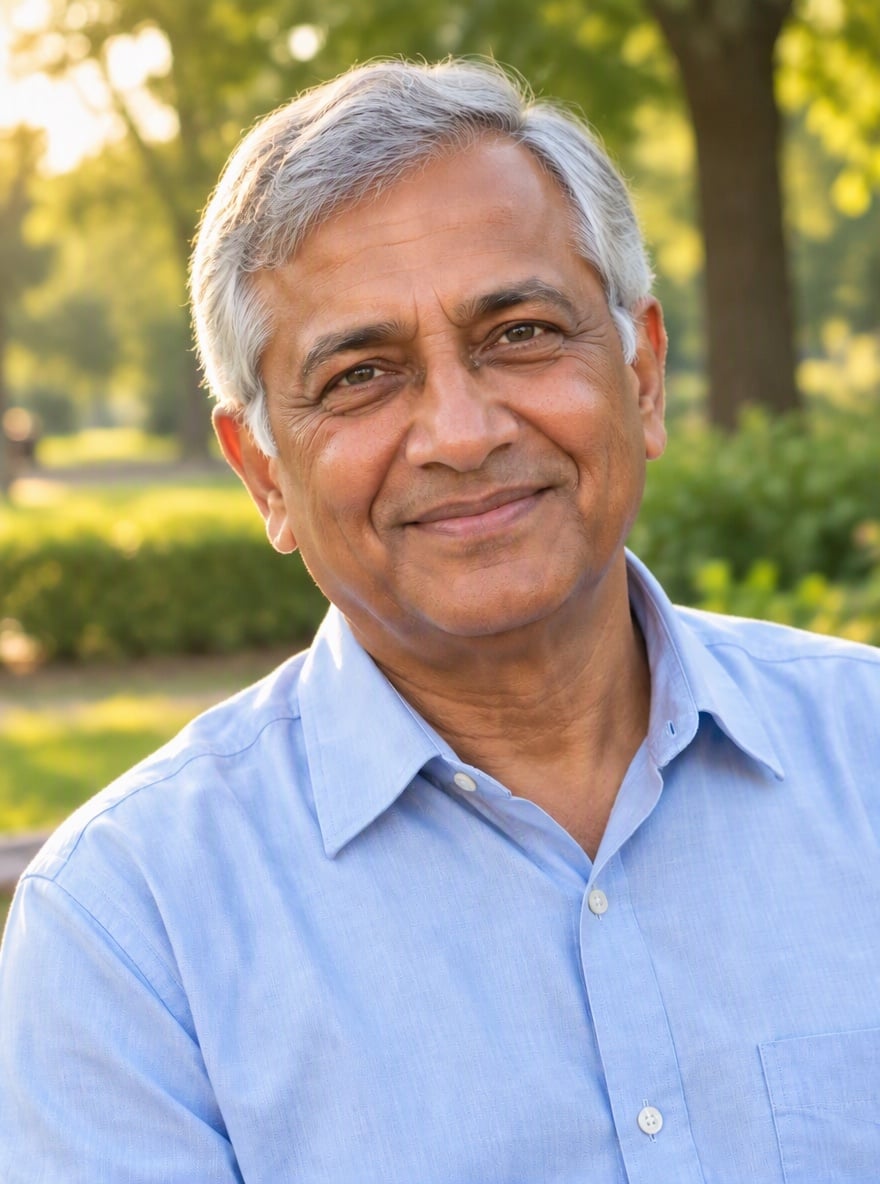
Remove Glasses From Portraits With Natural Results
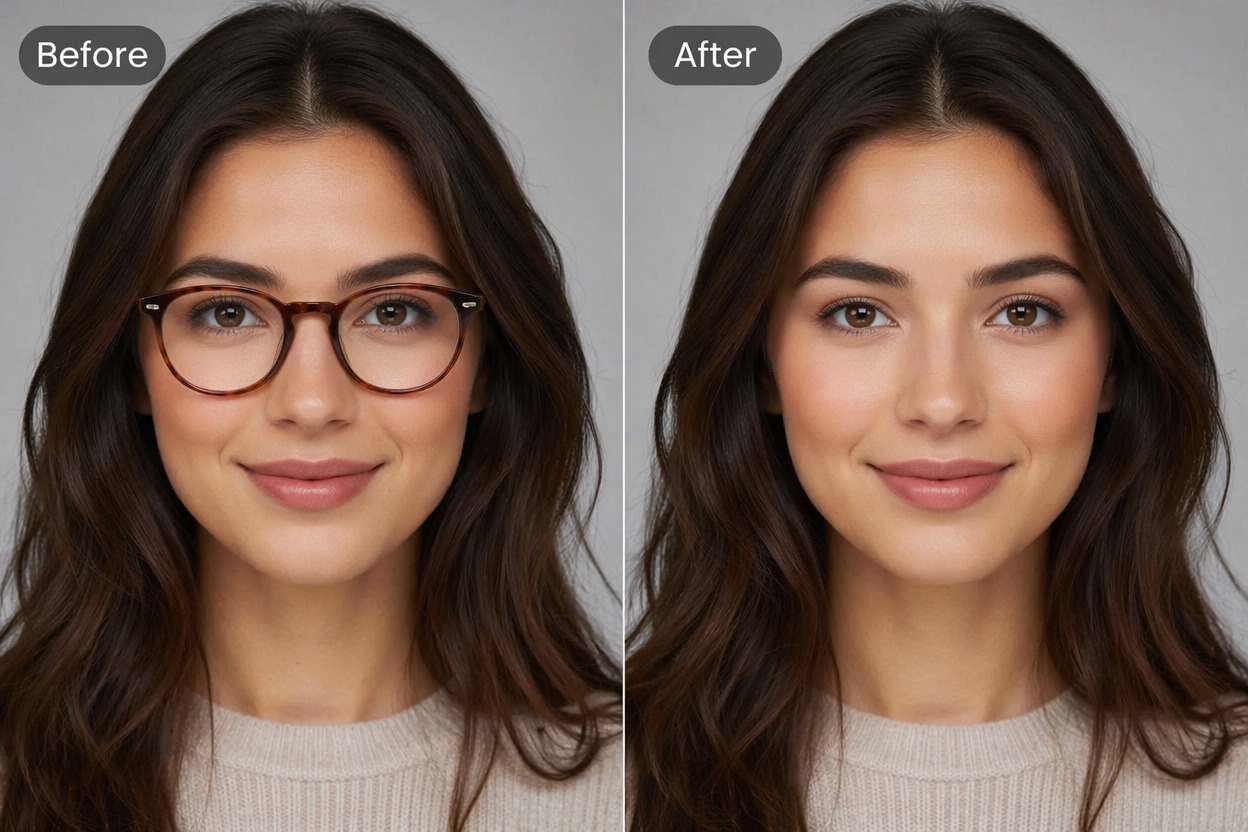
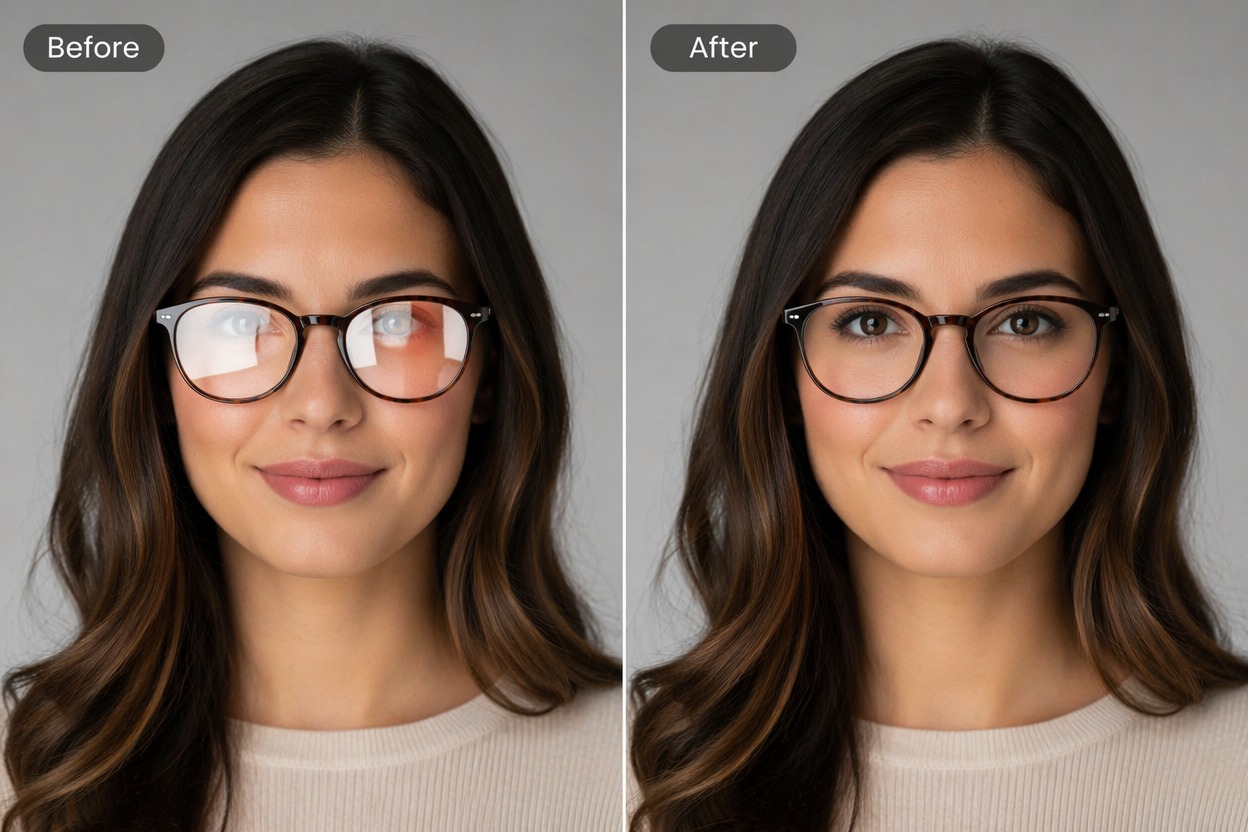
Prepare Profile Images
Create cleaner headshots for avatars, resumes, creator bios, thumbnails, and social profiles without retaking the photo. For broader edits after the glasses are gone, try an image to image AI workflow.
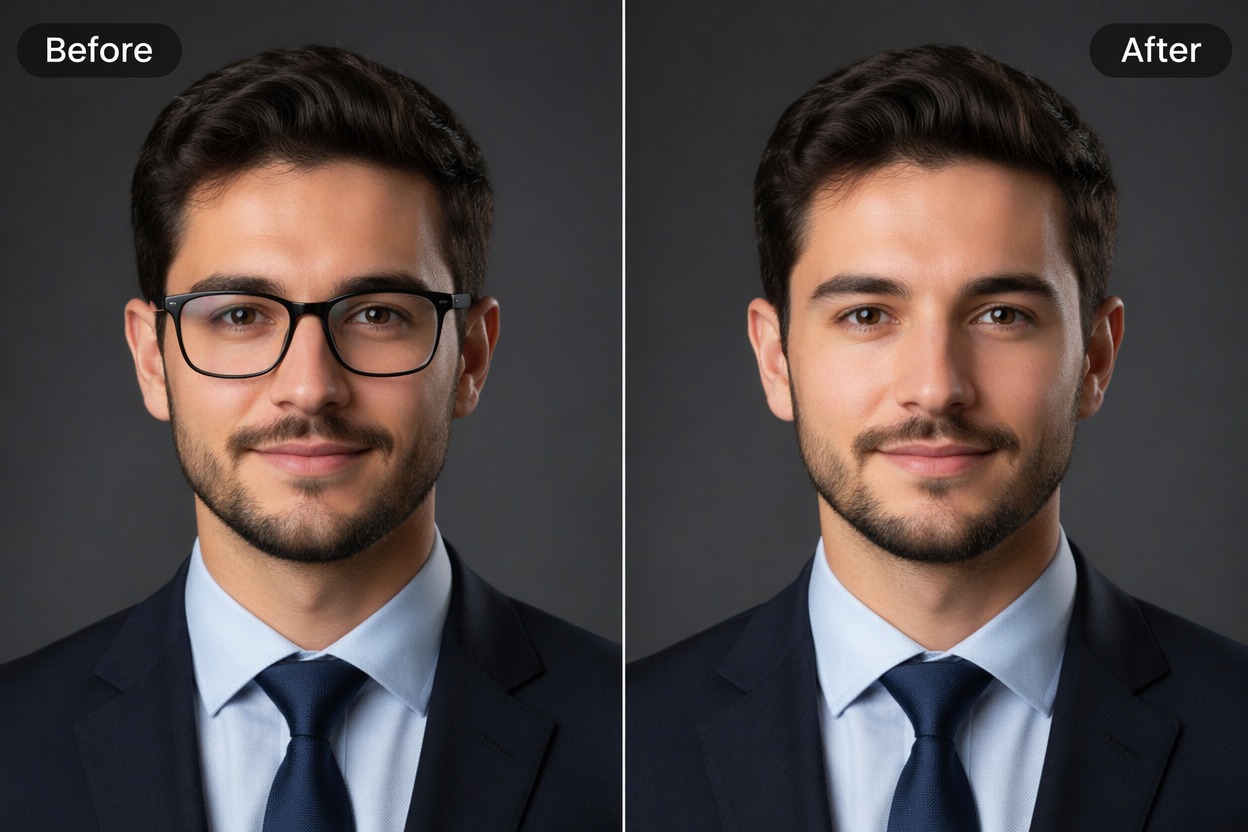
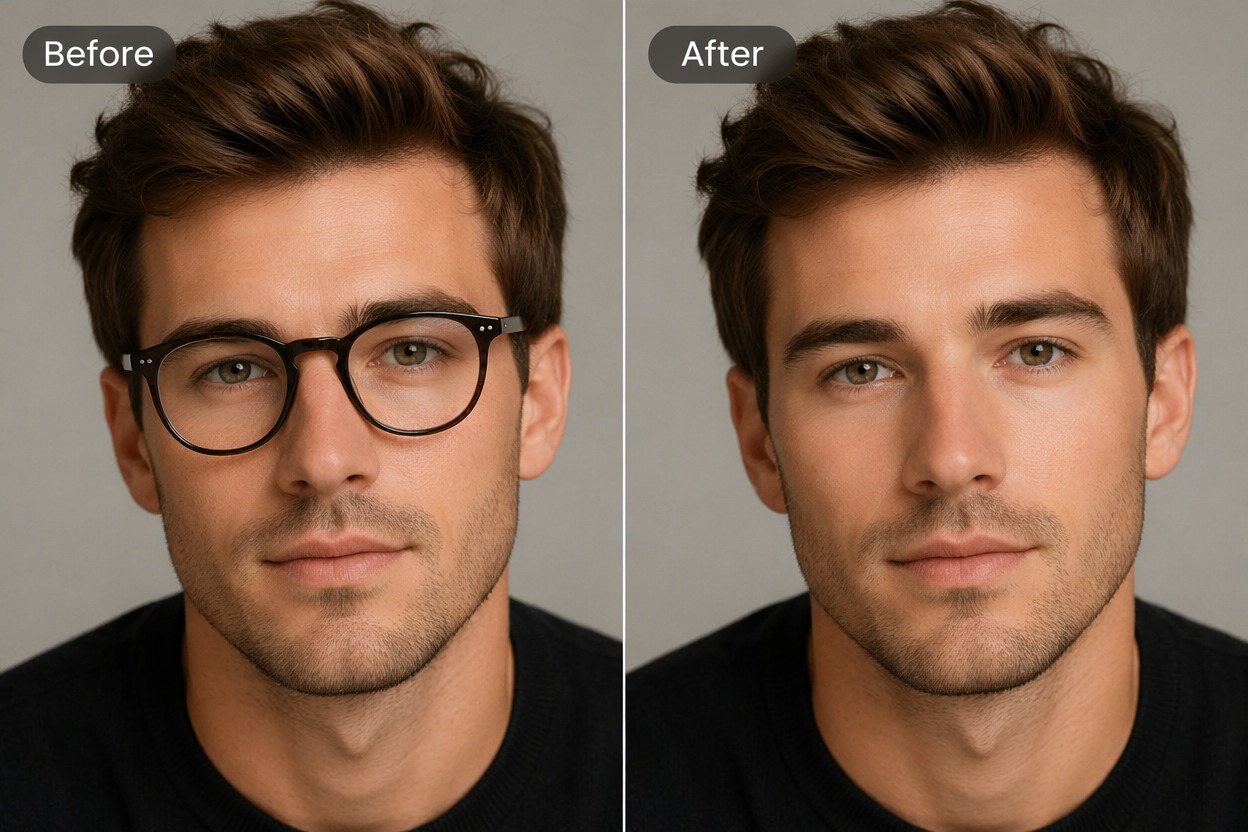
Why Use an AI Glasses Remover?
No Reshoot Needed
Focused Face Editing
Cleaner Eye Visibility
Useful for Many Portraits
Simple Creative Testing
Free Credits to Try
How to Remove Glasses From Photo Online
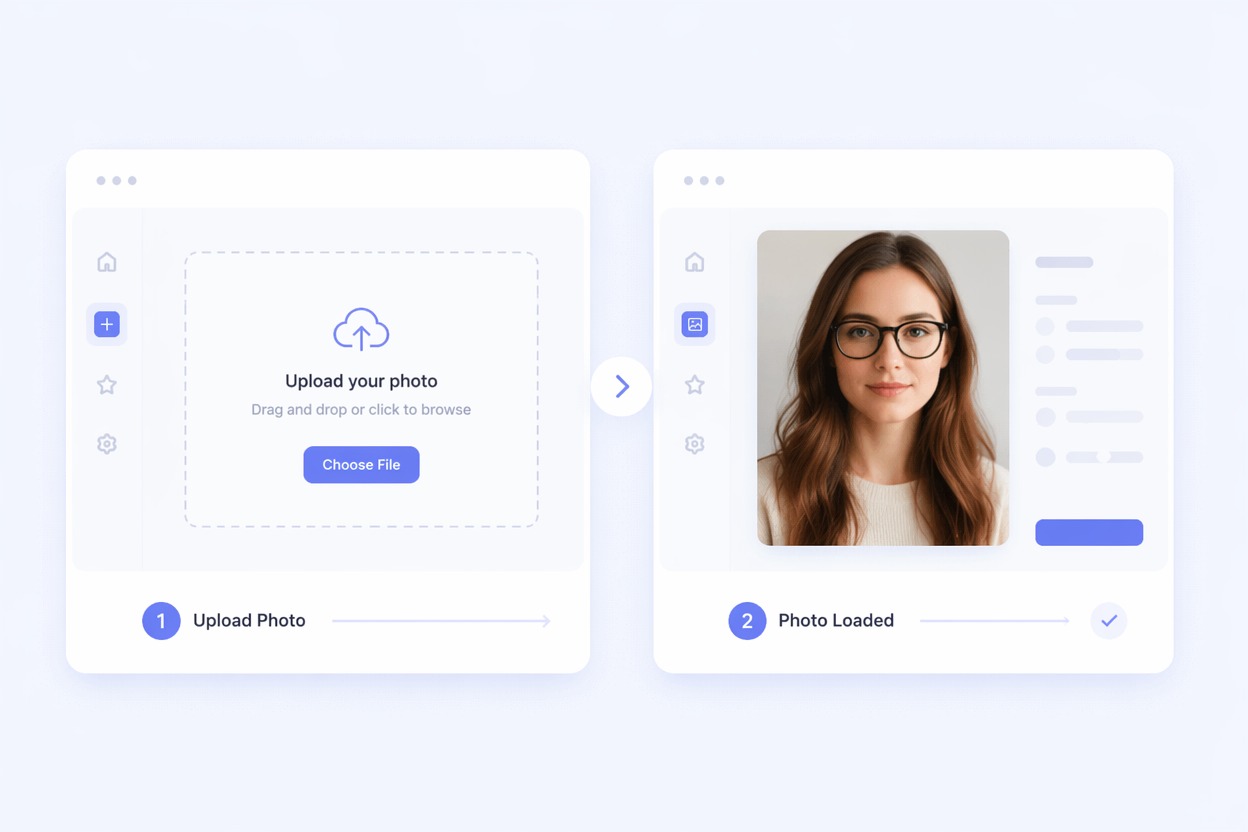
Upload a Clear Portrait
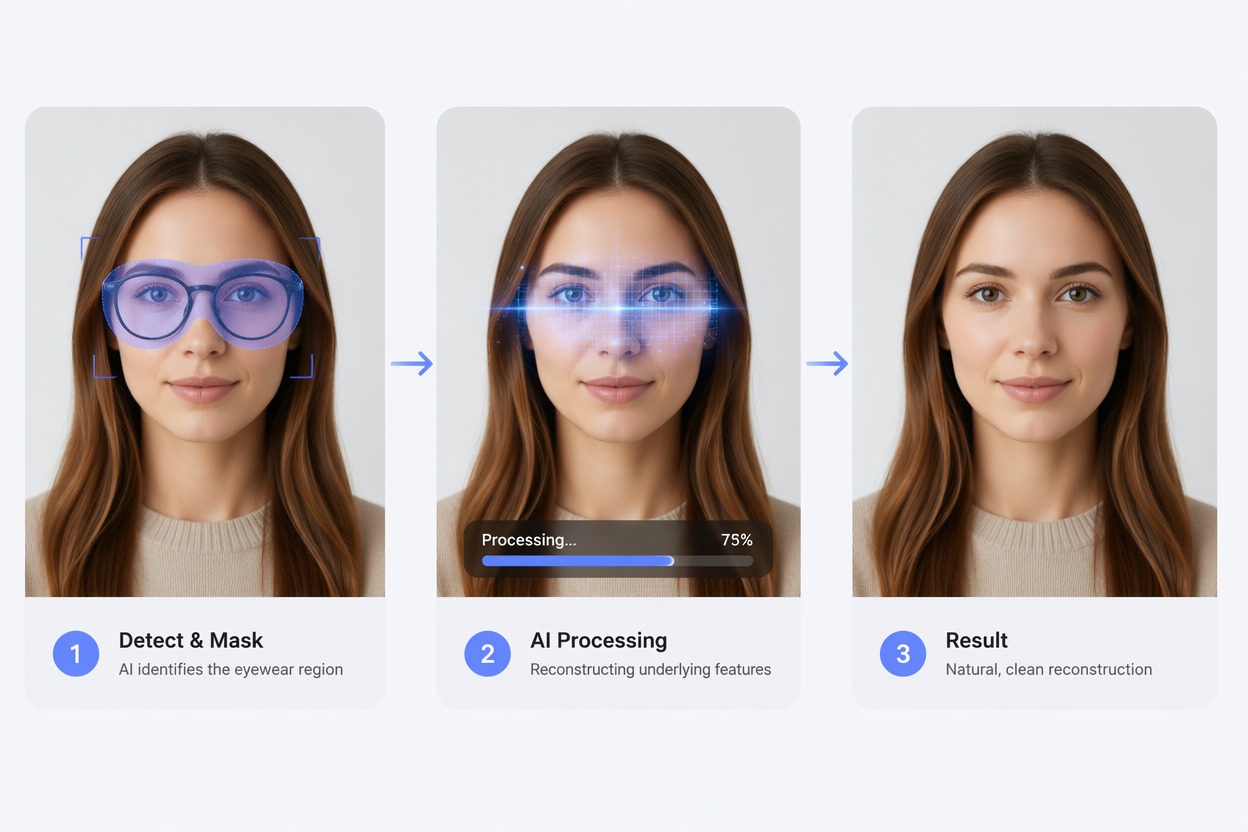
Request Glasses Removal
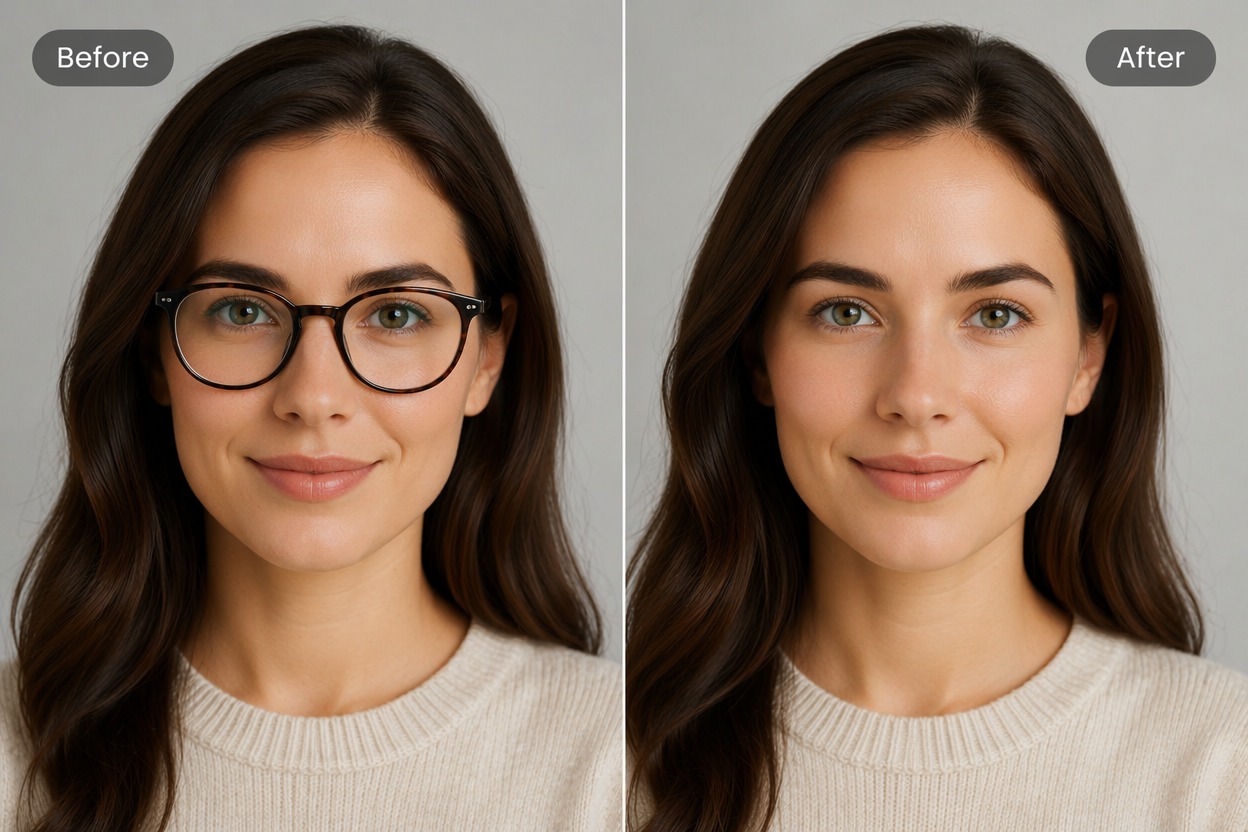
Compare and Refine
More AI Image Tools
AI Object Remover
Effortlessly remove objects, people, text, and clutter from photos with our free AI object remover—get clean, professional-looking images in one click.
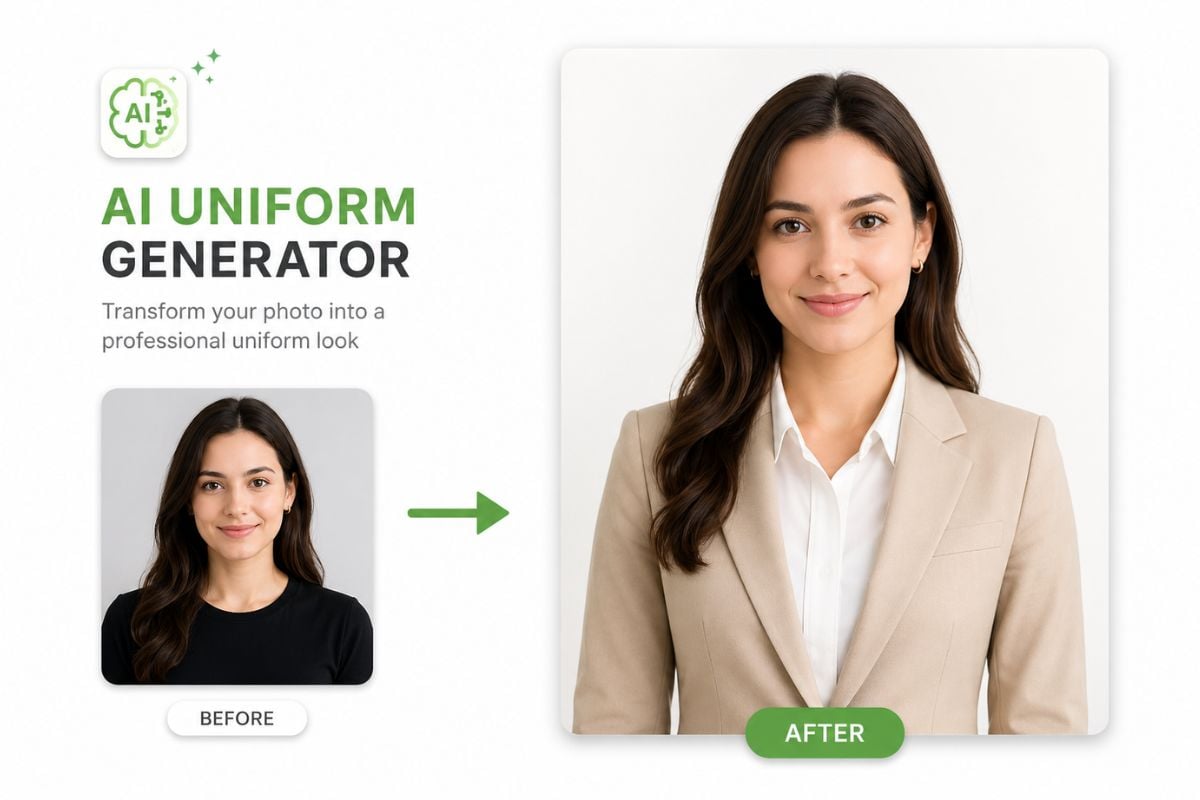
AI Uniform Generator
Use AI uniform generator to turn your photo into school, work, sports, military, medical, or fantasy uniform looks in seconds.
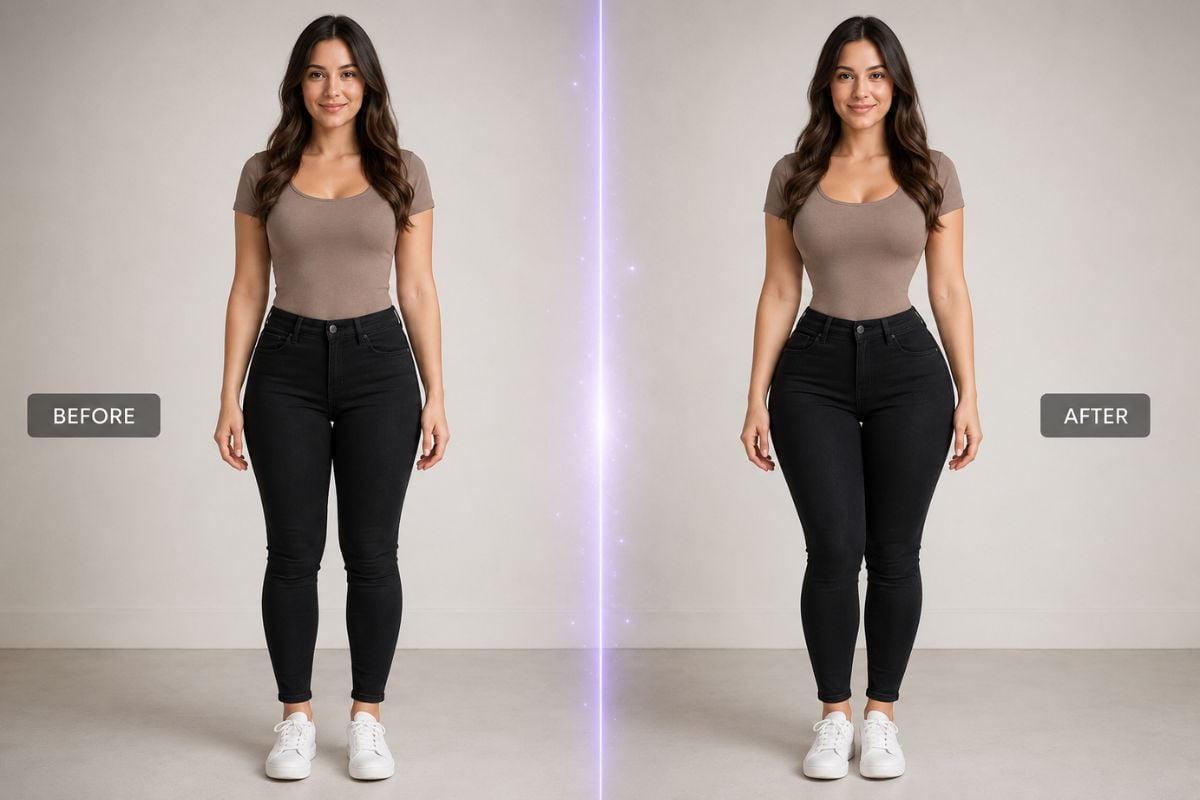
AI Hourglass Body
Create hourglass body style images with GoEnhance AI. Generate, edit, and refine body shape concepts for portraits, fashion visuals, character design, and creative image projects.
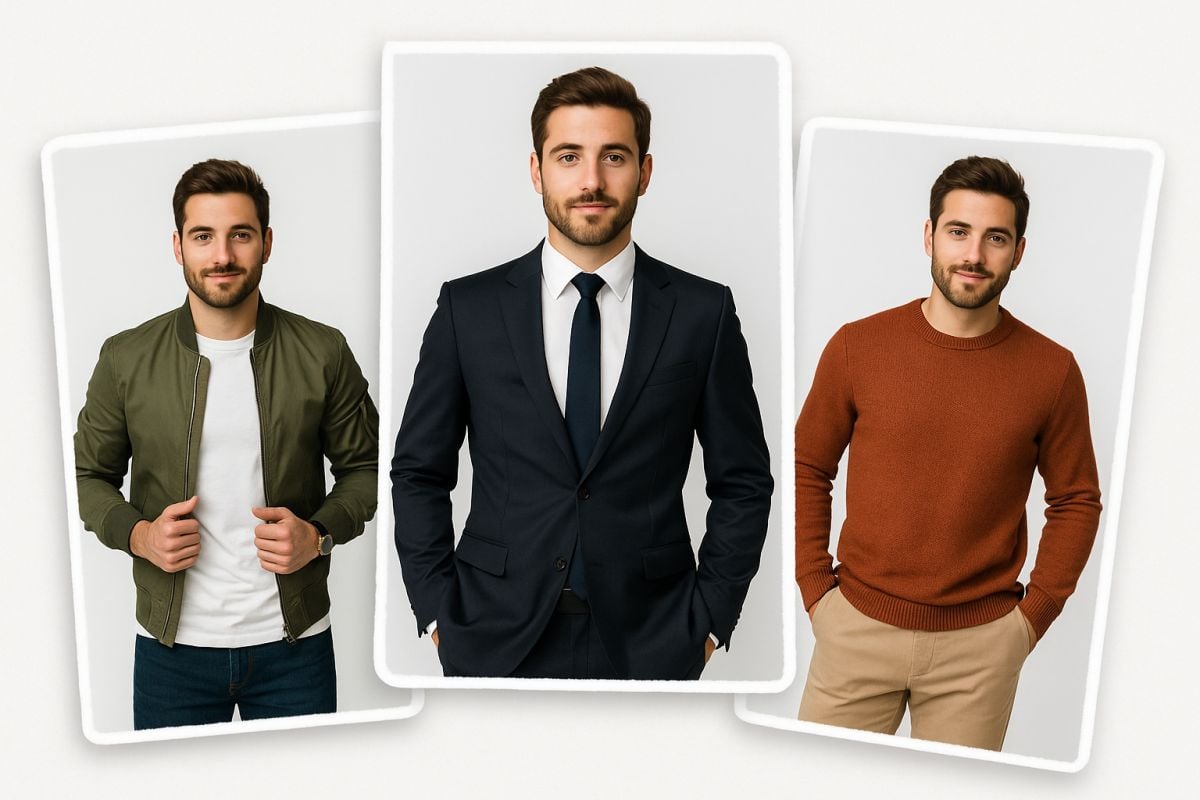
AI Outfit Generator
Leverage our free text-to-outfit AI generator to create stunning, custom apparel designs. Transform your ideas into realistic virtual outfits instantly.
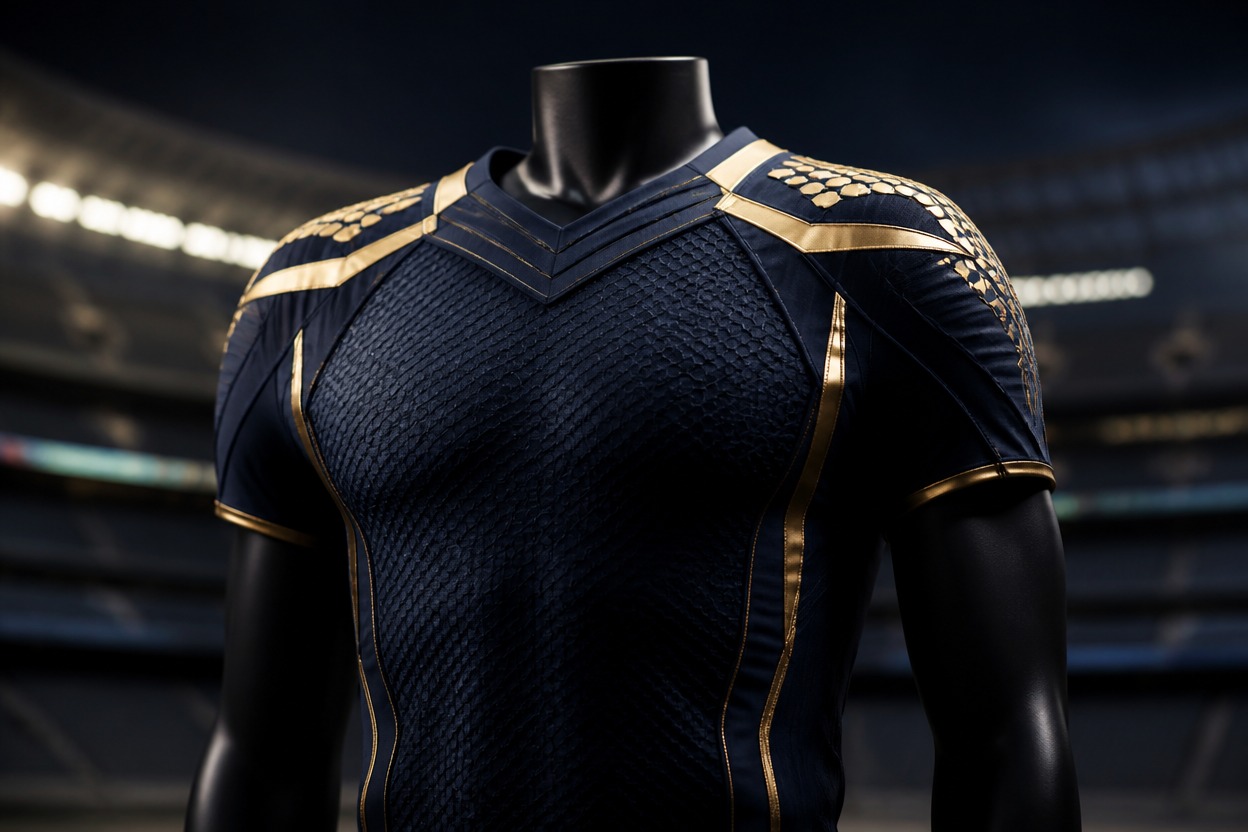
Football Uniform Creator
Create custom football uniforms online with GoEnhance AI. Design jerseys, team kits, colors, player numbers, helmets, and home or away football uniform concepts with AI.
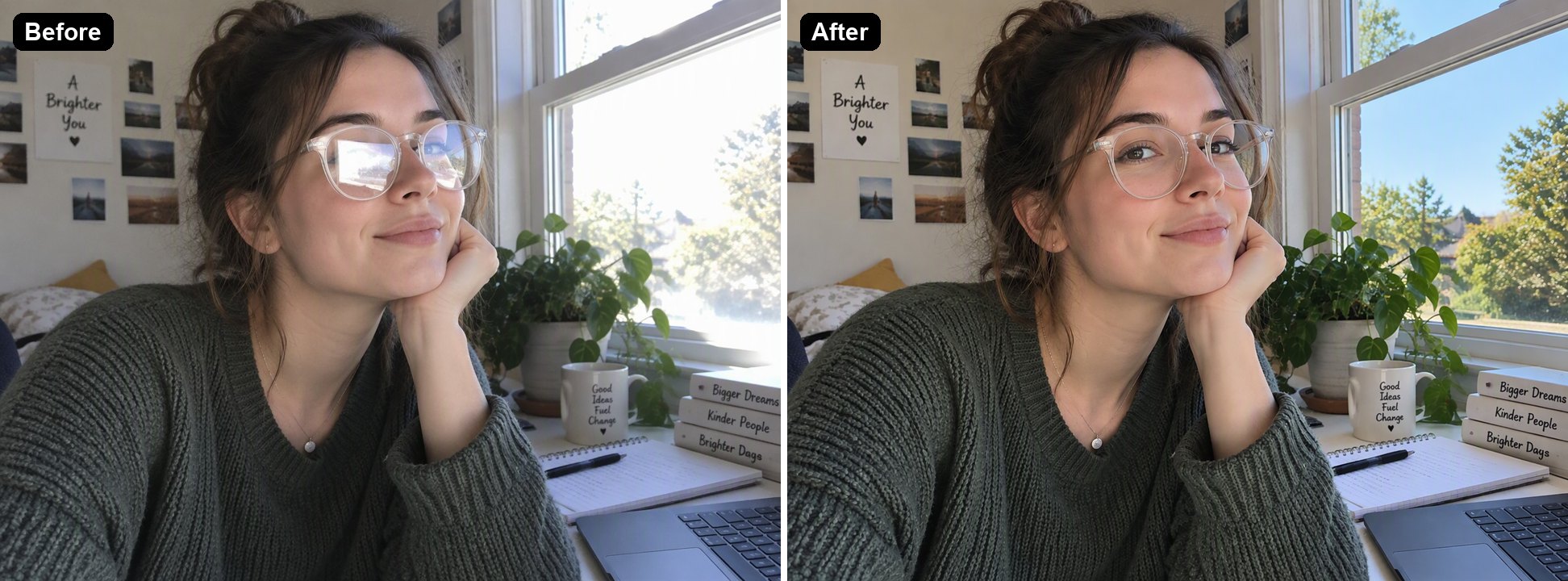
Remove Glare from Photo
Remove glare and reflections from glasses, framed pictures and shiny products. The AI clears the bright spots and redraws what was under them.
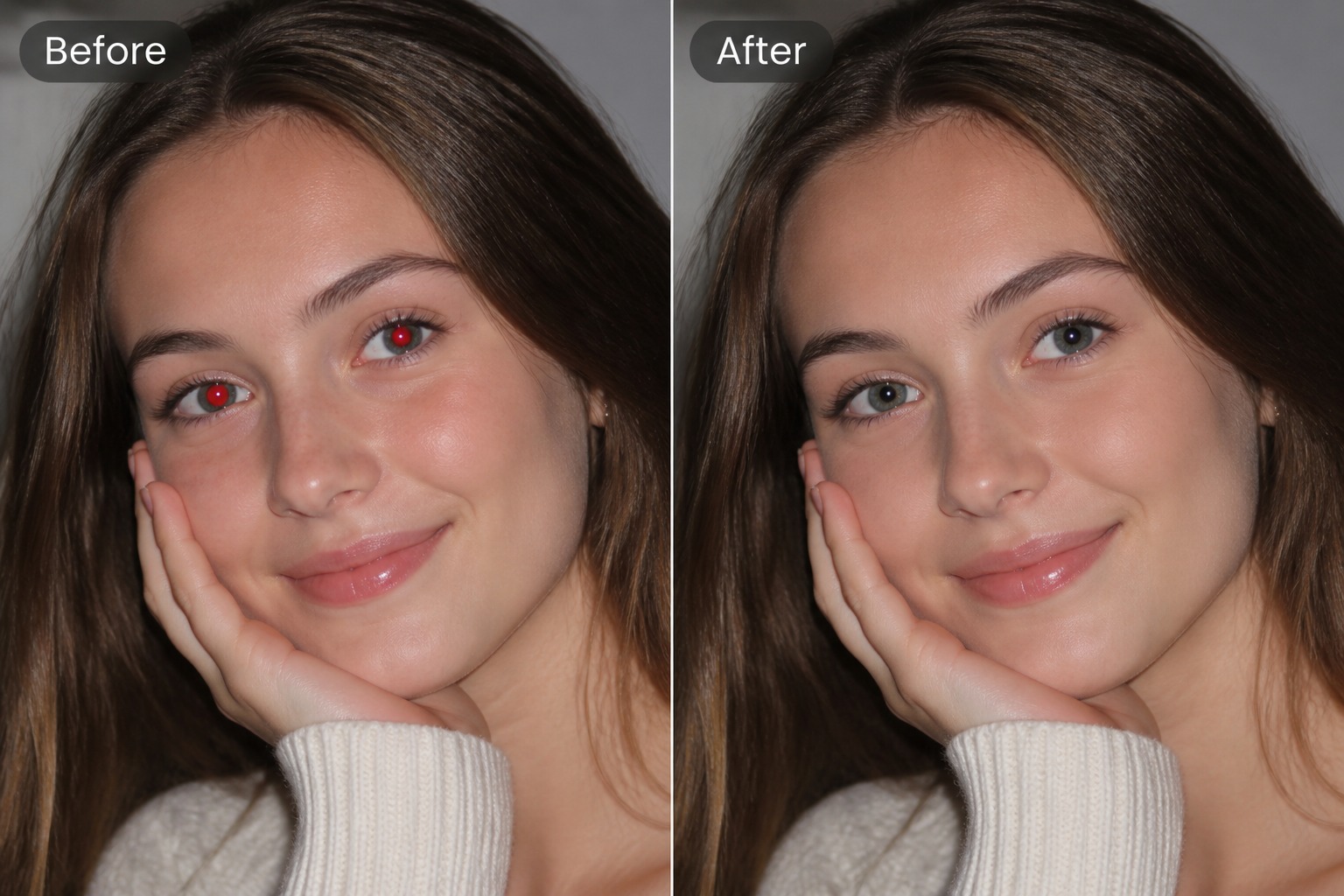
Red Eye Remover
Remove red eye in photos with AI to clean flash portraits, fix glowing pupils, and prepare natural-looking images for sharing.

Remove Person from Photo
Remove people from photos online: erase tourists, photobombers and strangers by describing who should go. The AI fills in the background. Try it free.
AI Glasses Remover FAQ
What is an AI glasses remover?
Can I remove glasses from photo online free?
What photos work best for removing glasses?
Will removing glasses change the person’s identity?
Can it remove sunglasses too?
Can I use the edited photo for profiles or work documents?
Is it okay to edit someone else’s glasses out of a photo?
Remove Glasses From Photos With GoEnhance AI
Upload a portrait, remove glasses or lens glare, and create a cleaner face image for profiles, thumbnails, personal branding, or everyday photo cleanup.
Start Glasses Removal