How to Create a Polaroid AI Photo in 1 Minute?
- Choose the Polaroid Photo You Want to Make
- What Photos Should You Prepare?
- How to Create a Polaroid AI Photo With GoEnhance
- How to Make the AI Polaroid Look More Natural
- How to Fix Common Polaroid AI Problems
- Frequently Asked Questions
To create a Polaroid AI photo, choose whether you want to add a retro instant-photo look to one picture or combine two portraits into a shared Polaroid scene. GoEnhance has a Polaroid Photo Generator for the vintage effect and a Polaroid Duo Selfie app with separate first-image and last-image upload slots. The Duo workflow also includes an optional prompt field.
The GoEnhance Polaroid feature is designed to add a classic white frame, warm lighting, and subtle film grain. Its two-portrait version can place people from separate photos into one shared scene, such as a couple portrait or a photo of your present and younger self.
Choose the Polaroid Photo You Want to Make
GoEnhance offers two useful starting points:
- One-photo Polaroid effect: Start from one picture and apply a vintage instant-photo treatment. Open the Polaroid Photo Generator.
- Two-person Polaroid scene: Add two portrait references and ask the AI to place them together. Open Polaroid Duo Selfie.
This guide focuses on the two-person version, while also explaining when the single-photo effect is a better fit.
What Photos Should You Prepare?
For a two-person Polaroid, prepare two clear portraits. GoEnhance recommends good lighting and front-facing angles for the shared-scene effect.
Before uploading, check that:
- Both faces are visible and in focus.
- The photos have enough light to show facial features.
- The camera angles and crop are reasonably similar.
- You know what interaction you want, such as a hug, a side-by-side pose, or a shared smile.
You can use two people’s portraits, or use a current portrait and an older photo for a past-and-present scene.
How to Create a Polaroid AI Photo With GoEnhance
1. Open Polaroid Duo Selfie
Open the GoEnhance Polaroid Duo Selfie app. The editor shows two image slots, an optional prompt field, and a Generate button.
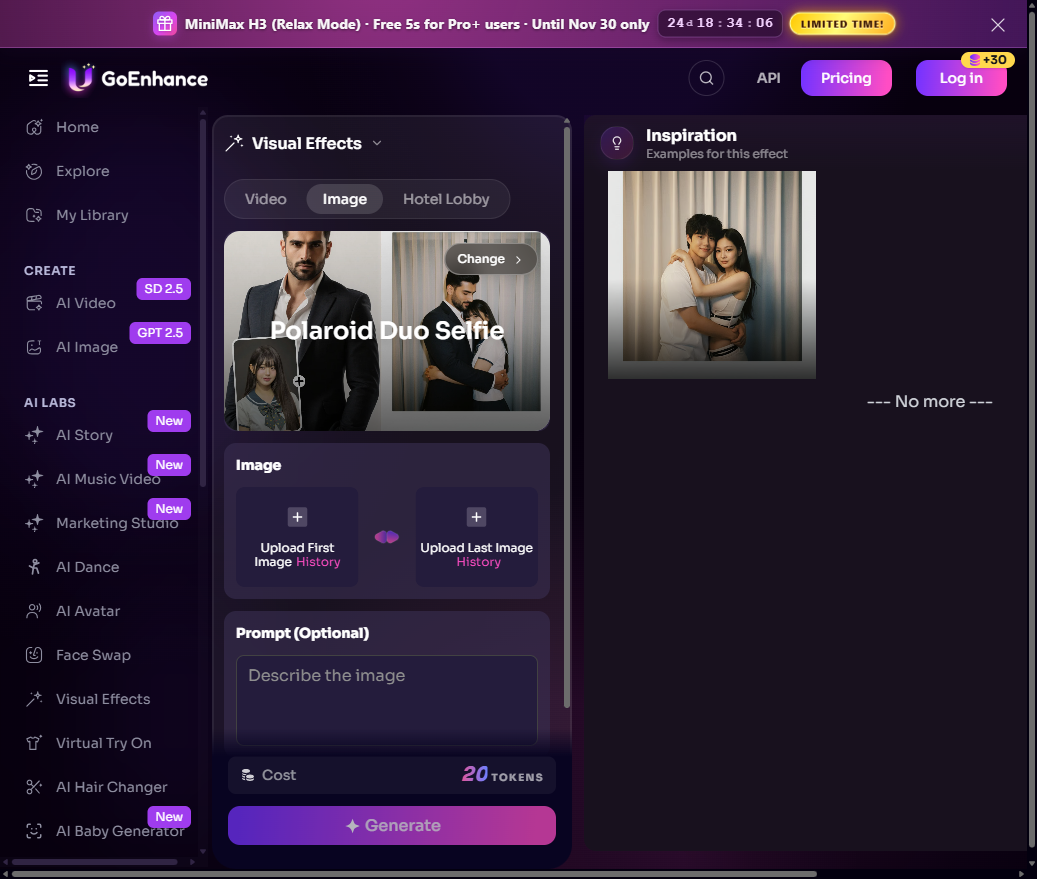
The GoEnhance app interface for the Polaroid Duo Selfie effect.
2. Upload the first and last images
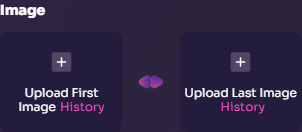
Add one portrait to Upload First Image and the other to Upload Last Image. Use the clearest versions you have, especially if the final image will show both faces close up.
3. Add an optional prompt
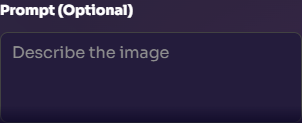
The prompt field is optional. Use it when you want to guide the pose, setting, or mood. Keep the request focused: describe the interaction, the background, and the Polaroid look, then say which features should remain recognizable.
Example prompt:
Create a candid instant-film Polaroid of the two people in the uploaded portraits smiling together in a softly lit living room. Keep both faces and hairstyles recognizable. Use a classic white instant-photo border, warm flash, subtle film grain, slightly faded colors, and natural proportions. No extra people, text, or logos.
4. Generate the Polaroid photo
Click Generate to create the image. The app displays the token cost beside the button, so you can review it before starting the generation.

5. Review and download the result
Check whether both people still look recognizable and whether the pose, lighting, and frame look natural together. If the result needs another pass, try a clearer source portrait or simplify the prompt. When you are happy with the image, download it from the result view.
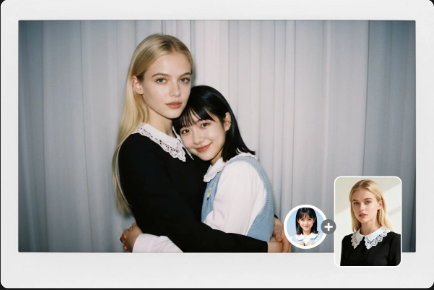
Example output displayed on GoEnhance’s Polaroid feature page.
How to Make the AI Polaroid Look More Natural
A convincing instant-photo style depends on both the source portraits and the scene instructions. Use these adjustments when you want a more believable result:
- Match the portraits: Similar camera angles and lighting make it easier to create one shared scene.
- Describe one simple interaction: A hug, a side-by-side pose, or a shared smile is easier to follow than a long sequence of actions.
- Keep identity instructions clear: If you use the prompt field, say to keep each person’s face and hairstyle recognizable.
- Name the Polaroid details: Ask for a white instant-photo border, warm flash, soft colors, and subtle grain.
- Review the final image at normal size: Check faces, hands, clothing edges, and the frame before sharing or printing.
How to Fix Common Polaroid AI Problems
The faces do not look enough like the portraits
Start with sharper, well-lit images where the faces are unobstructed. In the optional prompt, ask the model to keep each person’s facial features recognizable and avoid adding extra face or hairstyle changes.
The two people do not look like they belong in the same photo
Choose portraits with similar camera angles and lighting. Then use a simple prompt that describes one shared pose and one setting.
The pose looks awkward
Try a simpler interaction, such as standing side by side or smiling at the camera. Remove extra details from the prompt and generate another version.
The image looks like a regular photo instead of a Polaroid
Make the style explicit in the prompt: classic white instant-photo border, warm flash, soft vintage colors, and subtle film grain. The dedicated Polaroid effect also applies its own retro treatment.
You only want a vintage frame around one photo
Use the single-photo Polaroid Photo Generator. For broader prompt-based changes to an uploaded picture, GoEnhance also has an Image-to-Image editor.
Frequently Asked Questions
Can I create a Polaroid AI photo from one picture?
Yes. Use the single-photo Polaroid effect if you only want a vintage instant-photo look on one image. For the Polaroid Duo Selfie composition, use the two image slots to combine two portraits.
Do I need to write a prompt?
No. The prompt field in Polaroid Duo Selfie is optional. Add one if you want to guide the pose, background, or mood.
Can I make a Polaroid photo with my younger self?
Yes. Add a current portrait and an older photo as the two references, then describe the scene you want, such as a friendly hug or a side-by-side portrait.
Does GoEnhance add the Polaroid border automatically?
The dedicated Polaroid effect is designed to add a classic white border along with warm lighting and subtle film grain. Review the generated image to make sure the frame and subjects look right.
Can I use the generated image on social media?
GoEnhance’s Polaroid page presents the effect for sharing on social platforms. You can download the finished image and prepare it for the format you plan to post.