Side By Side Photo Maker: Two Photos, One Clean Layout

Need to put two pictures side by side for a before and after post, a product or filter comparison, or a two-person portrait? Upload your first photo here, add the second one in the editor, and the side by side photo maker places Image 1 on the left and Image 2 on the right as two equal panels with a thin white divider and a slim border. It scales both photos so the subjects look the same size, lines up eye level where it can and gently evens out brightness and white balance, while faces, outfits and backgrounds stay as they were. The default prompt adds small BEFORE and AFTER tags; delete that line for a clean layout with no text. Unlike the AI duo photoshoot, which puts two people into one new scene, this tool keeps both original photos and simply arranges them neatly. The console below runs on GPT Image 2.5.
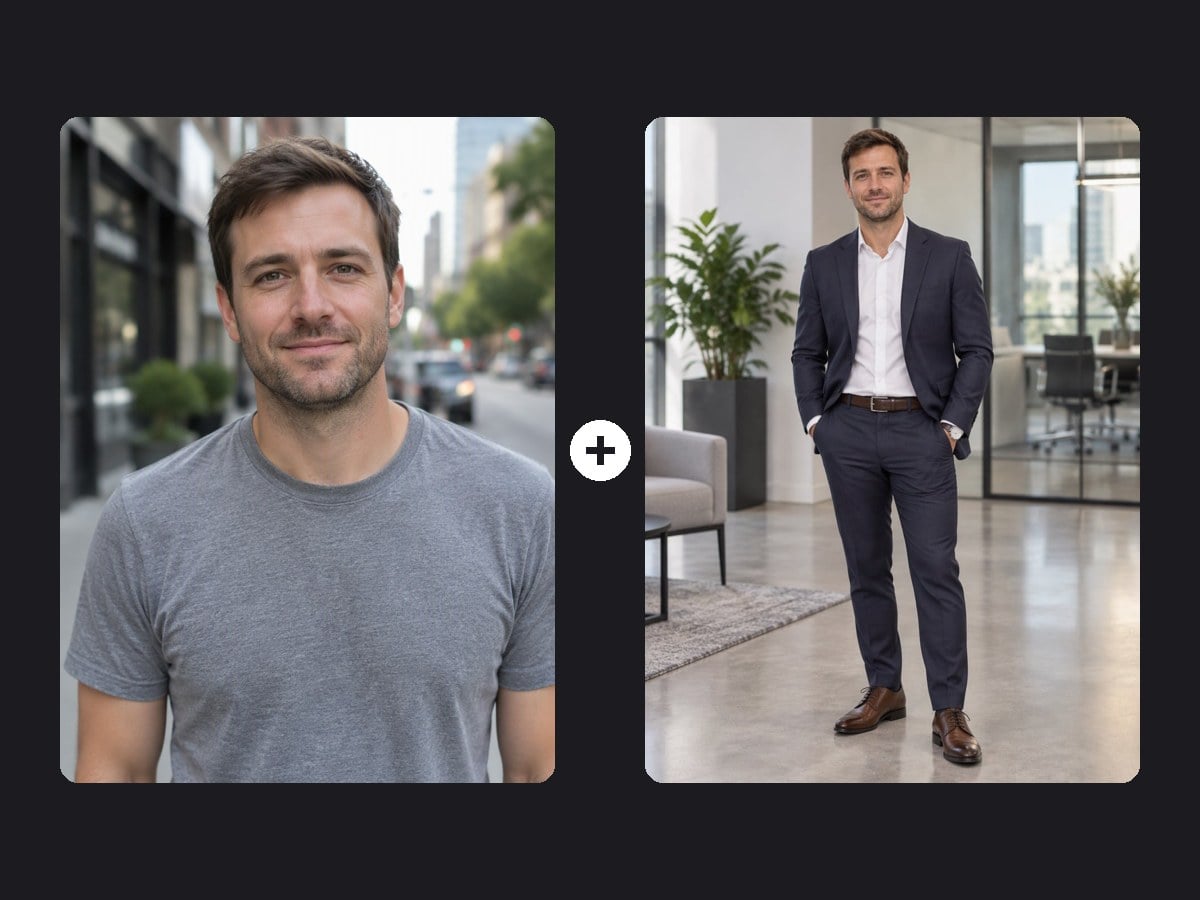
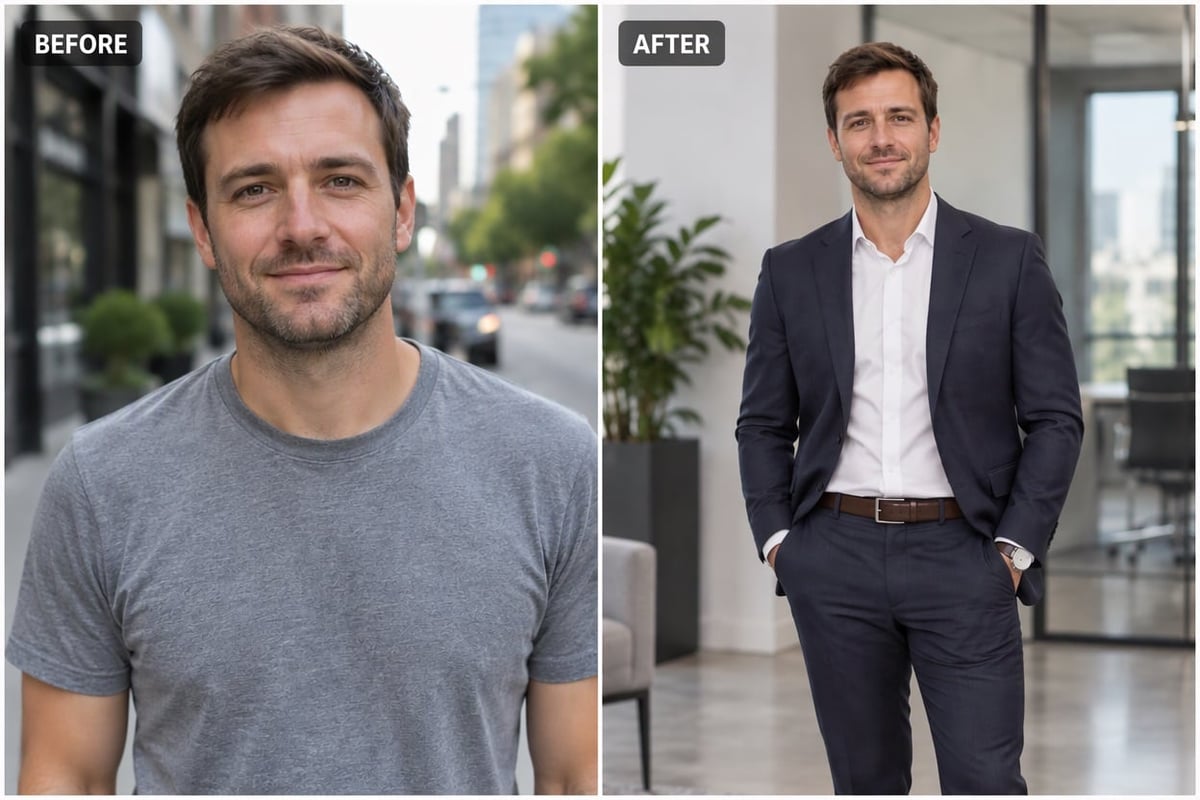
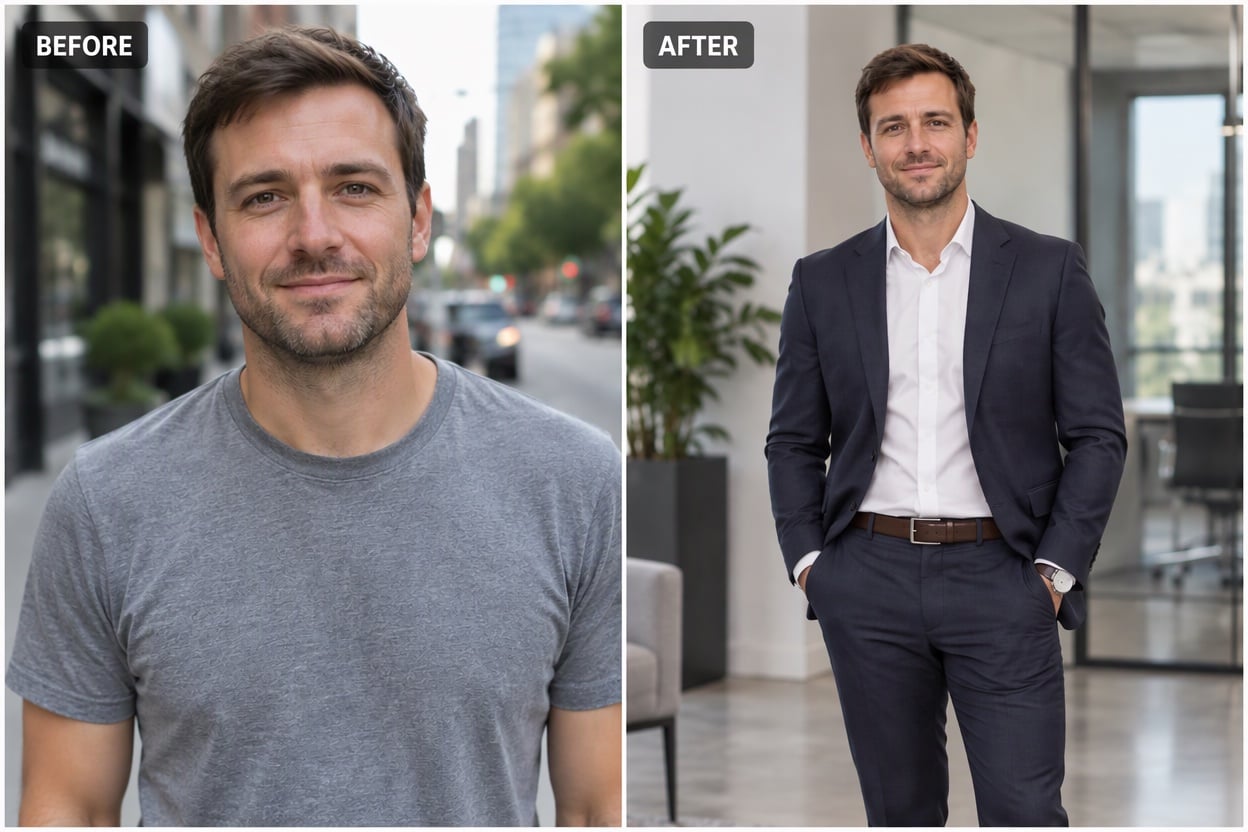
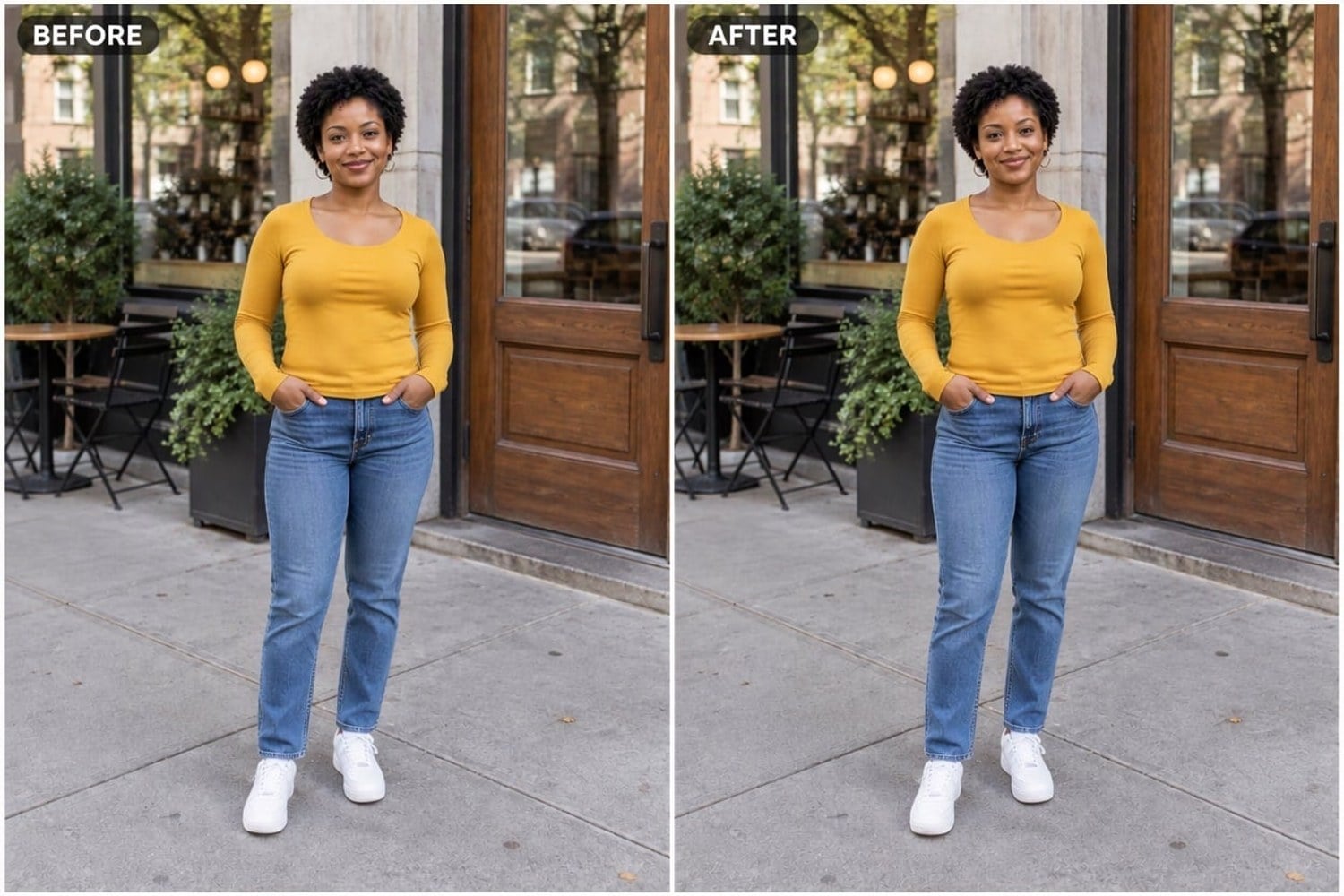
Outfit Makeover Before and After
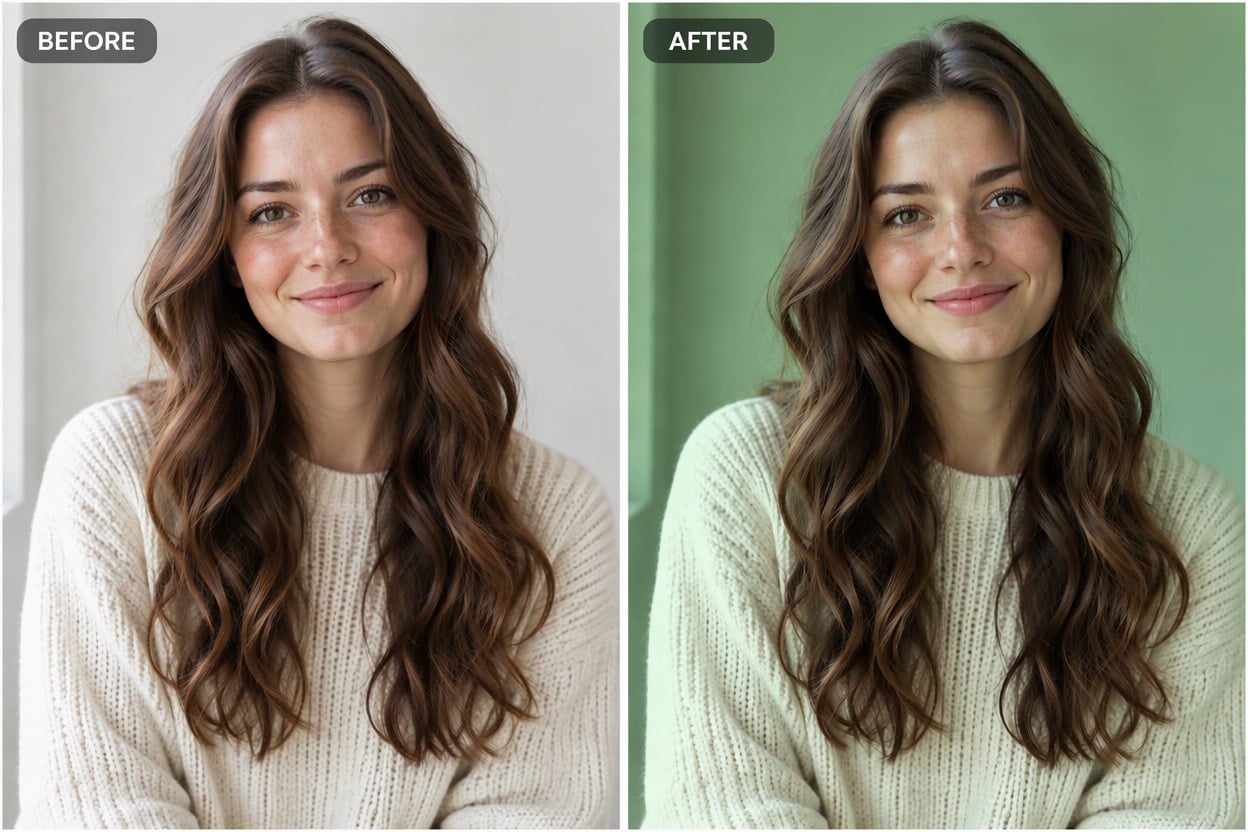
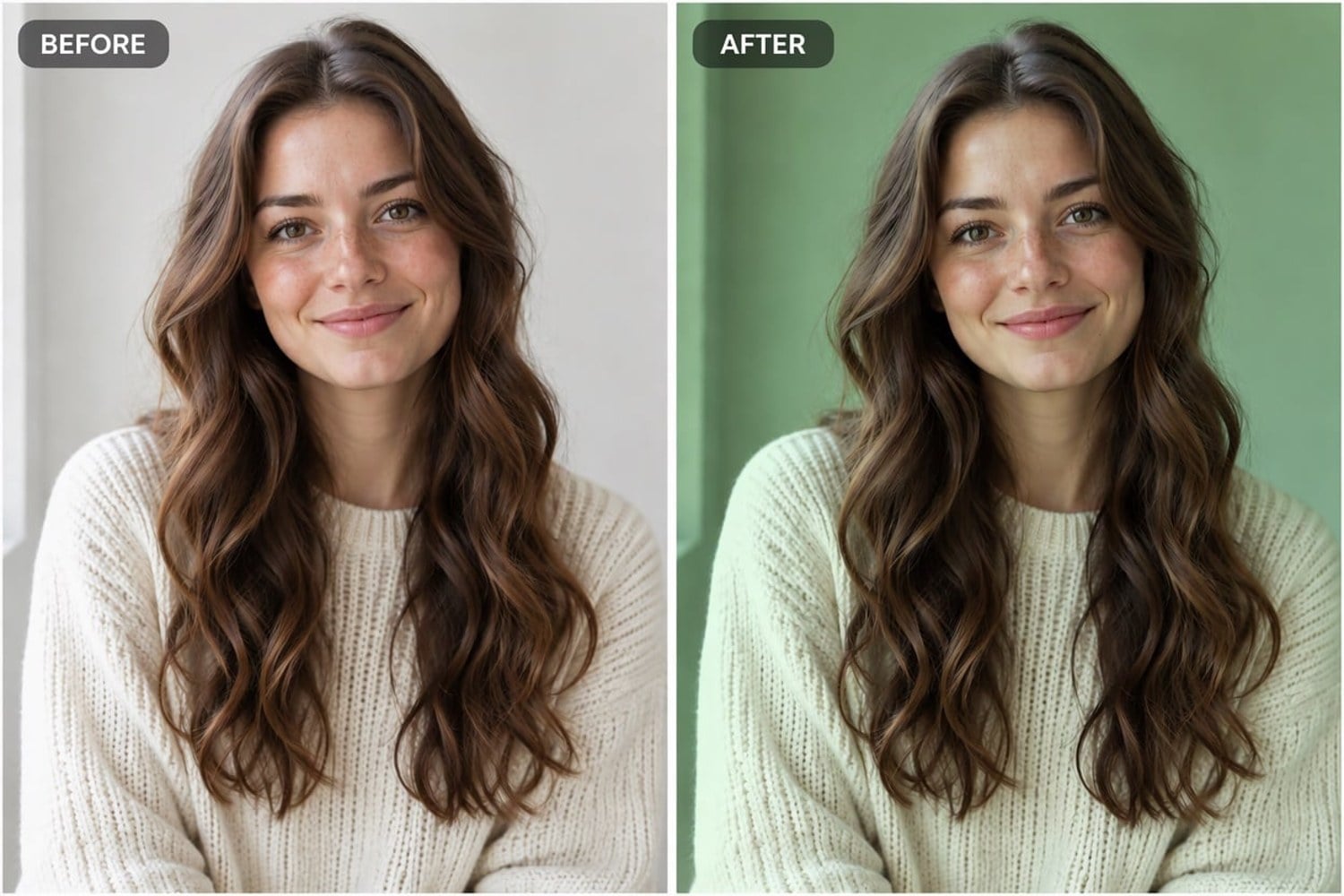
Photo Filter Comparison
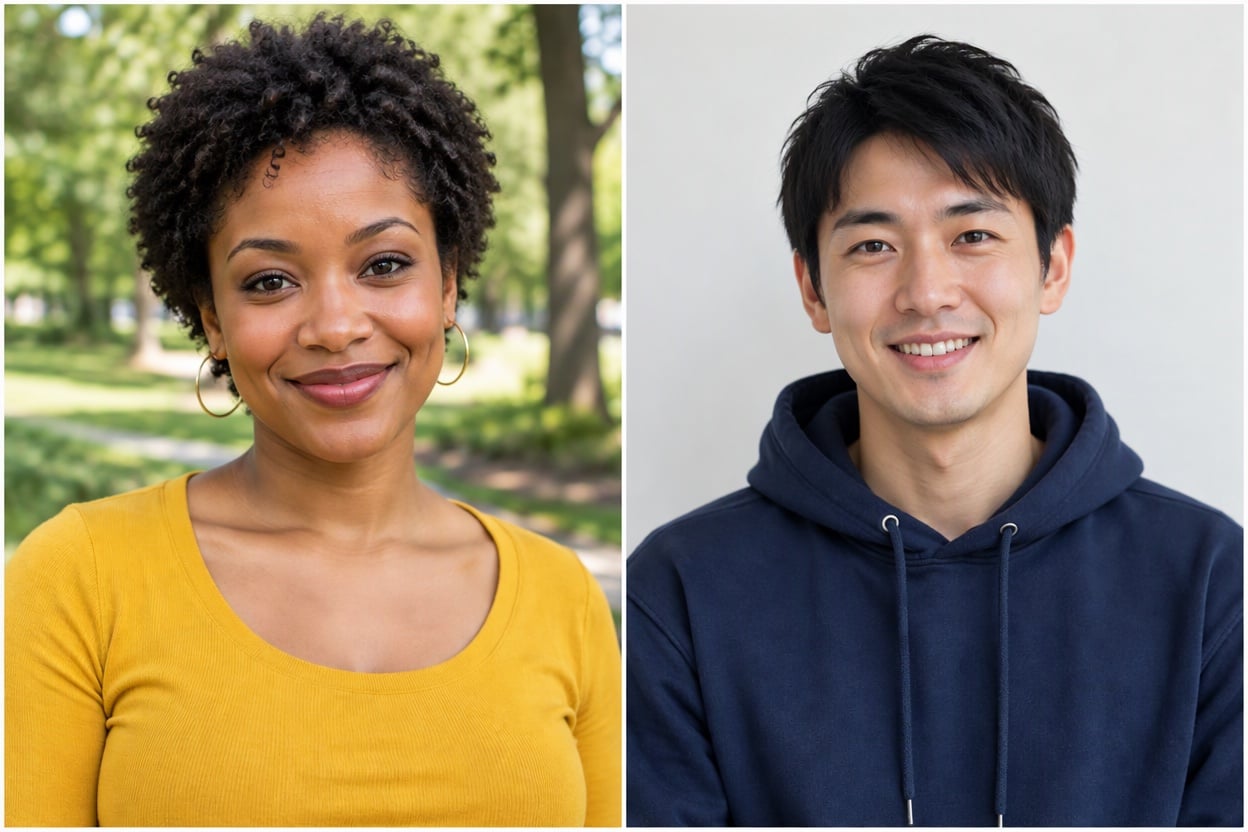
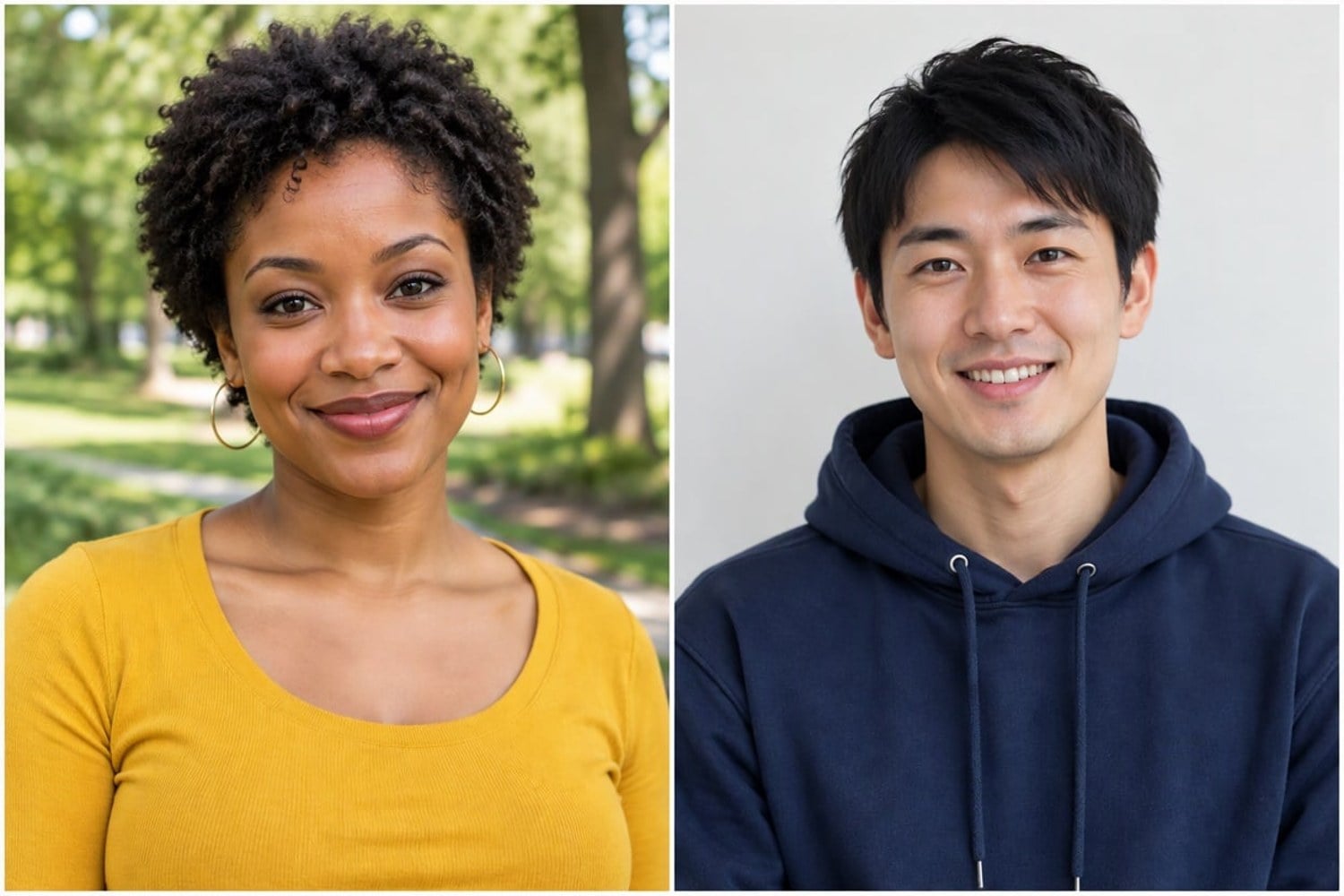
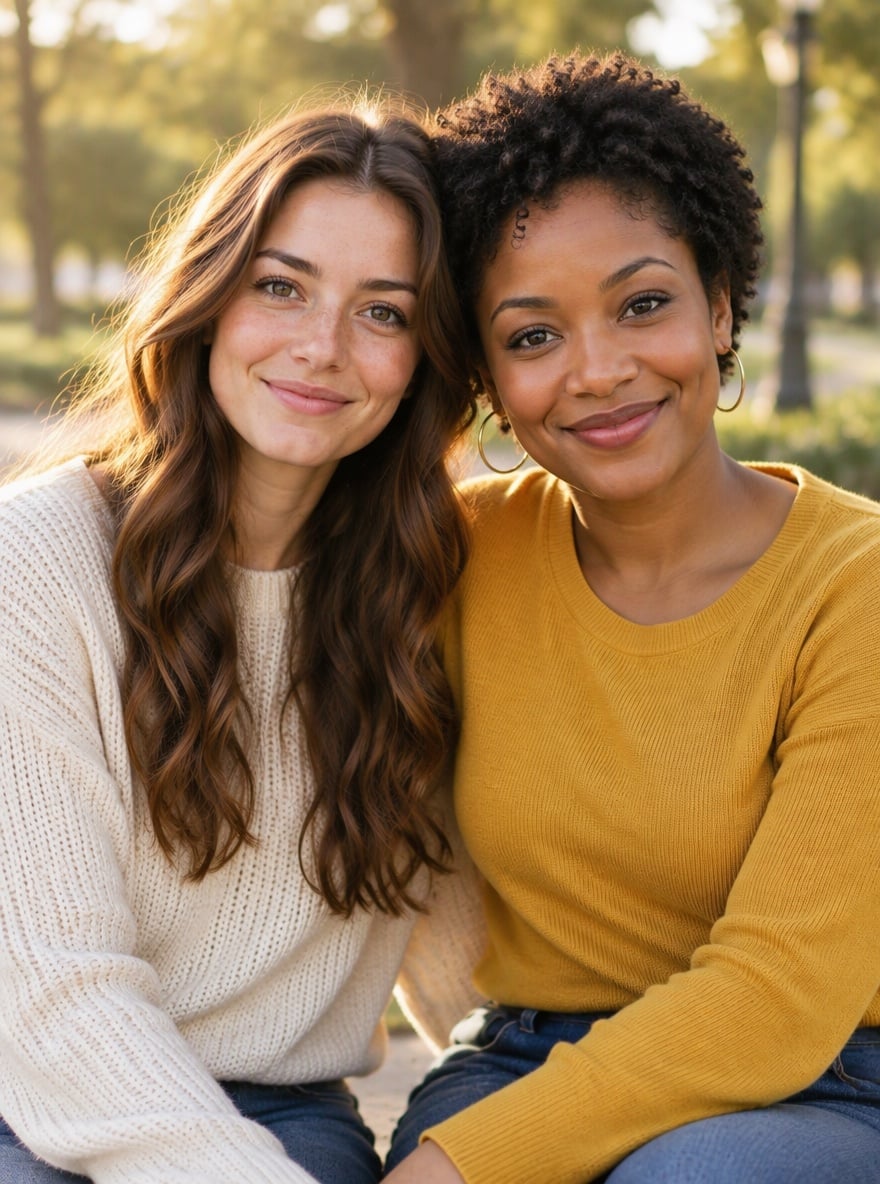
Two Portraits Side by Side
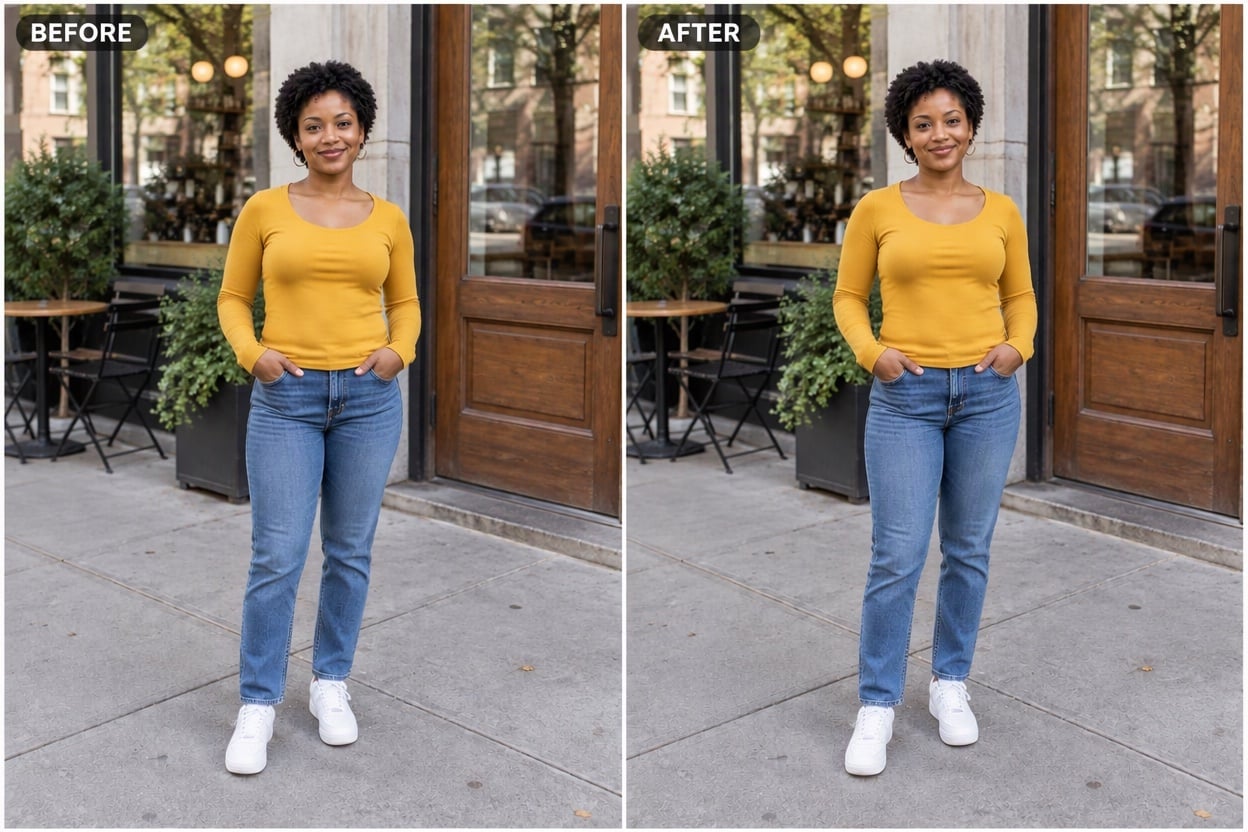
Full-Body Before and After
Upload the first photo (left side); you can add the second one in the editor
Layout prompt
By uploading a file, you agree to GoEnhance's Terms of Use and Privacy Policy

Side by Side Photo Examples

Each result was made from two uploaded photos with the prompt above. The people, clothes and backgrounds come from the original photos; only the layout, tags and light balance were added.
Outfit Makeover Before and After - Side By Side Photo Maker

Outfit Makeover Before and After

Photo Filter Comparison - Side By Side Photo Maker

Photo Filter Comparison

Two Portraits Side by Side - Side By Side Photo Maker

Two Portraits Side by Side

How to Put Two Pictures Side by Side

01

Upload your first photo

Choose the picture that should appear on the left, such as the before shot or the first person, and upload it above.

02

Add the second photo

In the editor, add the picture for the right side. Keep the BEFORE and AFTER line in the prompt for a comparison, or remove it for a layout without text.

03

Generate and share

Press generate and download the finished side by side photo, ready for Instagram, a portfolio, a product listing or a chat.

Why Use This Side by Side Photo Maker
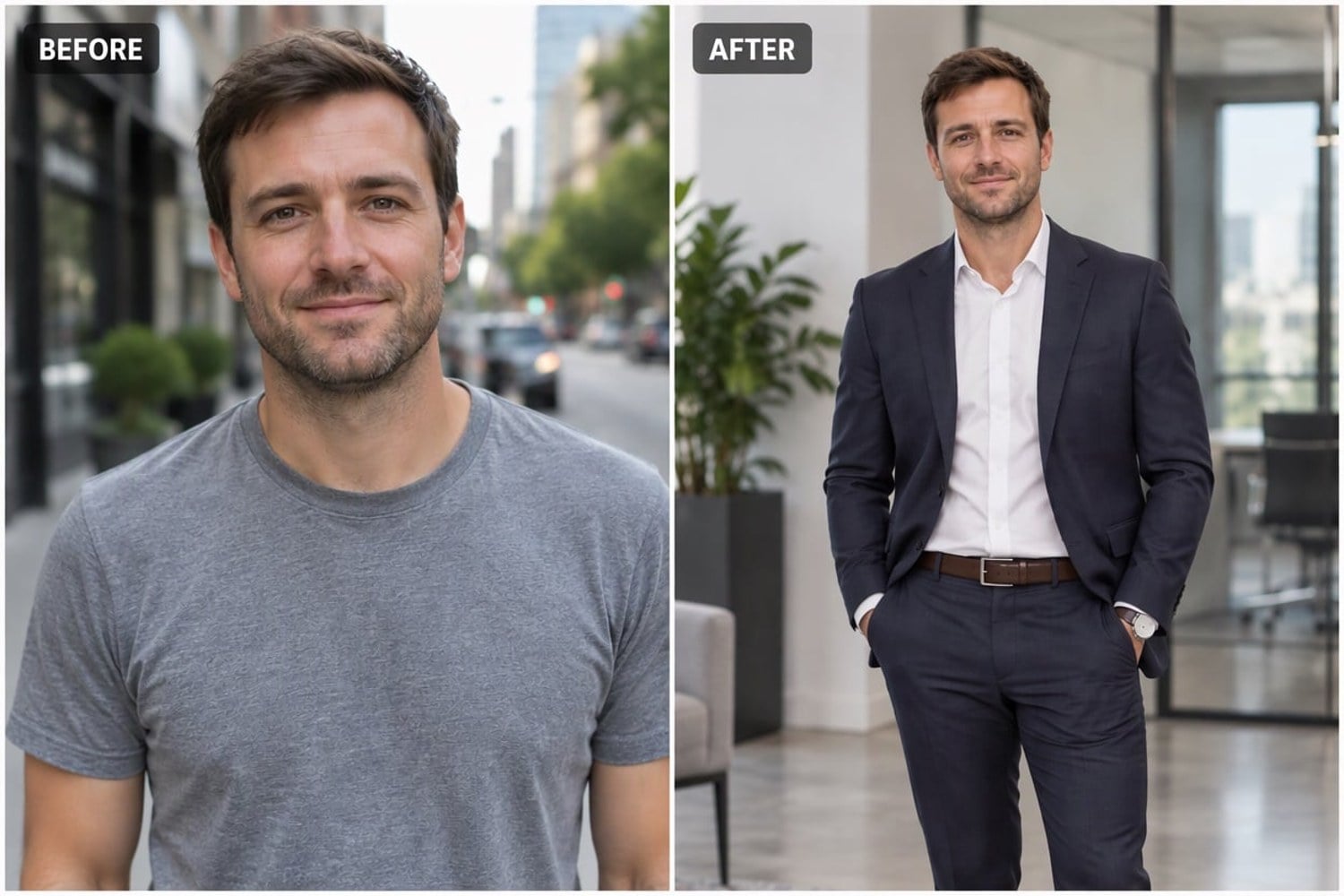
Equal panels and a clean divider

Both photos are placed in two panels of the same width, separated by a thin white line and framed by a slim border. The result looks tidy and intentional, so it reads well in a feed, a slide or a printed portfolio.

Equal panels and a clean divider - Side By Side Photo Maker

Subjects lined up for a fair comparison

The AI scales and crops both pictures so the people or objects appear at a similar size and height. That makes before and after changes, such as a new outfit or a filter, much easier to see at a glance.

Subjects lined up for a fair comparison - Side By Side Photo Maker

Your photos stay unchanged

Faces, expressions, clothes and backgrounds are kept as they were; only light and color are evened out slightly so the two panels match. Nothing is merged, swapped or added, which keeps a comparison honest.

Your photos stay unchanged - Side By Side Photo Maker

Labels when you want them

Keep the default prompt for small BEFORE and AFTER tags, or delete that sentence for a clean two-photo layout with no text. You can also change the wording of the prompt, for example to ask for a black divider or no border.

Labels when you want them - Side By Side Photo Maker

Side By Side Photo Maker FAQ

How do I put two pictures side by side?

Upload the left photo in the box above, add the right photo in the editor that opens, and generate. The AI arranges Image 1 on the left and Image 2 on the right in one image.

Will the AI change my photos?

It is told to keep people, faces, clothes and backgrounds exactly as they are. It crops, scales and slightly balances light so the panels match. Check the result, and if something looks different, generate again.

Can I remove the BEFORE and AFTER labels?

Yes. Delete the sentence about labels in the prompt and the layout comes out with no text, which suits two-person portraits or simple pairs of photos.

What kind of photos work best?

Sharp photos with the main subject clearly visible. For before and after shots, similar angles and framing give the cleanest comparison; very different crops still work but will be lined up as well as possible.

Is it free?

New accounts get free credits, so your first side by side photos cost nothing. After that each image uses a small number of credits.

Can I combine more than two photos?

This page is made for two photos. For grids and scrapbook layouts with several pictures, try the AI collage generator.

Ready to Put Two Photos Side by Side?

Upload two pictures and get a clean before and after or comparison image in under a minute.

Make a Side by Side Photo