Warm Tone Filter: Warm Up Your Photo with Amber and Honey Tones

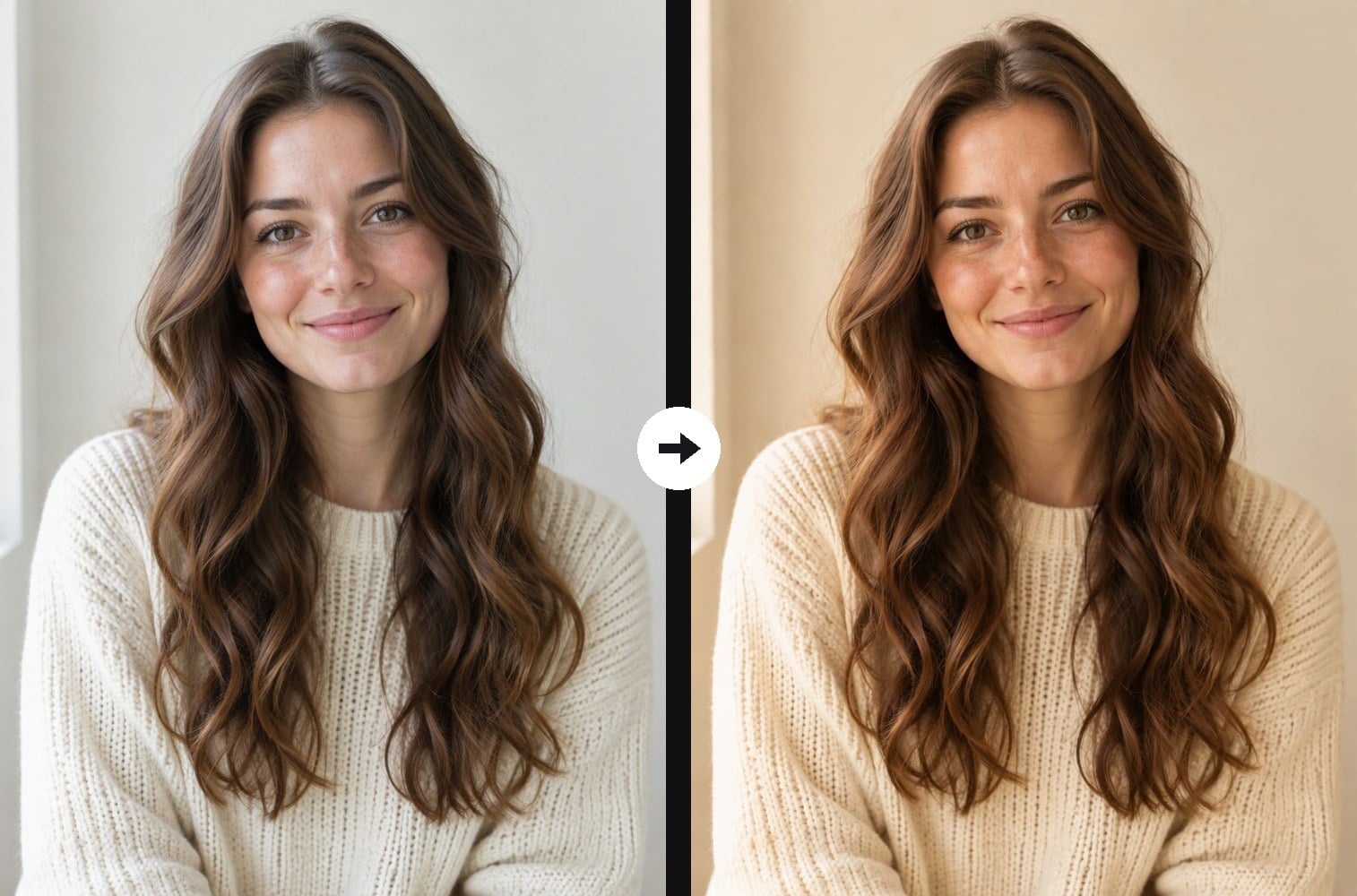
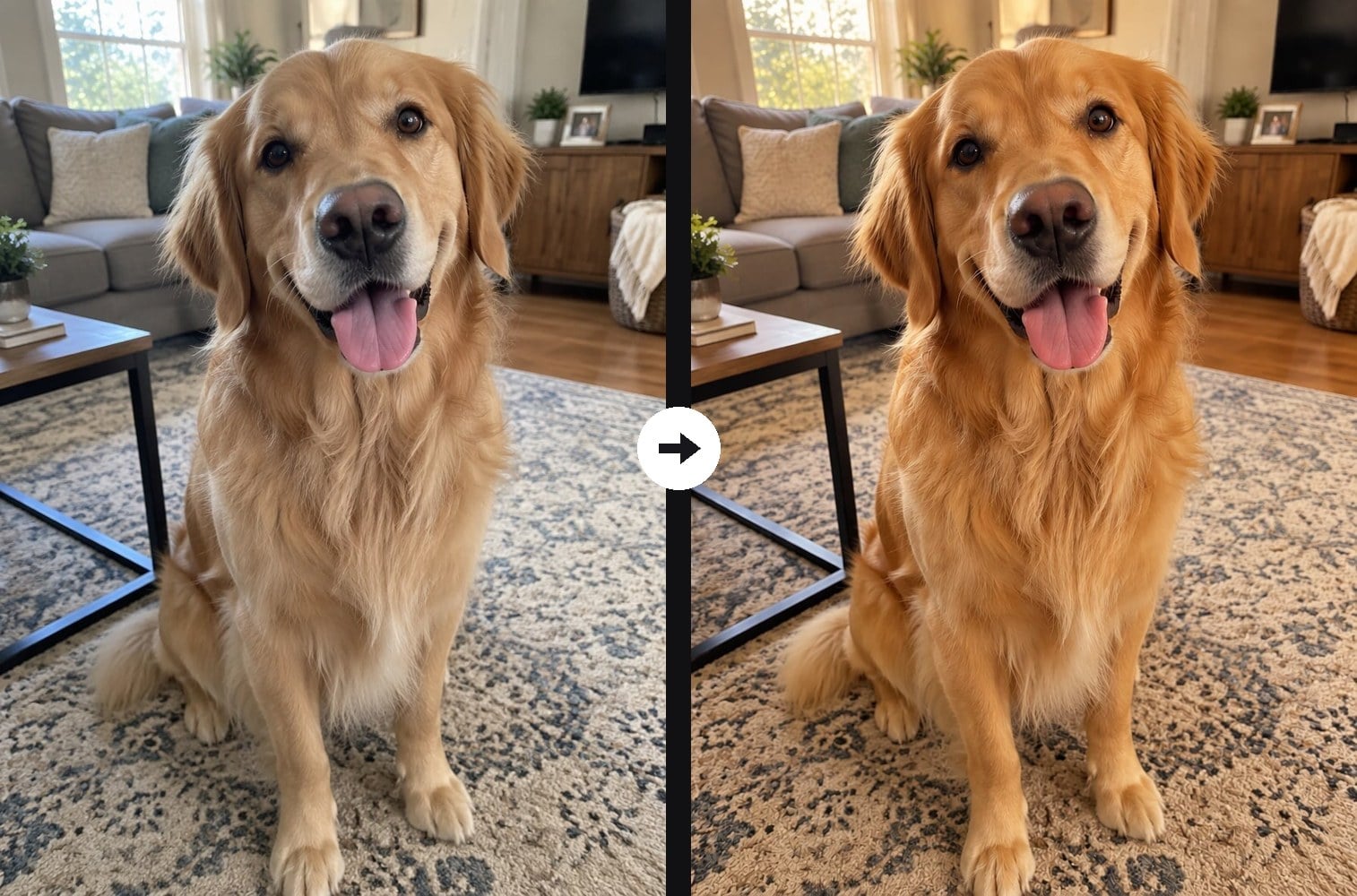
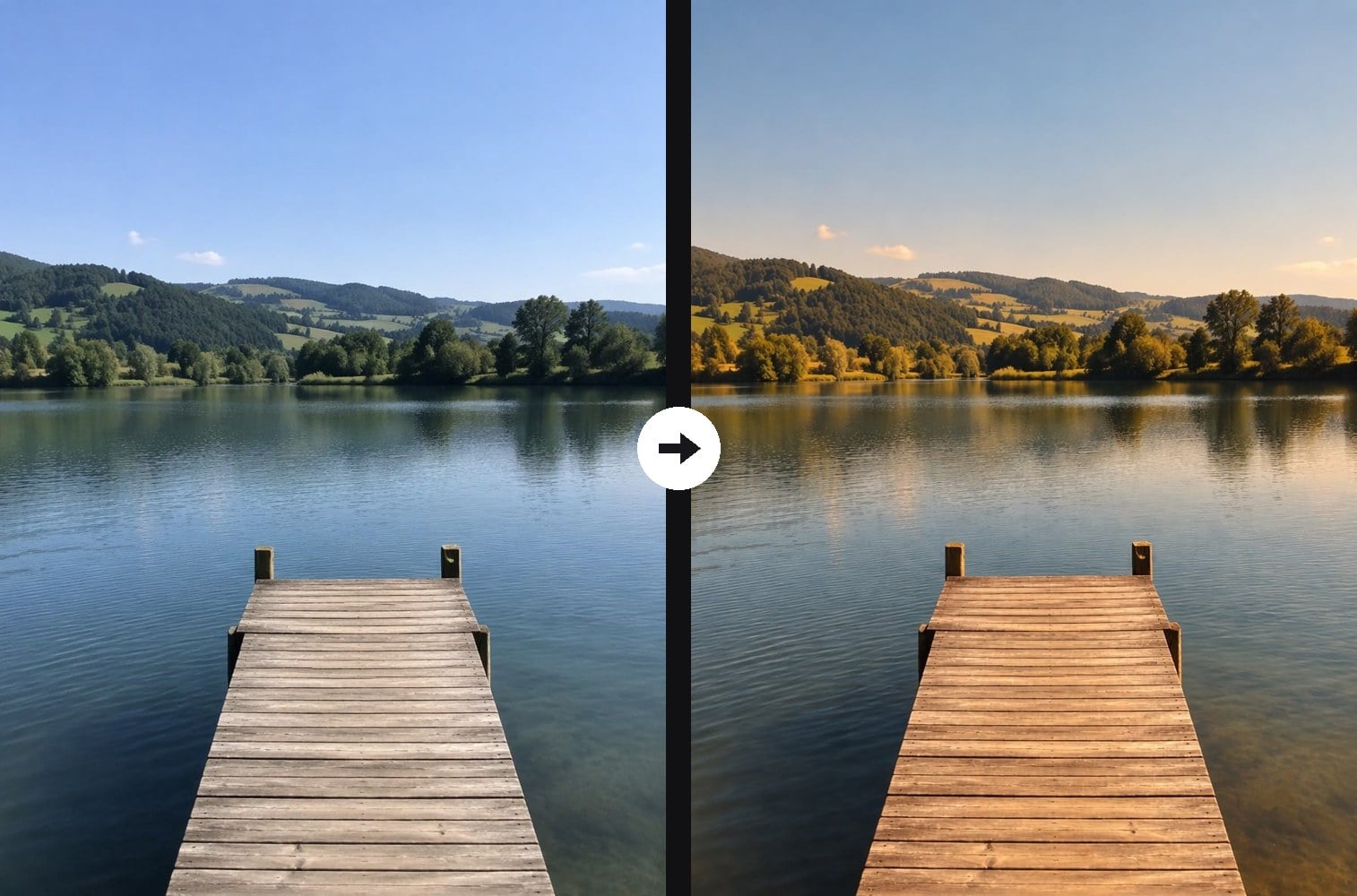
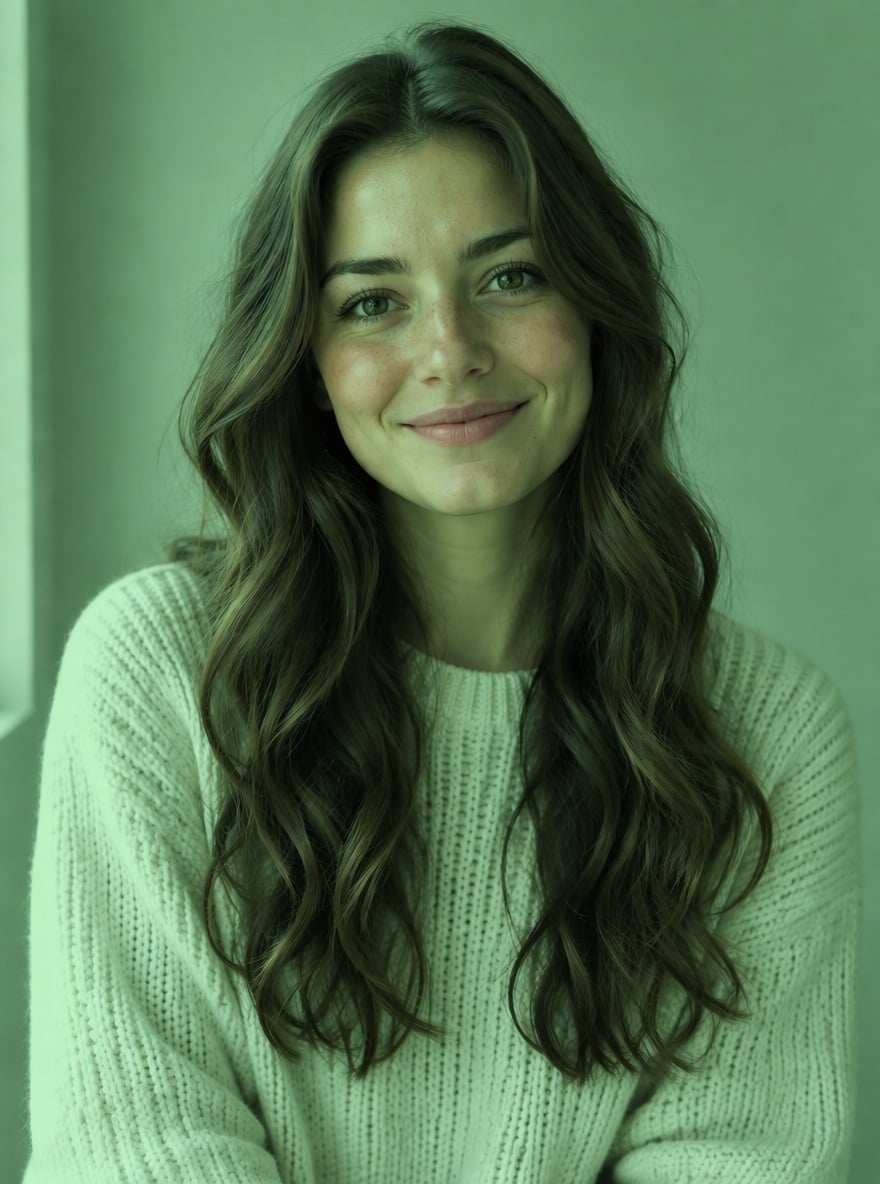
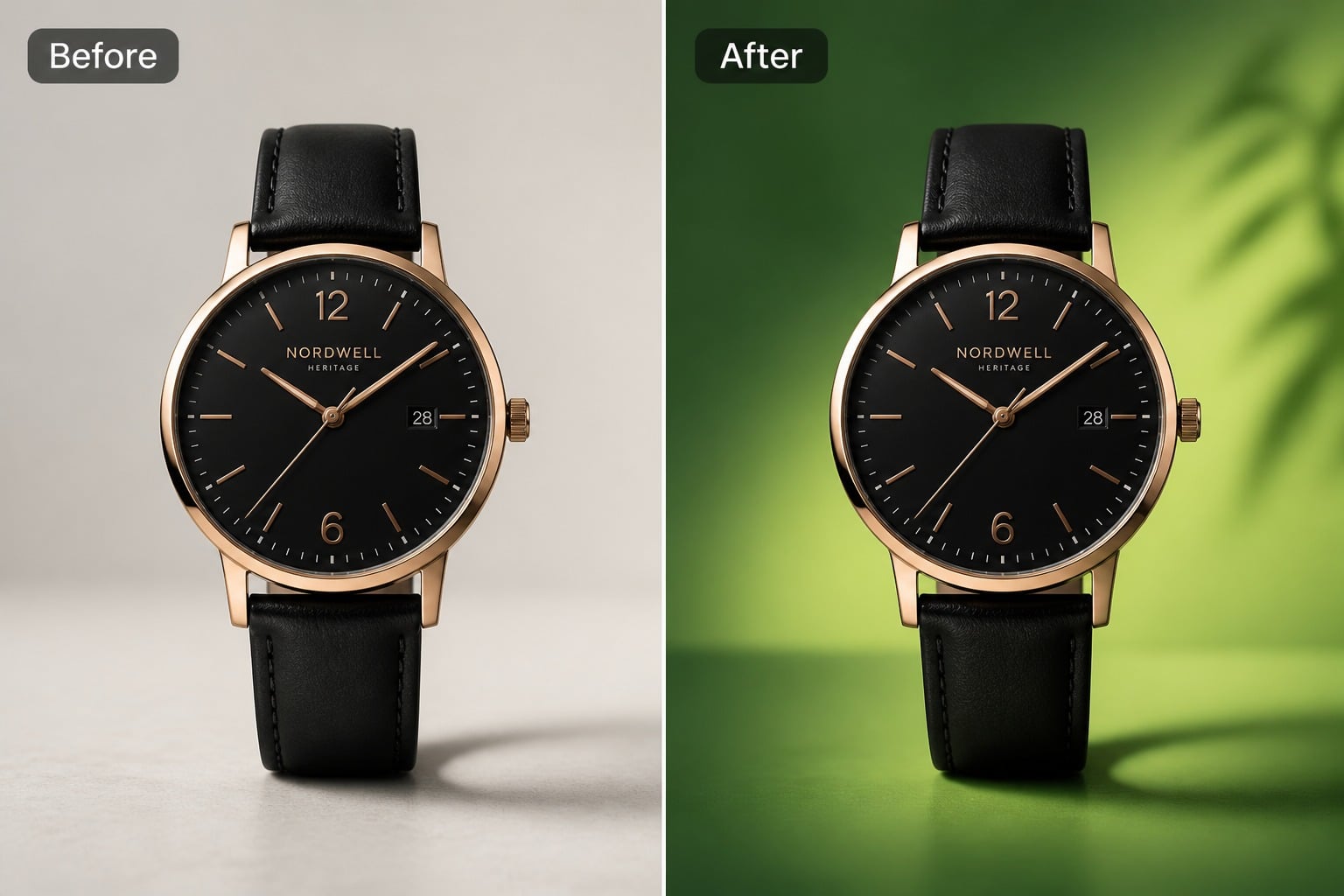
Photos from a phone often come out cold, gray or blue. Upload one and the AI warm tone filter re-grades it like a professional color edit: the white balance shifts toward amber and honey, highlights turn golden, midtones get soft and creamy, shadows pick up a hint of warm brown and the whole image feels cozy. Nothing else changes: same people, same pets, same background, same time of day, and skin stays natural instead of orange. If you want a real golden-hour sky and sunset light, use the sunset filter instead; this one only changes the colors. The console below runs on GPT Image 2.5.

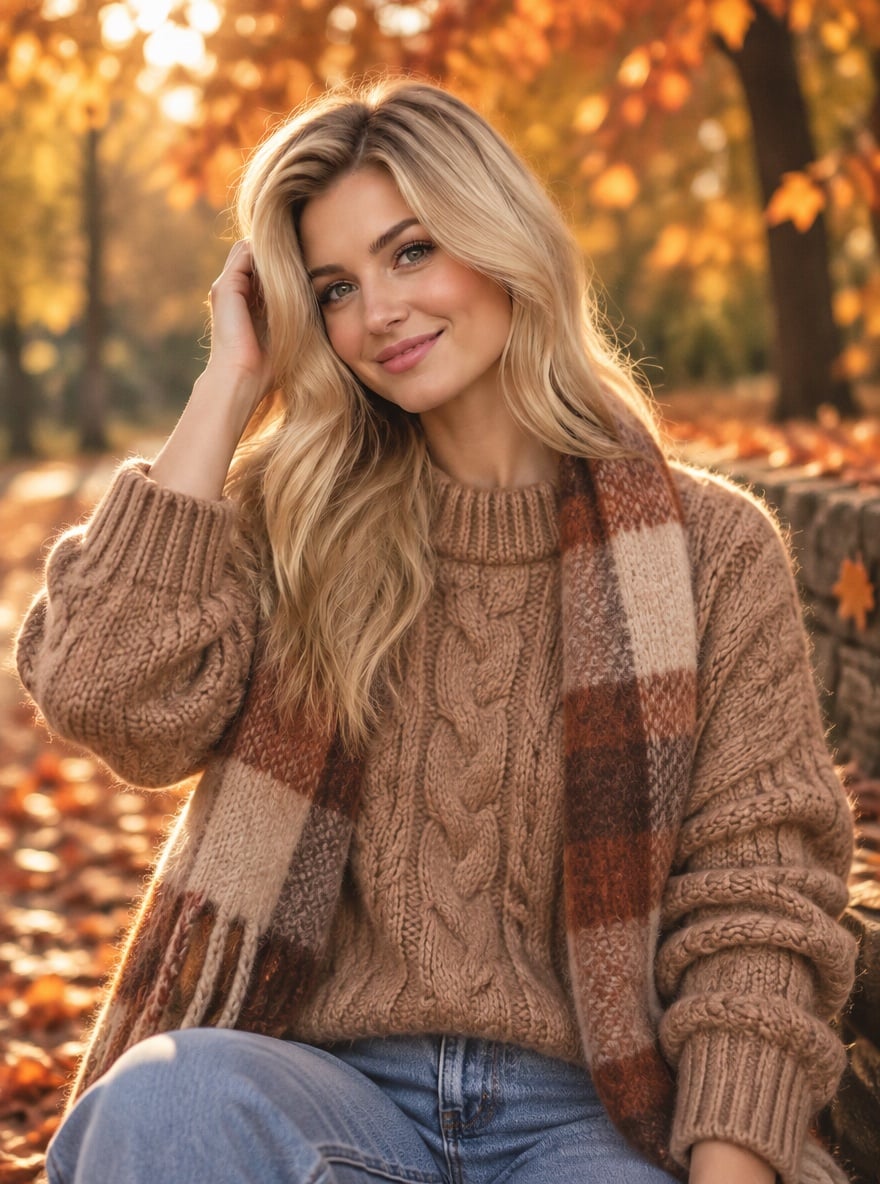
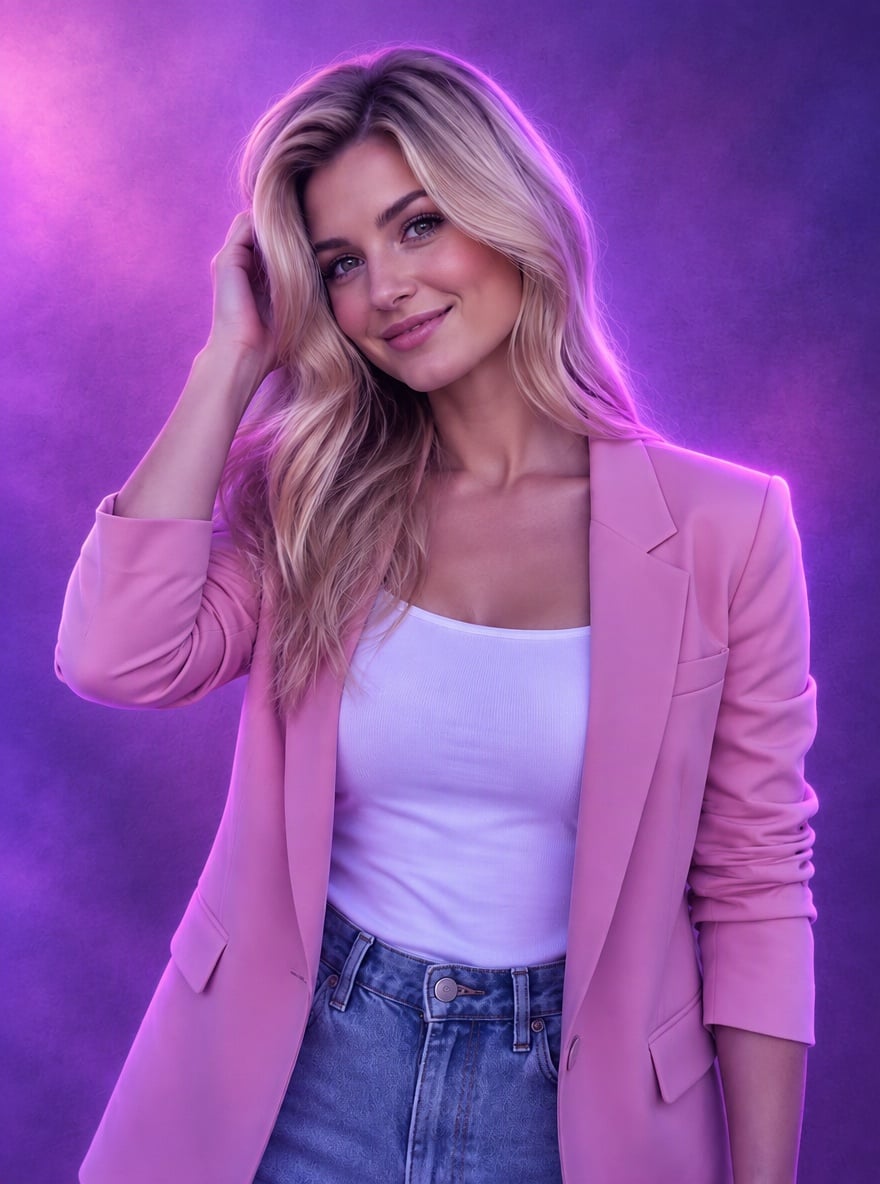
Warm Street Portrait
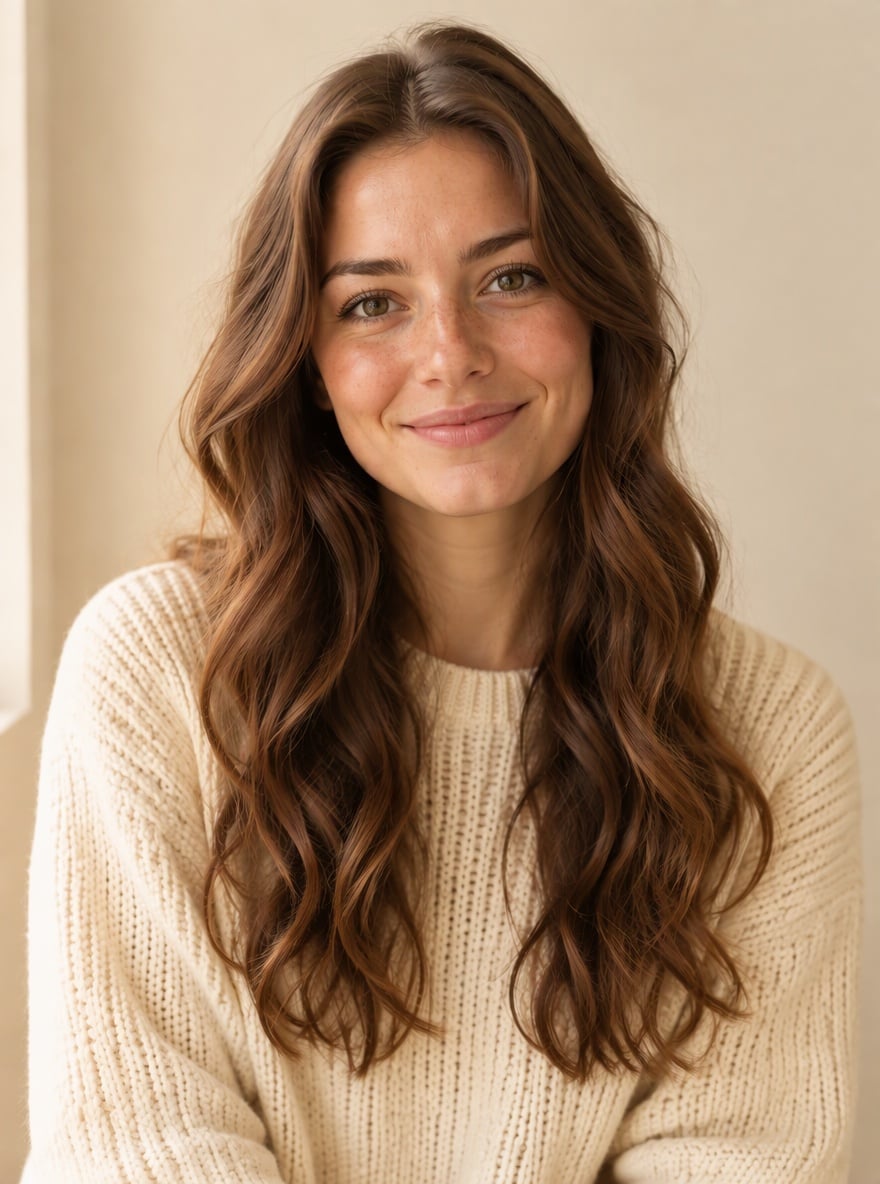
Cozy Cream Portrait

Cozy Cream Portrait
Golden Retriever, Warmer
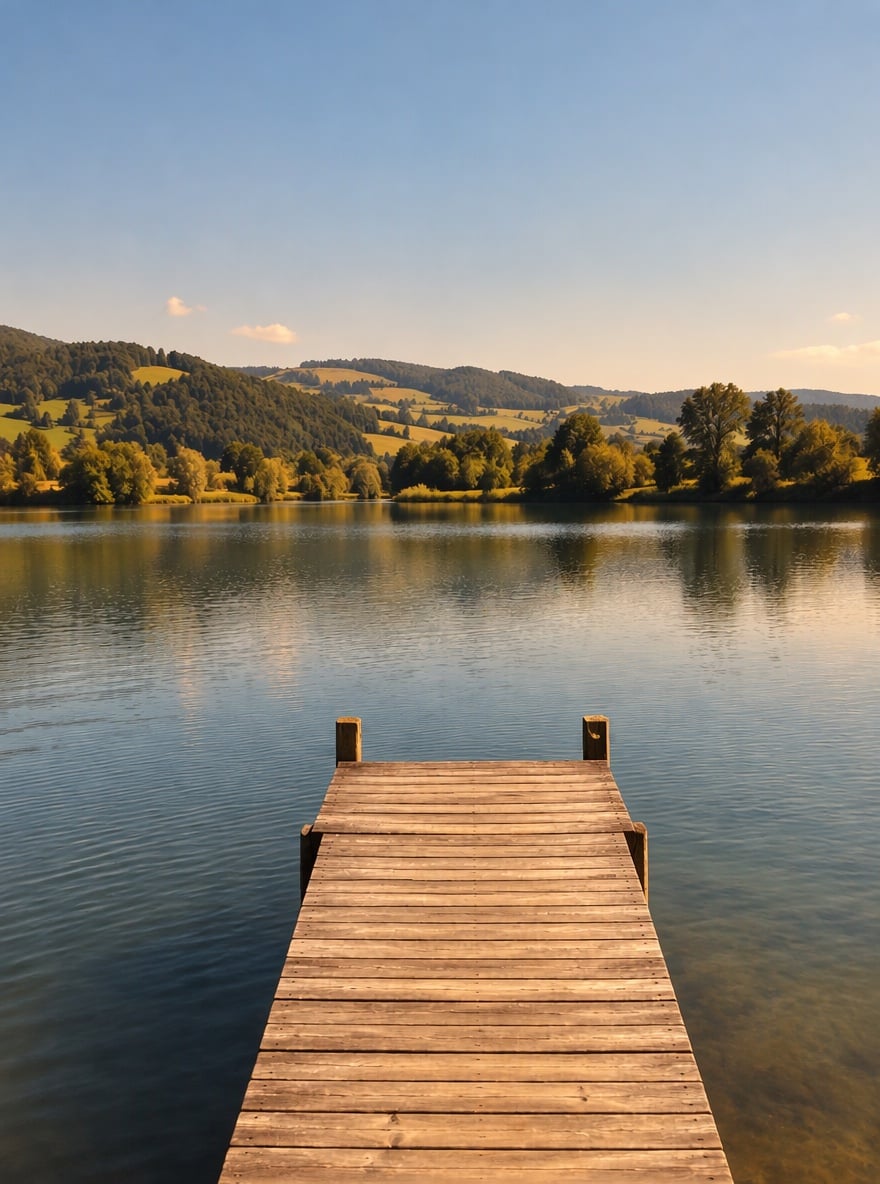
Warm Lake View
Warm Lake View
Upload a photo to warm up
Effect prompt
By uploading a file, you agree to GoEnhance's Terms of Use and Privacy Policy

Warm Tone Results from the Console

Each image is one upload with the prompt above. Only the colors are re-graded; people, pets and scenery stay the same.
Warm Street Portrait - Warm Tone Filter

Warm Street Portrait

Cozy Cream Portrait - Warm Tone Filter

Cozy Cream Portrait

Golden Retriever, Warmer - Warm Tone Filter

Golden Retriever, Warmer

How to Use the Warm Tone Filter

01

Upload a photo

Selfies, portraits, pet photos, food, interiors and landscapes all work, especially if they look cold or gray.

02

Generate

The warm tone prompt is already filled in. Press the button and the AI re-grades the colors.

03

Download and share

Post the warmer version, keep your feed in one cozy palette or compare it with the original.

Why Use This Warm Tone Filter
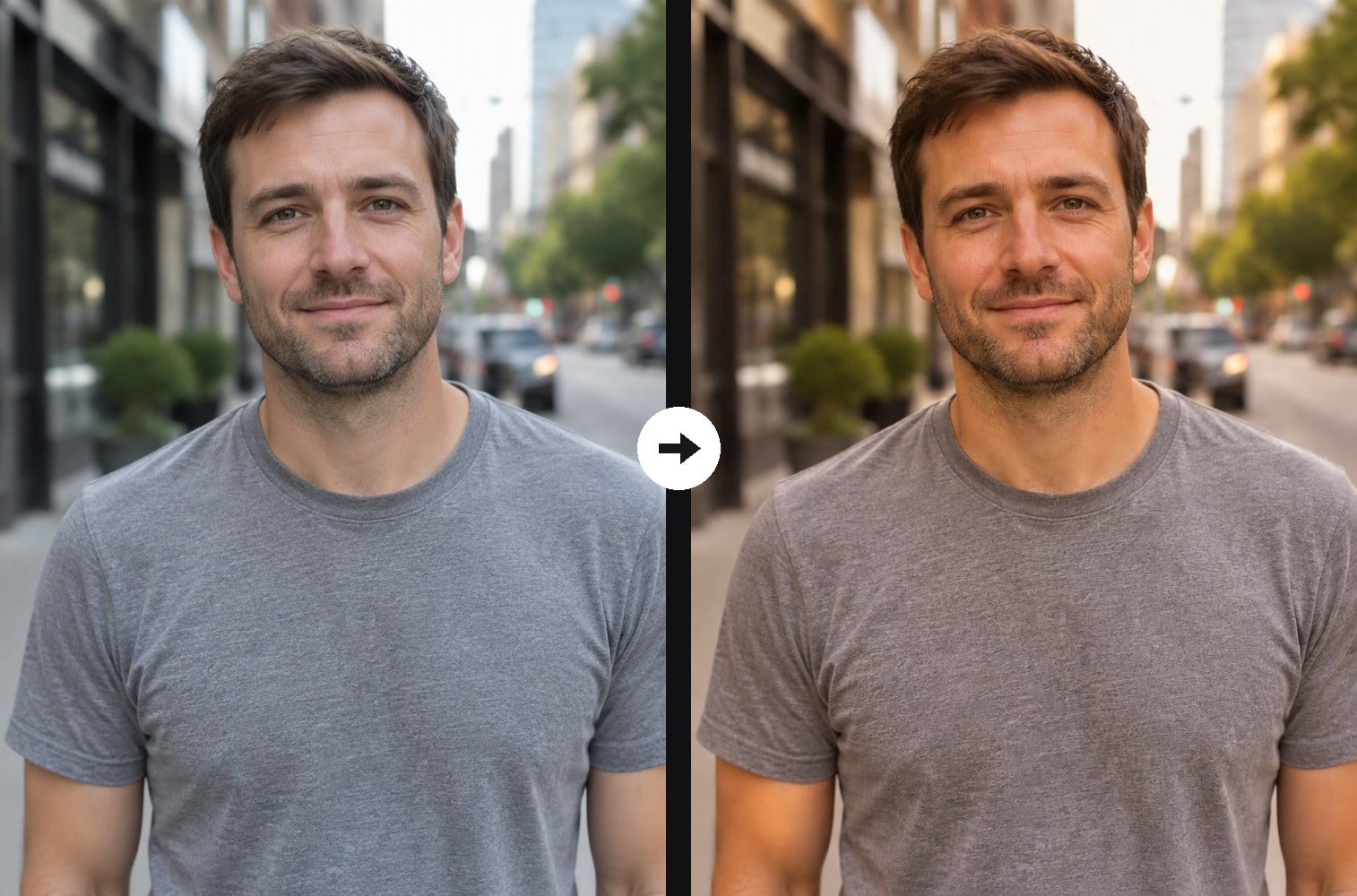
Pro-style color grade

Warm highlights, creamy midtones and soft brown shadows, not a flat orange overlay. The white balance shifts toward amber and honey, oranges and reds get slightly richer while blues and greens are gently muted, so the whole photo gains a soft, cozy glow.

Pro-style color grade - Warm Tone Filter

Natural skin

Skin looks warm and healthy, never orange or fake-tanned. The grade is balanced around natural skin tones, which makes it a good fix for portraits that came out pale, gray or too blue under cold light.

Natural skin - Warm Tone Filter

Nothing else changes

Faces, background, sky and time of day are kept exactly as in your photo. No sunset, sun or lens flare is added and no new light sources appear, so the edit stays honest: same people, same pets, same place, only warmer colors.

Nothing else changes - Warm Tone Filter

Free to try

New accounts get free credits, so your first warm photo costs nothing. It works on portraits, pet photos and landscapes alike, and is an easy way to give a set of cold phone shots one consistent cozy look.

Free to try - Warm Tone Filter

Warm Tone Filter FAQ

What does the warm tone filter do?

It re-grades your photo toward warm amber and honey colors: golden highlights, creamy midtones and slightly warm shadows, for a cozy, inviting look.

Will it change my face or the background?

No. The prompt keeps people, pets, the background and the composition. Only the colors change.

Will my skin look orange?

No. The prompt keeps skin natural and healthy, just slightly warmer.

How is it different from the sunset filter?

The warm tone filter only changes colors. The sunset filter changes the time of day, with a sunset sky, golden sunlight and long shadows.

Can I make it warmer or softer?

Yes. Edit the prompt, for example "stronger amber tone", "subtle warm tint" or "warm vintage tone".

Does it work on food and interior photos?

Yes. Warm tones make food, cafés and rooms look cozier and more inviting.

Ready to Warm Up Your Photos?

Upload a photo and get a warm, cozy color grade in under a minute.

Apply Warm Tone