Expand an Image Beyond Its Original Frame Free

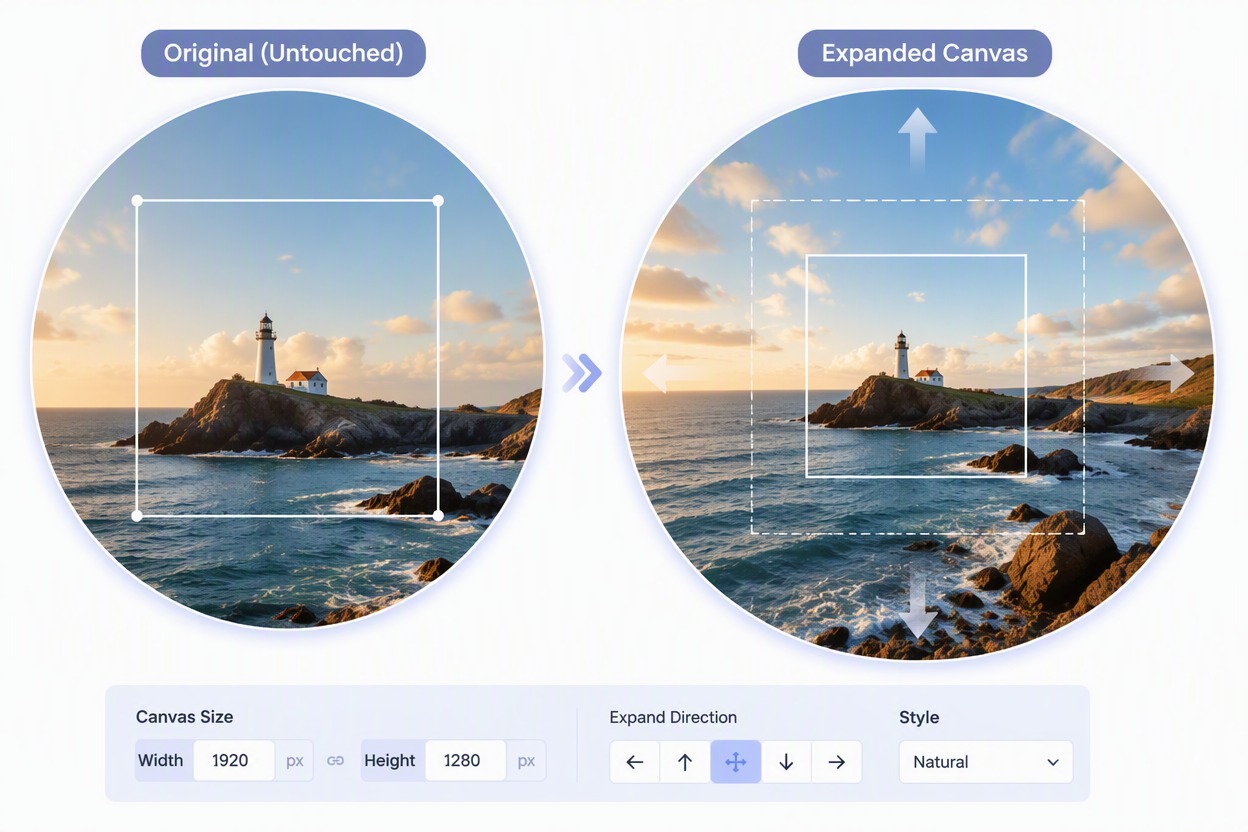
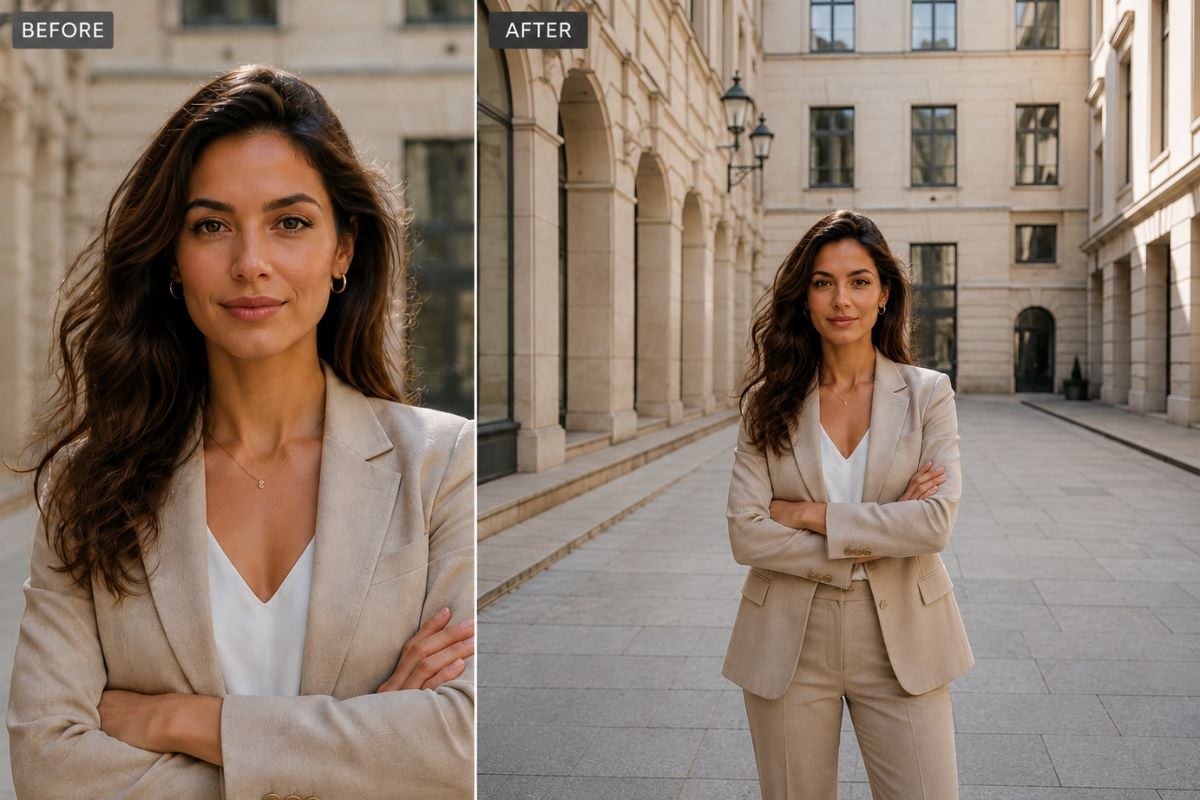
Upload a tightly cropped portrait, landscape, product shot, or social visual and extend the canvas around it. Generate new edge content that follows the lighting, perspective, color, and scene while keeping the source region unchanged.

Uncrop an Image

Create More Space Around Existing Images

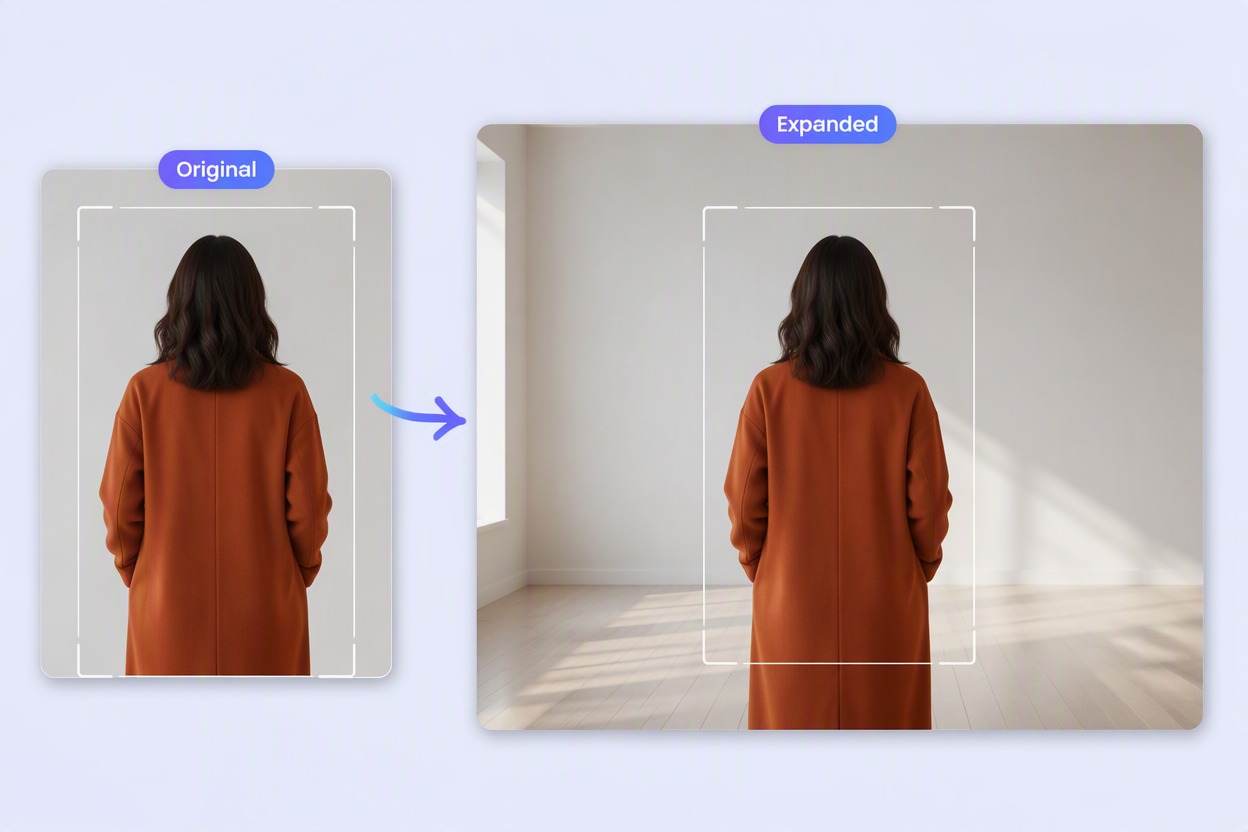
Give Portraits More Breathing Room

Extend the area around a tightly cropped portrait while preserving the complete original face, clothing, pose, and background center. Create more flexible framing for profiles and layouts.

AI Image Uncropping: give portraits more breathing room

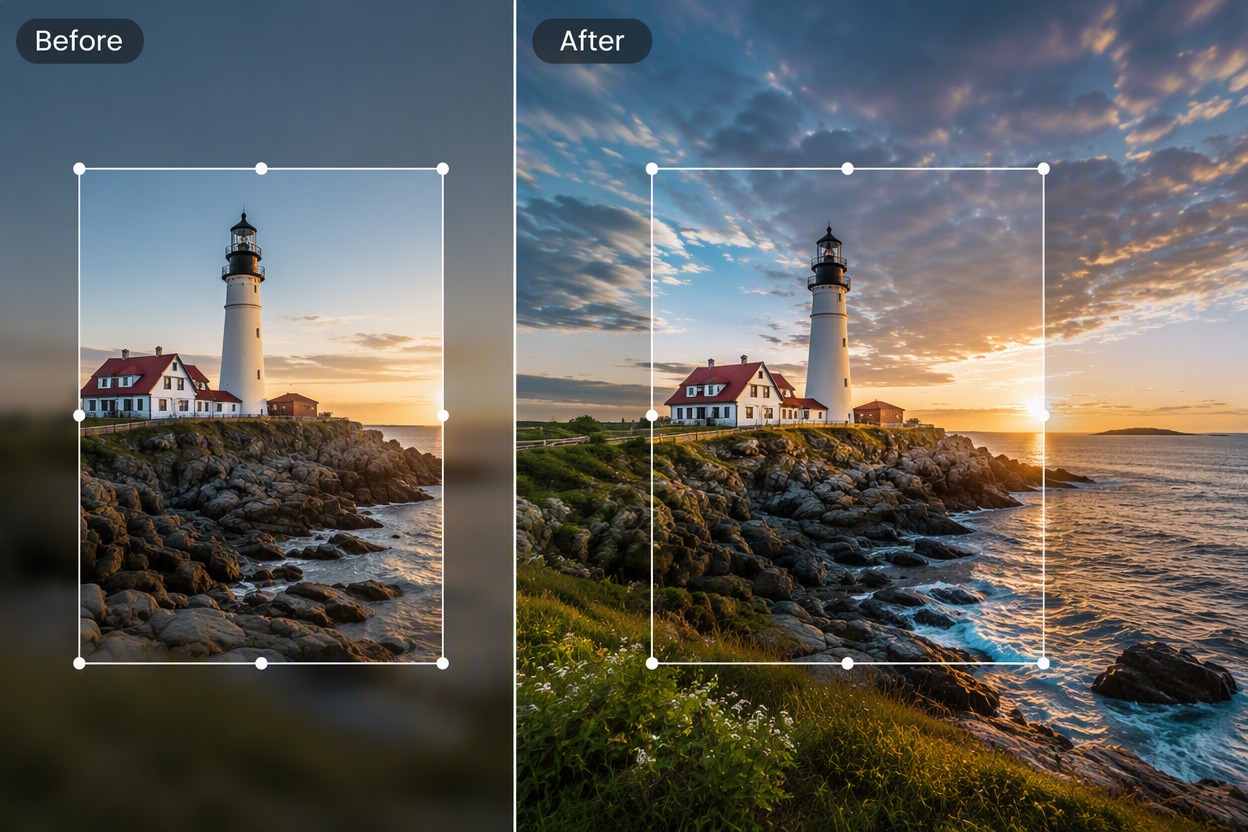
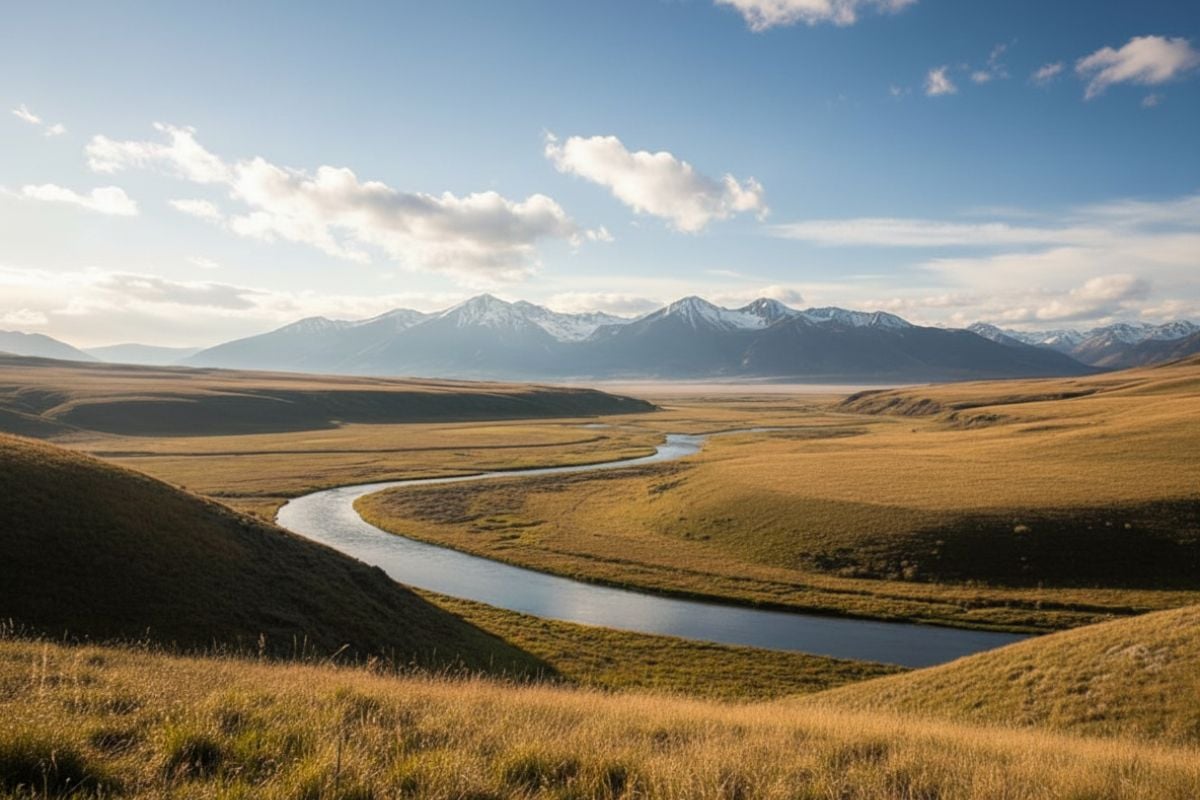
Open Up Landscape Composition

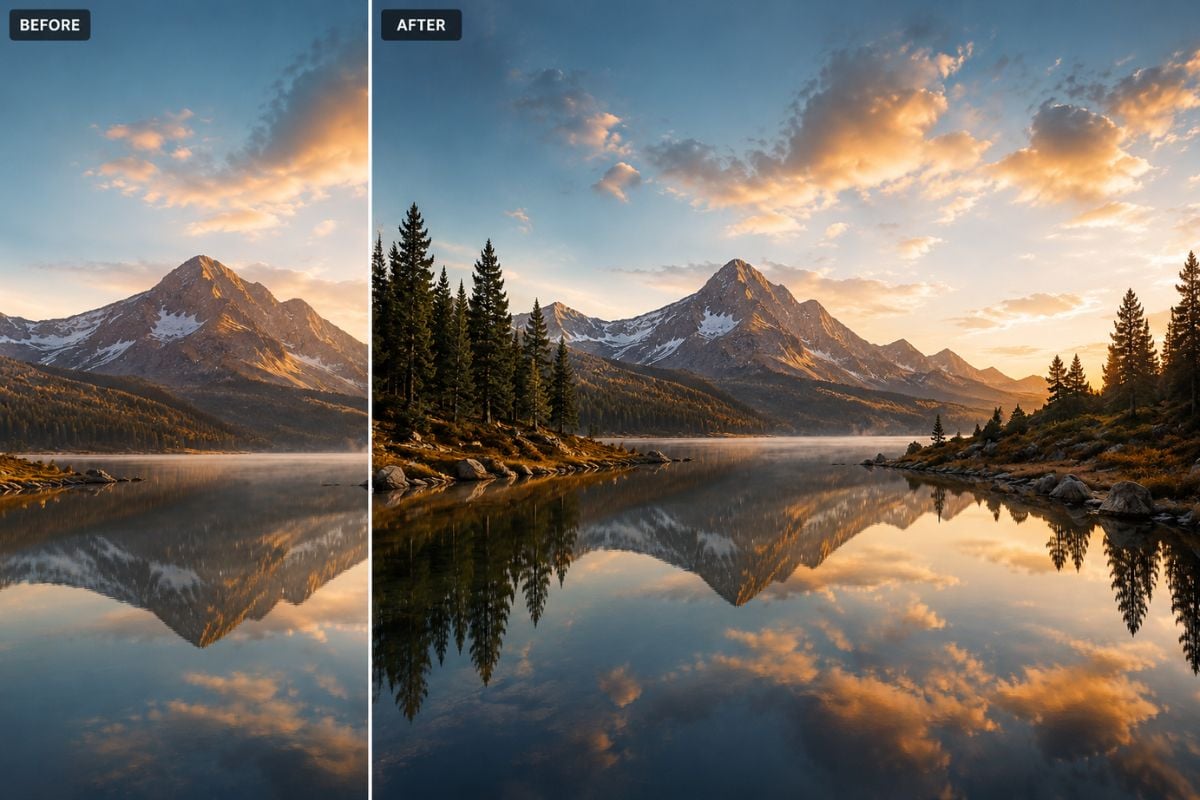
Continue sky, water, terrain, or architecture beyond the original frame to produce a wider composition. Use an image-to-image AI tool to prepare scenic images for banners, headers, and panoramic layouts.

AI Image Uncropping: open up landscape composition

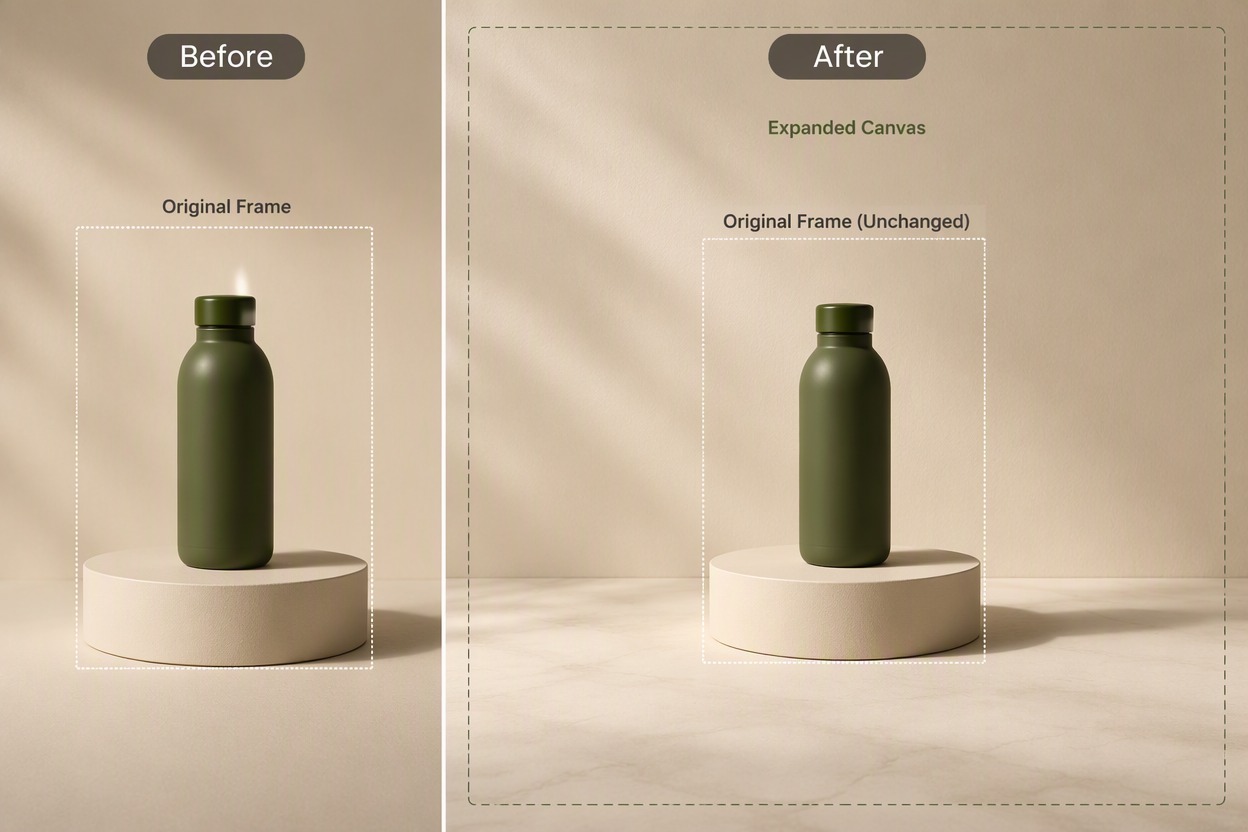
Build Flexible Product Backgrounds

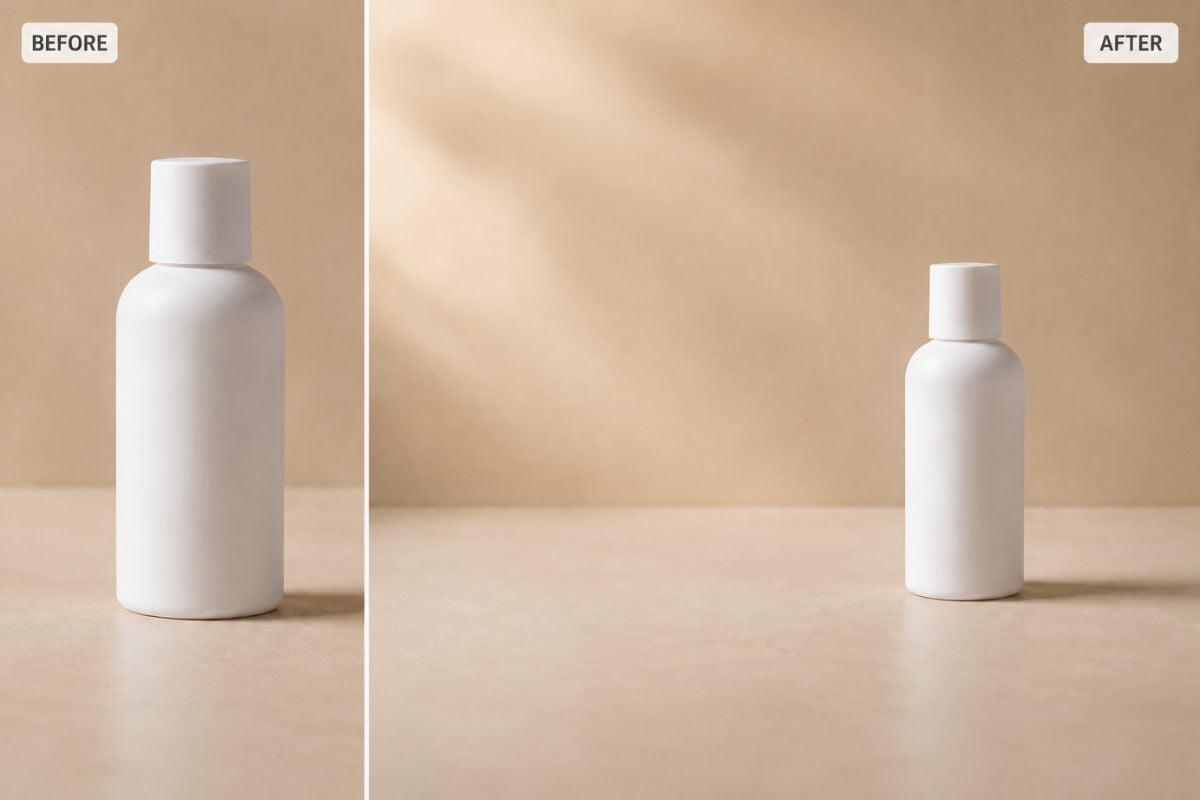
Expand the studio surface and background around an unchanged product. Create extra negative space for campaign copy, marketplace layouts, and promotional crops.

AI Image Uncropping: build flexible product backgrounds

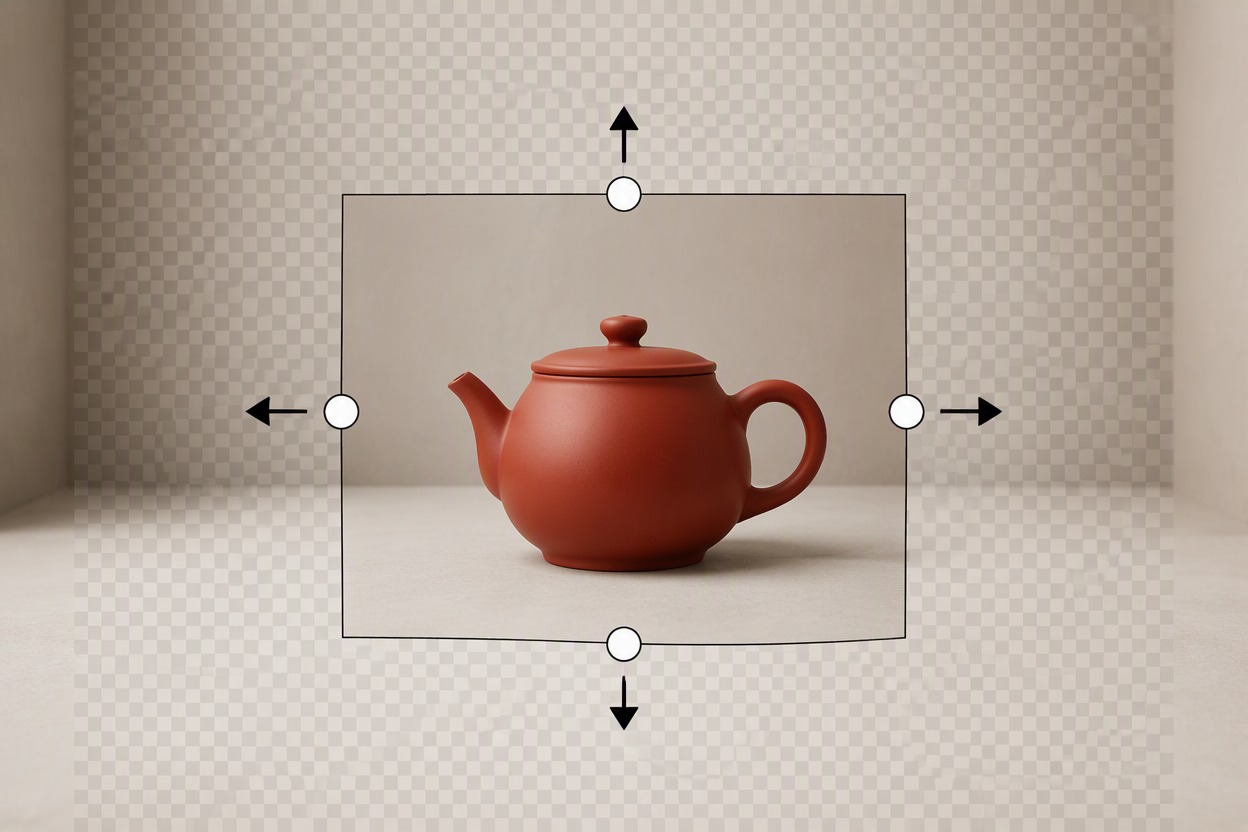
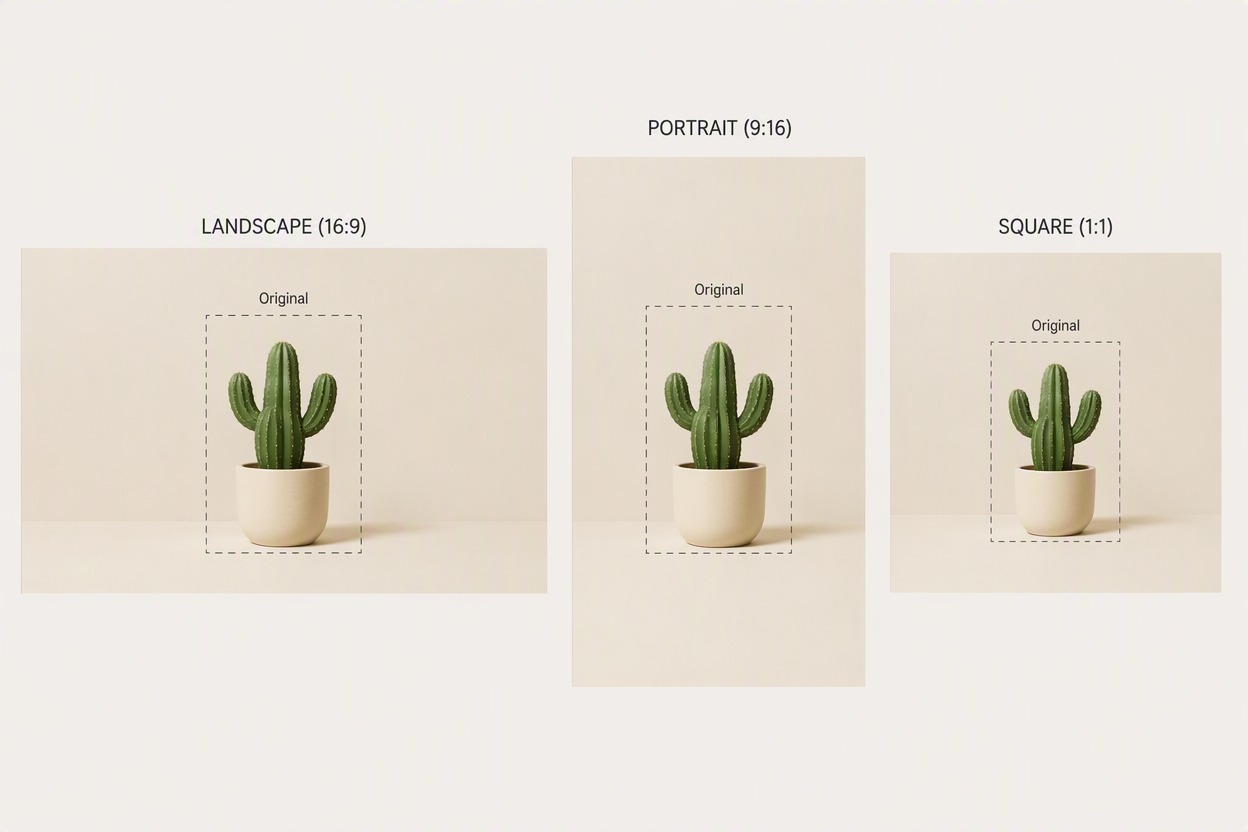
Adapt One Visual to New Layouts

Add canvas space around an existing image for landscape, portrait, or social placements. Reuse a strong source asset across formats without stretching the original pixels.

AI Image Uncropping: adapt one visual to new layouts

Expand Images for Any Layout

Add natural space around portraits, landscapes, and product visuals without changing the original center of the image.
Add Space Around Portraits

Add Space Around Portraits

Extend the background around a tightly cropped portrait to create more breathing room for profile images, posters, and social media layouts.

Try AI Uncropping

How to Use AI Image Uncropping

Step 1 1

Upload the Original Image

Choose the highest-quality source available and decide which sides need more canvas. Keep the subject and important details inside the original frame.
Step 2 2

Set the New Canvas Area

Choose a wider or taller composition and generate surrounding content that continues the source scene without altering the original center.
Step 3 3

Compare the Boundaries and Download

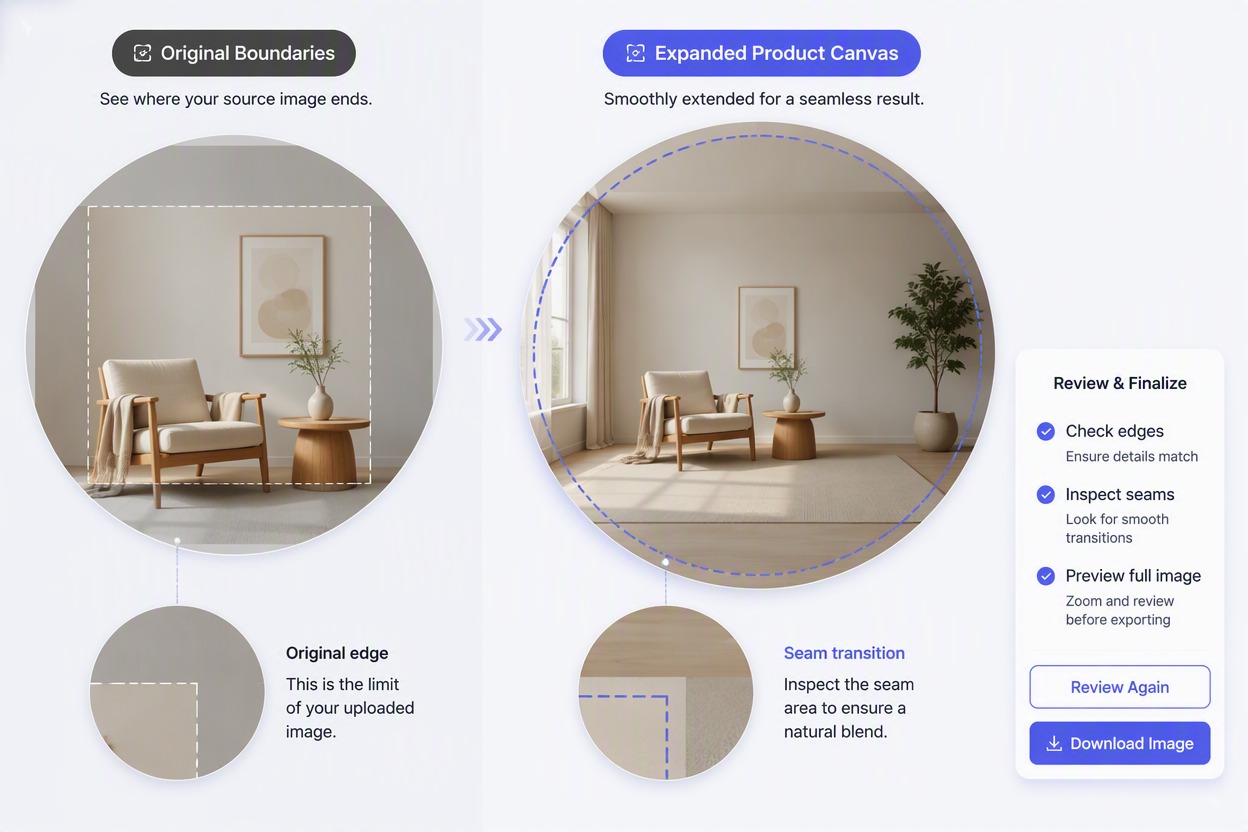
Inspect where the source ends and the expansion begins, then download the version with the most consistent perspective, lighting, and edge detail.

AI Image Uncropping FAQ

What is image expansion?

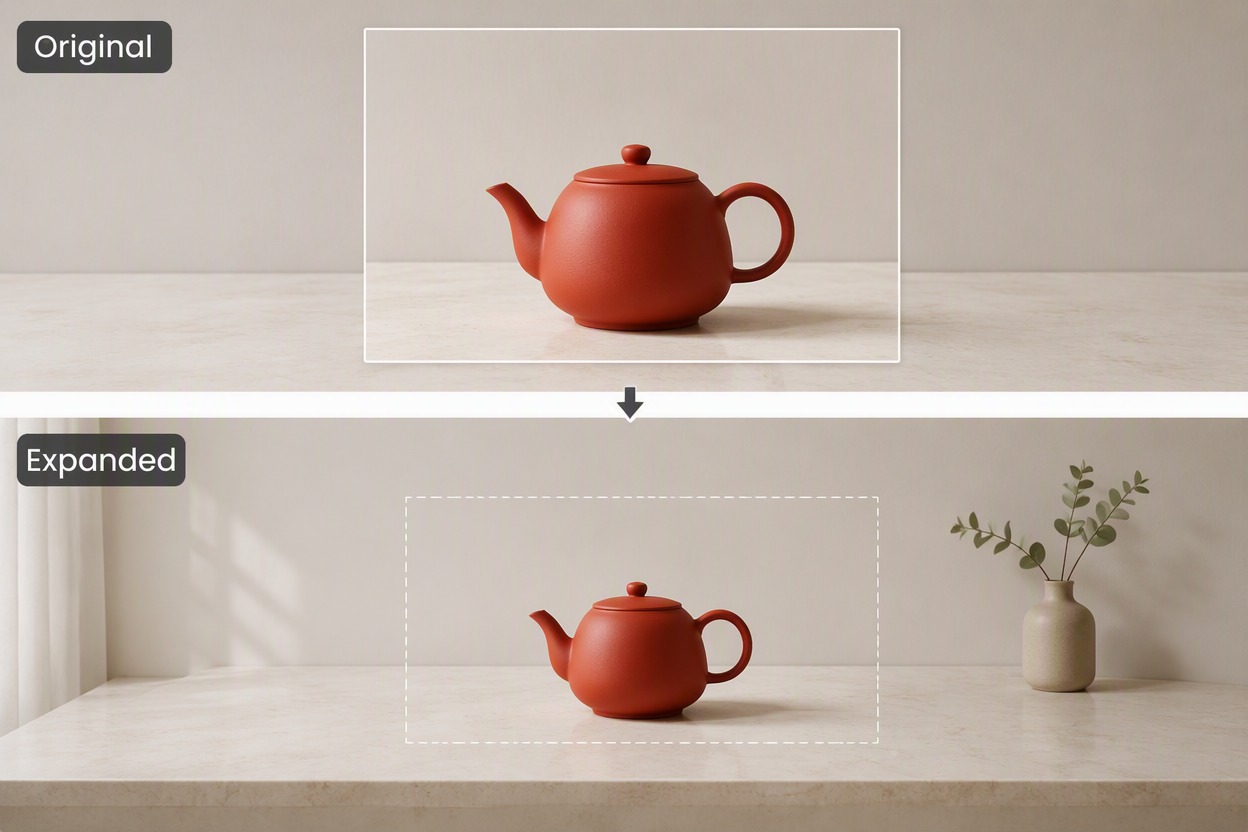
Image expansion extends the canvas beyond the original crop and generates new surrounding content while keeping the source region unchanged.
How does AI uncrop image content?

An AI uncrop image workflow reads the visible scene, lighting, perspective, and edge details, then proposes content for the newly added canvas area.

Can I expand picture dimensions for banners?

Yes. You can expand picture space around a subject for banners, headers, presentations, and social layouts, then place text or design elements in the new area.

Which images are easiest to uncrop?

Simple backgrounds, clear horizons, open skies, studio surfaces, and scenes with consistent perspective are generally easier than crowded edges or cut-off hands and objects.

Does the tool change the original image?

The intended workflow keeps the source region unchanged and creates content only outside its boundary. Compare the original center carefully before using the result.

Is AI image uncropping free?

GoEnhance AI may provide free credits for trying image expansion. Current credits, account rules, export options, and continued use can change in the live app.

What should I inspect in an expanded result?

Look at horizon lines, repeating textures, architecture, limbs near the crop edge, shadows, reflections, and the seam between original and generated regions.

Expand Your Image With GoEnhance AI

Add space around a portrait, landscape, product, or social visual while preserving the original center and composition.

Expand an Image