
Green Photo Filter: Give Your Photo a Cinematic Green Tint
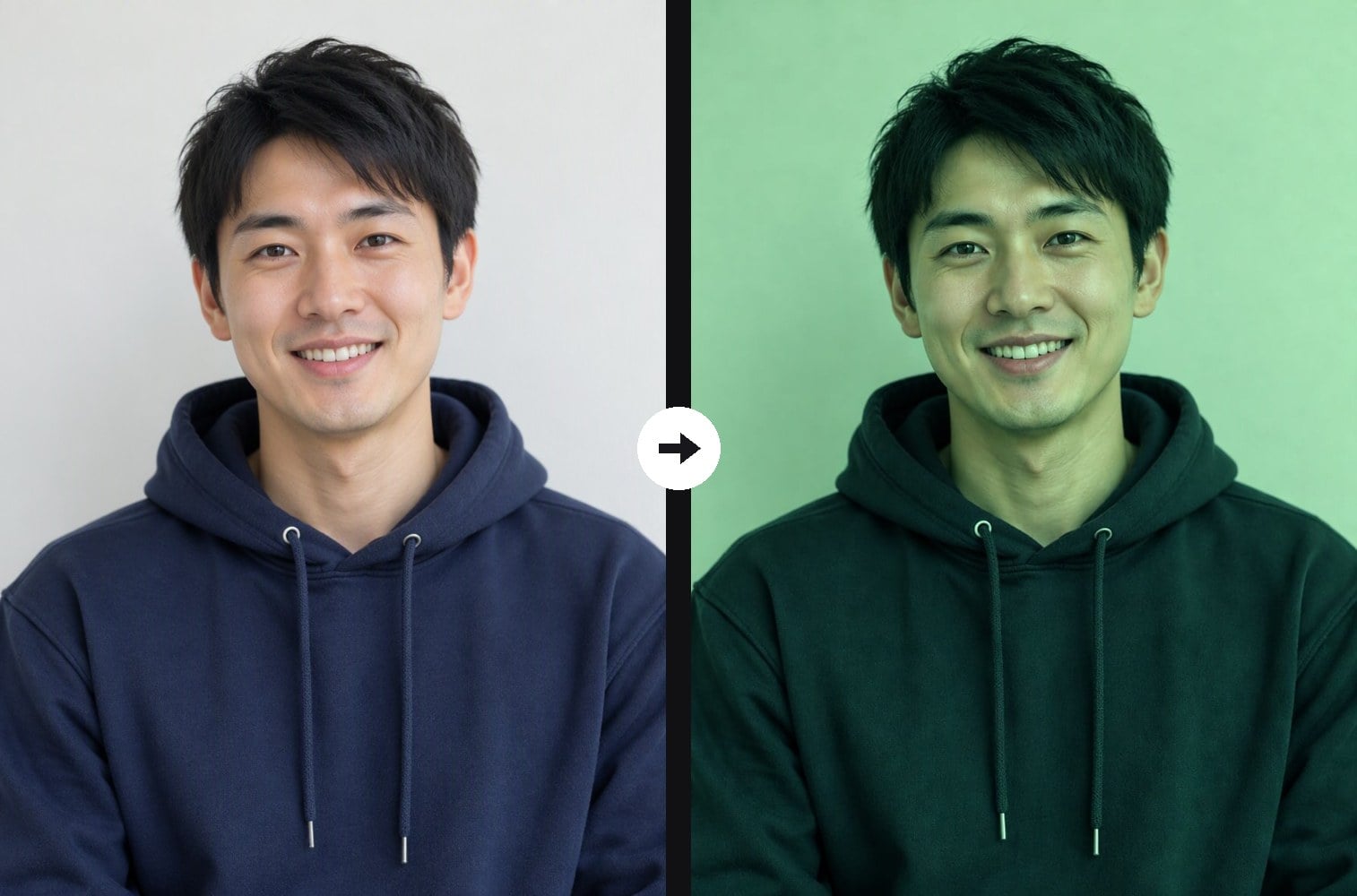
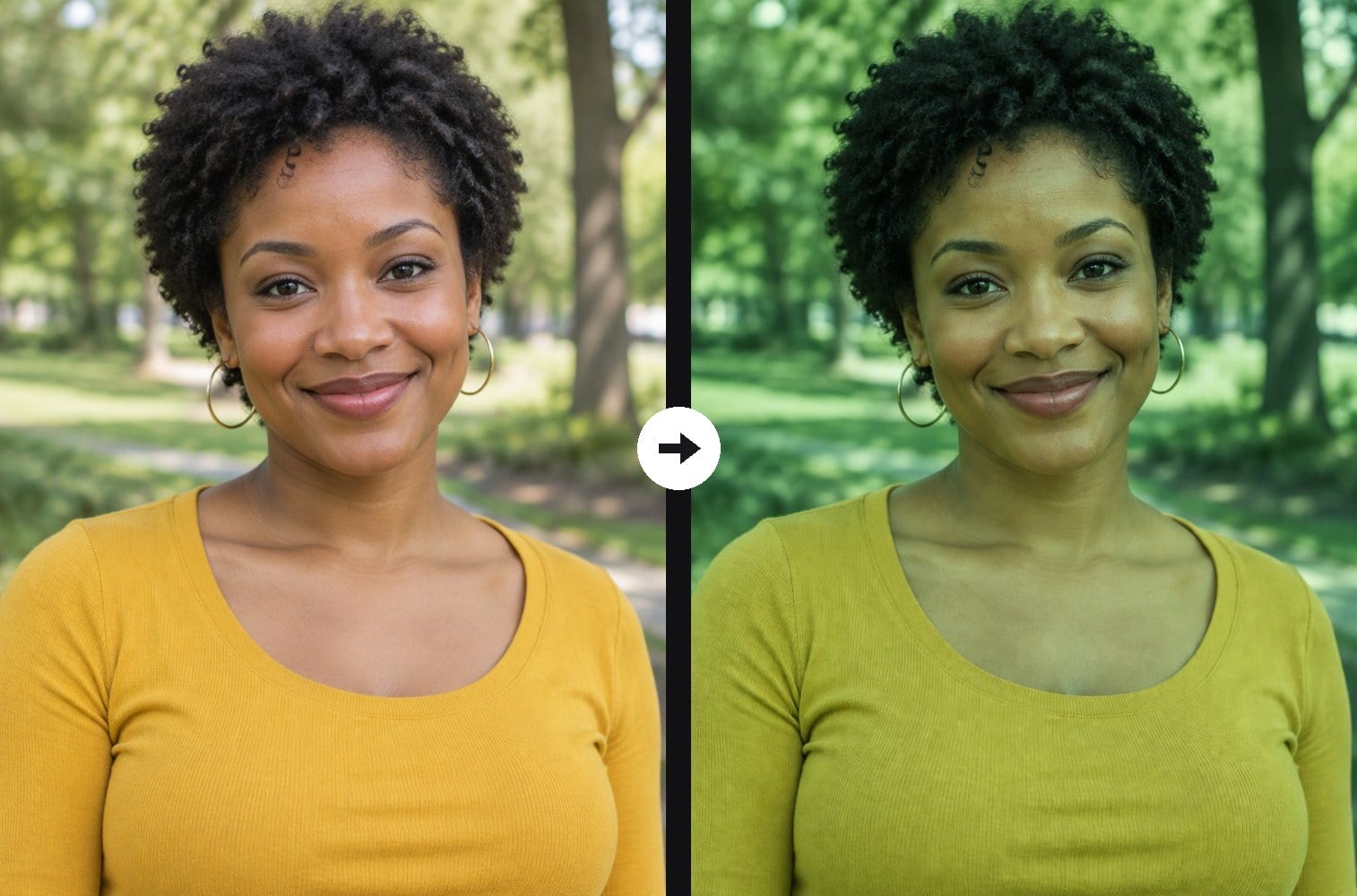
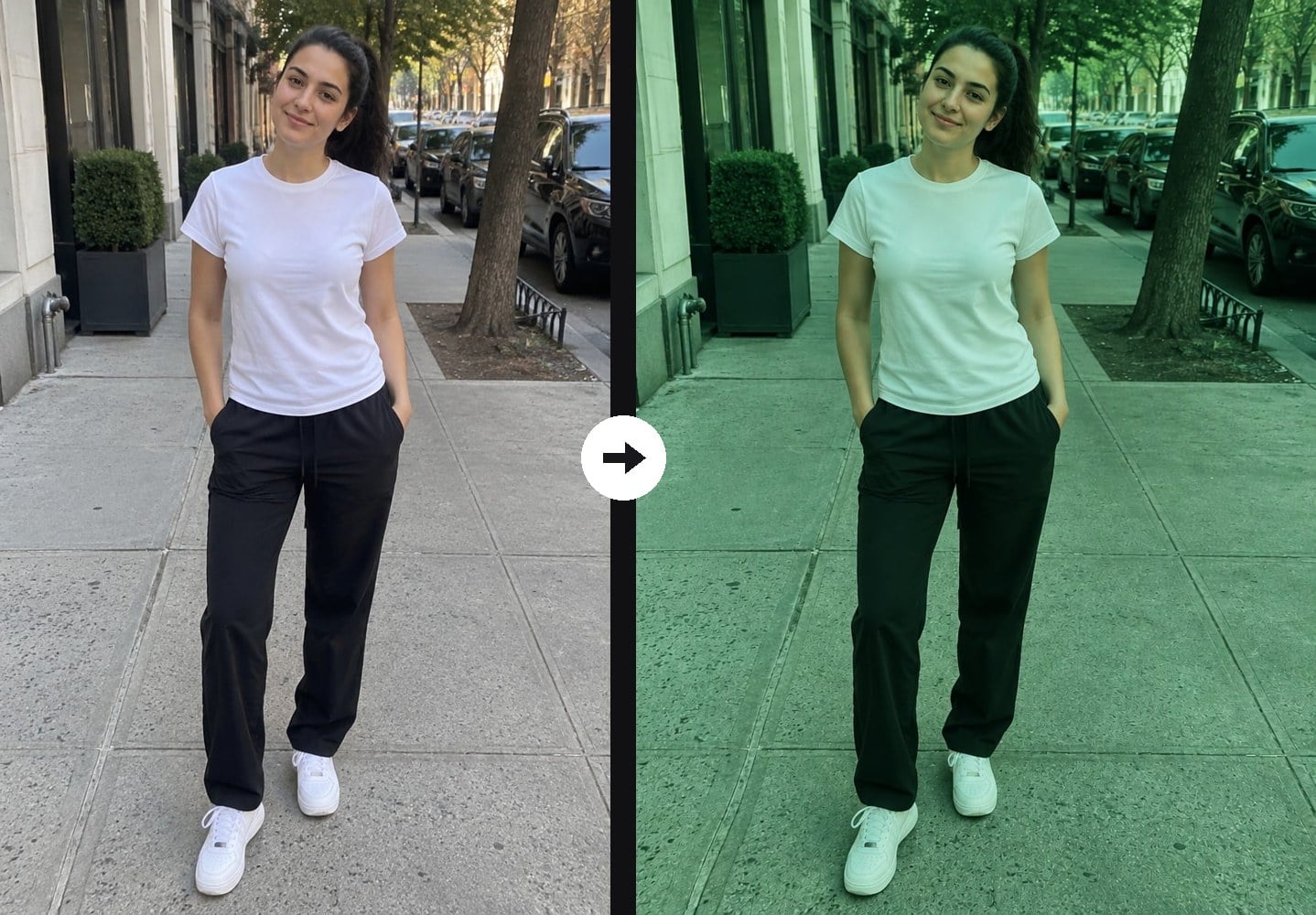
Upload a photo and the AI re-grades the whole image with a green tint: soft mint highlights, green midtones and deep forest-green shadows, like a moody film still. Only the color changes. Your face, pose, outfit and background stay exactly where they were, and the original texture, sharpness and grain are kept, so it looks like a real photo edit instead of a repaint. For a purple or warm amber look instead, see the related filters below. The console runs on GPT Image 2.5.

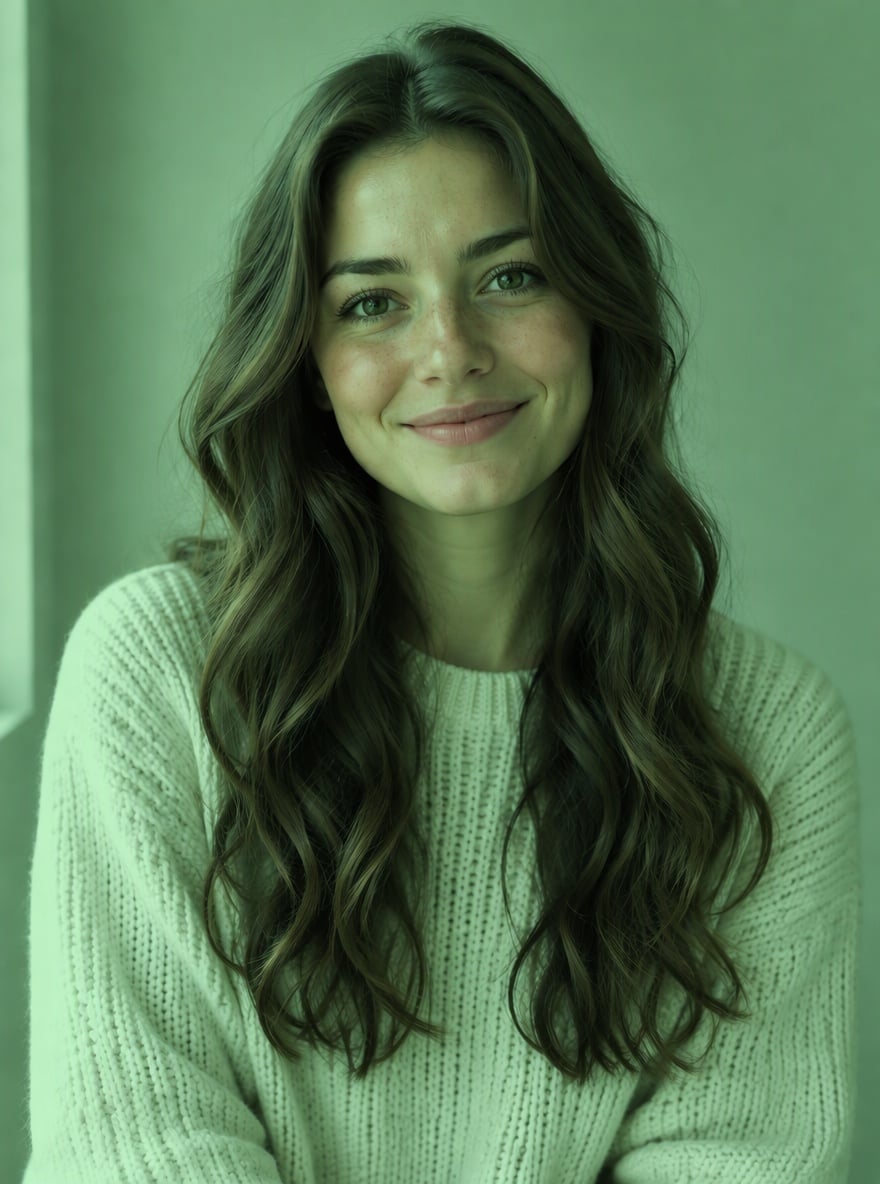
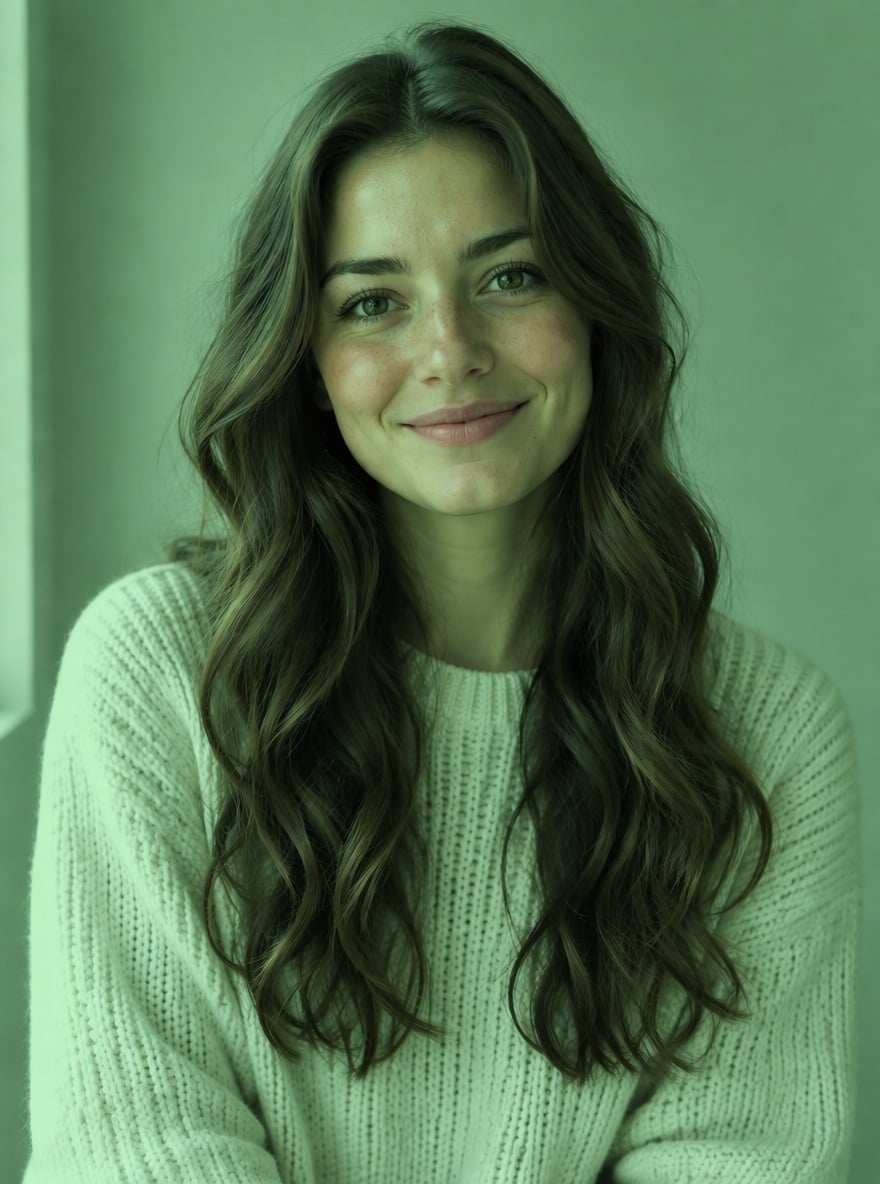
Mint Sweater Portrait

Emerald Studio Headshot

Green Park Portrait
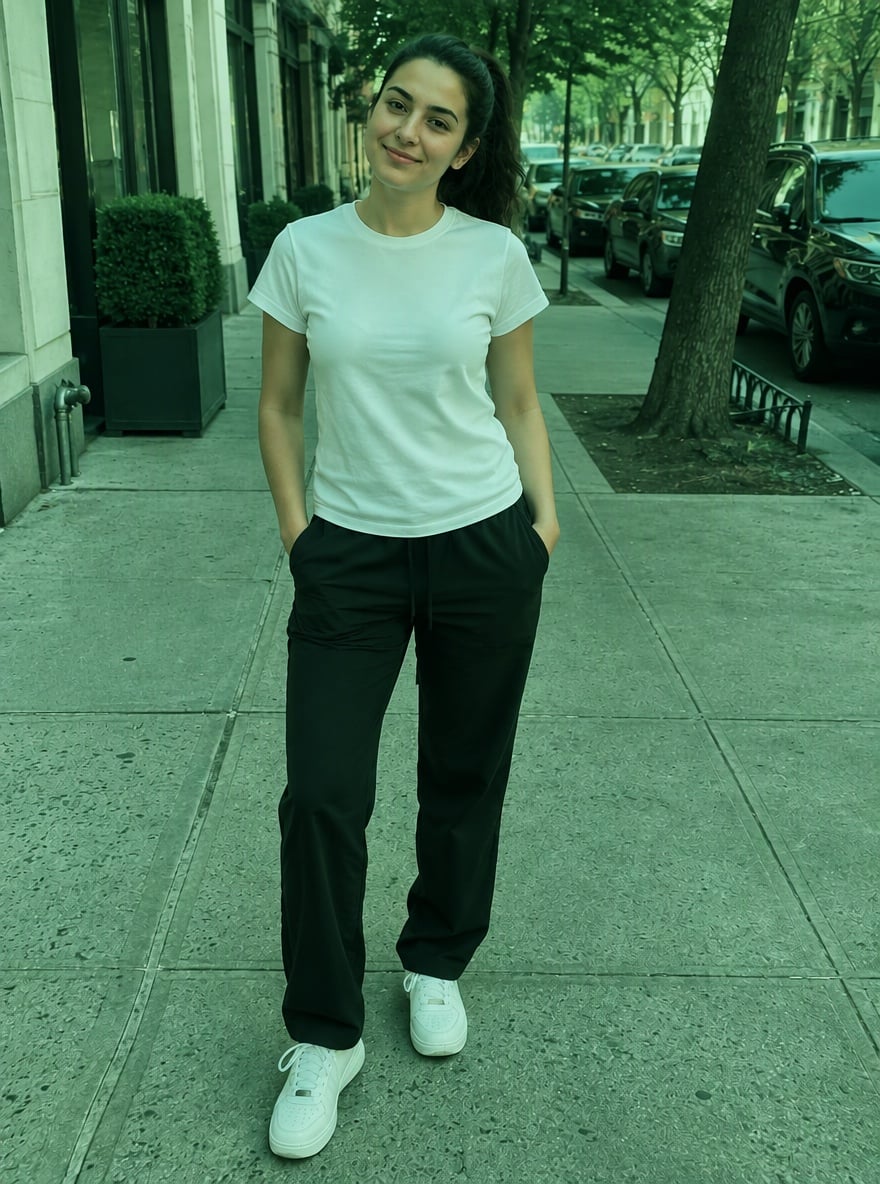
Street Style in Green
Upload files
Upload a photo to add a green tint
Effect prompt
By uploading a file, you agree to GoEnhance's Terms of Use and Privacy Policy
Green Filter Results from the Console
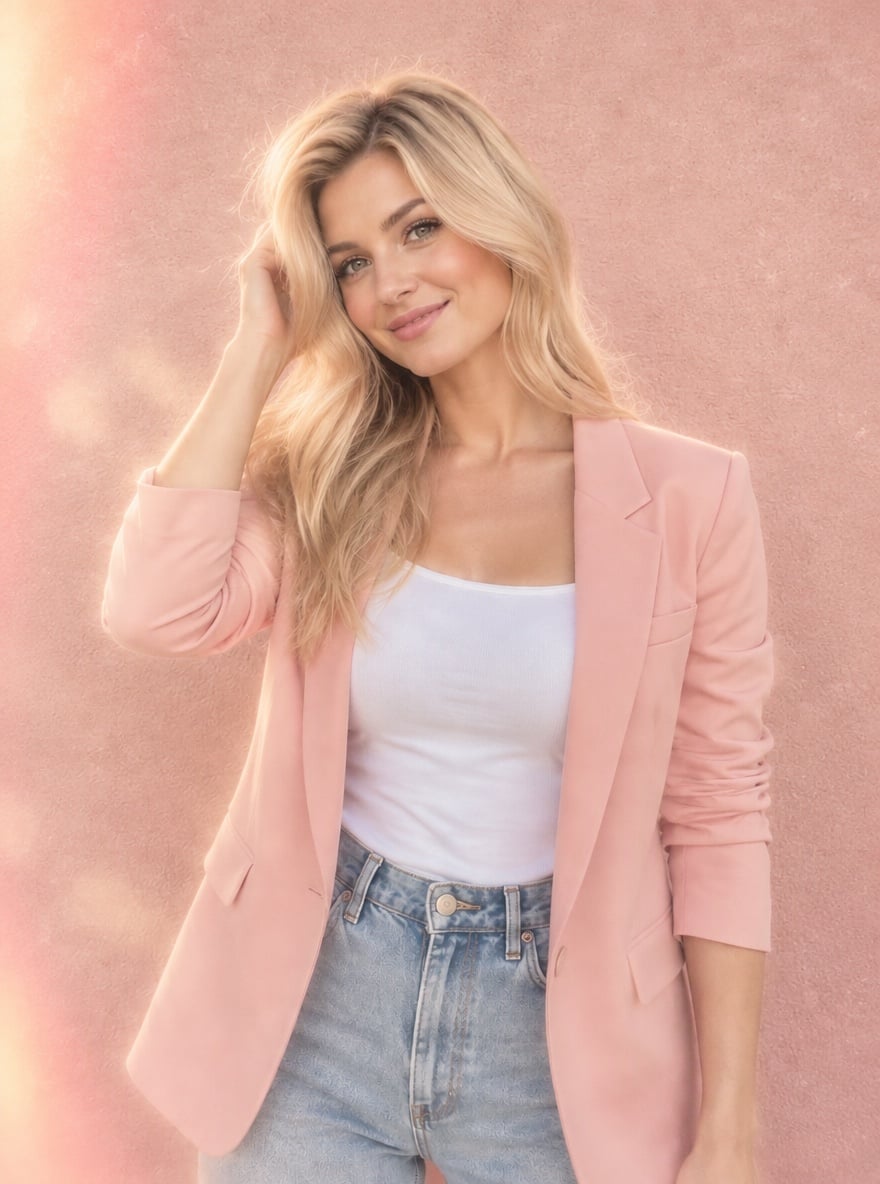
Each image is one upload with the prompt above. Faces, clothes and backgrounds come straight from the original photo; only the color grade changes.
Mint Sweater Portrait
Emerald Studio Headshot
Green Park Portrait
How to Add a Green Filter to a Photo
01
Upload a photo
Selfies, portraits, full-body shots, street photos and travel pictures all work.
02
Apply the green filter
The green tint prompt is already filled in. Press the button and the AI re-grades the colors.
03
Download and share
Save the green-toned photo for Instagram, a moody feed theme, a profile picture or a poster.
Why Use This Green Photo Filter
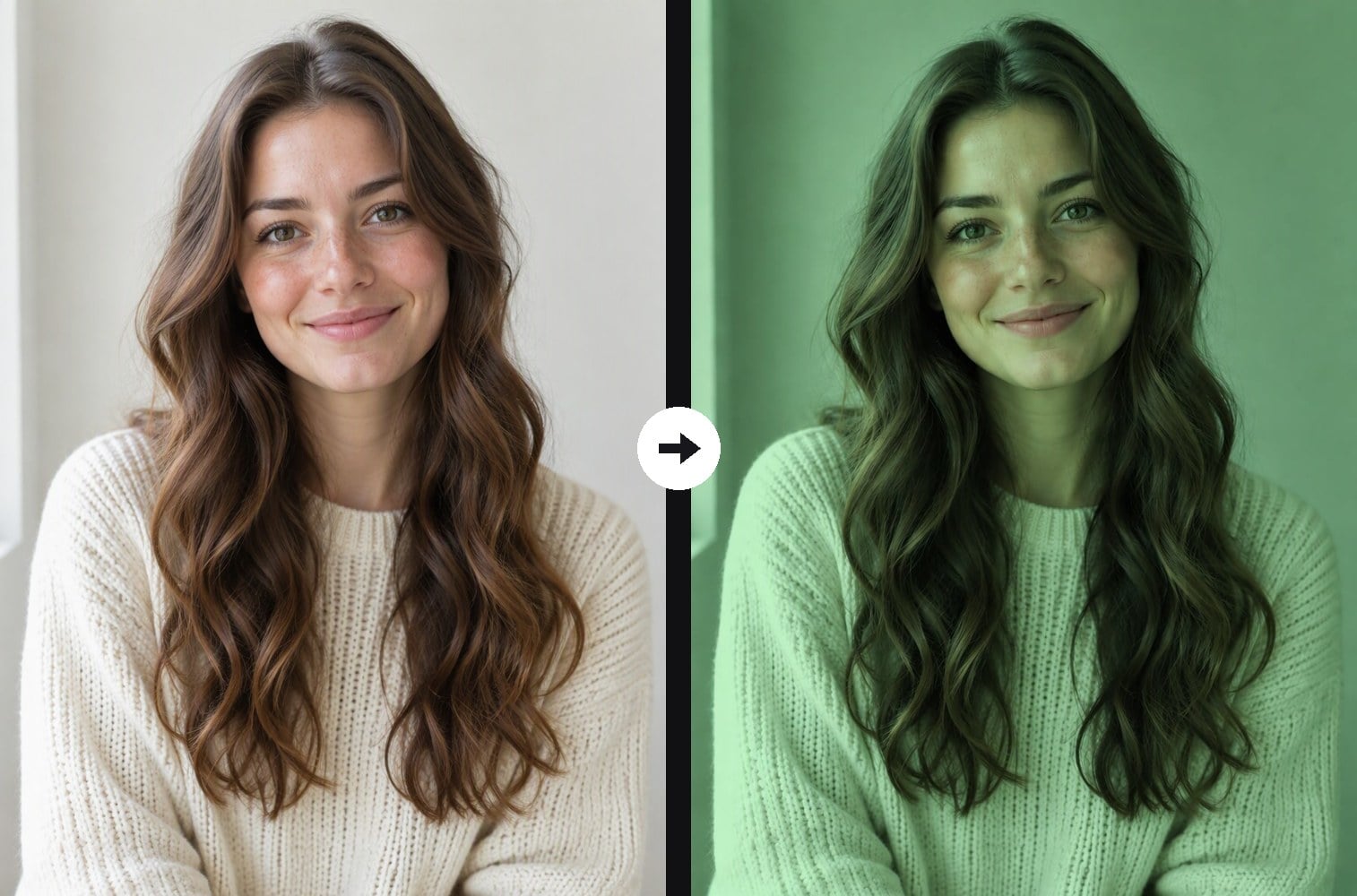
Original texture kept
Skin texture, hair strands, fabric and film grain stay as sharp as in your upload. The lighting direction and fine detail of the original are preserved, and skin keeps its natural texture with only a soft green cast, so the result reads as a real photo edit rather than a repaint.
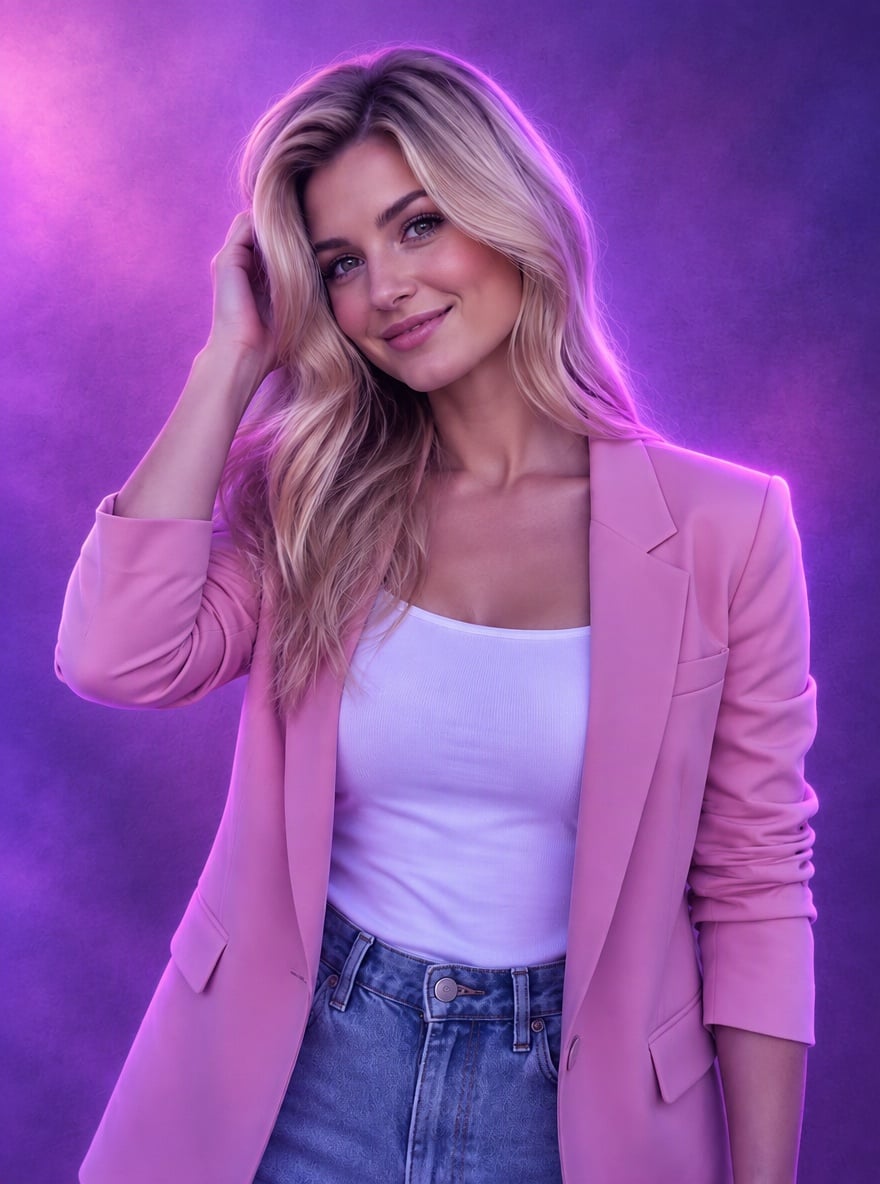
More Color Photo Filters


Green Photo Filter FAQ
What does the green photo filter do?
Will it change my face or the background?
Does it keep the photo quality?
Can I make the green lighter or stronger?
What photos work best?
Can I tint my photo another color?
Ready to Go Green?
Upload a photo and get a green-tinted version in under a minute.
Apply Green Filter