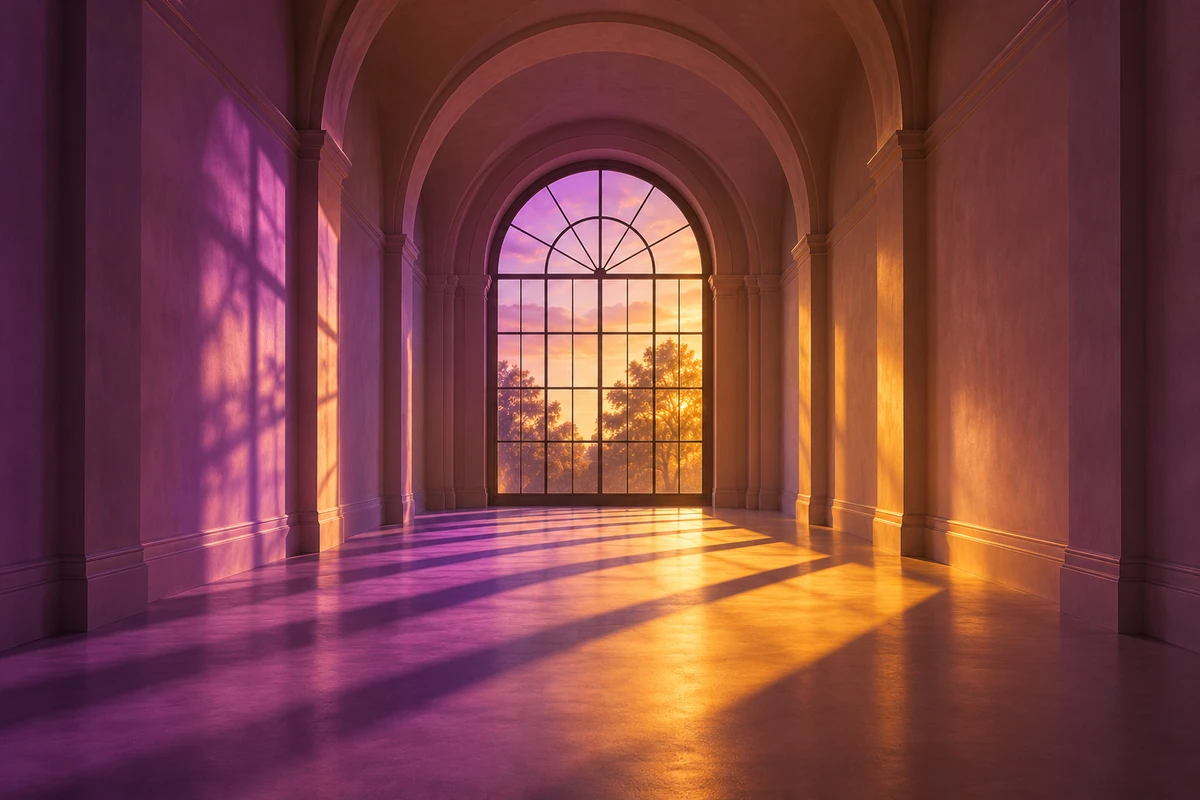
Tint Generator
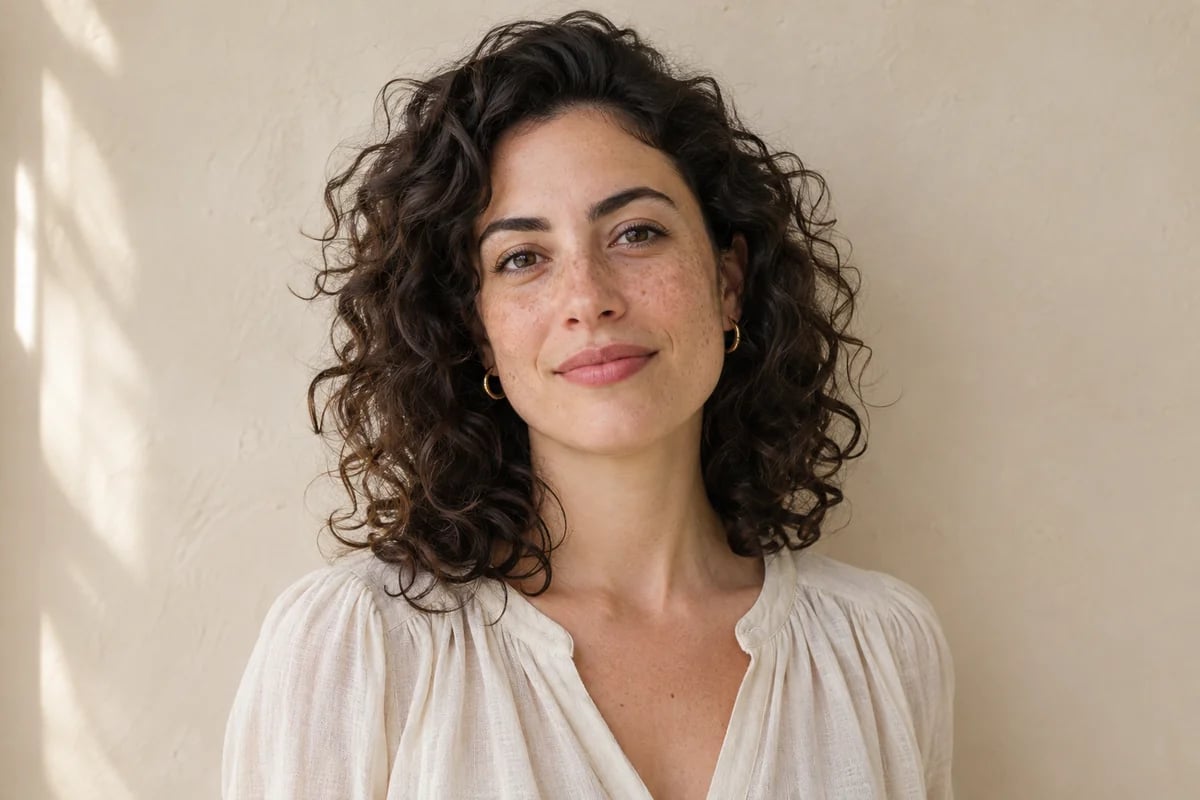
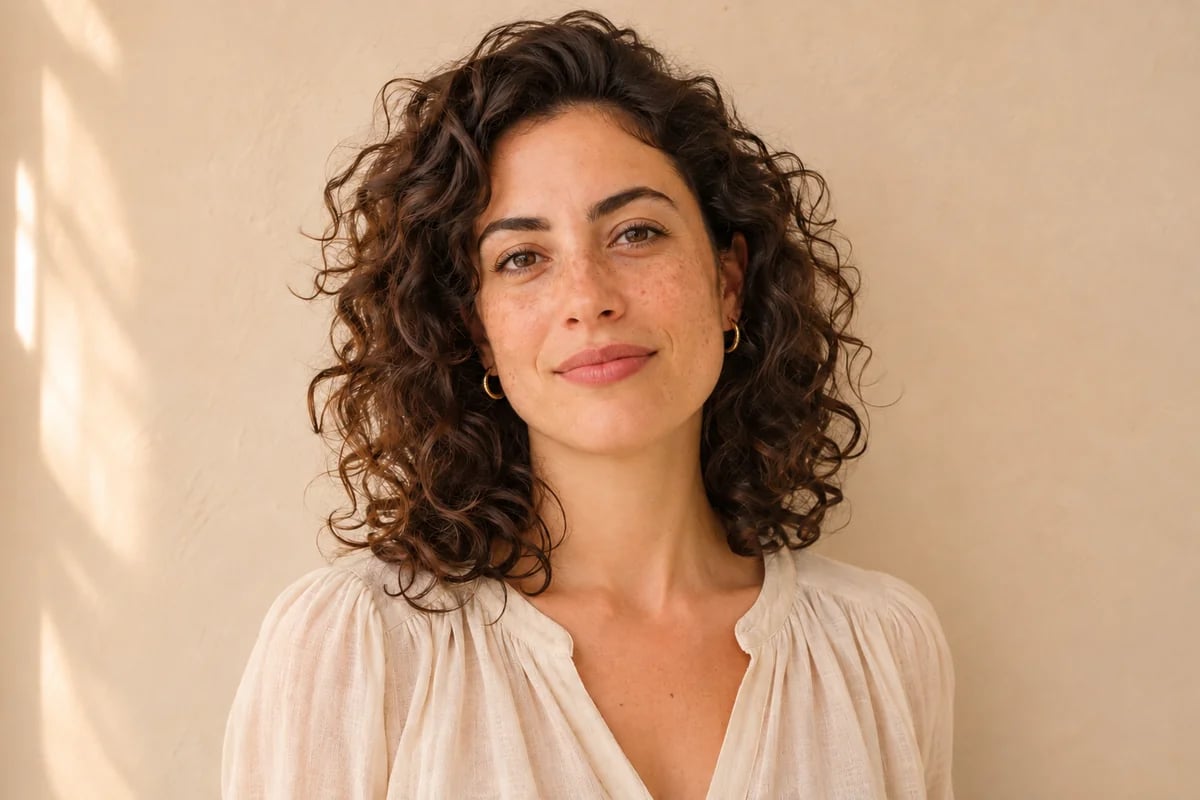
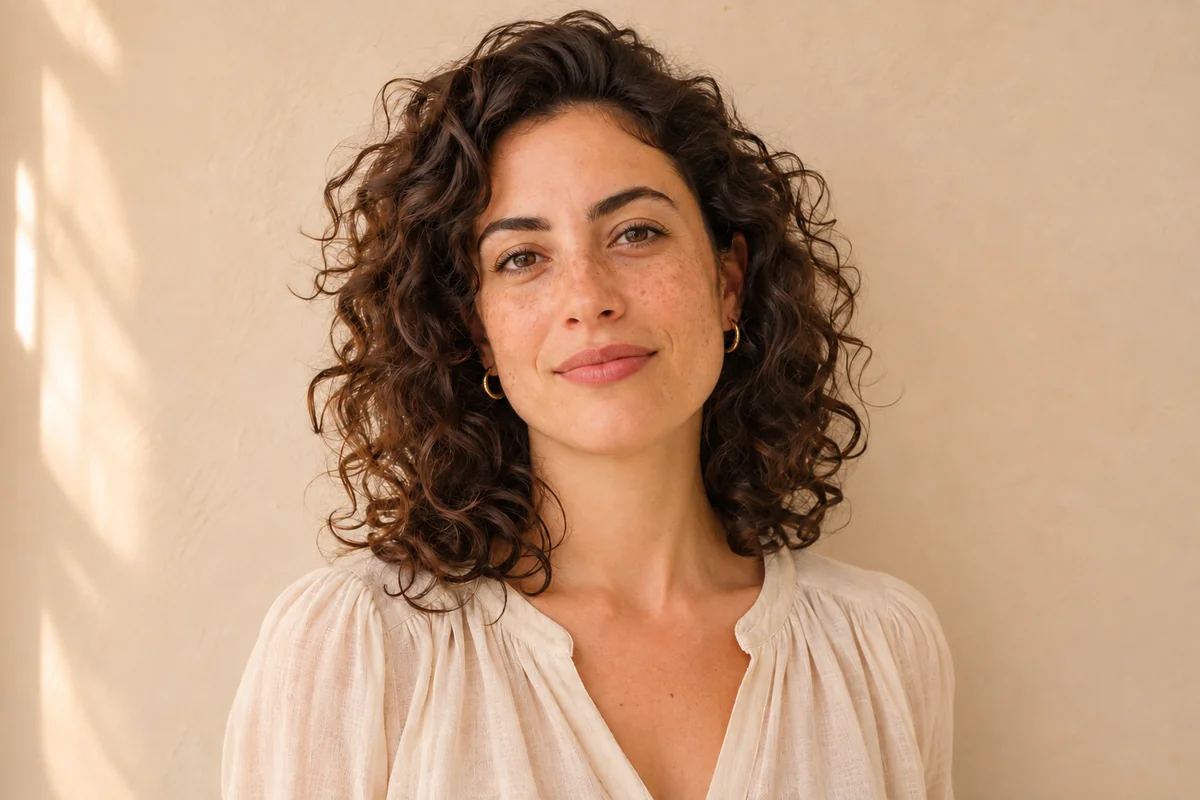
Tint Style Concepts to Explore
Warm Tint for Travel Scenes
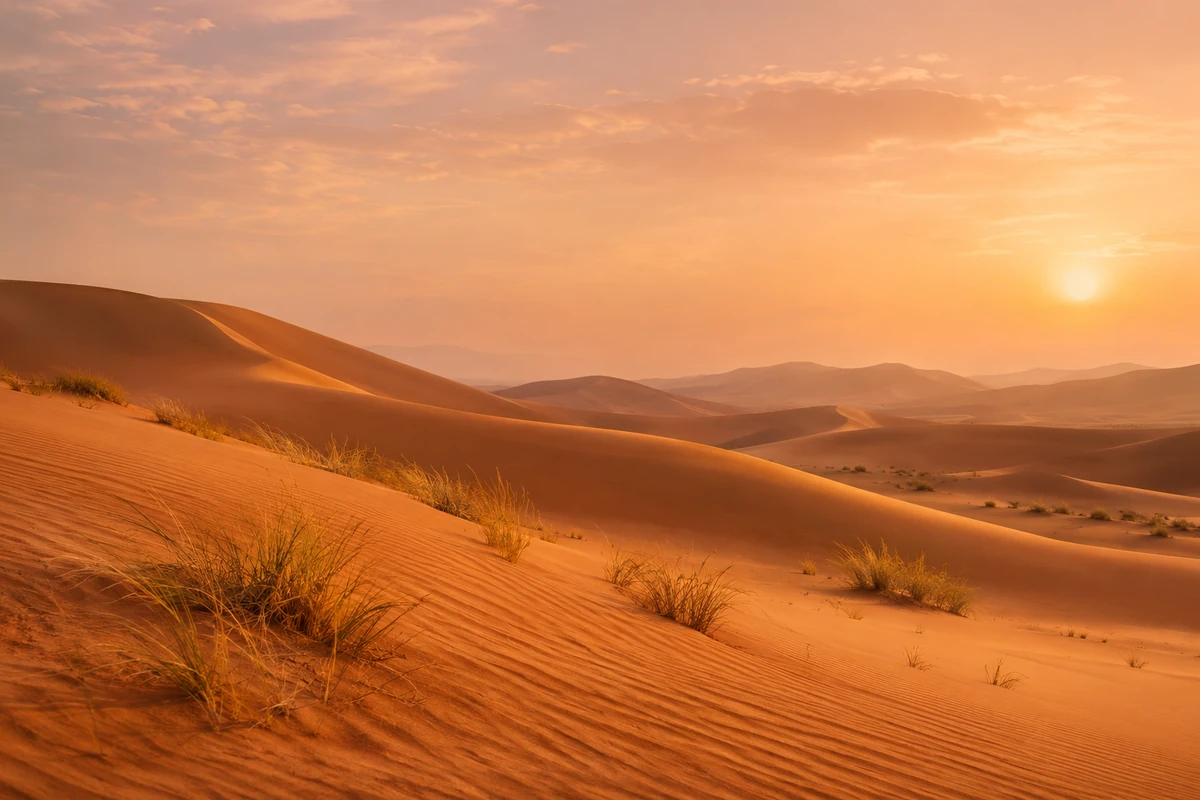
Use a warm tint direction to build sunlit travel scenes and editorial landscapes with a more inviting atmosphere. GoEnhance image-to-image editing uses an uploaded picture as a visual starting point and follows a written instruction for changes such as a peach cast, golden highlights, or softened shadows. That makes it useful when a landscape feels too cool or neutral for the story you want the image to tell. A generated variation can help you compare a few expressive directions before choosing a final visual treatment.
Cool Tint for Spaces and Scenes
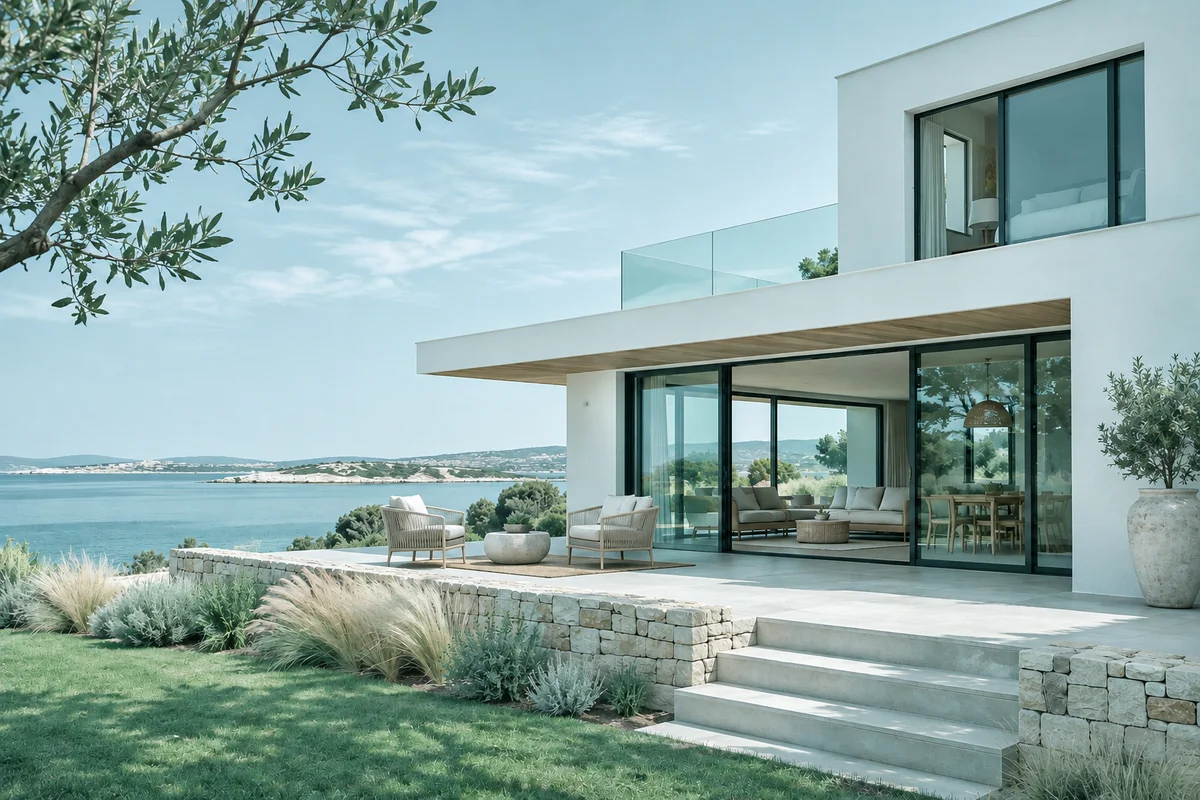
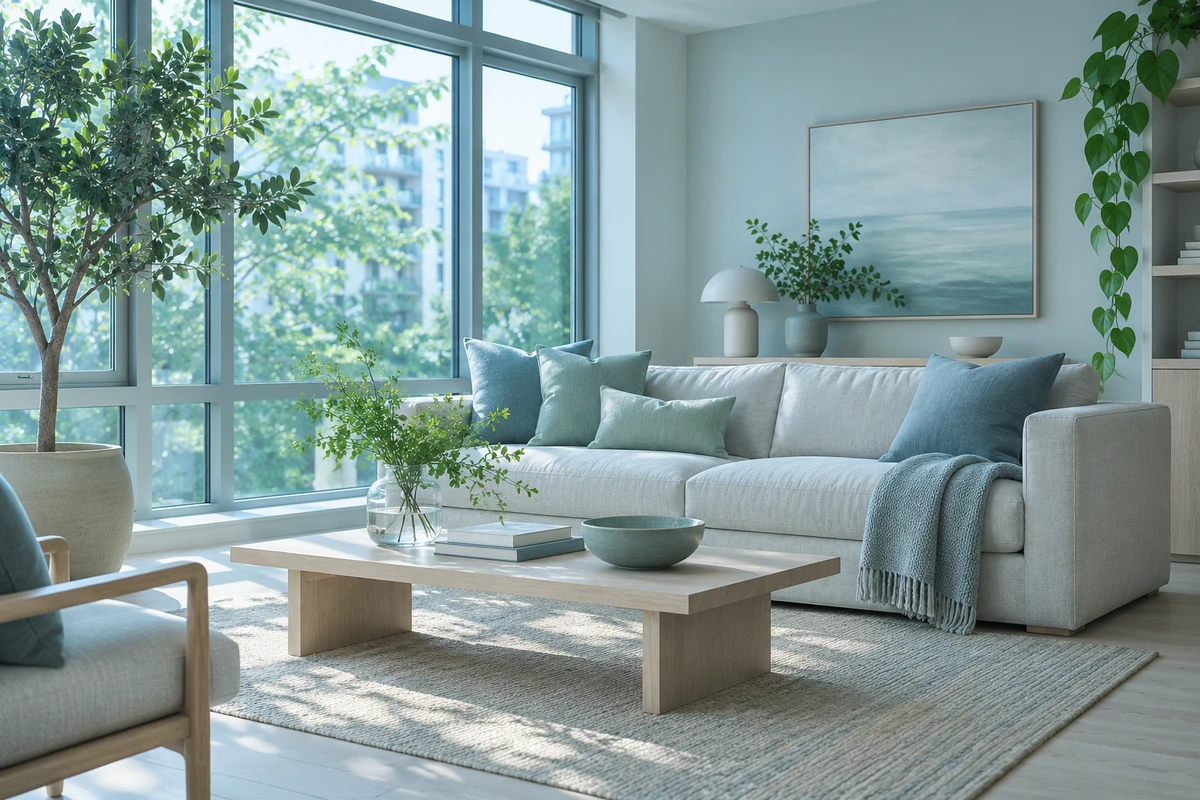
Use a cool tint direction to give interiors, architecture, and travel scenes a quieter visual atmosphere. An uploaded image provides the scene reference, while the prompt can describe colors such as sea glass, blue-gray shade, or a pale cyan cast. GoEnhance generates an image variation from that instruction, giving designers and creators a quick way to consider how a cooler treatment may support a calm, airy, or contemporary layout. The same approach can guide backgrounds and campaign imagery across a visual set.
Muted Tints for Product Concepts
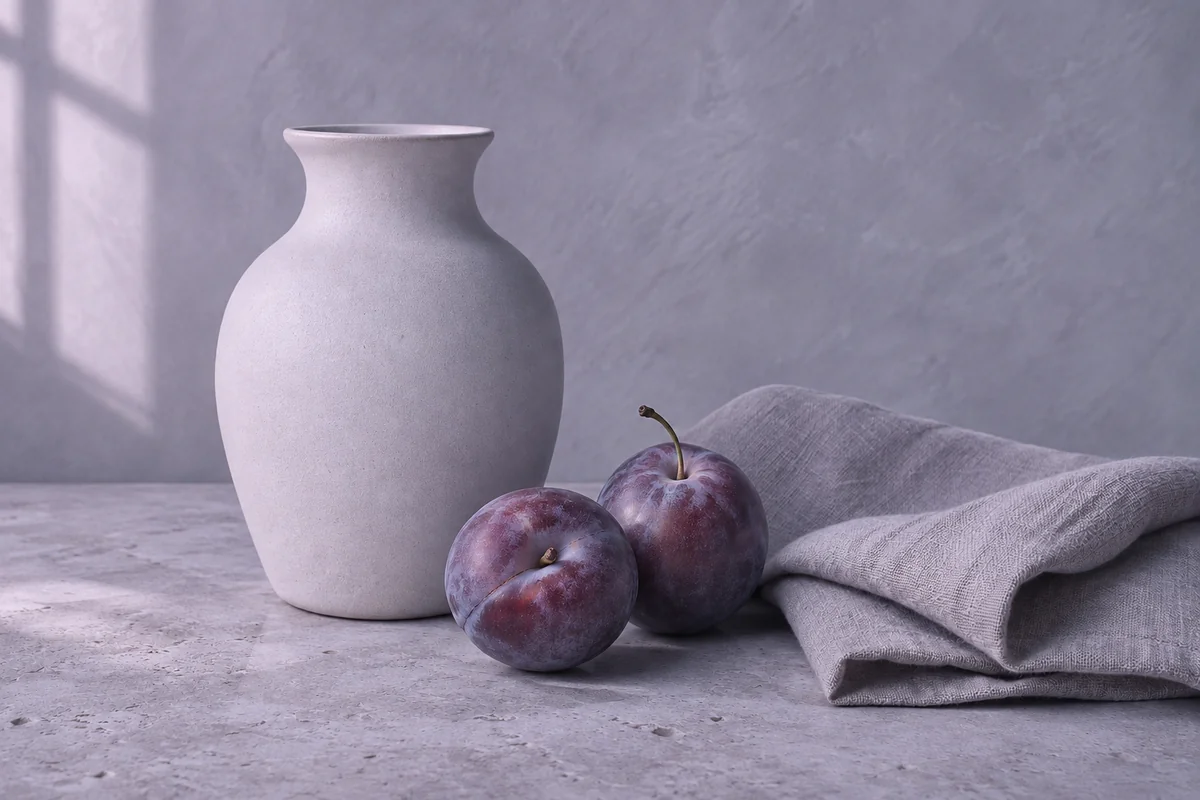
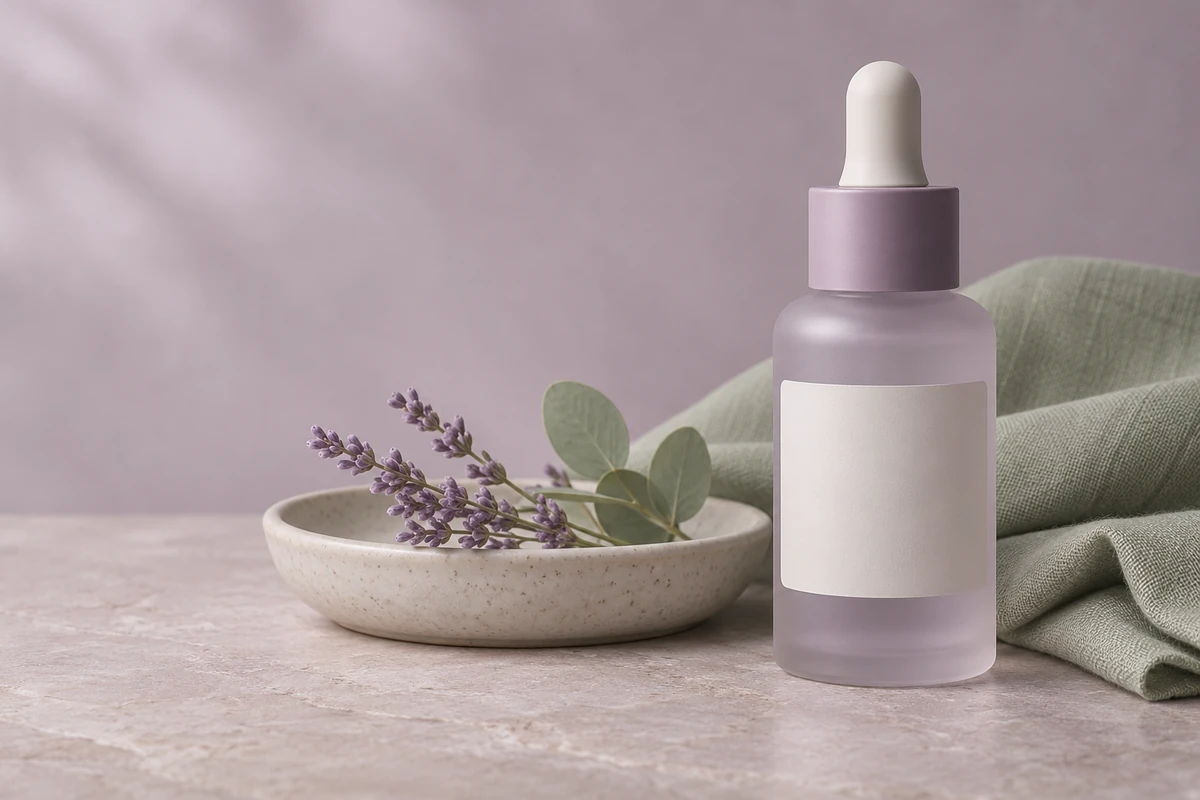
Muted color treatments can help a product concept feel softer, more understated, or more consistent with a quiet brand mood. With prompt-guided image editing, a source photograph can anchor the subject while a written direction explores tones such as dusty rose, soft sage, warm gray, or lavender. This gives small teams and independent creators a visual way to compare packaging, tabletop, and catalog directions before refining a final creative brief. For broader AI image ideas, visit the AI Image Generator.
Create a Prompt-Guided Tint Variation
Upload an Image to Restyle
Choose a clear photo or image where the main subject is easy to recognize.
Describe the Color Mood
Name the tint or atmosphere you want, such as warm peach, cool blue-gray, or muted sage, and mention details that should stay visually prominent.
Review the Variation
Check the subject, shadows, background, and overall color balance. Adjust your wording if the image needs a different mood.
A Flexible AI Tint Workflow
Explore Color Moods
Restyle from an Image
Create Visual References
Explore More Color and Image Editing Tools
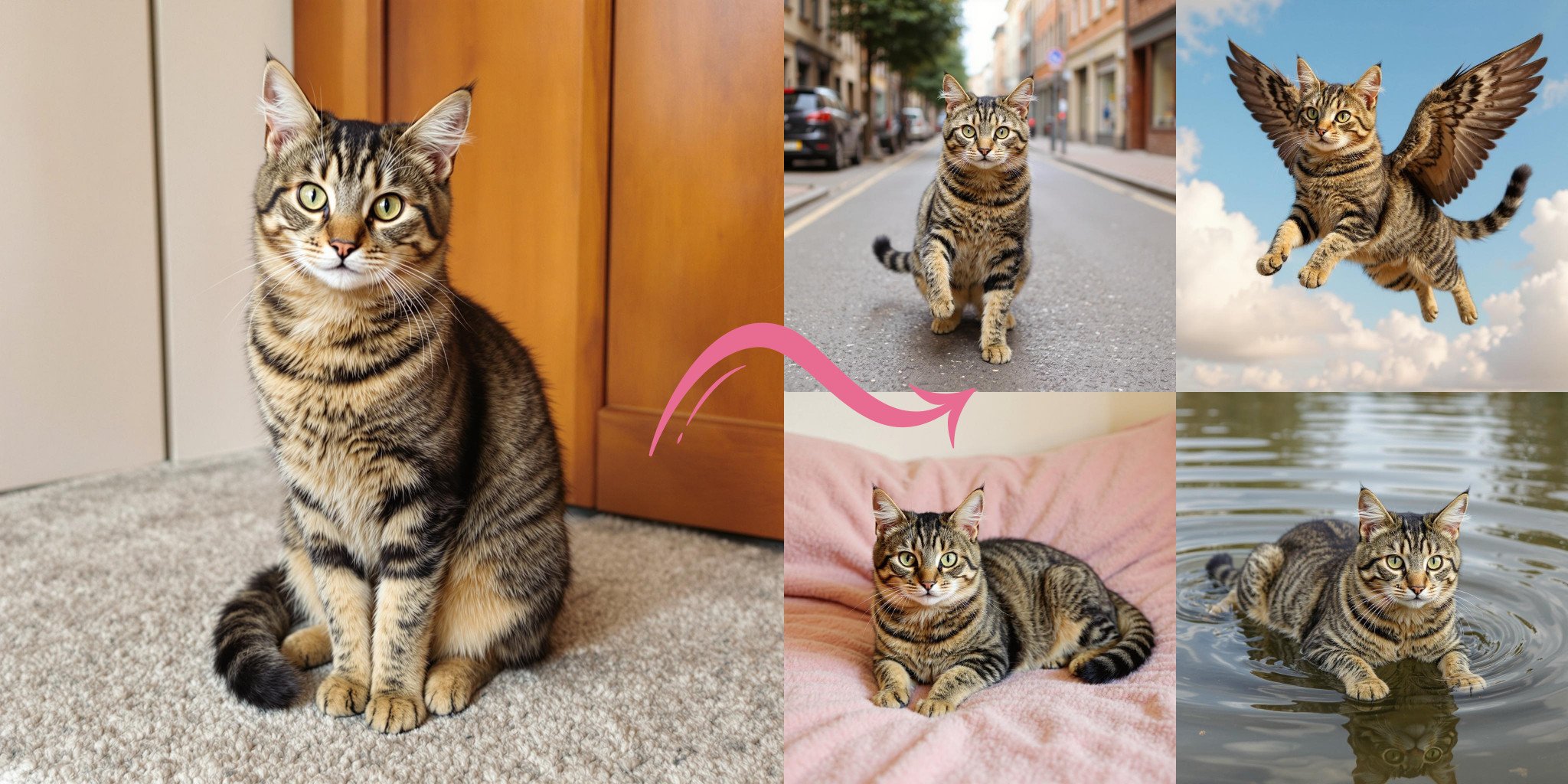
Image to Image AI
Describe a warm, cool, or muted treatment and guide edits to an uploaded image.
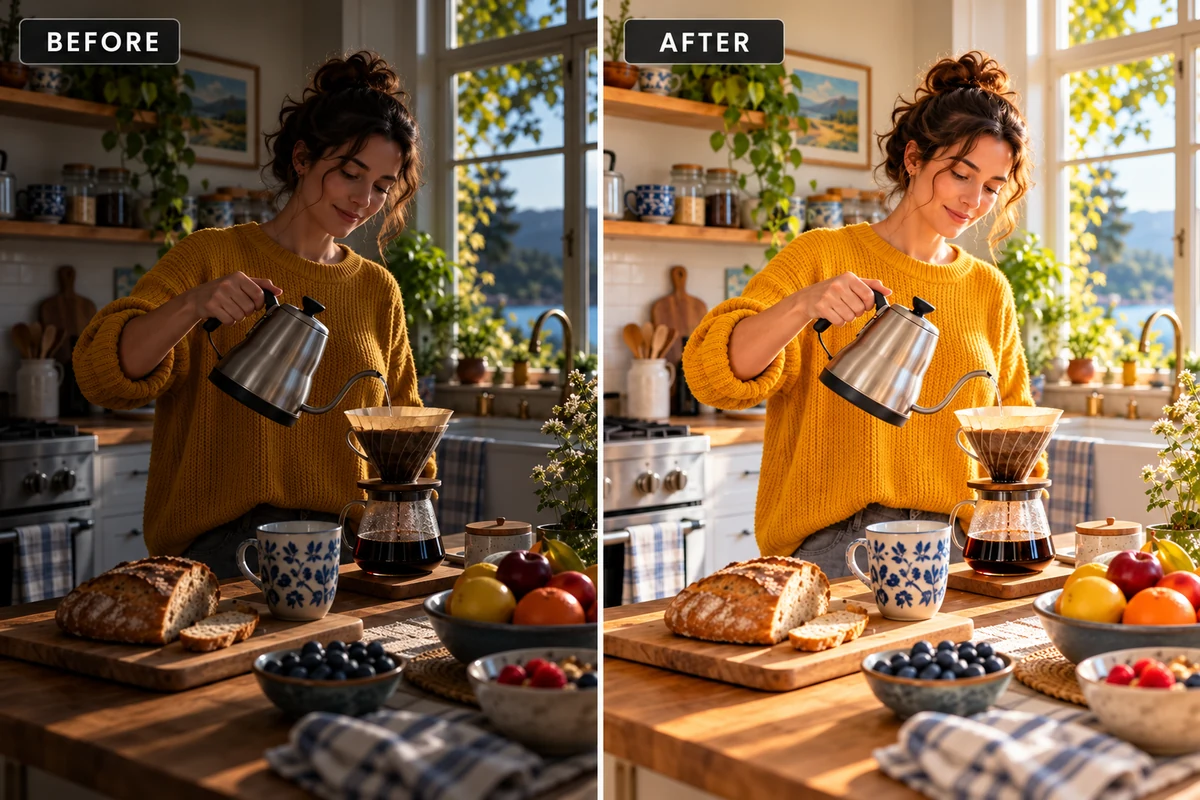
Image Brightness Color Enhancer
Improve overall light and color balance when a photo looks dull or dark.
Remove Filter from Photo
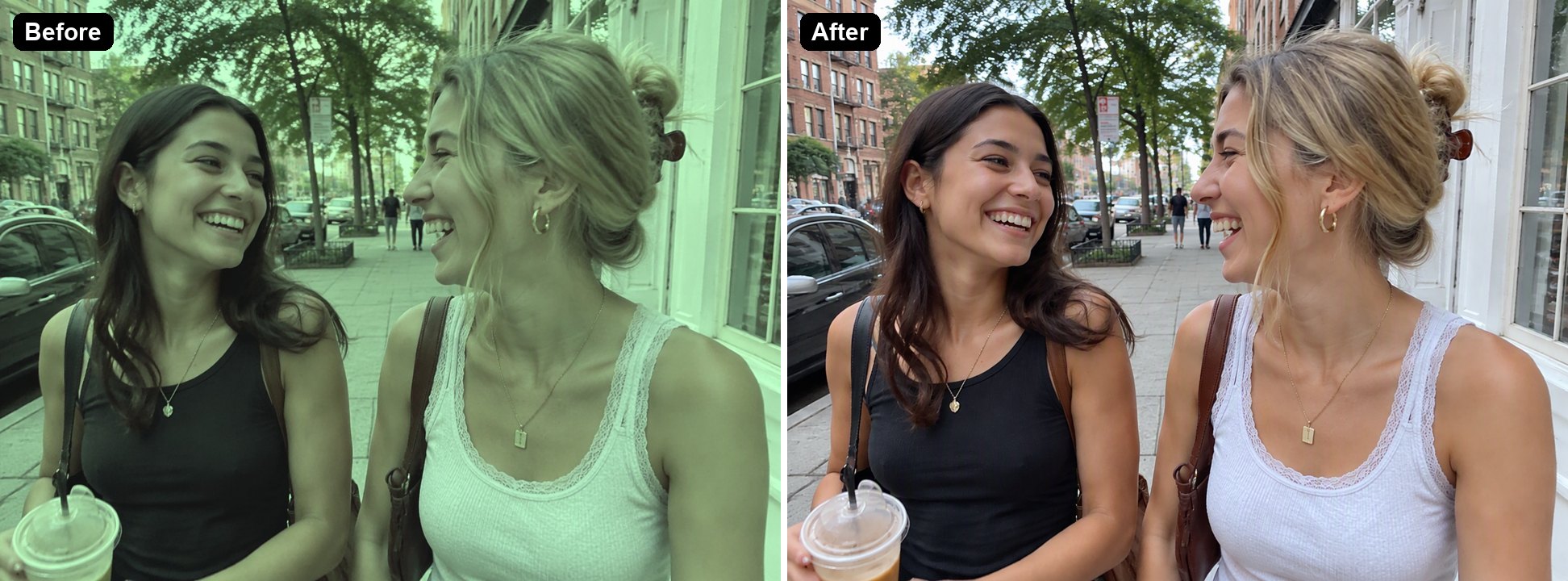
Reverse an existing color filter when you want to bring a photo closer to natural tones.
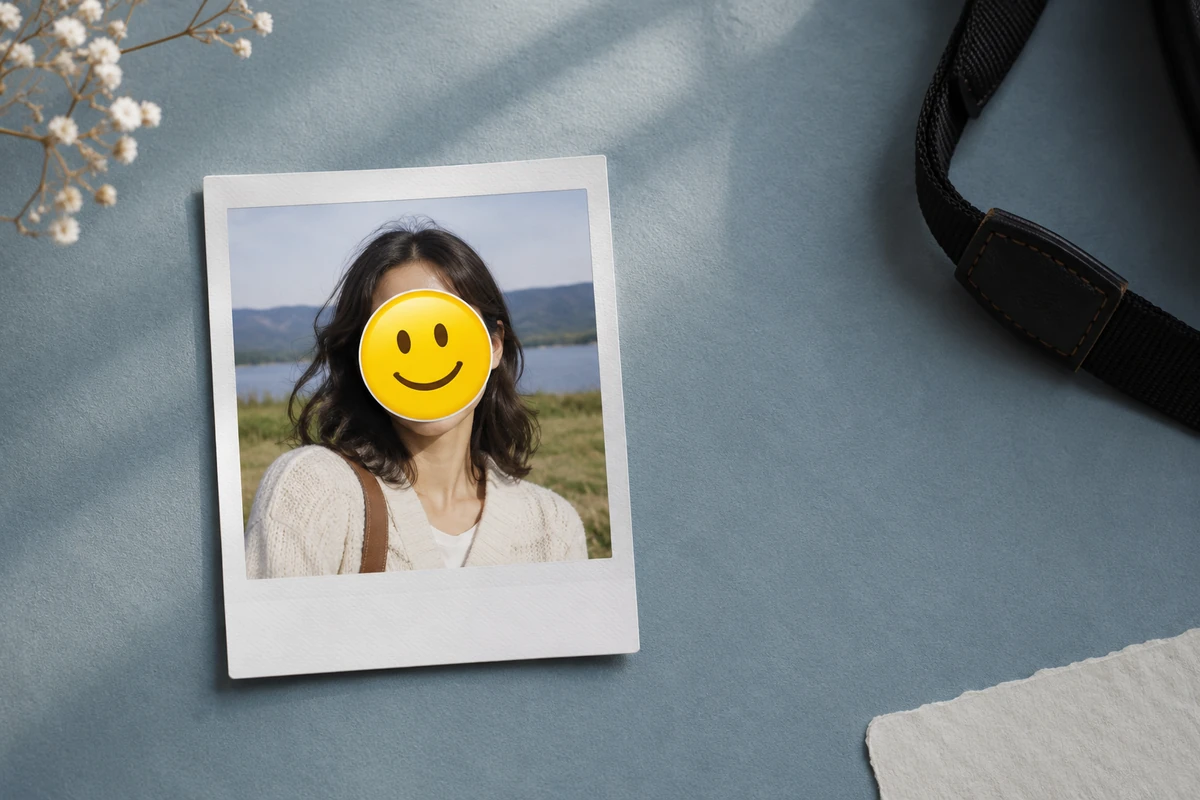
Remove Emoji from Picture
Switch to a prompt-guided cleanup page to remove a visible sticker or emoji.
Frequently Asked Questions
What does a tint generator do?
Can it calculate exact HEX tints, shades, or color scales?
Can I add a tint to an existing picture?
How can I describe a tint in a prompt?
How do I use the Tint Generator?
Can I make warm, cool, or muted image tints?
Will the tint change only one part of my image?
Can I remove a color cast from a photo?
Is GoEnhance free to try?
Are my GoEnhance image edits private?
Can I export the generated tint as a CSS palette?
Can I use Tint Generator images commercially?
Explore a New Color Direction
Upload an image, describe a tint style, and create a prompt-guided variation to review.
Try Image Tinting