
Wrinkle Remover
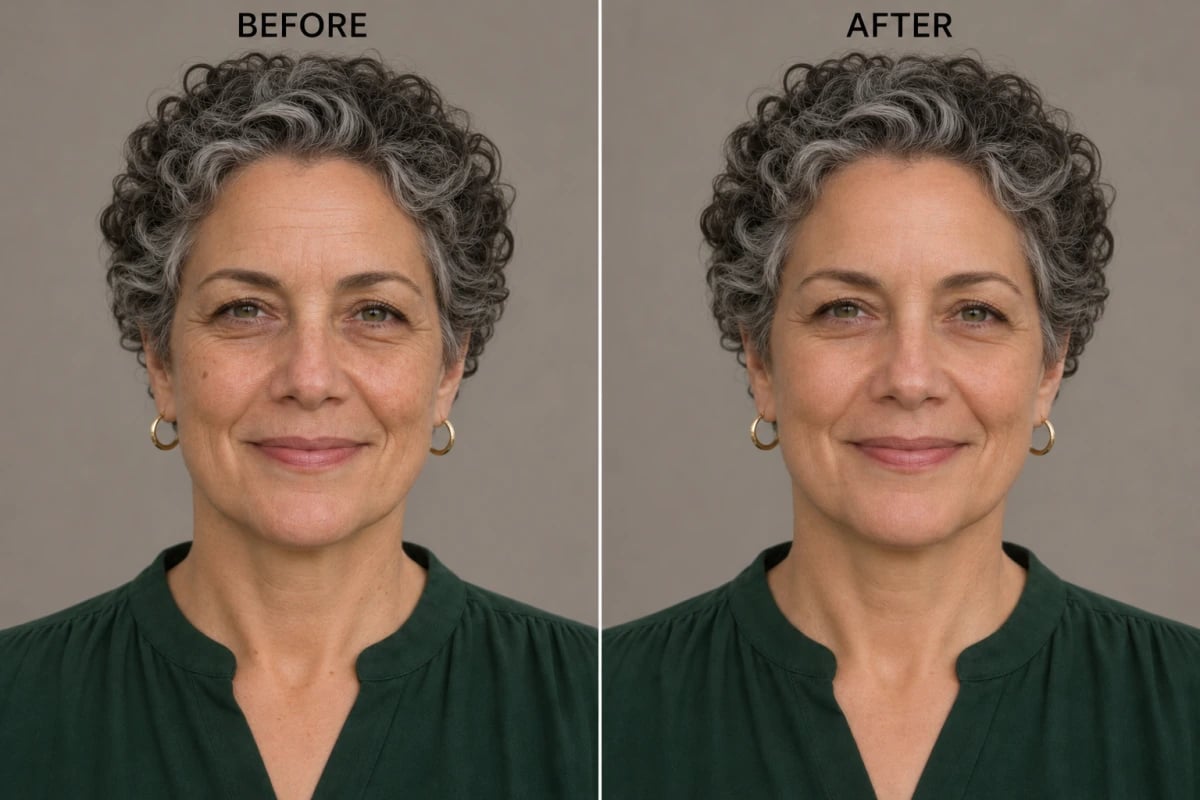
Wrinkle Retouching Concepts for Portraits
Soften Visible Lines in a Portrait
Start from a portrait you already like and describe a small wrinkle edit that suits its original mood. The Image to Image workflow uses that photo as the visual reference and follows your written change request, giving you room to explore less prominent forehead lines or fine creases around the eyes. Mention natural pores, lighting, expression, age, and face shape to communicate the finish you want. This can help a headshot feel considered while keeping the person’s familiar character and photographic setting.
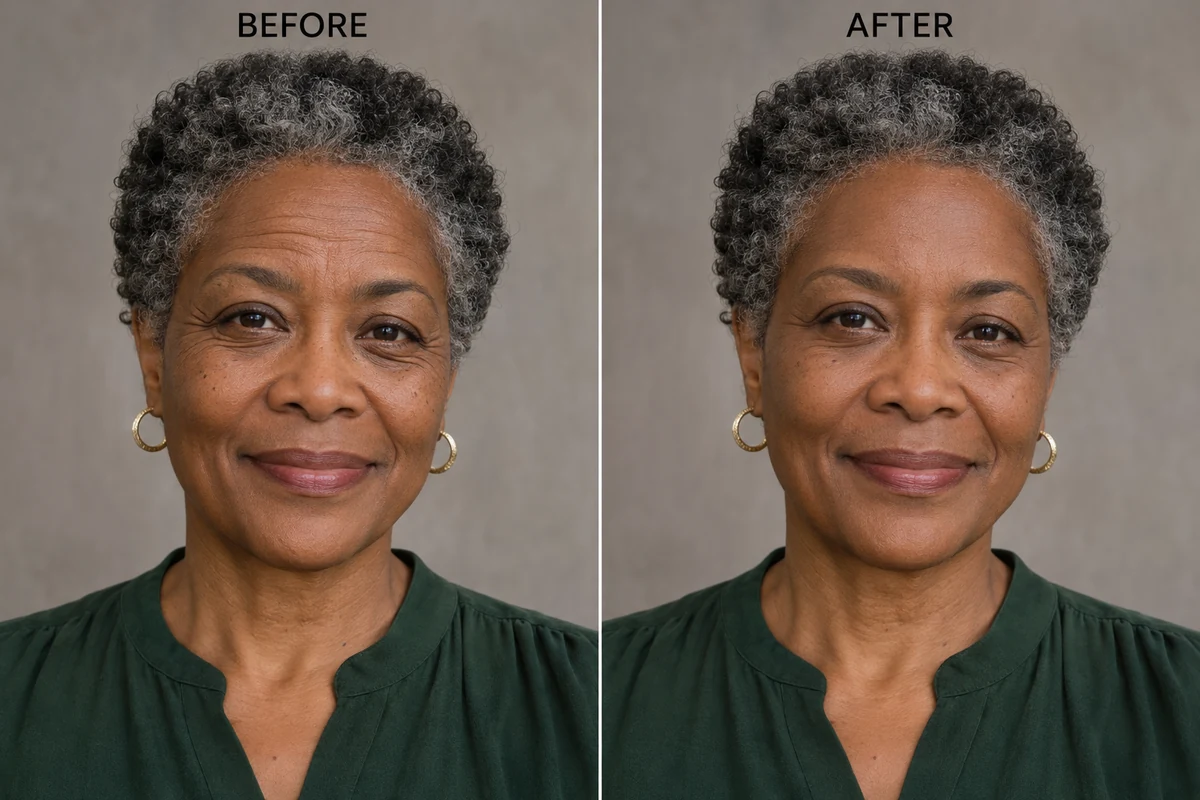
Keep Eye-Area Retouching Believable
Eye-area creases often become more visible in a close portrait, especially when someone is smiling in bright outdoor light. A focused text instruction can describe the change you want to explore while keeping the original photo as a reference for the person, pose, and surroundings. GoEnhance creates an image variation from that reference and prompt, which gives you another version to compare when preparing a profile picture, creator image, or personal photo. A restrained direction keeps the edit aligned with the expression already in the shot.
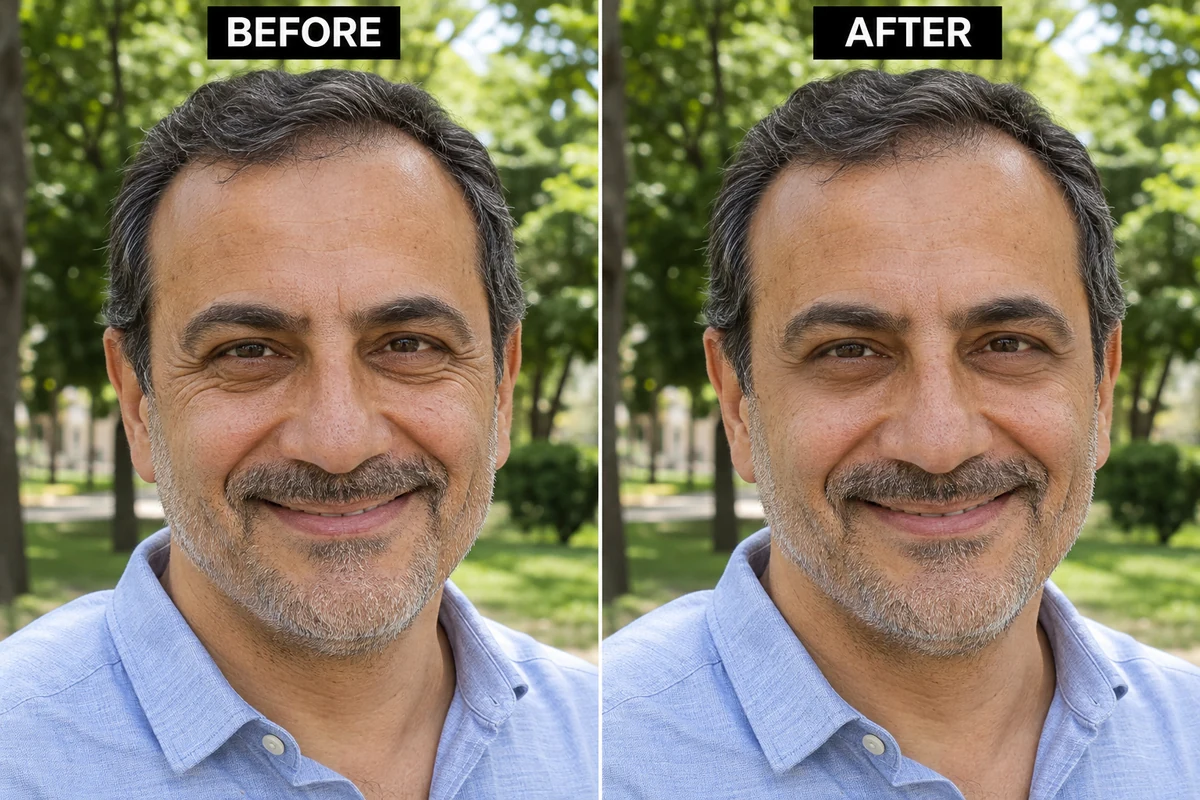
Retouch Mature Portraits with Character
Family and milestone portraits carry expressions and details that make them personal. Describe a lighter treatment for deeper smile lines while asking the image editor to keep the person’s age, skin texture, and smile present in the result. Because GoEnhance begins with the uploaded photo, its composition and warm setting can guide a generated variation instead of starting from a new scene. This approach is useful for exploring a polished portrait option that still feels connected to the original moment.
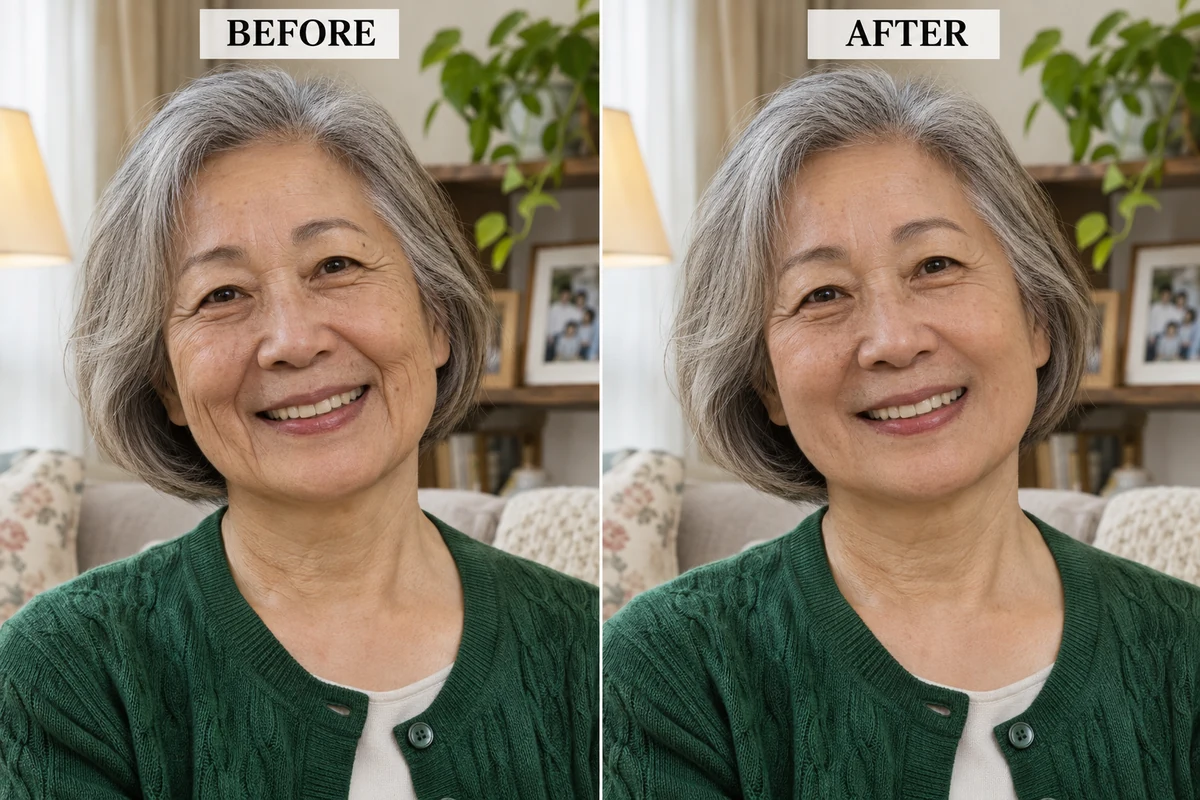
How to Remove Wrinkles from a Photo
Upload a Clear Portrait
Choose a well-lit image with the face in focus and the areas you want to adjust clearly visible.
Describe the Wrinkle Edit
Name the area, such as forehead lines, crow’s feet, or smile lines. Mention what should remain recognizable, including pores, expression, age, and lighting.
Generate and Review
Review the variation beside your source image. If nearby facial details shift more than you want, refine the prompt with a narrower request.
A Prompt-Led Photo Wrinkle Remover
Describe the Area You Want to Refine
Keep Skin Texture in the Picture
Explore a Variation from Your Photo
Explore Related Portrait and Photo Tools
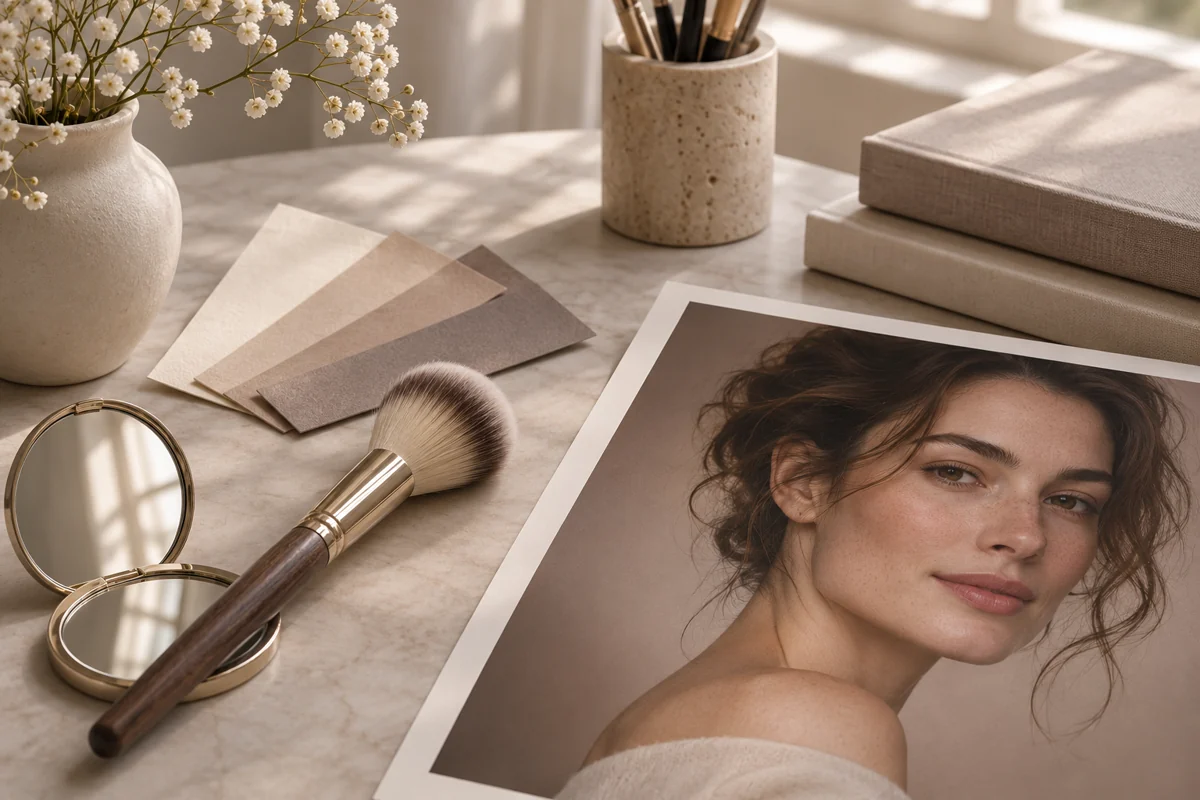
Face Retouch
Explore prompt-guided edits for portrait details and subtle photo refinements.
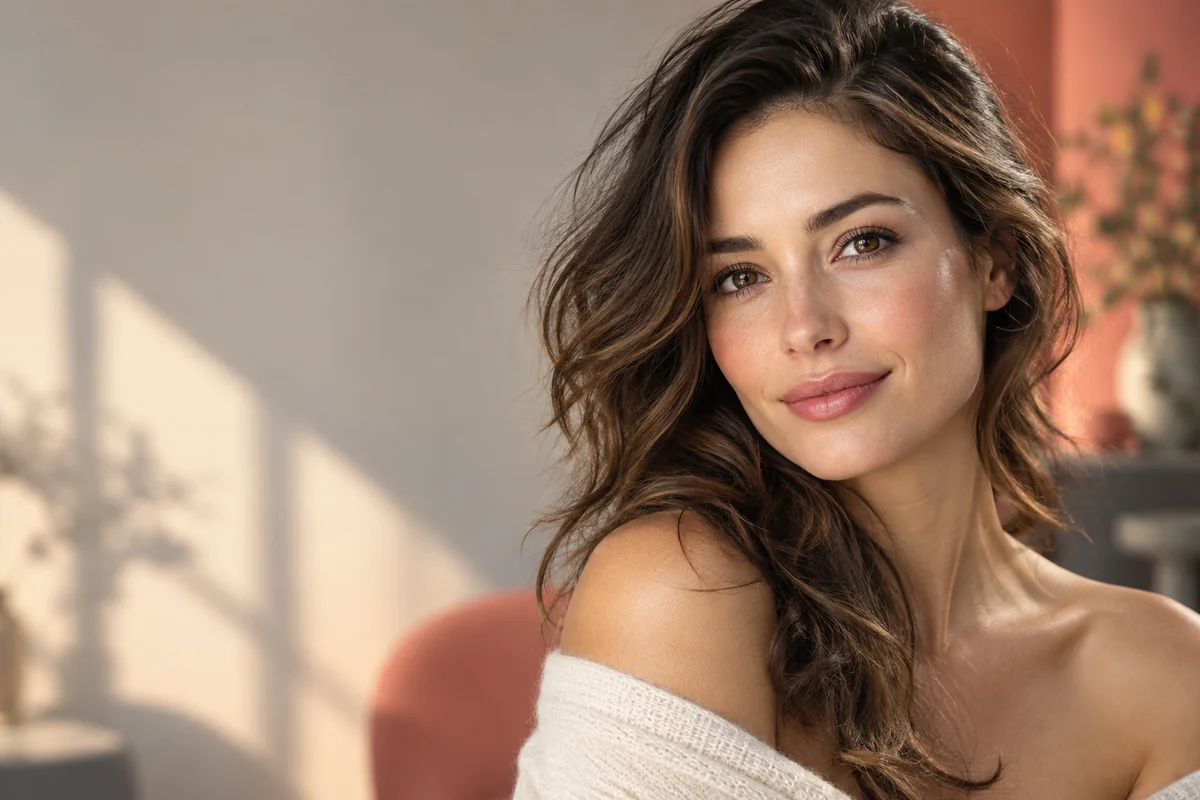
Face Portrait Enhancer
Improve the presentation of a selfie or headshot with a portrait-focused enhancement workflow.
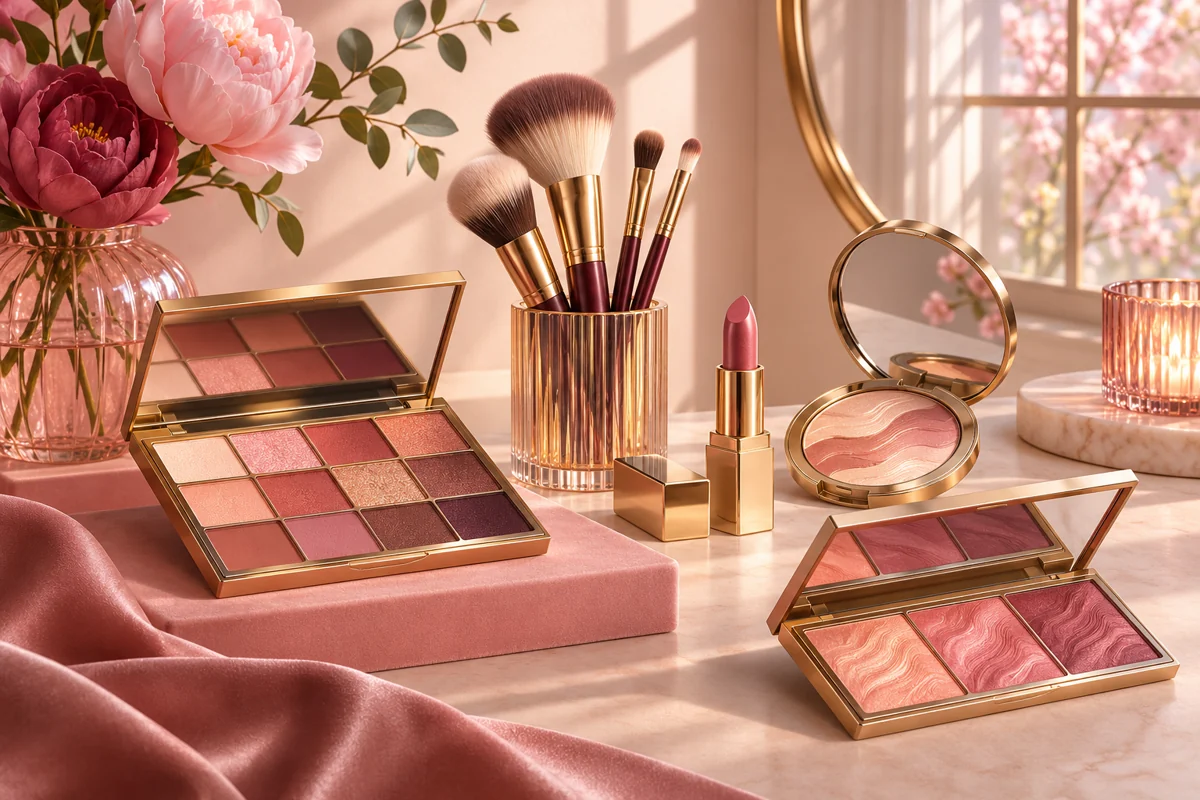
Makeup Look Generator
Explore a makeup direction on a portrait as part of a broader photo-editing process.
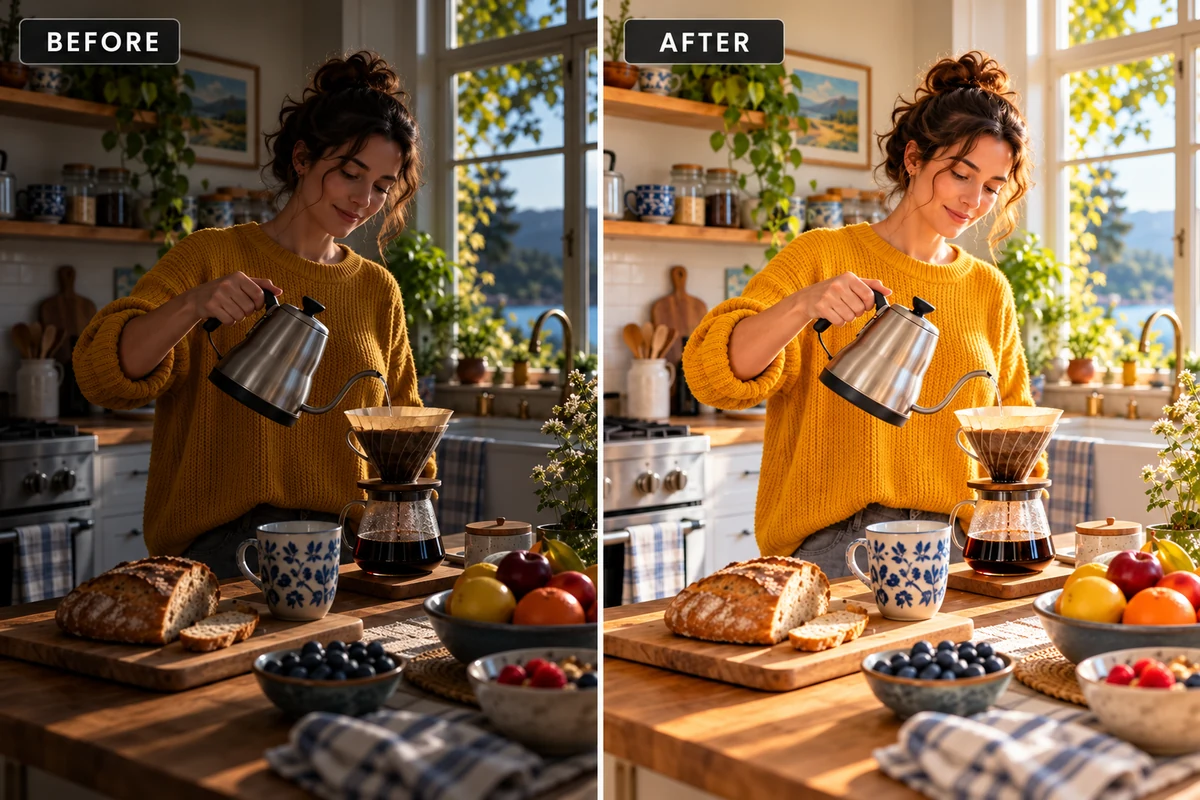
Image Brightness Color Enhancer
Adjust brightness and color balance when a portrait needs a more even overall finish.
Wrinkle Remover FAQs
What can a wrinkle remover photo editor change?
How do I remove wrinkles from a photo with GoEnhance?
Can a picture wrinkle remover keep natural skin texture?
Can I target forehead lines, crow’s feet, or smile lines?
Will the edited face stay exactly the same?
What image formats can I upload?
Can I remove wrinkles from a photo online for free?
Can I use a wrinkle-edited photo commercially?
How can I make a wrinkle-removal prompt more natural?
Can I use it to remove wrinkles from clothes or a backdrop?
Try a Subtle Portrait Retouch
Upload a portrait, describe the lines you want to soften, and review a prompt-guided image variation with GoEnhance AI.
Refine a Portrait Photo