Free Image Brightness and Color Enhancer
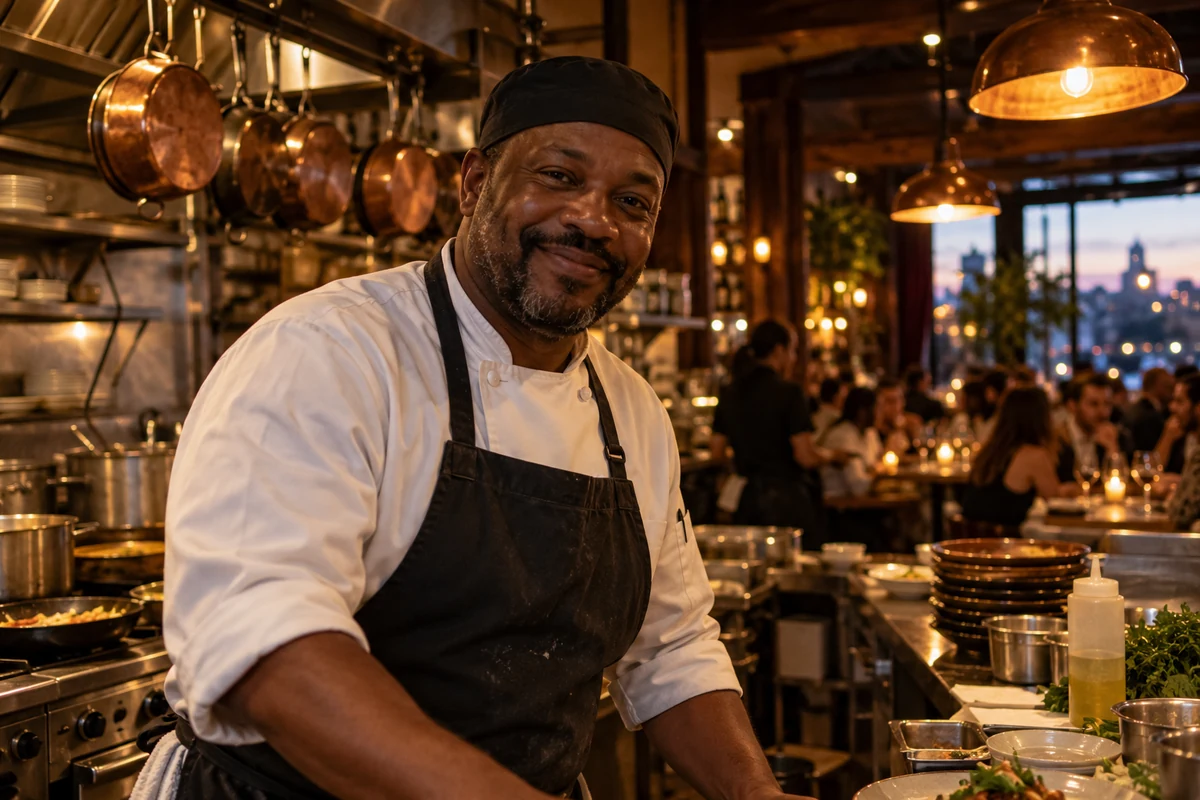
Brighten dark or flat photos with GoEnhance AI image enhancement. Work with portraits, food, product photos, travel scenes, and illustrations, then compare the result with your original. The examples below are visual demonstrations; AI results can vary with the source image.
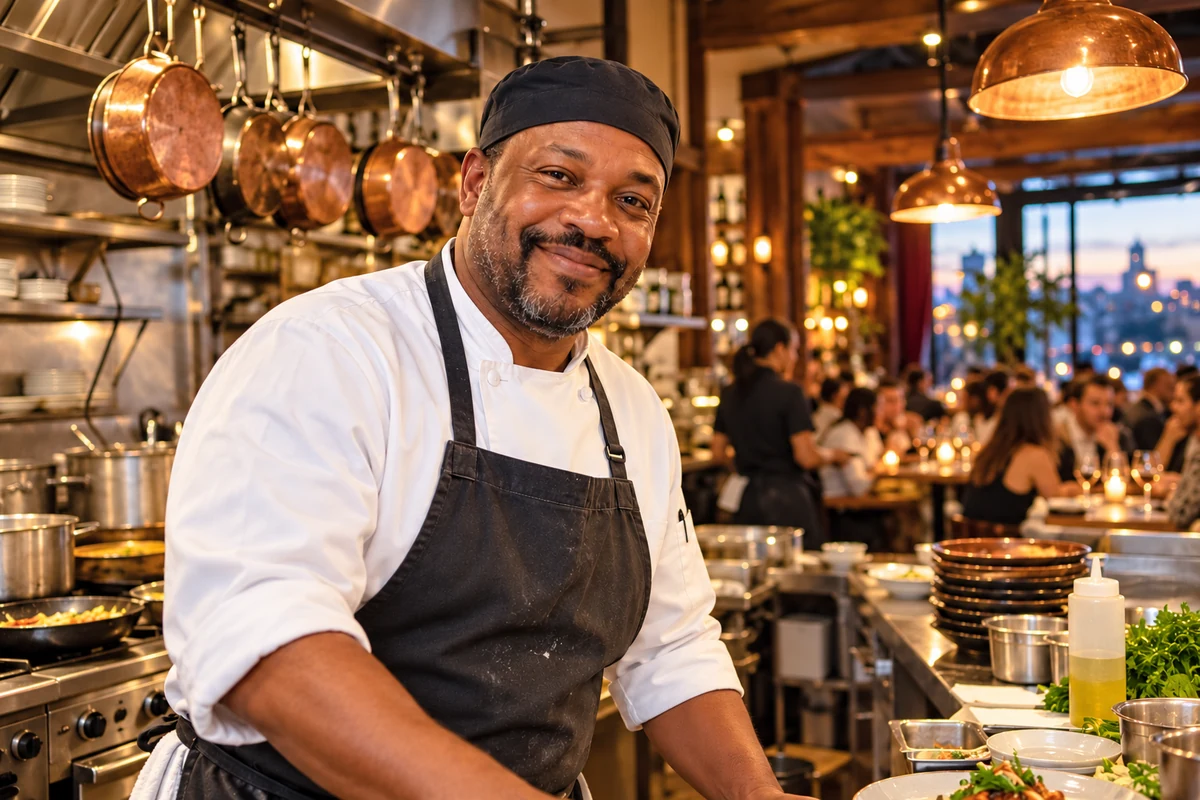
Restaurant Portrait
Restaurant Portrait
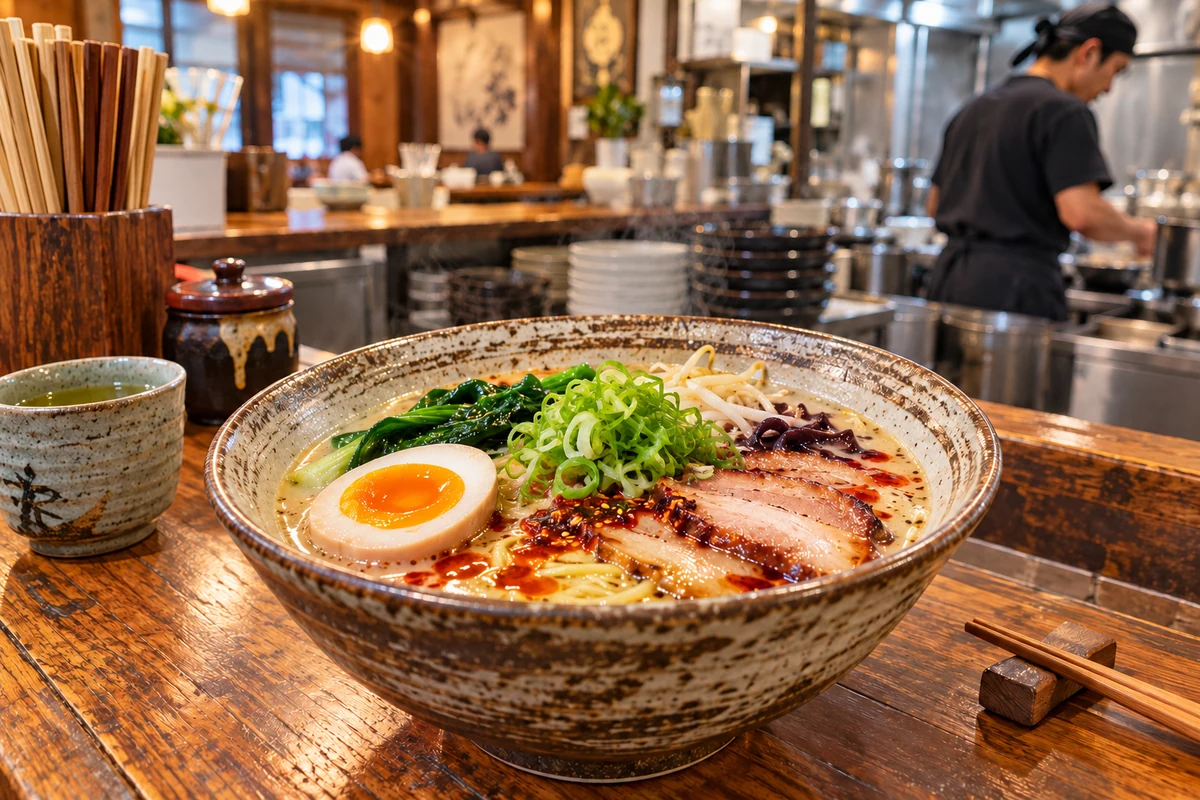
Ramen Photo
Ramen Photo
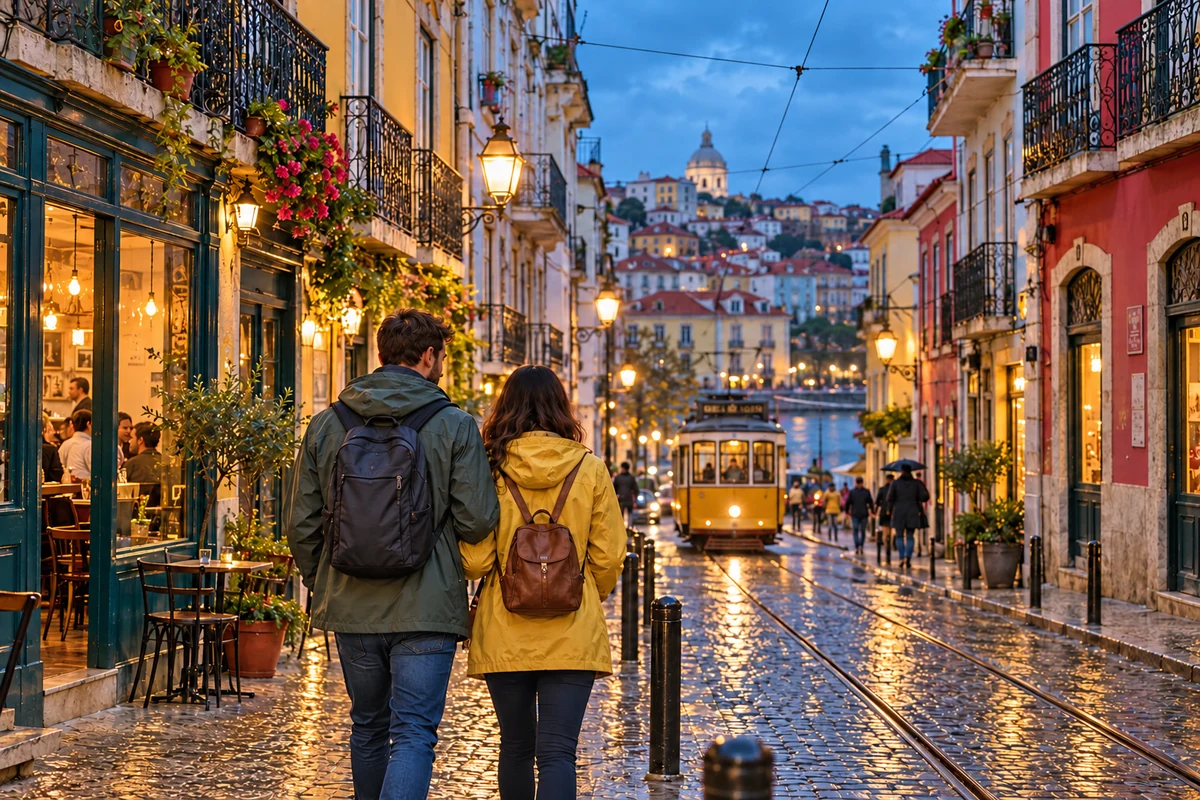
Evening Street
Evening Street
Upload an image to enhance
Mode
By uploading a file, you agree to GoEnhance's Terms of Use and Privacy Policy

A Brighter, More Balanced Look for Different Images

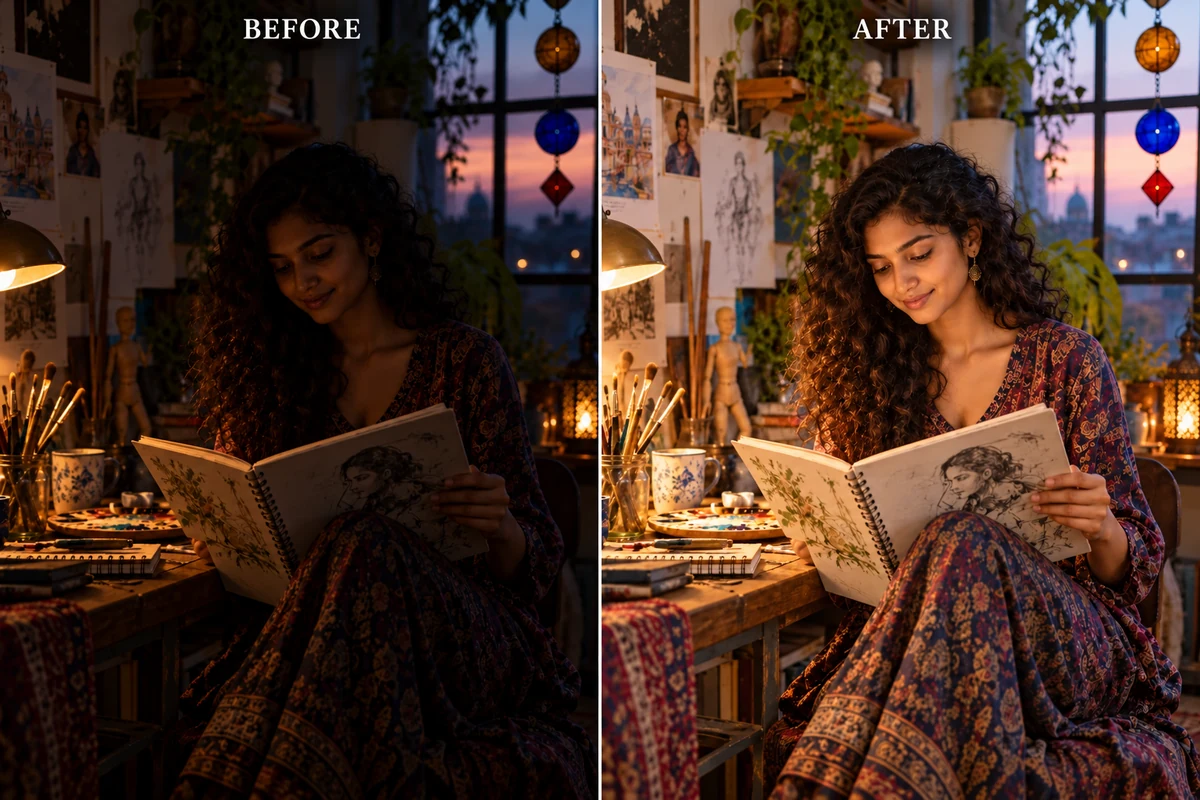
Bring Shadowed Subjects into View

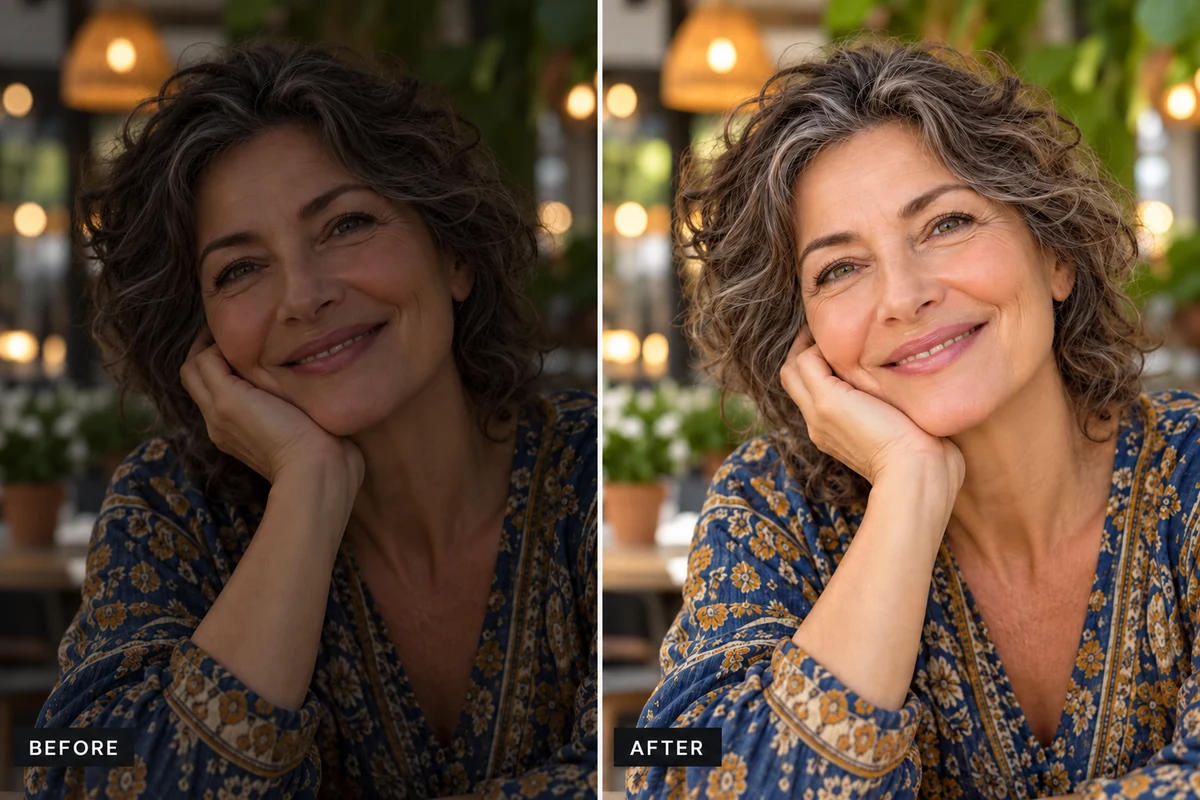
AI image enhancement can improve the overall visibility of a dim portrait or indoor scene, bringing more of the subject and surroundings into view. For broader photo enhancement across different image types, explore the AI image enhancer. Review faces and bright light sources against the original, since very dark or clipped areas may need to be inferred.

Before and after comparison showing a shadowed portrait with clearer visibility after brightening

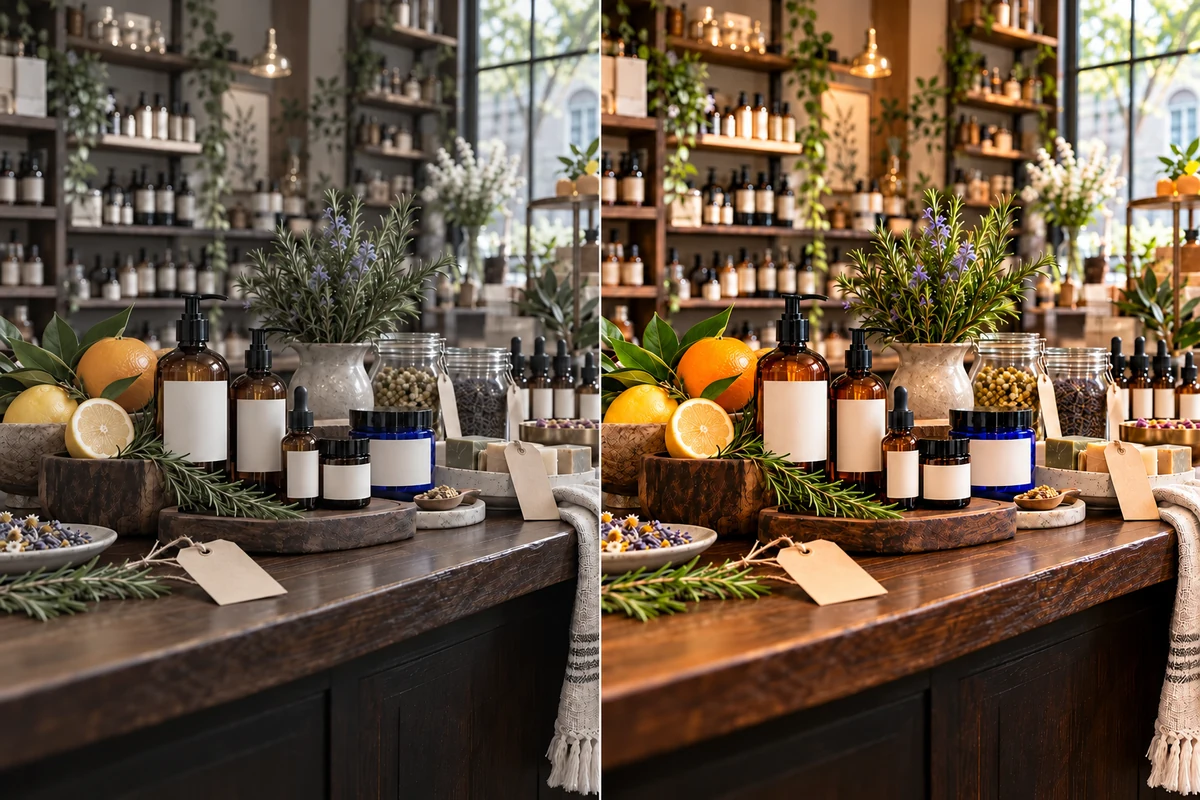
Give Dull Photos a Clearer Color Presence

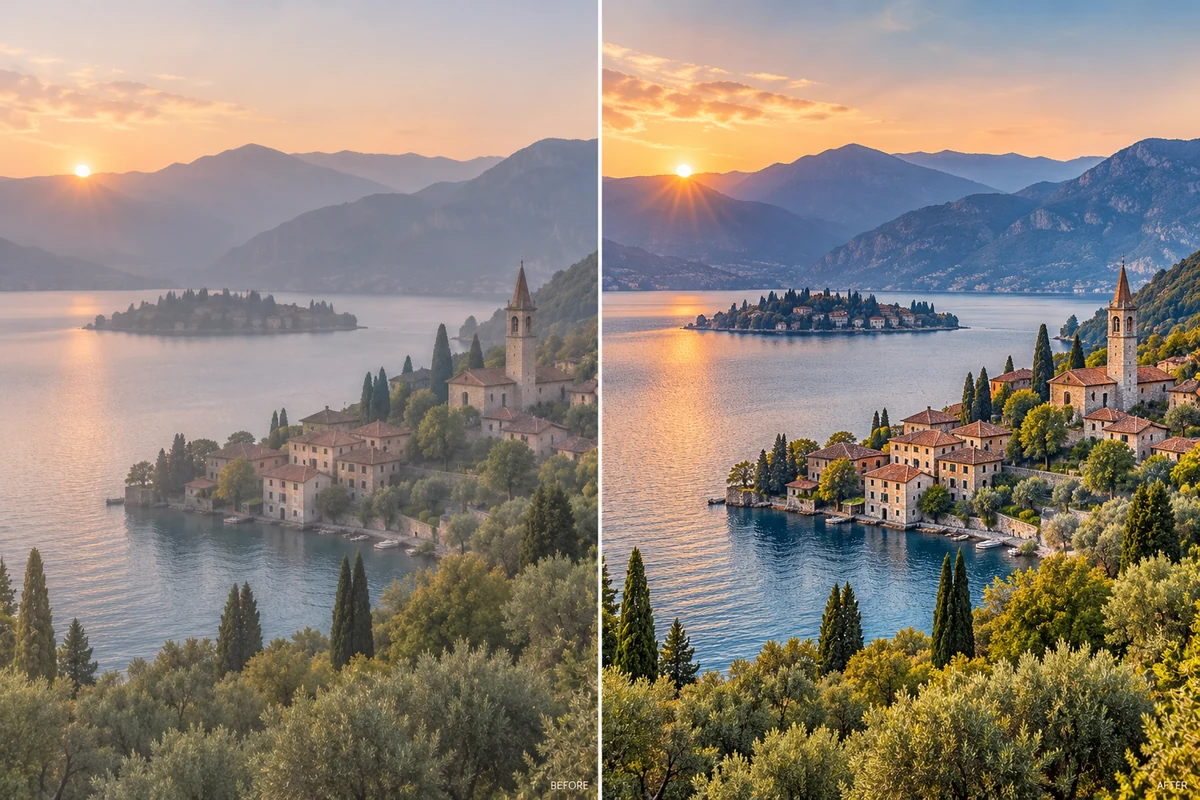
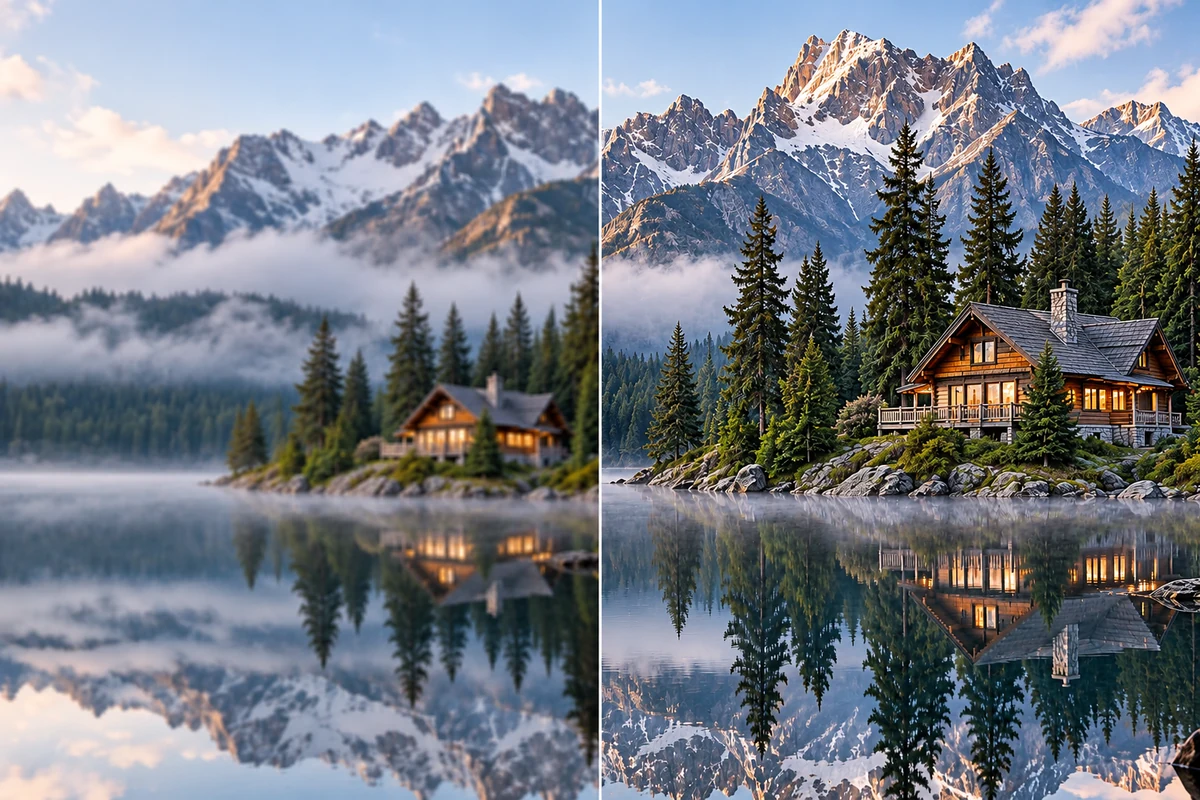
Use the image enhancer for product, food, or travel photos that look flat or lack visual presence. AI enhancement works on the image as a whole, so check brand colors, labels, and skin tones before publishing a corrected photo.

Before and after comparison of a muted product display with naturally enhanced color

Add Clarity to Stylized Artwork

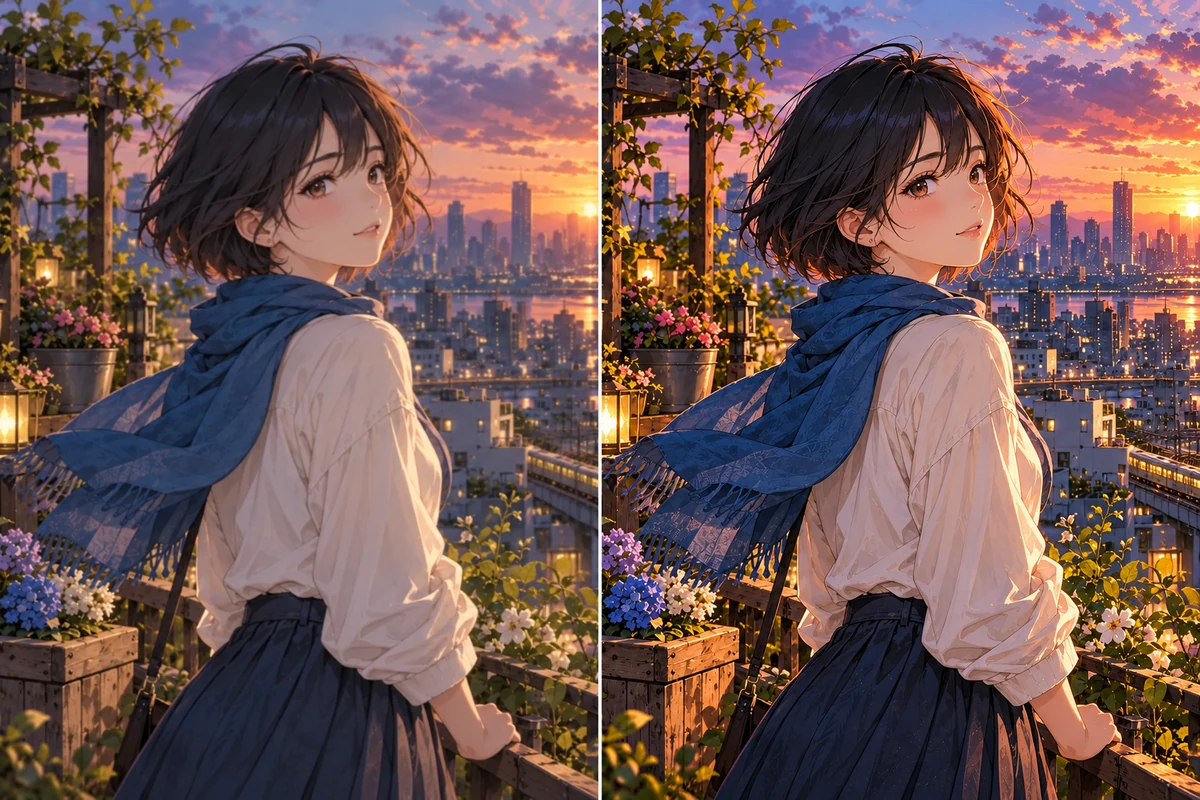
GoEnhance image enhancement also supports anime-style images and illustrations. Its documented enhancement workflow can optimize colors and add detail, making it useful when artwork needs a clearer finish while retaining its original visual direction. If your artwork also needs a larger output, continue with the image upscaler.

Before and after comparison of an anime illustration with clearer detail and balanced color

Useful for More Than One Kind of Photo

Portraits and Indoor Photos

Improve the overall presentation of a dim portrait, evening gathering, or interior photo. Check facial details and bright windows before choosing the result.

Food and Product Images

Give a food photo or small product image a clearer, more colorful starting point for a post, catalog, or shop page. Confirm that recognizable colors and packaging details still match the source.

Anime Art and Digital Illustrations

Enhance stylized images with the AI workflow described for illustrations and anime artwork, then compare linework, character details, and colors with the original.

How to Brighten an Image Online

01

Upload a Photo

Choose a JPG, JPEG, or PNG image up to 10 MB. Start with the clearest original available; a compressed screenshot may contain less detail for the enhancer to work with.

02

Choose an Enhancement Mode

Use Normal for the standard enhancement workflow, or choose Creative when you want the AI to add more detail. Creative processing can move farther from the source, so review faces, products, and artwork carefully.

03

Enhance and Review

Run the enhancement, then compare brightness, color, faces, text, and edges with your original before downloading or placing the result in a design.

Image Brightness and Color Enhancer FAQ
How do I brighten an image online with GoEnhance?

Upload a supported JPG, JPEG, or PNG, choose Normal or Creative mode in the AI Upscaler, and run Enhance. Review the generated image beside your original before saving it for a post, listing, or design.

Can an image color enhancer improve dull photos as well as dark ones?

AI enhancement can improve the overall look of a photo, including its color and visible detail. It is not a guarantee of exact color matching, so check skin tones, product colors, and important text against the source before publishing.

Can I use AI color correction to adjust image colors manually?

The current AI Upscaler interface shows Normal and Creative modes rather than separate brightness, exposure, saturation, or temperature sliders. If you need exact numeric color adjustments, use a manual photo editor after enhancement.

What is the difference between Normal and Creative mode?

Normal is the standard enhancement choice. Creative mode can add more detail, but GoEnhance’s guide notes that greater creativity can move the result farther from the original. Compare the output with the source when faces, labels, or illustration details matter.

Which image formats can I upload, and what is the file size limit?

The current image enhancement interface accepts JPG, JPEG, and PNG files up to 10 MB. If your image uses another format, export a JPG or PNG copy before uploading.

Can an image brightness enhancer fix a very dark or blurry photo?

Enhancement may improve the appearance of a dim or soft image, but it cannot reliably recover information that was never captured. Very dark areas or strong blur may lead the AI to infer detail, so keep the original and review the result closely.

Can I use the image color enhancer for anime or illustrations?

Yes. GoEnhance’s image enhancement tutorial describes anime and illustration use, including color optimization and added detail. Review linework and character features after processing because creative enhancement can alter fine details.

What should I do if the enhanced photo looks too different?

Compare it with the original and try Normal mode if you want a closer-to-source result. Check faces, logos, packaging, and strong highlights; keep the original whenever exact visual accuracy matters.

Give a Dark or Dull Photo a New Pass

Upload a supported image, choose the enhancement mode that fits, and review the result before using it.

Enhance an Image