
How to Make Pixel Art: Easy Methods for AI, Google Sheets, and Editors
- 1. What Makes Pixel Art Look Like Pixel Art?
- 2. Choose the Right Pixel Art Method
- 3. How to Make Pixel Art With AI
- 4. How to Make Pixel Art in Google Sheets
- 5. How to Make Pixel Art in Photoshop
- 6. How to Animate Pixel Art
- 7. Best Tools for Making Pixel Art
- 8. Common Pixel Art Mistakes
- 9. FAQ About How to Make Pixel Art
Learning how to make pixel art does not require expensive equipment or years of illustration experience. You can generate a first concept with AI, color spreadsheet cells in Google Sheets, draw precisely in Photoshop, or build an animated sprite in a dedicated pixel editor. The best method depends on whether you value speed, manual control, collaboration, or animation.
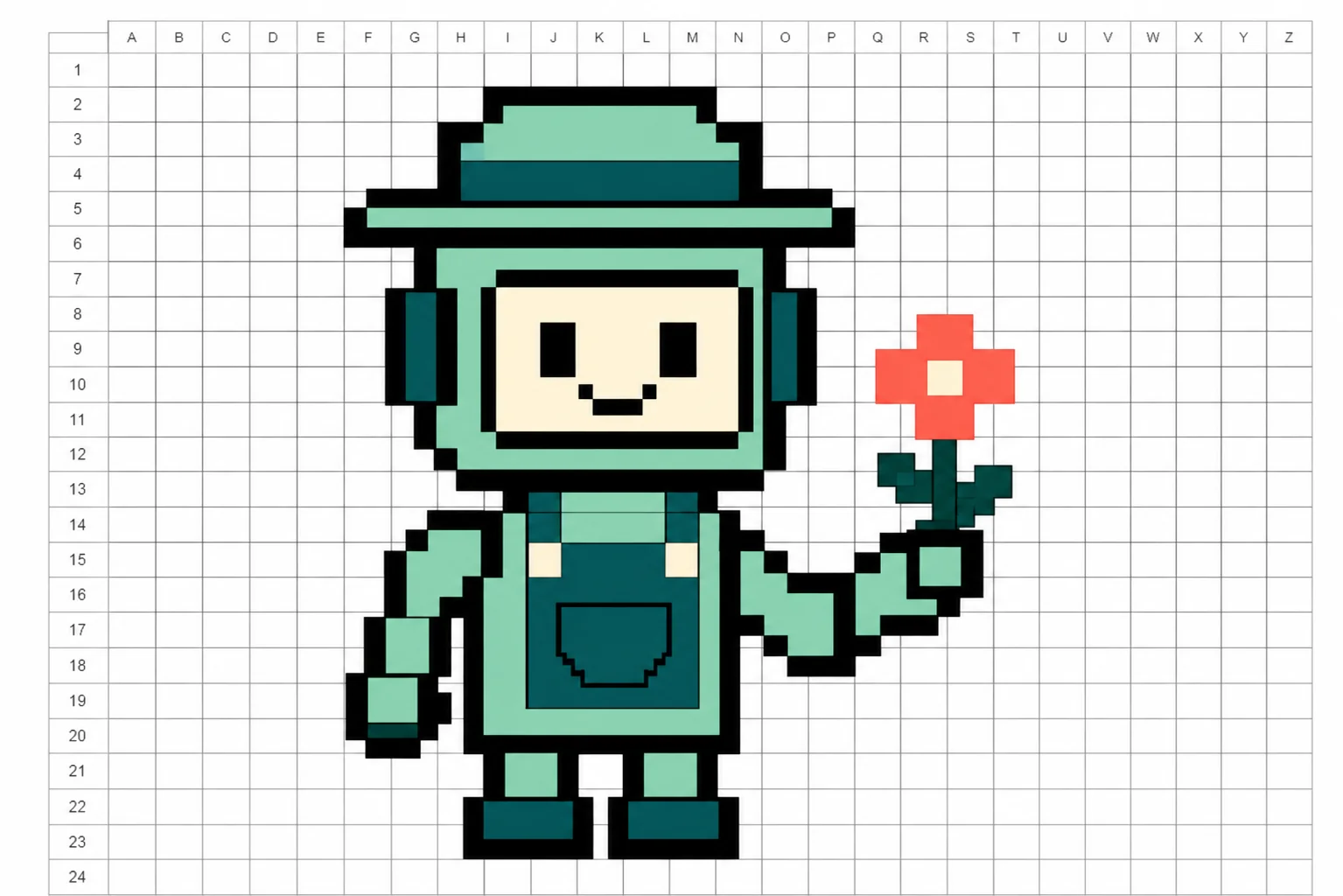
The important part is not the software. Good pixel art comes from deliberate limits: a small canvas, a controlled palette, readable shapes, and clean edges. This guide explains four practical workflows and shows how to avoid the blurry, over-detailed look that often appears when a normal image is simply reduced in size.
1. What Makes Pixel Art Look Like Pixel Art?
Pixel art is created by placing color blocks intentionally. Each pixel contributes to the outline, shading, expression, or depth of the subject. That is different from taking a high-resolution illustration and applying a mosaic filter.
Four decisions shape the result:
- Canvas size: A 32 x 32 canvas forces a simple icon-like design. A 128 x 128 canvas allows more detail but is harder to control.
- Palette: A small set of colors makes the image feel cohesive. Start with four to eight colors before adding more.
- Silhouette: The subject should still be recognizable when viewed as a solid dark shape.
- Edge treatment: Pixel art uses hard edges. Blur, soft brushes, and automatic smoothing usually weaken the style.
For a first project, choose one object with a clear outline: a flower, mug, robot, fruit, house, or original animal. Avoid faces, hands, crowds, and complicated scenery until you understand how much information fits on a small grid.
2. Choose the Right Pixel Art Method
The four methods below solve different problems. There is no universal winner.
| Method | Best For | Speed | Control | Animation |
|---|---|---|---|---|
| AI image generation | Fast ideas and style exploration | Fast | Medium | Use a separate video tool |
| Google Sheets | Beginners, classes, and collaboration | Slow | Basic | No native sprite workflow |
| Photoshop | Detailed manual work and image editing | Medium | High | Basic frame animation |
| Piskel | Sprites and looping GIFs | Medium | High | Built in |
Use AI when you need several concepts quickly. Use Google Sheets when the grid itself is part of the learning experience. Choose Photoshop for professional editing control. Choose Piskel when the final asset needs multiple frames or a GIF export.
3. How to Make Pixel Art With AI
An AI image generator is the quickest way to create a starting point, especially when you have an idea but cannot draw it from scratch. The result still needs direction. A vague prompt such as "pixel character" may produce a polished illustration with fake pixel texture instead of true block-based art.
Use a prompt structure like this:
Original tiny forest robot, 32-bit pixel art, full-body side view, limited mint green and coral palette, crisp square pixels, simple silhouette, plain light background, no text, no logo, no smooth gradients.
Then refine the result:
- Choose one clear subject and one action.
- State the viewing angle: front, side, top-down, or three-quarter.
- Request a limited palette and crisp square pixels.
- Keep the background plain during early generations.
- Generate several versions and select the one with the strongest silhouette.
- Open the result in a pixel editor to repair stray blocks and inconsistent edges.
AI is especially useful for concept discovery, but it may create irregular pixel sizes or overly smooth lighting. View the image at 400% zoom. If some "pixels" are tiny while others are large, redraw the important edges on a fixed grid.
4. How to Make Pixel Art in Google Sheets
Google Sheets turns cells into a shared drawing grid. It is free to use in a browser and makes collaboration easy, although it lacks specialist drawing tools.
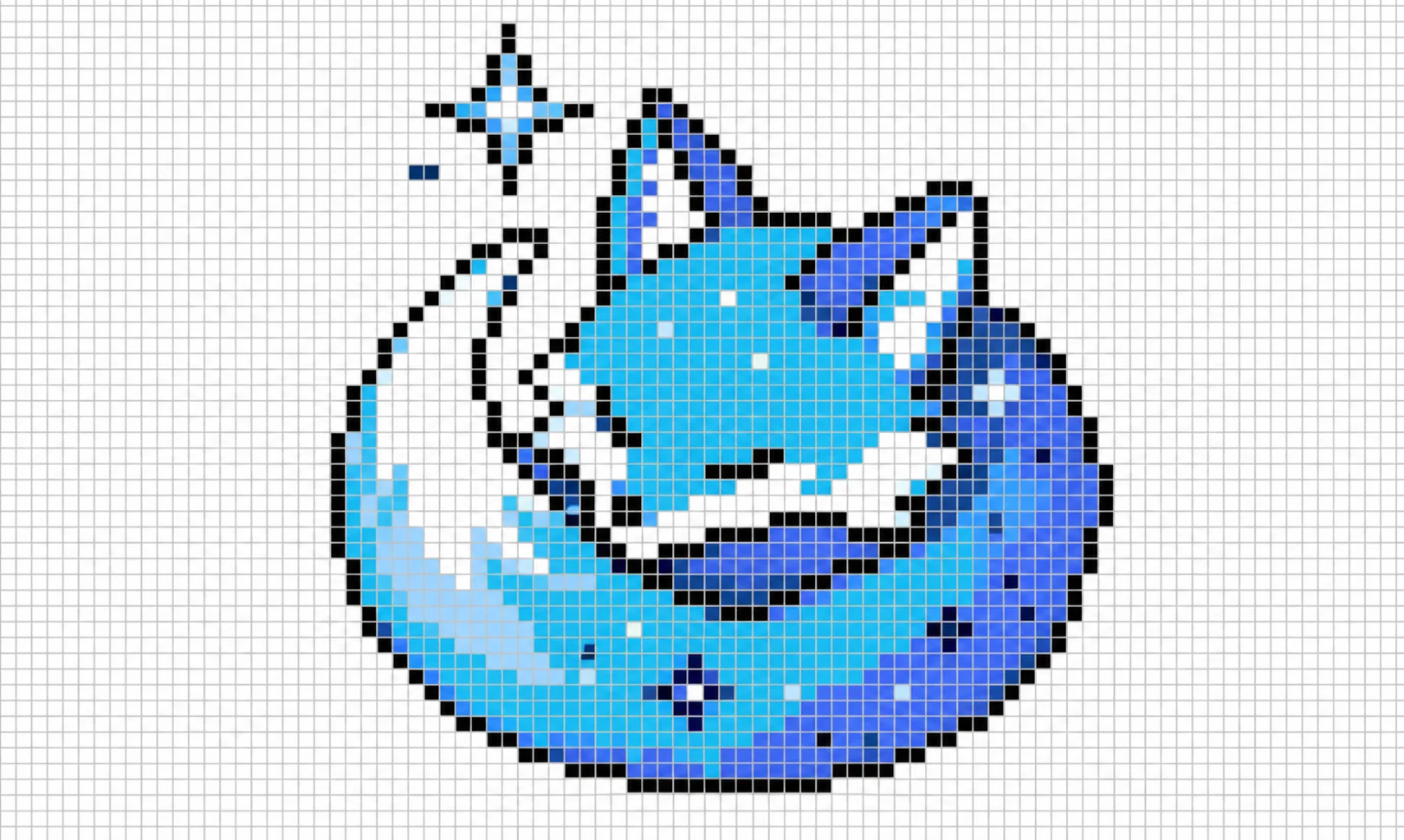
Set Up the Canvas
- Open a blank Google Sheet.
- Select the columns you want to use, right-click, and choose Resize columns.
- Enter a narrow width, such as 20 pixels.
- Select the matching rows, right-click, and choose Resize rows.
- Enter the same value so every cell is square.
- Hide unused rows or columns if you want a cleaner workspace.
Start with a 20 x 20 or 32 x 32 area. A smaller canvas is easier to finish and makes weak silhouettes obvious.
Add a Working Palette
Reserve a row or column beside the canvas for color swatches. Choose one outline color, two or three main colors, one shadow, and one highlight. Copying colors from this small palette is faster than reopening the color picker for every cell.
To draw manually, select one or more cells and apply a fill color. Build the outside contour first, fill the main mass, then add shadows and highlights. Zoom in while editing and return to normal size often to test readability.
Use Numbers and Conditional Formatting
For classroom or collaborative projects, assign a number to each palette color. Enter those numbers in the canvas, then create conditional formatting rules that color the cells automatically.
- Select the full canvas range.
- Choose Format > Conditional formatting.
- Under Format cells if, select Is equal to.
- Enter the first palette number and choose its fill color.
- Add one rule for each remaining number.
- Click Done, then type numbers into the grid to paint.
Google confirms that conditional formatting can change cell backgrounds when values meet a rule. Keep the range modest because many overlapping rules across a large sheet can make editing slower.
5. How to Make Pixel Art in Photoshop
Photoshop is useful when you want layers, selections, masks, precise color control, and export options in one application.
- Create a small document, such as 64 x 64 pixels, with RGB color.
- Open View > Show > Grid.
- Adjust the grid under Edit > Preferences > Guides, Grid & Slices on Windows, or the equivalent Photoshop settings on macOS.
- Set the gridline interval and subdivisions so the canvas has easy-to-follow square units.
- Select the Pencil tool at one-pixel size. Avoid a soft Brush tool.
- Draw on separate layers for outline, base color, shading, and effects.
- When resizing, choose Nearest Neighbor resampling to preserve hard edges.
Do not begin on a 1000-pixel canvas just because more space feels safer. Pixel art becomes difficult to manage when every curve contains hundreds of blocks. Work small, check the image at actual size, and enlarge only for final display.
6. How to Animate Pixel Art
Animation works best when the still design is already readable. Create a neutral base frame, duplicate it, and change only a few pixels in each new frame. A blink may need three frames; a floating idle loop may need four to eight.
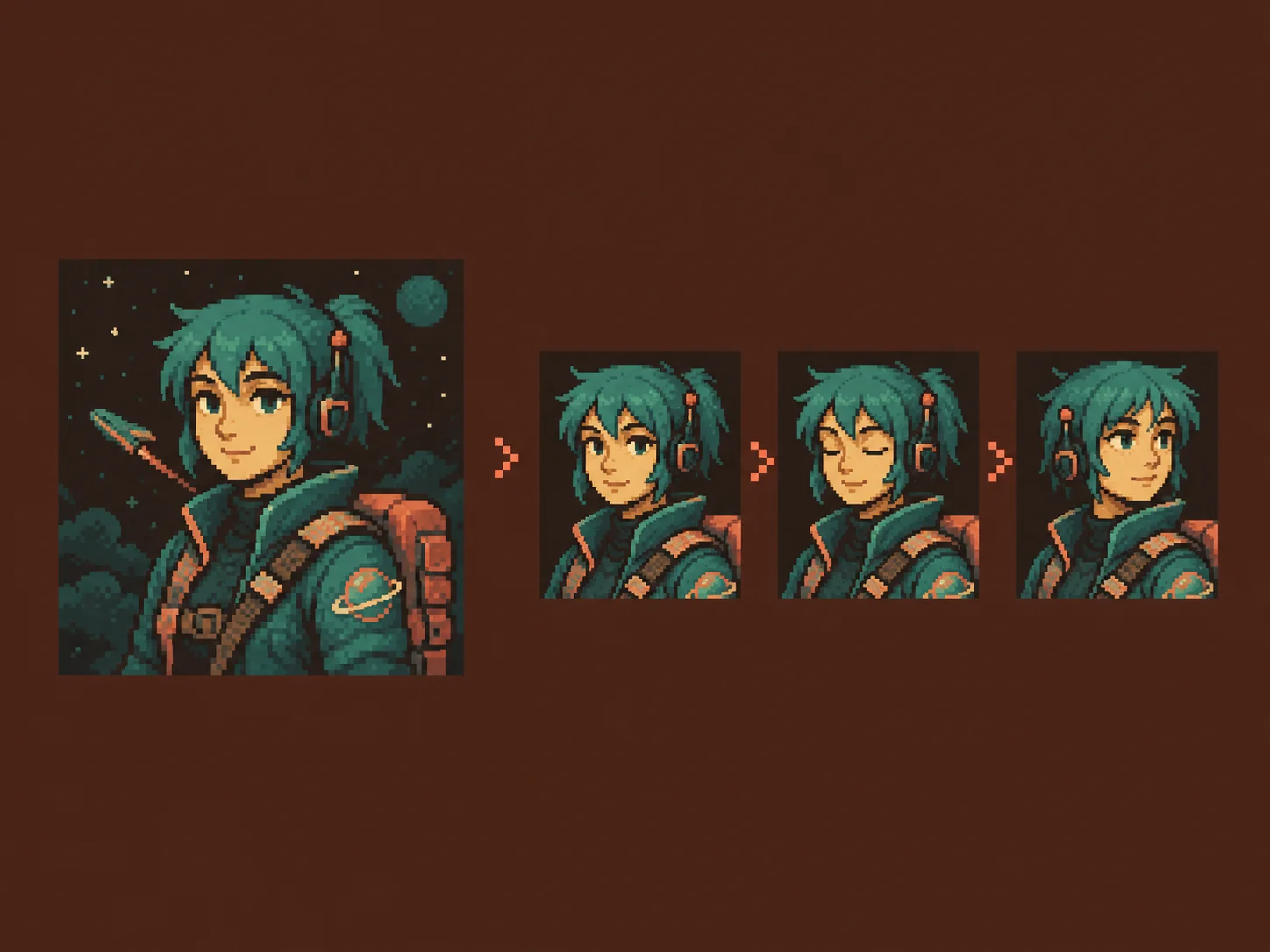
A simple idle loop can follow this sequence:
- Frame 1: neutral pose.
- Frame 2: body moves up by one pixel.
- Frame 3: eyes close or one detail shifts.
- Frame 4: return toward the neutral pose.
Preview the loop frequently. Large changes create flicker; tiny controlled changes create believable motion. Export as GIF for a lightweight repeating preview, or use PNG sprite sheets for games.
To turn a finished still image into a more fluid clip, upload it to an image to video workflow and describe one restrained action. If you already have a video and want a stylized result, a video to animation converter is another option. AI motion is less predictable than frame-by-frame sprite work, so keep the subject centered and the requested movement simple.
7. Best Tools for Making Pixel Art
Each tool below has a distinct role. Pick one based on the final output instead of trying to force every stage into the same application.
1. GoEnhance AI
GoEnhance AI is the best first option for creators who want fast pixel-art concepts and a path from still image to motion. Its image workflow supports both text prompts and uploaded reference images, and Pixel Art is available among its visual styles.
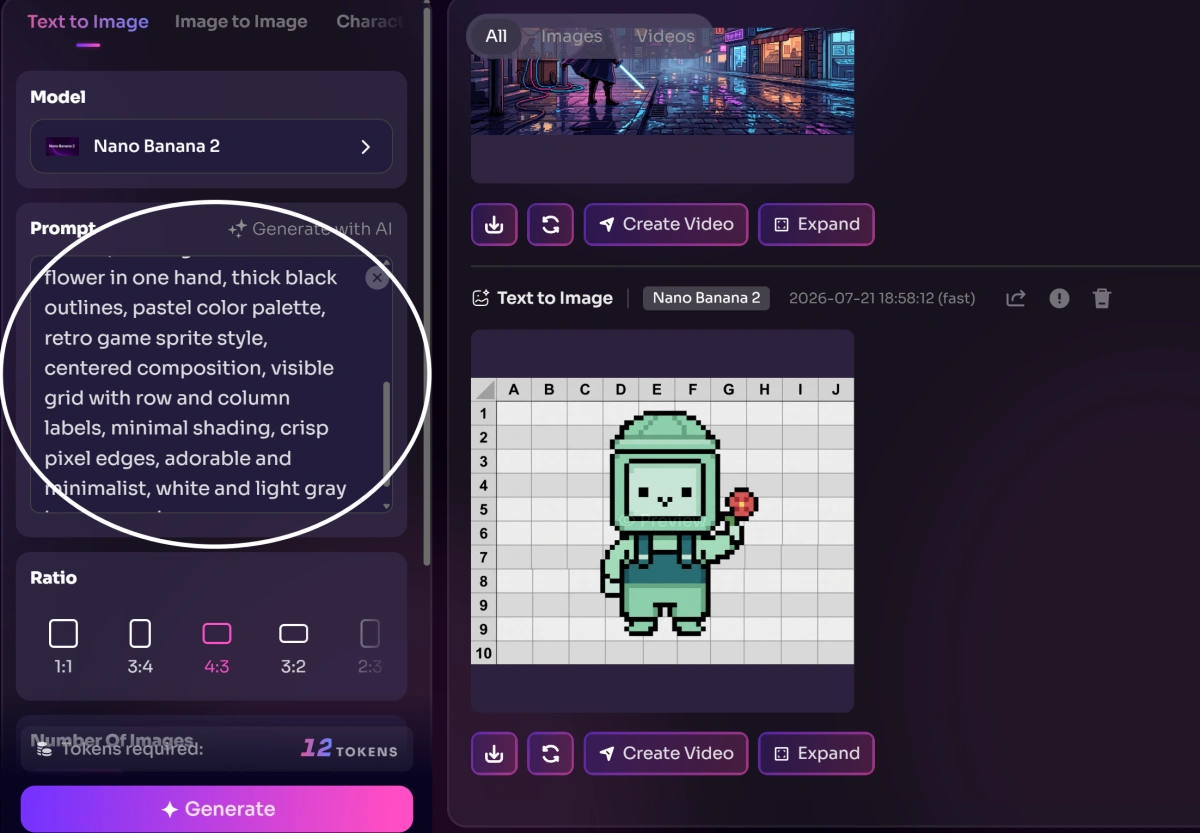
Method 1: Generate pixel art from text. Open the AI Image Generator, describe one original subject, select a square or landscape ratio, and specify pixel art, a limited palette, crisp edges, and a simple background. Generate several options, then keep the design with the cleanest silhouette.
Method 2: Convert an existing sketch with Image to Image. Upload a sketch or a photo you have permission to use. Ask GoEnhance to preserve the pose and overall composition while changing the rendering to crisp pixel art. State the approximate era or density, such as 16-bit game sprite or detailed 32-bit portrait, and remove unnecessary background detail.
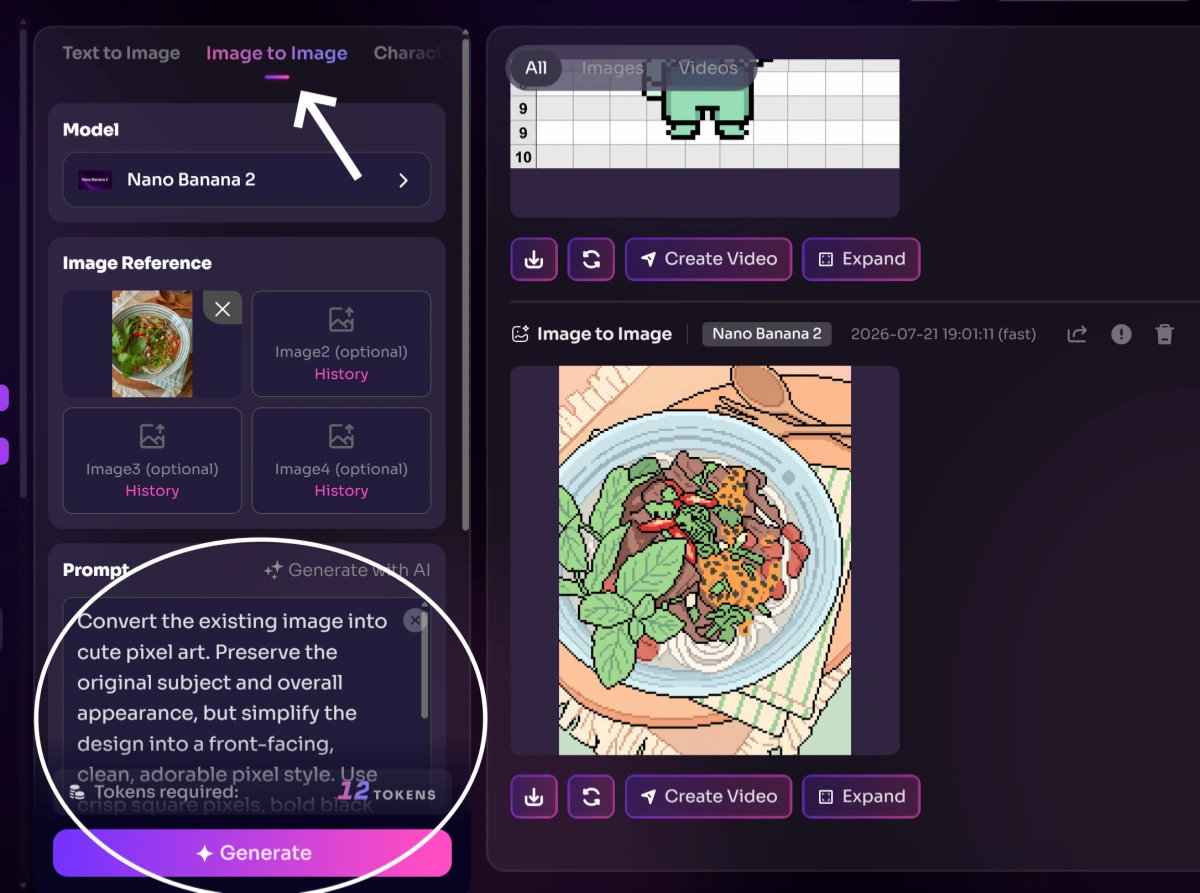
Method 3: Animate the finished image. Send the selected pixel image to Image to Video. Ask for a small loop-like movement, such as blinking, breathing, waving, or gentle floating. Generate a few versions and choose the one that keeps the face, outline, and pixel texture most stable.
Best for: rapid concept generation, image-to-image pixel styling, and turning a finished pixel illustration into a short creative video.
Things to keep in mind: AI can introduce uneven block sizes and unstable details. Review the result at high zoom, use an original or licensed reference image, and repair important edges in a dedicated editor before publishing.
2. Google Sheets
Google Sheets is a practical choice for beginners, teachers, and groups who want to build pixel art together through colored cells and conditional formatting.
Best for: simple collaborative projects, number-to-color exercises, and learning how grids shape an image.
Things to keep in mind: it has no sprite timeline, onion skinning, or specialized pixel brushes, and large conditional-formatting ranges may become cumbersome.
3. Adobe Photoshop
Adobe Photoshop gives experienced designers layers, selections, color controls, and reliable nearest-neighbor scaling.
Best for: polished static assets, layered editing, texture work, and integrating pixel art into larger designs.
Things to keep in mind: it is a paid general-purpose editor, so the interface and feature set may feel excessive for a small sprite.
4. Piskel
Piskel is a free browser-based editor made specifically for pixel art and animated sprites. It offers live animation preview and exports including GIF and sprite sheets.
Best for: beginners making game sprites, looping animations, and GIFs without installing a large design application.
Things to keep in mind: it is best on a desktop browser, and its focused feature set is less suitable for complex photo editing or print layouts.
8. Common Pixel Art Mistakes
Using Too Many Colors
More colors do not automatically create more detail. Closely related shades can make the artwork muddy. Begin with a small palette and add a color only when it has a clear job.
Mixing Pixel Sizes
If one area uses chunky blocks and another uses tiny blocks, the image loses visual consistency. Work on one fixed grid and avoid resizing parts independently.
Smoothing the Edges
Anti-aliasing and soft brushes create half-transparent edge pixels. That may be useful in normal illustration, but classic pixel art usually needs deliberate hard edges.
Copying Protected Characters
Popular game characters are convenient references, but publishing a close copy can create copyright and brand problems. Study the technique, then design a new silhouette, palette, expression, and set of details.
Exporting at the Wrong Size
Enlarging with normal interpolation blurs the blocks. Scale the finished art by whole-number multiples such as 2x, 4x, or 8x, and use nearest-neighbor resampling.
9. FAQ About How to Make Pixel Art
Is pixel art easy for beginners?
It is approachable because the tools can be simple, but strong pixel art still requires practice with silhouettes, color limits, and selective detail. Start with a small object on a 16 x 16 or 32 x 32 grid.
Can Google Sheets really make pixel art?
Yes. Make the rows and columns square, then fill cells manually or use numbers with conditional formatting. It works best for simple static artwork and collaborative exercises.
What is the best canvas size for pixel art?
Use 16 x 16 for tiny icons, 32 x 32 for simple sprites, 64 x 64 for more expressive characters, and larger canvases only when the project genuinely needs extra detail.
Can AI generate real pixel art?
AI can produce convincing concepts, but outputs may contain inconsistent block sizes or smooth details. Treat the result as a draft, inspect it at high zoom, and clean it in a pixel editor.
How do I save pixel art without blur?
Export the original at its native size or enlarge it by an exact whole-number multiple using nearest-neighbor resampling. PNG is usually the safest format for sharp static pixel art.
How do I make an animated pixel art GIF?
Create several small frames in a sprite editor, preview the loop, adjust the frame delay, and export as GIF. Keep the frame count low at first so movement remains easy to control.

