
Wan 2.2 AI Video Generator
Wan 2.2 Key Improvements
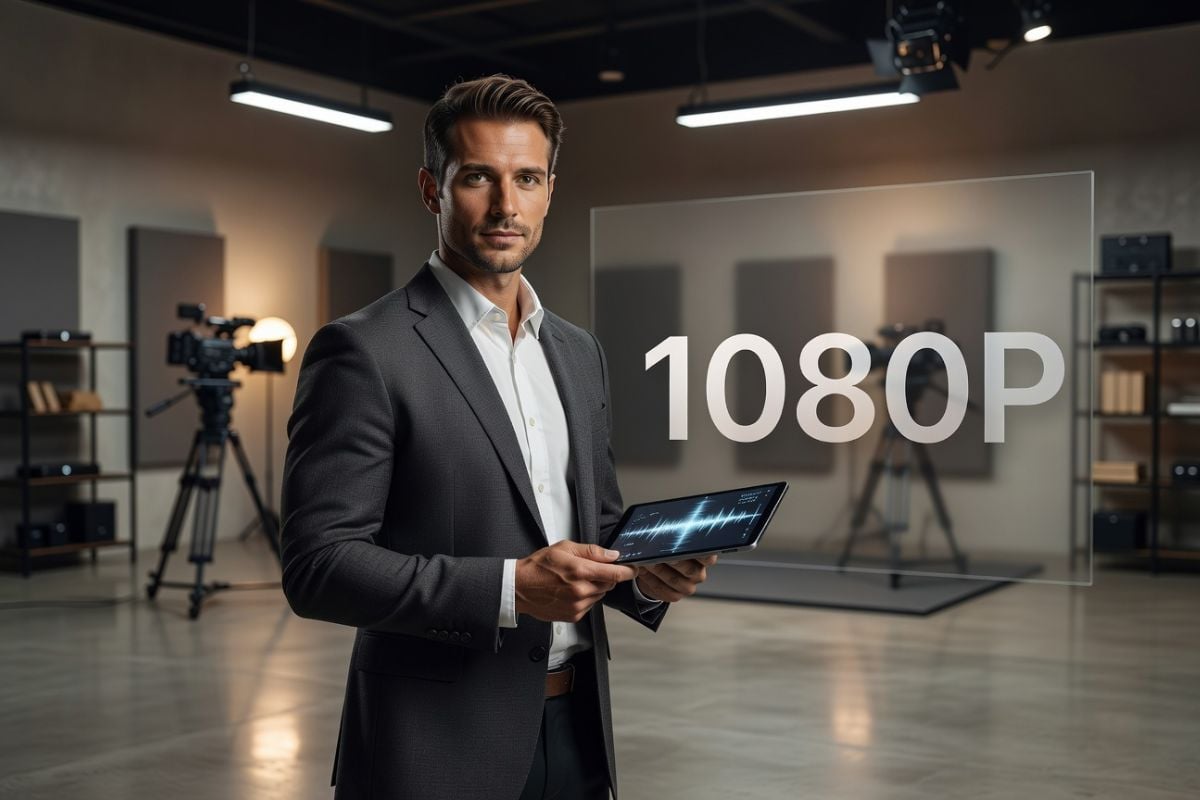
Native 1080p Resolution
Create sharp, clean videos in native 1080p, giving your output the clarity and detail expected for polished publishing, client-facing work, and post-production edits. It is a strong fit for creators who want results that already look refined before extra cleanup.
- Crisp HD detail for modern platforms
- Clean enough for editing and export workflows
- Well suited for professional-looking visual delivery
Advanced Motion & Camera Control
Built on VACE 2.0, this feature gives you tighter control over how motion and framing behave across a shot. It helps reduce unstable movement, guide directional motion more deliberately, and recreate camera behavior that feels more intentional instead of random.
If you already use image to video workflows, this makes it much easier to turn a strong source image into a more controlled and production-friendly result.
Few‑Shot LoRA Personalization
Build custom visual styles with only 10–20 images, then refine or blend those traits using simple, flexible LoRA controls. This makes personalization much faster, especially when you want to preserve a specific look without committing to a long or overly technical training process.
For creators exploring tailored visual outputs, Wan 2.2 spicy makes style adaptation feel more practical and accessible.
Volumetric & Lighting FX
Enhance your scenes with AI-generated fire, particles, glow, and lighting effects to add more depth, atmosphere, and visual realism. These effects help flat shots feel richer and more dimensional, without requiring the same amount of manual compositing or traditional VFX setup.
- Add mood and visual intensity quickly
- Improve scene depth with volumetric effects
- Create more immersive lighting with less manual work

Wan 2.2 Animate
Use a reference video to guide motion and apply it to a new character in a more streamlined animation workflow. Wan 2.2 Animate is built to make motion transfer easier to manage, with better visual consistency across frames and fewer distracting errors to correct later.
- Use reference footage to guide character movement
- Maintain more stable scale, lighting, and scene continuity
- Reduce cleanup time in motion-based animation experiments
Results may still vary depending on the source footage and prompt quality, but this workflow can make animation testing faster and easier to refine.
More Wan-series Video Models


How to Use Wan 2.2
Enter Prompt or Upload an Image
Start with a detailed text prompt or a reference photo. Wan 2.2 supports both T2V and I2V—and even hybrid inputs.
Tune Quality & Controls
Pick 480p/720p/1080p, toggle LoRA or camera controls, and preview style mixes before you render.
Generate & Download
Hit Generate. Your HD clip is typically ready in under 2 minutes—download or continue editing instantly.
Why Creators Choose Wan 2.2
How to Write Better Wan 2.2 Prompts
Start with a Clear Prompt Formula
Use a simple structure: subject + scene + motion. This makes your prompt easier to control and helps Wan 2.2 understand the main action quickly. Example: 'A young woman in a white dress, in a windy field at sunset, slowly turning and looking at the camera.'
Describe the Subject First
Make the main subject easy to understand before adding extra details. Include who or what it is, along with a few clear traits. Example: 'A silver robot with a smooth face and glowing blue eyes.'
Keep the Scene Simple but Visual
Add a short scene description that gives the model a clear environment. Focus on place, time, and atmosphere. Example: 'On a quiet city street at night with wet pavement and neon reflections.'
Use Action Words for Better Motion
Motion is a key part of video prompts, so use direct action words like walking, turning, running, lifting, or smiling. Example: 'He walks forward, raises his hand, and smiles slightly.'
Add Camera Movement When Needed
If you want a more cinematic result, describe how the camera moves. Simple camera words can make the output feel more intentional. Example: 'Slow push-in shot' or 'The camera pans from left to right.'
Use Lighting and Color to Set Mood
Short lighting and color phrases can quickly change the visual tone of the video. This is useful when you want a softer, richer, or more dramatic look. Example: 'Soft golden light, warm colors, gentle shadows.'
Use Shot Types for Better Composition
Describe the framing to guide how the scene is presented. Words like close-up, medium shot, or wide shot help shape the final composition. Example: 'Close-up shot of her face as her hair moves in the wind.'
For Image to Video, Focus on Motion
In image-to-video, the character and scene usually already come from the image. Your prompt should focus more on movement and camera behavior instead of re-describing everything. Example: 'She slowly turns her head, blinks, and the camera gently zooms in.'
Build Your Prompt in Layers
Start with the basic action, then add one layer at a time: motion, camera, lighting, and style. This keeps prompts readable and makes it easier to adjust results. Example: 'A boy riding a bicycle on a country road, medium shot, warm evening light, slight camera follow.'
Keep Prompts Natural and Easy to Read
You do not need to overload the prompt with too many keywords. Clear, natural descriptions often work better than long messy strings. Example: 'A black cat sits by the window on a rainy afternoon, watching the falling rain.'
Refine by Changing One Part at a Time
If the result is close but not right, only adjust one part of the prompt each time, such as motion, framing, or lighting. This helps you learn what changes the output. Example: change 'wide shot' to 'close-up shot' while keeping the rest the same.
Frequently Asked Questions
What is Wan 2.2?
How is it different from WanX 2.1?
Is Wan 2.2 free?
What inputs are supported?
Can I personalize styles?
Does it support multiple languages?
What are the hardware requirements?
How can I use Wan 2.2 more safely and compliantly?
Why do Wan 2.2 results sometimes fail?
What causes unnatural motion or unstable frames?
How do I improve success rate?
What should I do if the output does not match my idea?
Are all generated results production-ready?
Twitter Embed
Create with Wan 2.2 Today
Experience next‑level AI video generation on GoEnhance AI.