Pixelcut AI Image Enhancer

Pixelcut AI Image Enhancer helps sharpen low-resolution photos, reduce blur and compression artifacts, and bring fine texture back into view. Use the automatic flow for product shots, portraits, landscapes, and older images, then save a larger version for sharing or print. Support for common formats and batch enhancement makes quick cleanups easy to repeat across a photo collection.
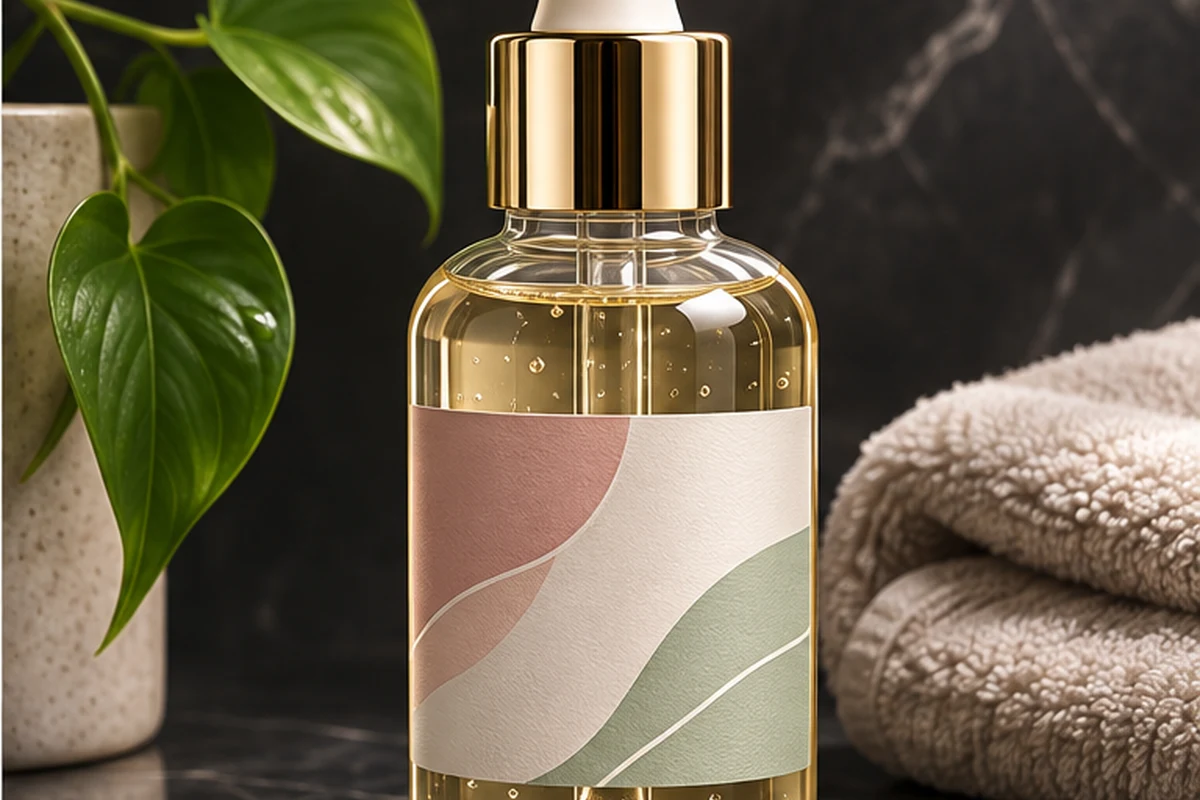
Product photo
Product photo
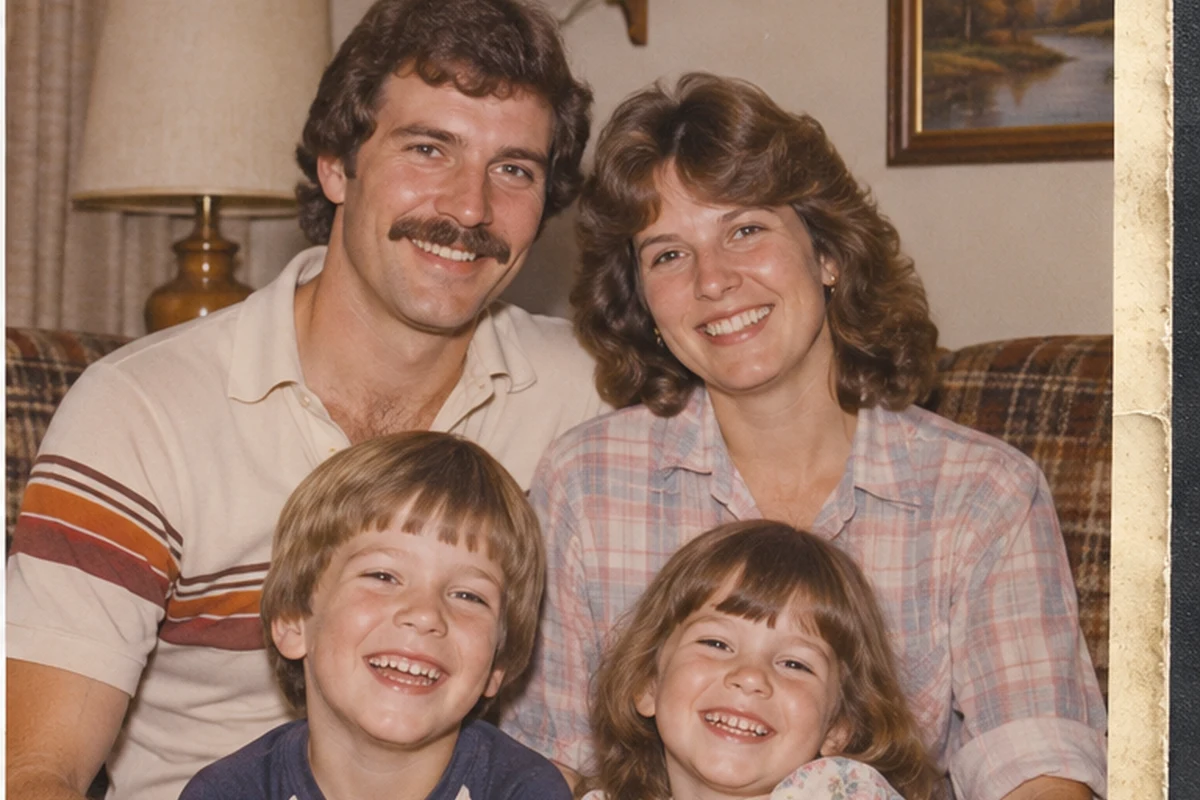
Portrait photo
Portrait photo
Old photo scan
Old photo scan
Upload an image to enhance
Mode
By uploading a file, you agree to GoEnhance's Terms of Use and Privacy Policy

Enhance Photos in One Click

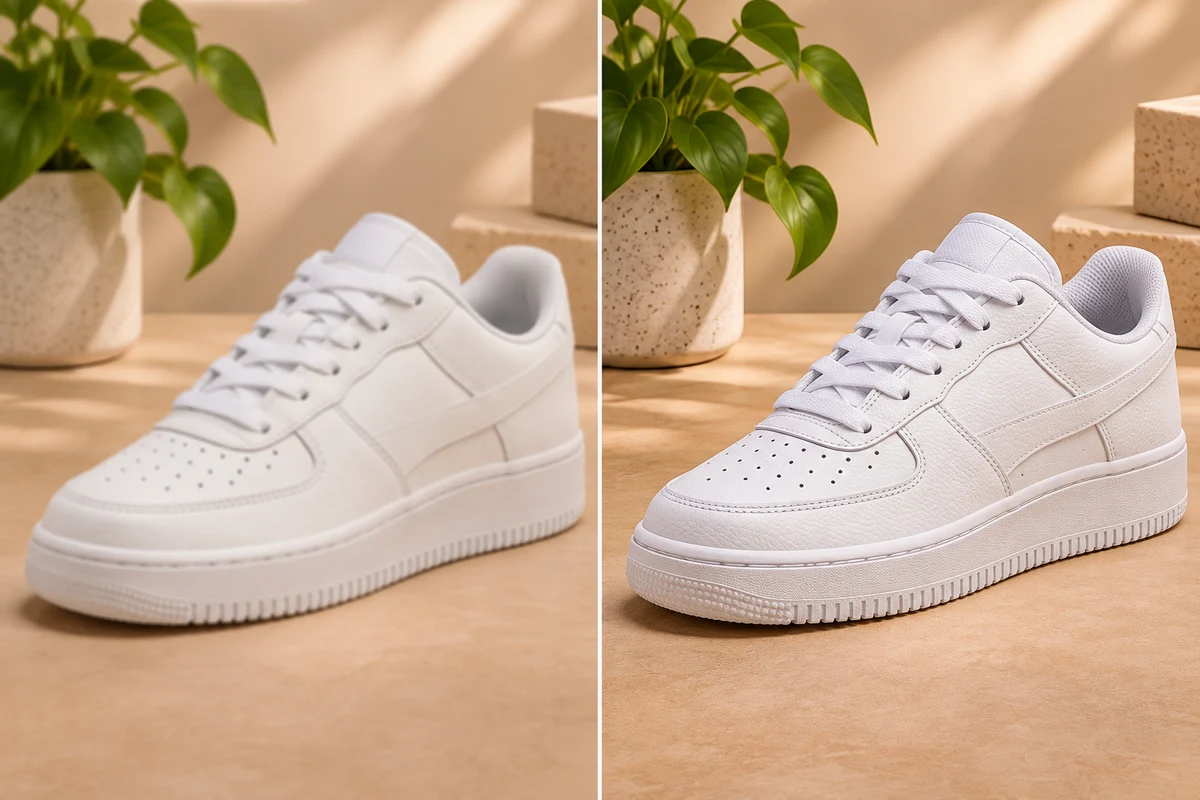
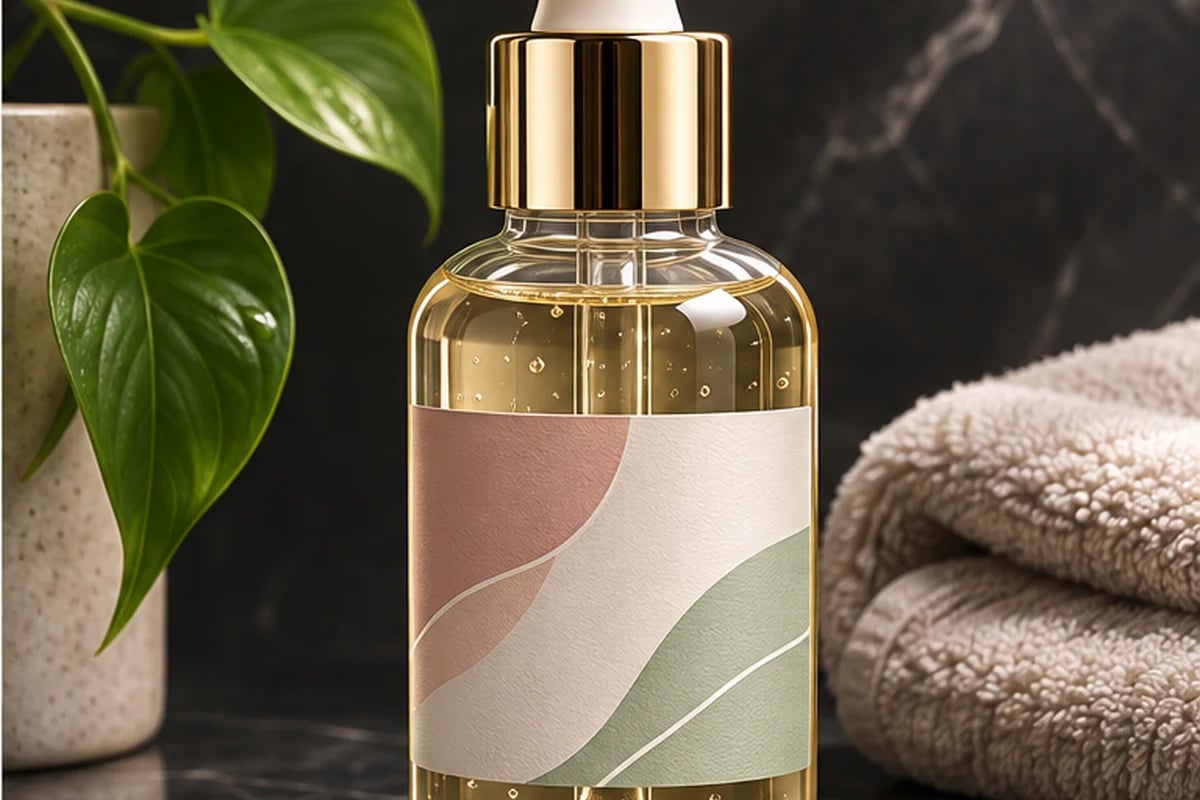
Improve Clarity in Product Photos

Pixelcut’s photo enhancer combines automatic sharpening and blur or artifact cleanup to help product images look clearer without a manual edit. Packaging, fabric, jewelry, labels, and other small surfaces can read more crisply in a listing, catalog, or social post. A single enhancement pass also helps images that have softened after resizing or repeated saves. The result is useful when you need a cleaner product visual quickly and want the original framing and colors to remain the focus.

Before-and-after comparison of a sneaker photo with clearer product detail

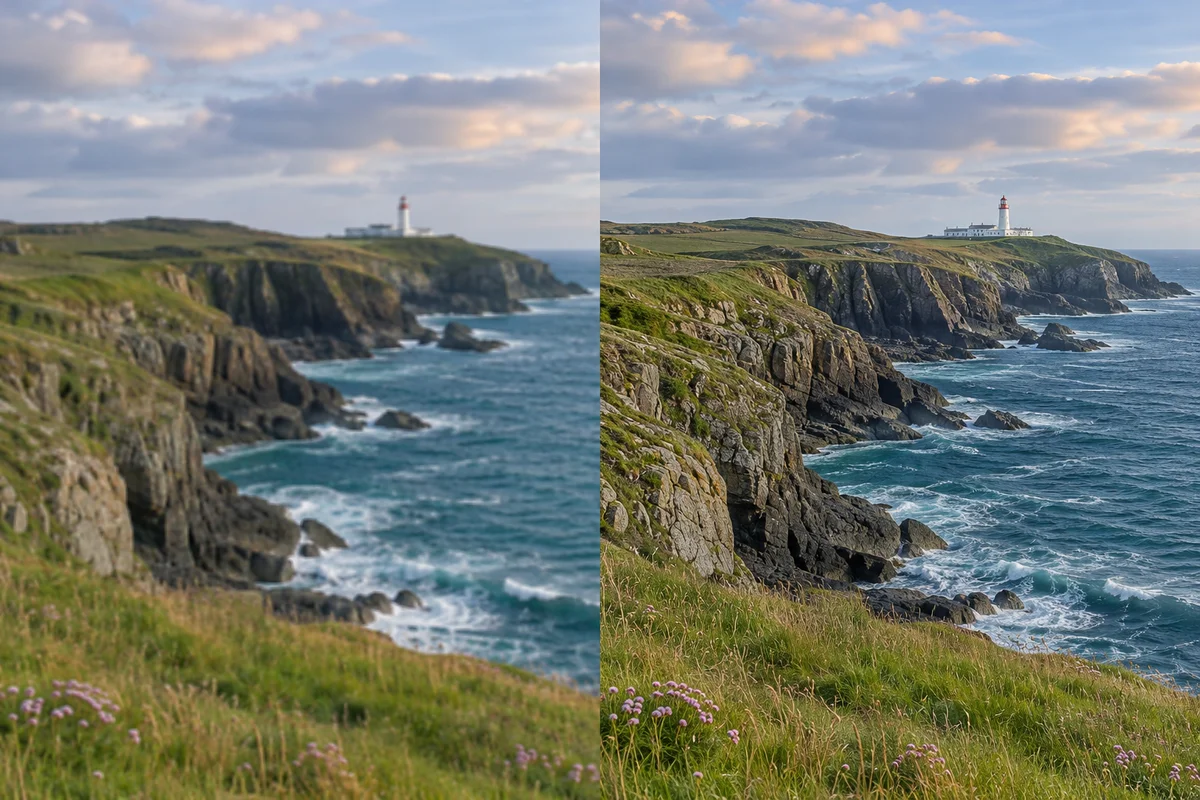
Restore Detail Across Everyday Images

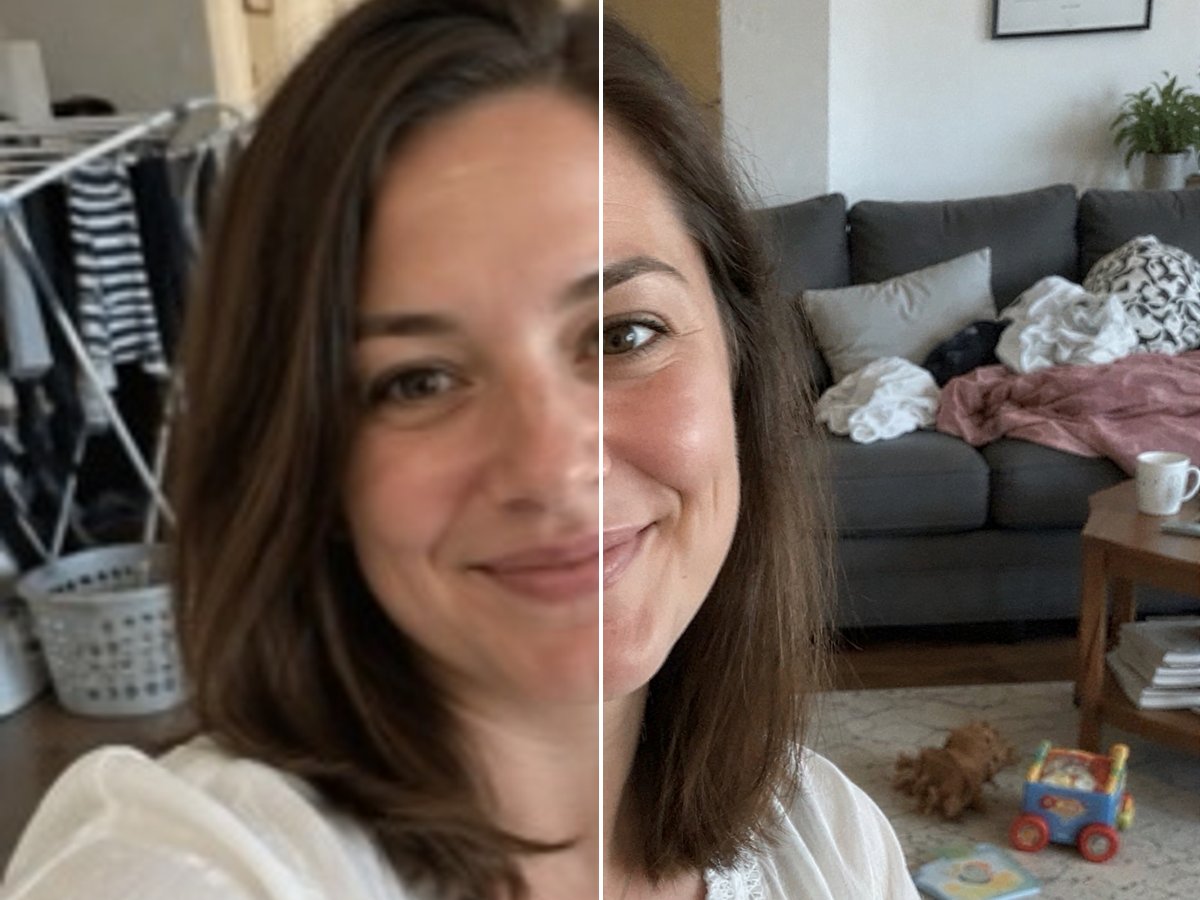
Pixelcut’s enhancer can improve more than a single type of photo: portraits gain definition in hair and clothing, landscapes show clearer texture in distant scenery, and older images look sharper for sharing or print. Its automatic cleanup reduces blur and compression artifacts while reconstructing fine details, helping soft photos hold up across social posts, catalogs, and printed layouts. The Photo Enhancer page describes output at about two and a half times the source resolution, giving you extra room to crop or place the image. For a larger canvas, continue with the Image upscaler.

Before-and-after comparison of a soft coastal landscape with clearer detail

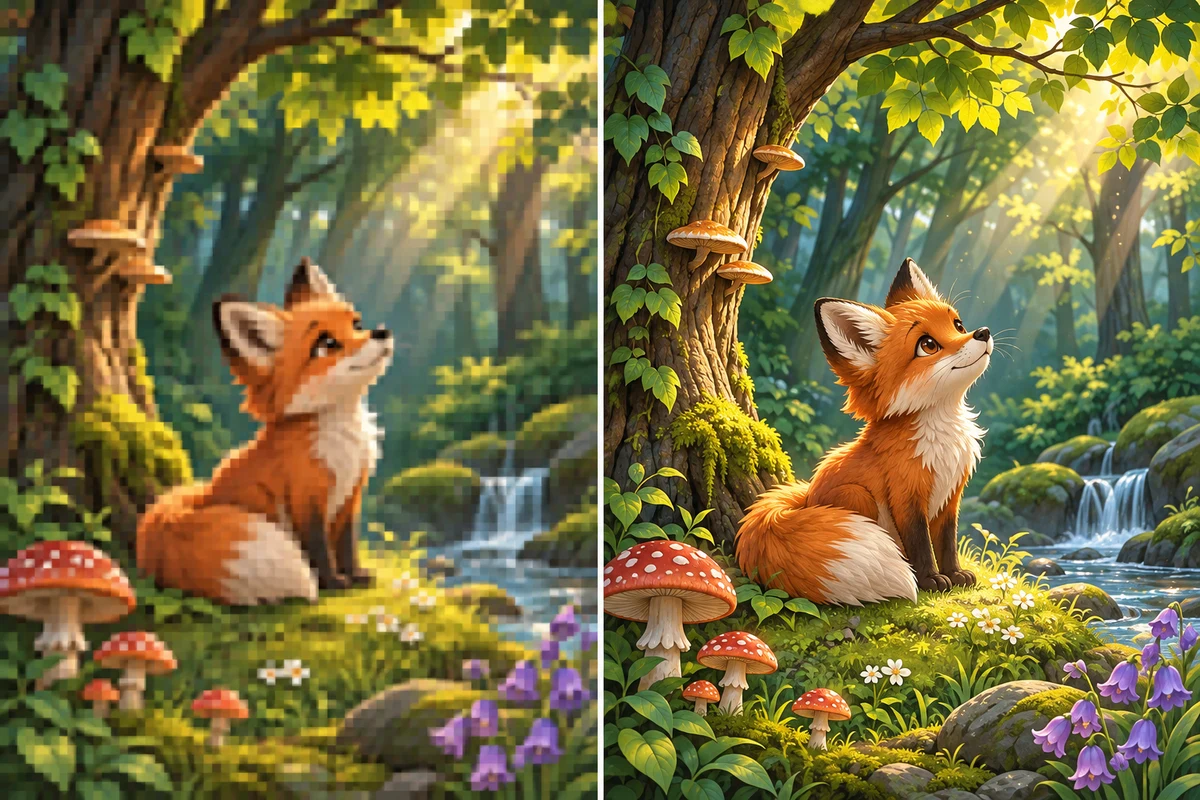
Enlarge Artwork with Cleaner Edges

Pixelcut’s enhancement and upscaling tools can help small illustrations, exported graphics, and AI-generated artwork hold their detail at a larger presentation size. Sharper linework, cleaner edges, and more defined color transitions make artwork easier to place in a portfolio, slide deck, social post, or print layout. The automatic process reduces the need for manual touch-ups across repeated exports. Creators can prepare a polished visual quickly while keeping the original composition and style at the center.

Before-and-after comparison of a small fantasy illustration with clearer linework

Pixelcut Photo Enhancement Benefits

One-Click Photo Cleanup

Automatically reduce blur and compression artifacts while bringing fine details back into view, without manually tuning each adjustment.

Higher-Resolution Exports

Create an enlarged version for print, catalogs, or digital layouts, with more visible texture and detail for larger placements.

Batch Enhancement for Photo Sets

Apply enhancement across groups of images when preparing a product range, event gallery, or campaign collection.

How to Use Pixelcut AI Image Enhancer
Upload a Photo

Choose a JPG, PNG, WebP, or HEIC file. The Photo Enhancer upload panel lists a 50 MB file limit and image dimensions up to 6000 by 6000 pixels.

Enhance Automatically

Select Enhance Photo and let Pixelcut reduce blur and artifacts while improving fine detail in the image.

Save the Enhanced Image

Download the finished photo for sharing, print, or another project. Pixelcut describes Photo Enhancer output at around two and a half times the original resolution.

Pixelcut AI Image Enhancer FAQ
What Is Pixelcut AI Image Enhancer?

It is an online AI tool for improving photo clarity and resolution. Pixelcut automatically reduces blur and compression artifacts, restores fine detail, and prepares images for sharing, print, or product listings.

What Can Pixelcut AI Image Enhancer Improve?

It can reduce blur and compression artifacts, restore detail, adjust lighting and color, and enlarge images. Severe blur can limit how much original detail any enhancement can recover.

Does Pixelcut AI Image Enhancer Increase Resolution?
Pixelcut says Photo Enhancer returns images at around two and a half times the original resolution. Its separate Image Upscaler page lists 4K, 8K, and 16K output choices.

Which Formats Does Pixelcut AI Image Enhancer Support?

The upload panel lists JPG, PNG, and HEIC, with a 50 MB limit and dimensions up to 6000 by 6000 pixels. Pixelcut’s how-to instructions also mention WebP.

Is Pixelcut AI Image Enhancer Free?

The Photo Enhancer page currently advertises free HD downloads and no watermark.

How Do I Use Pixelcut AI Image Enhancer?

Upload a compatible photo, choose Enhance Photo, wait for automatic processing, and download the enlarged result.

Are the Comparison Images Actual Pixelcut Results?

No. The before-and-after images on this page are illustrative examples created for the page, not outputs from Pixelcut.

Enhance Your Next Photo

Upload a compatible image to improve clarity, create a larger version, and prepare it for sharing or print.

Try AI image upscaler