
Picsart Image Enhancer
Upload a portrait, product, food photo, or social visual to Picsart image quality enhancer. Process it for clearer edges and visible detail, compare identity, object shape, text, and background, then continue editing or download.
Fashion
Still Life
Night Neon
Upload files
Upload an image to enhance
Mode
By uploading a file, you agree to GoEnhance's Terms of Use and Privacy Policy
Enhance Photos for Everyday Creative Work
Fix Mild Blur in Portraits
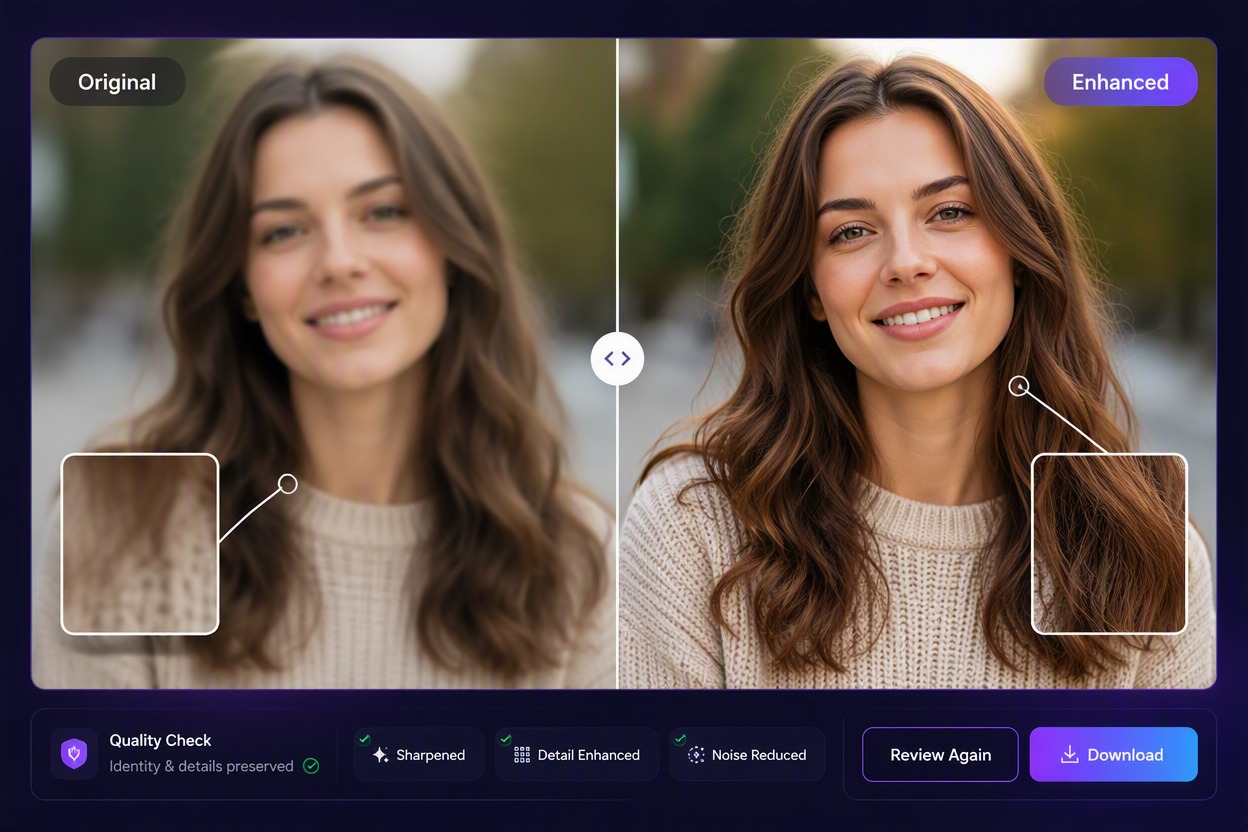
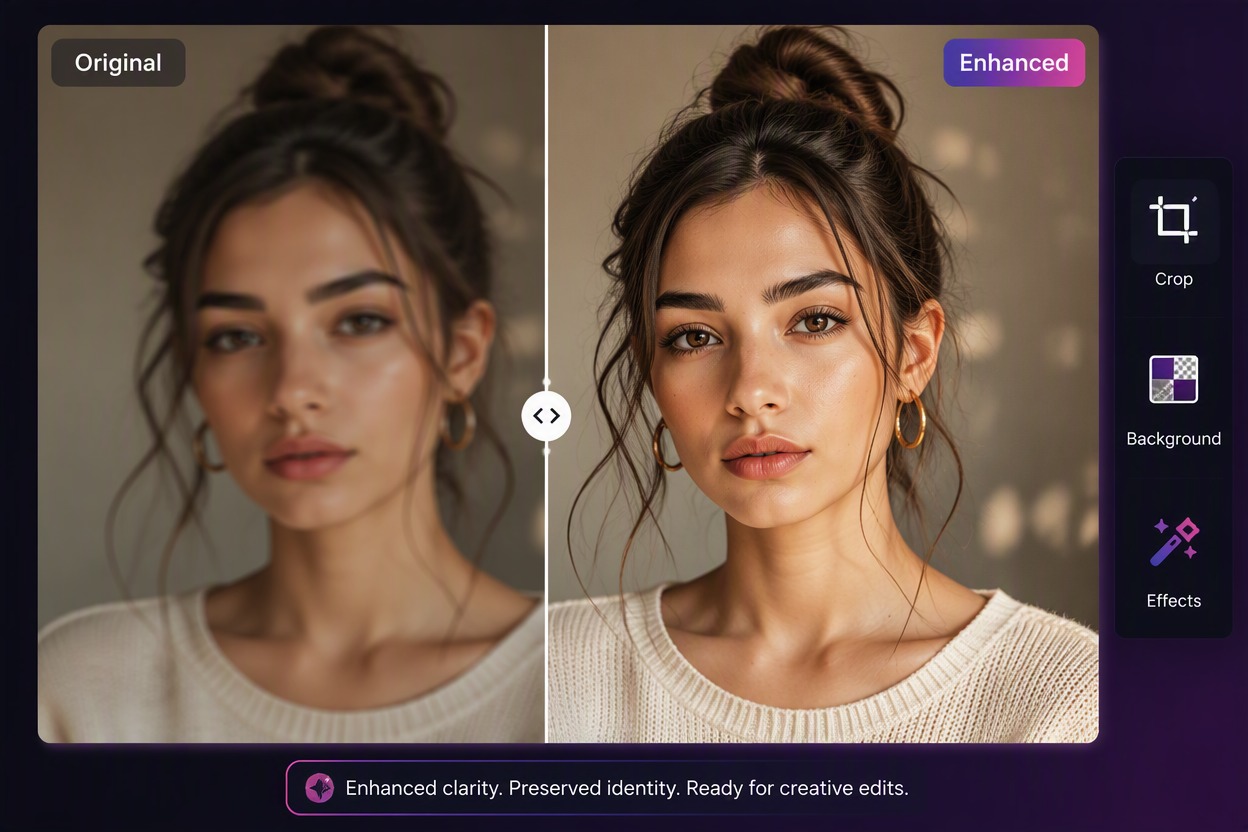
Restore visible detail in soft portraits while keeping the person’s recognizable appearance, expression, clothing, and composition consistent. Prepare cleaner profile photos and social visuals with our AI image enhancer without rebuilding the image.
How to Use Picsart Image Enhancer
Step 1
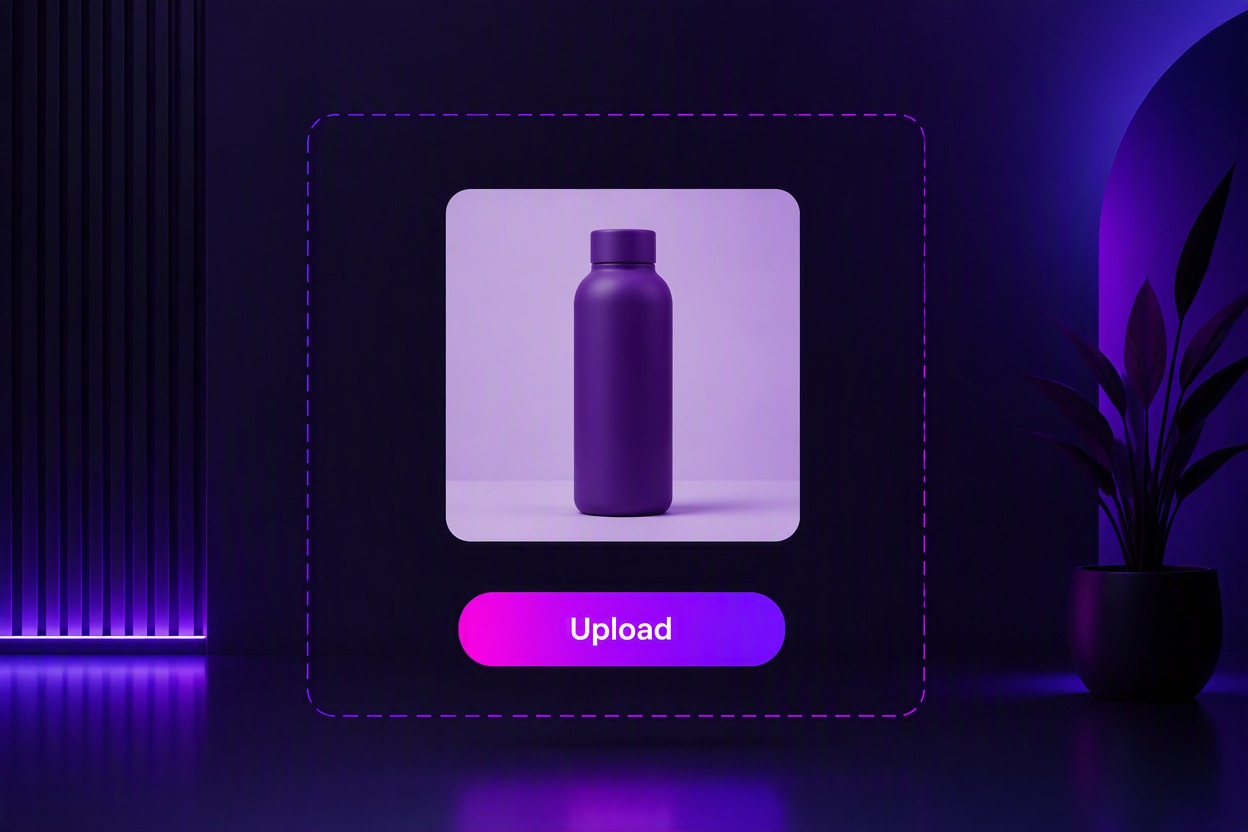
Upload the Best Available Source
Choose the cleanest authorized image you have and retain the original. Avoid repeated screenshots or heavily recompressed copies when a better source is available.
Step 2
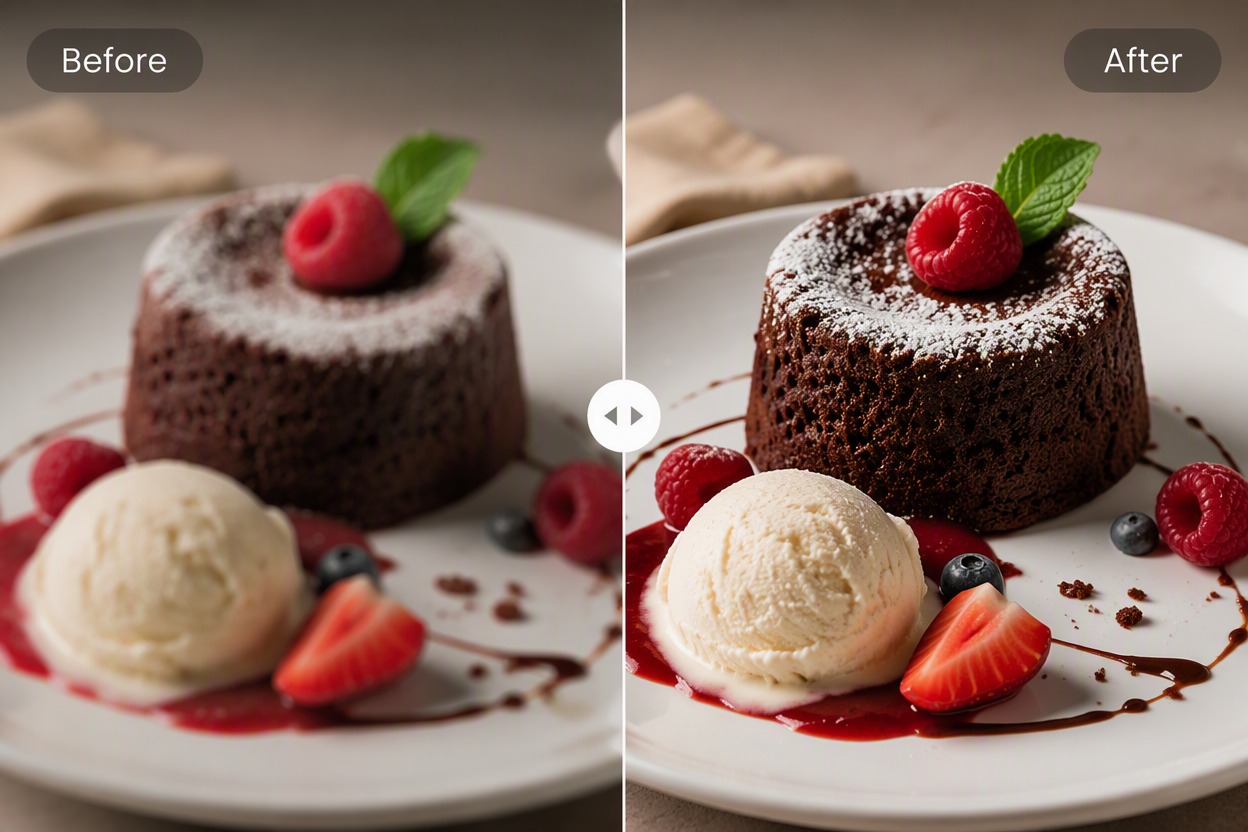
Run the Enhancement
Process the image with the available enhancement workflow. Keep the subject, composition, crop, colors, and important objects aligned with the source.
Step 3
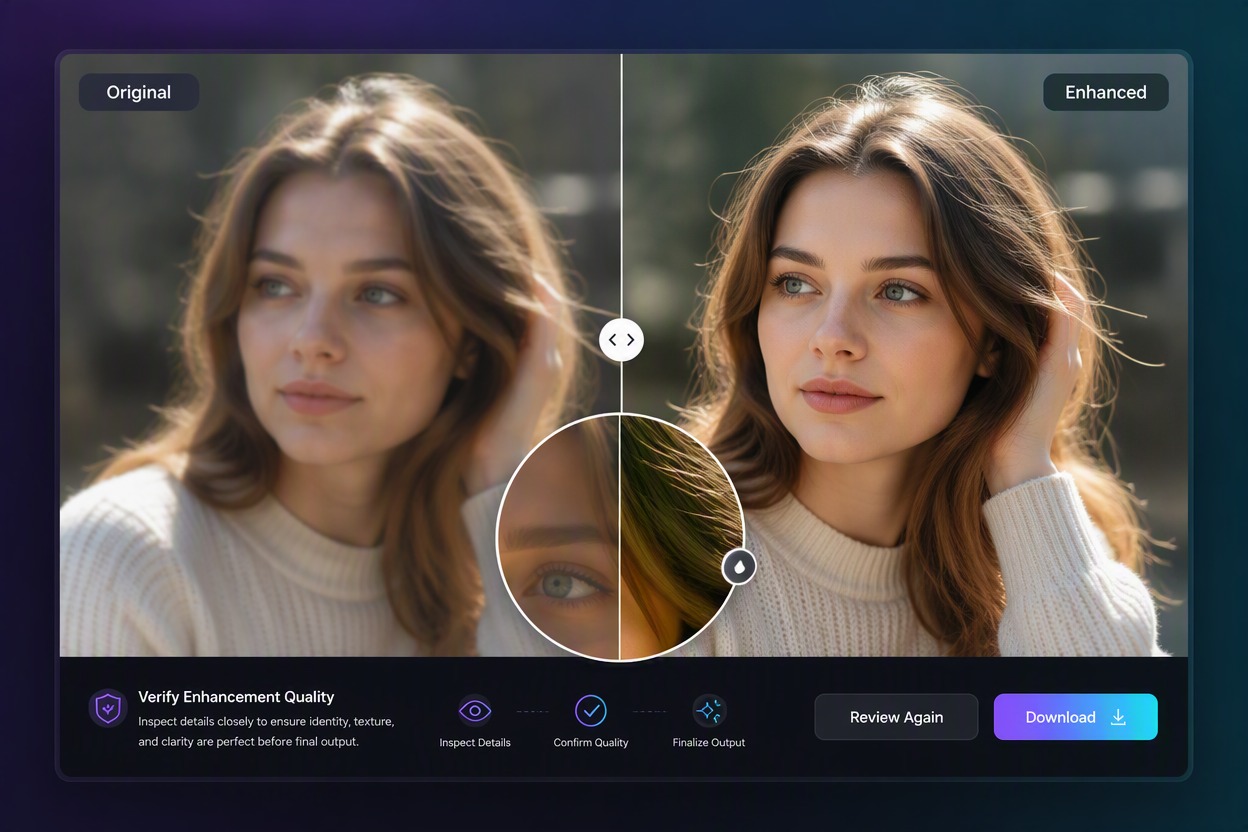
Compare and Download
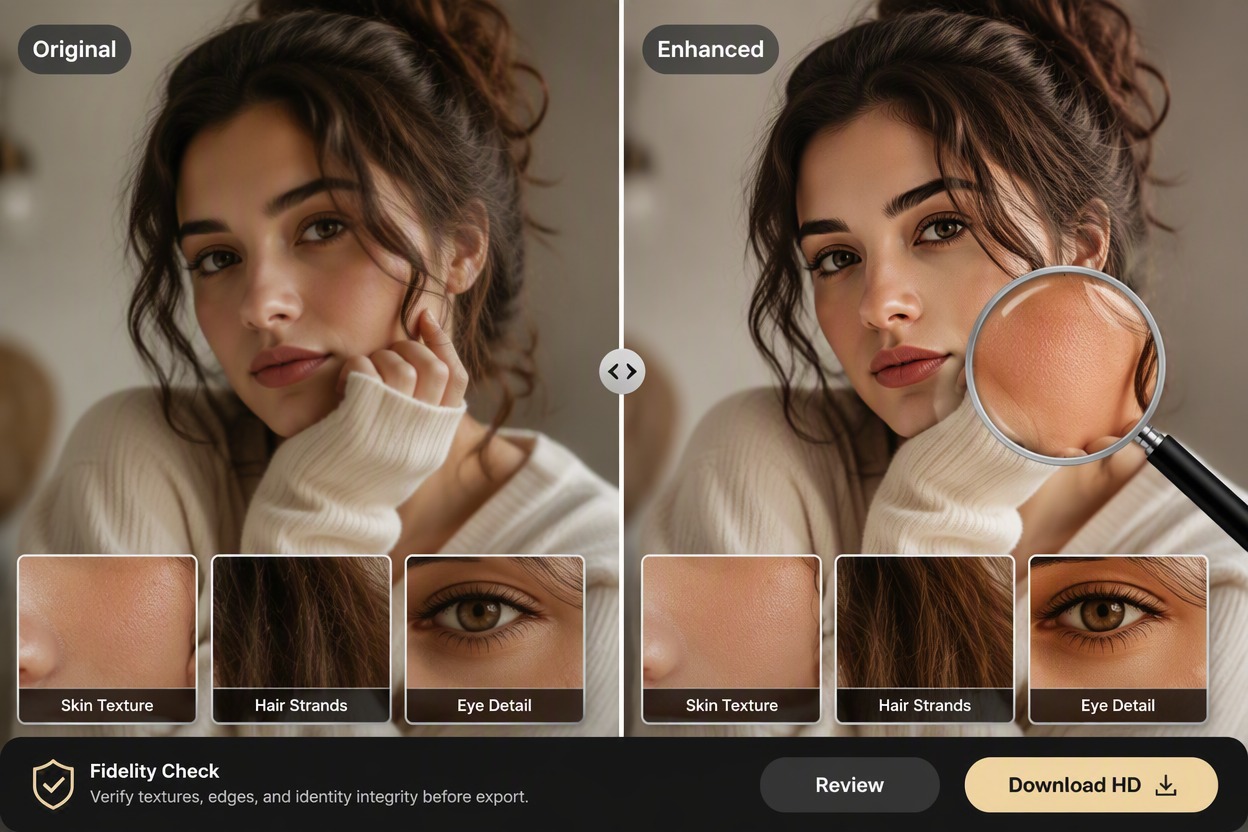
Inspect a matched Original and Enhanced view at full size. Check identity, edges, texture, text, backgrounds, and any product or document detail before downloading.
Why Use Picsart Image Enhancer
Clearer Details From Soft Photos
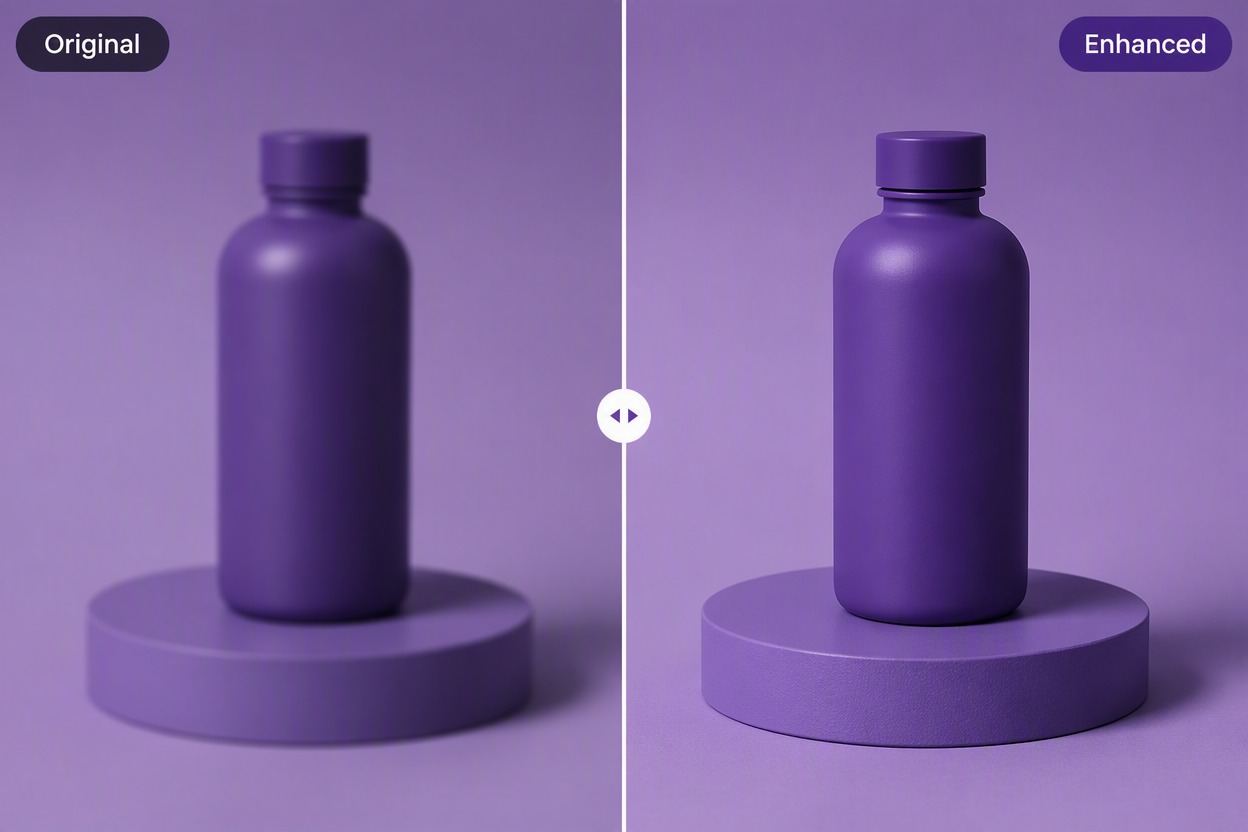
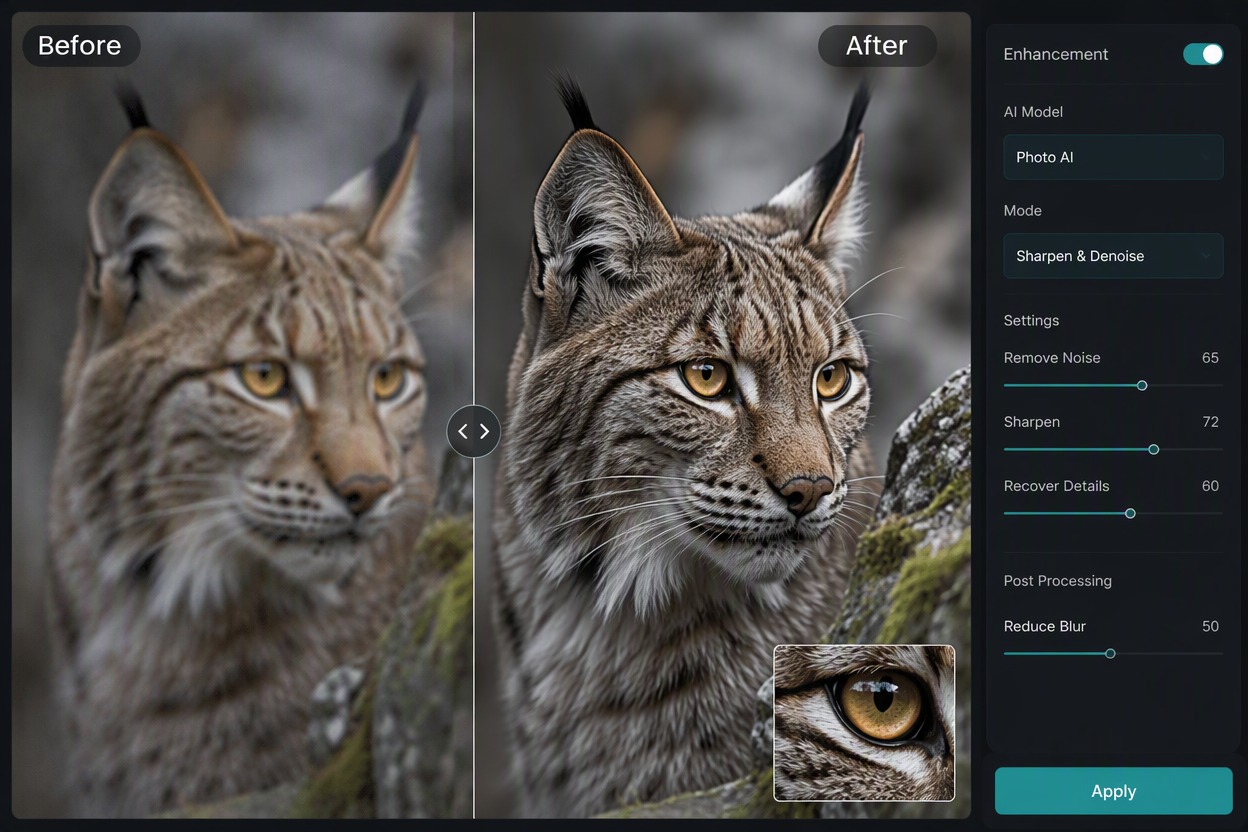
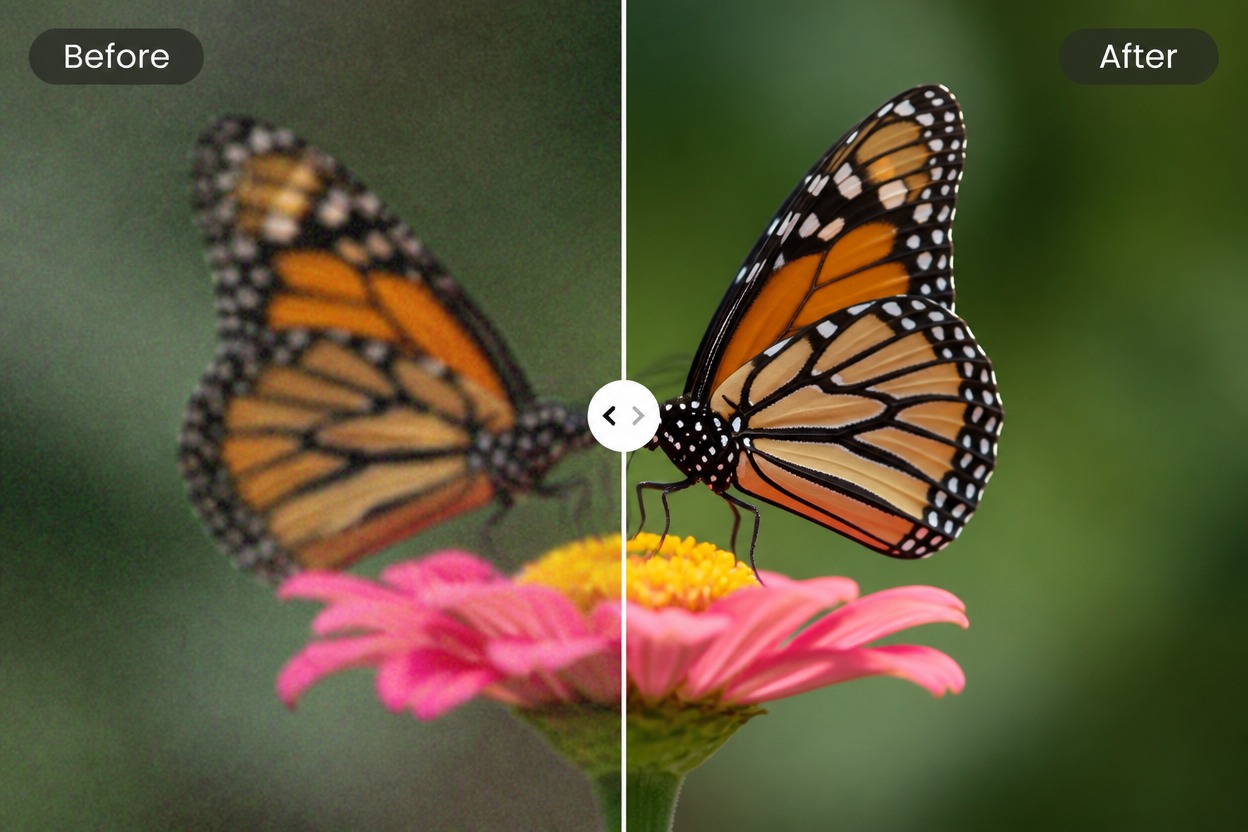
Recover clearer edges and visible subject detail from mildly soft photos, giving portraits, products, and everyday images a cleaner starting point.
One Workflow for Different Photo Types
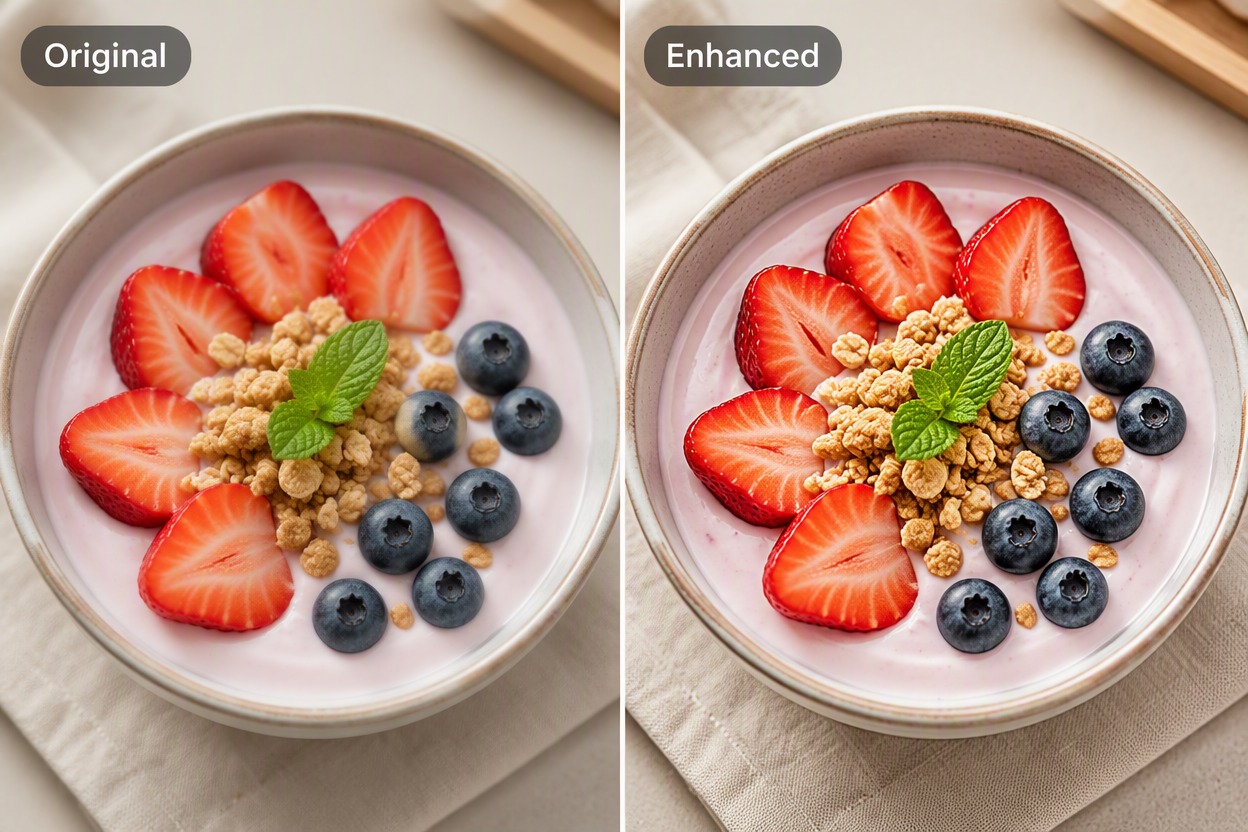
Improve portraits, products, food shots, and social visuals within the same enhancement workflow instead of preparing each asset with separate tools.
Keep the Original Image Recognizable
Improve apparent clarity and texture while preserving the recognizable subject, composition, and overall visual direction of the source.
Ready for Further Creative Editing
Use the enhanced result as a cleaner source for crops, background changes, social layouts, promotional graphics, and other creative edits.
Less Manual Photo Cleanup
Reduce repetitive sharpening and edge cleanup when preparing a collection of everyday images for a larger design or content project.
More Polished Assets for Publishing
Prepare clearer images for social posts, product pages, creator profiles, and promotional layouts without rebuilding the source from scratch.
Picsart Image Enhancer FAQ
What does Picsart Image Enhancer do?
Which images are the best inputs?
Can enhancement restore details missing from the source?
Will the enhanced photo keep the same subject?
Can I use the result for business or publishing?
What should I check before downloading?
Explore More AI Image Enhancers
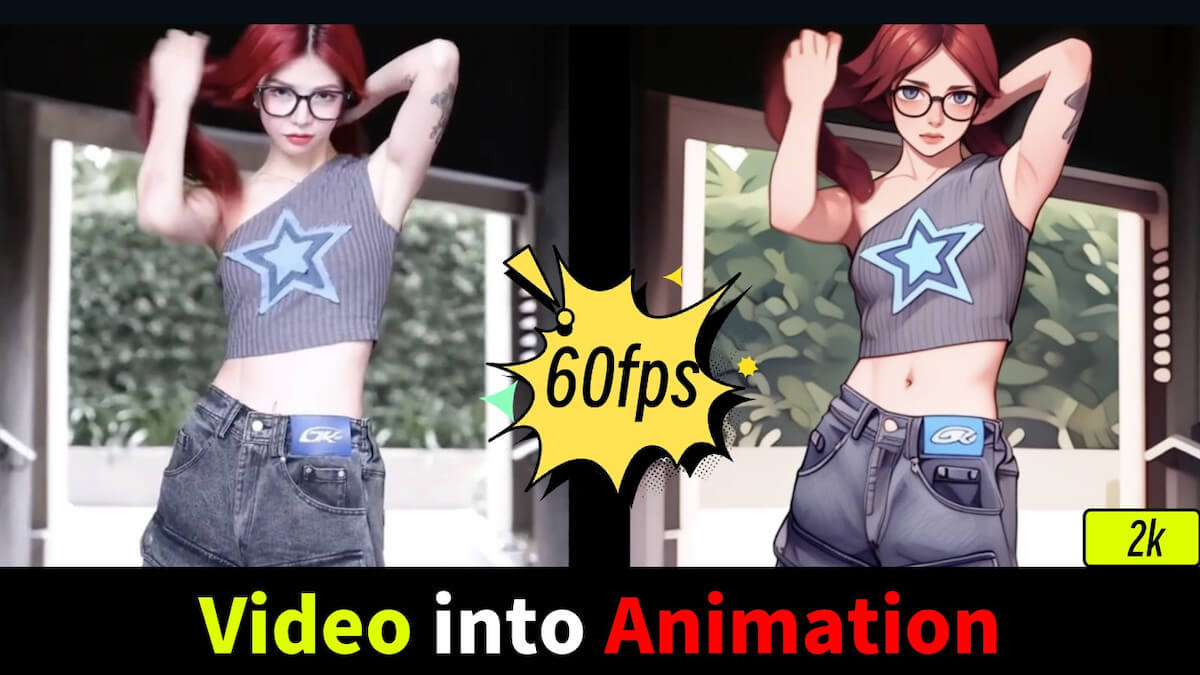
Enhance Your Next Image With GoEnhance AI
Upload an authorized image, improve visible clarity, compare the result with the source, and export the version that best preserves the original subject.
Start Creating With GoEnhance AI