
Improve Social and Collage Photos With PhotoGrid
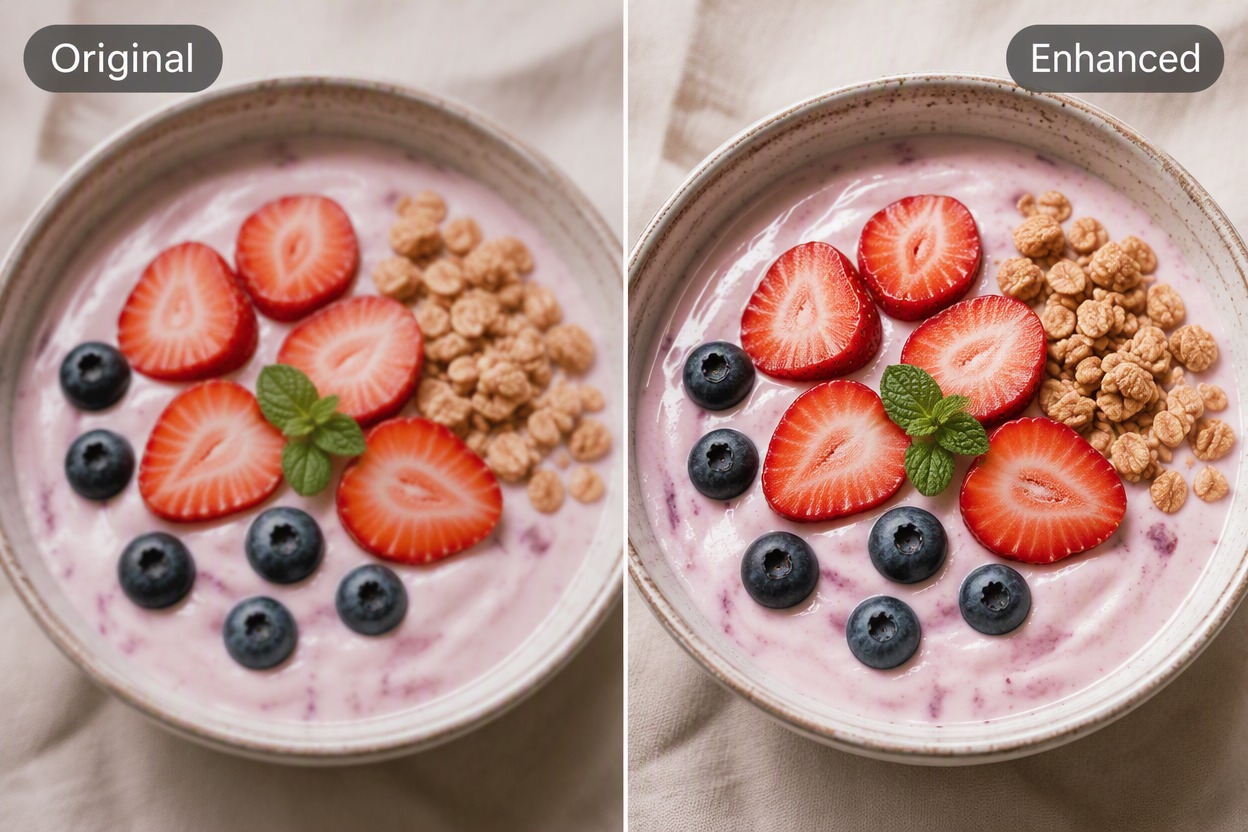
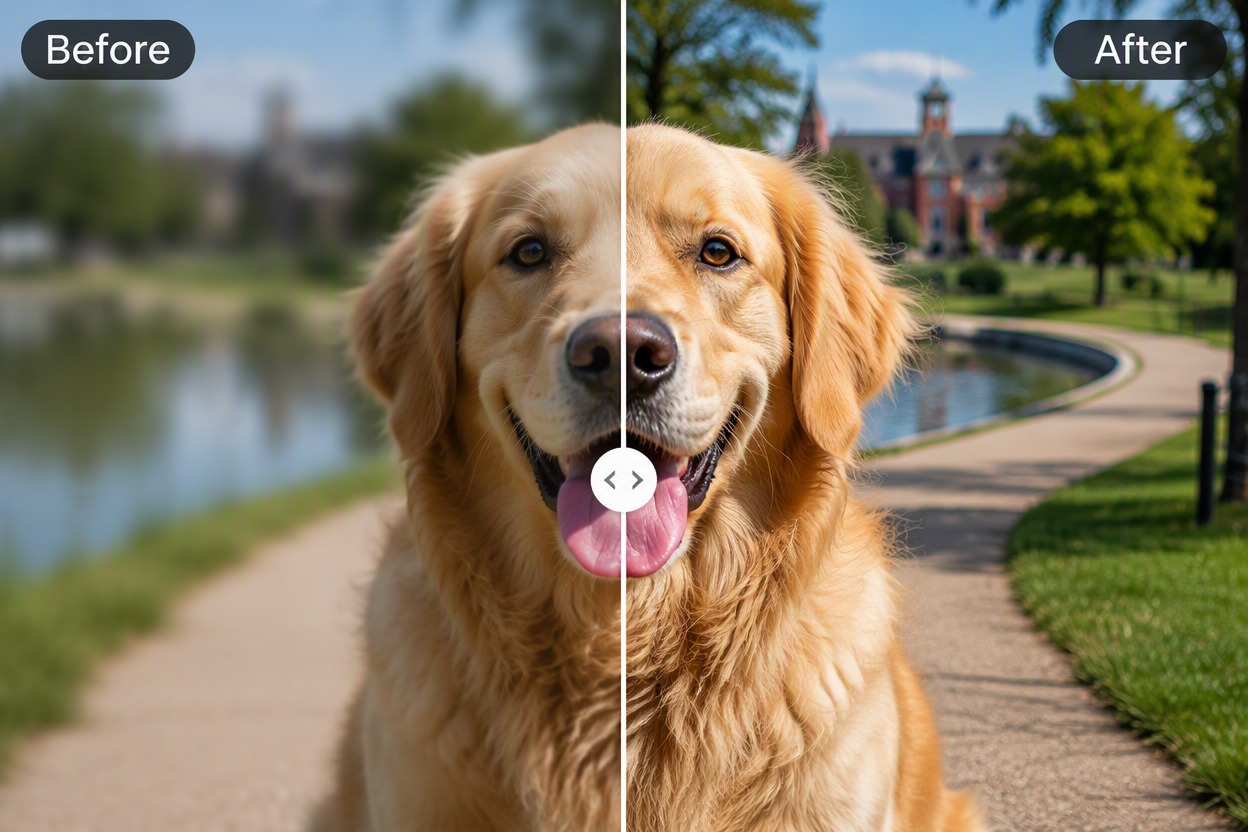
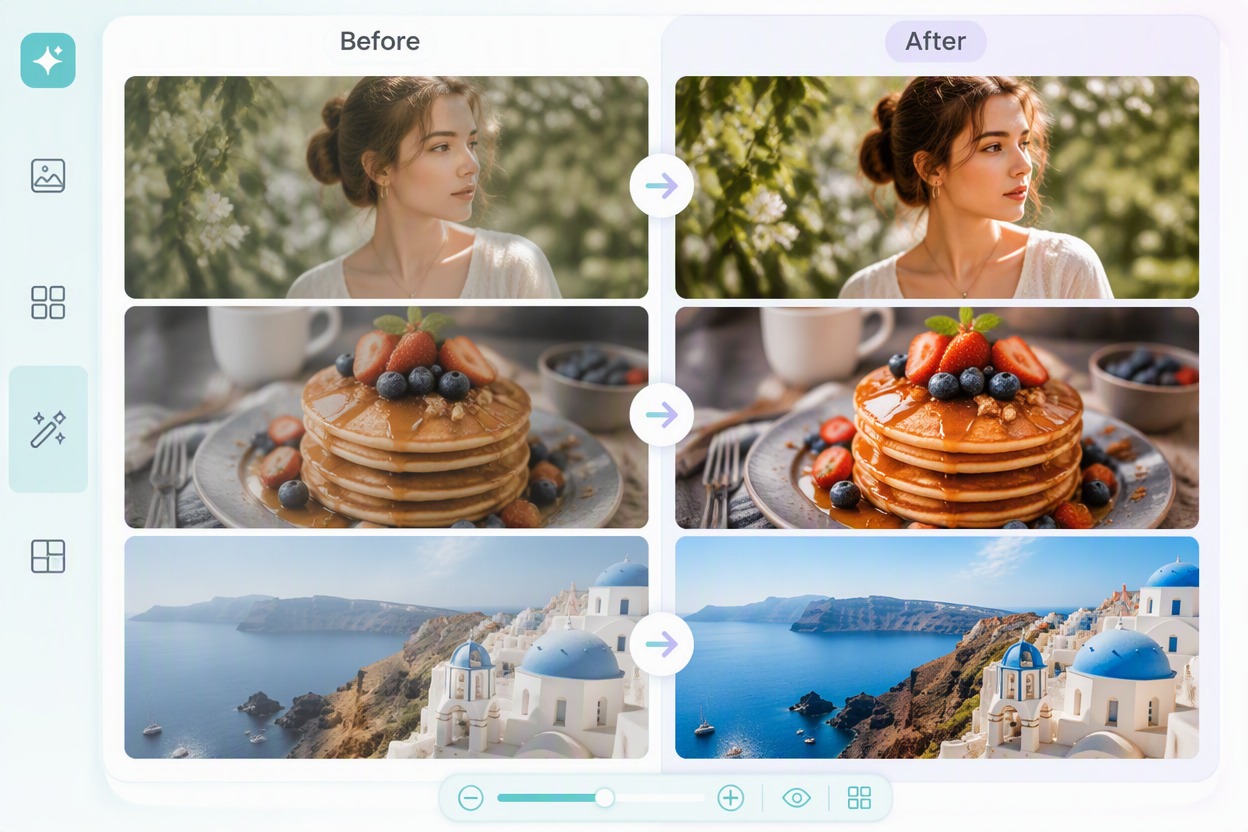
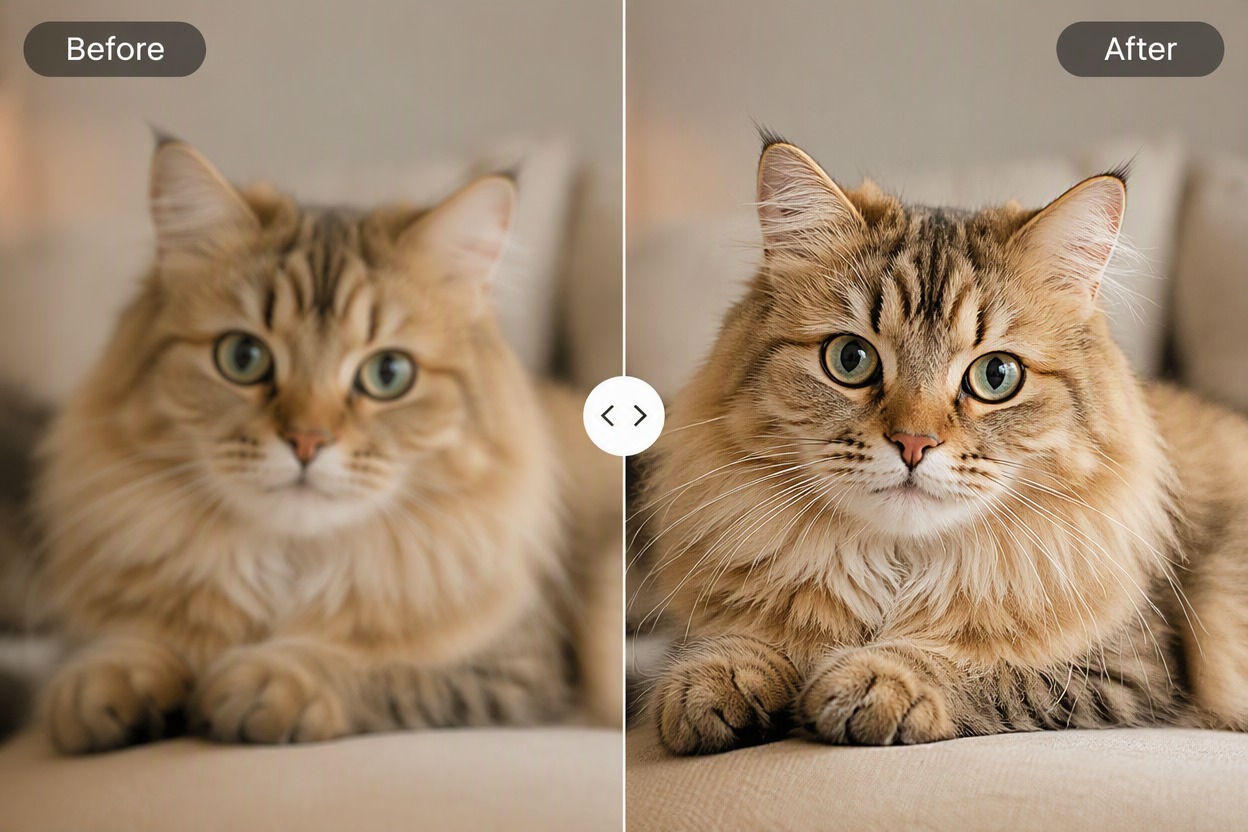
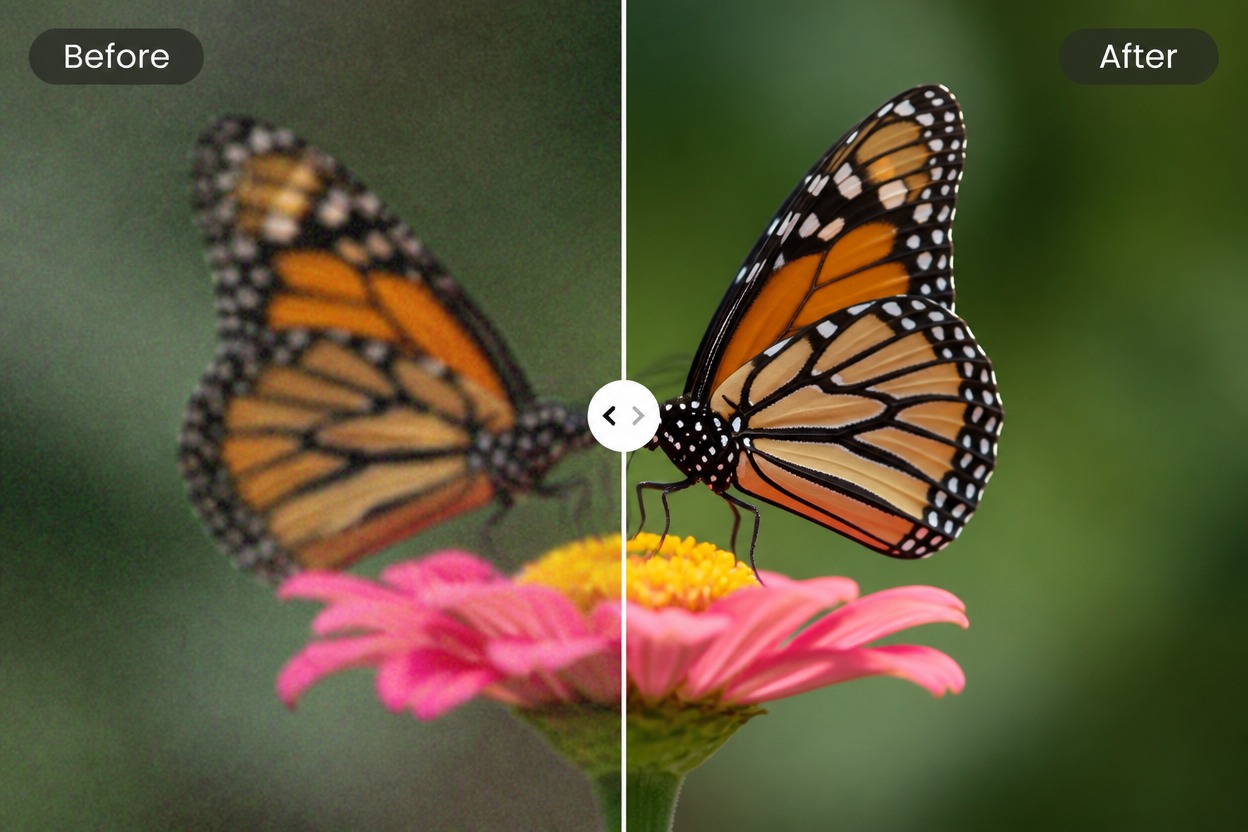
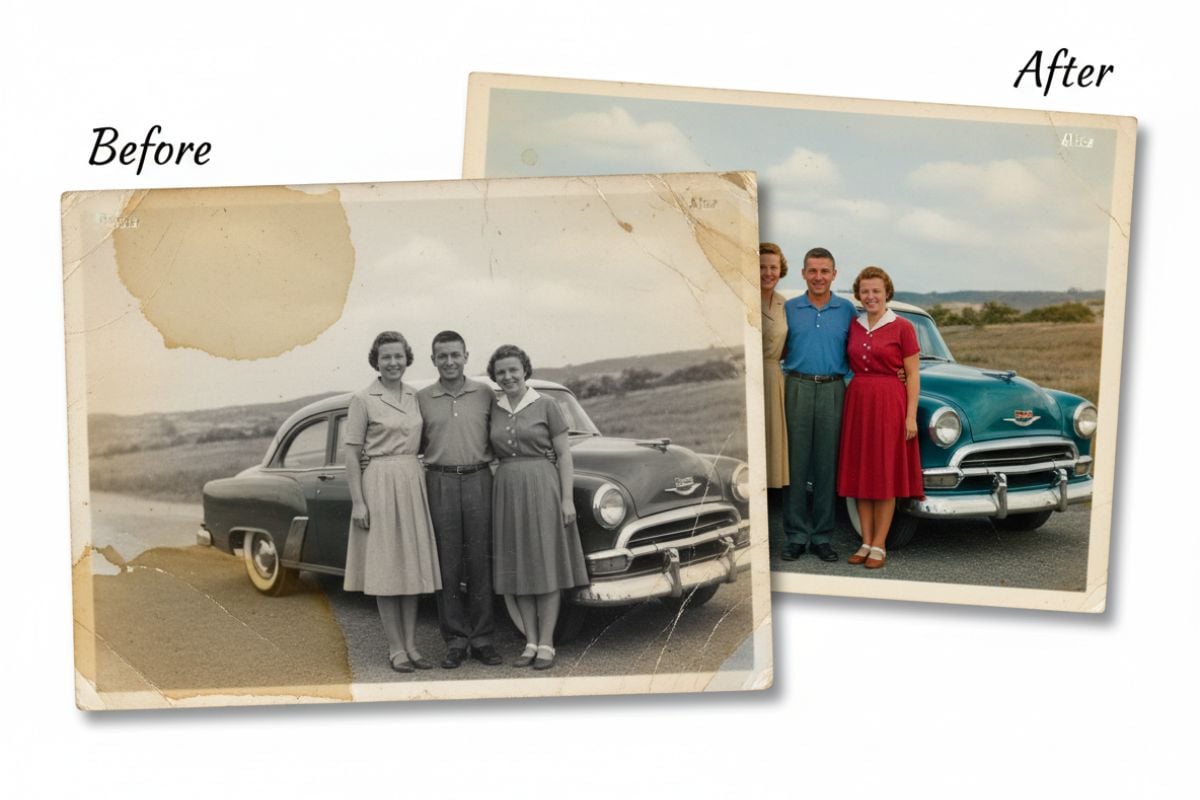
Upload a portrait, food photo, pet image, travel snapshot, or collage source to PhotoGrid AI image enhancer. Compare the same crop before and after, then check faces, fur, texture, color, and background before saving.

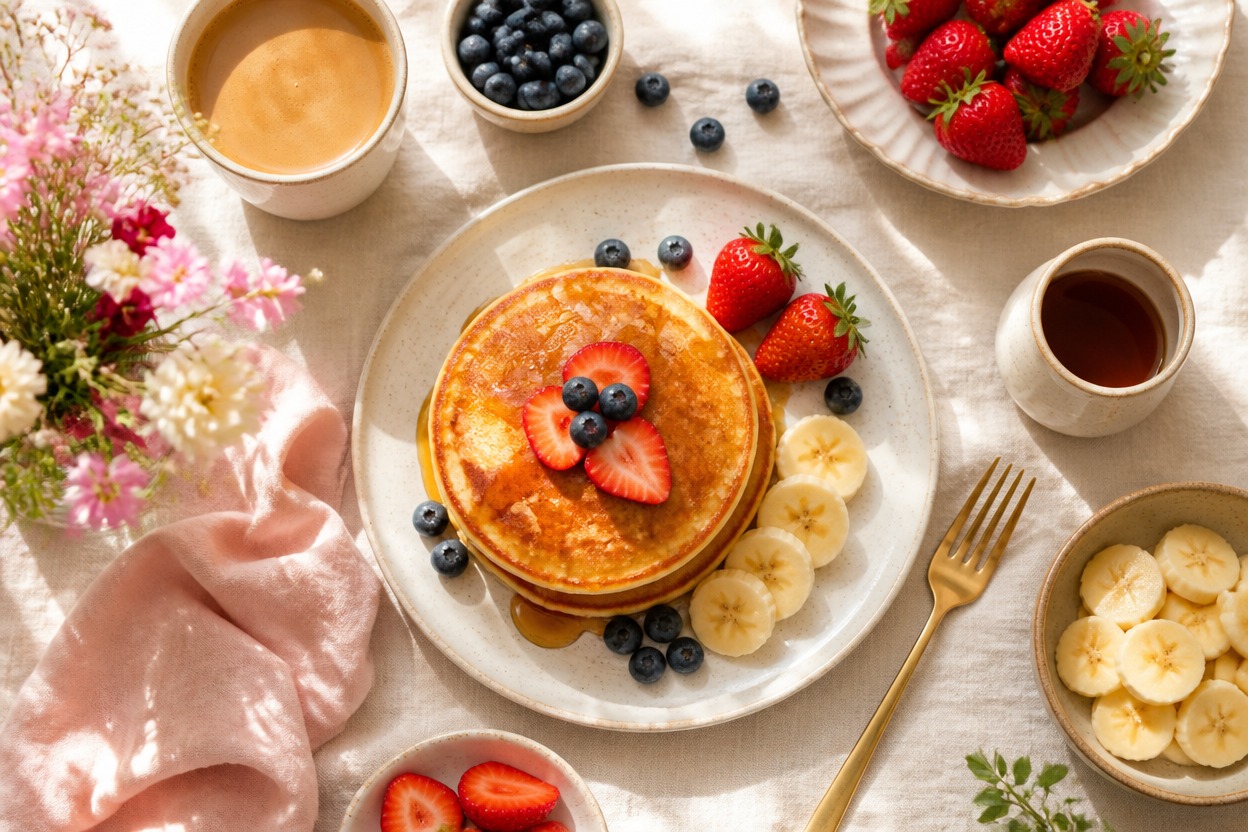
Brunch
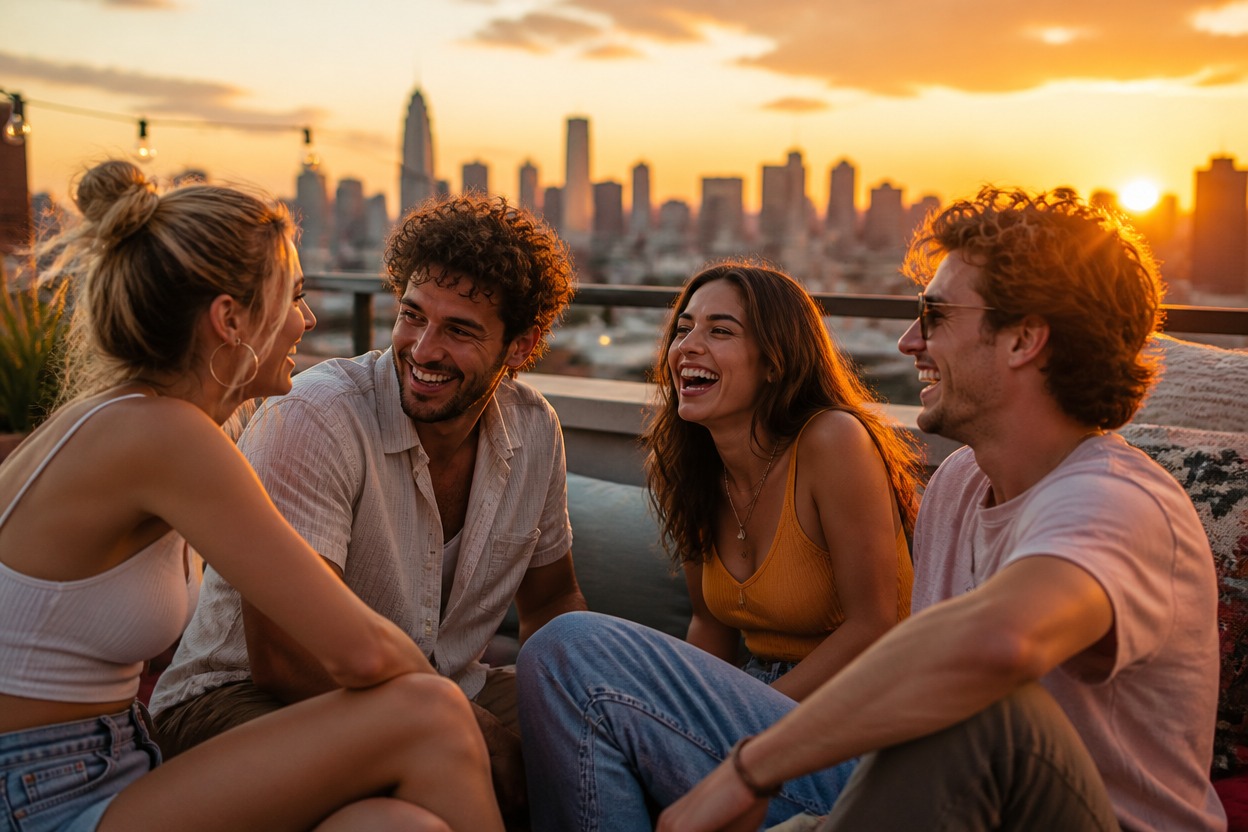
Group Photo
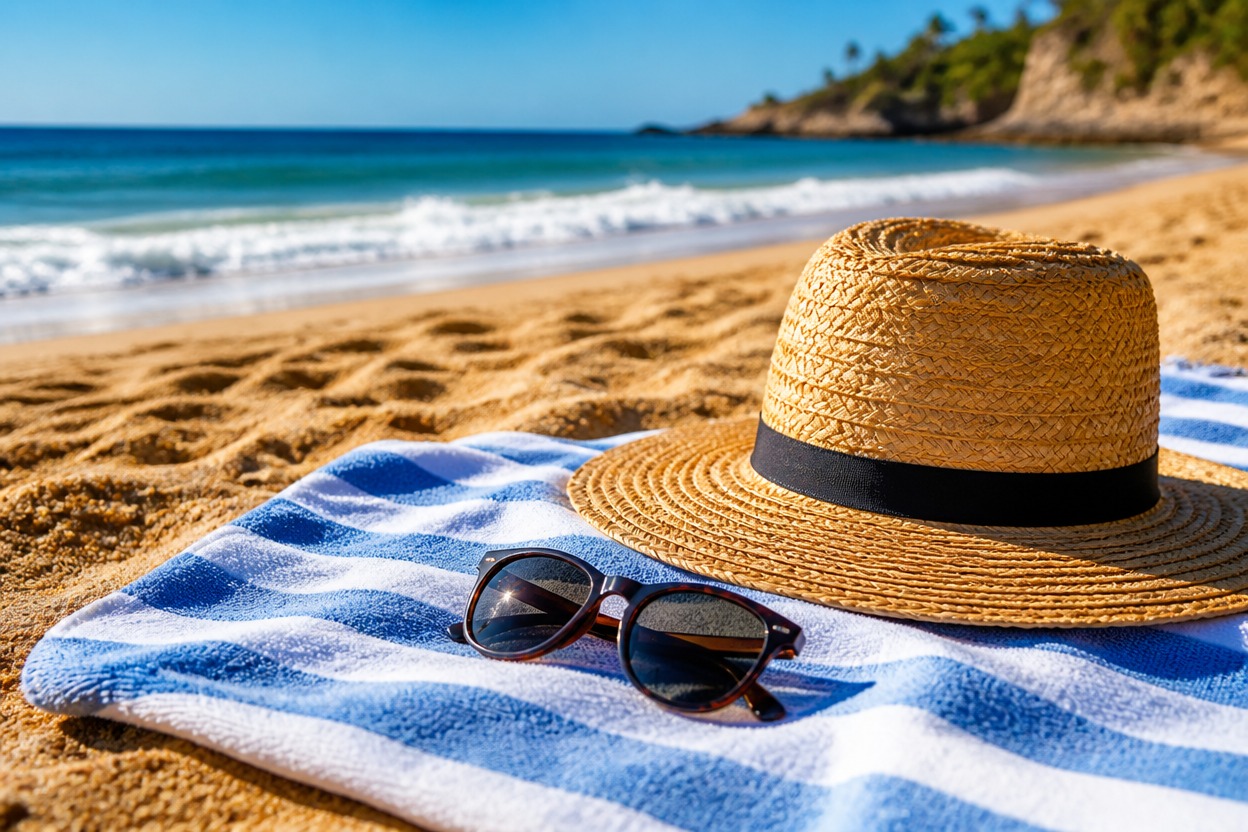
Beach
Upload files
Upload an image to enhance
Mode
By uploading a file, you agree to GoEnhance's Terms of Use and Privacy Policy
What You Can Create With PhotoGrid Image Enhancer
Sharpen Portraits and Restore Facial Detail
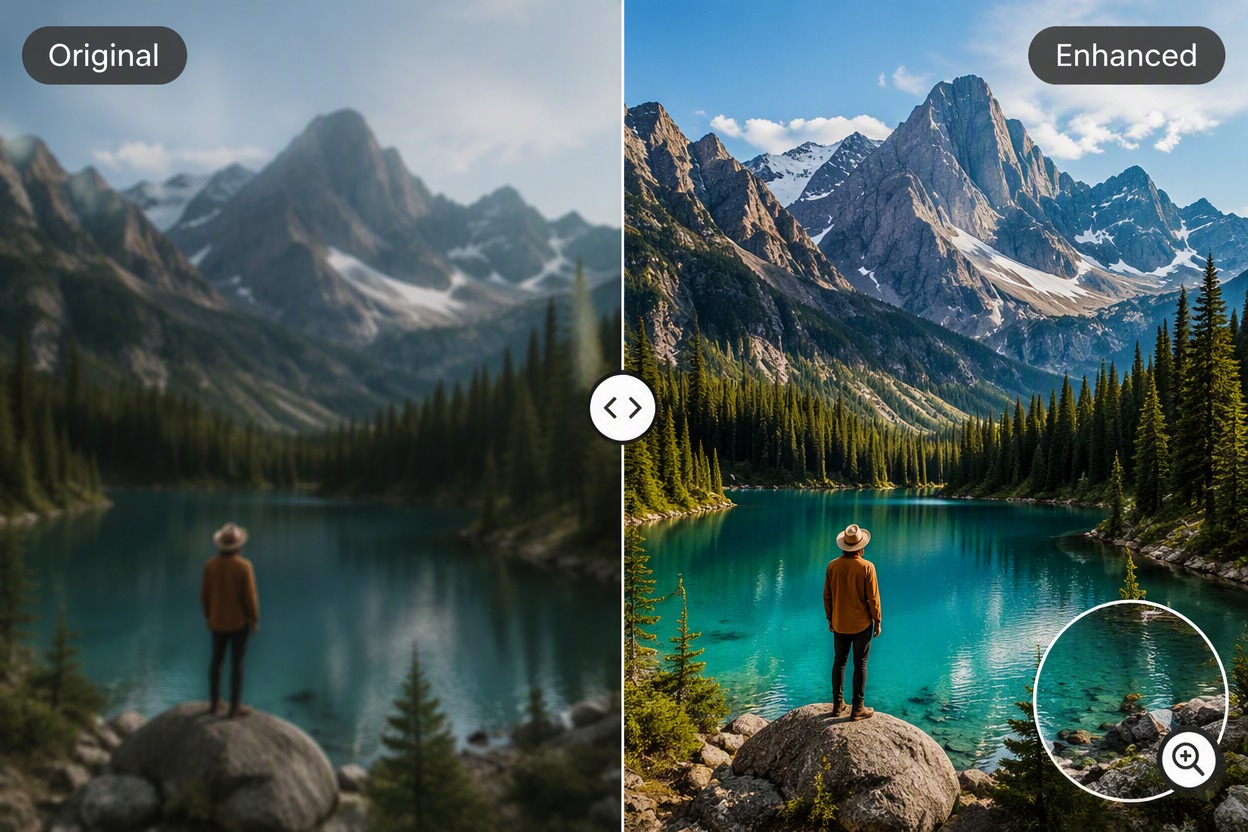
With an AI image enhancer, improve facial clarity, hair texture, clothing details, and overall sharpness while preserving a natural appearance.
How to Use PhotoGrid Image Enhancer
Step 1
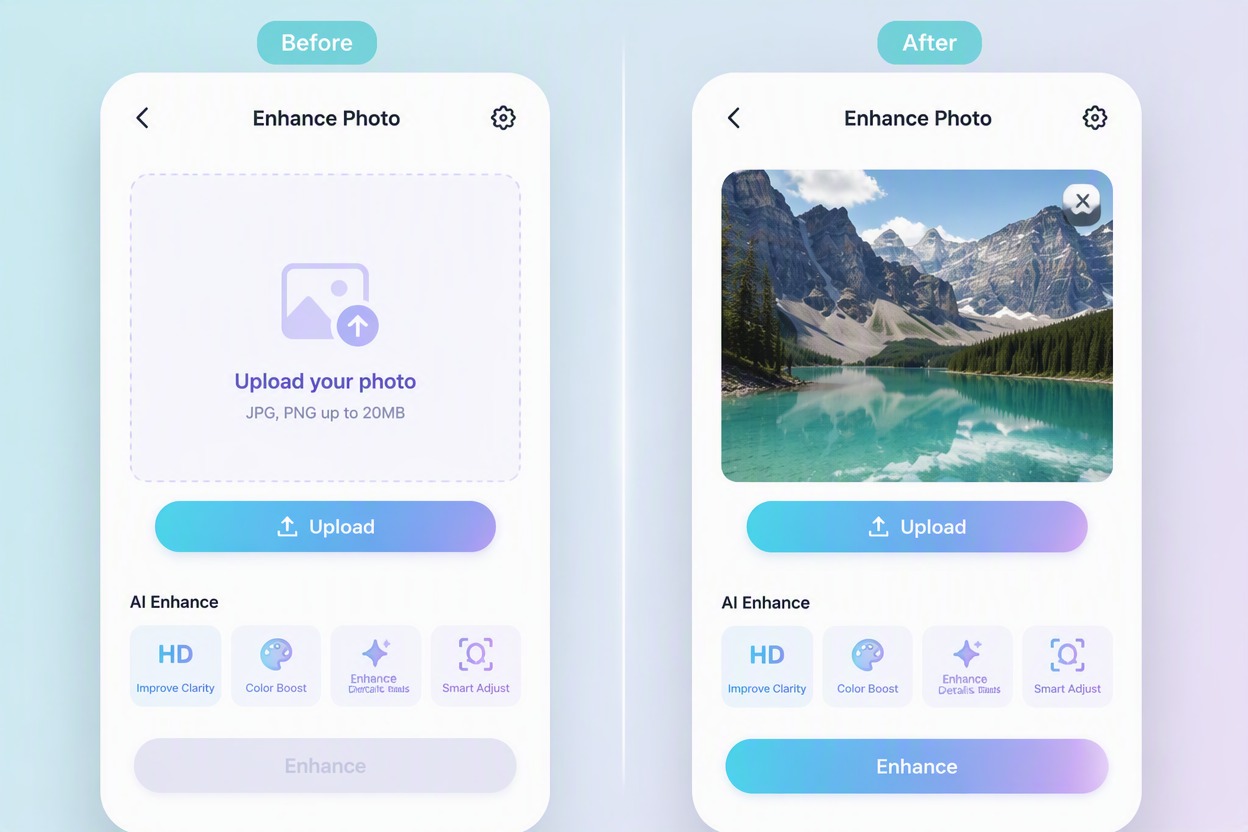
Upload the Best Available Source
Choose the cleanest authorized image you have and retain the original. Avoid repeated screenshots or heavily recompressed copies when a better source is available.
Step 2
Run the Enhancement
Process the image with the available enhancement workflow. Keep the subject, composition, crop, colors, and important objects aligned with the source.
Step 3
Compare and Download
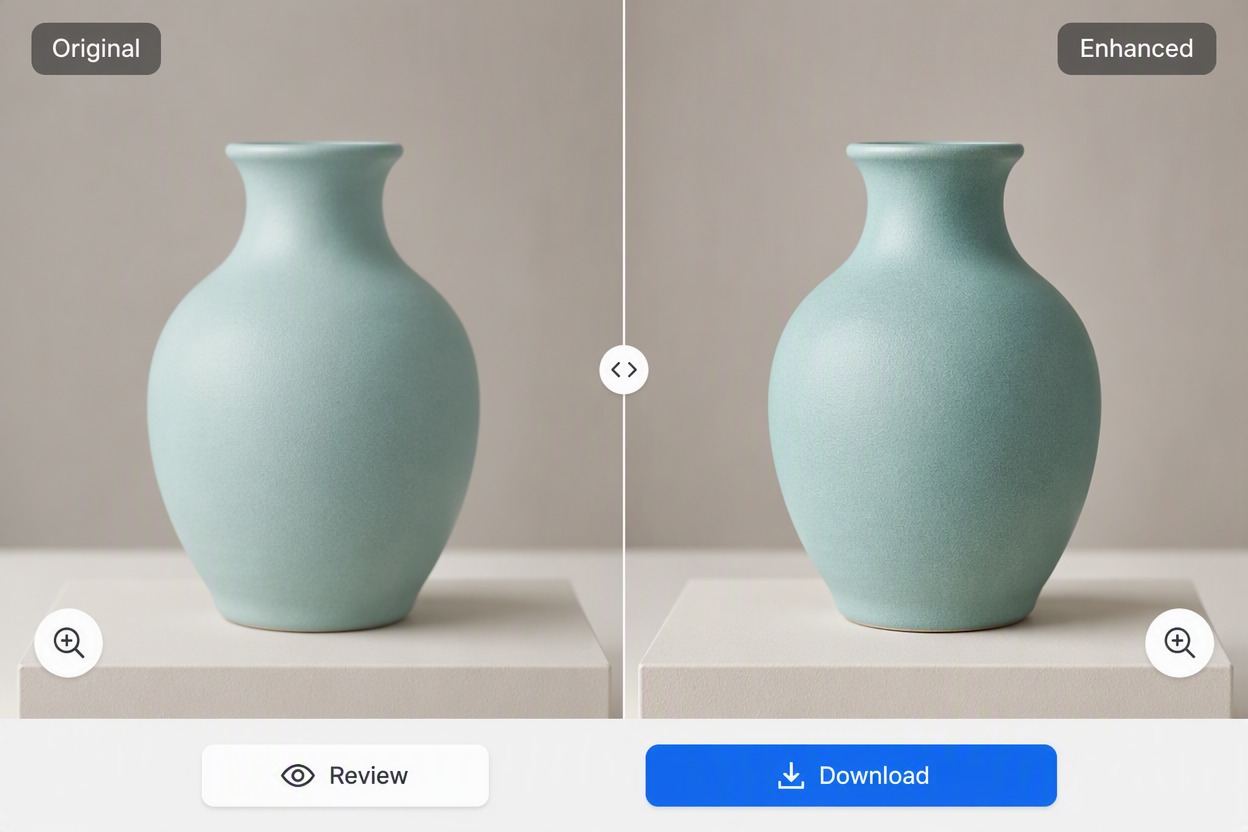
Inspect a matched Original and Enhanced view at full size. Check identity, edges, texture, text, backgrounds, and any product or document detail before downloading.
PhotoGrid Image Enhancer Workflow Highlights
Fast Online Enhancement
Improve an existing image through a simple upload-and-process workflow.
Social Photo Cleanup
Clarify portraits, food, pets, travel, and everyday snapshots for visual posts.
Portrait Detail Review
Check skin, hair, eyes, makeup, jewelry, and background after enhancement.
Collage Asset Preparation
Enhance source images before arranging them into social or collage layouts.
Source-to-Result Comparison
Keep the same subject and crop while reviewing clarity and color.
Download for Mobile Workflows
Save the selected result for an authorized post, collage, profile, or message.
PhotoGrid Image Enhancer FAQ
What does PhotoGrid Image Enhancer do?
Is PhotoGrid Image Enhancer free to use?
Which images are the best inputs?
Can enhancement restore details missing from the source?
Will the enhanced photo keep the same subject?
Can I use the result for business or publishing?
What should I check before downloading?
Explore More AI Image Enhancers
Enhance Your Next Image With GoEnhance AI
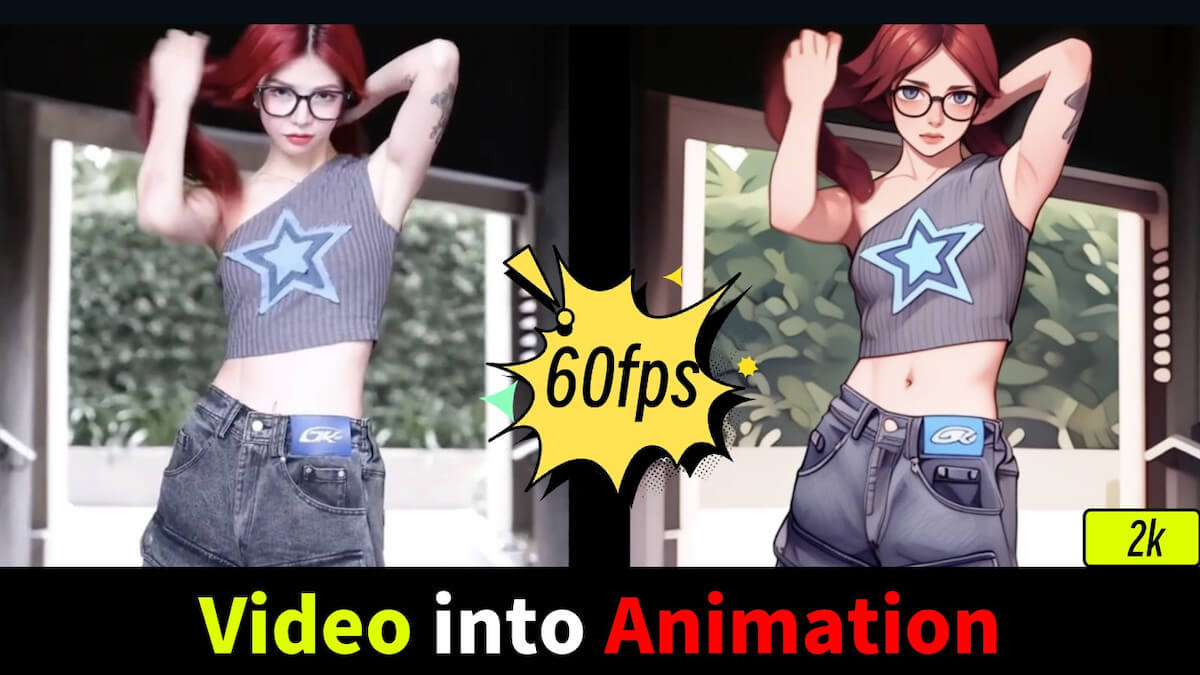
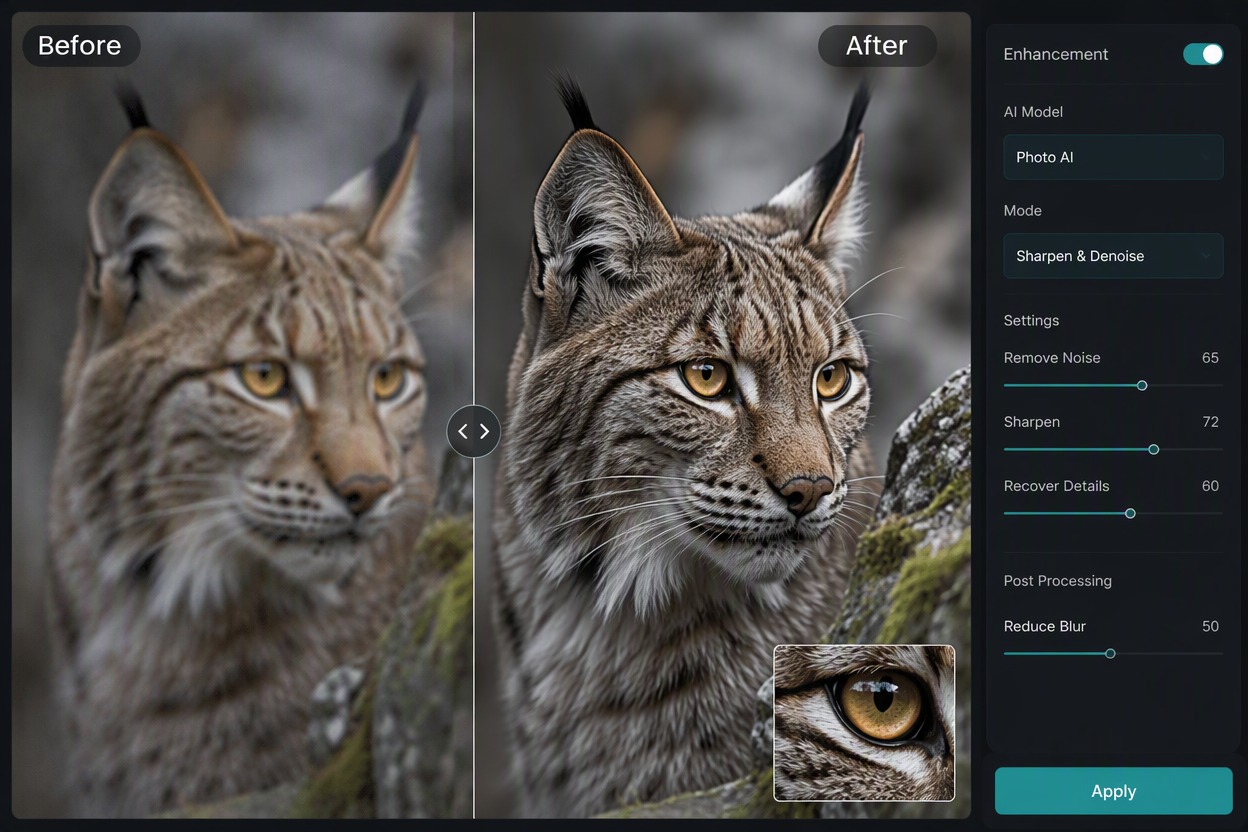
Upload an authorized image, improve visible clarity, compare the result with the source, and export the version that best preserves the original subject.
Start Creating With GoEnhance AI