
Viggle AI Face Swap
Viggle AI face swap focuses on putting a face into a moving scene. Choose a video template or upload a clip, add a clear source photo, and generate a result that follows the scene’s expressions and movement.
Try Face Swap Online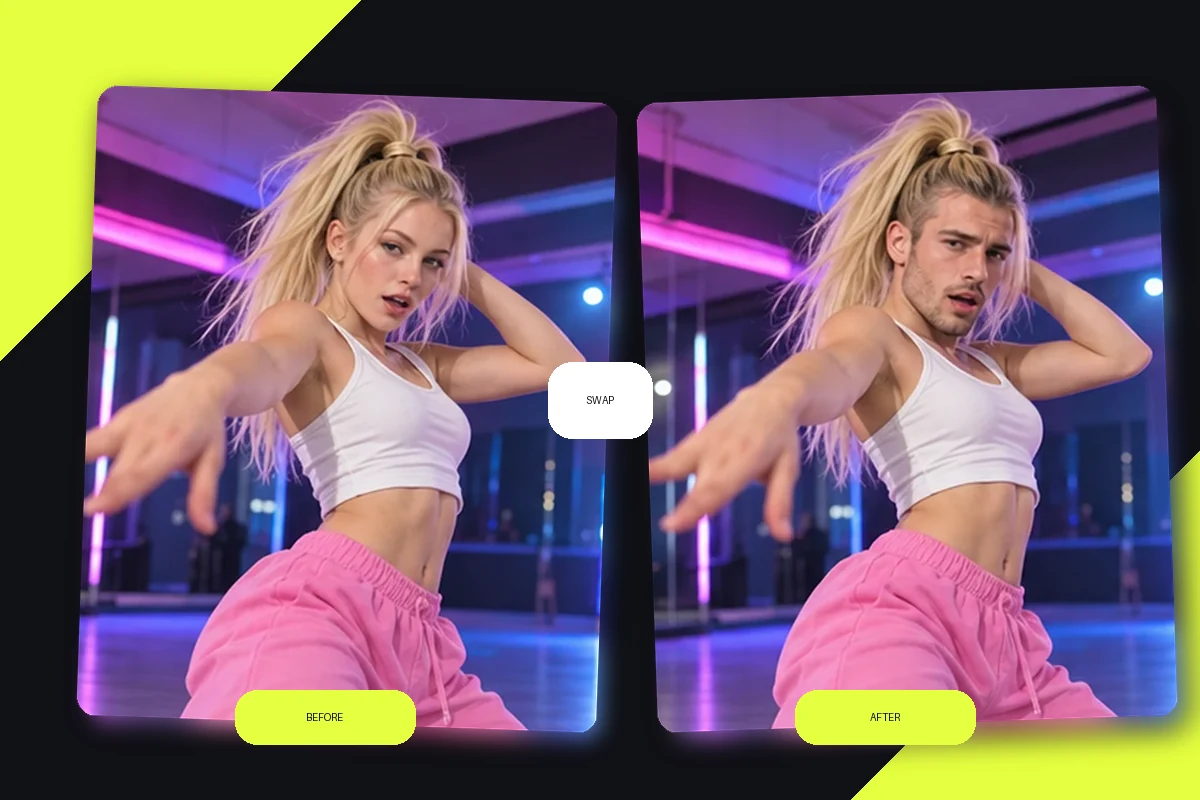
Viggle AI Face Swap Features
Build a Face Swap around Video
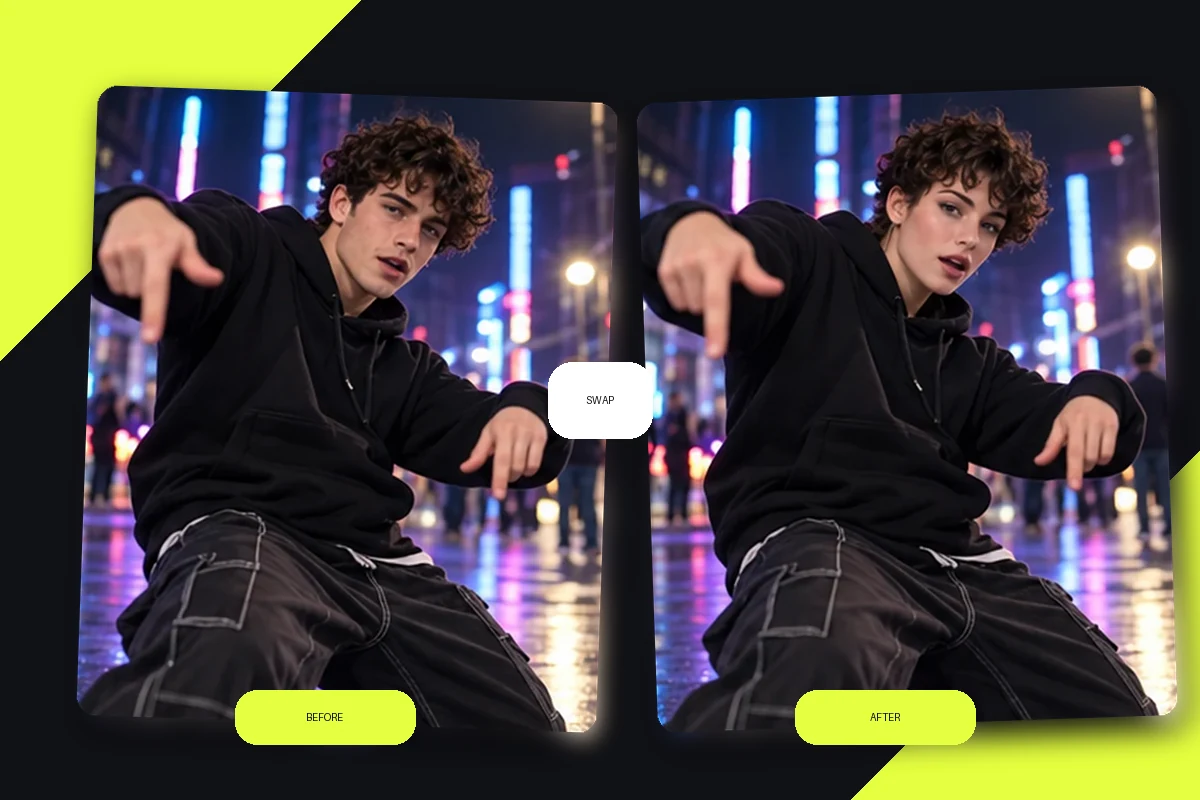
Start with a video template or upload a clip, then add the face photo for the character you want to place in the scene. Open the face swap tool when you’re building a moving remix that depends on the target clip’s action.
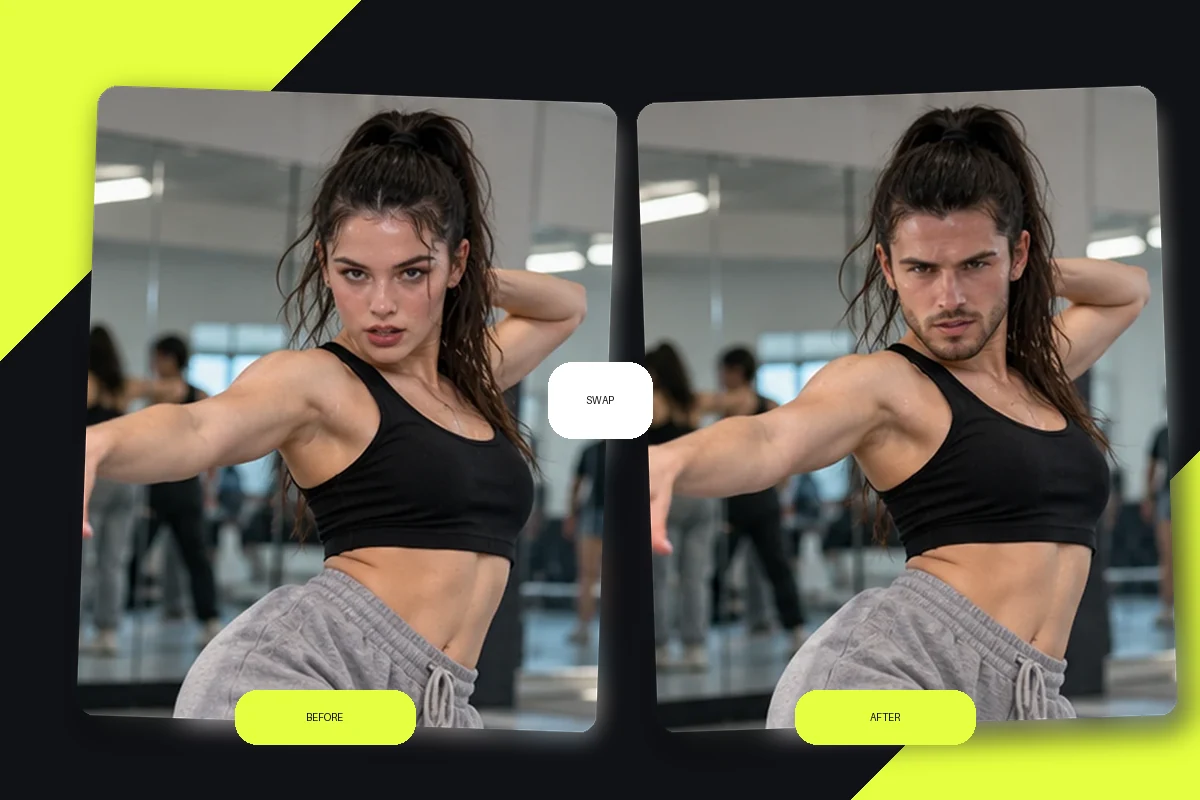
How to Use Viggle AI Face Swap
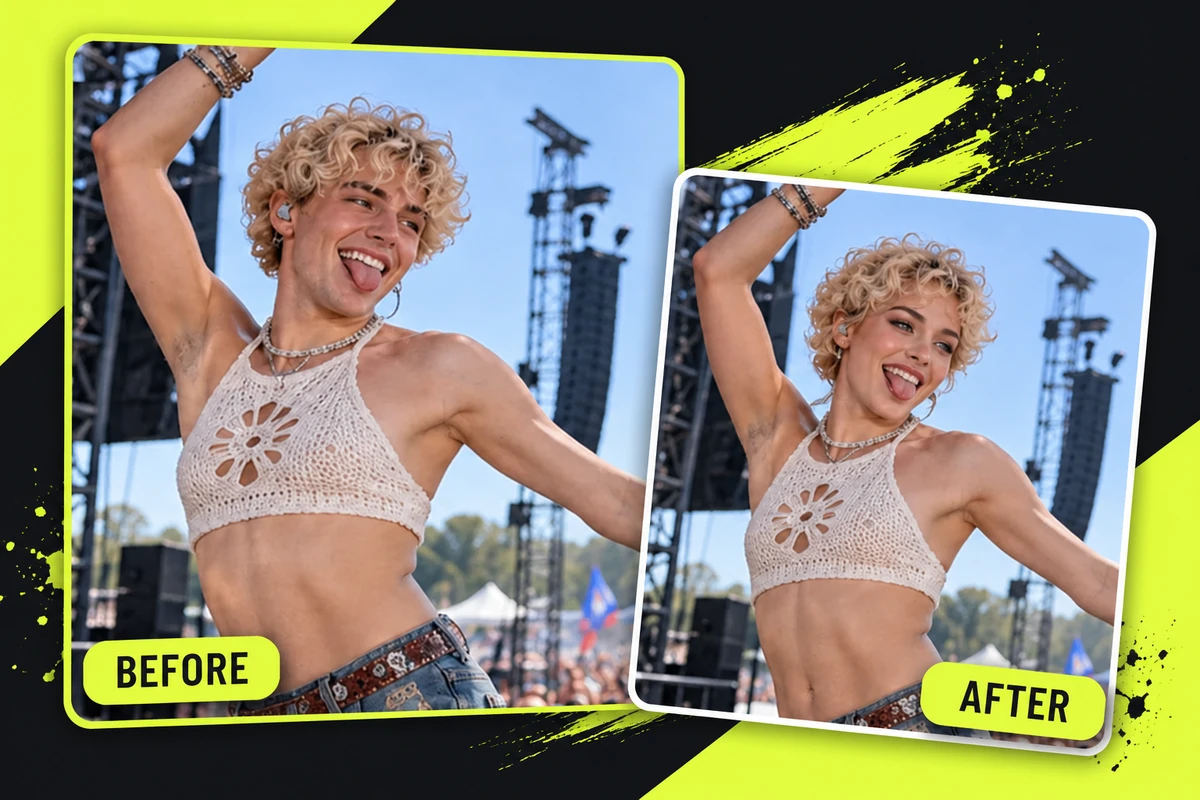
Step 1 1
Choose a Video Scene
Select a Viggle template or bring a video clip that has the action you want to use.
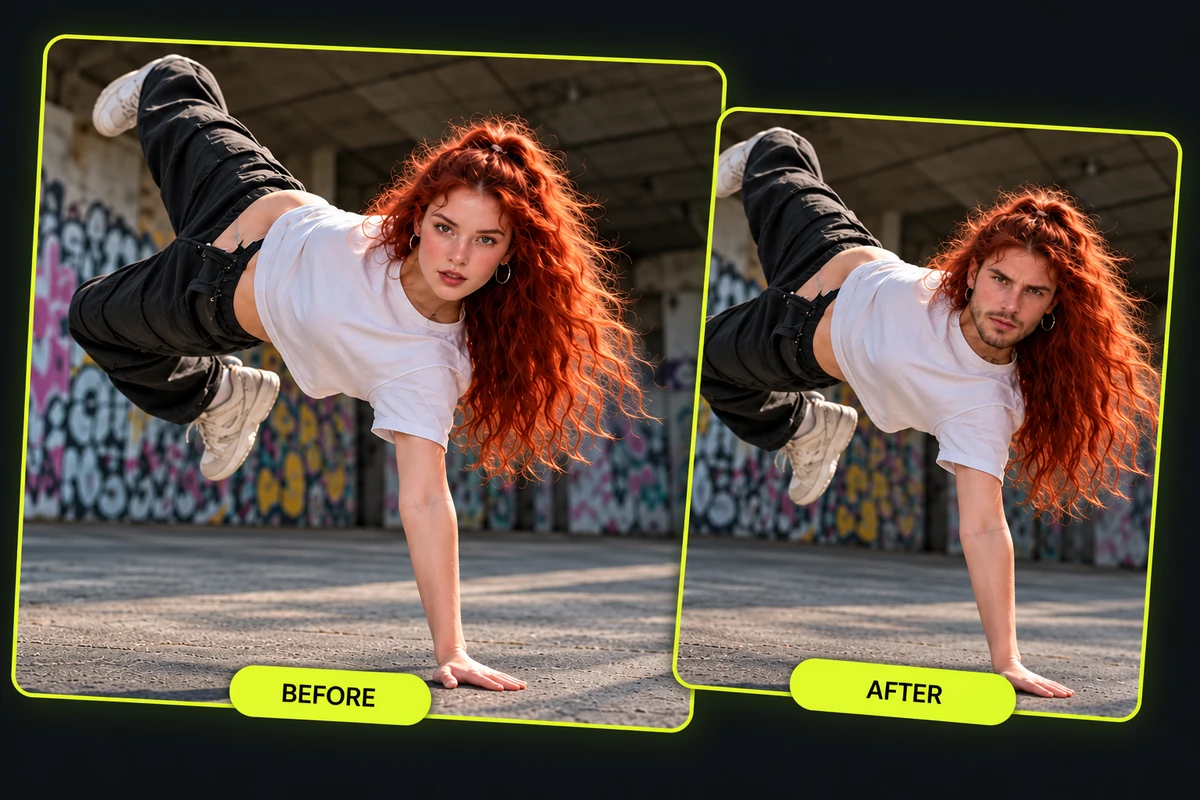
Step 2 2
Upload the Face Photo
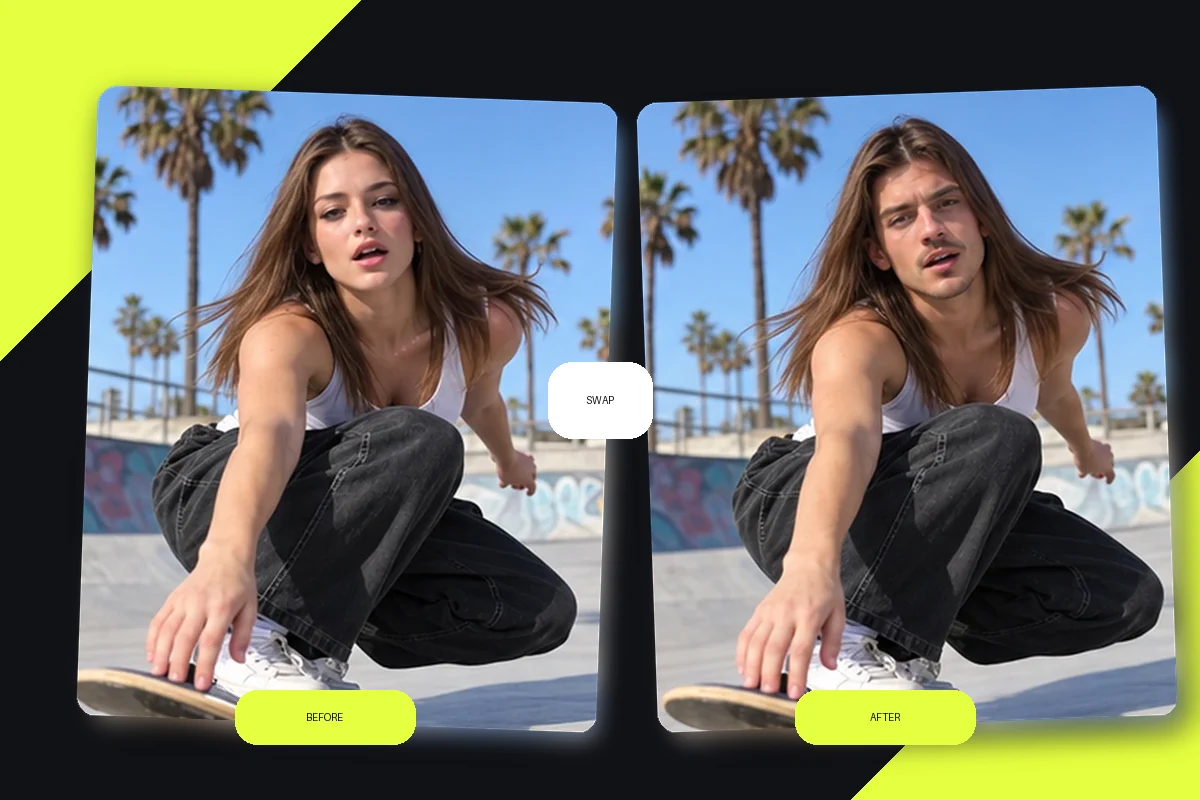
Add a clear source portrait of the person whose face should appear in the video.
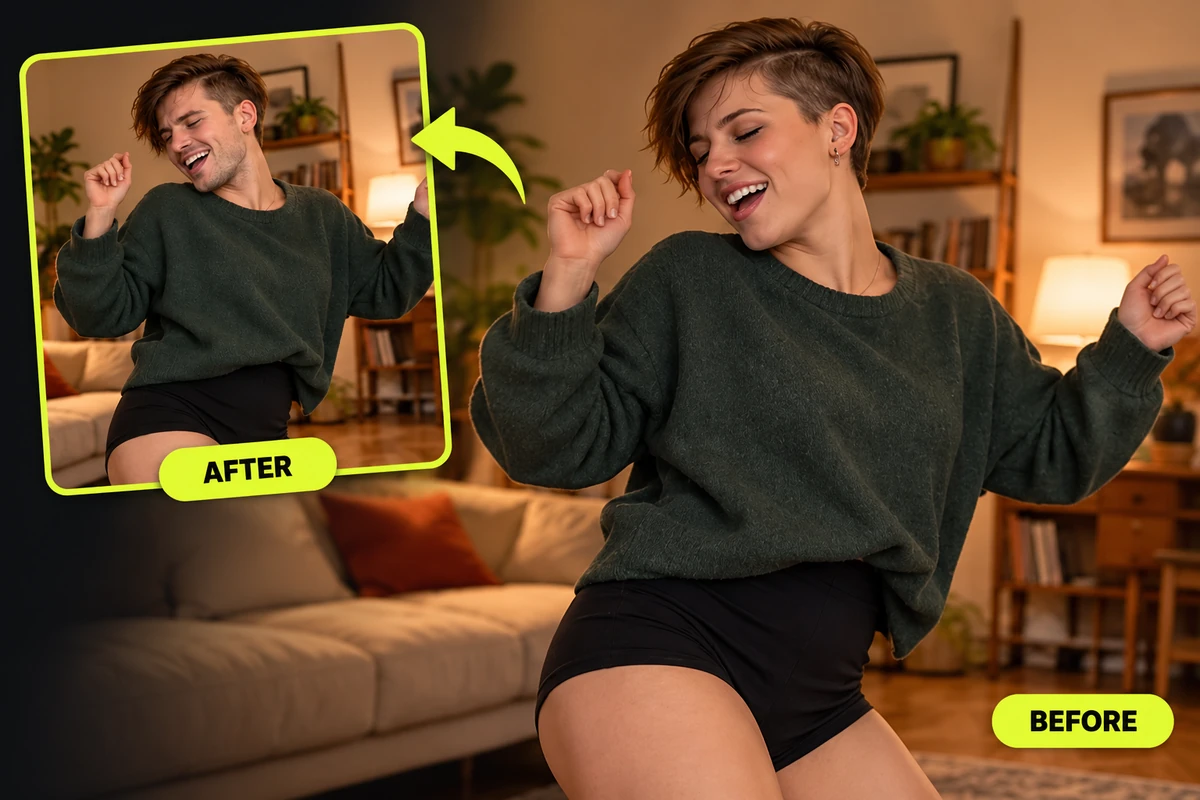
Step 3 3
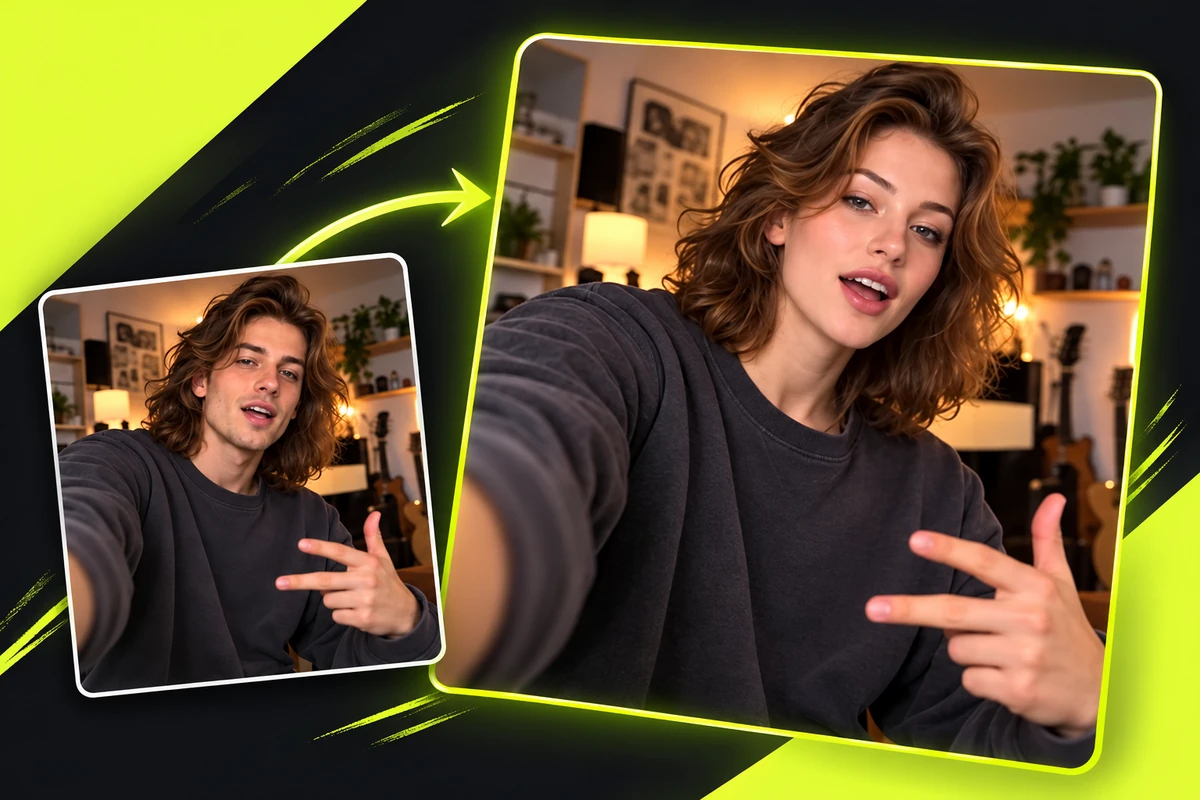
Generate and Check the Clip
Create the swap, then review key frames and movement before downloading or sharing.
Explore More Face Swap Tools
Extend the Idea with GoEnhance Face Swap
Add Photo and GIF Workflows
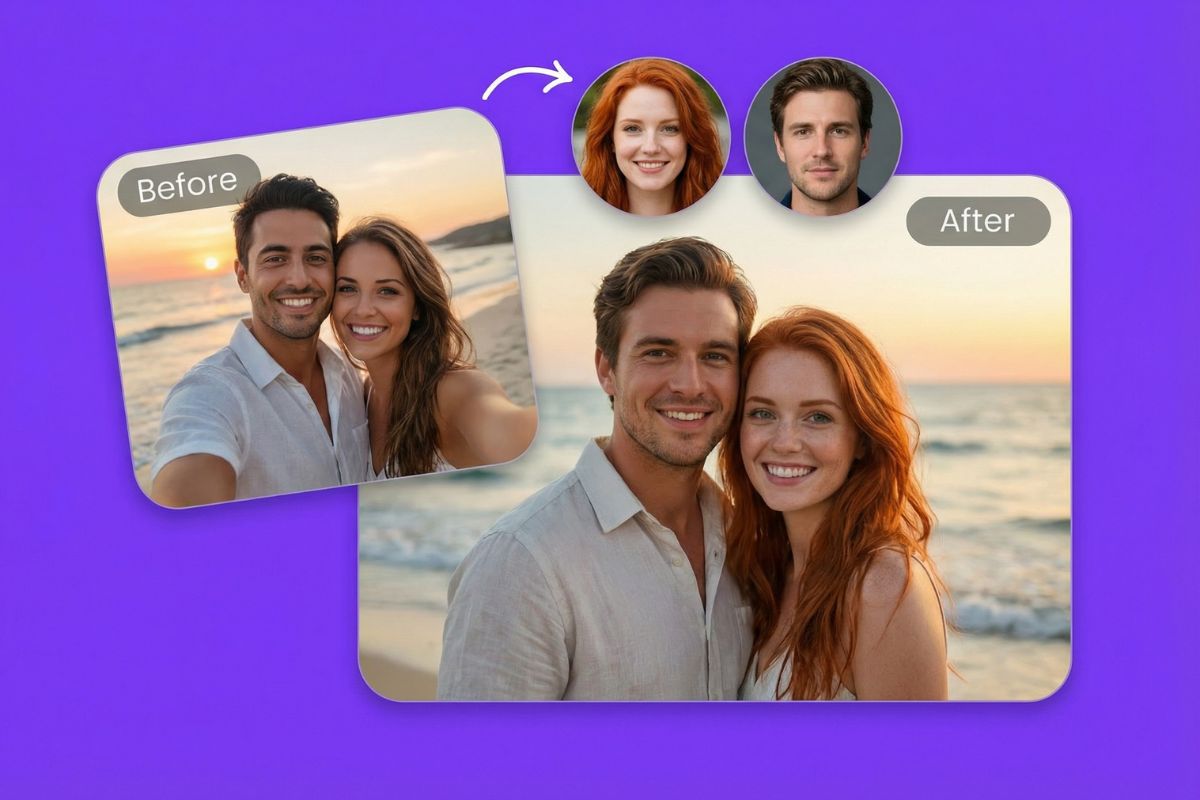
GoEnhance supports face swaps in images and GIFs as well as video, covering still portraits and short animated loops.
Use a Face-Only Direction
Choose a face-swap flow when you want to change facial identity while keeping the target scene as the visual base.
Explore Named Creative Modes
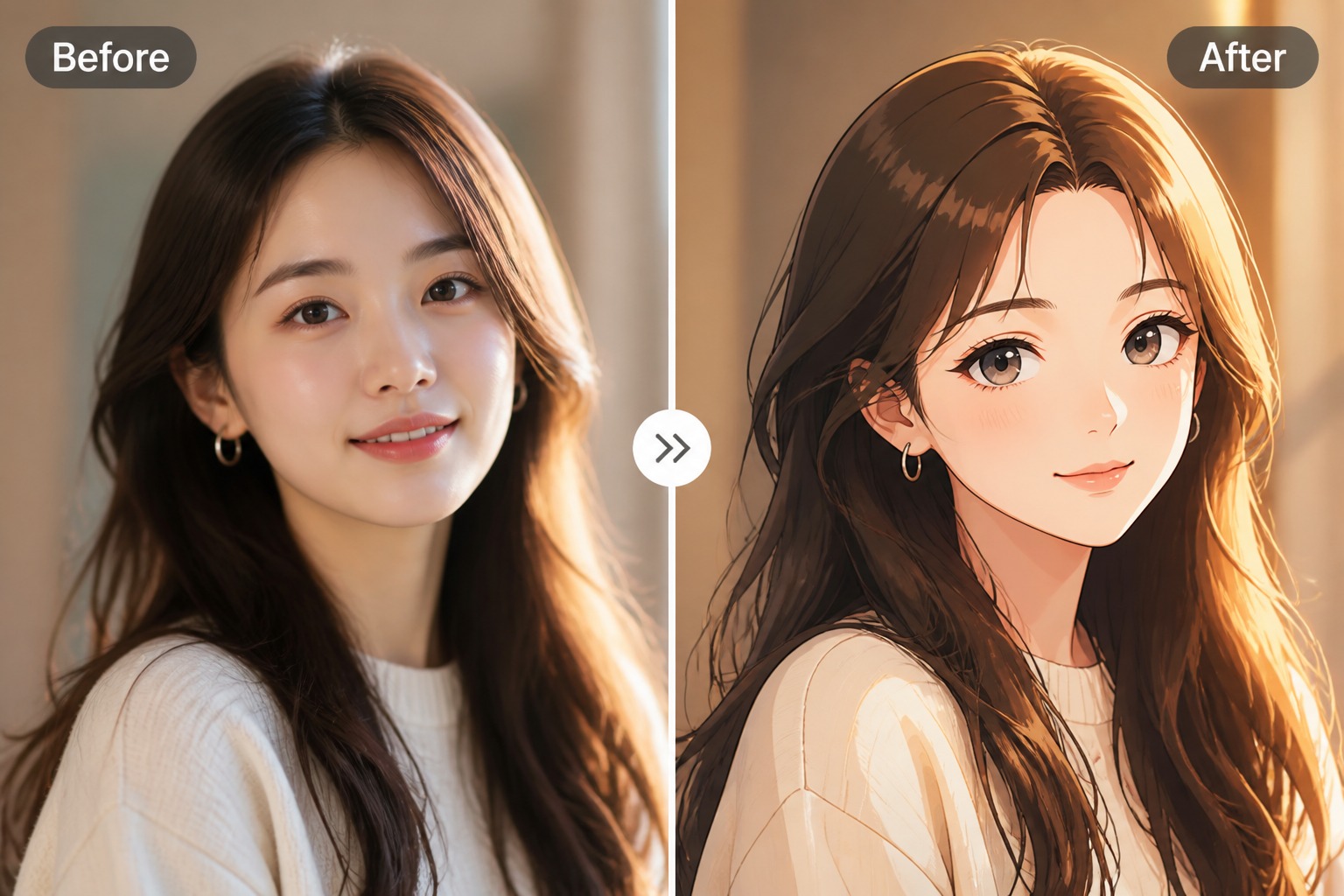
GoEnhance lists Faces & Heads, Male/Female, Famous Face, and Portrait Painting options for more specific ideas.
Bring Your Own Clip
Upload a target video and source portrait into the GoEnhance video face-swap workflow.
Connect Through an Open API
GoEnhance documents an API path for teams integrating face-swap video generation into another workflow.
Test with 30 Free Tokens
GoEnhance lists 30 free tokens to try image and video face swaps.
Viggle AI Face Swap: FAQs
What is Viggle AI face swap?
Can I use my own video with Viggle face swap?
Does Viggle AI face swap work with templates?
What kind of photo should I upload?
Can Viggle AI change the whole person or just the face?
How can I check a video face swap?
Can I make a still photo face swap with Viggle?
Does Viggle AI face swap have an online option?
Try a Video Face Swap
Bring a target clip and a clear portrait, then create a motion-ready face swap with GoEnhance.
Try GoEnhance Face Swap