Batch Image Enhancer

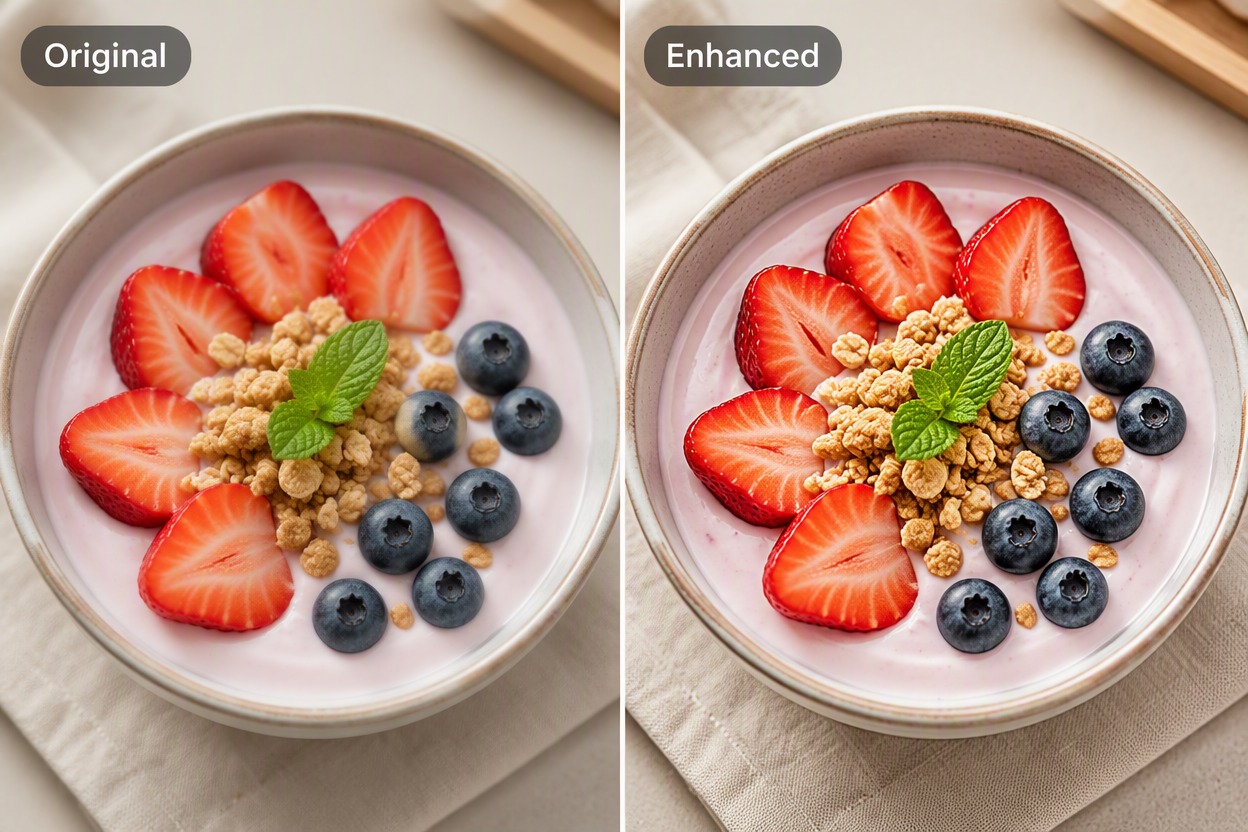
Add a group of related images, improve softness, lighting, color, and fine detail, then review every source and result instead of applying one look blindly across the set.
Enhance a Batch of Images

Improve Photo Sets While Keeping Results Consistent

Process a Related Photo Set Together

Organize portraits, product shots, archive scans, or campaign images in one queue with an image enhancer. A batch view makes it easier to spot inconsistent color, sharpness, or framing across the collection.
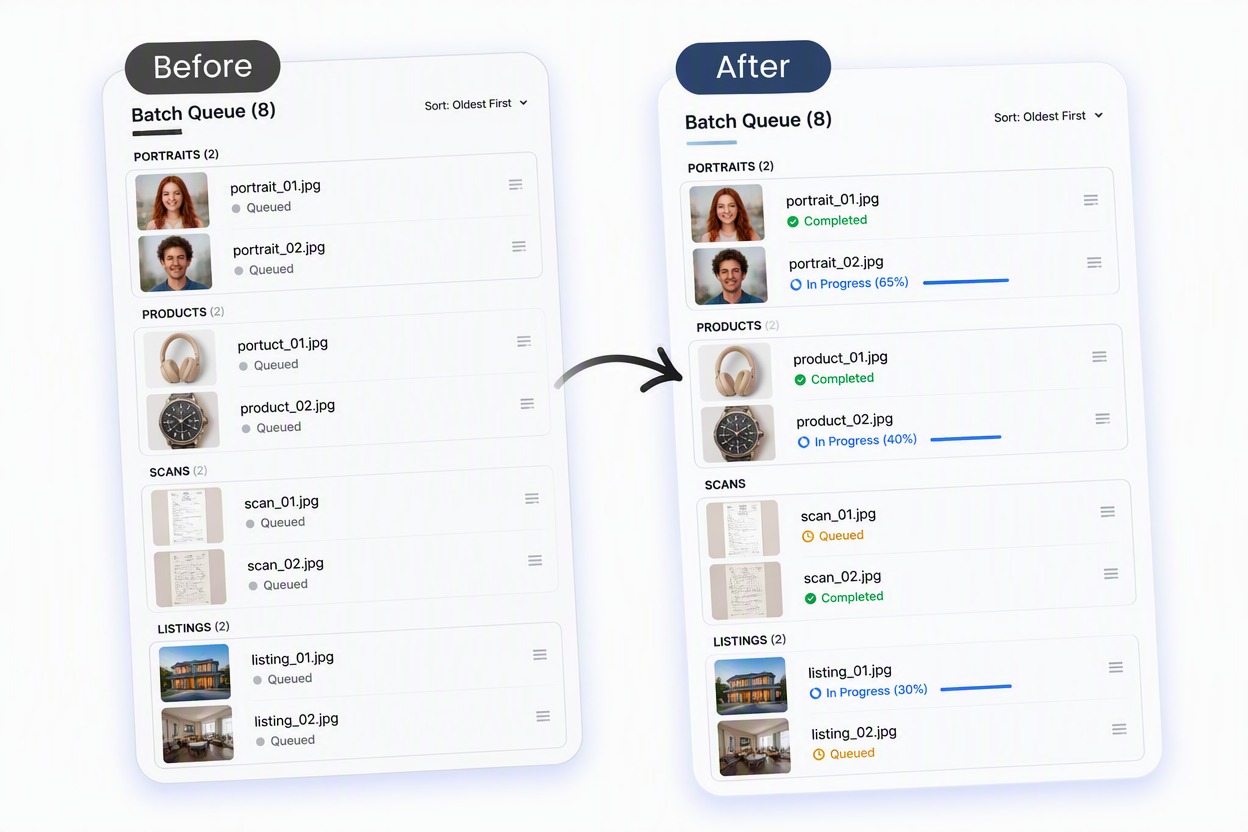
Feature organized enhancement queue with eight varied but rights-cleared thumbnails grouped PORTRAITS, PRODUCTS, SCANS, LISTINGS, each with queued/progress/check state. No before-after result yet, no logos or gibberish.

Balance Portrait Detail Across a Series

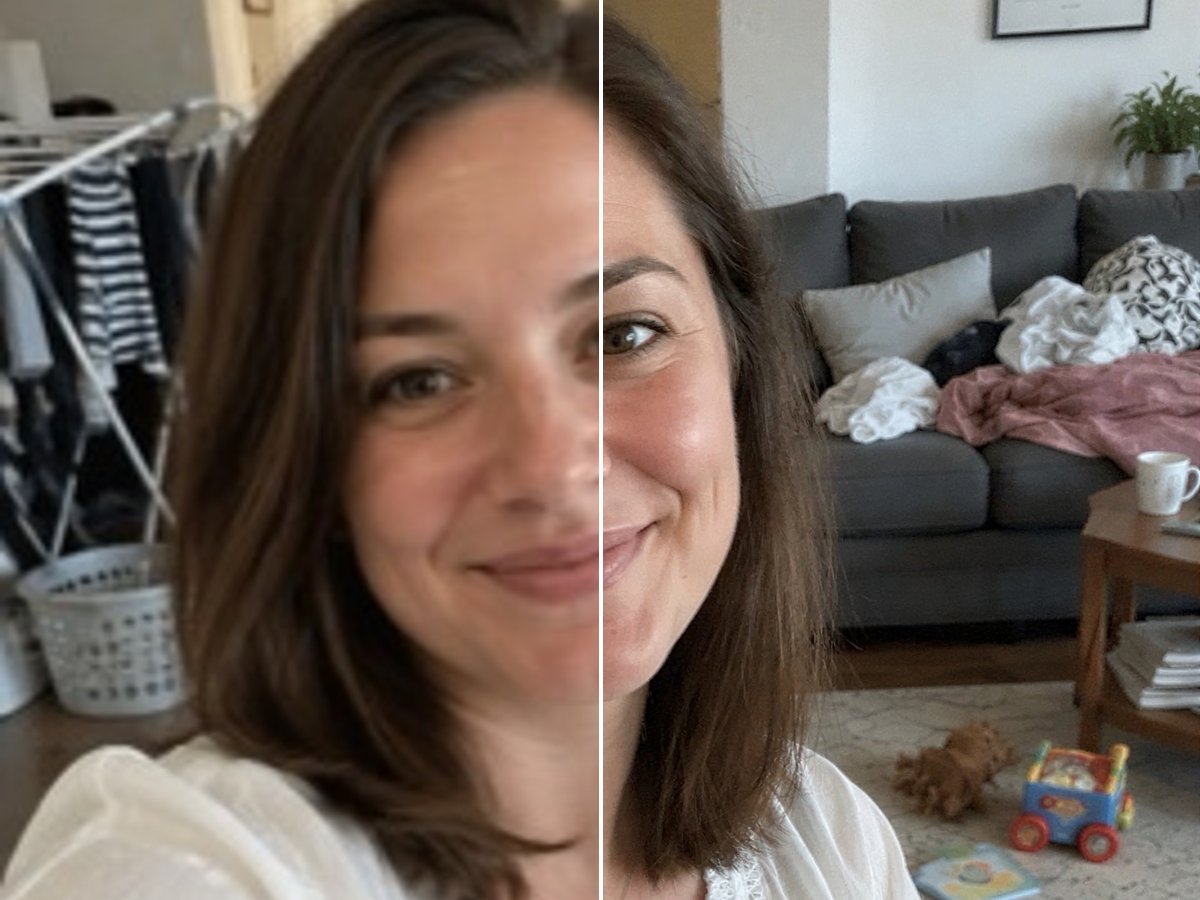
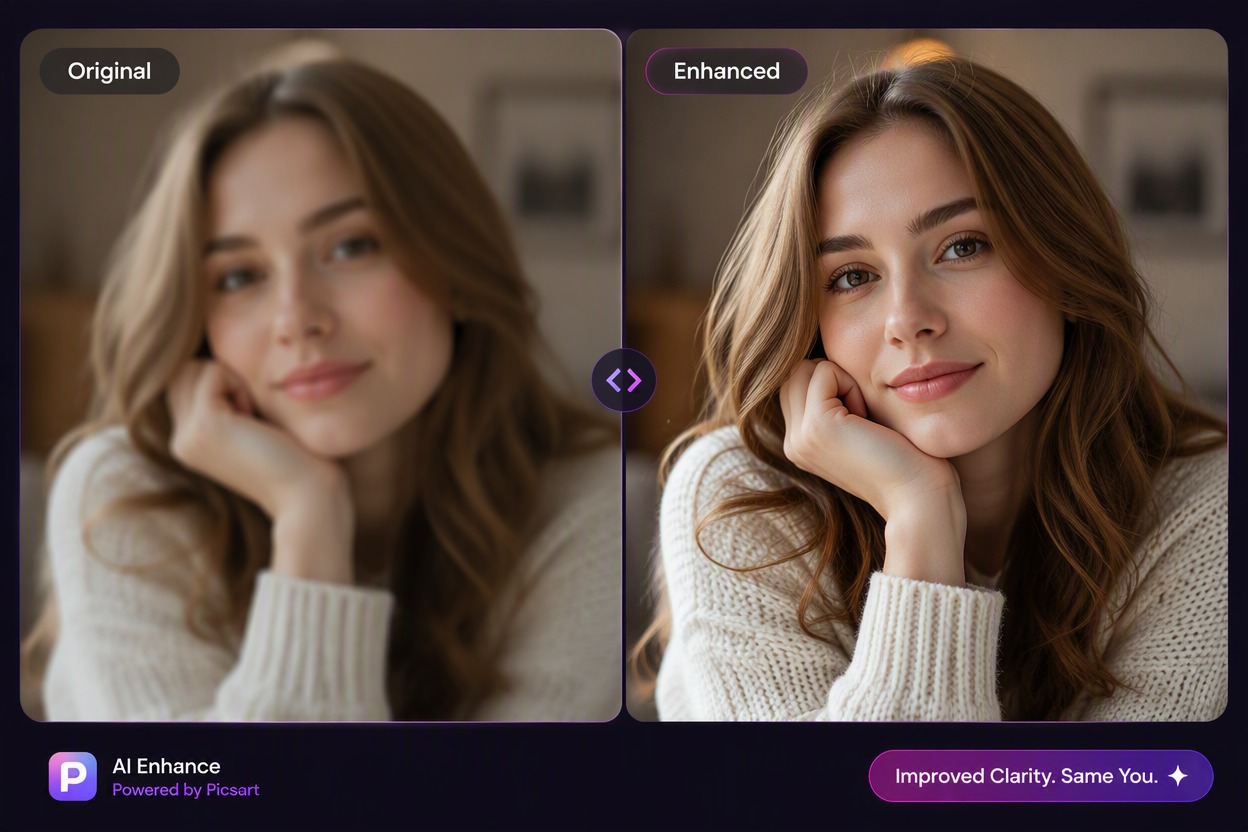
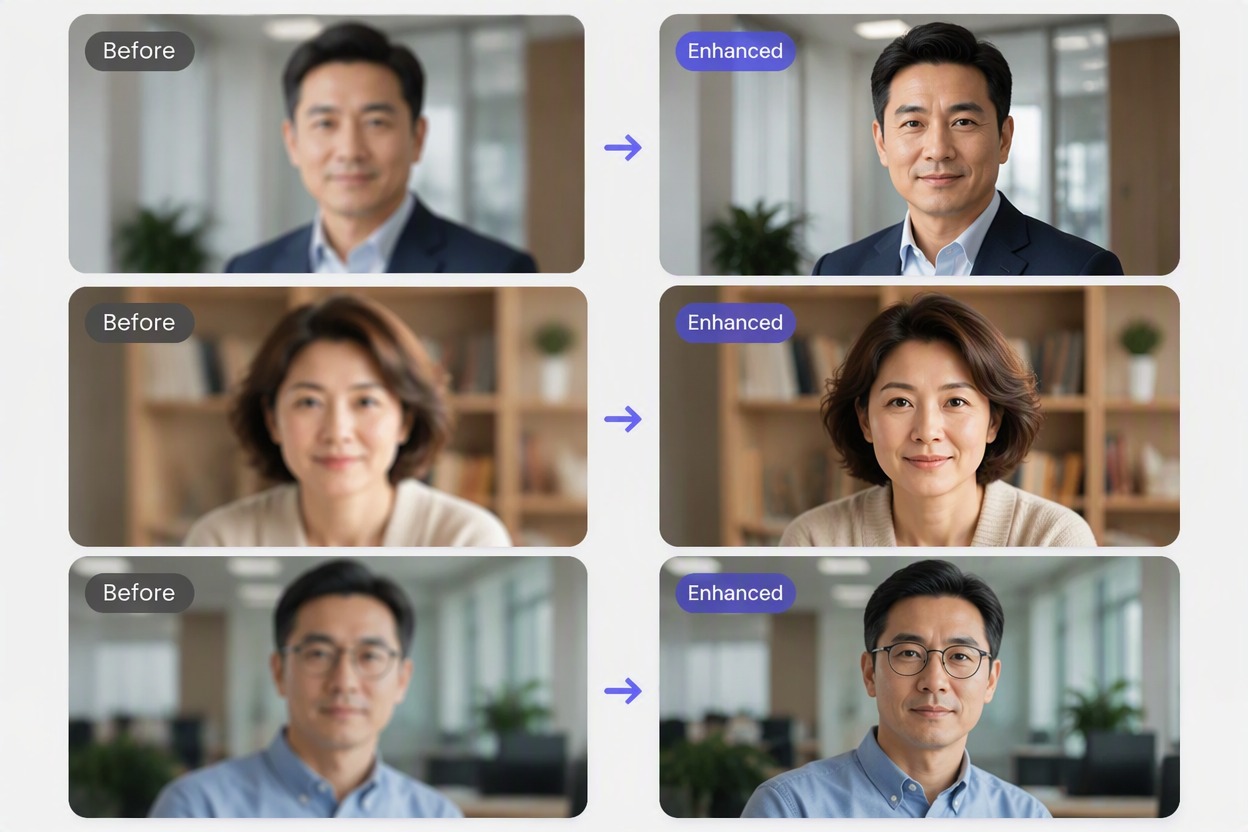
Improve mild softness, uneven light, hair detail, and fabric texture while preserving each person’s identity, expression, age, clothing, and background.

Feature three matched portrait pairs of clearly fictional adults age 35+, each Before mildly soft and Enhanced subtly clearer. Preserve exact identity, expression, age, hair, clothing, crop and background within each pair. Exact labels Before, Enhanced.

Clean Up Product and Listing Photos

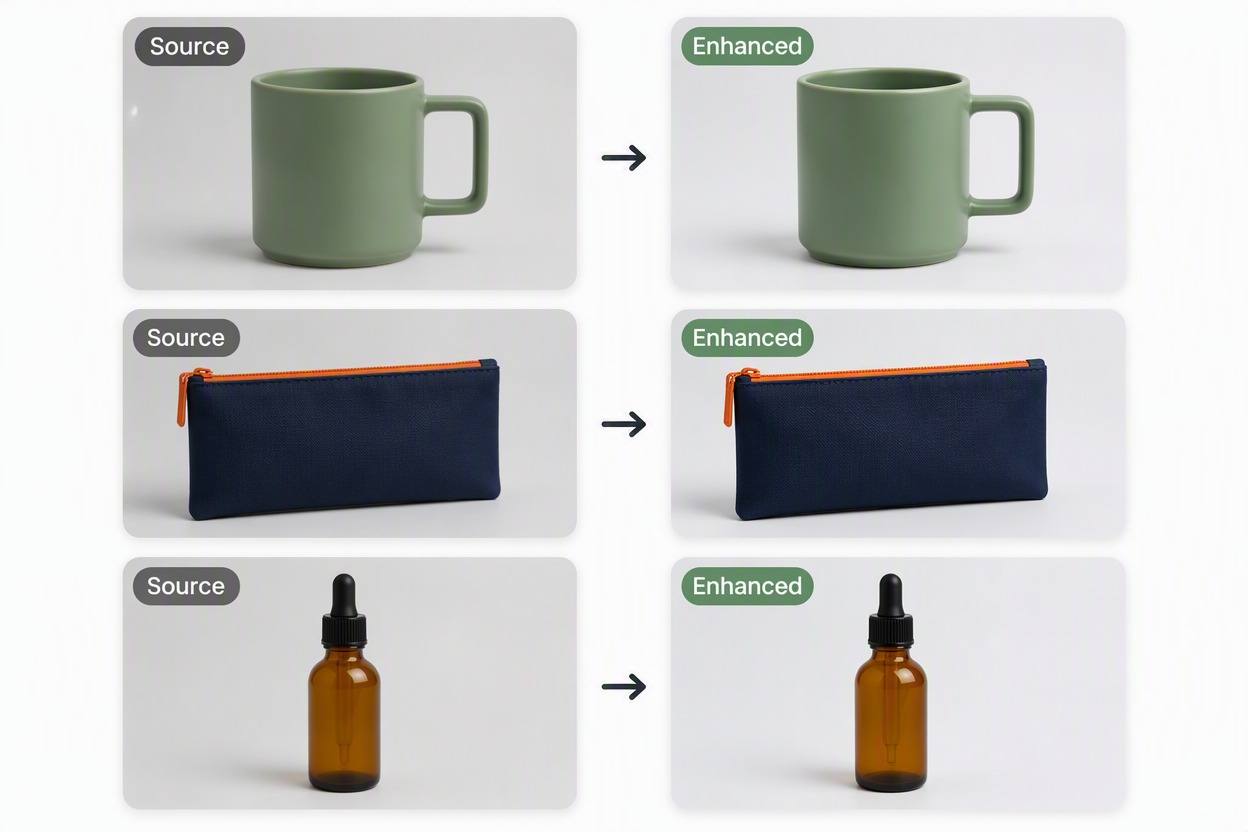
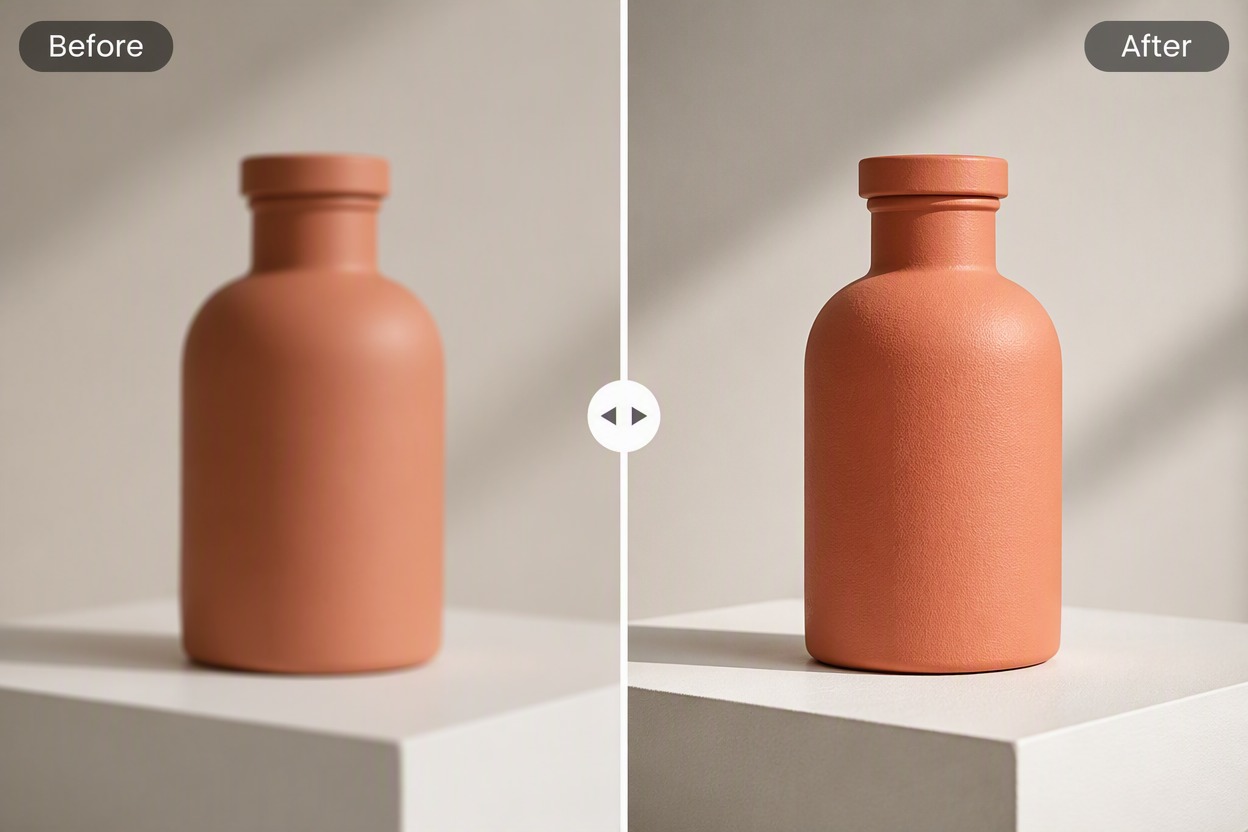
Clarify edges, material texture, lighting, and background tone across related product images without changing shape, labels, color, or included accessories.

Feature three large matched Source/Enhanced product pairs using simple geometry: matte sage-green cylinder mug with one square handle, flat navy rectangular zipper pouch with one straight orange zipper, and plain amber dropper bottle with black cap and no label. Enhanced changes only sharpness, light and edge clarity. Preserve exact silhouette, color, material, handle/zipper/cap geometry, crop and background in each pair. Exact labels Source, Enhanced. No backpack, extra pockets, straps, texture redesign, glossy material change, label, brand or claim.

Compare Every Source and Result

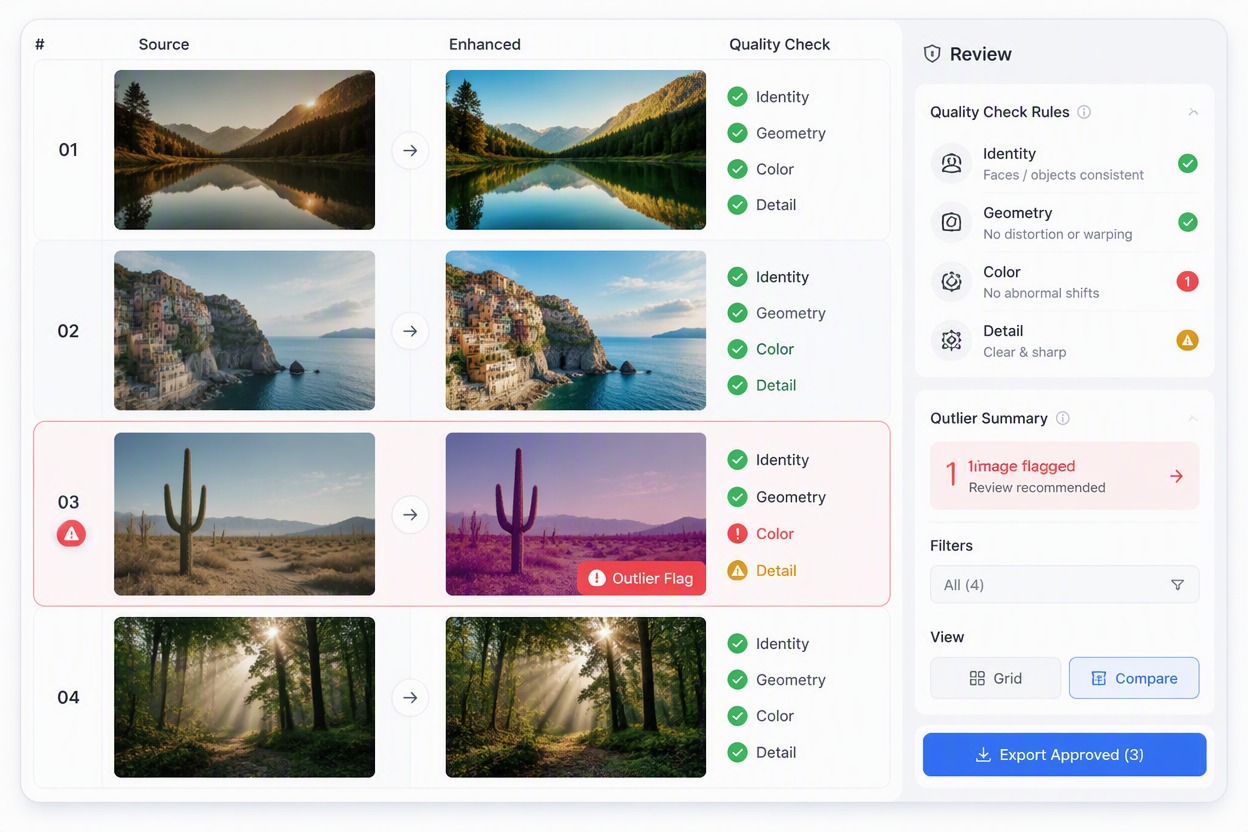
Review matched before-and-after pairs rather than trusting a batch-wide result. Flag identity drift, invented detail, color mismatch, halos, text changes, or geometry errors before download.

Feature batch review application with four matched source/result rows, one flagged color outlier and qualitative checks Identity, Geometry, Color, Detail. No scores, percentages, logos or unsupported claims. Exact labels Source, Enhanced, Review.

Why Use a Batch Photo Enhancer

Handle Multiple Files in One Queue

Keep related sources, statuses, and results visible in one organized workspace.

Apply a Consistent Technical Direction

Aim for comparable clarity, contrast, and color across a related set.

Support Different Photo Categories

Work with portraits, products, scans, listings, and social-image collections.

Preserve Individual Source Identity

Review each face, object, label, crop, and background against its own source.

Find Outliers Before Export

Spot one over-sharpened, color-shifted, or geometrically changed result within the batch.

Download a Reviewed Collection

Export only after each matched pair meets the intended quality bar.

How to Use Batch Image Enhancer
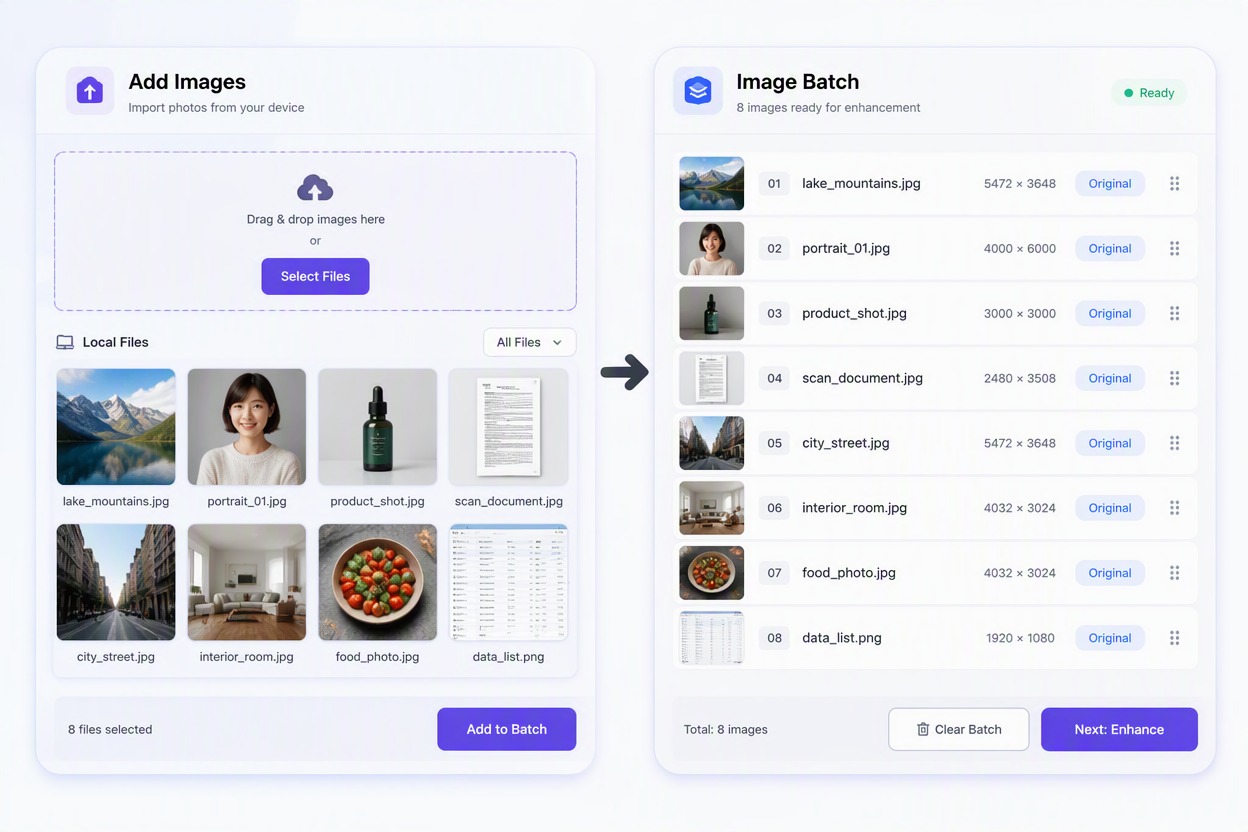
Add the Image Batch

Upload a related group of rights-cleared images. Keep portraits, products, scans, or campaign sets organized so each source can be matched to its output.
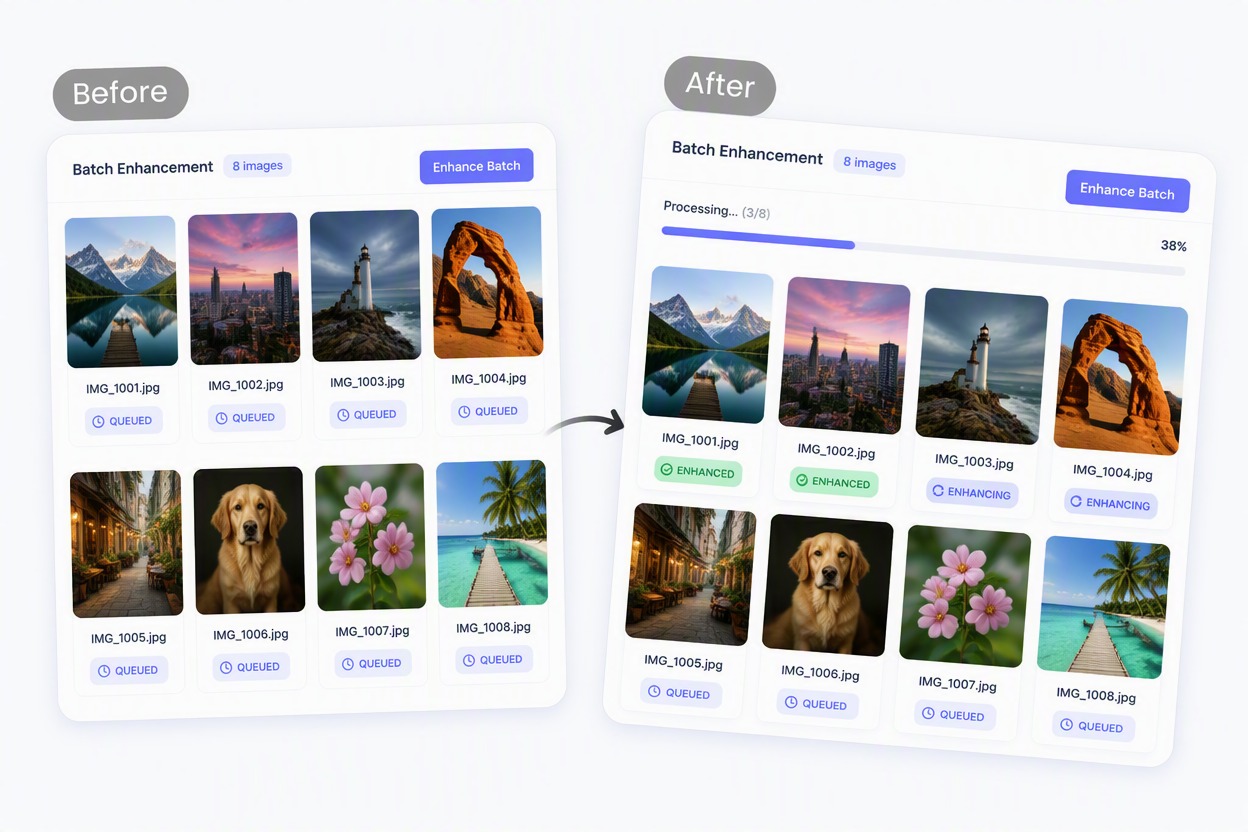
Generate the Batch Enhancement

Start the batch and monitor each item as it moves from queued to enhanced. Technical improvements should remain restrained and source-specific.
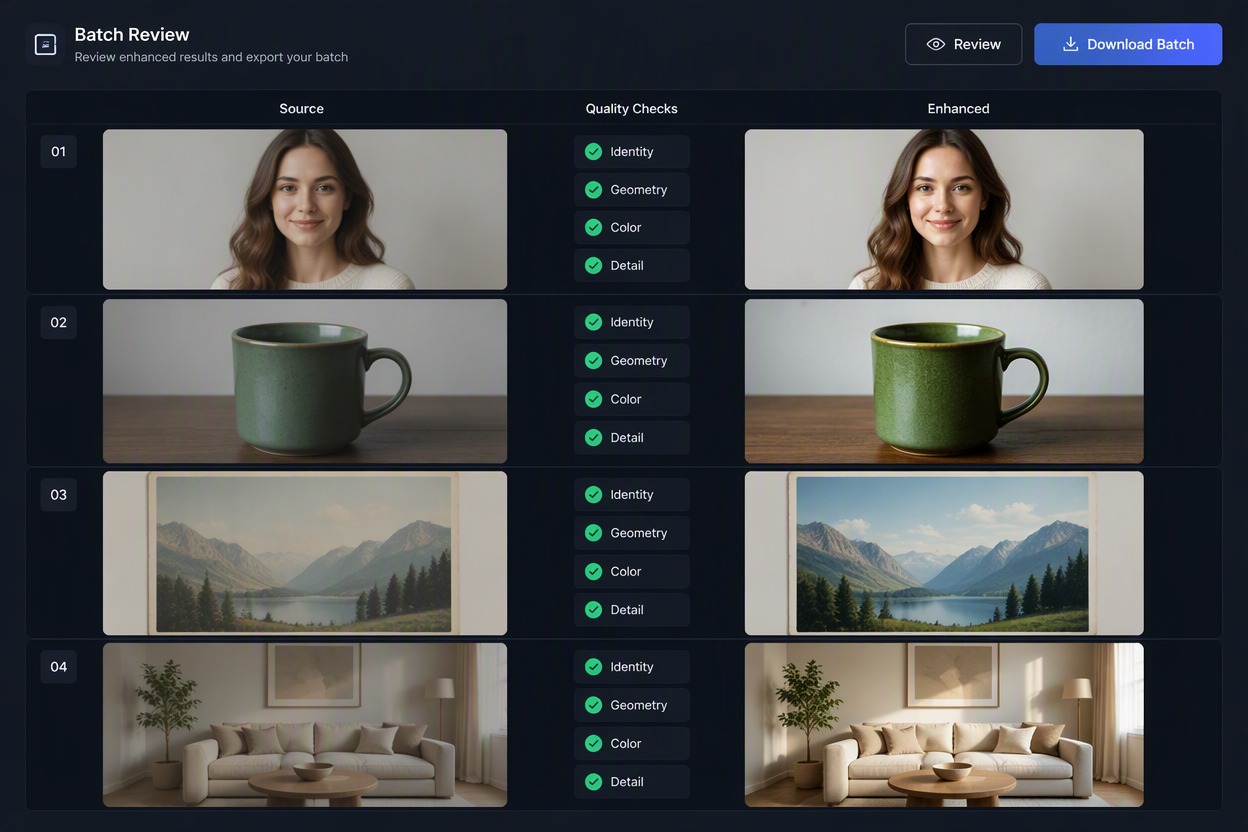
Review Pairs and Download

Open every source/result comparison. Check identity, text, product geometry, crop, color, edges, background, and outliers before downloading the approved set.

Batch Image Enhancer FAQ

What is a batch AI image enhancer?

A batch AI image enhancer processes multiple photos in one workflow. It can help improve details, sharpness, lighting, color, and overall clarity across a related image set.

How does batch image enhancement work?

Upload a group of images, choose the available enhancement settings, and process them together. Review the results individually before exporting because each photo may respond differently.

Can I enhance multiple photos at once?

Yes, batch enhancement is designed for processing several images in one session. The supported number of files, upload formats, file sizes, and export options depend on the current tool settings.

What types of images can I enhance in bulk?

Common use cases include portraits, product photos, real estate listings, archive scans, social media assets, ecommerce images, and marketing visuals.

Is there a free batch image enhancer?

Some tools offer free credits, starter access, or limited batch processing. Check the current plan details for file limits, queue priority, resolution, and export restrictions.

Does batch enhancement apply the same settings to every image?

Many batch workflows use shared settings across the uploaded set, but the final appearance can vary according to each image's lighting, subject, texture, and original resolution.

Will batch enhancement make every photo look consistent?

It can create a more consistent overall direction for a related set, but it cannot guarantee identical results. Review skin tones, product colors, exposure, cropping, and background details in every image.

Can a batch enhancer improve blurry or damaged photos?

It may improve usable soft, noisy, or low-contrast images, but it cannot reliably recover detail that was never captured. Severely damaged, extremely small, or heavily compressed photos may still require manual restoration.

What should I check before downloading enhanced images?

Inspect faces, eyes, teeth, hair, skin texture, text, logos, product shapes, colors, edges, background lines, cropping, and any images that look noticeably different from the rest.

Can I use batch-enhanced images commercially?

Confirm that you have permission to use the source photos and review the current service terms for generated outputs, commercial usage, brands, people, artwork, products, and other protected content.

Enhance a Photo Batch With GoEnhance AI

Organize related images, improve technical quality, and review each source/result pair before export.

Enhance Multiple Photos