PixNova AI Face Swap for Photos and Videos

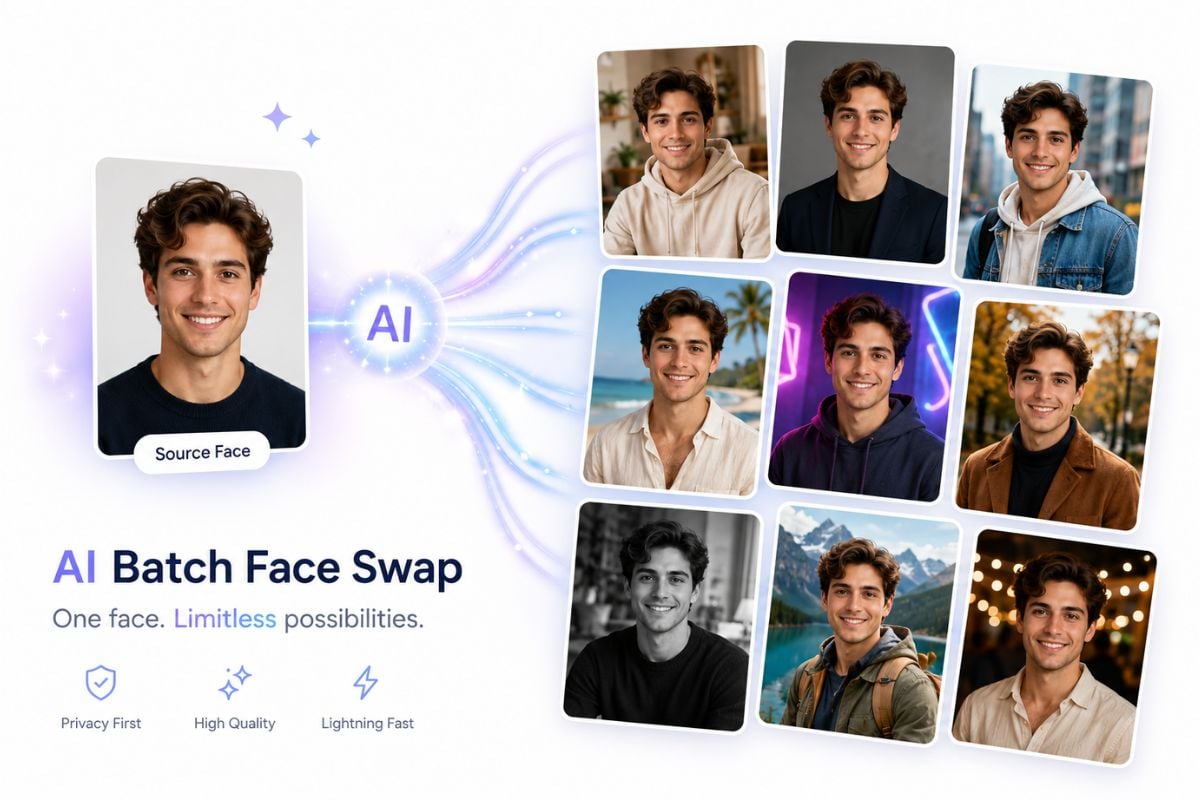
PixNova AI offers a browser-based face swap for photos and video clips, with templates and options for single or multiple faces. Upload target media and a source face, then generate and review your result.
Try Face Swap Online
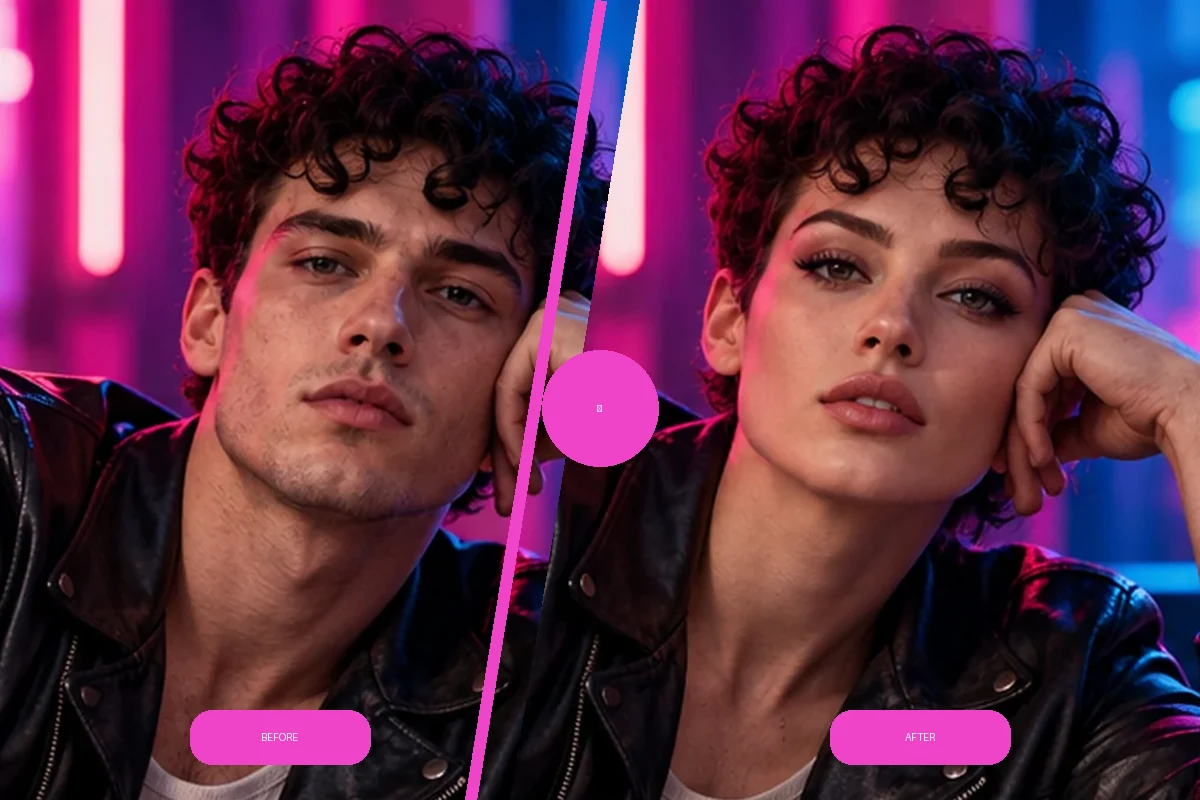
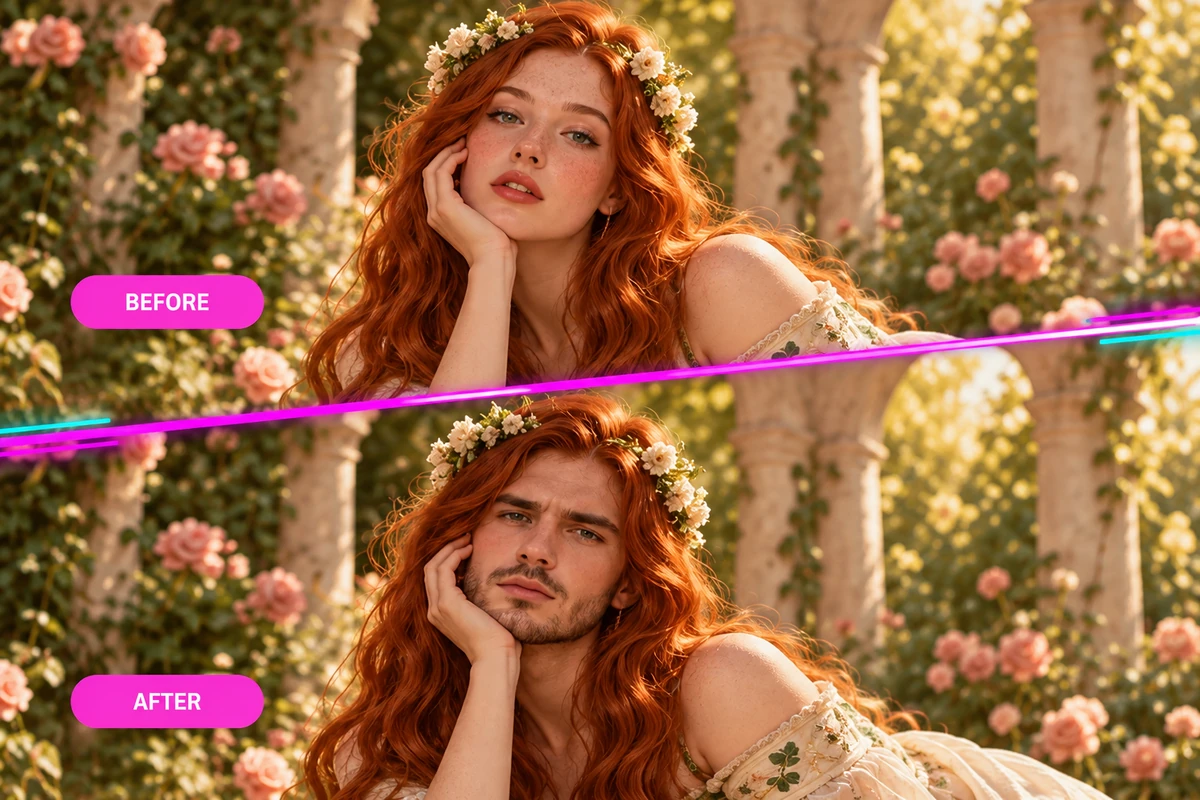
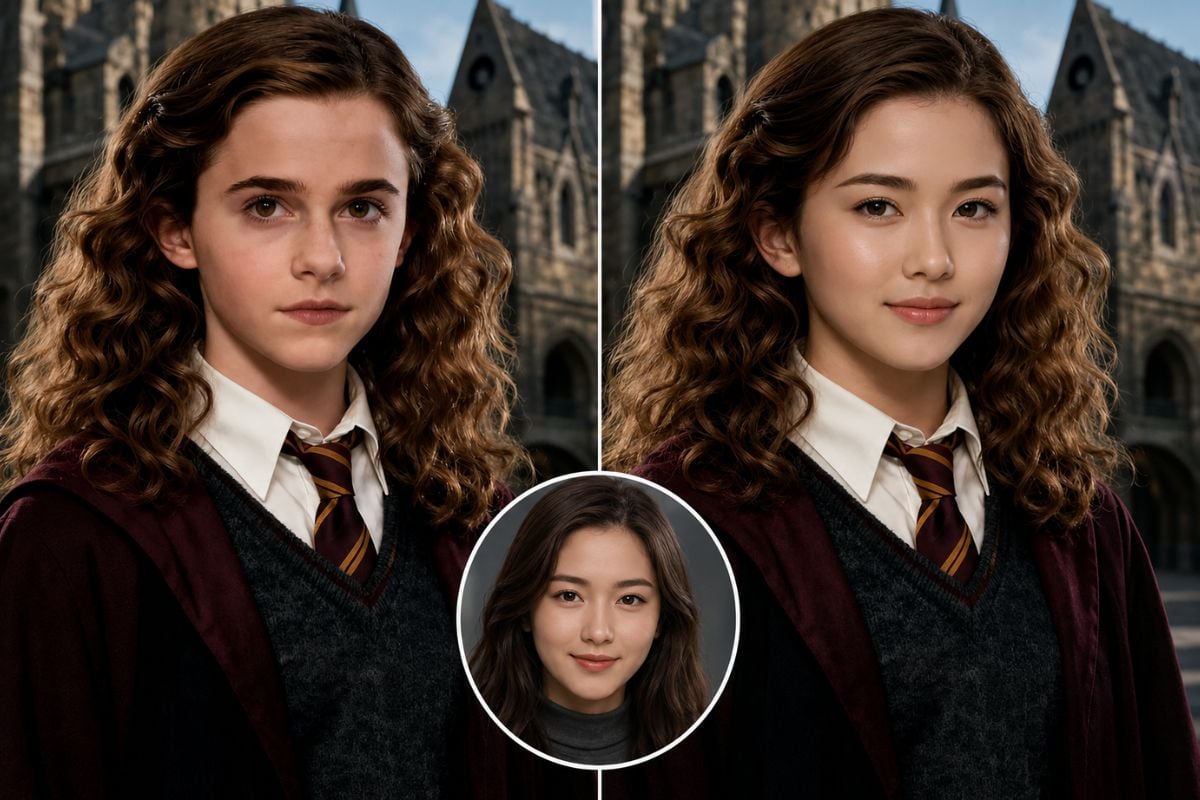
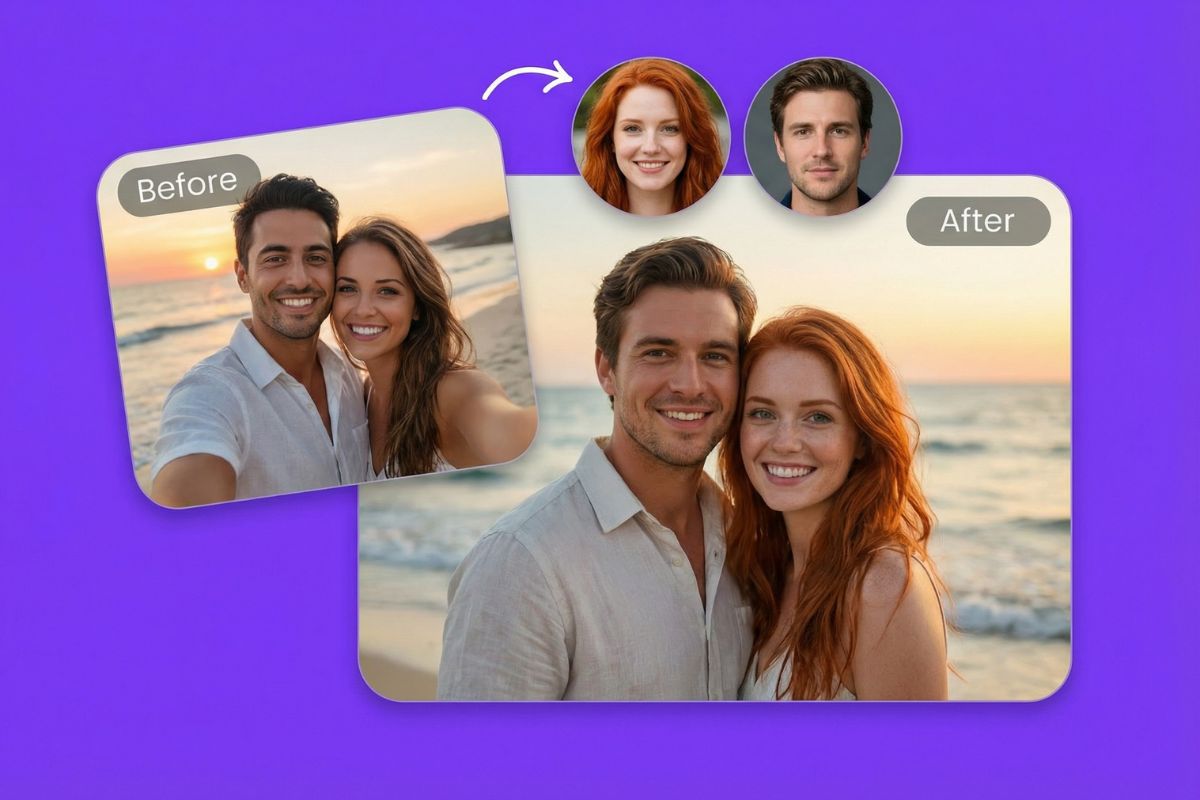
Before-and-after PixNova AI face swap, with the target hairstyle and scene unchanged

How to Use PixNova AI Face Swap

Upload the Target

Choose the photo or video where the face should be replaced, or start from a template.
Add a Source Face

Upload a clear portrait for the replacement identity and select the person or face to edit.
Generate and Save

Start the swap, inspect the image or clip, and download the version you want to keep.

PixNova AI Face Swap Features

Swap a Face in a Photo

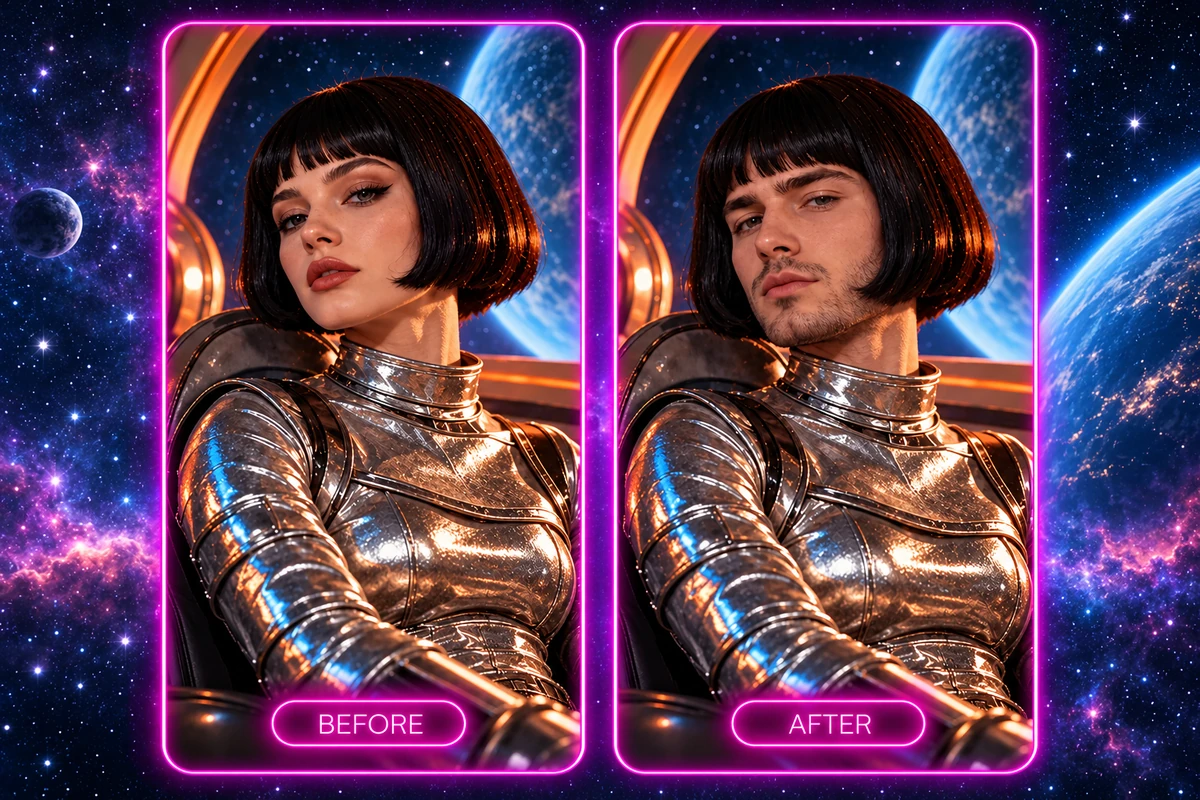
Pair a clear source portrait with a target photo to create a single-face edit or try a new character scene. Use the face swap tool when you want the new face placed into the target image without rebuilding its setting from scratch.
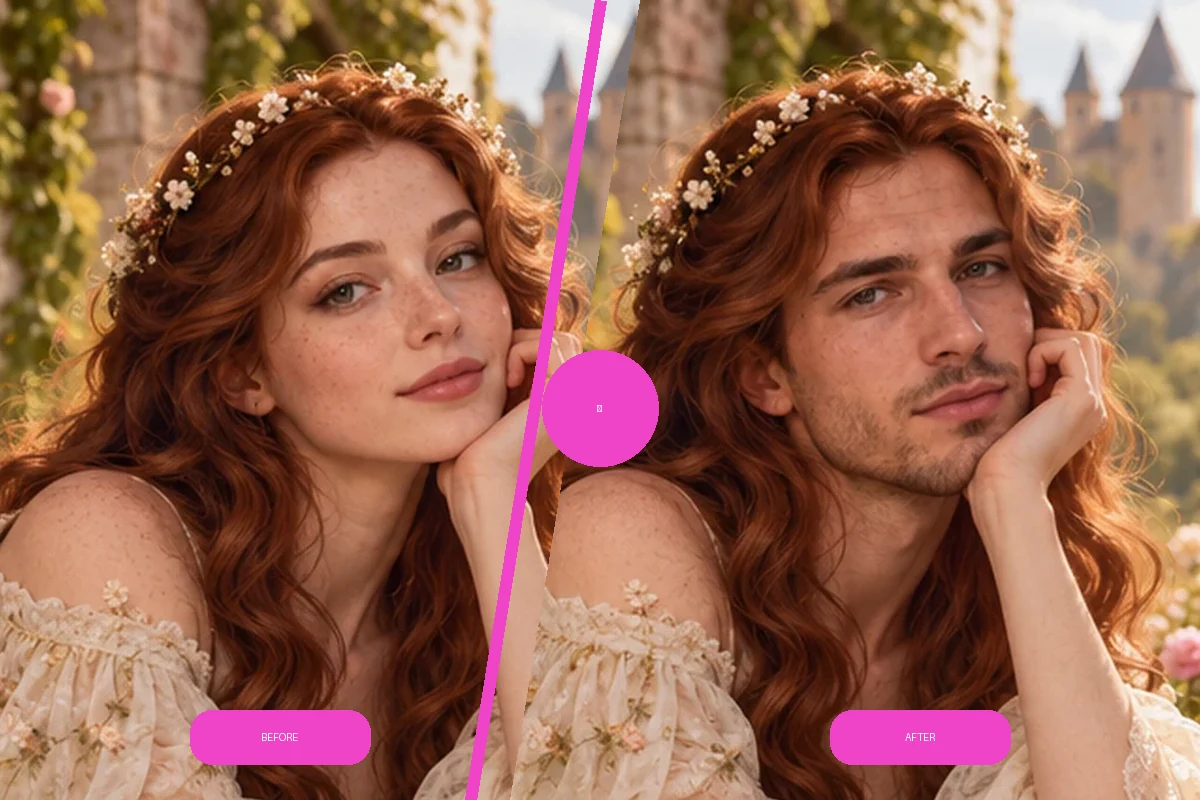
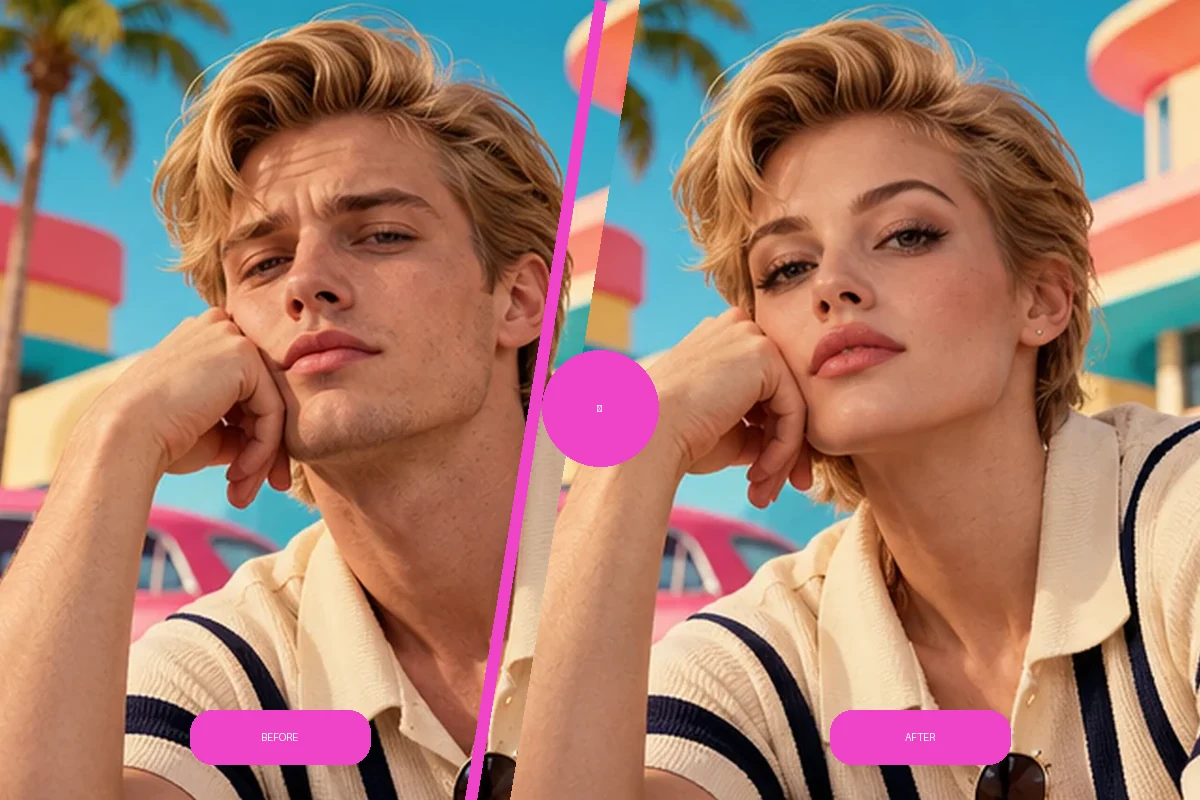
Before-and-after illustration: PixNova AI swap a face in a photo

Work with Video and GIFs

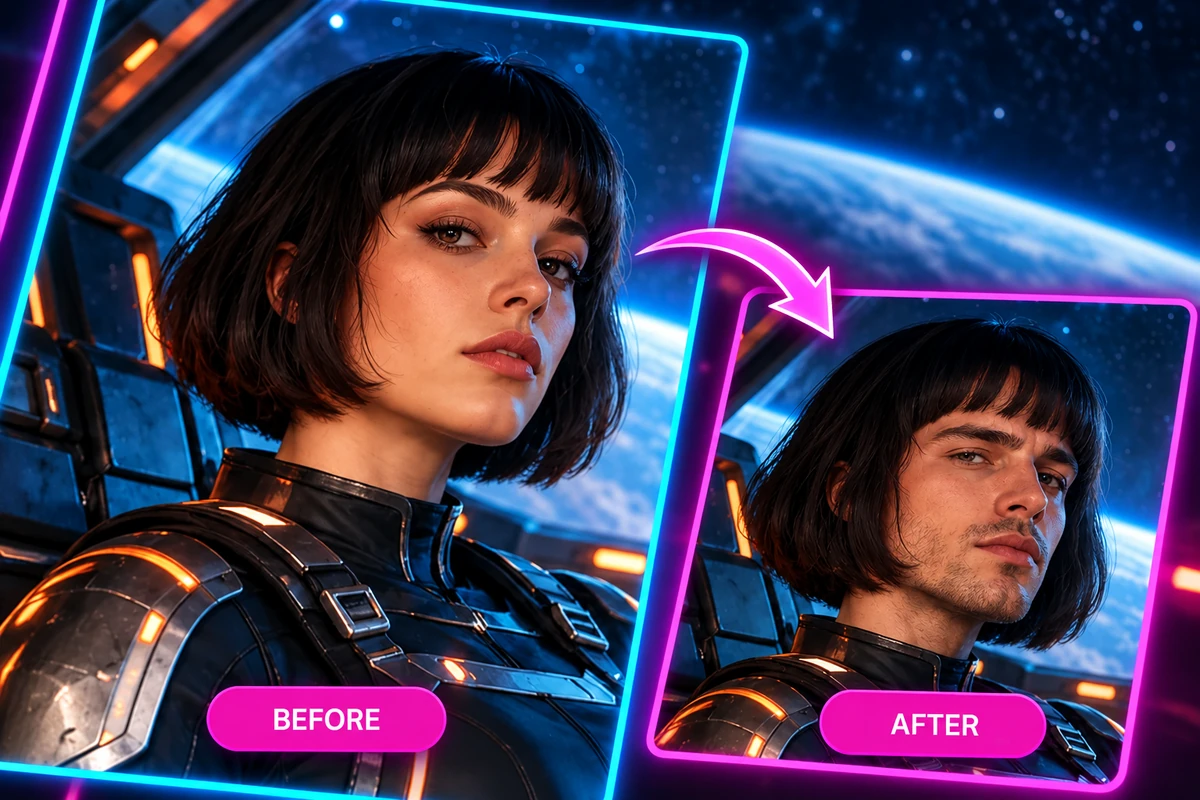
Work from a video clip or GIF when the result needs to move, not just compare as a still. Review the sequence across frames and choose an animated output for memes, reaction moments, or social posts.

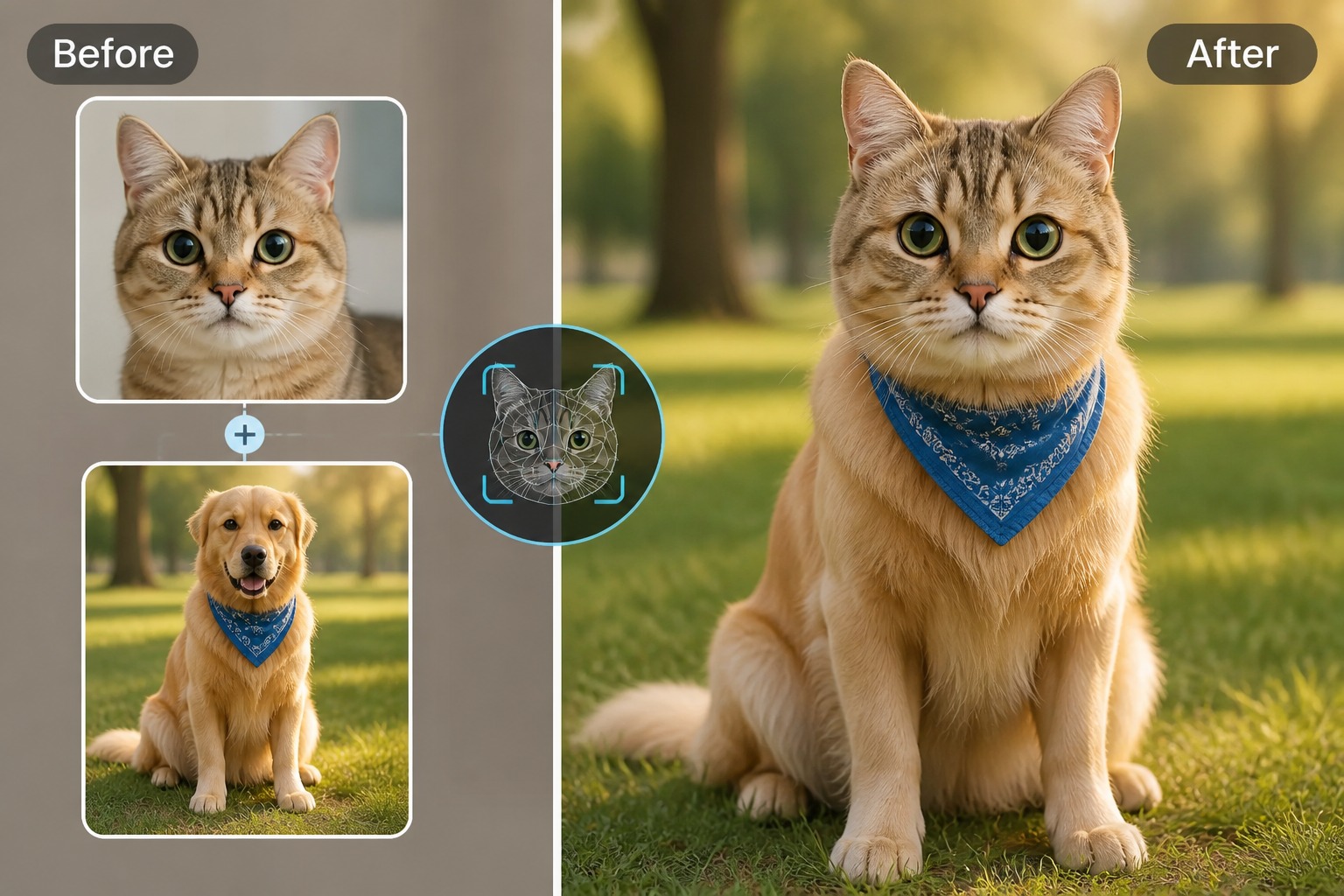
Before-and-after illustration: PixNova AI work with video and gifs

Choose a Template to Start

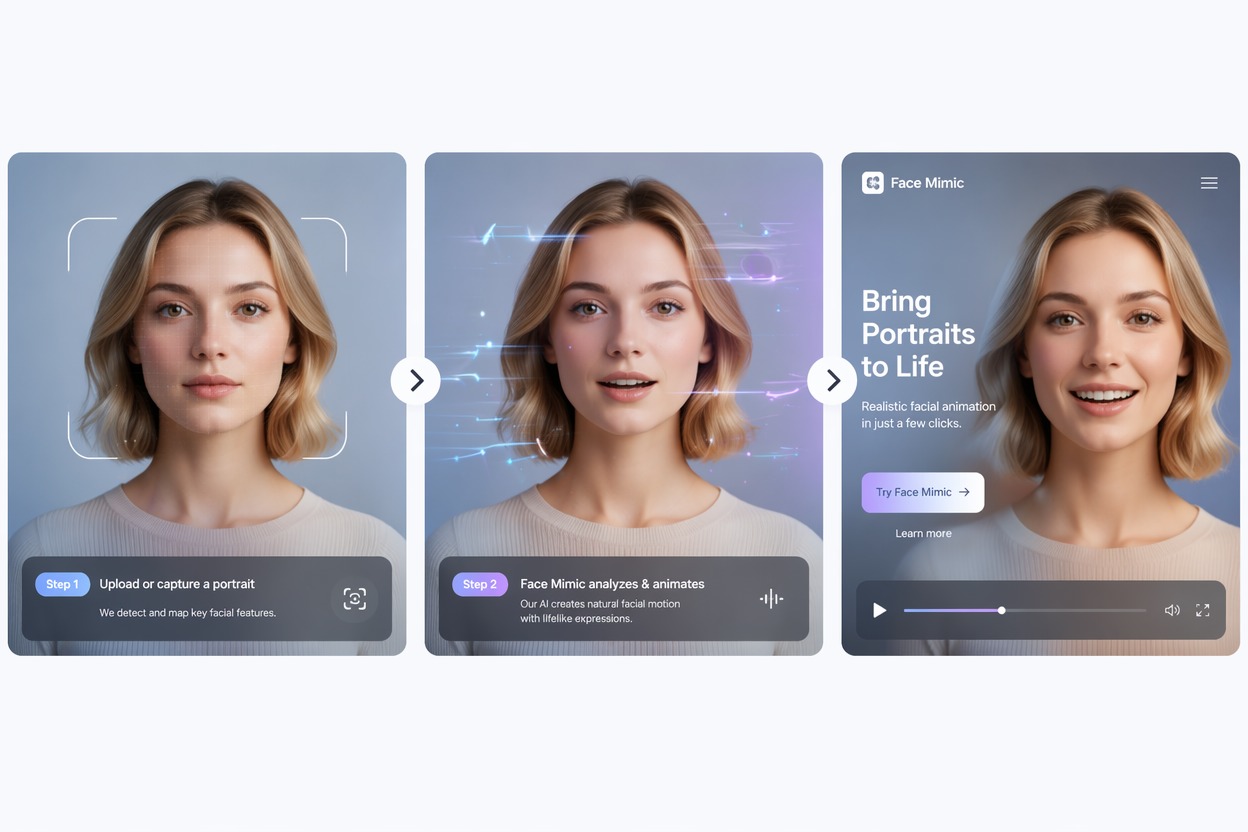
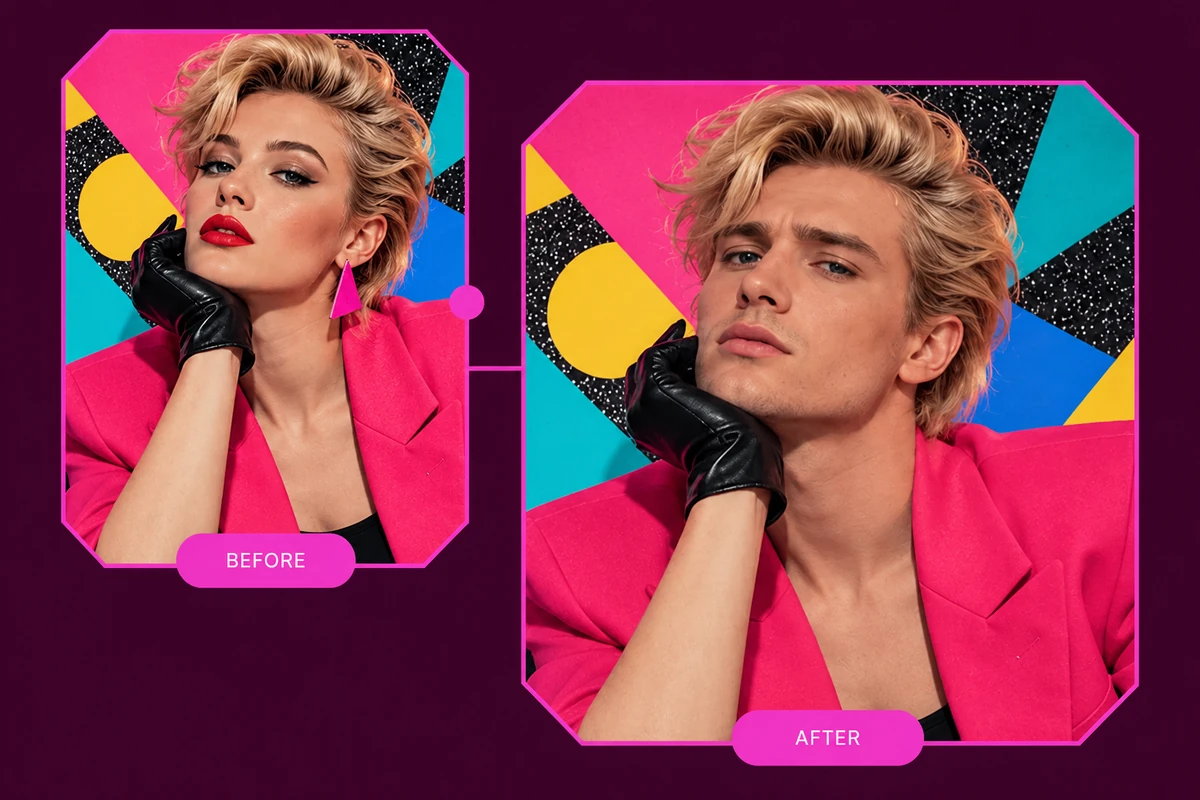
Choose a preset template to begin with an existing scene when you do not have a target image ready. A preset gives you a concrete background, pose, and visual idea to pair with the source face.

Before-and-after illustration: PixNova AI choose a template to start

Select Multiple Faces

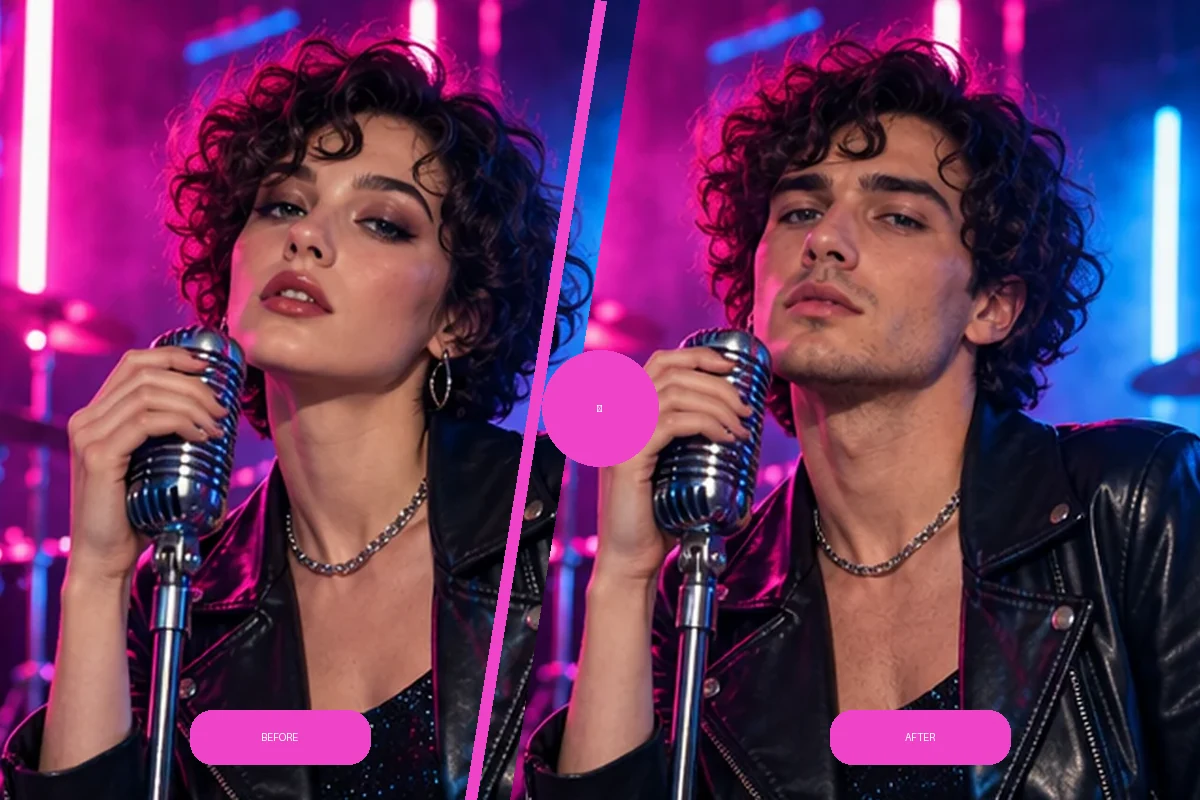
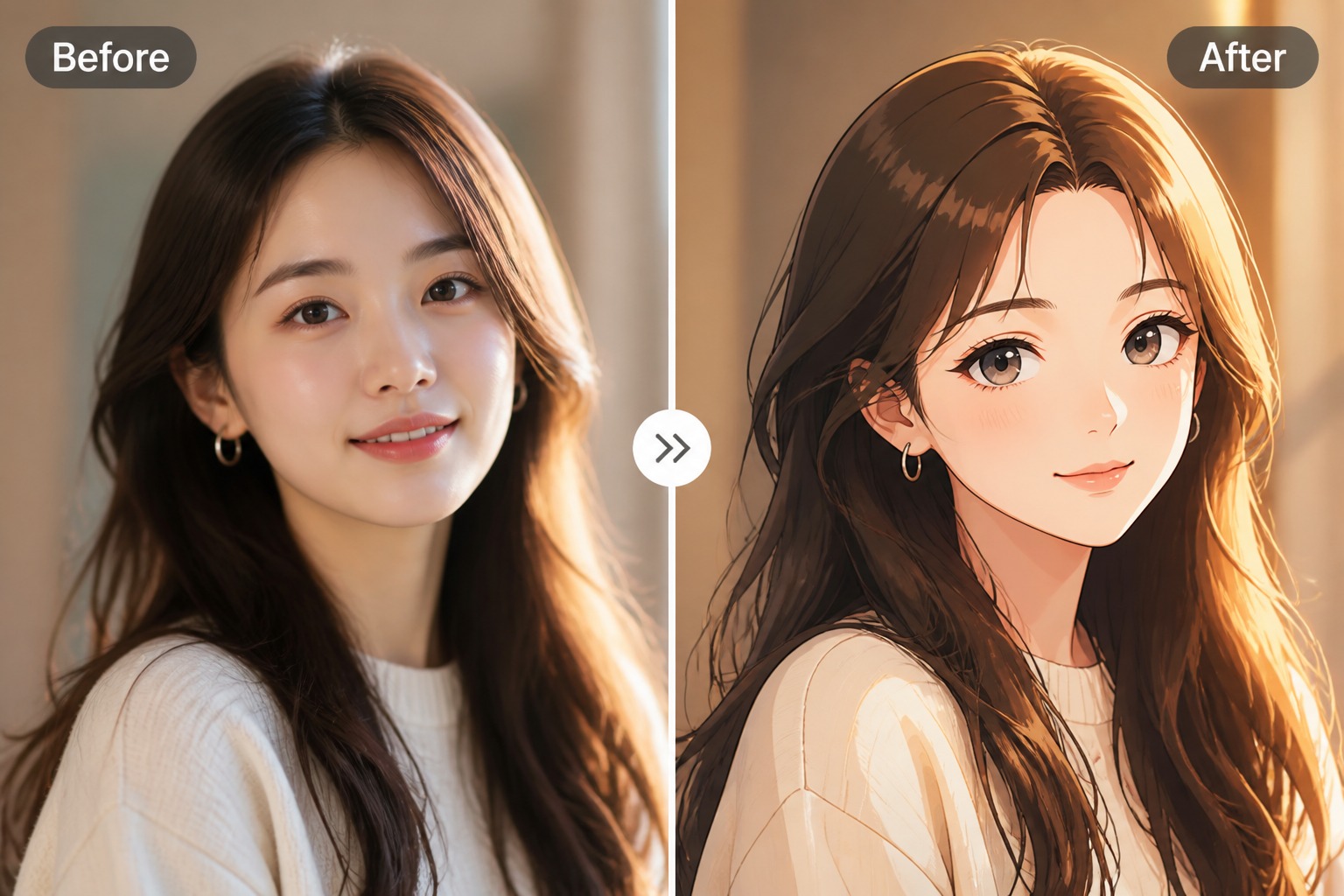
Multi-face controls are useful for group photos or clips with several people. Pick which faces should change and match each one to its source so the edit stays organized across a shared scene.

Before-and-after illustration: PixNova AI select multiple faces

PixNova Face Swap: FAQs

What is PixNova AI face swap?

PixNova AI face swap replaces a face in a photo, video, or GIF using a source face image. Its tool page describes single-face and multi-face workflows.

Can PixNova face swap work on videos?

Yes. PixNova’s face-swap page includes video tools, clip selection, and templates for video swaps.

Does PixNova support group photos?

PixNova describes multiple-face swaps and lists support for swapping up to five faces. Check the current interface for the exact controls.

Can I face swap a GIF with PixNova?

PixNova’s page describes GIF face swapping, including animated outputs. Check the current format selector before uploading.

How do I start a PixNova face swap?

Upload the target image or video, add the replacement face photo, select the face to change, and render the result.

Can I trim a video before swapping?

PixNova’s page describes clip selection controls for choosing a portion of a video. Use the timeline to focus on the segment you need.

What helps a swap look more natural?

Choose clear images, similar face angles, and even lighting. Avoid source faces that are blurred, obstructed, or turned far away.

How is GoEnhance different from PixNova?

GoEnhance offers named styles and dedicated image, video, and GIF routes, plus a documented Open API for integrations.

Make an Image, Video, or GIF Face Swap

Pick the media format you want to edit, upload a clear source face, and create a swap with GoEnhance.

Try GoEnhance Face Swap