How to Use Kling AI in USA: Access, Signup, Features, and Costs
- 1. Is Kling AI Available in the USA?
- 2. How to Use Kling AI in USA: Step-by-Step Guide
- 3. Main Ways to Access Kling AI in the United States
- 4. Use Kling AI on GoEnhance AI
- 5. What You Can Create With Kling AI
- 6. Is Kling AI Free in the USA?
- 7. How Much Does Kling AI Cost Per Generation?
- 8. How Does Video Input Change Kling 3.0 Omni Cost?
- 9. Example Cost: How Many Credits Does a 5-Second Video Use?
- 10. Can You Use Kling AI Videos Commercially?
- 11. Tips for Better Kling AI Results
- 12. FAQ
- 12.1 Is Kling AI available in the USA?
- 12.2 What is the easiest way to use Kling AI in the USA?
- 12.3 What Kling AI mode should beginners use first?
- 12.4 How many credits does a 5-second Kling 3.0 video use?
- 12.5 What resolution does Kling VIDEO 3.0 support?
- 12.6 What input files can Kling 3.0 Omni use?
- 12.7 Should I use Kling AI directly or through another platform?
- 12.8 What should users check before following older Kling AI tutorials?
- 13. Conclusion
Kling AI can be used in the USA through the official website, mobile app, third-party AI video platforms, or API access. For most users, the process is simple: create an account, choose Text-to-Video or Image-to-Video, set the output options, generate the video, and download the result. Before starting, check the access route, available model version, resolution, duration, and credit cost, because older tutorials may not reflect Kling 3.0 or Kling 3.0 Omni settings.
1. Is Kling AI Available in the USA?
Kling AI is available to users in the USA through its global website and app access. A US user can start from the Kling AI website, create an account, and use the dashboard after login.
The main items to verify are the official domain kling.ai, the available app store route, and the product sections listed in the account dashboard, such as Creative Studio, AI Tools, Video Generation, Image Generation, Sound Generation, Effects, API Platform, Pricing, Documentation, and Quick Start.
2. How to Use Kling AI in USA: Step-by-Step Guide
2.1 Start from the Official Kling AI Website
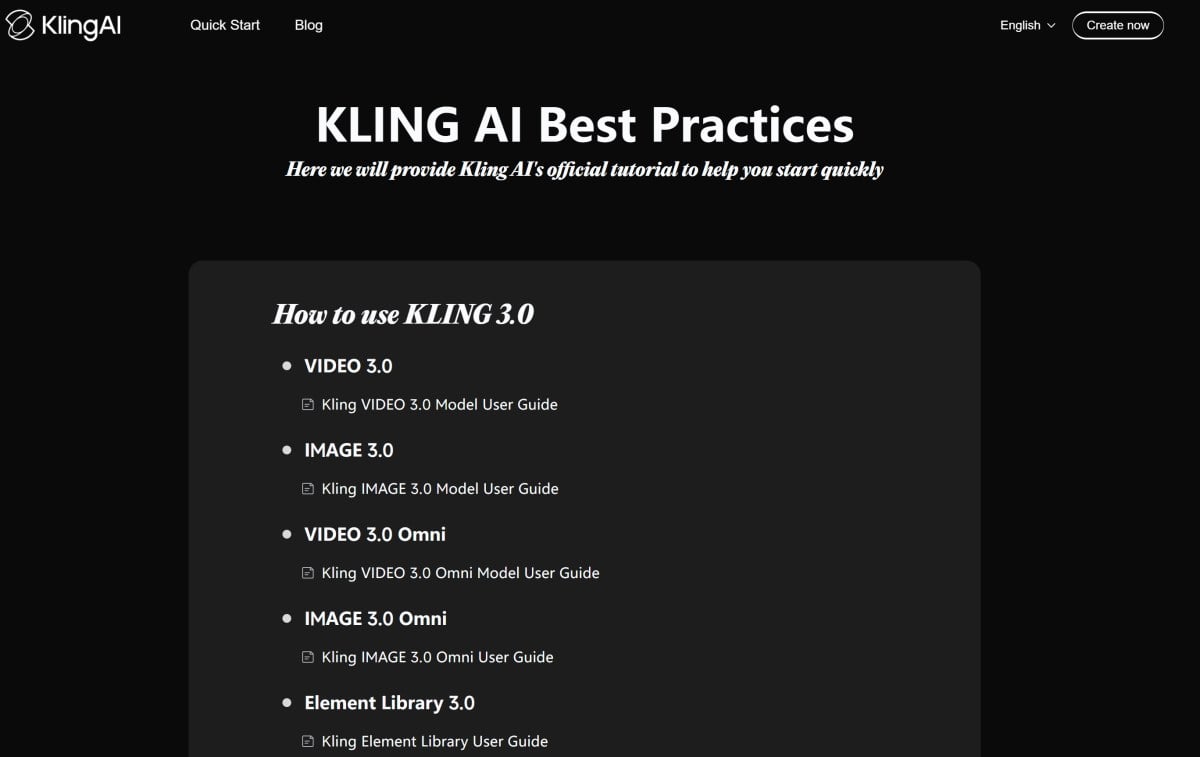 Start from the Kling AI website if you want to use the direct product interface. Use a third-party platform only when you want to access Kling together with other AI video models in one workspace.
The direct route is kling.ai. The official help section is Kling AI Quick Start. If you use another platform, check whether it lists the exact Kling model version, export resolution, credit cost, watermark policy, and usage rights.
2.2 Create and Verify Your Account
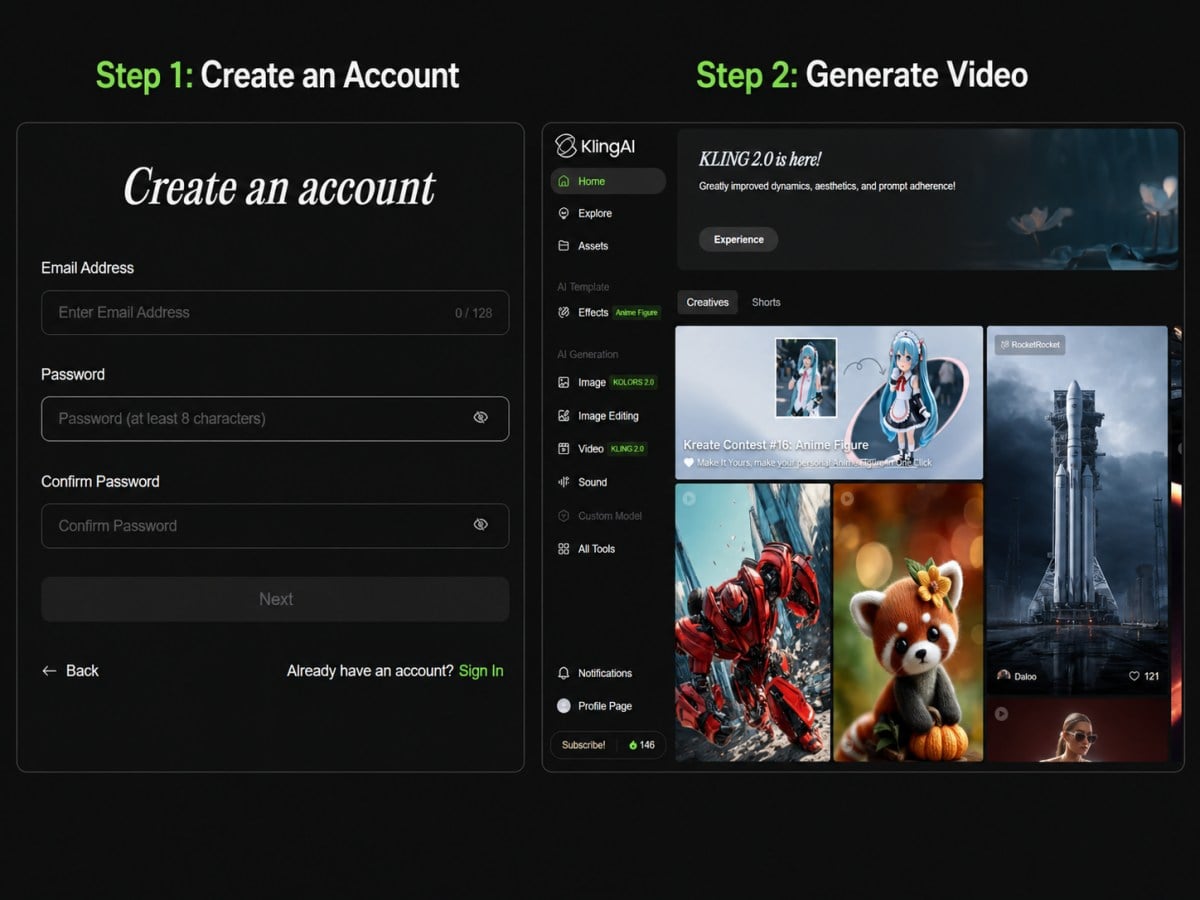 Create an account with email, then complete verification if the platform asks for it. Some access pages may also support Google, Apple, or email sign-in.
The account checks are email address, password or third-party login method, verification email, account region, available free credits, and visible model list after login.
2.3 Choose Text-to-Video or Image-to-Video
Choose Text-to-Video when you only have a written prompt. Choose Image-to-Video when you have a starting image, character reference, product image, or scene reference.
The main generation modes to check are Text-to-Video, Image-to-Video, Start & End Frames-to-Video, Multi-image Reference, Element Reference, and Video Element Reference.
2.4 Enter a Prompt or Upload a Reference File
Enter a prompt that defines the subject, scene, action, camera movement, duration, and output format. Upload reference files only when the selected mode supports them.
A usable prompt should include the subject, location, action, camera movement, shot length, aspect ratio, and output resolution. If the video needs a reference, check whether the mode accepts an image, start frame, end frame, element, or video element.
2.5 Check Model Version, Resolution, and Credits
Check the model version, resolution, duration, native audio, voice control, and whether video input is used. These settings affect credit cost and output type. Do not rely on older model lists without checking whether they include Kling 3.0 or Kling 3.0 Omni.
The Kling VIDEO 3.0 Model User Guide lists 1080p and 720p modes. The Kling VIDEO 3.0 Omni Model User Guide lists 1080p, 720p, native audio, video input, and credits-per-second pricing.
2.6 Review Motion, Consistency, and Audio
After generation, review the video for motion, subject consistency, prompt following, frame errors, and audio alignment if audio is enabled. Regenerate only after changing one control at a time.
The review checklist should include subject identity, action accuracy, camera movement, scene continuity, audio-video match, prompt mismatch, hand or face artifacts, and object drift.
2.7 Export the Final Video
Use the platform’s download or save option after the generation finishes. Check the file before using it in editing software or publishing.
Before export, verify the output resolution, duration, file size, watermark status, commercial-use terms, credit balance, account plan, and platform export rules.
3. Main Ways to Access Kling AI in the United States
3.1 Official Website Access
The direct website option is for users who want to use Kling AI through Kling’s own interface. It is the main path for testing current Kling tools and reading official product instructions.
The website route should be checked against the official domain kling.ai. Inside the site, confirm that the account shows current sections such as Creative Studio, AI Tools, Video Generation, Image Generation, Sound Generation, Effects, Pricing, Documentation, and Quick Start.
3.2 Mobile App Access
The mobile app option is for users who want to generate or review videos from a phone. This route depends on app availability in the user’s app store region.
The app checks are iOS App Store availability, Android app store availability, login method, credit balance, available model version, export options, and whether the same features are available as the web version.
3.3 Third-Party AI Video Platform Access
The third-party platform option is for users who want Kling models beside other video models inside one AI video generator. This route can be useful for model comparison, but each platform may set its own pricing, export rules, and rights.
Before using a third-party platform, check the available Kling model version, credit cost, export resolution, watermark policy, commercial-use terms, queue time, refund policy, and model update date.
3.4 API Access for Developers
The API option is for developers or teams that want to add Kling video generation to a product, workflow, or internal tool. This route requires API documentation, authentication, request parameters, and cost tracking.
The official reference point is the Kling AI API Overview. API users should verify the endpoint, API key, model name, prompt field, image or video input field, duration, resolution, callback URL, task ID, rate limit, and resource package.
4. Use Kling AI on GoEnhance AI
GoEnhance provides another way to use Kling AI inside a broader AI video workflow. Instead of switching between separate model pages, users can start from GoEnhance, choose a Kling-supported video generation option, enter a prompt or upload a reference image, and generate a video from the same workspace.

This route is useful when the user wants to compare Kling with other video models, test text-to-video and image-to-video outputs, or continue editing generated clips after the first result. Before generating, check the selected model version, video duration, resolution, credit cost, and export settings inside the GoEnhance interface.
A basic workflow is:
| Step | Action |
|---|---|
| 1 | Open GoEnhance and enter the AI video workspace |
| 2 | Choose a Kling-supported video generation model |
| 3 | Select Text-to-Video or Image-to-Video |
| 4 | Enter a prompt or upload a reference image |
| 5 | Check duration, resolution, credits, and export settings |
| 6 | Generate the video and review the result |
For users who want a simpler entry point, GoEnhance can work as a model-access layer for Kling AI. Users should still verify the current model name, available settings, credit rules, and commercial-use terms before using the output in a project.
5. What You Can Create With Kling AI
5.1 Text-to-Video Generation
Kling AI can generate video from a text prompt. The user writes the scene and action, then selects the model and output settings.
For this mode, check the prompt field, duration, resolution, native audio option, aspect ratio, and credit cost. Current model references include Kling VIDEO 3.0 and Kling VIDEO 3.0 Omni.
5.2 Image-to-Video Generation
Kling AI can generate video from one or more image references. This is useful when the user needs a starting character, product, scene, or first frame.
For Kling 3.0 Omni, image input has specific limits: up to 7 images without video input, image width and height of at least 300 px, file size up to 10 MB, and supported formats including .jpg, .jpeg, and .png.
5.3 Video Reference Input
Kling 3.0 Omni supports video element reference in the current guide. This allows a user to create a video element from a short clip.
The video input limit is 1 video. The accepted duration range is 3 seconds to 10 seconds. The file size limit is up to 200 MB, and the resolution limit is up to 2K.
5.4 Native Audio Generation
Kling VIDEO 3.0 and Kling VIDEO 3.0 Omni support native audio modes in current guide pages. The cost changes when native audio is enabled.
| Mode | 1080p | 720p |
|---|---|---|
| VIDEO 3.0 with native audio | 12 credits/s | 9 credits/s |
| VIDEO 3.0 without native audio | 8 credits/s | 6 credits/s |
5.5 Voice Control for Characters
Kling VIDEO 3.0 includes voice tone control as an added credit item. Kling 3.0 Omni can bind voice to an element under supported conditions.
Voice Control is listed at 2 credits/s for both 1080p and 720p. For voice material, the 3.0 Omni guide recommends 5–30 seconds of single-person speech audio.
5.6 Multi-Shot Video Generation
Kling VIDEO 3.0 supports multi-shot generation in current guide pages. This matters when the prompt needs shot order instead of one continuous scene.
A multi-shot prompt should separate each shot by seconds, camera, subject, and action. A usable structure is: Shot 1 for the opening action, Shot 2 for the camera follow-up, and Shot 3 for the final close-up or transition.
6. Is Kling AI Free in the USA?
Kling AI uses a credit system for generation. Free access may allow testing, but higher settings, more generations, longer duration, or native audio can require more credits.
The official credit reference is the Kling AI Credits Policy. Kling lists standard pricing as $1 USD = 66 Credits, but the final cost can vary by product interface, plan, model, duration, and promotion.
7. How Much Does Kling AI Cost Per Generation?
The cost depends on model, duration, resolution, native audio, voice control, and whether video input is used. Calculate the cost per second before generating instead of only checking whether the account has free credits.
| Kling VIDEO 3.0 Omni setting | 1080p | 720p |
|---|---|---|
| No video input, native audio on | 12 credits/s | 9 credits/s |
| No video input, native audio off | 8 credits/s | 6 credits/s |
| Video input, native audio off | 16 credits/s | 12 credits/s |
| Video input, native audio on | Not supported yet | Not supported yet |
8. How Does Video Input Change Kling 3.0 Omni Cost?
For Kling VIDEO 3.0 Omni, video input changes the credit rate and disables native audio in the current pricing table.
Without video input, 1080p generation costs 12 credits/s with native audio and 8 credits/s without native audio. With video input, native audio is not supported yet, and the cost is 16 credits/s at 1080p or 12 credits/s at 720p.
9. Example Cost: How Many Credits Does a 5-Second Video Use?
A 5-second Kling 3.0 video can use different credit amounts depending on resolution, native audio, and voice control.
| Example setting | Calculation | Total |
|---|---|---|
| 5s, 720p, no native audio | 6 credits/s × 5 | 30 credits |
| 5s, 1080p, native audio | 12 credits/s × 5 | 60 credits |
| 5s, 1080p, native audio + Voice Control | (12 + 2) credits/s × 5 | 70 credits |
10. Can You Use Kling AI Videos Commercially?
Commercial use depends on the terms of the platform where the video is generated. If using the official API route, check the current Kling API paid service terms before using outputs in ads, client work, paid content, or products.
The official API terms reference is Kling AI Terms of API Paid Service. The items to check are commercial-use rights, output ownership, restricted use, third-party IP risk, watermark policy, region terms, and API terms.
11. Tips for Better Kling AI Results
11.1 Write One Clear Action per Prompt
Write the prompt with subject, action, scene, camera, duration, and style only if style is needed. Do not mix unrelated actions in one short video prompt.
A practical prompt should include subject, location, action, camera movement, shot length, aspect ratio, lighting condition, and audio instruction when supported.
11.2 Use References for Character Consistency
Use image references or element references when the same character must appear across shots. Avoid changing clothing, hair, age, or facial details between prompt lines.
For consistency control, check whether the mode supports multi-image reference, element reference, or video element reference. In Kling 3.0 Omni, the image or element limit is up to 7 without video input and up to 4 when video input is provided.
11.3 Split Complex Motion into Shots
Describe one main motion per shot. For multi-shot prompts, split each shot by seconds and action.
A clearer motion structure is: Shot 1, 2 seconds, wide shot, subject enters frame; Shot 2, 3 seconds, camera follows subject; Shot 3, 2 seconds, close-up, subject stops.
11.4 Test Lower-Cost Settings First
Test with shorter duration and lower-cost settings before using higher-cost modes. Add native audio or voice control only when the video needs it.
A 5-second 720p video without native audio can cost 30 credits, while a 5-second 1080p video with native audio can cost 60 credits. If Voice Control is added at 1080p, the same 5-second video can cost 70 credits.
12. FAQ
12.1 Is Kling AI available in the USA?
Yes. Users in the USA can access Kling AI through the website, app, third-party platforms, or API routes.
The main access routes are official website, iOS app, Android app, third-party platform, and API. The main official domain to check is kling.ai.
12.2 What is the easiest way to use Kling AI in the USA?
The website is the direct route for most users. Third-party platforms are better when users want to compare Kling with other AI video models.
Use kling.ai for direct access. Use a third-party platform only after checking the available model version, cost, watermark policy, export resolution, and usage rights.
12.3 What Kling AI mode should beginners use first?
Start with Text-to-Video for prompt testing, then use Image-to-Video when subject or scene consistency matters.
The first test mode is Text-to-Video. The reference-based mode is Image-to-Video. Common inputs include prompt, image, start frame, and end frame.
12.4 How many credits does a 5-second Kling 3.0 video use?
A 5-second Kling 3.0 video can use 30, 60, or 70 credits depending on resolution, native audio, and voice control.
The common examples are 30 credits for 5 seconds at 720p without native audio, 60 credits for 5 seconds at 1080p with native audio, and 70 credits for 5 seconds at 1080p with native audio plus Voice Control.
12.5 What resolution does Kling VIDEO 3.0 support?
Kling VIDEO 3.0 supports 1080p and 720p in the current official guide.
The pricing unit is credits per second. Native audio rates are 12 credits/s at 1080p and 9 credits/s at 720p. Without native audio, the rates are 8 credits/s at 1080p and 6 credits/s at 720p.
12.6 What input files can Kling 3.0 Omni use?
Kling 3.0 Omni can use images, videos, and elements under the listed limits.
Images can be up to 7 files, at least 300 px in width and height, up to 10 MB each, and in .jpg, .jpeg, or .png format. Video input is limited to 1 file, 3–10 seconds, up to 200 MB, and up to 2K resolution.
12.7 Should I use Kling AI directly or through another platform?
Use Kling directly when you want the Kling interface and current Kling documentation. Use another platform when you need several AI video models in one workspace.
The decision factors are available model version, credit cost, export settings, API access, commercial-use terms, watermark policy, and refund rules.
12.8 What should users check before following older Kling AI tutorials?
Check whether the tutorial includes current model names, credit rates, duration limits, input limits, and resolution options. Older tutorials may only explain account access and may not reflect Kling 3.0 or Kling 3.0 Omni settings.
The minimum checks are Kling 3.0, Kling 3.0 Omni, 1080p, 720p, native audio credits, video input credits, image input limits, video input limits, and API terms.
13. Conclusion
Users in the USA can use Kling AI by choosing one access path, creating an account, selecting a generation mode, checking credits, and generating a video. A useful guide should include current Kling 3.0 parameters because many older pages only cover account setup and do not answer cost, duration, input-limit, API, or commercial-use questions.
Before using Kling AI for a real project, check the model version, resolution, credit rate, input limits, and usage terms. For Kling 3.0 and Kling 3.0 Omni, the key numbers are 1080p, 720p, 12 credits/s, 9 credits/s, 8 credits/s, 6 credits/s, 16 credits/s with video input at 1080p, 12 credits/s with video input at 720p, and $1 USD = 66 Credits.