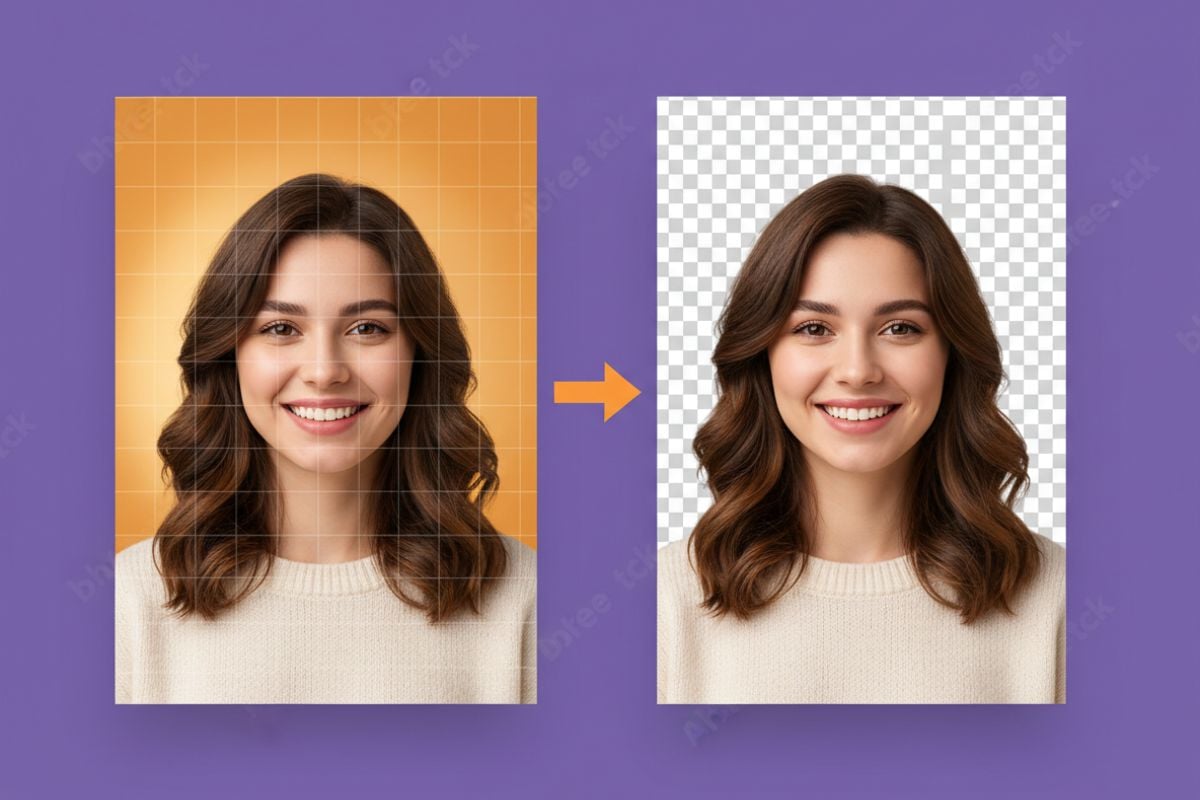
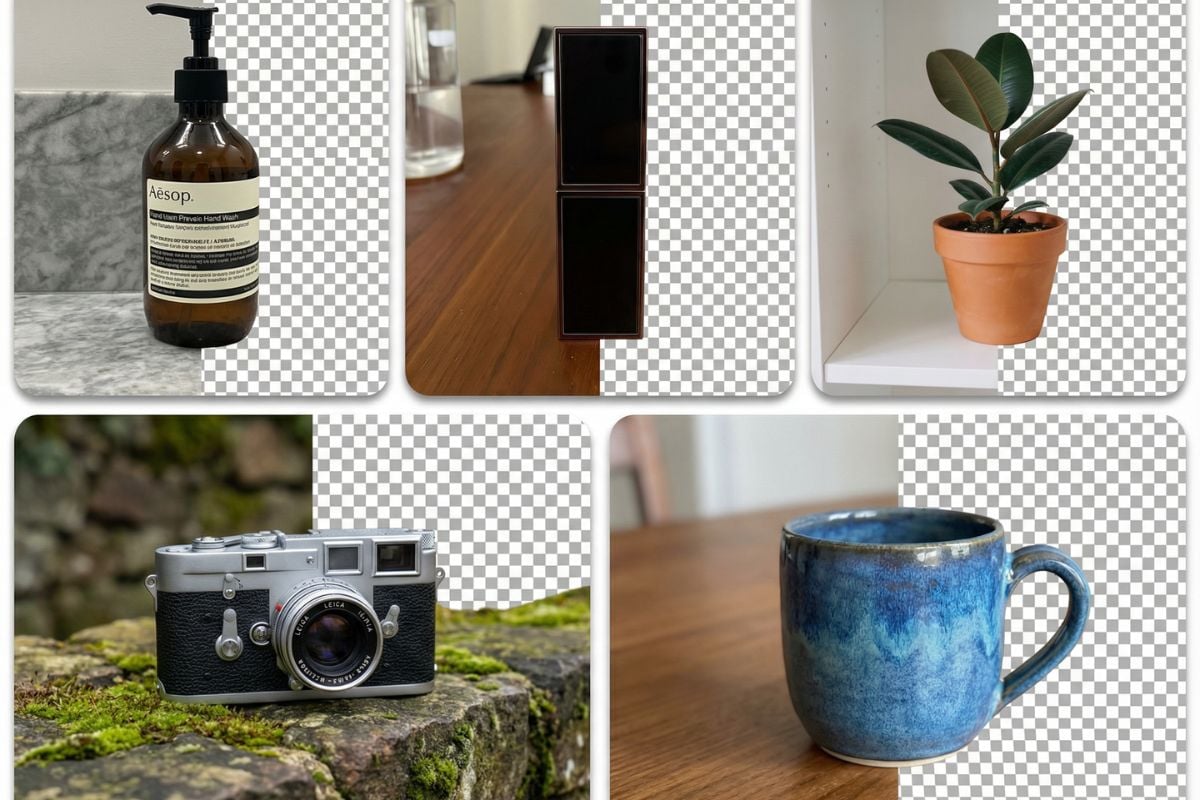
Signature Background Remover

Turn a scan or photo of your handwriting into a signature image that sits naturally on a page. GoEnhance AI removes the paper background while keeping the ink, curves, and personal character of your mark. Download a transparent PNG for document layouts, certificates, personal stationery, or artwork without carrying a white rectangle into every design.
Scanned Signature
Scanned Signature
Initials
Initials
Ink Stamp
Ink Stamp
Upload a photo or scan of your signature
By uploading a file, you agree to GoEnhance's Terms of Use and Privacy Policy

From Paper Signature to Transparent PNG

Use a clear image, review the ink, and save a reusable signature.
01

Upload your signature image

Choose a JPG, PNG, or WebP scan or photo. Crop out unrelated page content while leaving space around all pen strokes.

02

Remove the paper background

Let AI separate the handwriting from the page. Inspect fine loops, dots, and the beginning and end of each stroke in the preview.

03

Save and place your signature

Download a transparent PNG. Insert it into your document or design app, then scale it proportionally and check it at its intended size.

Pick an Output for Your Signature

OutputHow it appearsWhere it fits
Transparent PNGInk without a solid paper rectangleDocument layouts, certificates, and image overlays
White backgroundSignature on a plain white canvasStandalone image previews and white stationery
Custom color backgroundInk against a chosen solid colorPersonal branding and presentation graphics

Prepare a Signature That Is Easy to Extract

Starting imageHelpful preparationDetail to review
Scanned handwritingUse a clear scan of the original paperThin loops and tapered stroke ends
Phone photographKeep the camera parallel to the pageShadows and blurred edges
Blue or colored inkUse lighting that separates ink from paperFaint sections and original ink color
InitialsLeave space around the entire markSmall dots and short strokes
Ink stampUse a clearly visible impressionBorder lines and tiny lettering
Ruled paperPrefer a new sample on unlined paperRules crossing the ink may remain difficult to separate

Extract Handwritten Ink as a Transparent Image

Remove Paper from a Scanned Signature

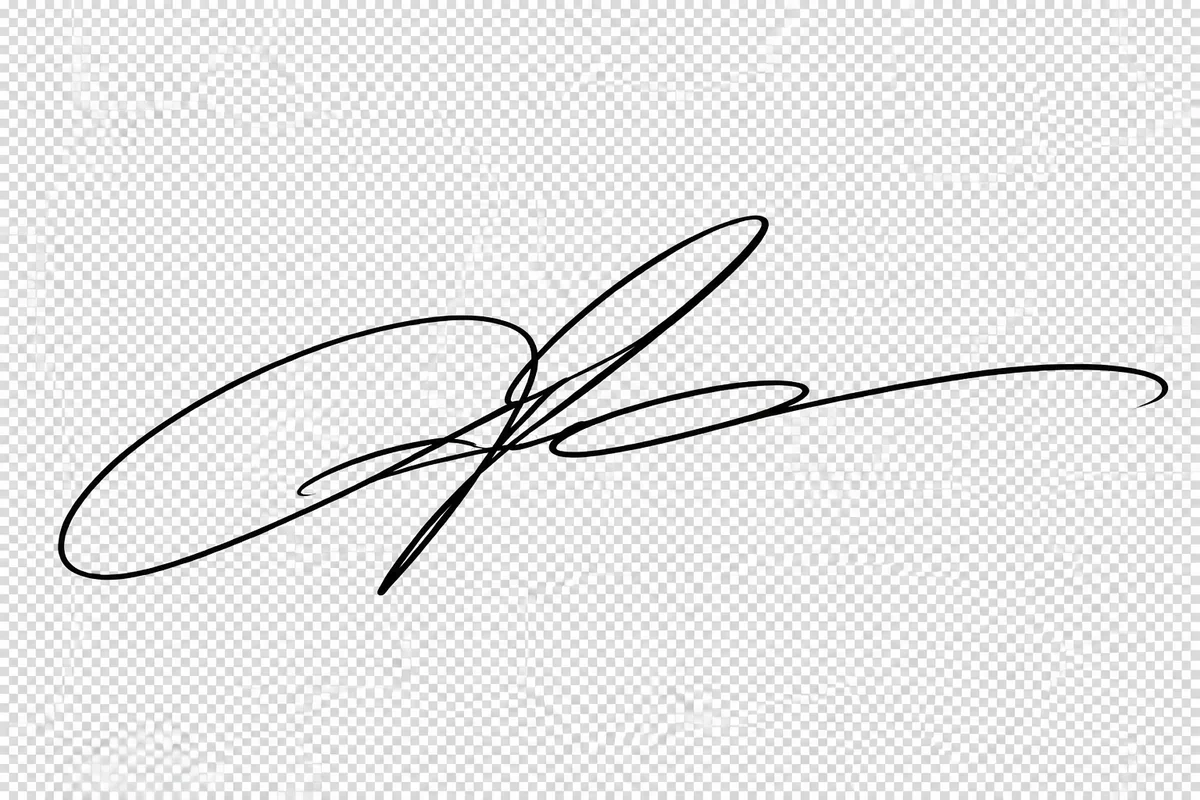
Extract handwritten ink from a scan and clear the pale paper around it, creating a separate signature image. The clean PNG is easier to place over a certificate or letter design without leaving the scan's full paper rectangle behind. For more options, visit our background remover.

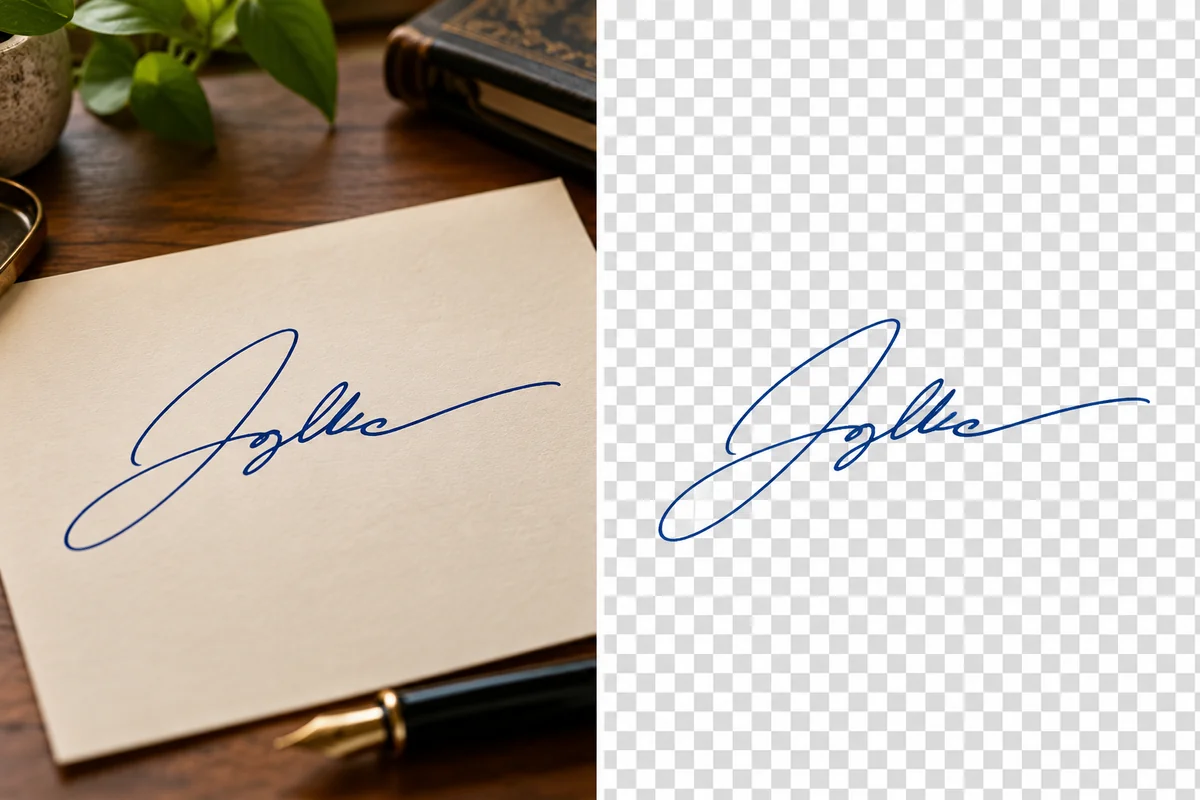
Scanned signature isolated from paper as a transparent image

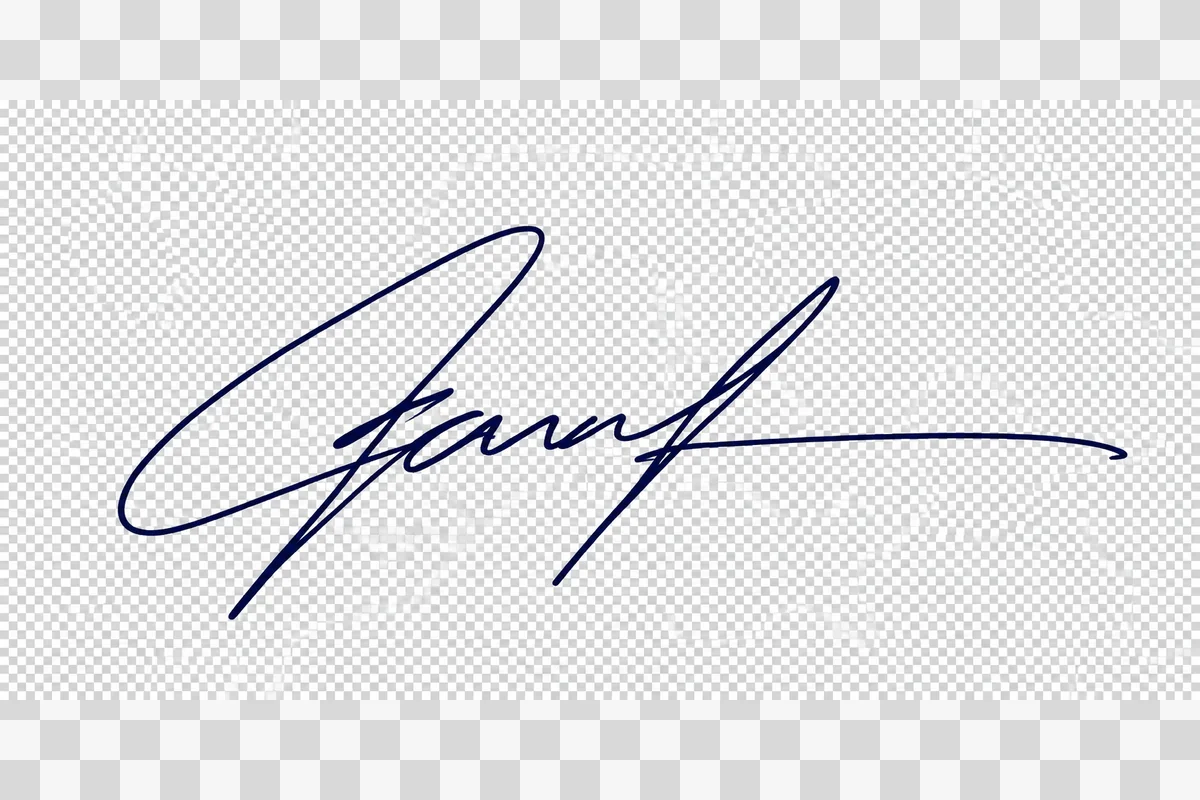
Preserve the Color of Blue Ink

Remove the paper background while keeping the original blue ink color in the signature. The transparent result retains the handwritten mark as a distinct graphic, ready to sit beside document text or in a personal stationery design.

Blue ink signature separated from its paper background

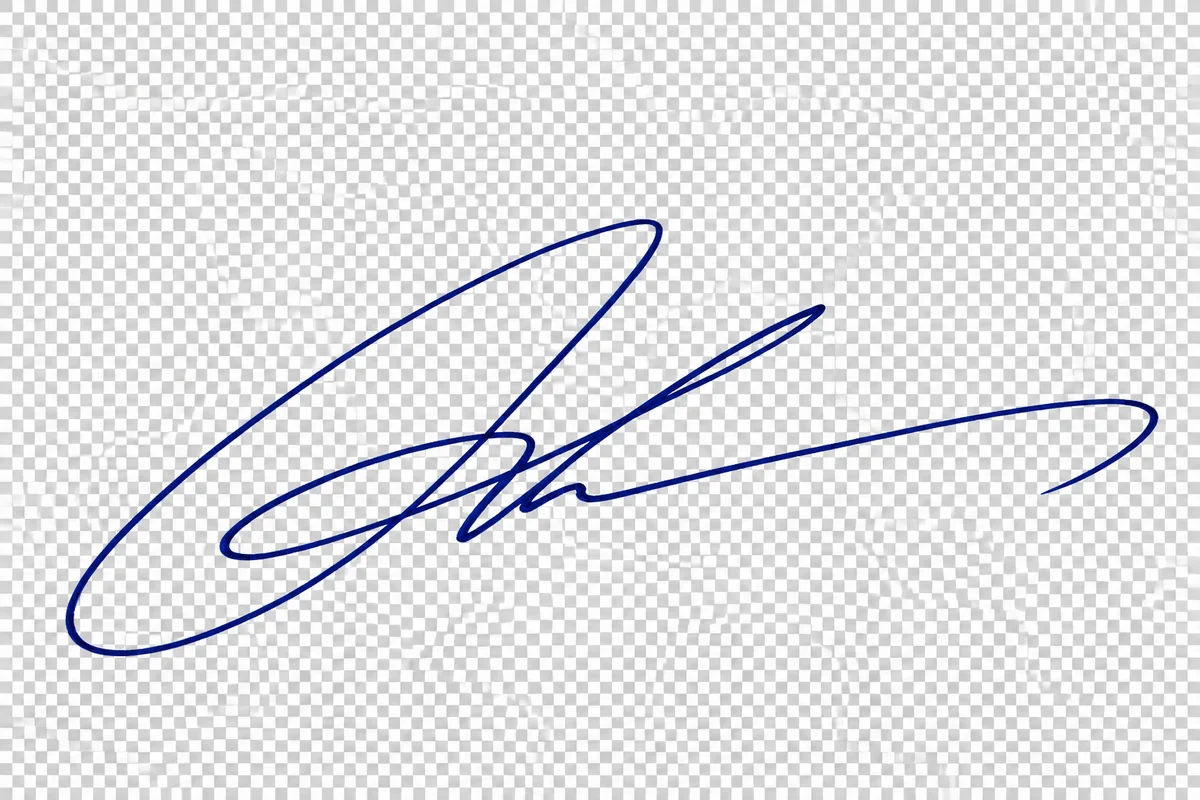
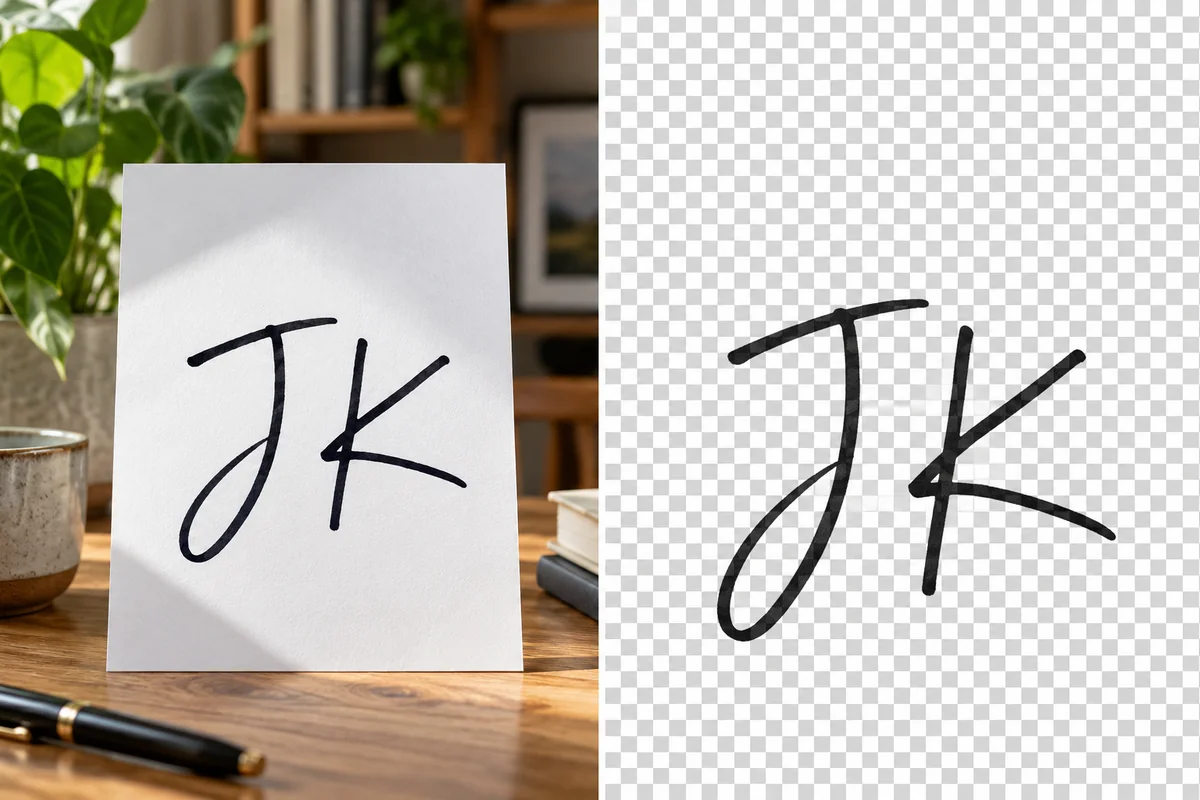
Capture Fine Curves and Initials

Extract short handwritten marks into a transparent image while retaining their curves, loops, and fine pen lines. The initials remain a compact reusable graphic, useful where a longer signature would take up too much room in the final design.

Handwritten initials isolated from the paper background

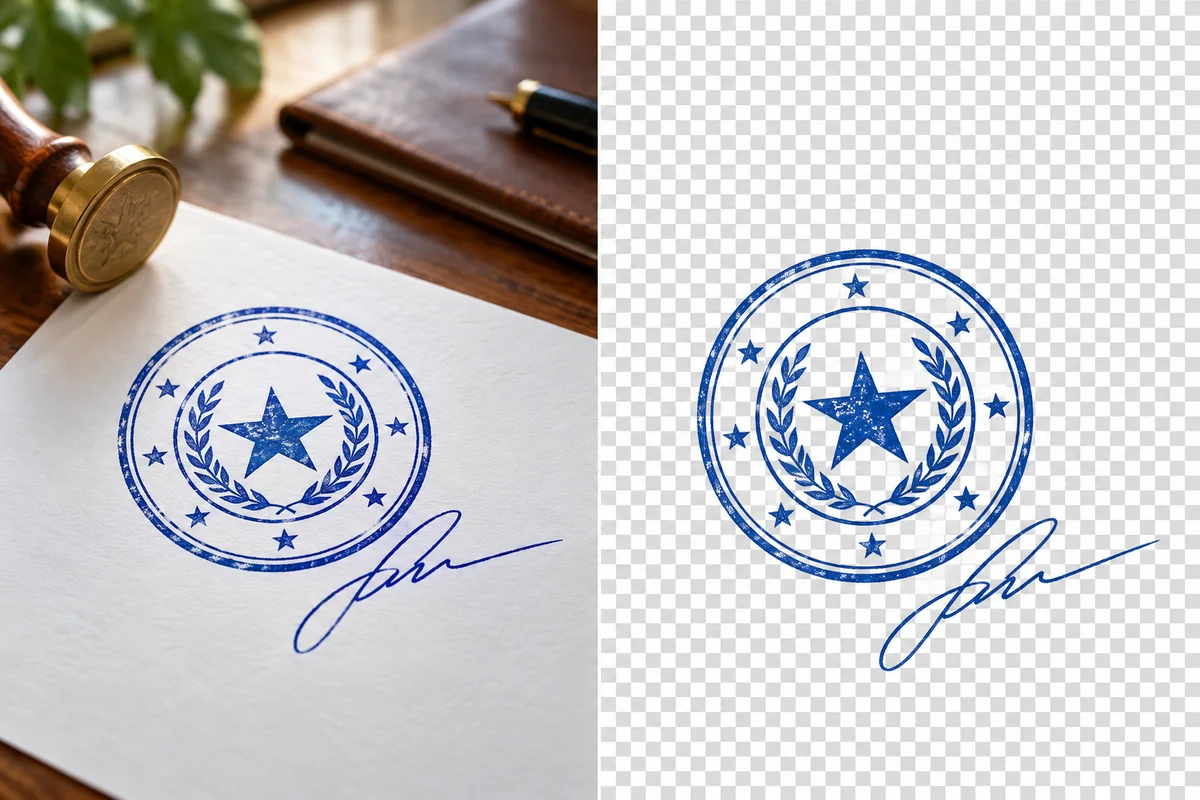
Separate Ink Stamps from the Page

Clear the surrounding paper from a stamp or decorative ink mark, preserving the printed outline and internal lettering as an image. A transparent output makes the extracted seal easier to position within a certificate or graphic composition.

Ink stamp separated from its paper background

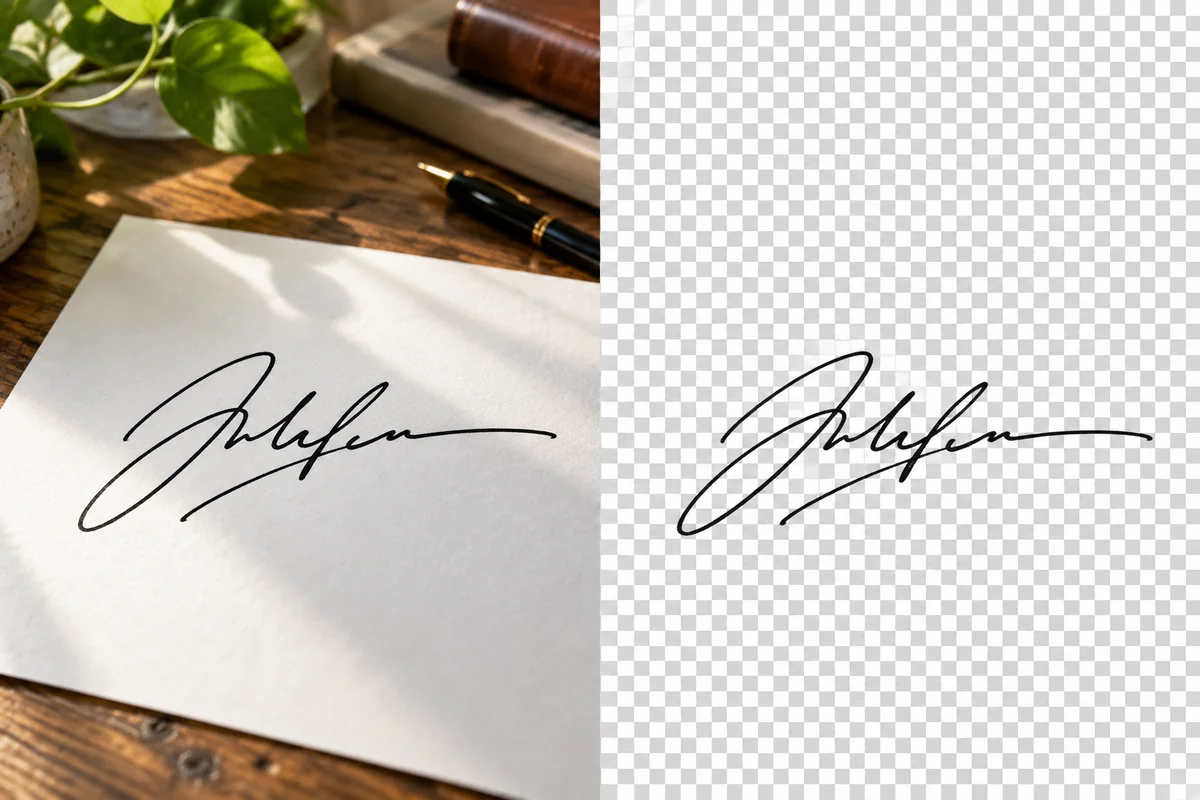
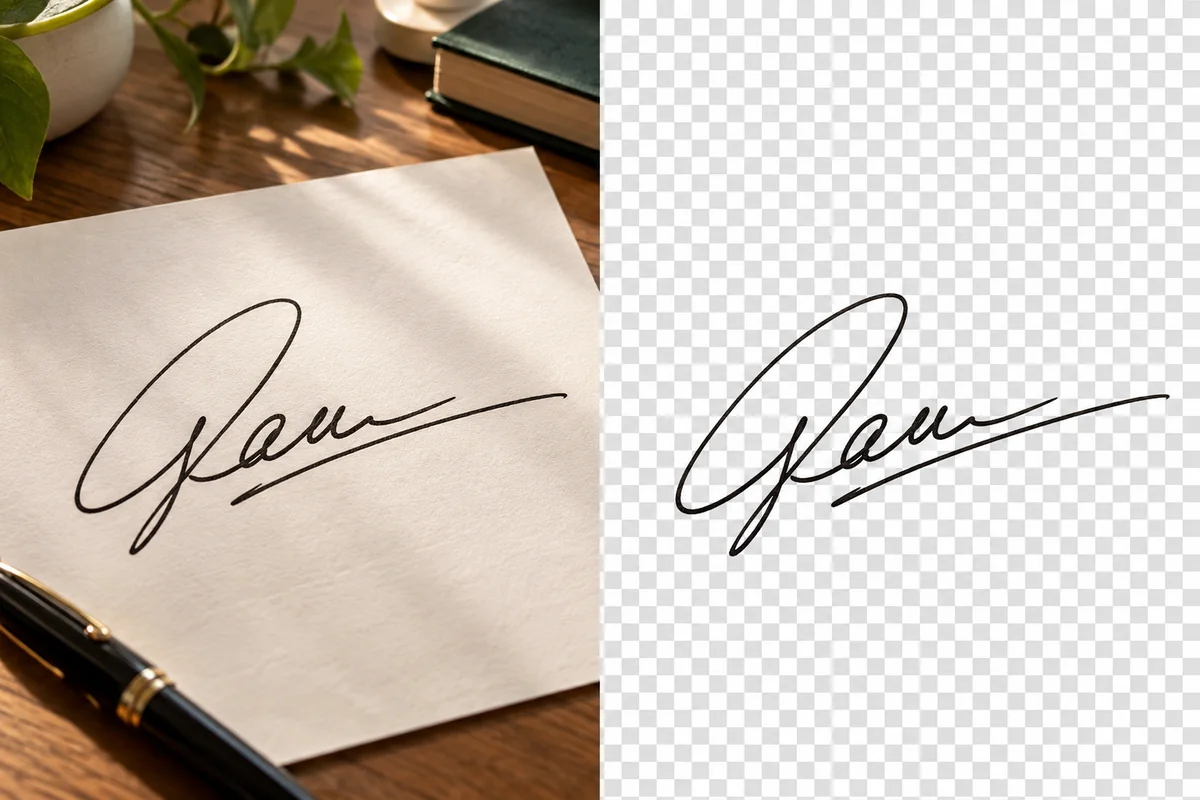
Turn a Phone Photo into a Signature PNG

Use a photographed signature as the source and remove the surrounding page to create a standalone transparent image. That means you can prepare handwritten artwork from a phone photo for a document layout without needing to scan the whole sheet into the design.

Photographed signature isolated from the surrounding page
Prepare a useful image asset from your existing signature.

Keep the Handwriting, Leave the Paper

Remove the White Paper Rectangle

Separate your mark from its pale background so a document's color or artwork can show through the empty areas. This avoids covering nearby layout elements with a solid image box.

Retain Curves and Fine Strokes

AI extraction follows the handwriting's shape. Review fine loops, detached dots, and long flourishes before saving, particularly when the original ink is light or the photo is soft.

Keep the Ink's Original Character

Black, blue, and other visible ink colors can become reusable signature images. Start with clear contrast so the pen texture and light strokes are distinguishable from the paper.

PNG for Transparent Placement

Download a PNG that supports transparent areas around and within the handwriting. Insert the image into an app that accepts PNG, then let your existing page background remain visible.

Preserve a Useful Source Size

The output keeps the uploaded pixel dimensions. Retain a clear master copy and scale it down for each layout; enlarging a tiny source will not create new handwriting detail.

Work from Your Browser

Upload a scan on a computer or a signature photo from your phone. Save the finished PNG as an image asset you can reuse without repeating the paper capture each time.

Signature Background Remover FAQ
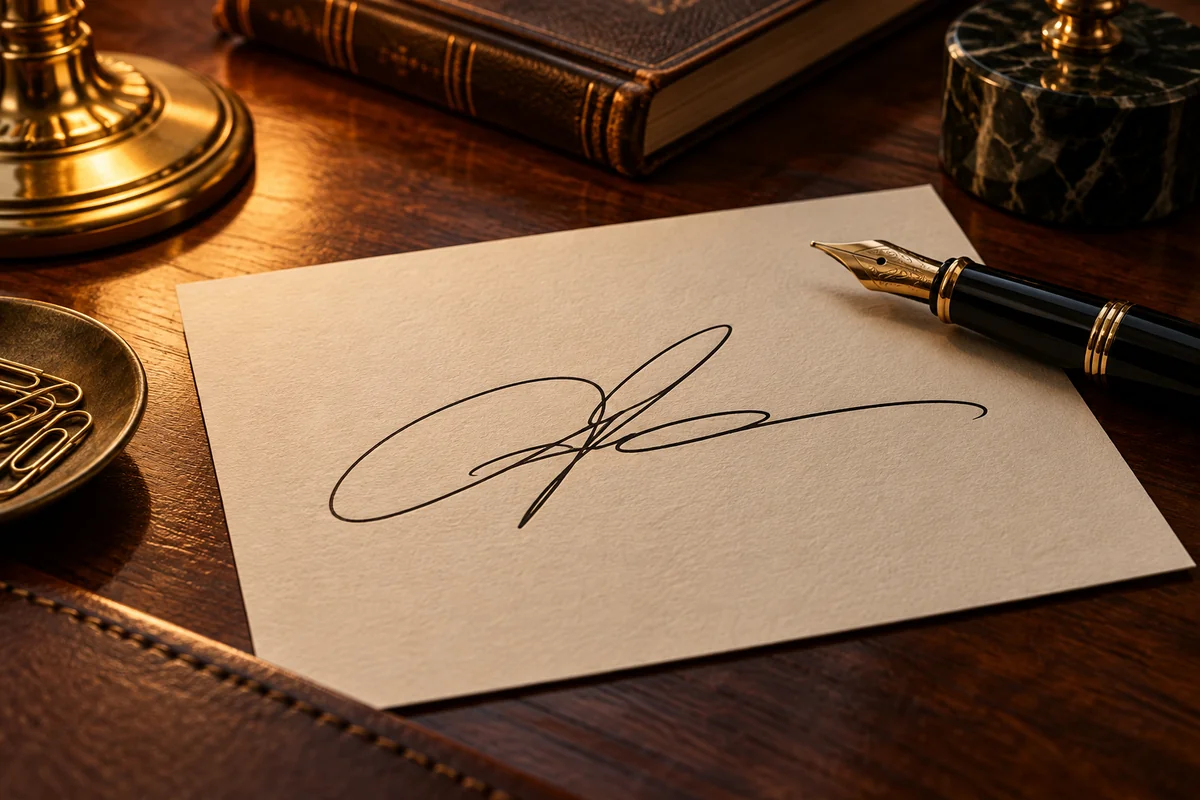
How do I remove the background from a scanned signature?

Save the scan as a JPG, PNG, or WebP image and upload it. Remove the background, review the entire mark, and download a transparent PNG. Starting with a crop containing only the signature helps keep unrelated text out of the result.

Can I try the signature background remover for free?

You can use the trial credits provided to new GoEnhance accounts to try signature background removal. Review your account balance before processing additional images. Credit availability determines how much you can try without purchasing more.

Can it remove a white background from a signature?

Yes. White paper is a common starting background. Choose a transparent output rather than another white canvas, then place the downloaded PNG over a colored page to check that the paper rectangle has been removed.

Why are some thin pen strokes missing?

Faint ink, blur, and heavy compression can make a fine stroke hard to distinguish from paper. Try a clearer scan or photograph with stronger contrast. Compare the result with the original, especially around dots and the tips of flourishes.

Can I keep blue ink instead of changing it to black?

Yes, background removal keeps the visible ink rather than requiring a black-and-white signature. Check light blue sections in the preview and on the destination page, where a colored background can make faint strokes harder to see.

Can I upload a PDF or Word document directly?

This workflow uses image files. If your signature is inside a document, export its image or capture a clear crop first, then upload a supported image. Avoid a low-resolution screen capture when an original signature image is available.

How do I add the PNG to a document?

Use your document editor's insert-image option, select the downloaded PNG, and resize it without stretching its proportions. Check the layout at normal reading size and after export to make sure the image remains clear and correctly positioned.

What if a printed line runs through my signature?

A rule crossing the ink can be difficult to separate cleanly because both marks occupy the same area. A fresh signature on plain, unlined paper is usually a better source. Background removal cannot reliably reconstruct obscured handwriting.

Make Your Handwritten Signature Ready to Place

Remove the paper, review the pen strokes, and save a transparent signature image for your next layout.

Remove Signature Background