
Free Head Cutout Online

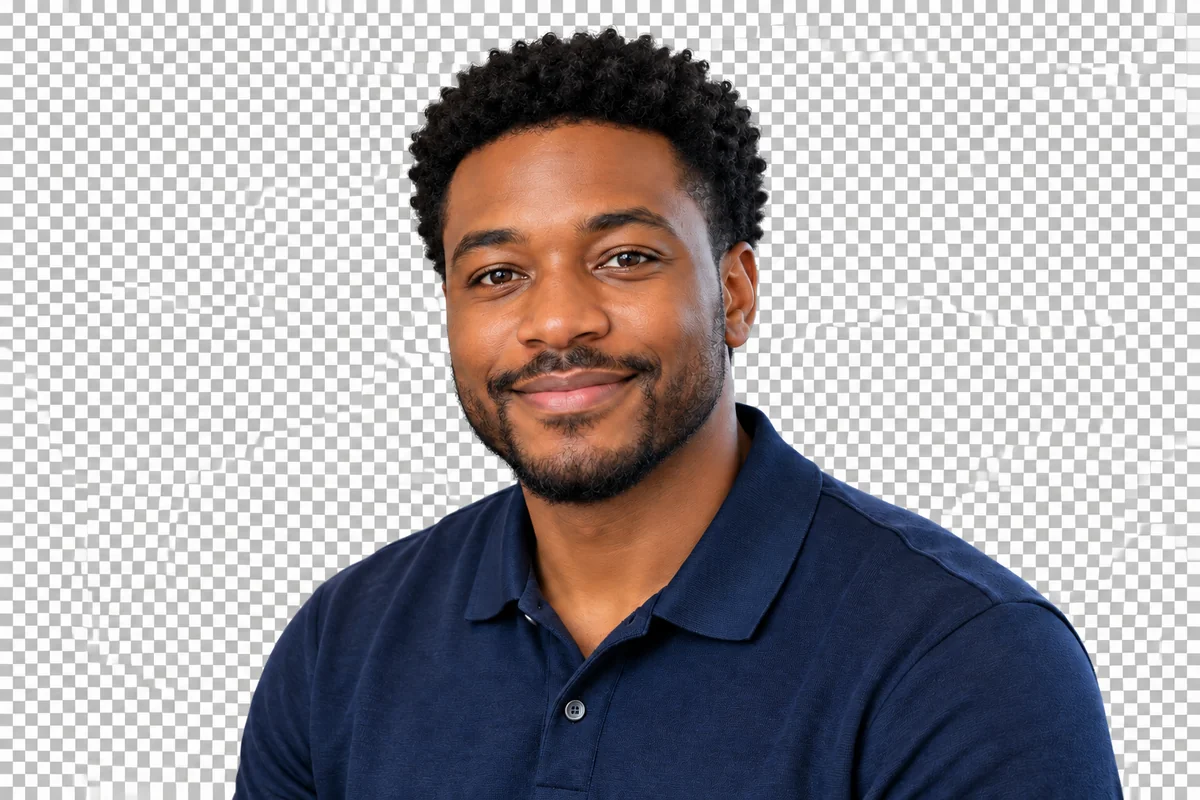
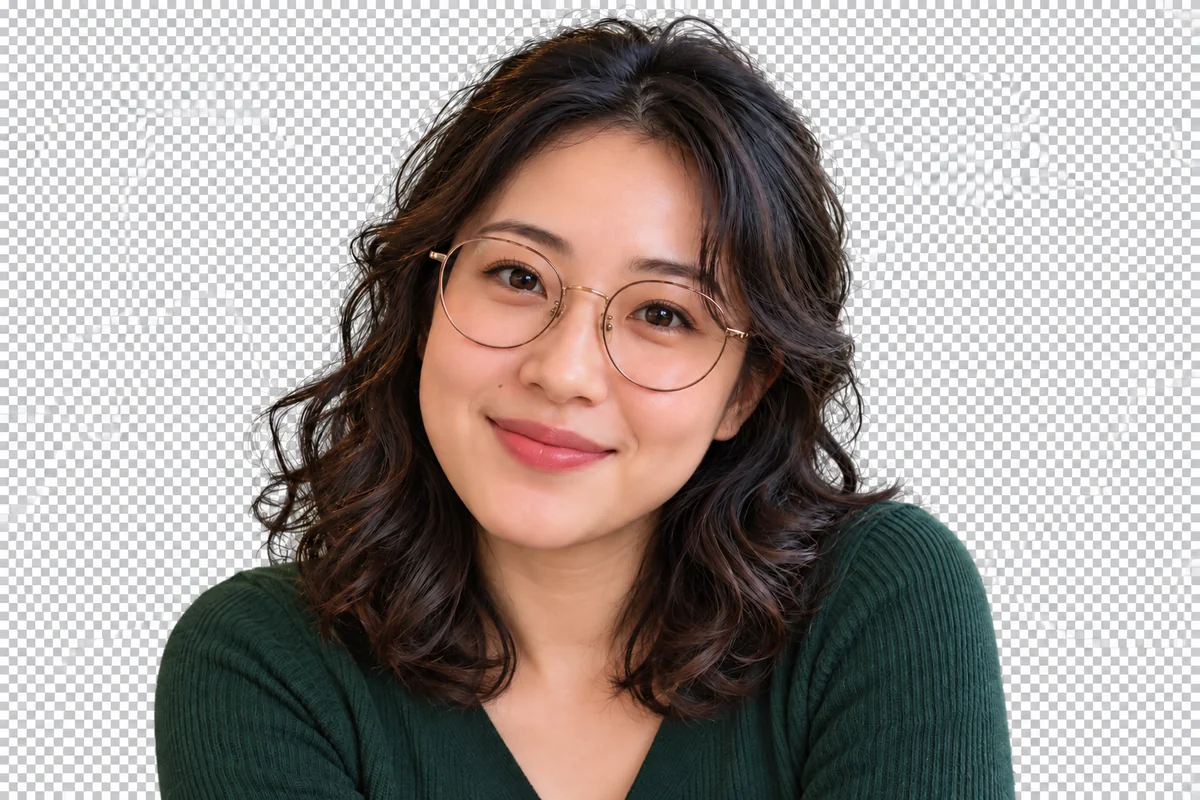
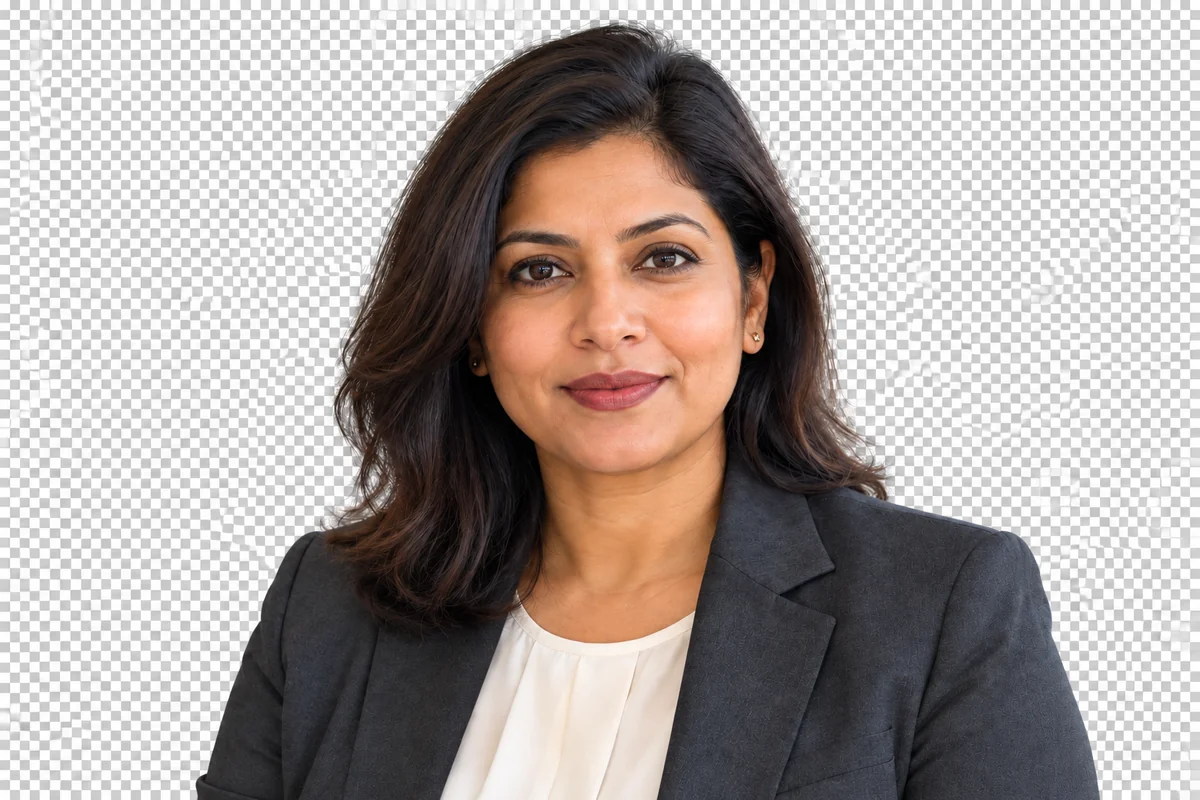
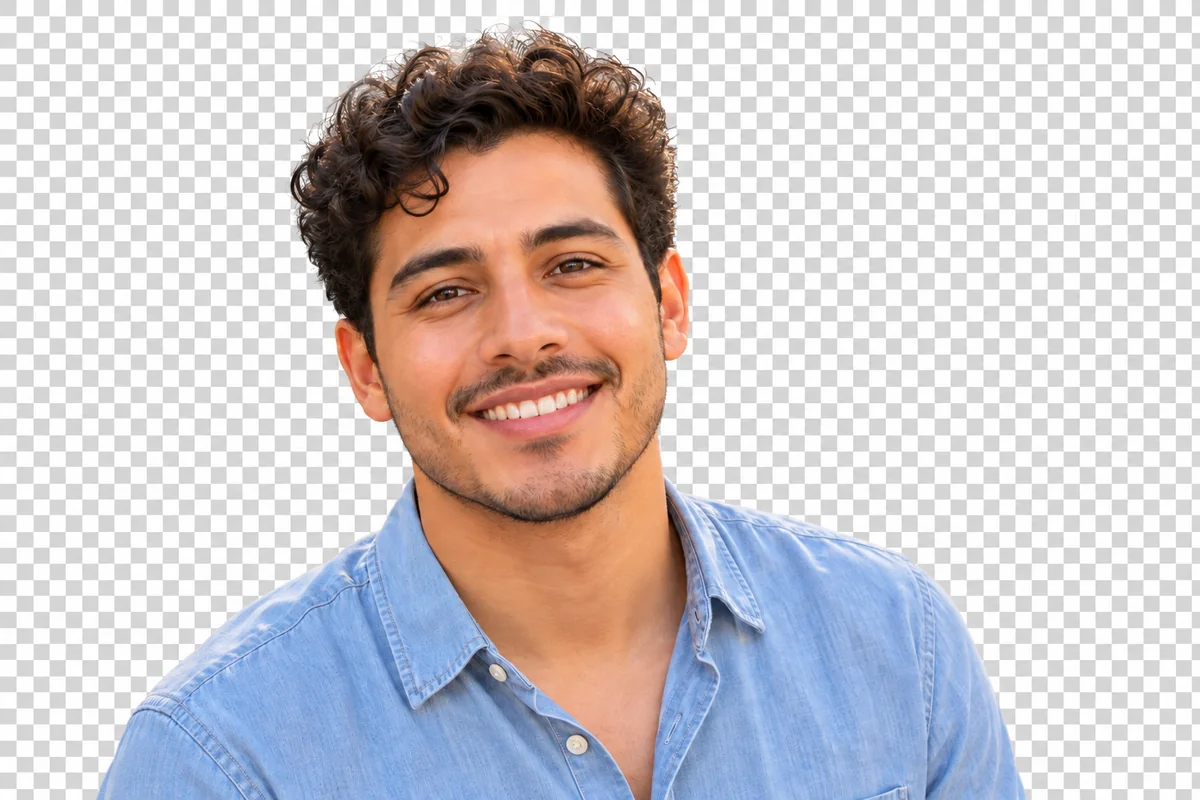
Create a Head Cutout from Your Photo
Upload a clear portrait
Choose a JPG, PNG, or WebP with the full head and hair visible. Leave room above the head, and select the person you need if starting from a group image.
Remove the scene and review the outline
Let AI separate the subject from the background. Inspect hair, ears, glasses, and the lower edge, then choose framing that suits a head sticker or portrait layout.
Save and use your cutout
Download a transparent PNG or choose a solid background. Place the image in a profile graphic, collage, party design, or presentation, keeping its proportions natural.
Face and Hair Cutouts for Portraits and Big-Head Designs
Separate the Face and Hair from Portraits
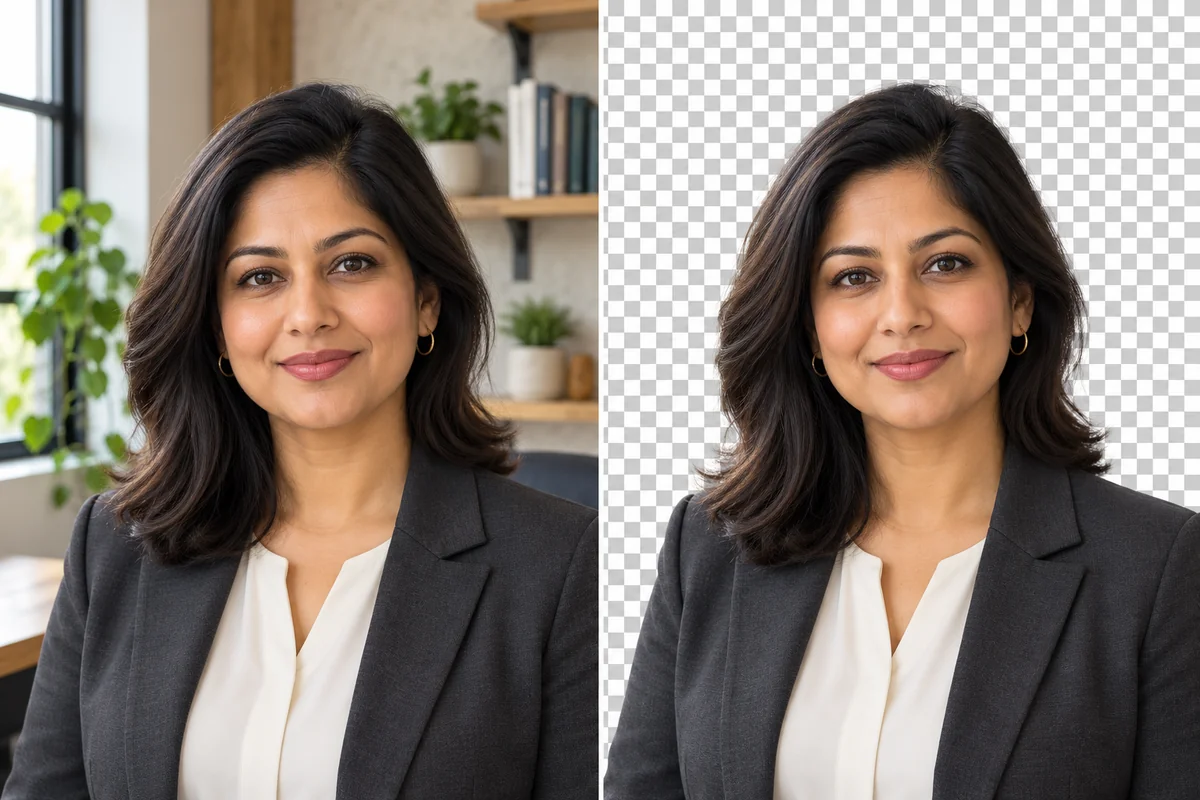
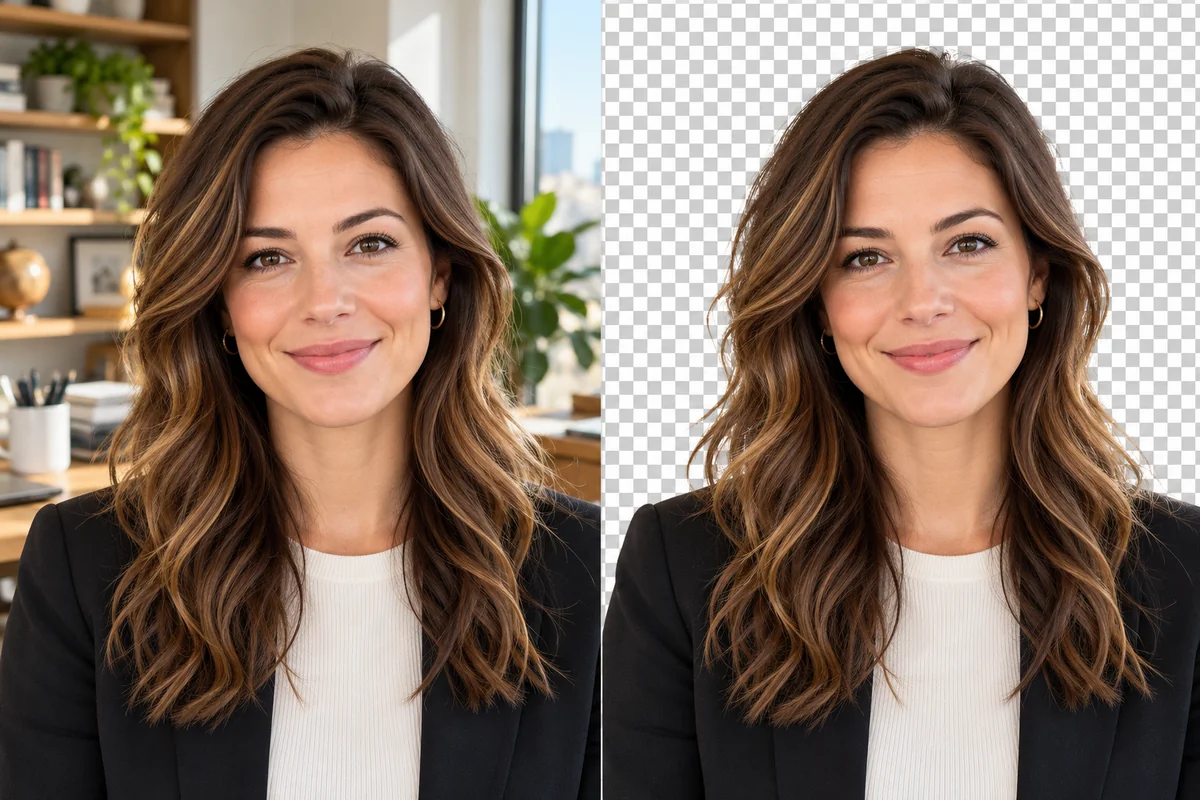
GoEnhance AI detects the person in a portrait and removes the surrounding office scene. The background remover can also isolate other subjects, such as products or pets. The cutout preserves the portrait framing shown in the source, including neck and shoulders when they are in view.
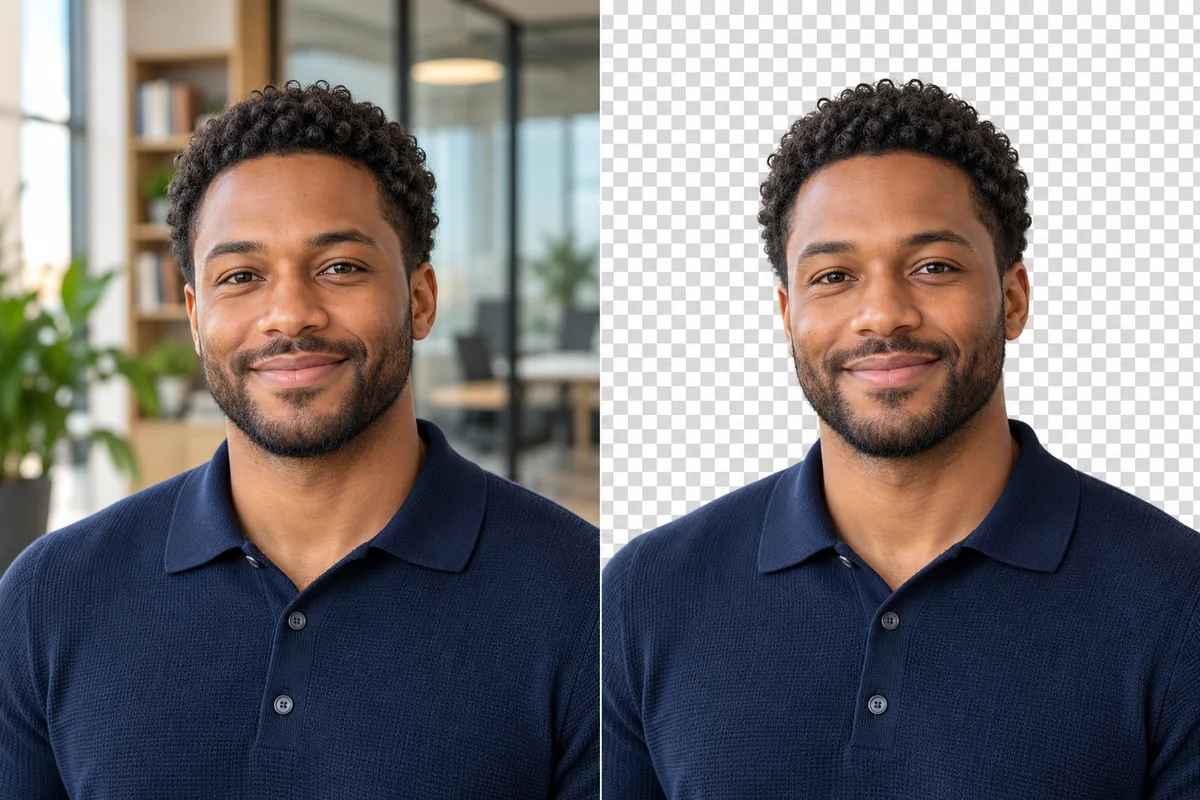
Keep Curls and Glasses in the Outline
The face-and-hair cutout keeps recognizable details such as curls and glasses with the portrait. Removing the room around them gives the subject a separate outline for an avatar, reaction graphic, or playful design without cropping away the features that identify the person.
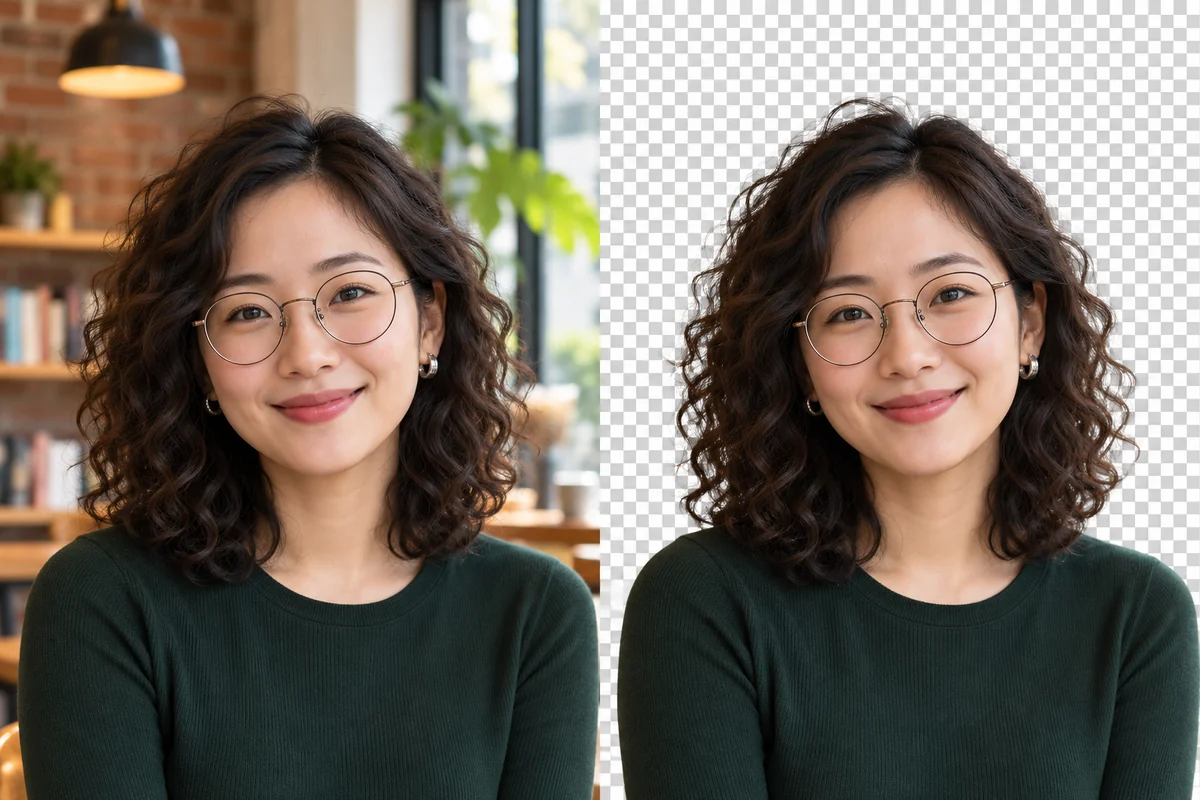
Turn a Headshot into a Clean Portrait Asset
Remove the original office backdrop from a professional headshot while keeping the expression and clothing in the image. The cutout can be saved against white or used as a transparent portrait layer, making the source photo easier to reuse in a speaker or profile graphic.
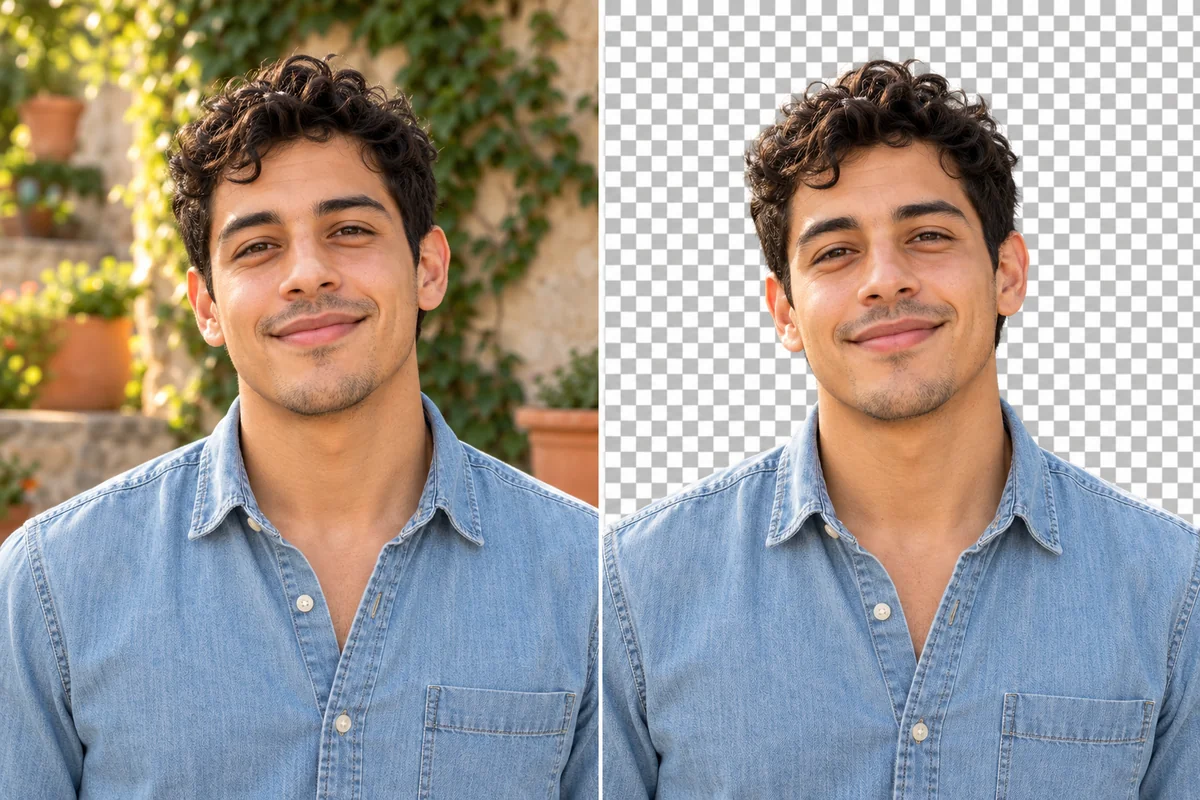
Give Your Head Cutout a Clear Starting Photo
Keep the Person Easy to Recognize
An Outline That Follows the Subject
Hair and Small Accessories
The Face and Expression You Started With
PNG for Stickers, Collages, and Overlays
White or Brand-Color Backgrounds
Create Cutouts in Your Browser
More Tools for Portrait Cutouts
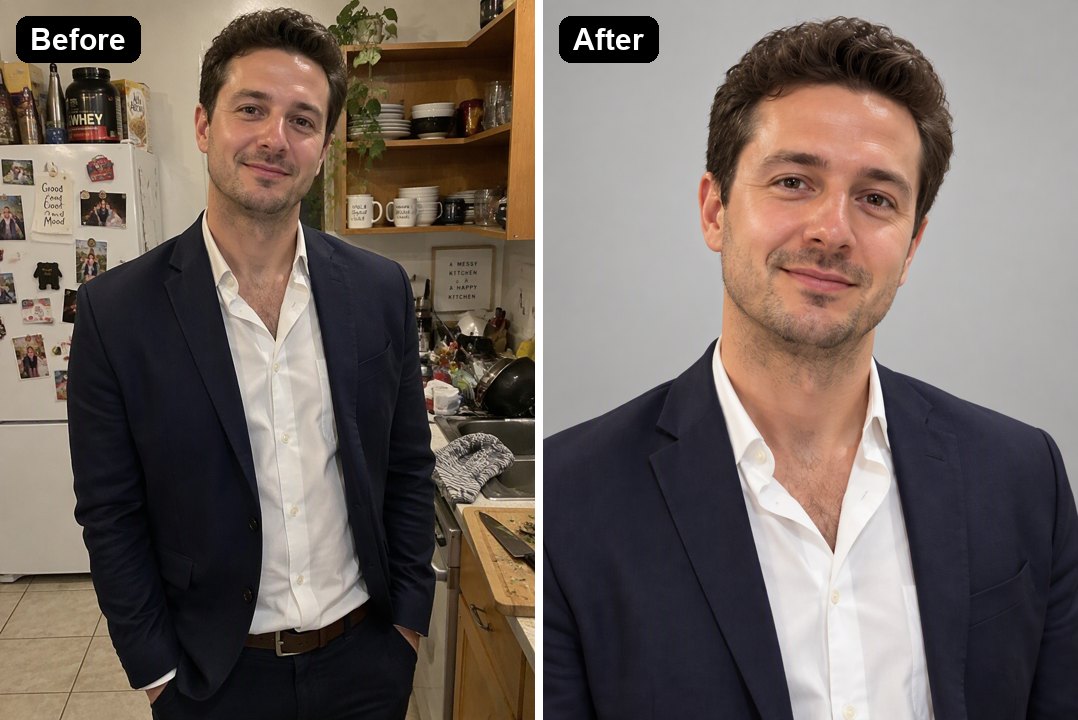
Headshot Background Changer
Place a head cutout against a new background for a profile photo, speaker card, or resume.
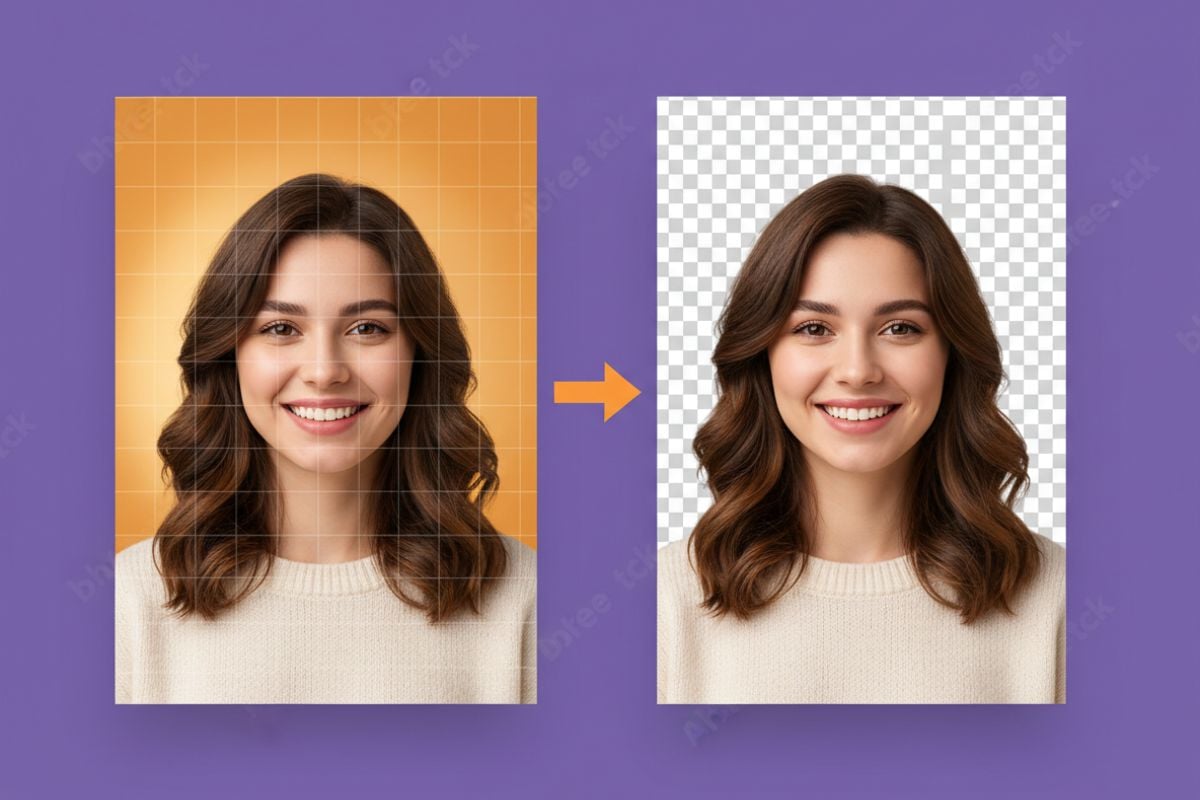
AI PNG Maker
Add transparent PNG artwork around a cutout to make an avatar, card, or presentation asset.
AI Object Remover
Clear a distracting object from the original portrait before using its head cutout.
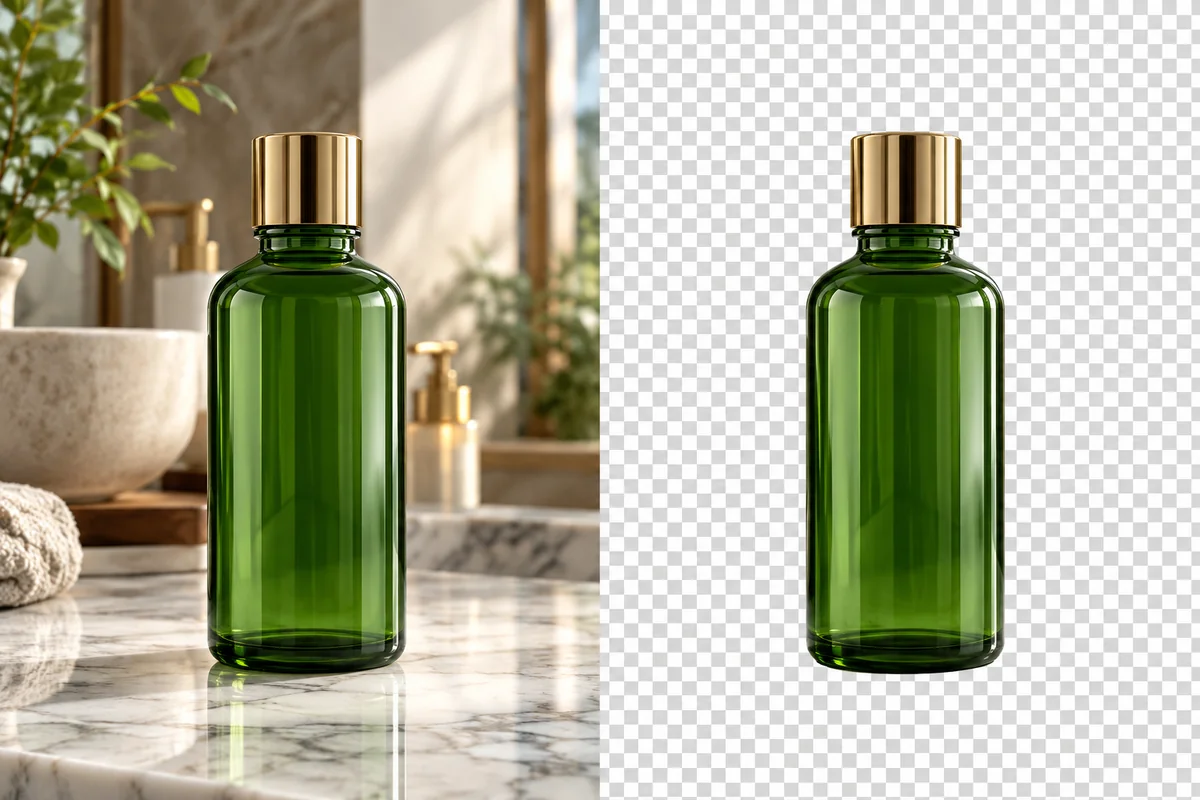
WebP Background Remover
Remove a WebP image background to create a transparent subject cutout for a design.
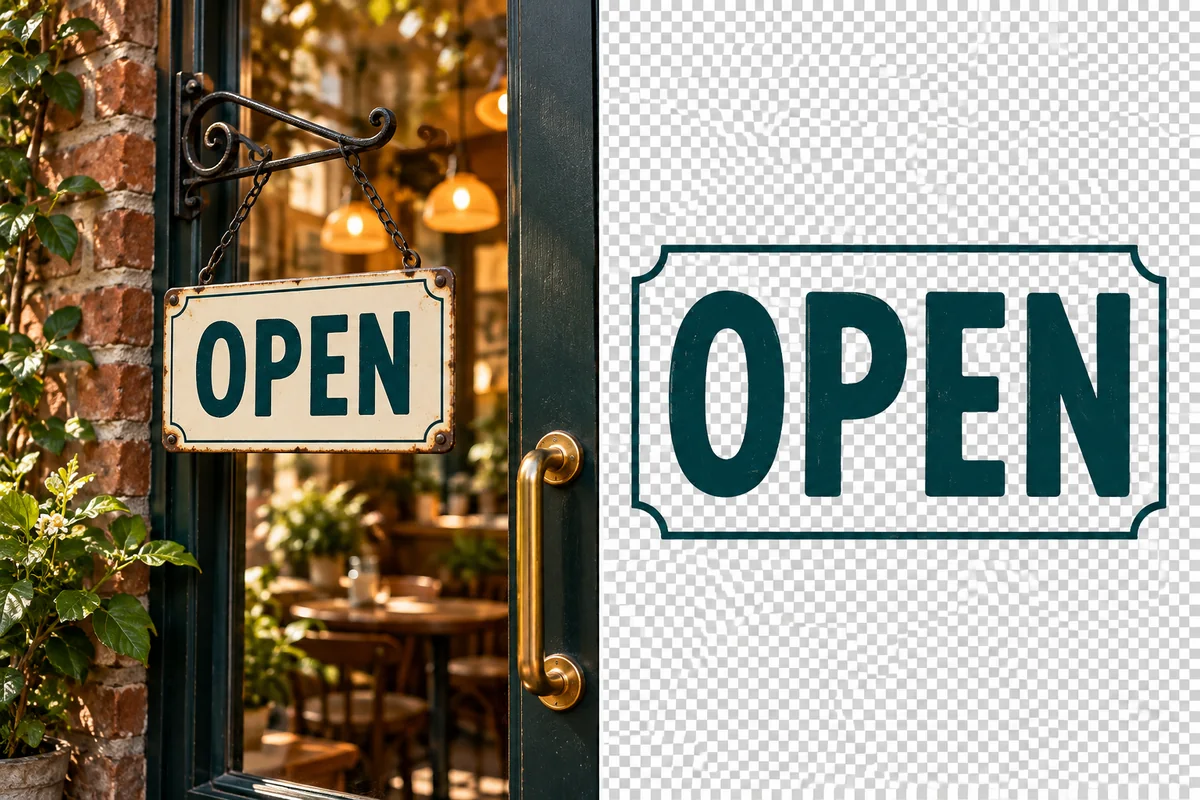
Text Image Background Remover
Keep lettering or artwork while removing the background from a text-based image.
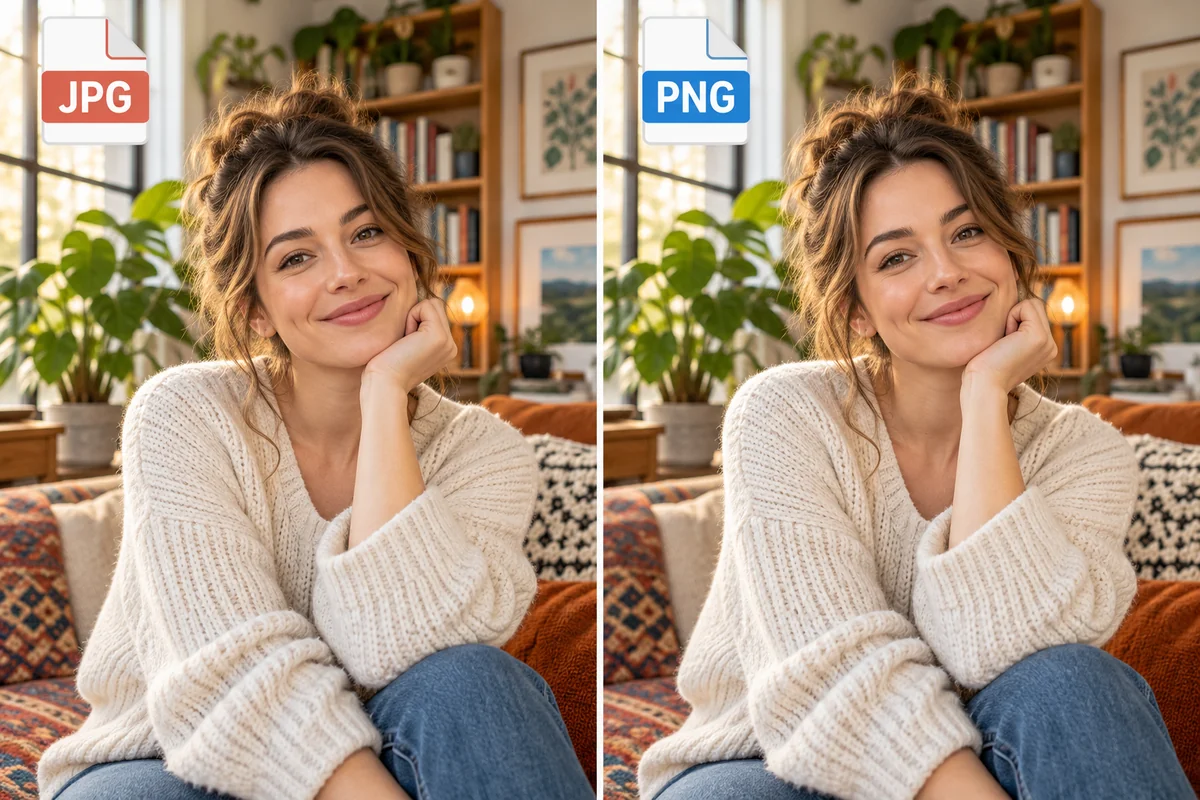
JPG to PNG Converter
Convert a JPG portrait to PNG when a design workflow requires a PNG file.
Head Cutout Online FAQ
How do I make a head cutout online?
What kind of photo gives the cleanest head cutout?
Can I make a head cutout from a group photo?
How is a head cutout different from a regular background remover?
Does a head cutout have a transparent background?
How do I put my head cutout on another photo?
Can I use a head cutout for a large party sign?
Can I make a head cutout on my phone?
Why does my transparent PNG look like it has a white background?
Put Your Headshot into the Next Design
Upload a clear photo and prepare a reusable cutout for profiles, stickers, collages, or party graphics.
Create a Head Cutout Online