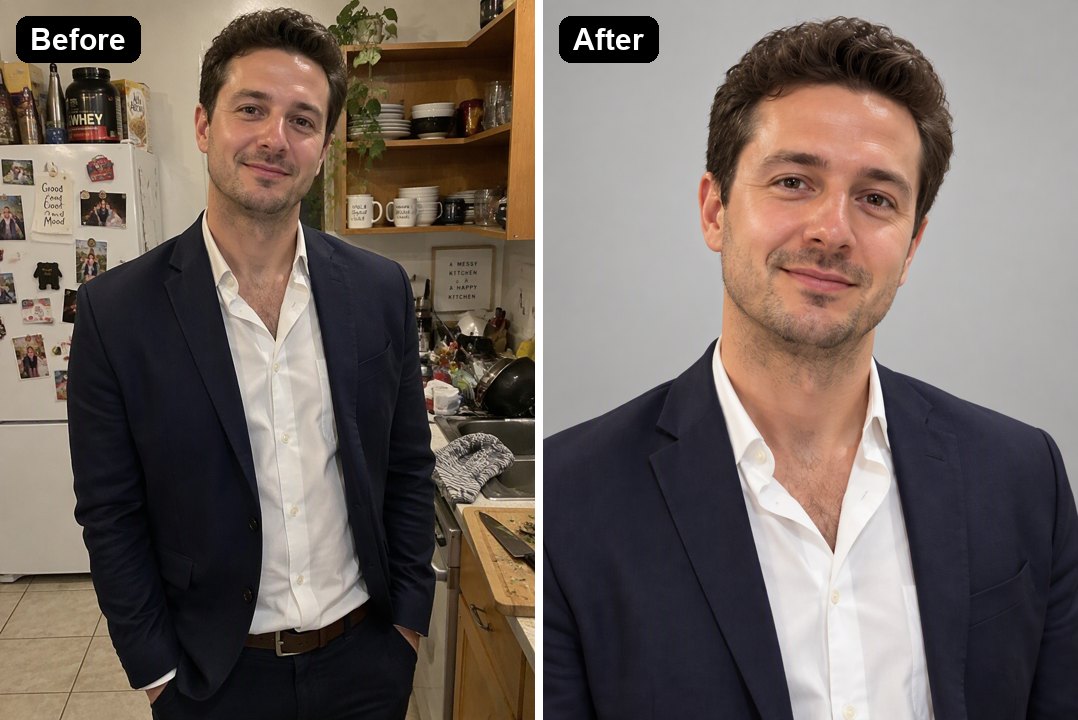
WebP Background Remover

Have an image saved as WebP and need the subject on its own? Upload the file directly to GoEnhance AI, remove its background, and download a transparent PNG for your next layout. Prepare product cutouts, portraits, plants, pets, or illustrated characters without taking a screenshot or converting the original to JPG before you begin.
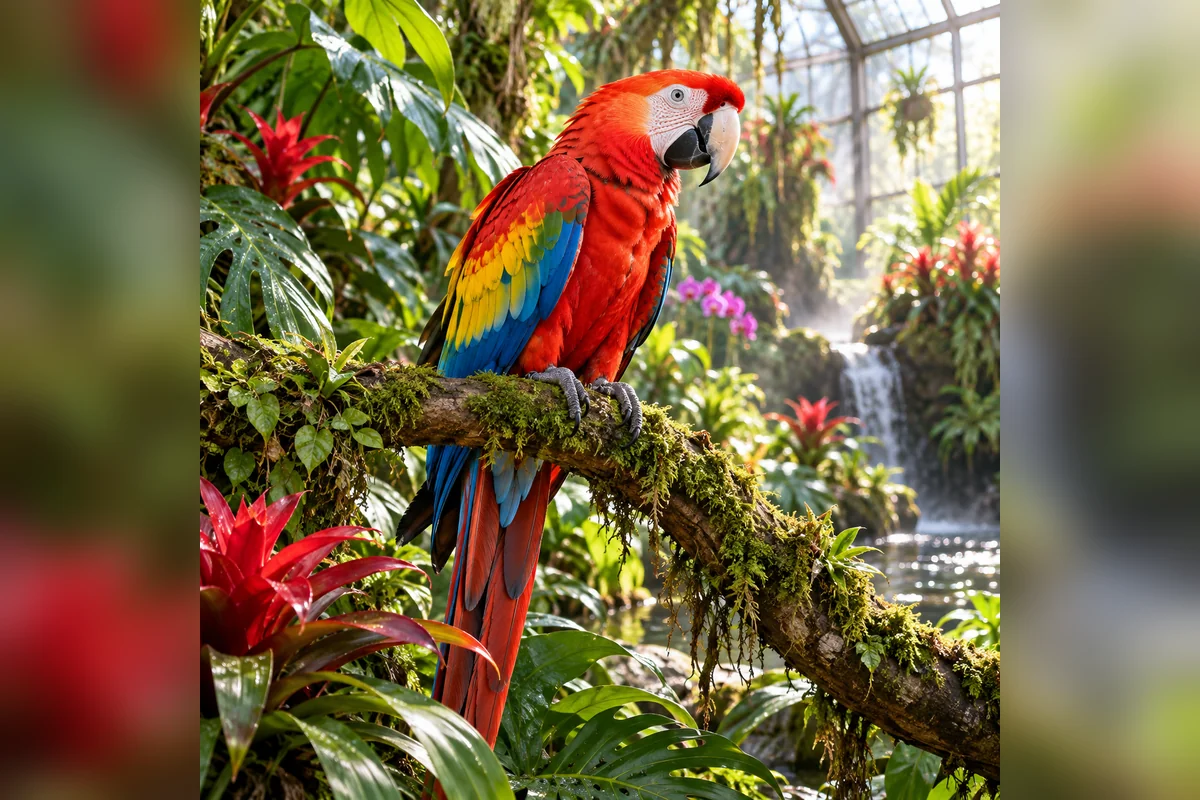
Colorful Bird
Colorful Bird
Headphones
Headphones
Decorative Teapot
Decorative Teapot
Fluffy Dog
Fluffy Dog
Upload a still WebP image
By uploading a file, you agree to GoEnhance's Terms of Use and Privacy Policy

Remove a Background from WebP in Three Steps

Start with your WebP file and finish with an image ready to place.
01

Upload the WebP directly

Choose the still image from your device. Use the clearest available source so the subject's outline and small details remain visible.

02

Choose the background result

Let AI isolate the subject, then keep transparency or choose white or a custom solid color. Review fine edges in the preview.

03

Download the PNG cutout

Save the processed image as PNG and place it in your design app. Check the result over your intended background before making a final export.

Choose How Your WebP Subject Will Be Used

PNG outputWhat you getUseful for
Transparent backgroundA subject with empty space around itLayered graphics, website mockups, and design handoffs
White backgroundA subject on a neutral white canvasCatalog layouts and simple product presentations
Custom solid backgroundA subject against a chosen colorProfile graphics and coordinated campaign assets

Start with the Best Available WebP Image

Source detailWhat to look forWhy it matters
Pixel dimensionsA sufficiently large original fileTiny previews contain less edge detail
CompressionClear outlines without heavy smearingLost source detail cannot be recovered by removing a background
Subject separationA recognizable foregroundSimilar subject and background colors are harder to separate
Fine shapesVisible hair, leaves, or narrow linesSmall gaps need a careful preview
Existing transparencyEmpty areas rather than painted checkerboard squaresThe extension alone does not prove transparency
AnimationA still image or exported frameThis workflow prepares a single-image cutout

Background Removal Built around WebP Images

Upload WebP without Making a JPG Copy

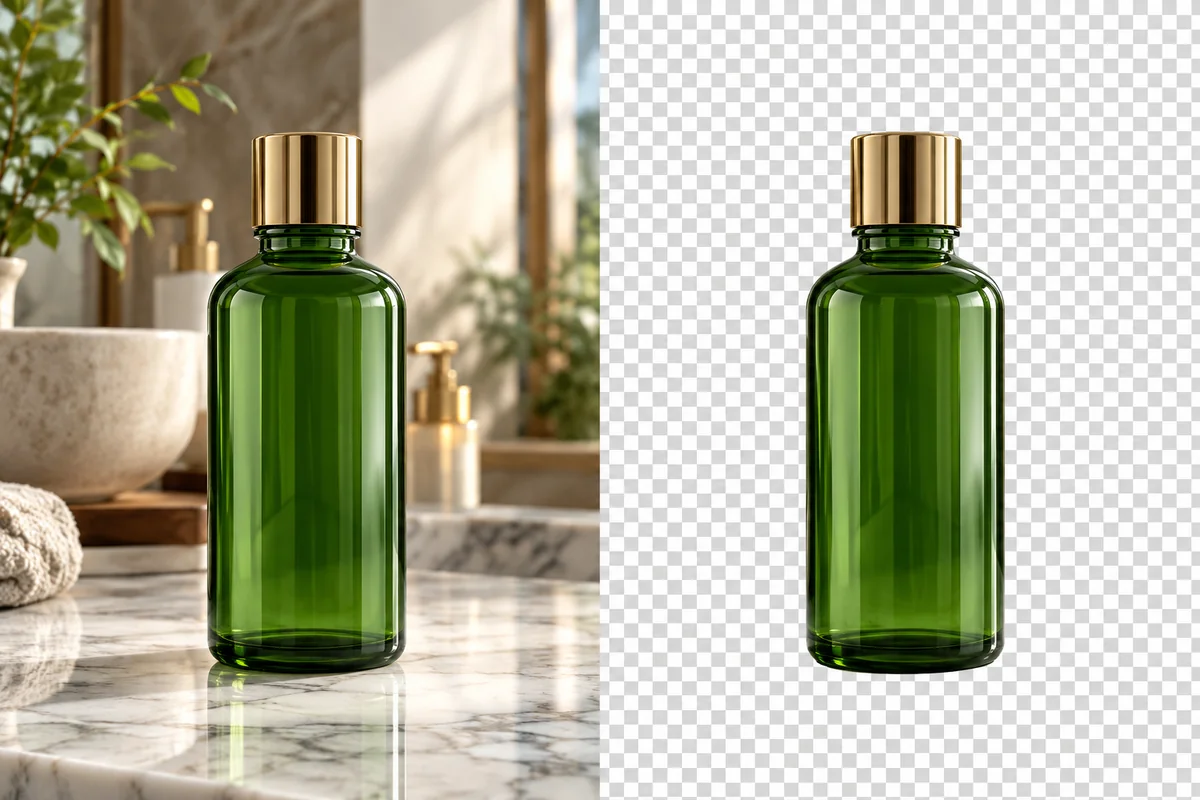
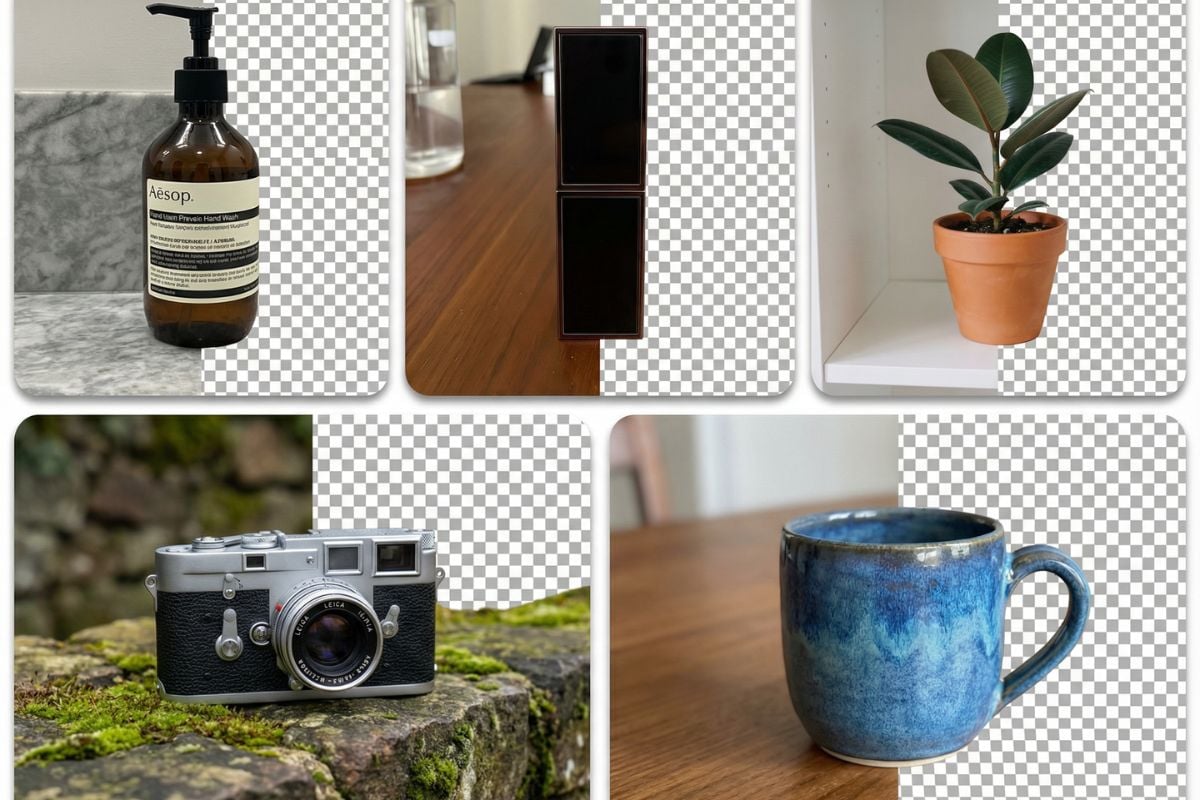
GoEnhance AI accepts a WebP product image directly, so the background-removal workflow can start from the file you already have. Remove the room around the bottle and prepare a transparent cutout without first taking a screenshot or changing the source format yourself. For more options, visit our background remover.

Illustrative WebP bottle image before and after background removal.

Separate Portraits from Their WebP Backgrounds

Identify the person in a WebP photo and clear the indoor scene around the portrait. The result gives you a separate subject image for a profile or presentation, so the original room does not have to travel into the new layout.

Illustrative portrait background removal from a WebP source.

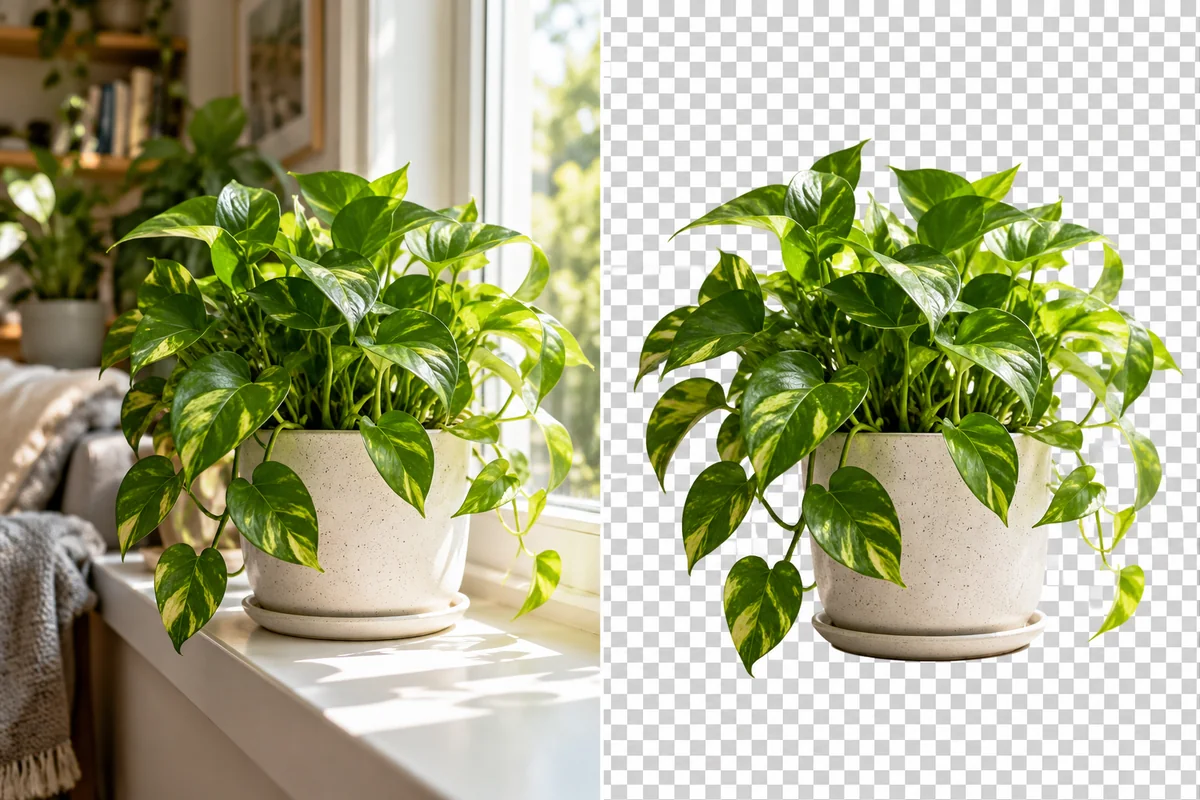
Keep Fine Leaves in a Plant Cutout

Remove the surrounding setting while retaining the plant's stems and leaves as the foreground subject. Fine foliage stays part of the cutout, making the image easier to layer into a mood board or interior presentation without carrying along the window behind it.

Illustrative potted plant cutout with fine leaves and stems.

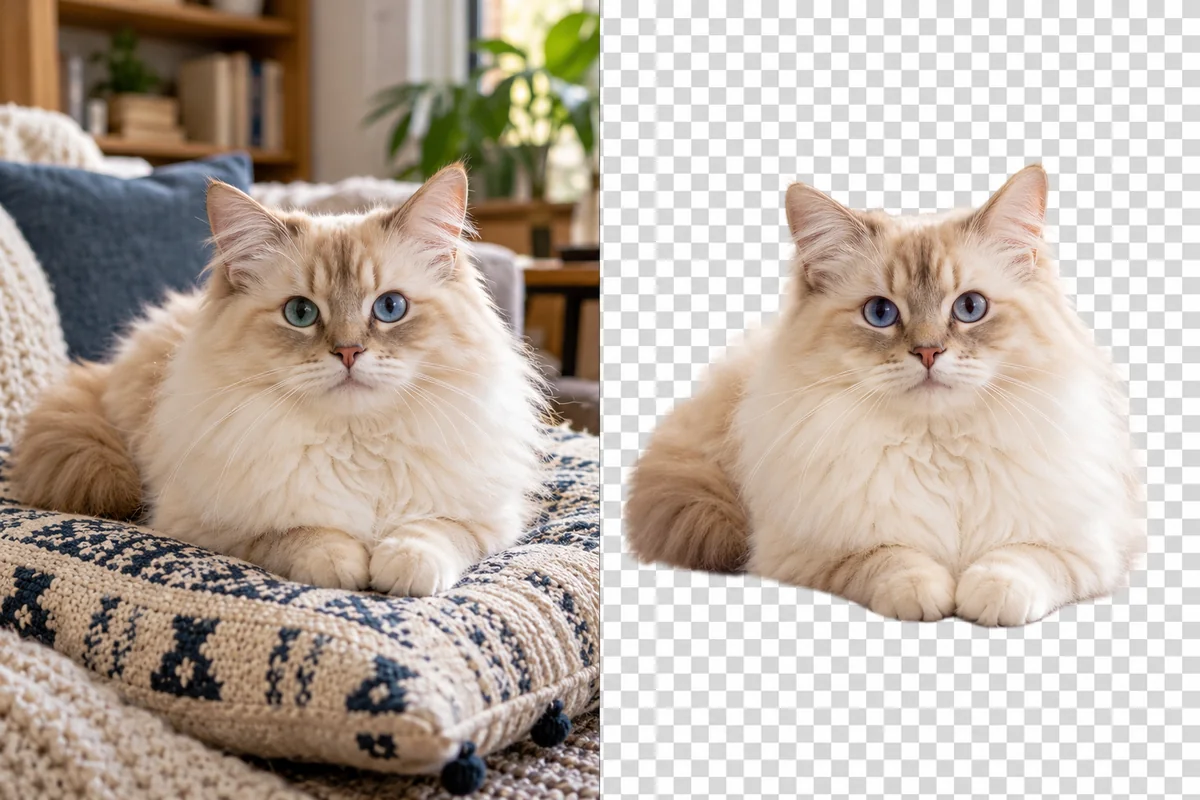
Make WebP Pet Photos into Transparent PNGs

Clear the sofa and room around a cat photo, then download a transparent PNG. The result keeps the pet as the visible subject on a reusable image layer that works for cards and other designs where the original indoor background is not needed.

Illustrative fluffy cat with its sofa background removed.

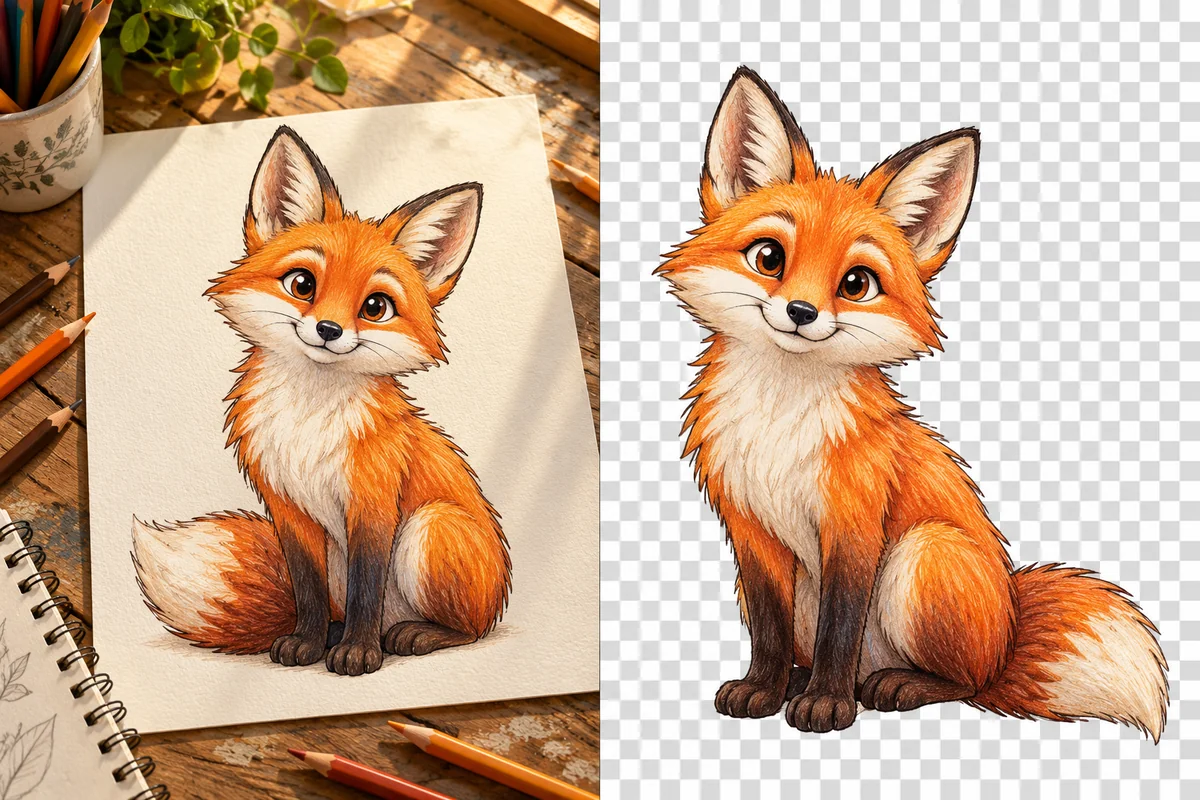
Remove Backgrounds from WebP Artwork

Isolate a drawn character from its existing backdrop while keeping the illustration intact. A transparent PNG is easy to place over other graphic elements, giving WebP artwork a practical handoff format for a cover, sticker design, or presentation.

Illustrative drawn character prepared on a transparent background.
Keep the useful source image and prepare an output your next project can use.

A Direct Workflow for Your WebP Files

WebP Input Without an Extra Conversion

Use your WebP image as the starting file. You can avoid a separate conversion to JPG or a screen capture, both of which add unnecessary steps to a simple cutout task.

Automatic Subject Separation

AI distinguishes the foreground from the scene around it. Prepare people, products, pets, and artwork even when the original WebP contains a textured or detailed setting.

PNG Output with Transparency

Save the isolated subject as PNG for common document and design workflows. Transparent pixels let the new layout show around the cutout instead of carrying the original scene.

Original Pixel Dimensions

Keep the upload's pixel width and height in the result. Source sharpness still matters, so start with the full image when a website thumbnail is too small for your layout.

Photo and Illustration Modes

Match the processing mode to your image: a photographed subject or drawn artwork. Review the preview afterwards, particularly fine outlines, floating details, and areas close to the background color.

Choose a Finished Background

Keep a transparent asset for further design work, or choose white or a custom solid color for a standalone image. Make the choice according to where the result will appear.

WebP Background Remover FAQ
Can I remove a background from a WebP file directly?

Yes. Upload a still WebP image, remove its background, and download the PNG result. You do not need to convert the source to JPG or take a screenshot before using this WebP image background remover.

Is the WebP background remover free to try?

New GoEnhance accounts include trial credits for trying the image tools. Use an image representative of your project to review the result, then check your available balance before processing more files or a larger collection.

Can WebP images already have transparent backgrounds?

Yes, WebP can store transparency, but a particular WebP may still contain a fully visible background. The file extension tells you the format, not which pixels are transparent. Background removal changes those areas by separating the subject.

Will my processed image remain a WebP?

This workflow downloads the processed result as PNG. The PNG can preserve the transparent cutout for your design app. If your final website needs WebP, export a transparent WebP from a compatible editor or converter afterwards.

Will background removal improve a compressed WebP?

It removes the surrounding scene, but it does not restore texture or outlines already lost through compression. Start with the largest clear source available. Review fine edges when a small downloaded preview is your only source.

Can I process an animated WebP here?

Use a still WebP or export the frame you want to work with as an image. This landing page's workflow produces a single-image cutout; it does not preserve an animation or remove the background across its frames.

Why does the cutout show a white background elsewhere?

A viewer may display transparency against white, or another app may flatten the image during export. Place the PNG over a colored layer to check it. Avoid exporting as JPEG when you want transparent areas to remain.

Can I remove backgrounds from several WebP images?

Yes, include your WebP files in a batch and apply the output style your collection needs. Review individual cutouts before downloading, and keep filenames tied to the project so the finished PNG files are easy to match to their sources.

Make Your WebP Subject Ready for a New Layout

Upload the original WebP, remove its background, and download a PNG cutout you can reuse.

Remove My WebP Background