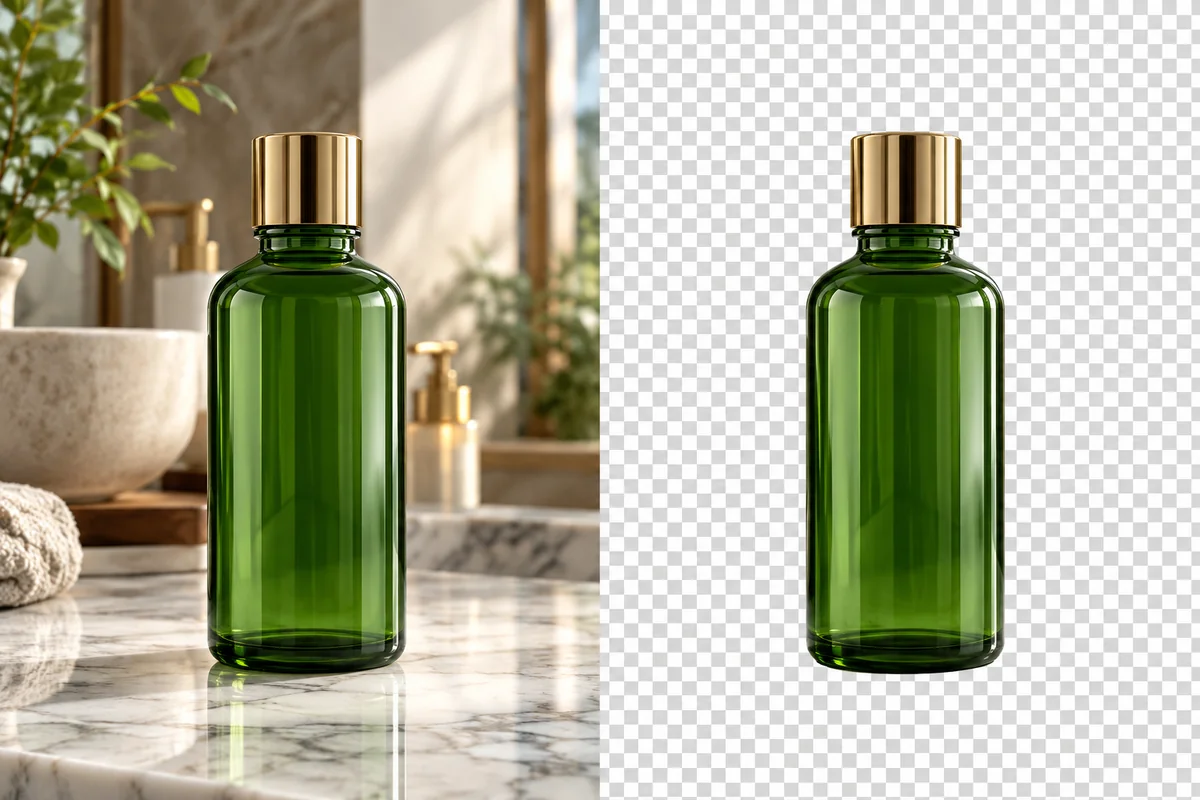
Text Image Background Remover

Keep the lettering you like and remove the background around it. GoEnhance AI turns text images into transparent PNG assets for posters, slides, social graphics, and creative layouts. Reuse the original letter shapes, colors, and handwritten character without carrying the paper, signboard, or scene into the next design.
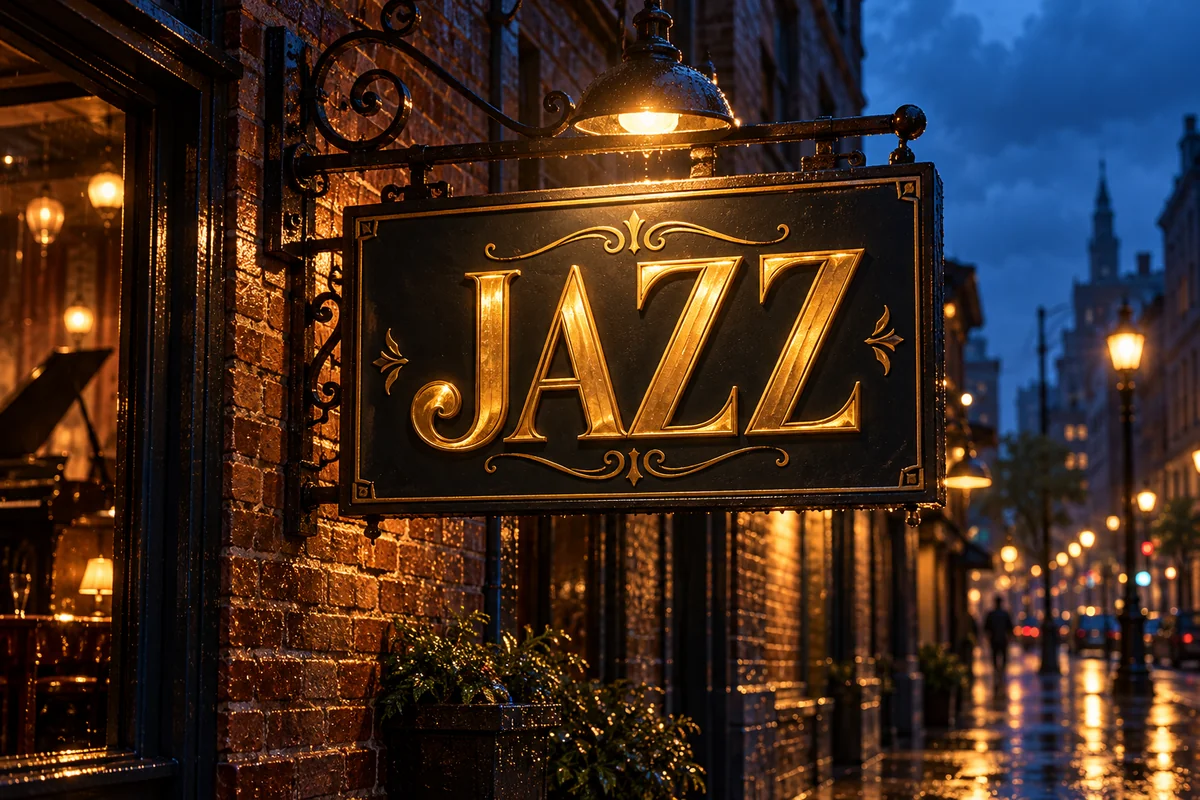
Jazz Lettering
Jazz Lettering
Field Guide
Field Guide
Admission Ticket
Admission Ticket
Road Sign Lettering
Road Sign Lettering
Upload an image containing the text you want to keep
By uploading a file, you agree to GoEnhance's Terms of Use and Privacy Policy

Remove the Background and Keep the Text

Prepare an image layer from the lettering already in your picture.
01

Upload your text image

Choose a JPG, PNG, or WebP with clearly visible lettering. Crop around the words you need while leaving room for dots, accents, and decorative strokes.

02

Remove the surrounding background

Separate the lettering from its paper, board, or scene. Review the outer strokes and open spaces inside letters, along with any artwork you want to retain.

03

Download a transparent text PNG

Save the result and place it over your new layout. Check contrast and legibility at the intended size before exporting your design.

Check the Small Details That Make Words Readable

Text detailWhat to preserveWhat to inspect
Thin strokesSerifs and narrow letter connectionsMissing tips or broken joins
Letter interiorsOpen space within letters such as A, B, and OBackground left inside enclosed areas
PunctuationDots, commas, and accentsSmall marks lost beside larger words
HandwritingNatural curves, flourishes, and underlinesFaint ink and long tapered strokes
Light letteringWhite or pale letter shapesVisibility over the destination background
Decorative textMeaningful borders, ornaments, and effectsWhether retained details belong to the intended asset

Remove the Background and Keep the Text Artwork

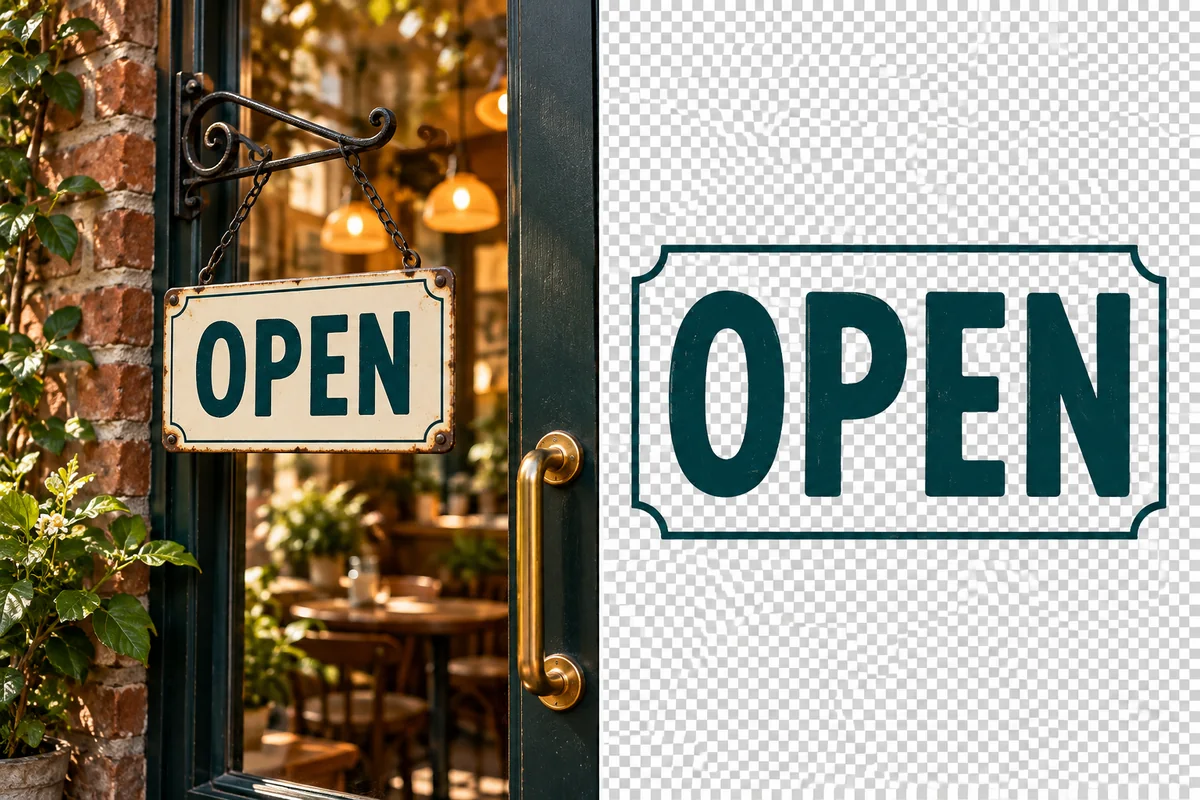
Extract Clear Lettering from a Sign

GoEnhance AI separates the word OPEN and its border from the storefront scene, keeping the sign's lettering as the foreground image. The transparent output turns flattened sign artwork into a text graphic you can place over a different layout. For more options, visit our background remover.

A storefront OPEN sign beside the isolated OPEN lettering on a transparency preview.

Keep Decorative Typography as One Image

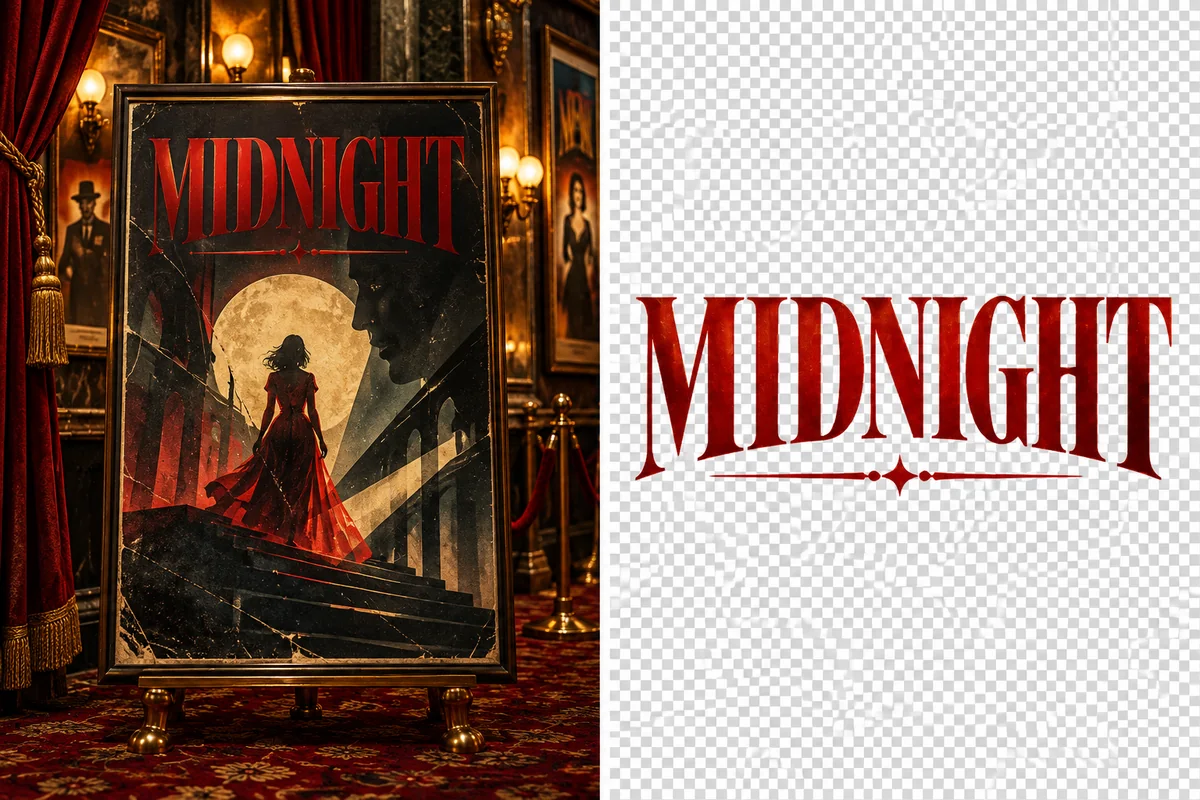
Isolate the red MIDNIGHT headline and its ornament from the theater poster scene. The original typographic treatment remains together in a separate graphic, so you can reuse the distinctive title without rebuilding its lettering and decoration.

The red MIDNIGHT poster title isolated from its theater scene.

Preserve Handwritten Letter Shapes

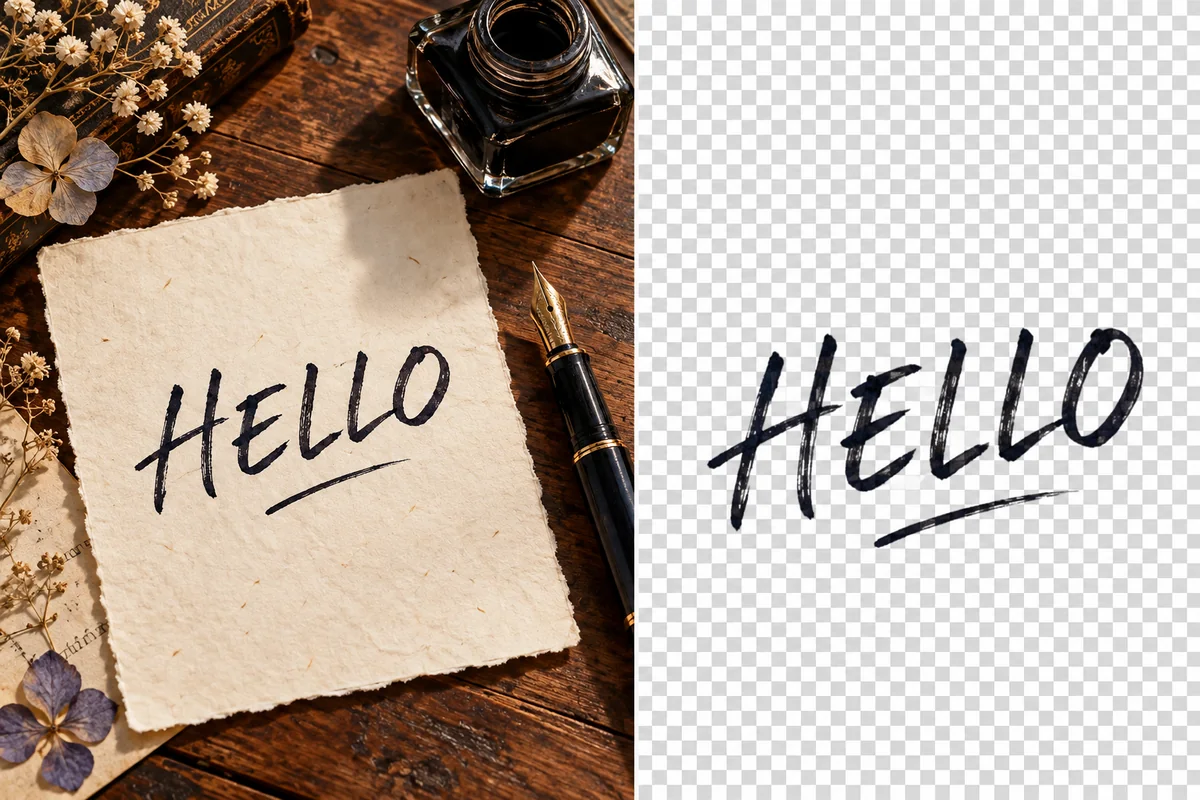
Extract the handwritten word HELLO and underline from the paper background while keeping their original strokes as an image. The transparent result retains the personal lettering style, ready to place over a card, illustration, or photo.

The handwritten word HELLO isolated from cream paper.

Keep Lettering and Chalk Illustrations Together

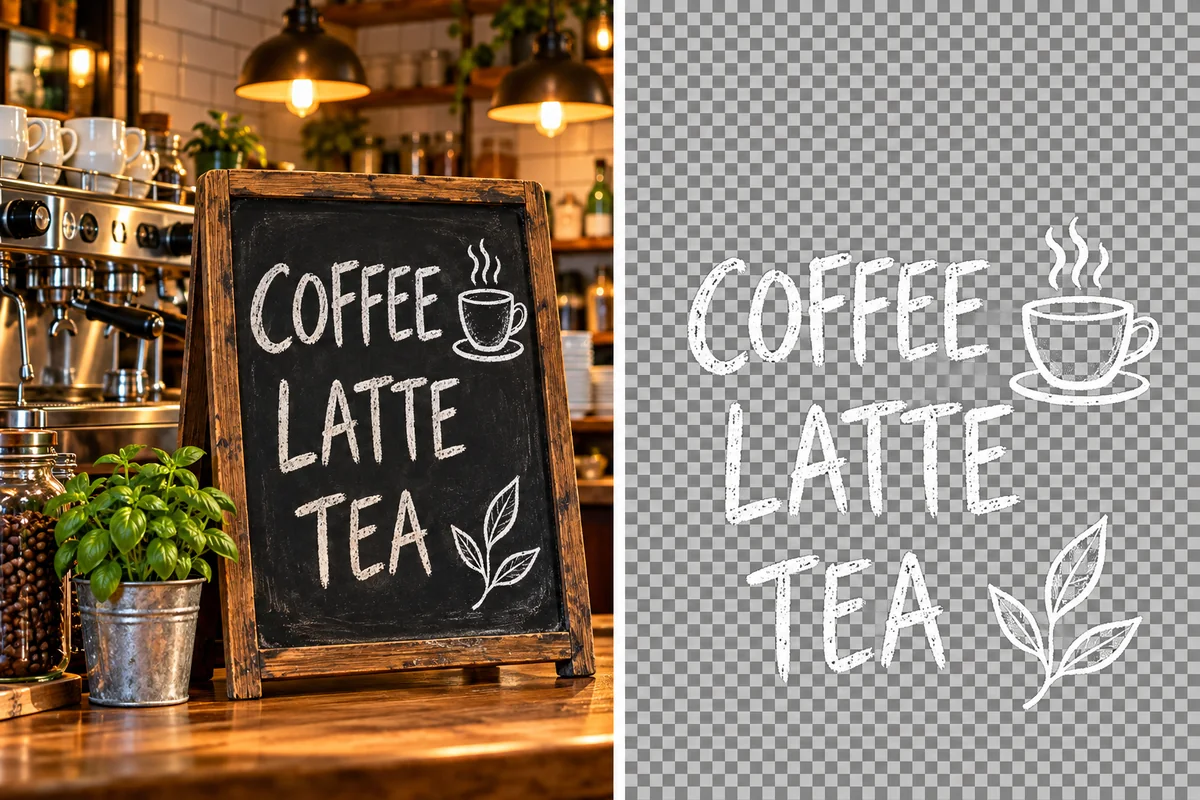
Remove the chalkboard around the menu text and small chalk drawings, leaving the existing foreground artwork as a transparent graphic. This is useful for image assets where lettering and its nearby illustration form one combined piece of visual content.

Cafe menu words and chalk drawings isolated from a chalkboard.

Isolate Label Text with Its Matching Artwork

Separate the BOTANICAL lettering and leaf mark from the label surface as one image asset. The tool clears the surrounding bottle and paper, so the original wordmark and illustration can be reused together without recreating their layout.

The BOTANICAL word and leaf illustration isolated from a product label.
Keep your lettering useful as a separate layer in the next design.

Transparent Text Assets with Their Original Style

Retain Existing Letter Shapes

Keep the visual style already in your image, including custom type and handwriting. The result is a cutout of the original lettering that you can reuse in another composition.

Remove White Paper and Other Backdrops

Clear the background around text on paper, labels, posters, or signs. This gives the words room to fit a new page without covering it with the original rectangular canvas.

Keep Colored and Light Lettering

Prepare colored headlines, dark ink, or light chalk lettering as transparent assets. Choose a destination background with enough contrast to make the saved words readable.

Preserve Small Marks and Open Spaces

Fine strokes, punctuation, and letter interiors affect how text reads. Review these areas in the preview, especially with small fonts or lightly photographed lettering.

PNG Layers for Design and Video Layouts

Download a transparent image you can place in slides, posters, graphics, or a video editor. Keep the text asset separate so you can adjust its placement across different compositions.

Prepare Text Images Online

Upload an existing image from your browser and save the lettering for another project. You can keep a special title treatment without finding the font or rebuilding it in a desktop editor.

Text Image Background Remover FAQ
Will it remove the background and keep the text?

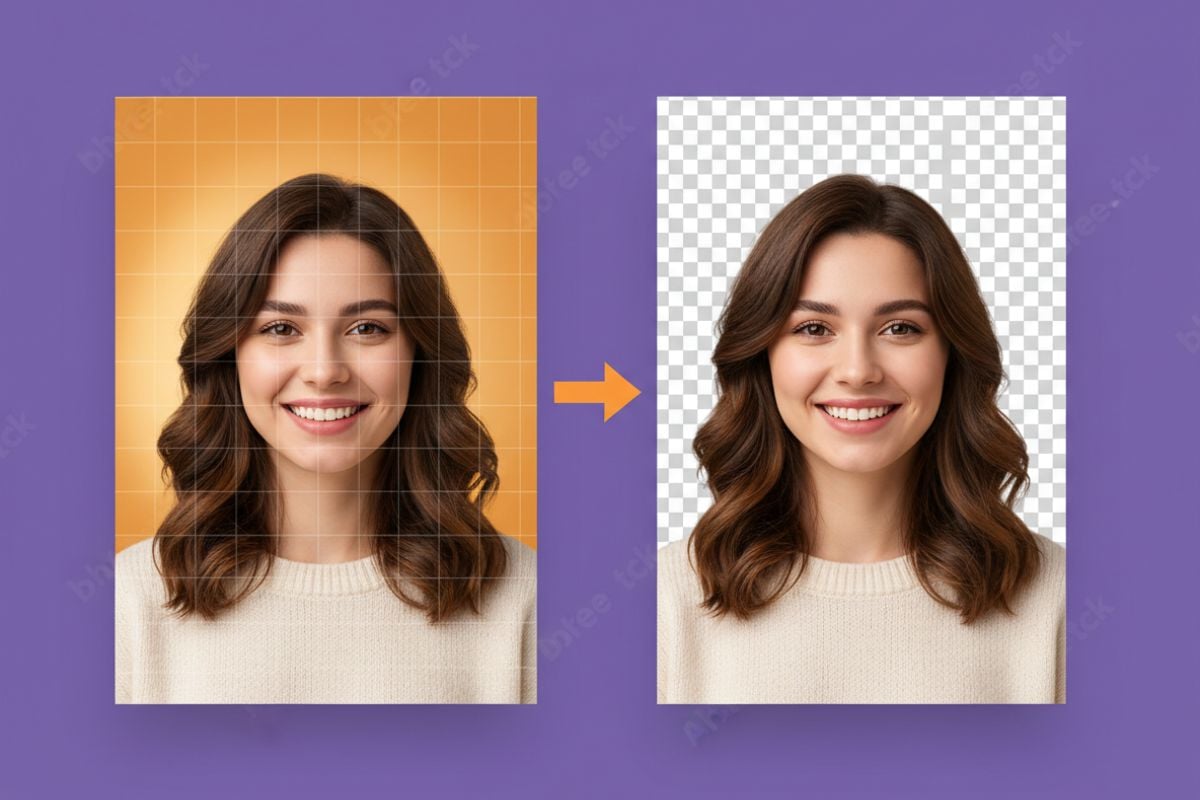
Yes, this workflow isolates the visible lettering and removes its surrounding background. Upload the words you want as the foreground, review the cutout, and save a transparent PNG. Use the result as an image layer in your next design.

Can I remove a text image background online for free?

New GoEnhance accounts receive trial credits to try the image tools. Use those credits to review a text cutout, then check your balance before preparing more assets. The amount you can process depends on the available credits.

How do I remove a white background from a text image?

Upload the image, separate the lettering from the white canvas, and select transparent output. Inspect the spaces inside letters as well as around them. Download PNG rather than JPEG to keep the cleared background transparent.

Can I keep handwriting or multicolored text?

Yes, the goal is to keep the existing visible lettering, including its shapes and colors. Clear contrast helps with both handwritten words and colored headlines. Review pale strokes and decorative marks where their colors blend into the original background.

Why is there still background inside a letter?

Letters such as O, P, and B contain enclosed areas that need to become transparent along with the surrounding canvas. Inspect them in the preview and compare on a contrasting layer. A sharper source makes those narrow boundaries easier to identify.

Will the result be editable text?

The output is a PNG image, not a text box or font file. You can move and resize the lettering as an image, but changing the wording requires OCR, retyping, or access to the original editable design.

What helps with tiny fonts and thin pen strokes?

Start with a larger, sharper source and avoid repeated screenshots or heavy compression. Crop to the relevant text without trimming accents or flourishes. Check the saved asset at its final size, since very small strokes may still be difficult to read.

Can I keep a glow or shadow around the lettering?

Soft effects can blend gradually into the original background, making their boundary less clear than a solid letter edge. Compare the preview with the source and check it on the intended layout. An original transparent design file is preferable when the exact effect must remain.

Make Your Lettering Ready for a New Design

Remove the backdrop, keep the words and their visual character, and download a transparent text image.

Remove Text Image Background