Green Screen Background Remover

Take your subject out of the green-screen setup and into the finished design. GoEnhance AI removes the green backdrop from a still photo while keeping the person, product, or prop in front. Download a transparent PNG for a new scene, a channel thumbnail, or a branded graphic—all through an online image workflow.
Presenter
Presenter
Running Shoe
Running Shoe
Fluffy Dog
Fluffy Dog
Green Plant
Green Plant
Upload a green-screen image
By uploading a file, you agree to GoEnhance's Terms of Use and Privacy Policy

How to Remove a Green Screen from an Image

Prepare the subject once and use it in the setting your project needs.
01

Upload your green-screen photo

Choose a JPG, PNG, or WebP still image with the subject fully visible. Use the original photo rather than a screenshot when possible, so fine hair and prop details have enough pixels to work with.

02

Separate the subject from the screen

Choose a transparent result and let AI remove the background around the subject. Compare the original and cutout, especially where hair, clothing, reflective objects, or green details meet the screen.

03

Download and build your composition

Save the PNG and place it over a new scene in your design editor. Choose a white or solid-color result instead when the image needs a finished backdrop for a product card or profile layout.

Where Will Your Green-Screen Subject Go Next?

Next useChooseWhat it gives you
Thumbnail, poster, or new photo sceneTransparent PNGA separate subject layer you can move, resize, and combine with text or scenery.
Catalog or simple product presentationWhite backgroundA neutral finished image that brings attention to the item.
Brand card or social graphicCustom solid colorA consistent backdrop that matches the surrounding campaign palette.

Get More from Your Green-Screen Photo

Source conditionWhy it mattersUseful preparation
Evenly lit screenFewer abrupt background shade changesKeep lighting spread across the backdrop rather than concentrated in one bright spot.
Space between subject and screenLess reflected green on hair and clothingMove the subject forward before shooting when the setup allows it.
Distinct clothing and propsA clearer boundary around important shapesAvoid choosing the screen's exact shade for a costume or product.
Sharp hair and fine outlinesMore source detail for a natural-looking cutoutUse steady focus and avoid motion blur in the still photo.
Full subject in frameRoom to place the cutout in another compositionInclude the head, hands, and props you expect to reuse.
Suitable destination sceneA subject that fits the new visual settingMatch perspective and lighting when you place the PNG over another photograph.

Green-Screen Removal That Keeps the Subject in Focus

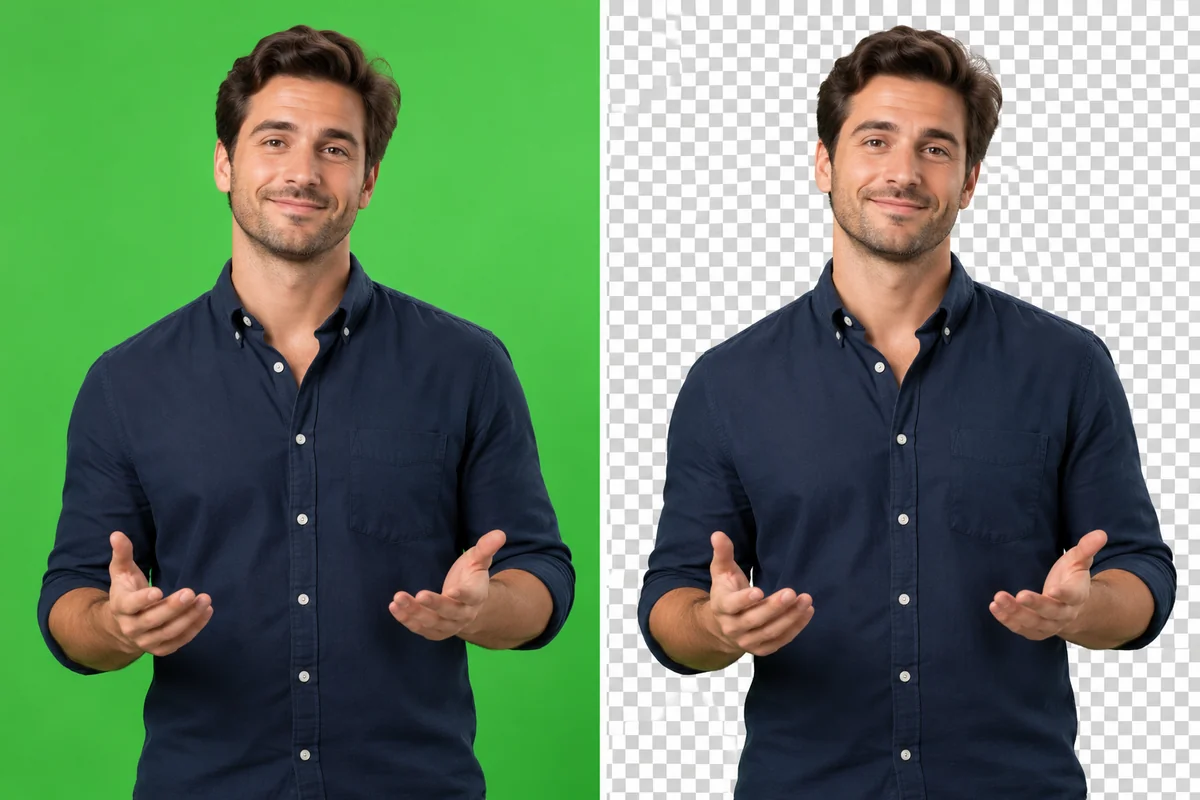
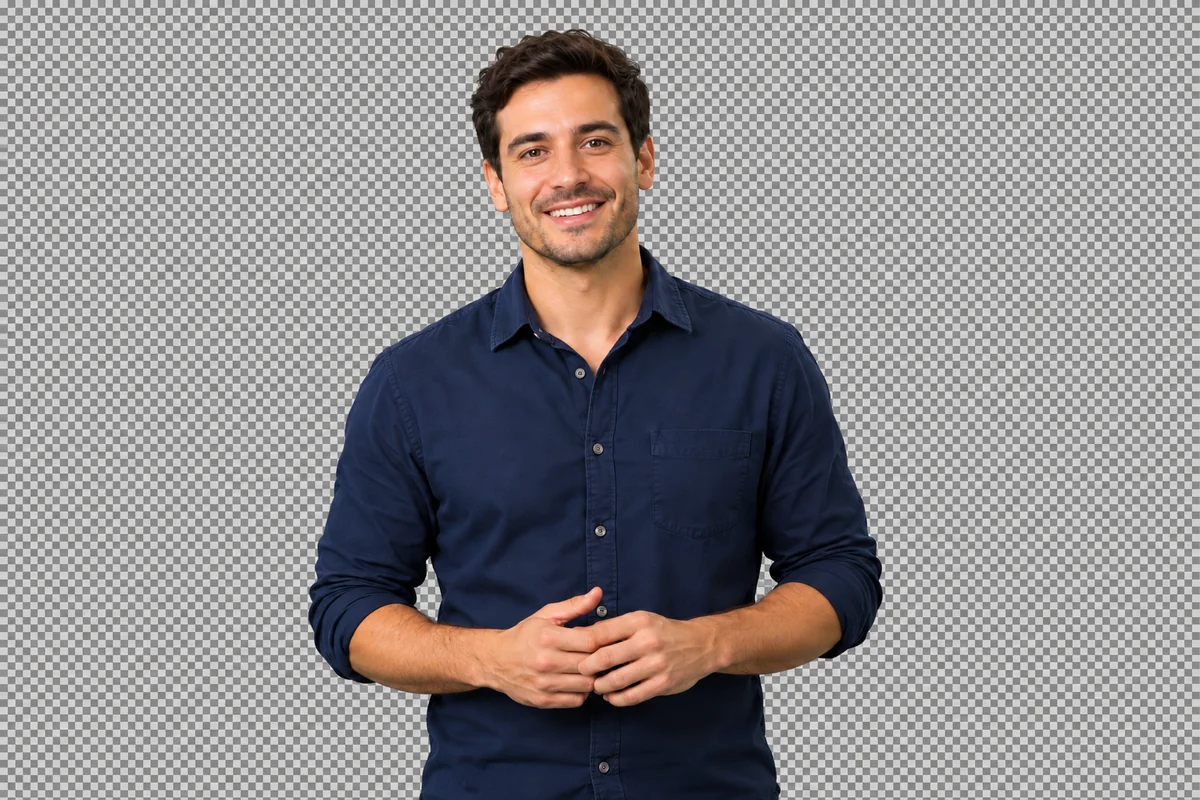
Automatic Separation of People from Green Screens

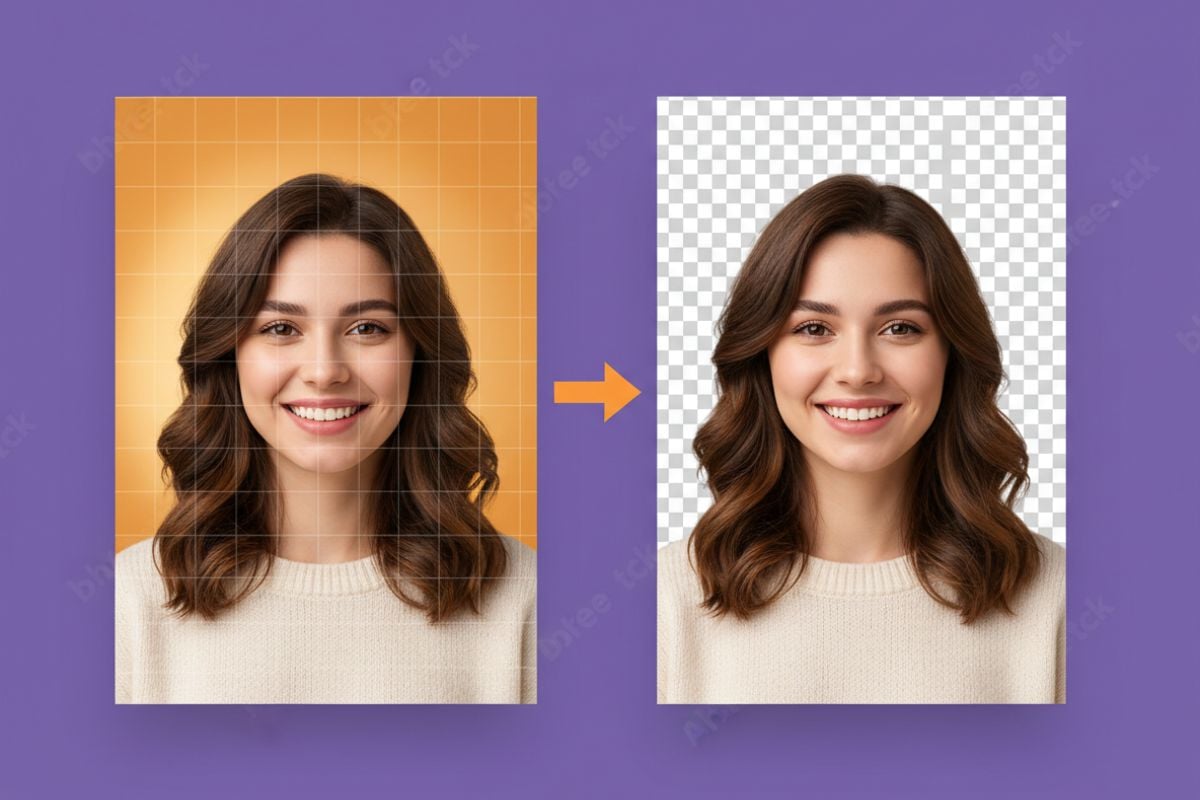
GoEnhance AI identifies the presenter and removes the green backdrop around their face, hair, and clothing. The output is a separate subject layer for thumbnails and slides, reducing the manual masking needed to turn a studio photo into a finished design asset.

Green Screen Background Remover example: a presenter isolated from a green screen for a transparent cutout

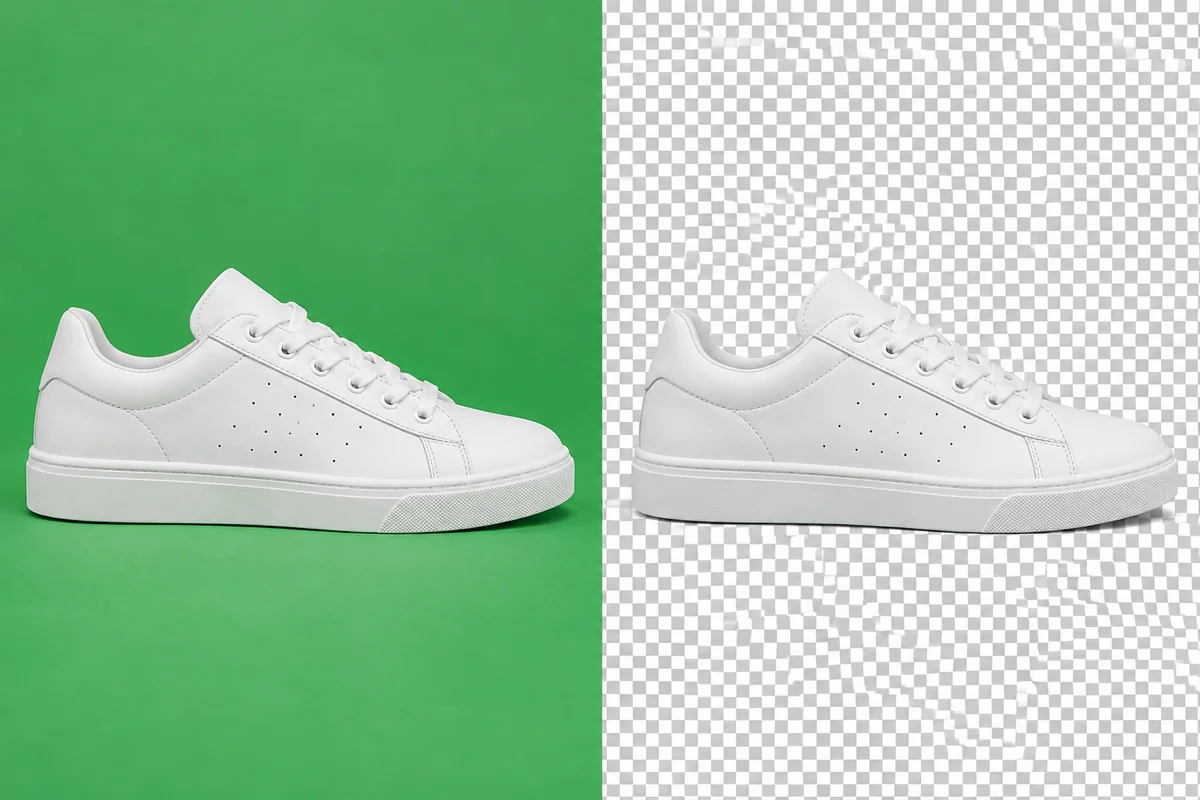
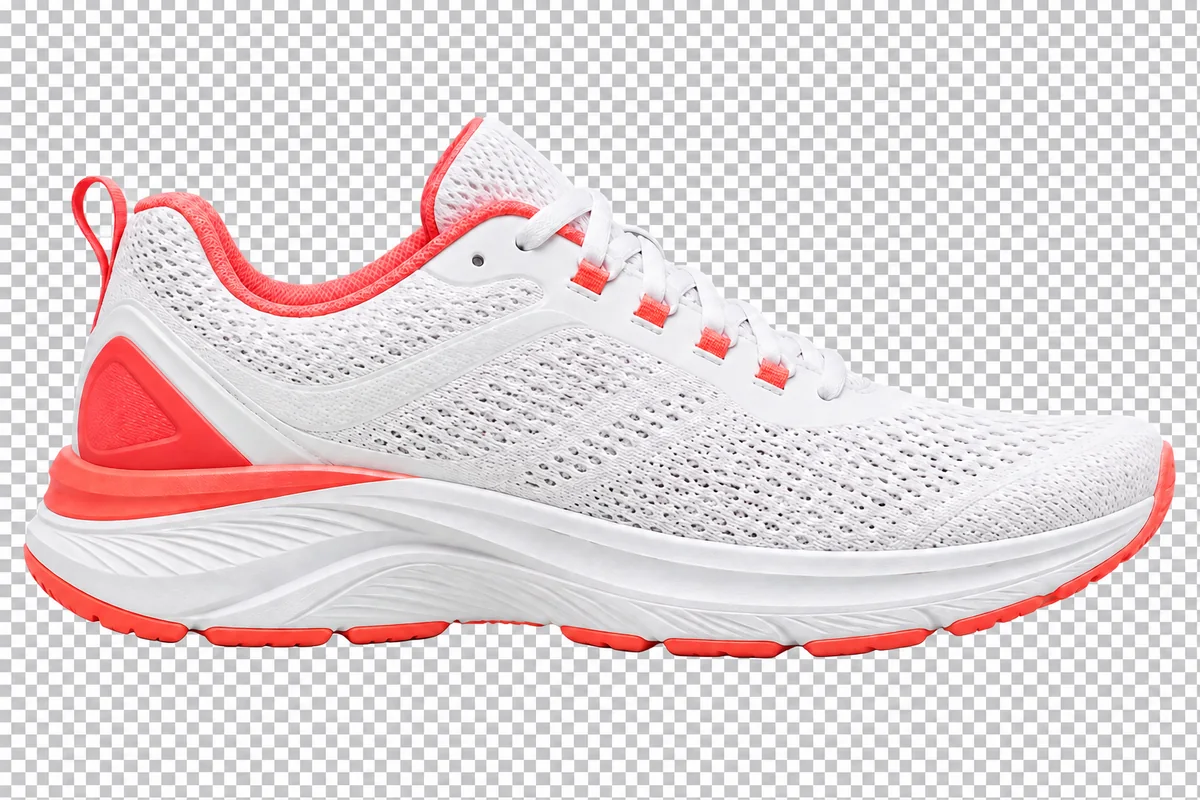
Keep Product Contours and Surface Detail

Remove the green sweep around a product while retaining its silhouette and visible materials. Details such as a sneaker's mesh, laces, and colored trim remain central to the image, giving campaign graphics a product cutout rather than a photo of the shooting setup.

Green Screen Background Remover example: a sneaker cut out from a green screen while keeping its product details
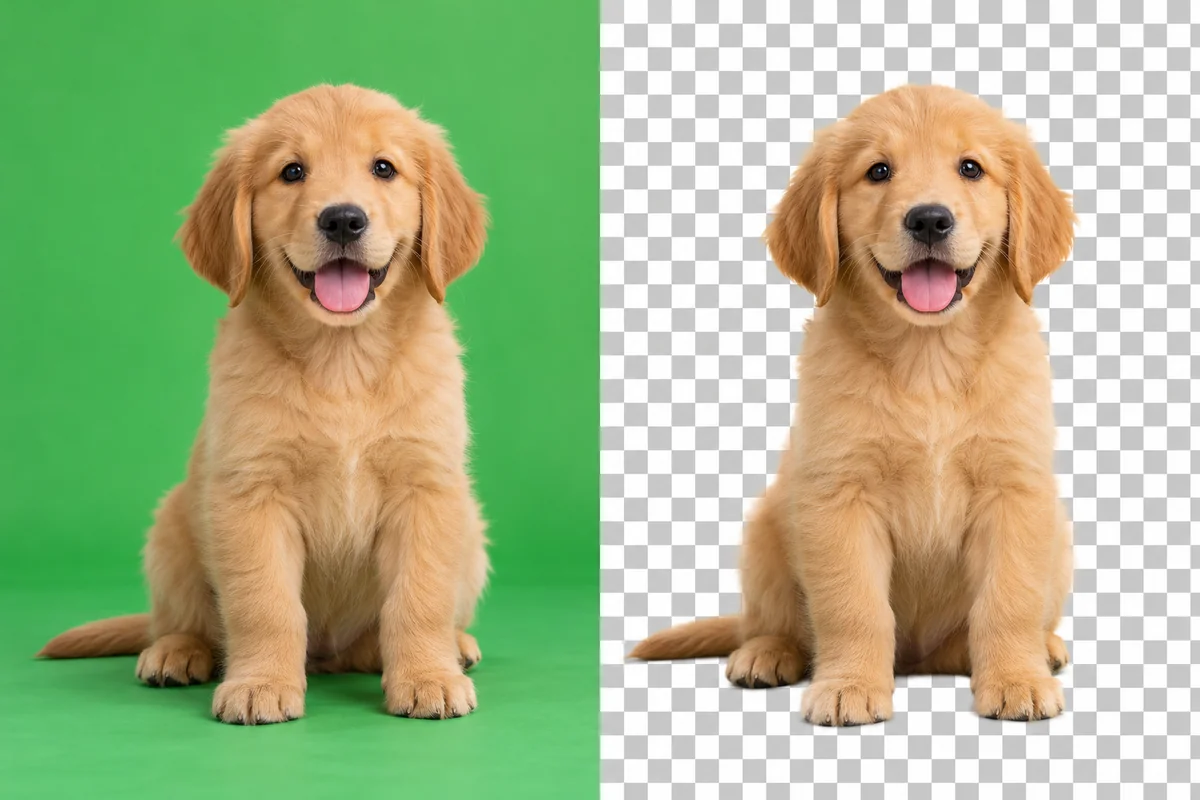
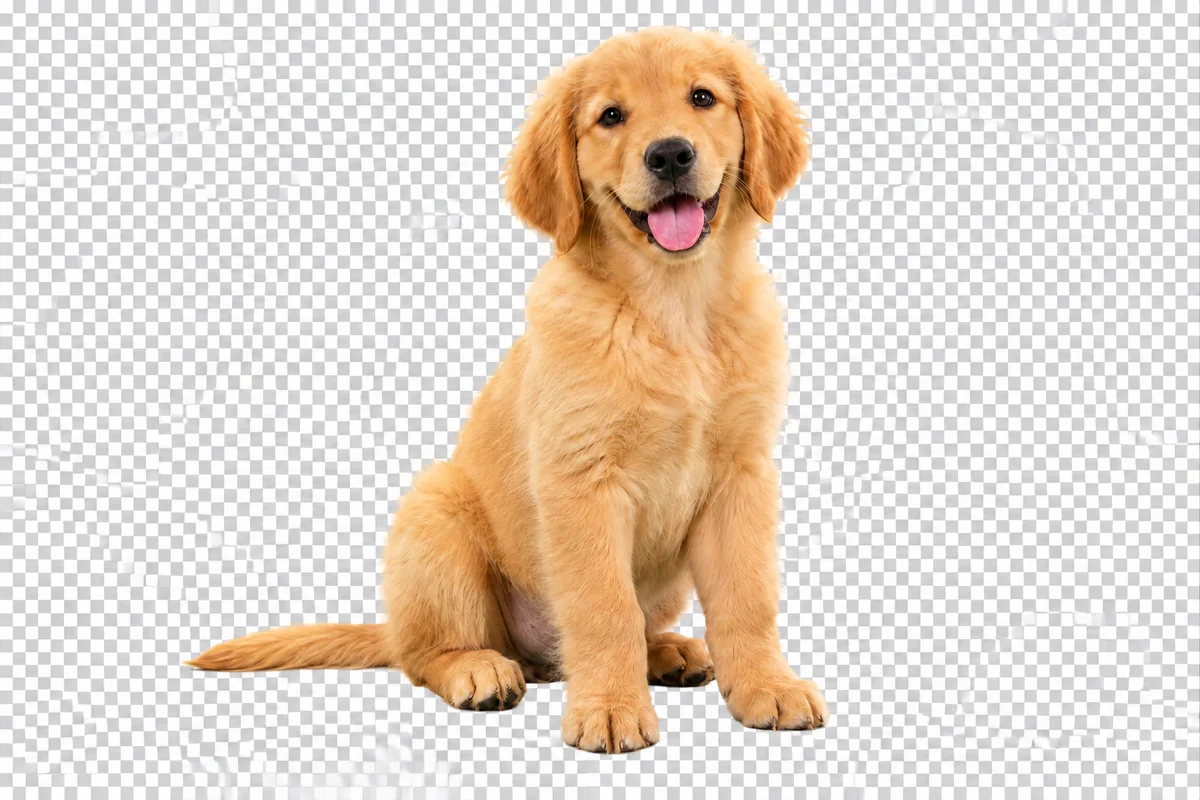
Fur-Aware Edges for Animal Cutouts

AI separation follows the animal's outline through its coat, clearing the green screen around the pet. The result keeps the expression and recognizable fur shape in a transparent image, with a softer silhouette than a simple rectangular crop.

Green Screen Background Remover example: a fluffy dog separated from a green backdrop
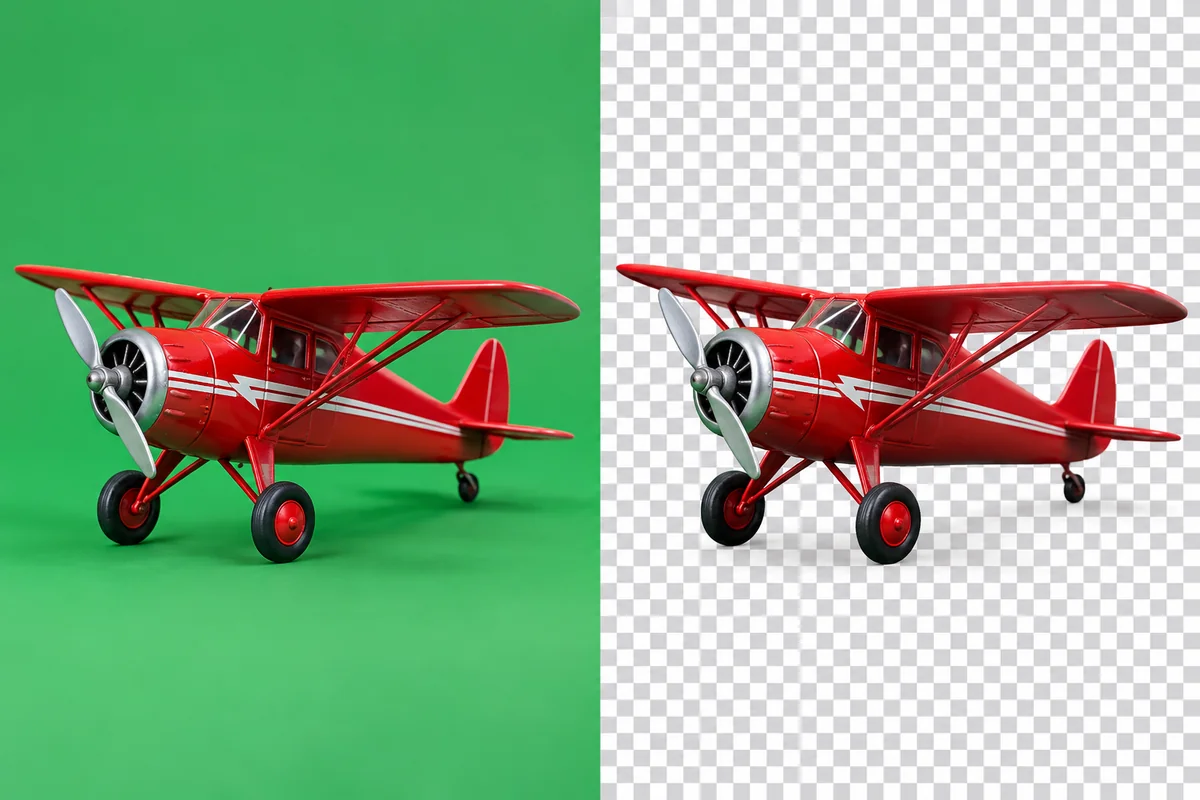
Transparent PNGs for Detailed Objects

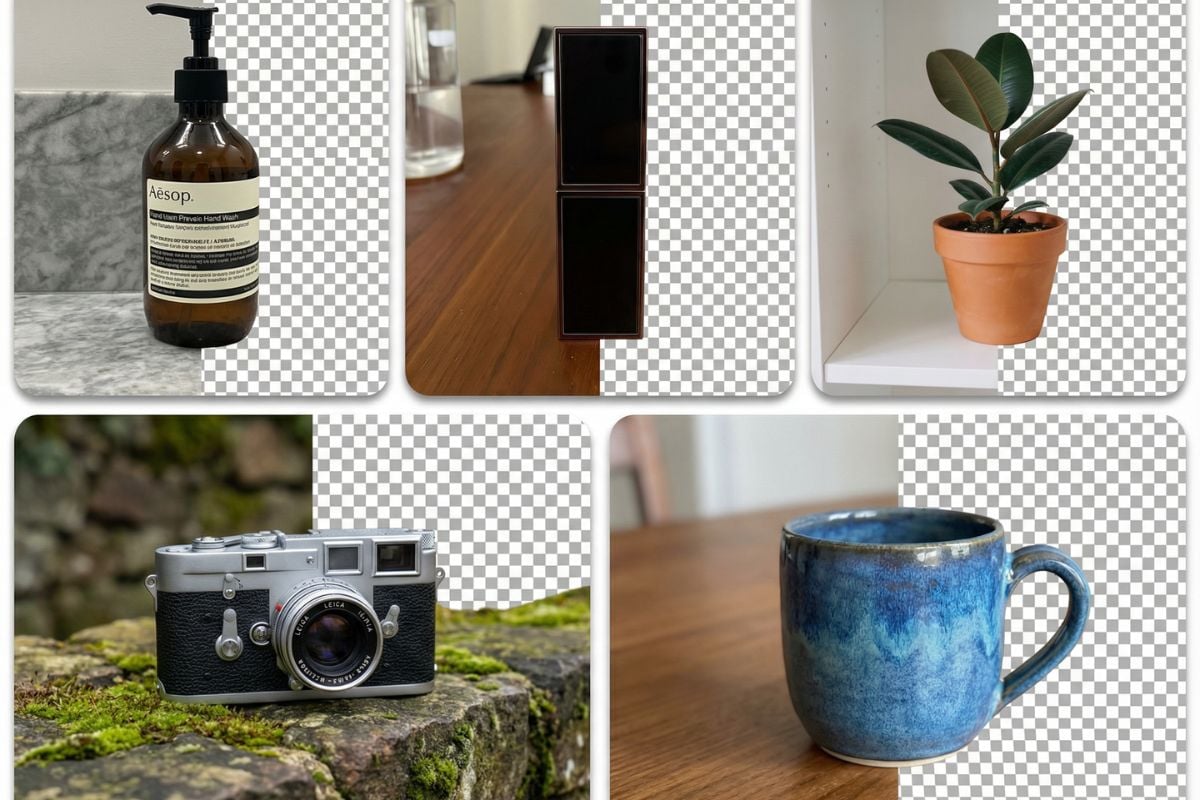
Turn a photographed prop into a PNG with empty space around its shape and small openings. The green backdrop no longer travels with the object, so one cutout can fit over different colors, images, and layouts without repeating the background removal.

Green Screen Background Remover example: a small object separated from its green-screen background
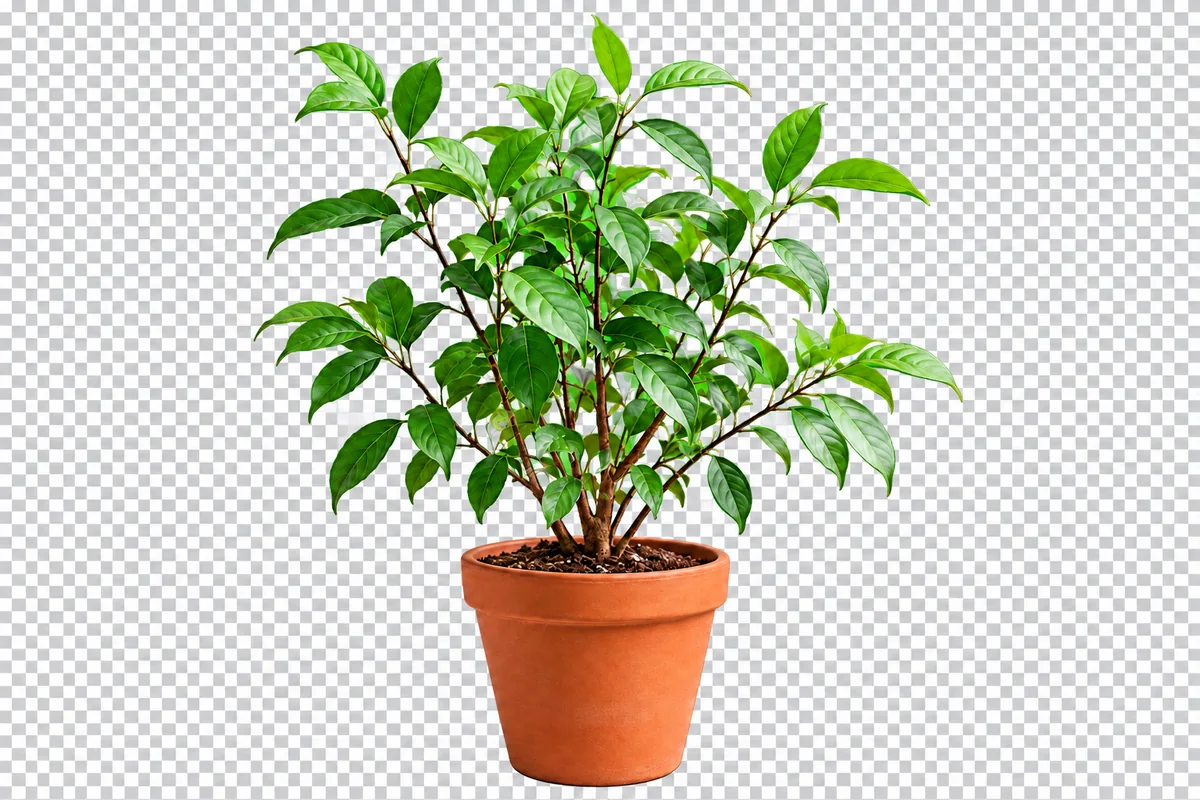
Subject Detection for Real Green Details

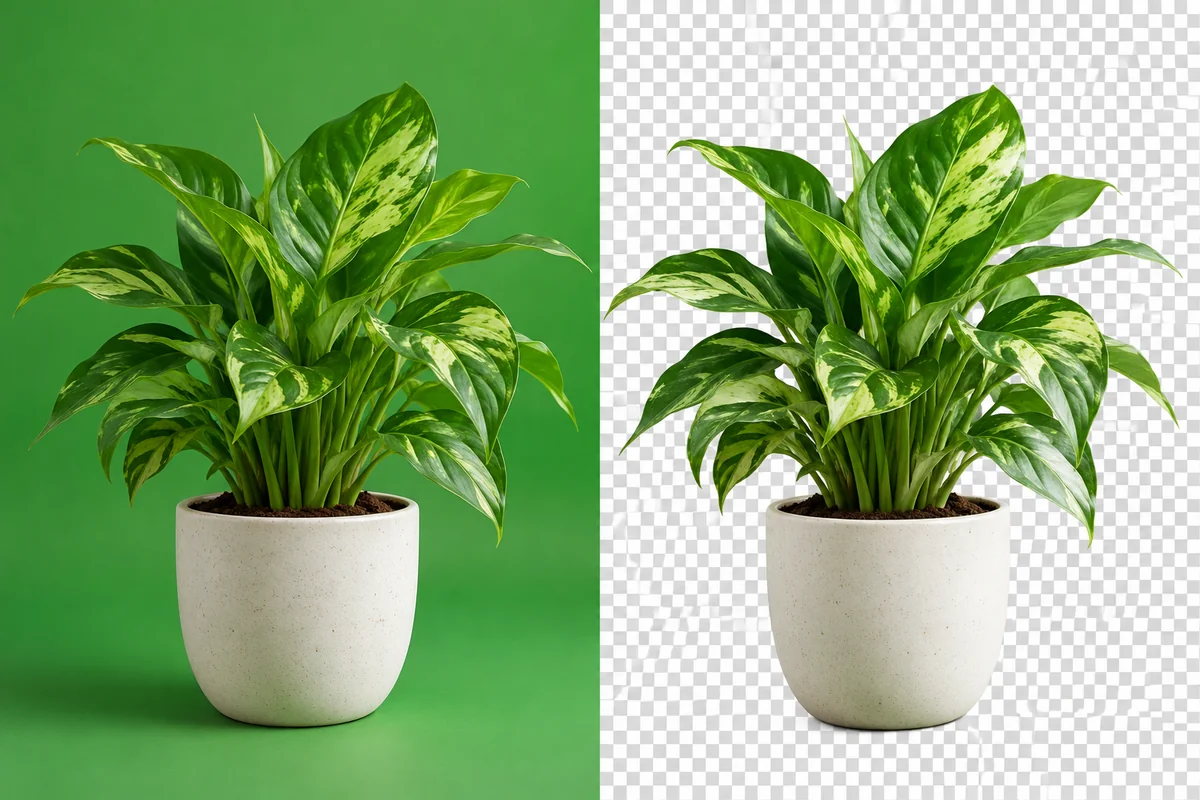
The tool separates foreground objects from the screen instead of treating every green area as background. For a plant, that means retaining its leaves and stems while clearing the backdrop, making subject-aware removal useful when green belongs inside the asset itself.

Green Screen Background Remover example: green leaves and thin plant stems kept while the backdrop is removed
Move from a controlled shooting backdrop to a subject you can use across your creative work.

A Green Screen Remover for Image Compositions

AI-assisted subject separation

Work from the person or object you want to retain, rather than treating every green pixel as disposable. This is useful when real green details occur inside a prop, plant, or patterned outfit.

Fine outlines for layered designs

Hair, fur, mesh, and narrow props affect how convincing a cutout looks. Retain their visual shape so the subject can sit over a new layout without a heavy rectangular border.

Transparent PNG delivery

Keep the removed backdrop empty in the downloaded file. Import the PNG into your editor and build the final scene with text, graphics, or a photograph beneath the subject.

Color backgrounds when you need them

Choose a white or custom solid background for a ready-to-use image. It is a practical choice for simple profile graphics and product presentations that do not need a separate subject layer.

A workflow for familiar still-image files

Remove green screens from image files you already use, including JPG, PNG, and WebP. An exported still frame can also become a thumbnail asset without turning this image task into a full video edit.

Reusable assets from one setup

Keep the transparent subject as a master asset for several design sizes and campaigns. Change the surrounding layout while the same presenter, product, or prop remains consistent.

Green Screen Background Remover FAQ

How do I remove a green screen from an image online?

Upload the still image to GoEnhance AI, select a transparent result, and generate the cutout. Download the PNG to keep the removed backdrop transparent, then place the subject in a new design or scene.

What is the difference between green-screen removal and a new background?

Removal separates the subject and clears the green backdrop. A replacement background supplies the setting behind the subject. Keep a transparent PNG if you want to choose or change that setting later in your design editor.

Why are some edges still green after the screen is gone?

Green light can reflect from the screen onto hair, clothing, or glossy surfaces. That tint is part of the photographed subject rather than the background itself. Reducing reflected light when shooting and refining those edges helps the final composite.

Can the subject wear green or include green leaves?

Yes, but the separation can be more difficult when the subject and backdrop look alike. Use a clear, sharp source and compare the result with the original. When planning a new shoot, a contrasting screen color gives you a cleaner starting point.

Can I replace the green screen with white or a brand color?

Yes. Choose a white or custom-color output for a finished image with a solid backdrop. For a photo background or a more detailed layout, download the transparent PNG and compose it in your preferred editor.

Which image formats can I use?

Use JPG, PNG, or WebP still images. PNG is a useful output format because it retains transparency and can be imported into many design tools. Start with the highest-quality source available for small edge details.

Can I use this page to remove a green screen from a video?

This workflow processes still images. You can prepare a saved frame for a thumbnail or poster here. To remove the screen across moving footage, use a video background-removal or chroma-key workflow that handles frames over time.

Can I try the green screen background remover for free?

GoEnhance AI provides trial credits to new accounts. Use them to try a representative green-screen photo, and check the credits shown before processing. This lets you evaluate the cutout for your design before continuing with more images.

Take Your Subject Beyond the Green Screen

Turn your still photo into a transparent subject layer for your next thumbnail, product graphic, or creative composition.

Remove My Green Screen