
Krea Image Enhancer

Krea image enhancer helps sharpen, upscale, and refine images while keeping the original subject, composition, and visual direction in focus. Explore how Krea enhancer workflows work, what they are useful for, and what to check before downloading the result.
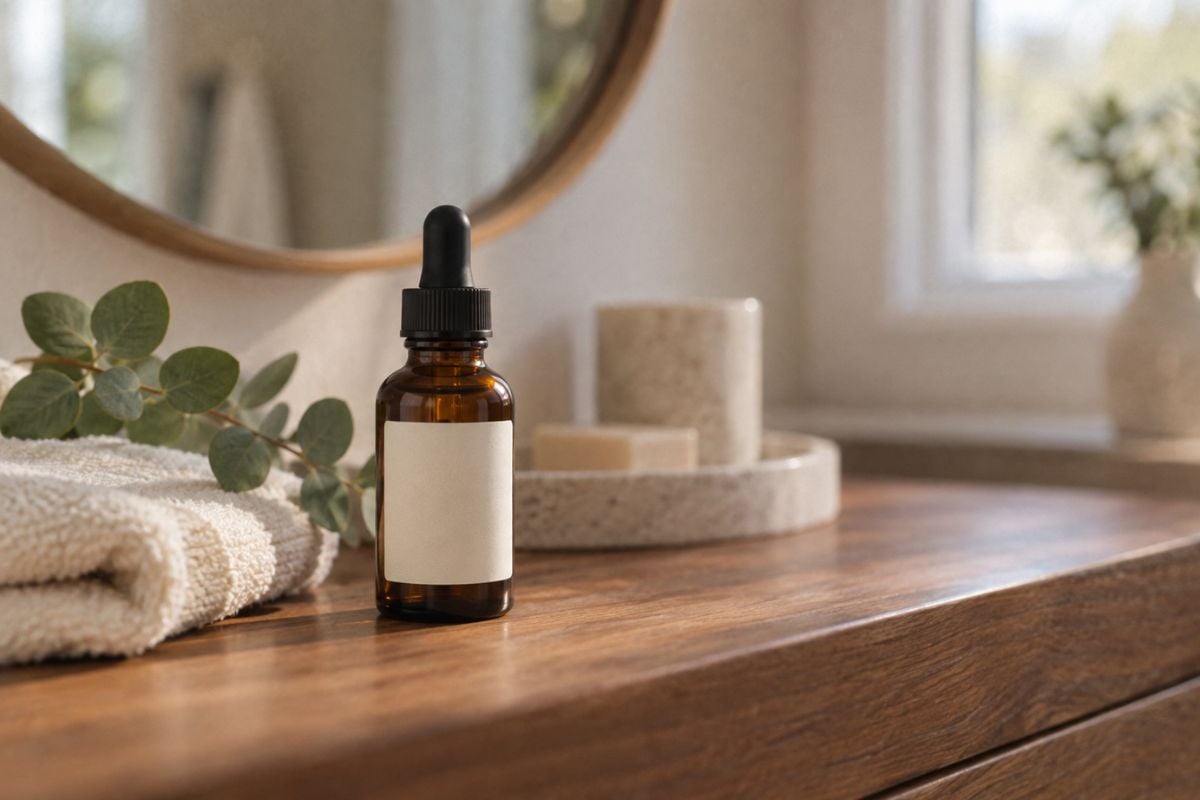
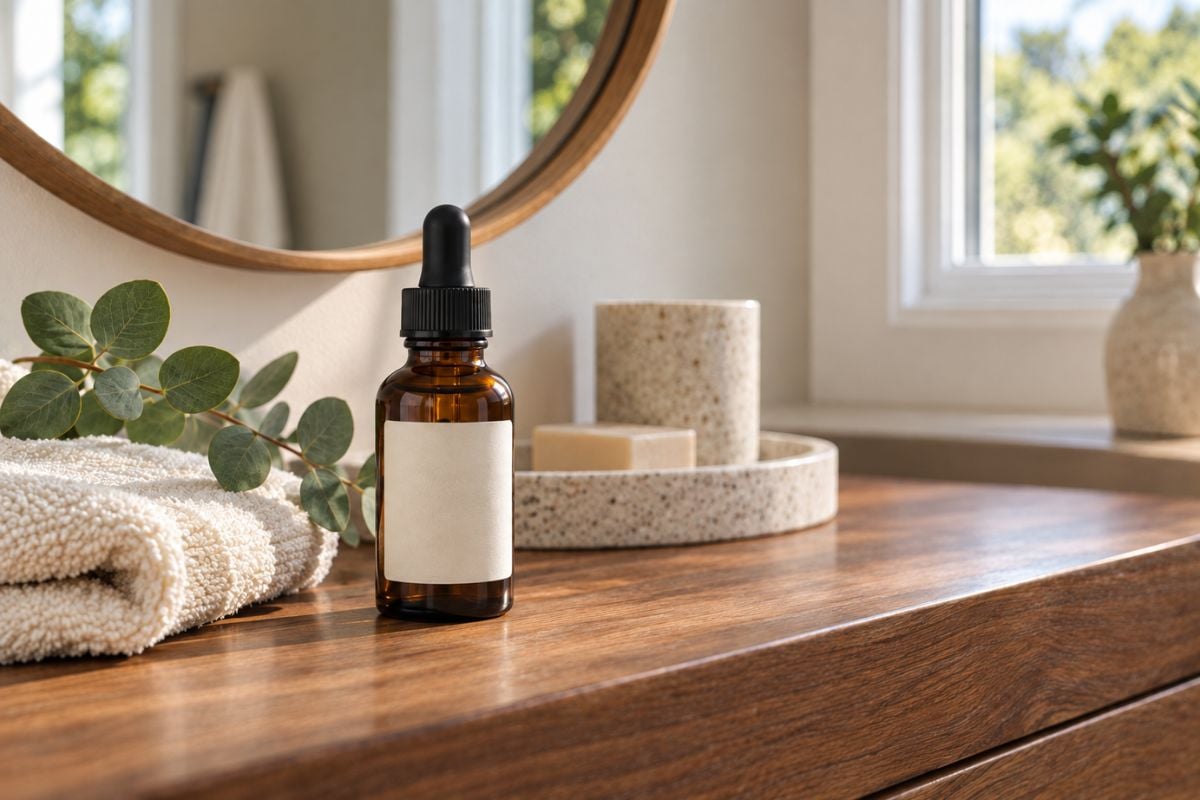
Product
Product
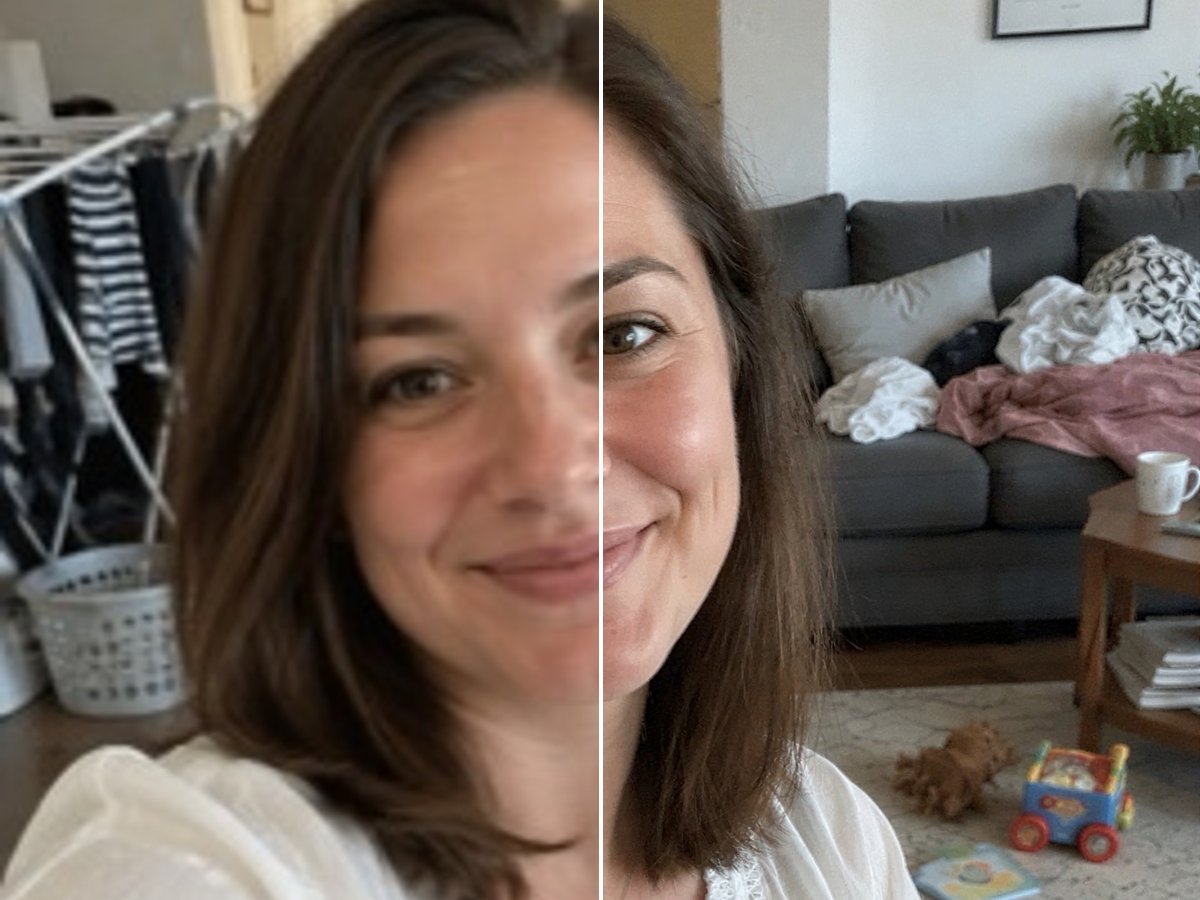
Portrait
Portrait
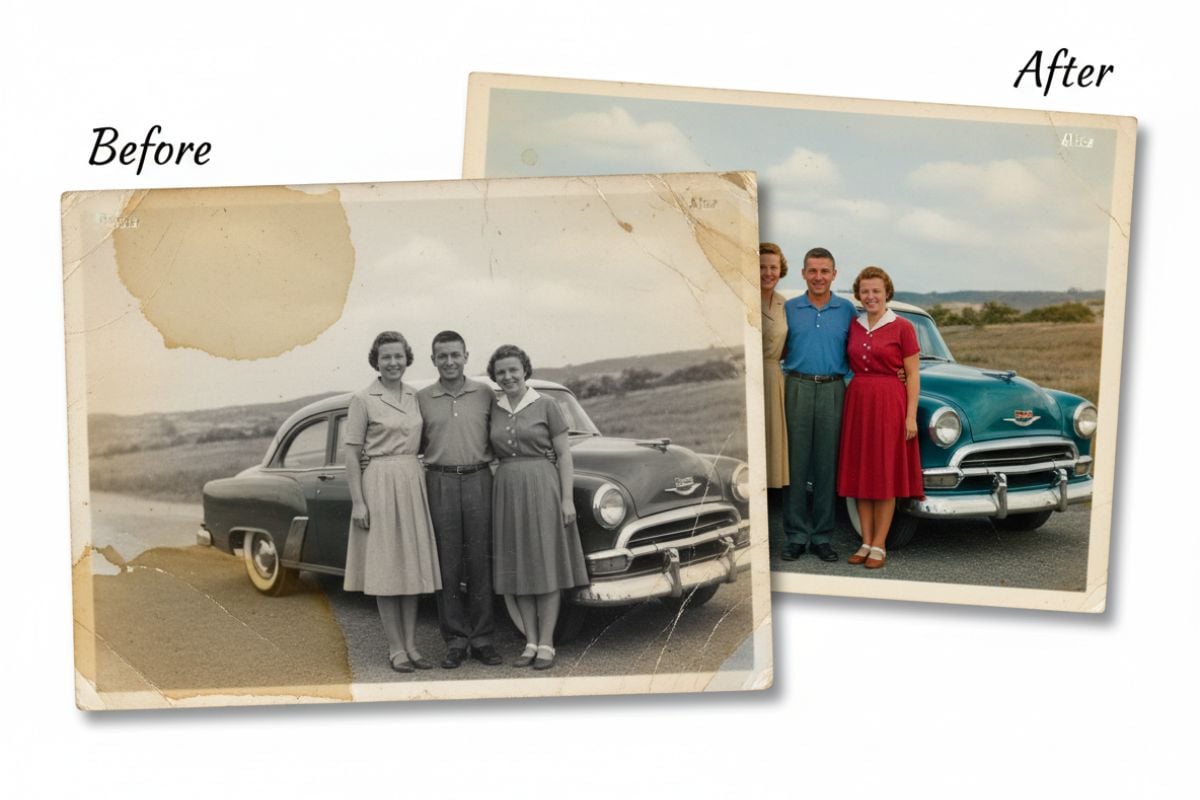
Old Photo
Old Photo
Upload a photo to sharpen, upscale, and improve its detail
Mode
By uploading a file, you agree to GoEnhance's Terms of Use and Privacy Policy

What You Can Do With Krea Image Enhancer

Turn Soft Images Into Sharper, More Detailed Photos

Krea image enhancer improves sharpness, clarity, and fine texture across low-resolution photos. As an image enhancer and high-resolution upscaler, it helps make everyday visuals look cleaner and more defined.
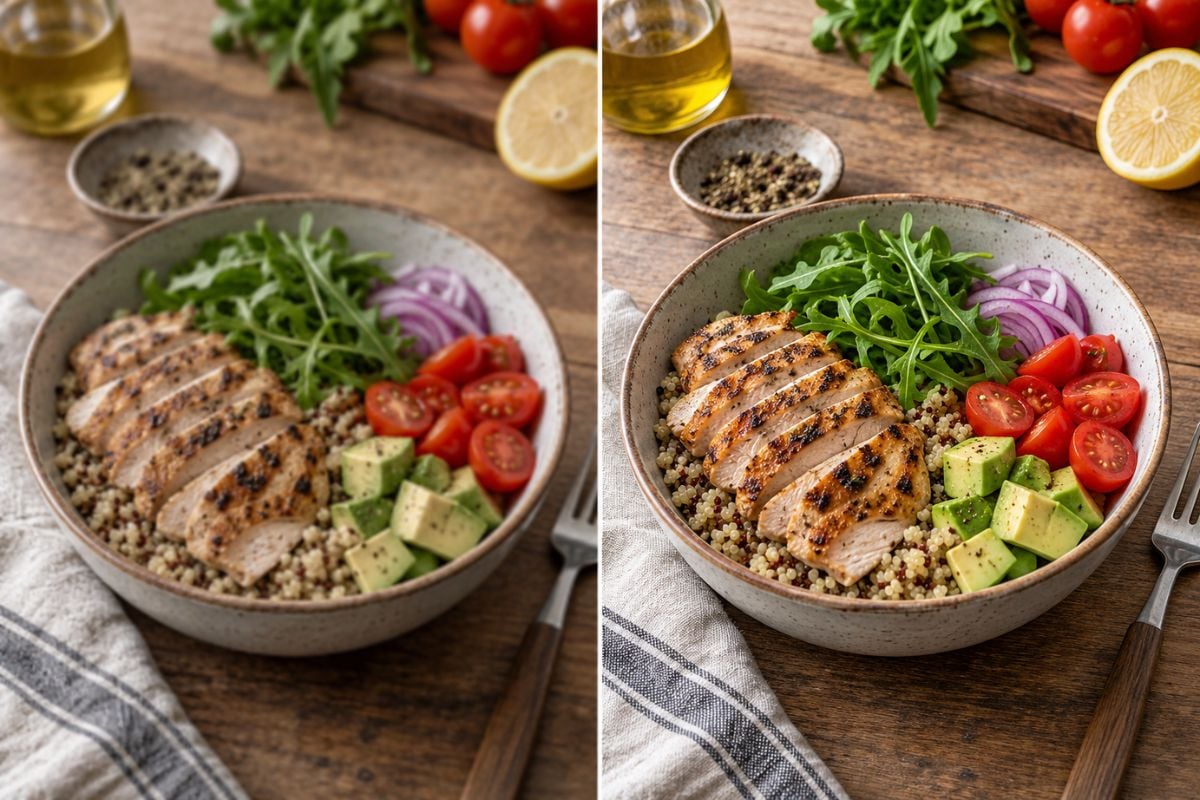
Krea image enhancer food product photo before and enhanced after comparison with sharper grilled chicken, vegetables, and plate details

Make HD Images Look Cleaner and More Defined

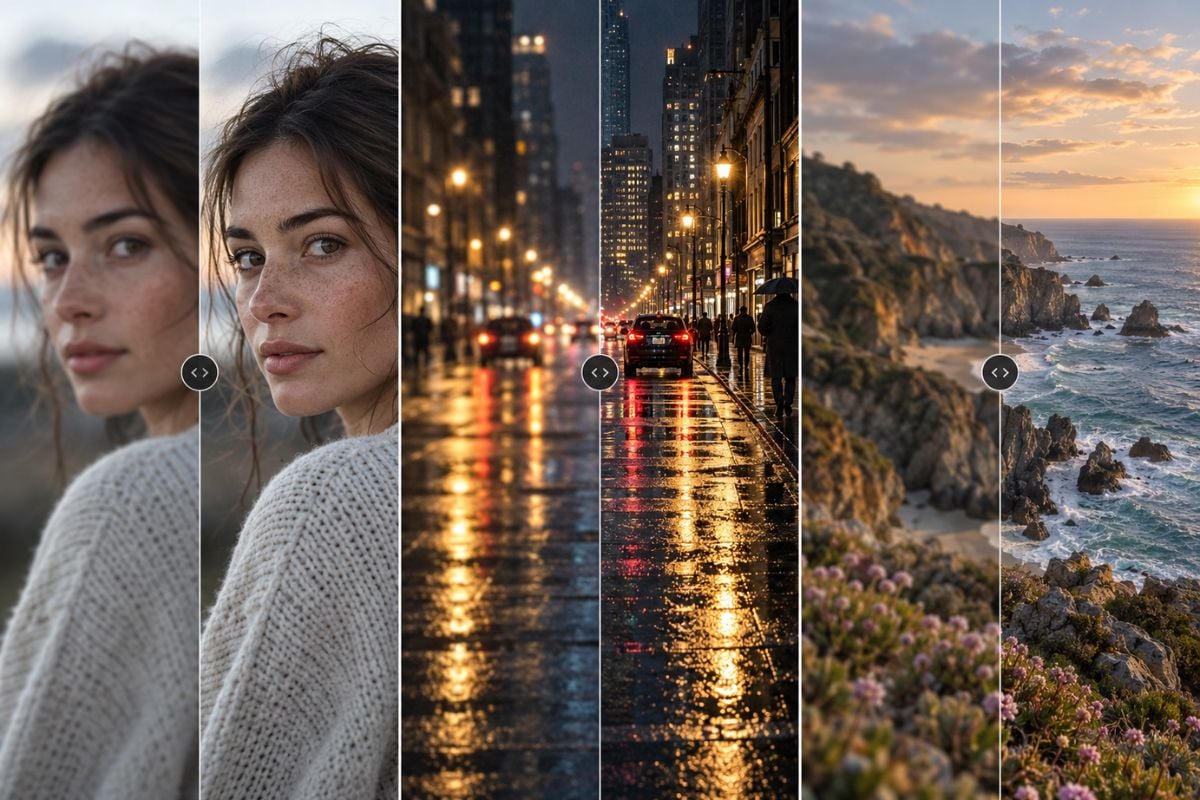
Improve mild softness, sensor noise, compression, and weak edge contrast in HD and 1080P photos. Enhance faces, hair, textures, and background details while keeping the original scene natural.

Krea image enhancer before-and-after comparison of a portrait, rainy night street, and coastal landscape with clearer visible detail

Bring Extra Clarity to Photos, Products, and Artwork

Give 2K-ready images stronger contours, richer texture, and cleaner visual definition. Enhance old photos, product images, illustrations, portfolio work, screenshots, and social media assets.

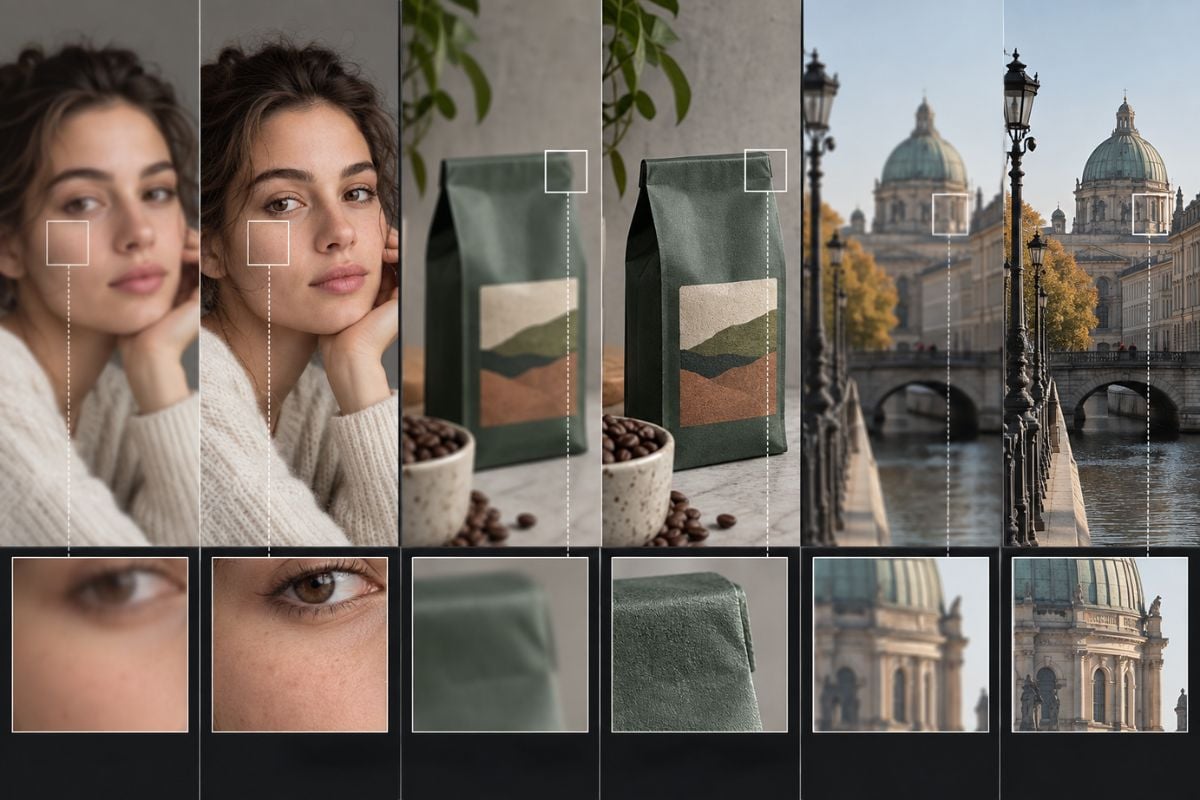
Krea image enhancer detail recovery comparison showing a portrait, product package, and architectural scene with sharper textures

Sharpen Important Details Without Redesigning the Image

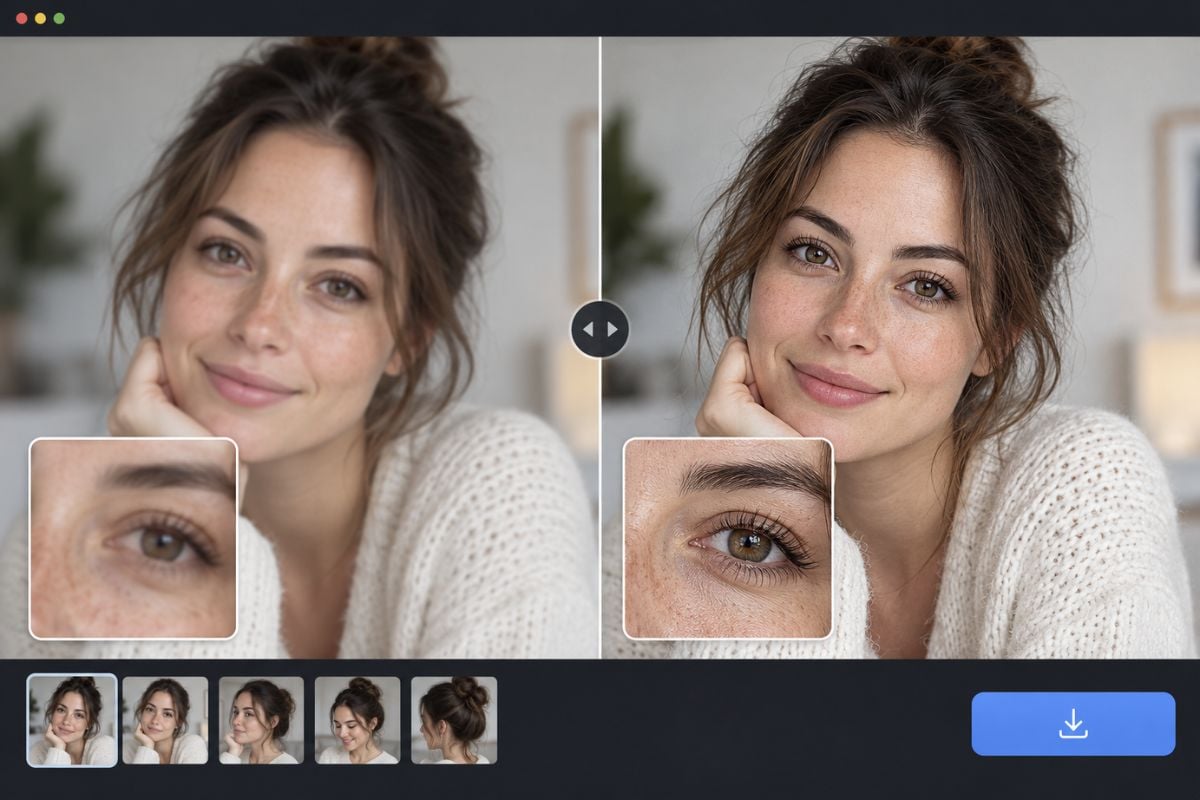
A photo quality enhancer should add visible clarity while keeping facial features, product shape, colors, composition, and artwork style aligned with the source image.

Krea image enhancer portrait sharpening before-and-after comparison preserving the woman's face, expression, skin texture, and original composition

Key Krea AI Enhancer Capabilities

Improve HD and 1080P Image Clarity

Add cleaner edges, stronger definition, and more visible detail to photos prepared for Full HD screens, websites, and social feeds.

Create a More Detailed 2K Finish

Give 2K-ready visuals richer texture, clearer contours, and a more polished high-resolution appearance.

Reduce Noise and Compression Softness

Clean up grain, JPEG artifacts, low contrast, and mild blur while keeping the image natural and visually balanced.

Enhance Faces, Hair, and Fabric

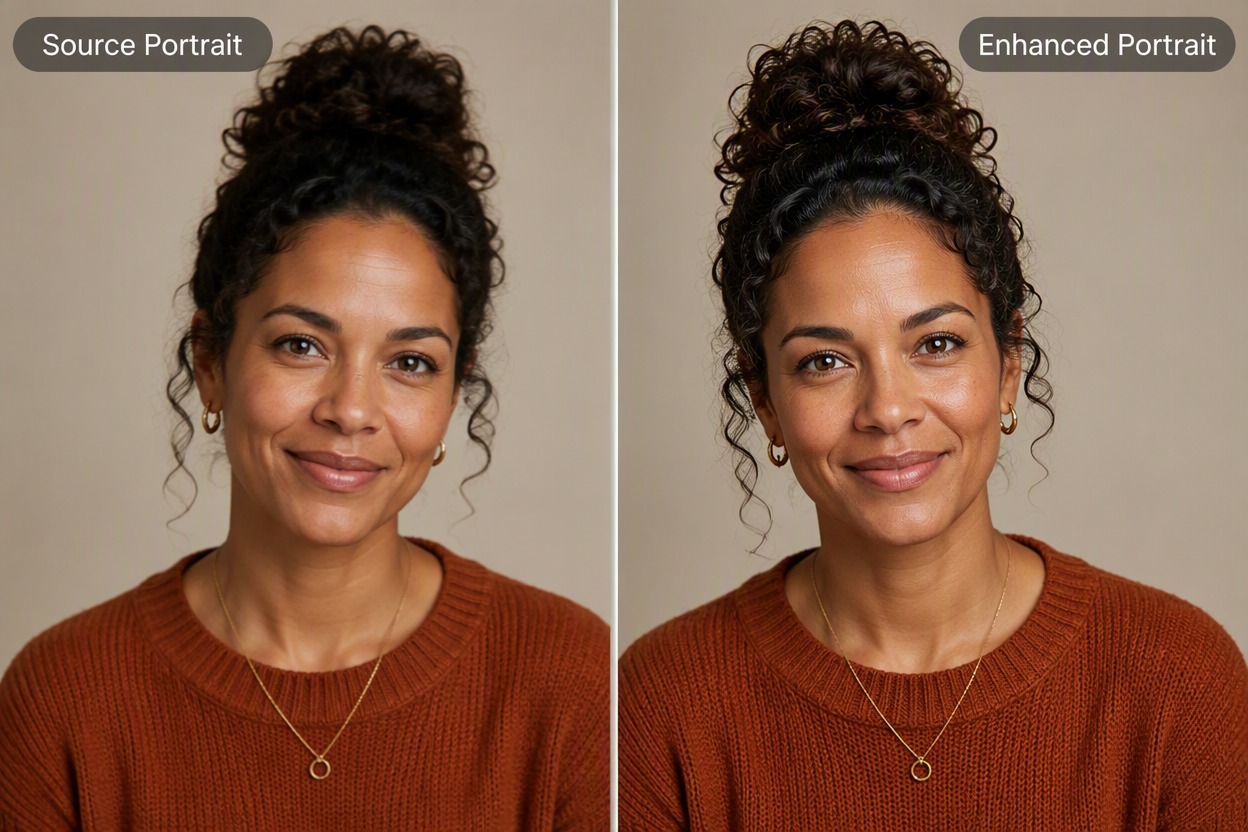
Bring out facial features, hair strands, skin texture, clothing fibers, and other details that make portraits feel more lifelike.

Refine Product Edges and Artwork Lines

Improve the definition of product contours, packaging surfaces, illustration lines, screenshots, and design elements.

Deliver a Cleaner High-Resolution Look

Use an AI image enhancer and high-resolution image upscaler to prepare clearer visuals for portfolios, ecommerce, presentations, and digital publishing.

How to Use an AI Image Enhancer

01

Upload an Image

Upload the photo you want to improve. Begin with the highest-quality original available for the best enhancement results.

02

Enhance the Source

Start the enhancement and create a sharper, higher-resolution result. For faces, product labels, artwork lines, or important text, verify the generated detail carefully.

03

Compare and Download

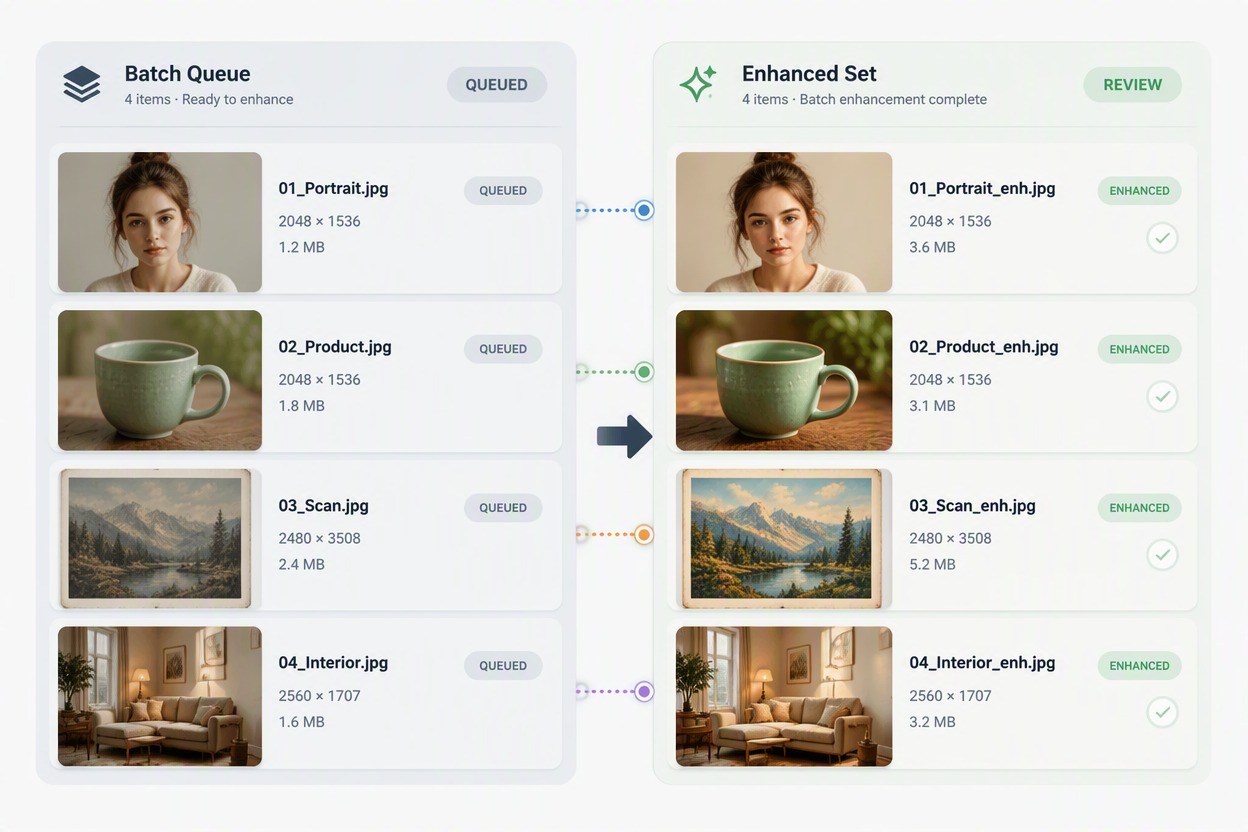
Compare the source and enhanced image at full size. Check faces, text, product shape, color, crop, background lines, texture, and new details before downloading.

Krea Image Enhancer FAQ

What is Krea image enhancer?

Krea image enhancer is an AI-based tool for improving image clarity, sharpness, detail, and resolution. It is commonly used for low-resolution photos, soft images, portraits, product visuals, old photos, and other images that need a cleaner result.

Is a Krea enhancer the same as an AI image upscaler?

They overlap but are not identical terms. An upscaler mainly increases pixel dimensions, while an enhancer may also adjust clarity, sharpness, noise, contrast, and perceived detail. A useful workflow evaluates both size and visual accuracy.

How do I use Krea AI enhancer?

The typical workflow is to upload an image, choose or adjust the available enhancement options, run the process, compare the before-and-after result, and download it. Krea’s current interface and available controls can change, so confirm the options shown in the live tool.

Is there a free Krea AI enhancer?

Krea has offered free access and paid plans, but credits, resolution limits, sign-in requirements, and commercial-use terms may change. Check the current Krea plan and enhancer page before relying on a free allowance or planning a larger image-enhancement workflow.

What types of images can an AI enhancer improve?

Common use cases include mildly blurry portraits, low-resolution social images, product photos, old family photos, scanned references, illustrations, screenshots, portfolio images, and visuals prepared for online publishing.

Can Krea enhancer fix a completely blurry or heavily compressed photo?

It may improve a photo with mild softness, noise, or compression, but no AI enhancer can reliably recover detail that was never captured. Extremely small, severely out-of-focus, or heavily damaged images may still contain invented or inaccurate detail after processing.

Will AI image enhancement change faces, text, or product details?

It can. Generated enhancement may alter facial features, eyes, skin texture, lettering, logos, edges, or product geometry, especially when the source is very small or the enhancement strength is high. Compare the result with the original before publishing or using it commercially.

What file formats does Krea image enhancer support?

Krea’s current enhancer page lists PNG, JPEG, WebP, HEIC, and HEIF in its uploader. Supported formats, file-size limits, and output rules can change, so check the live upload panel before preparing a batch of images.

Can I use enhanced images commercially?

Confirm that you own or have permission to use the source image, then review the current service terms for generated outputs, commercial usage, people, brands, artwork, and other protected content. Do not treat higher resolution as proof that an image is cleared for commercial use.

Continue With an Image Enhancement Workflow

When you are ready to process an image, upload a photo, improve its clarity and resolution, and compare the source with the result before downloading.

Enhance an Image Online