Family Cartoon Photos: How to Create Polished Cartoon Portraits From Real Memories
- 1. What Family Cartoon Photos Are Used For
- 2. Choose A Cartoon Style Before You Start
- 3. How To Make Family Cartoon Photos Step By Step
- 4. Mistakes That Make Cartoon Portraits Look Cheap
- 5. Best AI Tools To Make Family Cartoon Photos
- 6. How To Choose Between AI And A Human Illustrator
- 7. Quality Checklist Before You Share Or Print
- 8. FAQ
- 9. Final Takeaway
Family cartoon photos are a simple way to turn familiar pictures into something more giftable, playful, and memorable. A regular family snapshot can become a holiday card, a framed keepsake, a birthday post, a profile image, or the starting point for a short animated greeting.
The best results do not come from pressing a random filter once. They come from choosing the right source photo, matching the style to the use case, checking the details, and using tools that give you enough control over faces, background, and final quality. For creators comparing visual workflows, GoEnhance AI fits naturally when a family portrait project may later expand into image generation, animation, or video editing.
1. What Family Cartoon Photos Are Used For
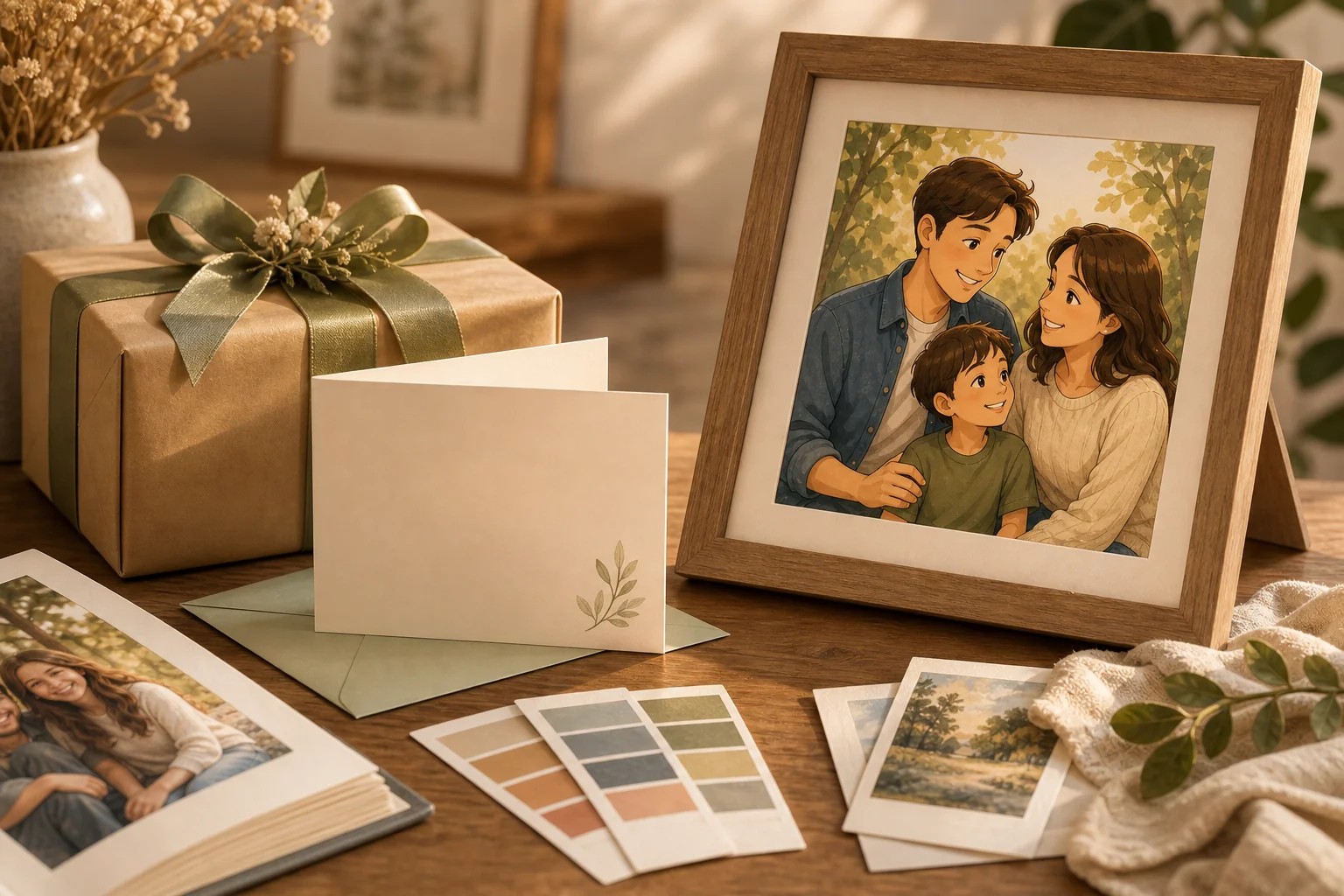
Family cartoon photos are stylized portraits based on a real or imagined family image. They usually keep the most important relationship cues: who is in the picture, the mood, the clothing direction, and the overall composition. The final style can look like a clean vector portrait, watercolor illustration, storybook scene, sketch, comic panel, or soft editorial cartoon.
Before choosing a tool, decide where the image will be used:
- A framed gift needs a clean, polished style.
- A social post can be brighter and more playful.
- A holiday card needs space for layout and text.
- A profile image should keep faces easy to recognize.
- A memory album can use a softer, more emotional look.
That decision keeps the project focused. A portrait made for a print should not be judged the same way as a quick social avatar.
2. Choose A Cartoon Style Before You Start
Style choice matters more than many people expect. The same family photo can feel warm, funny, elegant, or awkward depending on the visual direction.
Use this quick guide:
| Style | Best For | Watch Out For |
|---|---|---|
| Soft watercolor | Gifts, nursery decor, gentle family memories | Can blur facial details |
| Clean vector | Avatars, stickers, social posts | May look flat if expressions are weak |
| Storybook | Children, holiday cards, family albums | Can become too cute for formal uses |
| Anime-inspired | Fun posts and playful portraits | Avoid copying known characters |
| Pencil sketch | Classic keepsakes and simple wall art | Needs a clear source image |
If you are unsure, start with a clean editorial cartoon style. It is polished enough for a gift but not so stylized that family members become unrecognizable.
3. How To Make Family Cartoon Photos Step By Step
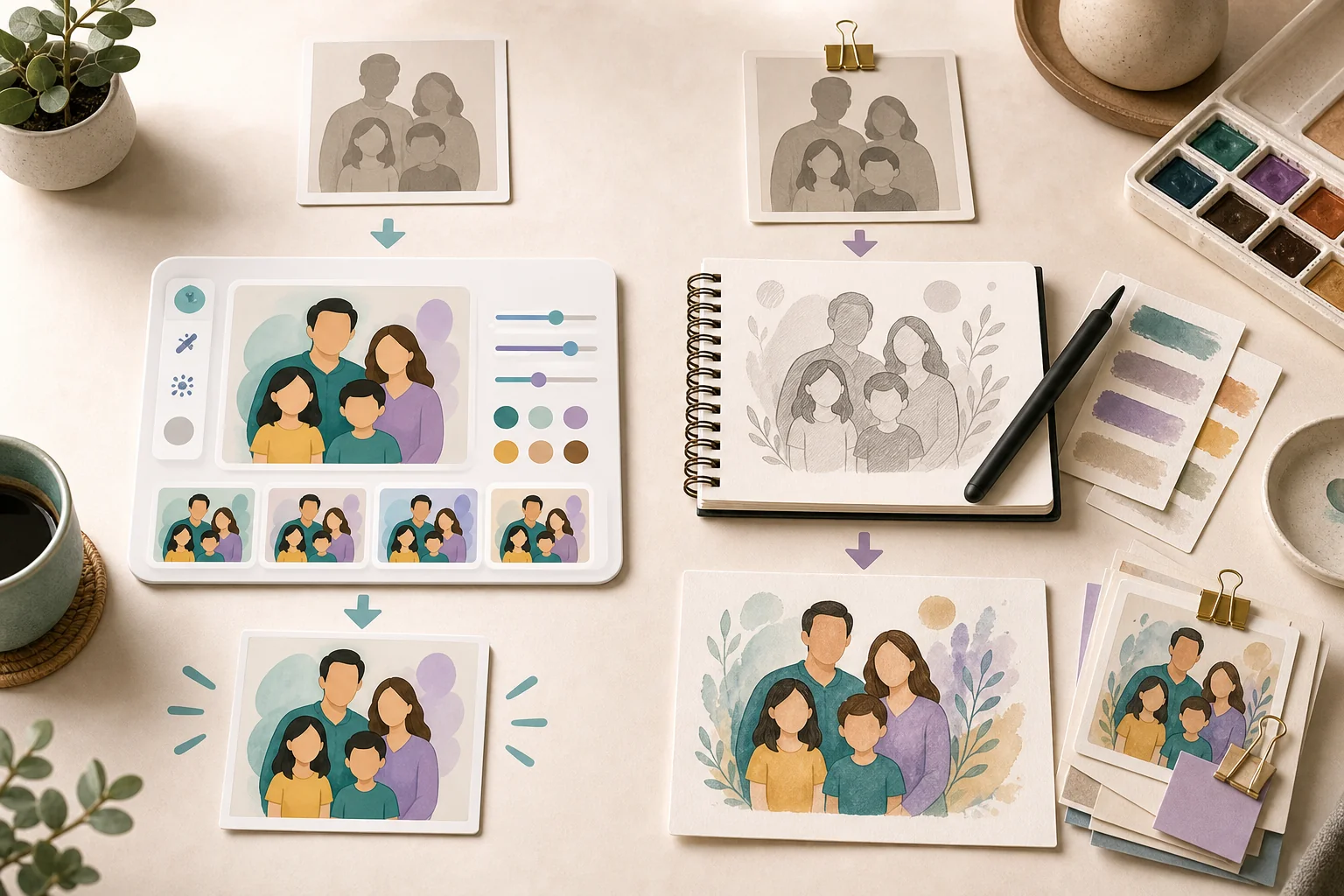
Start with the best source image you can find. A bright photo with clear faces will almost always beat a dark, blurry, crowded shot. If one person is hidden, turned away, or heavily shadowed, the cartoon version may not preserve their likeness.
Follow this workflow:
- Choose one strong source photo. Everyone important should be visible.
- Crop for the final use. A framed portrait, blog image, and greeting card may need different framing.
- Remove visual clutter where possible. Busy backgrounds can confuse the final cartoon.
- Pick one style direction. Do not ask for watercolor, anime, vector, and 3D in the same prompt.
- Generate a first version. Treat it as a draft.
- Check identity details. Look at eyes, mouth shape, hair, age, and relative height.
- Revise one thing at a time. Changing prompt, style, and background together makes comparison harder.
- Export at the right size. Web sharing and printing have different quality needs.
If the still portrait is strong, you can later turn it into an animated greeting with an AI video generator. Keep the base image clean first, because animation usually works better when the portrait is simple and readable.
4. Mistakes That Make Cartoon Portraits Look Cheap
The first mistake is using a weak source photo. AI can simplify and stylize, but it cannot always recover tiny eyes, hidden faces, or heavy blur. A bad input often becomes a stranger-looking cartoon.
The second mistake is overloading the prompt. A request like "make it cute, Disney, anime, watercolor, 3D, cinematic, realistic" gives the model too many competing directions. One clear style usually produces a better result.
The third mistake is ignoring details. Hands, teeth, glasses, earrings, hairlines, and patterned clothing can break the illusion. Zoom in before publishing or printing.
The fourth mistake is choosing a background that competes with the family. A soft living room, park, studio backdrop, or simple illustrated texture usually works better than a busy fantasy scene.
The fifth mistake is using the first output as the final. Make a few versions, compare them side by side, and keep the one where the family still feels like itself.
5. Best AI Tools To Make Family Cartoon Photos
The right platform depends on whether you want fast style exploration, a finished design layout, or a hand-finished illustration. For family cartoon photos, I would start with a tool that gives you clean visual control, then use other tools only when they solve a specific part of the workflow.
1. GoEnhance AI
GoEnhance AI is a practical choice for creating family cartoon photos because it supports more than one workflow. You can start with a real family photo, generate a new cartoon family scene from text, use a reference image to explore different cartoon styles, or turn the finished cartoon portrait into a short animated video.
Instead of treating family cartoon photos as a one-click filter, GoEnhance AI works better as a full creative process. You can control the number of family members, portrait style, background, mood, and final use case, whether the image is for a family avatar, greeting card, blog visual, printed gift, or short social video.
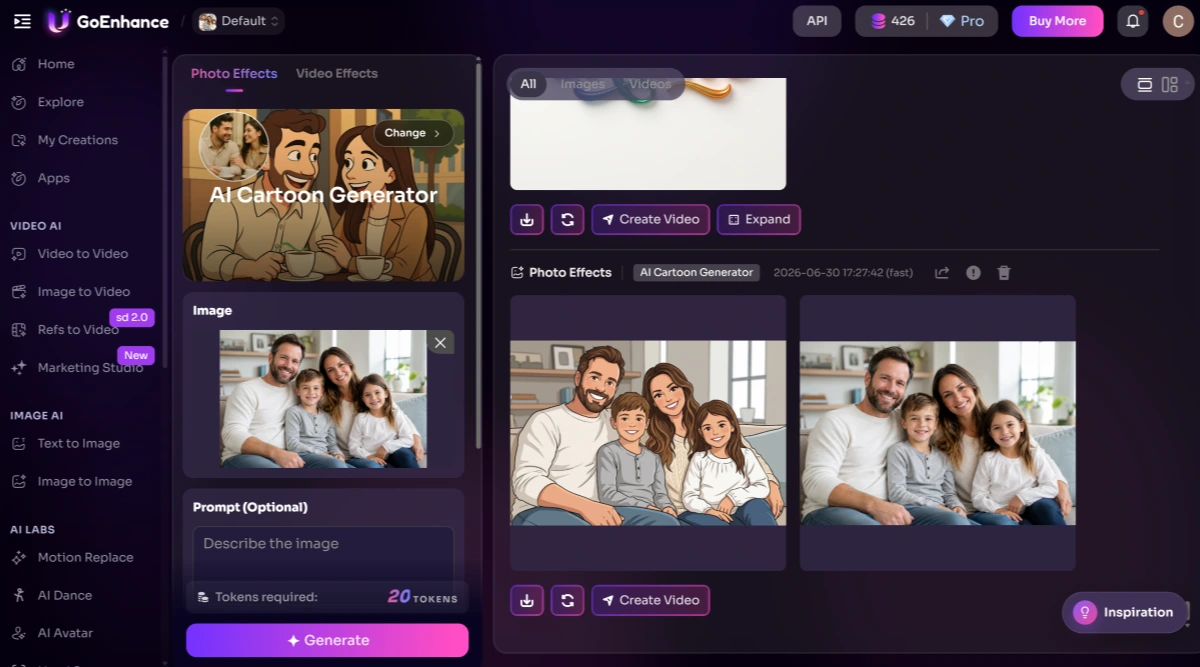
Method 1: Upload a Family Photo and Turn It Into a Cartoon Portrait
This method is best for users who already have a family photo, parent-child photo, holiday picture, or old family memory and want to turn it into a warmer, more illustrated cartoon-style portrait.
Tool link: GoEnhance AI Cartoon Generator
Steps:
- Open the GoEnhance AI Cartoon Generator.
- Upload a clear family photo. A front-facing or slightly side-facing image usually works better.
- Apply the cartoon effect and generate the first version.
- Check whether the faces, hairstyles, glasses, hands, expressions, and age details still look natural.
- Regenerate or upload a clearer photo if the family members do not look recognizable enough.
This workflow is ideal for family avatars, holiday cards, social media posts, memory albums, and simple personalized gifts.
Method 2: Generate a Family Cartoon Image From Text
This method is useful when you do not have a suitable source photo, or when you want to create a more ideal family scene, such as a family in the living room, garden, beach, birthday party, or beside a Christmas tree.
Tool link: GoEnhance AI Text to Image
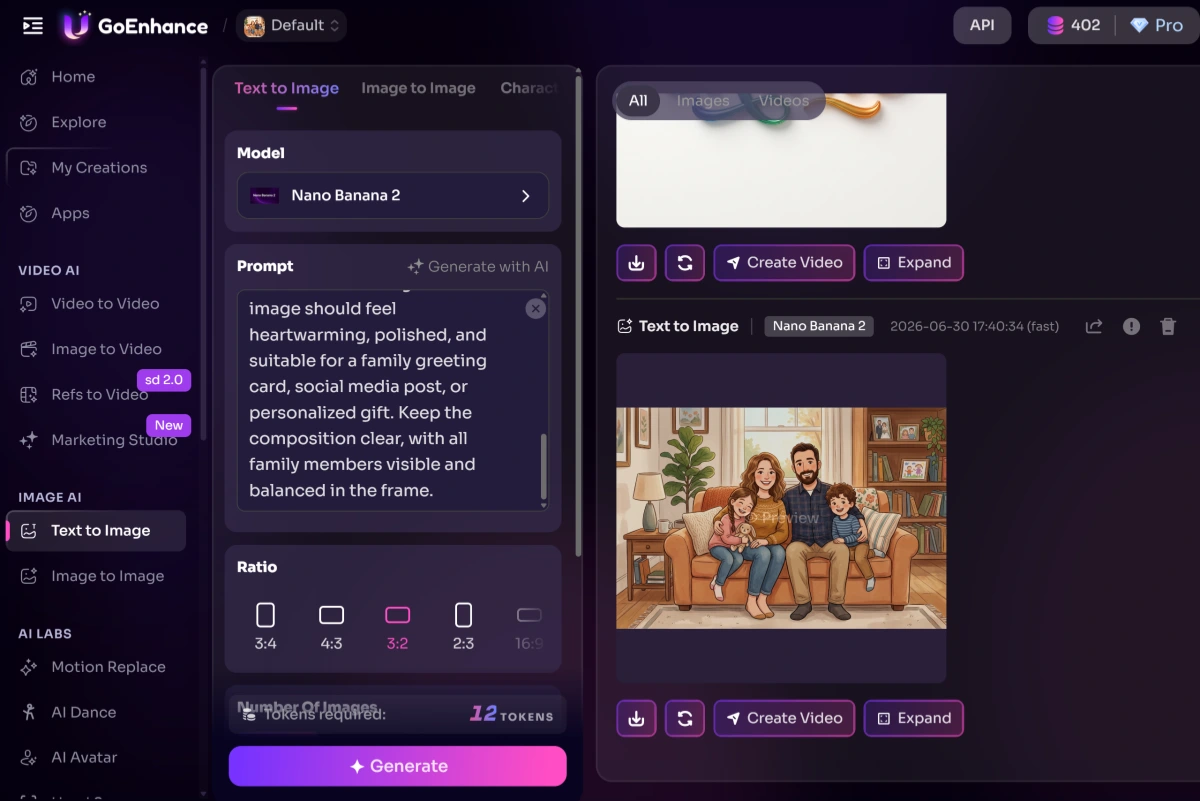
Steps:
- Open the GoEnhance AI Text to Image tool.
- Describe the number of family members, such as a family of three, a family of four, parents with two children, or three generations together.
- Add details about relationships, age range, outfits, actions, facial expressions, and background setting.
- Choose a clear visual style, such as warm hand-drawn illustration, children’s storybook style, soft watercolor cartoon, clean vector portrait, or 3D cartoon family portrait.
- Select the right aspect ratio. Use 1:1 for avatars, 3:2 for blog covers or horizontal images, and 2:3 for cards or posters.
- Generate several versions and choose the one with the clearest composition and most natural family feeling.
This workflow is suitable for blog visuals, campaign images, family-themed posters, fictional family scenes, greeting card concepts, and social media graphics.
Method 3: Try Different Cartoon Styles With Photo Effects
This method is helpful if you already have a family photo and want to compare different cartoon looks before choosing the final version. Instead of writing a complex prompt, you can use GoEnhance AI Photo Effects to select different preset styles and see which one works best for your family portrait.
Tool link: GoEnhance AI Photo Effects
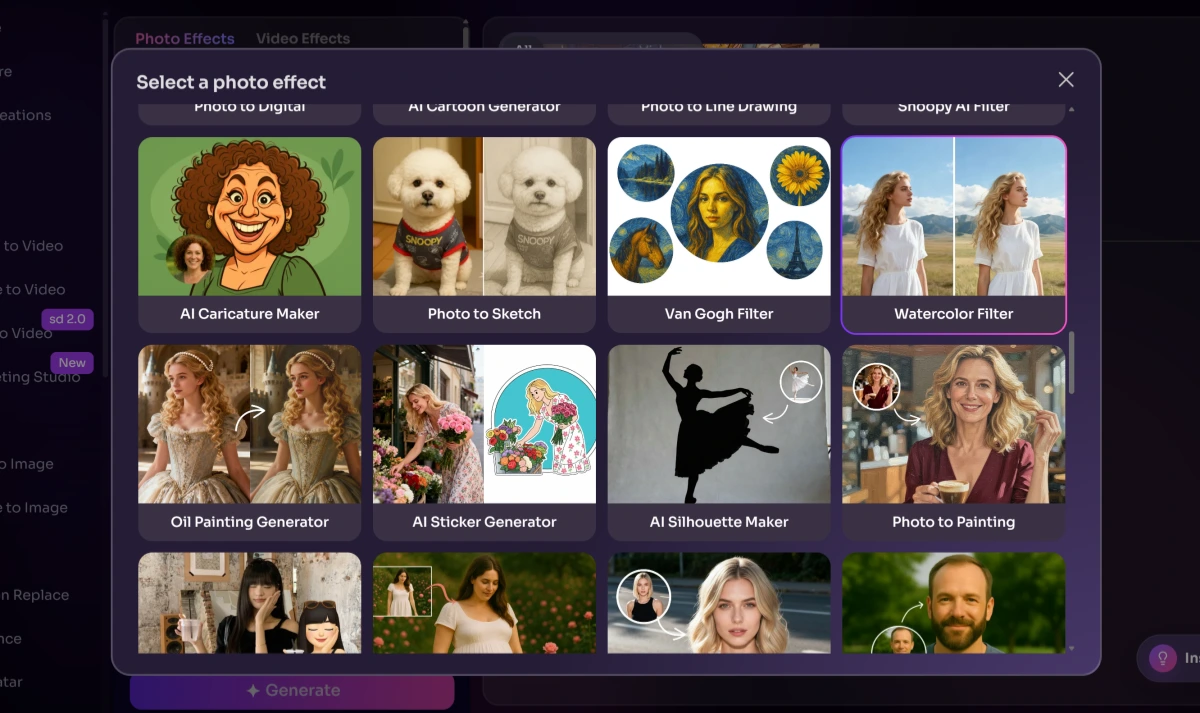 Steps:
- Open the GoEnhance AI Photo Effects tool.
- Upload a clear family photo with all family members visible.
- Browse the available photo effect styles and choose one cartoon or illustration-style effect.
- Generate the first version and check whether the faces, expressions, and family composition still look natural.
- Go back and try another style, such as a softer cartoon look, a cleaner illustration effect, or a more playful portrait style.
- Compare the different results and choose the version that best fits your final use case.
This workflow is useful when you want to test several family cartoon photo styles quickly. A softer illustrated look may work better for a printed family gift, while a brighter and cleaner cartoon effect may be better for avatars, cards, or social media images.
Method 4: Turn the Family Cartoon Photo Into an Animated Video
This method is best for users who already have a good family cartoon image and want to turn it into a birthday greeting, holiday message, family memory clip, or short social video.
Tool link: GoEnhance AI Image to Video
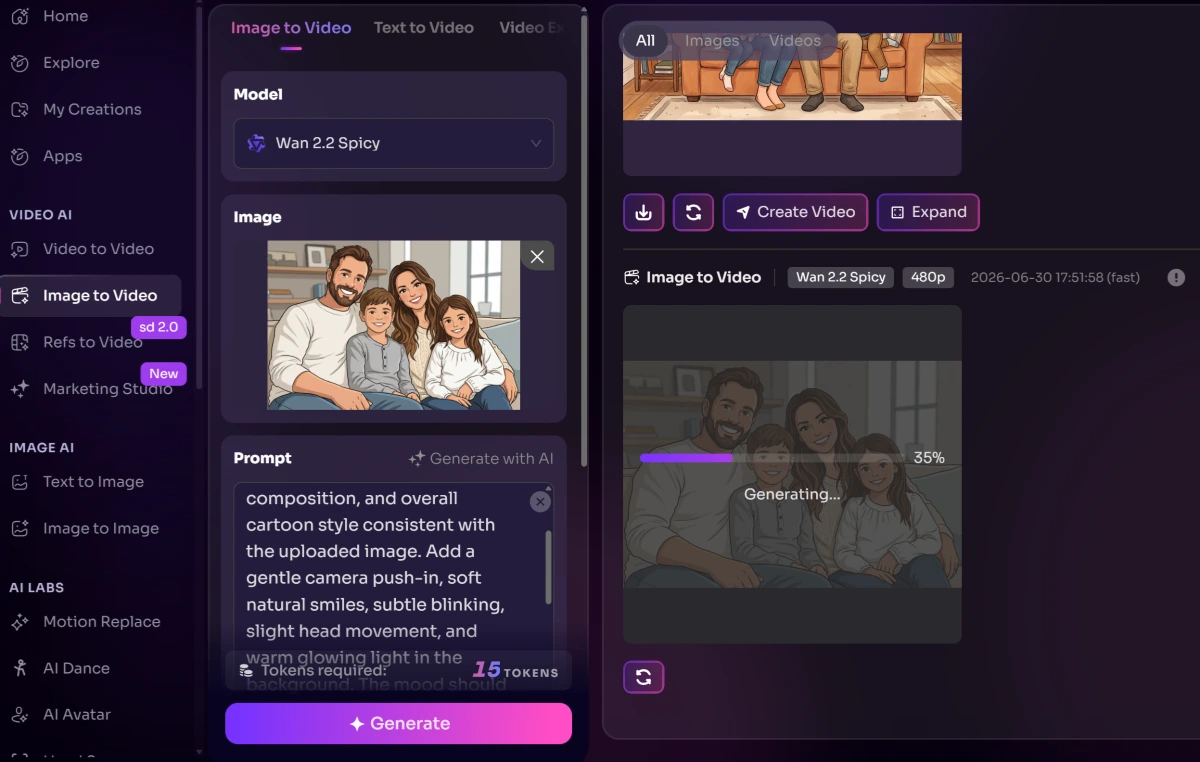
Steps:
- Open the GoEnhance AI Image to Video tool.
- Upload the finished family cartoon image.
- Write a simple motion prompt, such as gentle camera push-in, natural smiles, warm holiday atmosphere, or soft glowing background.
- Keep the motion simple. Avoid asking for large body movements, multiple people talking, fast camera moves, or complex action.
- Generate the video and check whether the faces, hands, and family composition remain stable.
- Choose the most natural version and use it as a greeting video, memory clip, or short social media post.
This workflow is ideal for turning a static family cartoon portrait into a more emotional and shareable animated family video.
Which GoEnhance AI Workflow Should You Choose?
If you already have a family photo, start with the Cartoon Generator. If you want to create a new family scene from scratch, use Text to Image. If you want to compare multiple cartoon styles before deciding, use Image to Image. If you want to make the result more engaging for social media or greetings, turn the final image into a short animated video with Image to Video.
For most users, the easiest workflow is: upload a clear family photo, generate a cartoon portrait, test one or two style variations, and then animate the best version if you want a short family video.
2. Canva
Canva is useful when the cartoon portrait needs to become a finished card, invitation, poster, or social post. It is less about deep portrait generation control and more about turning the finished image into a polished layout.
Best for: users who want templates, simple design controls, and quick family cards or social graphics. Things to keep in mind: Canva is helpful for presentation, but it may not give the same portrait-specific control as a dedicated AI image workflow.
3. Fotor
Fotor can help with quick photo-to-cartoon style tests. It is useful when you want to see whether a family photo works better as a sketch, painting, avatar, or softer illustrated portrait before committing to a final direction.
Best for: casual users who want fast style previews.
Things to keep in mind: quick filters can be convenient, but they may not preserve likeness, age, or facial details well enough for a meaningful gift.
4. Fiverr
Fiverr can be practical when you want a human illustrator to refine the final portrait. This is more relevant for wedding gifts, anniversary portraits, family memorials, and large framed prints where likeness matters more than speed.
Best for: buyers who want human revision on faces, clothing, background, or family composition.
Things to keep in mind: quality varies by seller, so check portfolios, revision policies, delivery time, and whether the final file is large enough for printing.
6. How To Choose Between AI And A Human Illustrator
AI tools are better when you want speed, options, and a lower cost. They are useful for blog visuals, social posts, casual gifts, and early style exploration. A strong AI image generator can help you test portrait directions before deciding whether the image needs manual finishing.
Human illustrators are better when emotional accuracy matters. If the portrait is for a wedding, memorial, anniversary, or large print, the extra revision process can be worth it.
Use both when the project is important: explore ideas with AI first, then commission or refine the best direction.
7. Quality Checklist Before You Share Or Print
Before publishing or printing, check the image carefully:
- Do the faces still resemble the right people?
- Are children shown at a believable age?
- Are hands, glasses, teeth, and hairlines clean?
- Is the style consistent across every person?
- Does the background support the portrait?
- Is the image large enough for the final use?
- Does it still look sharp after compression?
- Is there any unwanted logo, watermark, or fake UI text?
For web use, WebP is usually a good format because it keeps file size manageable while preserving visual quality. For print, use the largest clean export you have.
8. FAQ
Can I make family cartoon photos from old printed pictures?
Yes, but scan the print first if possible. A phone snapshot can work, but glare, shadows, and paper texture may reduce facial detail.
What kind of photo works best?
Use a bright image where every face is visible. Front-facing or three-quarter angles usually work better than side profiles.
Should the cartoon look exactly like the original photo?
Not exactly. A good cartoon portrait should preserve identity and feeling, but it can simplify the background, improve lighting, and make the scene more polished.
Are AI family cartoon photos good enough for gifts?
They can be, especially for casual gifts, cards, and social posts. For a major keepsake, generate several versions and consider human retouching if likeness is critical.
Can I animate a family cartoon portrait?
Yes. Once the portrait is clean, you can use image to video to create a short greeting, memory clip, or animated social post.
9. Final Takeaway
Family cartoon photos work best when you treat them like a small creative project, not a random filter. Start with a clear photo, choose one style, use the right tool for the job, and check the details before sharing. The result should still feel like your family, just with a more playful and polished visual language.