Interview Highlights for Social Feeds
Find useful answers in a longer interview and turn them into short clips. Add captions and review the framing before sharing.

WayinVideo combines long-video understanding with AI clipping and editing. Find a specific moment, summarize a recording, or turn a longer source into short clips. Its tools also include captions, reframing, hooks, B-roll, and AI-generated video content.
Find useful answers in a longer interview and turn them into short clips. Add captions and review the framing before sharing.
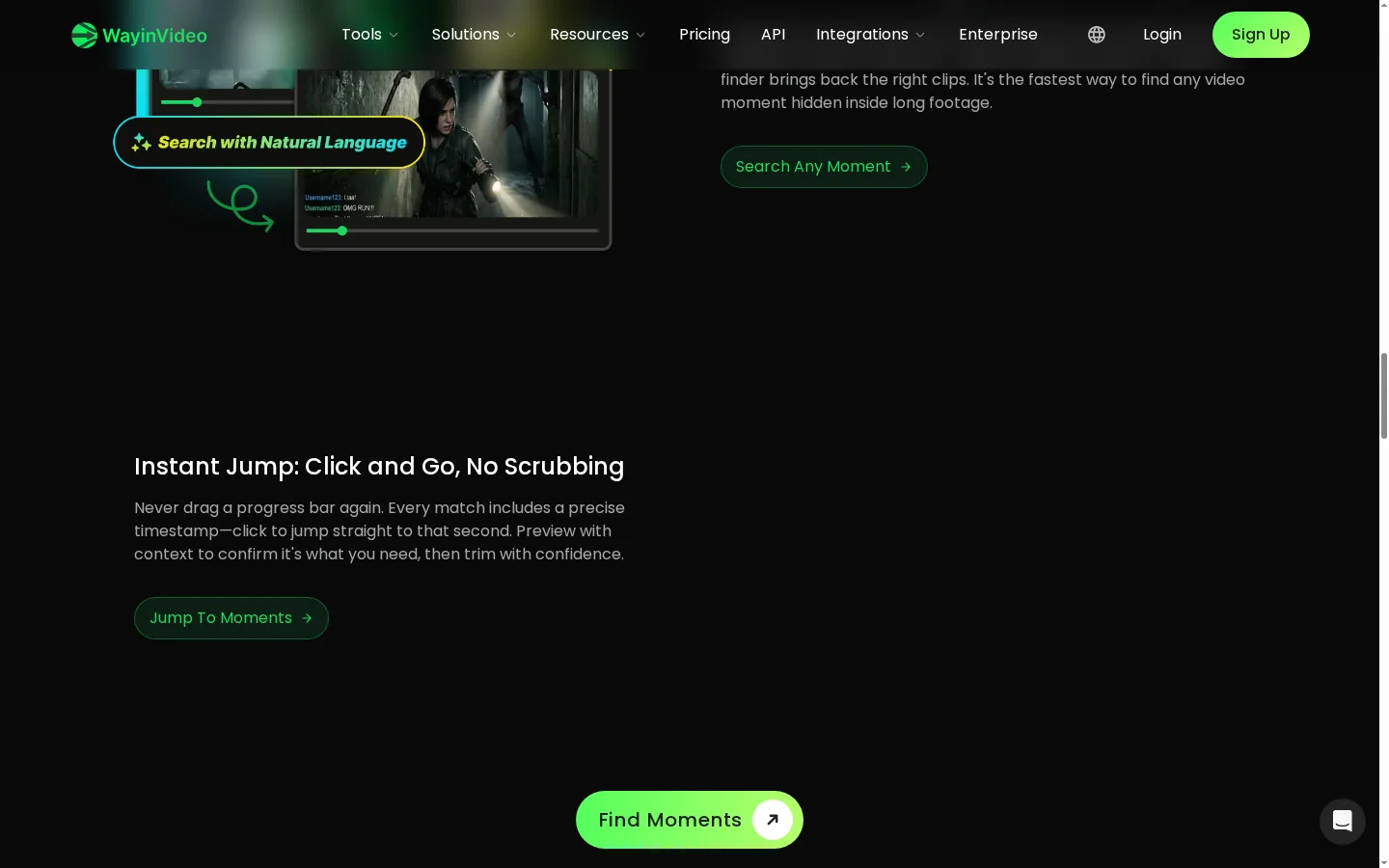
Describe what you want to locate, such as a topic, speaker, or moment in a long recording, and WayinVideo search can point you to a relevant section for review. If the conversation suggests a new visual insert, a text to video workflow can help turn that idea into a separate scene. Open the candidate passage in context before clipping it, because a matching phrase may need the sentence before or after it to make sense. This is useful for interviews, webinars, and customer conversations.
A summary gives you a quick map of a long recording before you start editing. Use the main points to decide which sections deserve a closer listen, which topic needs a short clip, and where an explanation may need more context. Summarization is a review aid, so check the original wording and timestamps before publishing a quote. If the summary calls for a new explanatory scene, the AI video generator can turn a brief into a visual.
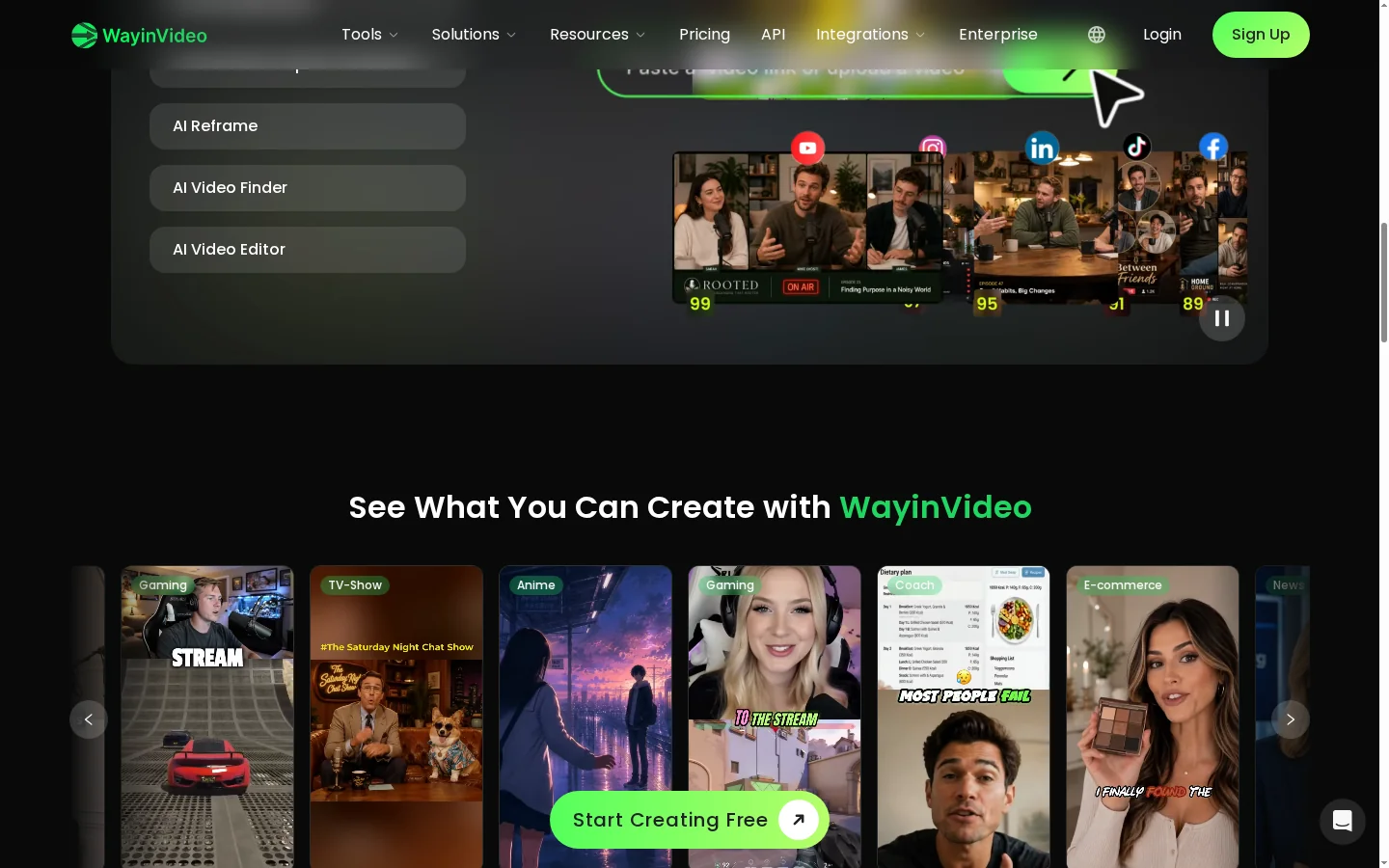
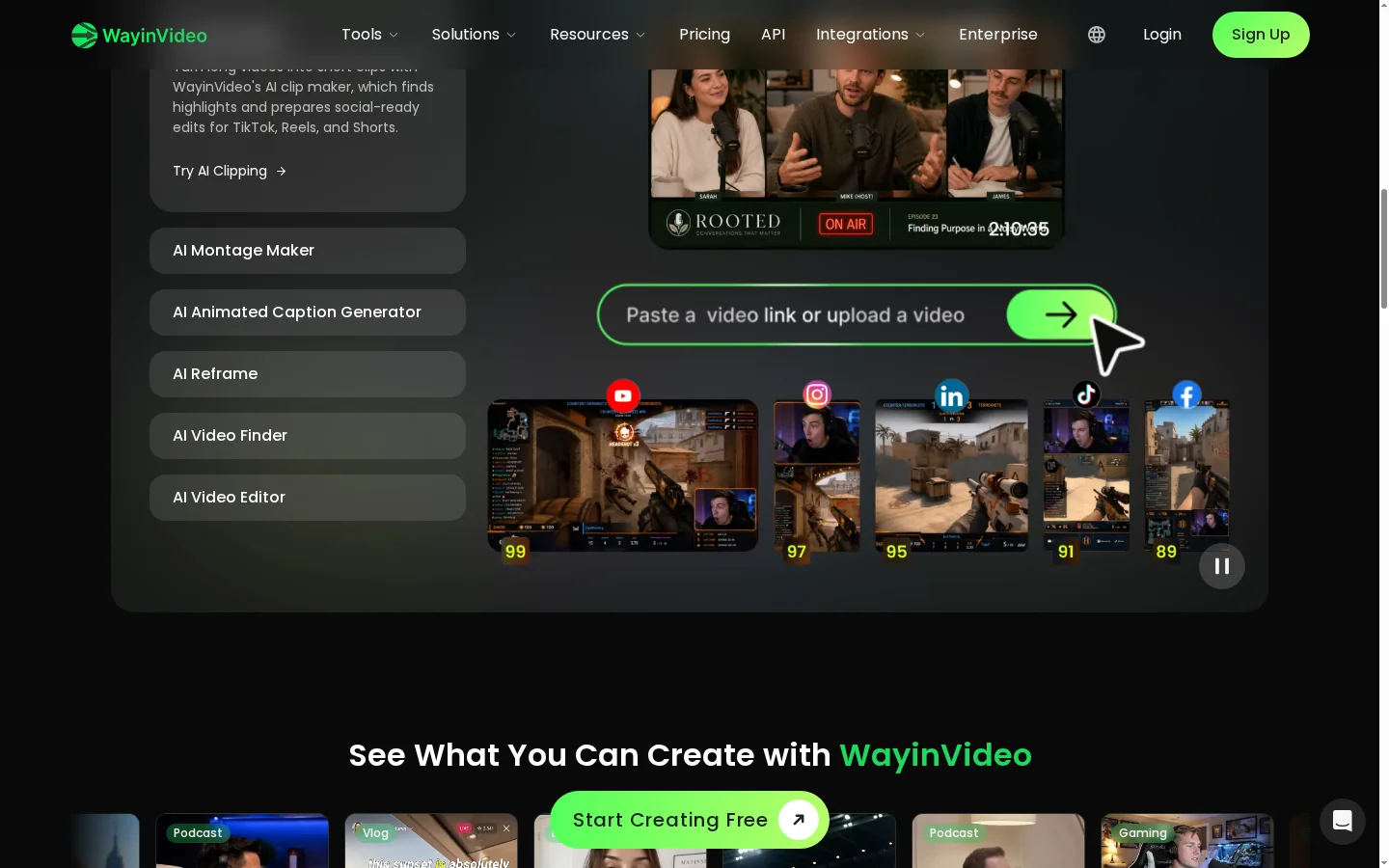
AI clipping can identify candidate highlights in a longer source and give editors a starting point for social cutdowns. If a selected moment needs a different visual treatment rather than a shorter cut, a video to video workflow is a related option to consider. Review each suggested beginning and ending so the clip preserves the speaker's setup, answer, and any context needed to understand the point. A strong segment still needs editorial judgment around pacing, accuracy, and audience fit.
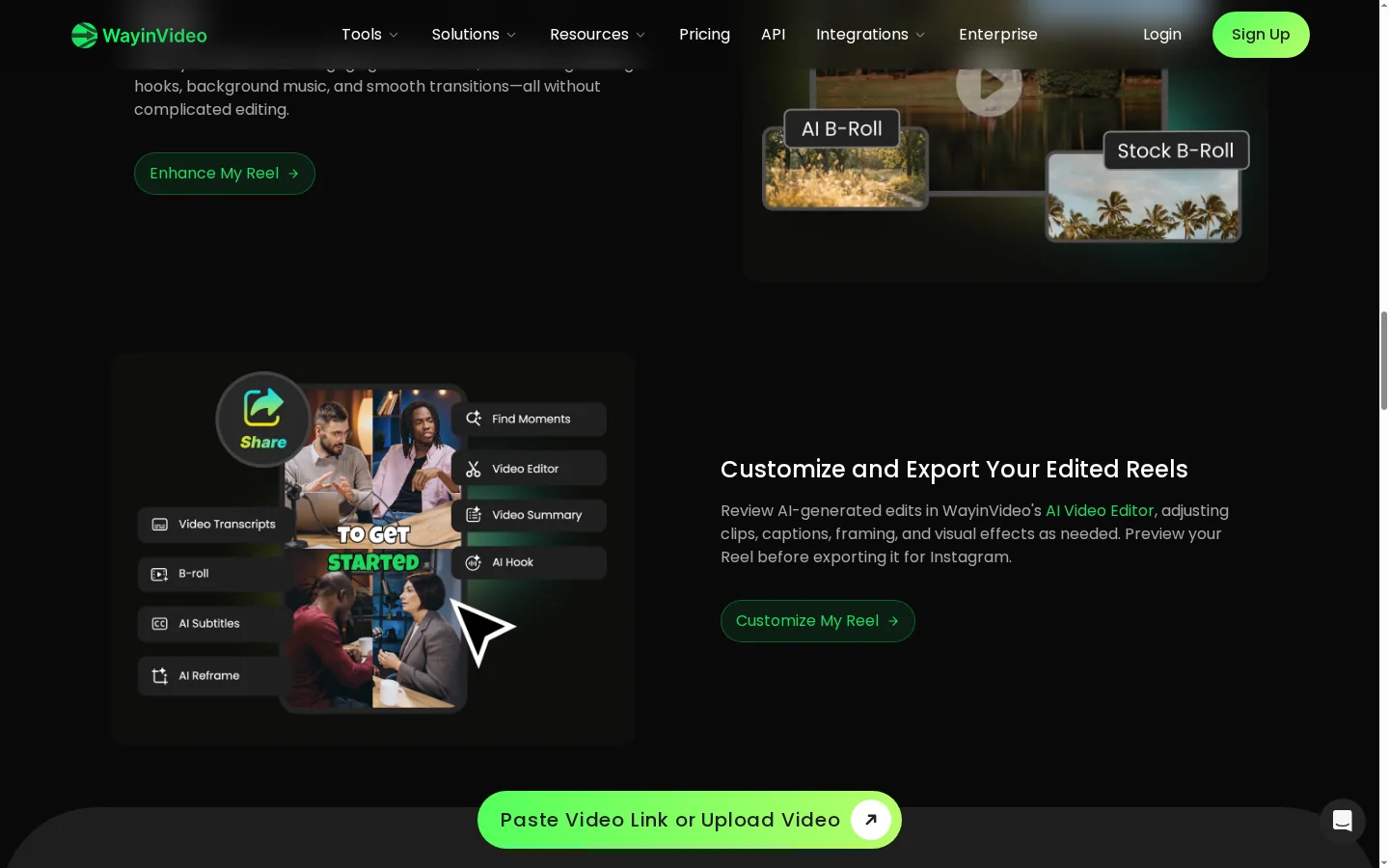
Captioning and reframing can prepare a selected segment for vertical or square social placements without making viewers guess what was said. Review the transcript against the audio, correct names and technical terms, and check that the speaker stays inside the crop throughout the clip. These checks matter most when the subject moves or several people take turns speaking.
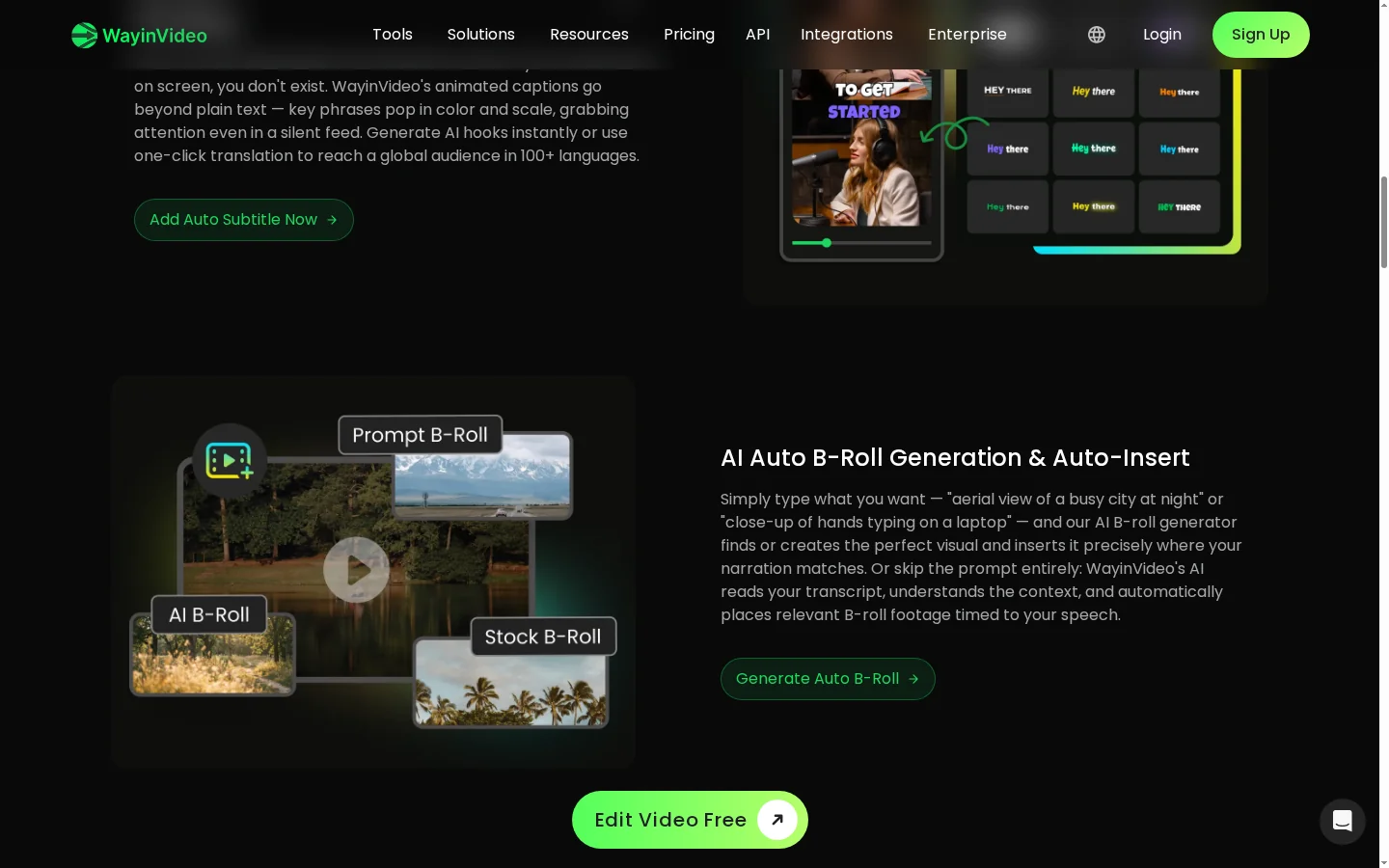
AI hooks and B-roll options can help shape how a repurposed segment begins and give viewers a visual cue for the subject being discussed. Match the opening line to the actual content, then check that supporting footage illustrates the speaker's point instead of implying something the recording does not show. Keep any generated cutaway brief enough to support the main message.
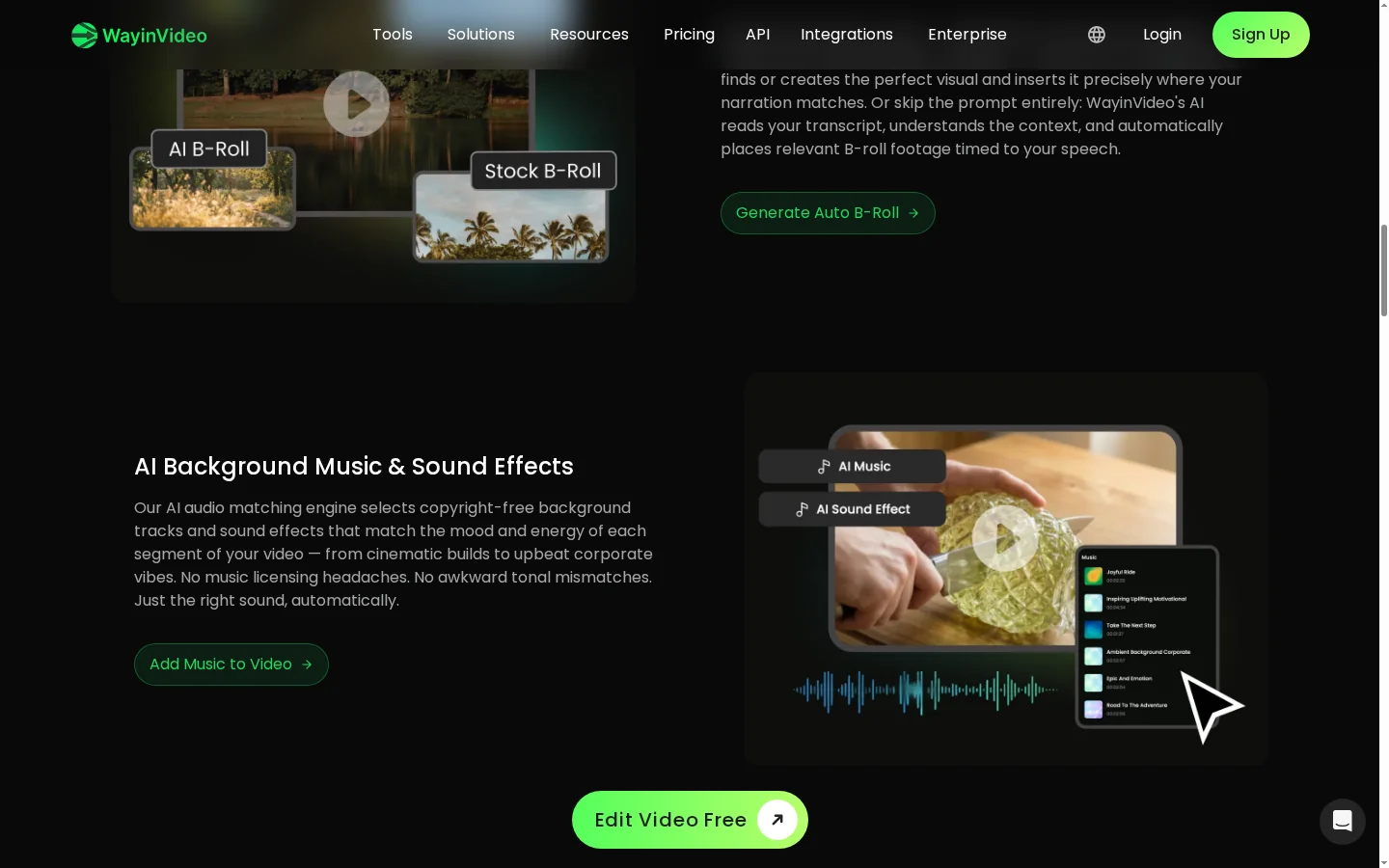
WayinVideo also lists an AI video generator, giving users a separate route when they want to make new material instead of extracting moments from an existing recording. Start with a clear brief, review the available inputs and settings in the selected tool, and inspect the output before deciding how it fits the rest of a campaign.
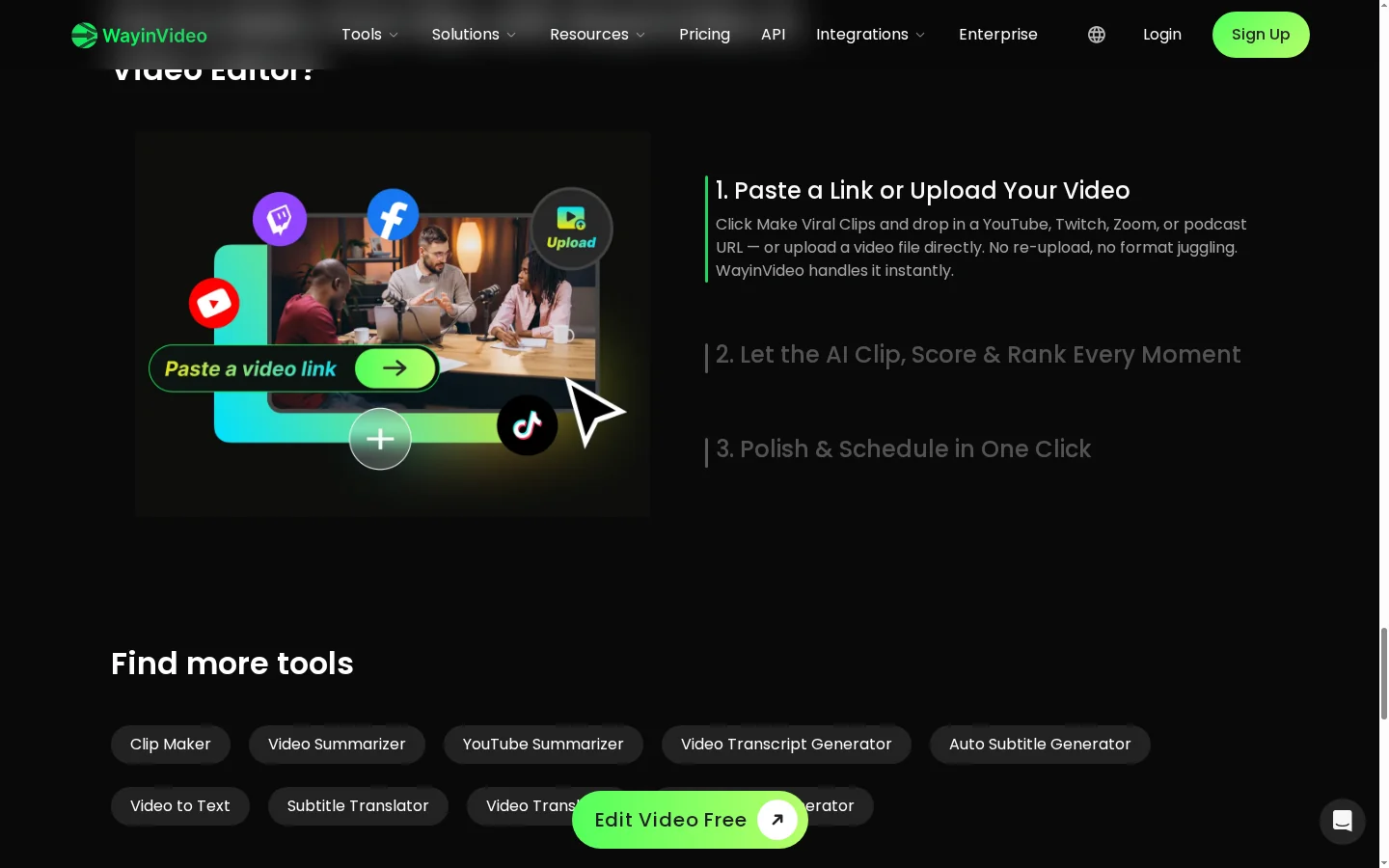
Select clipping, video search, or summarization. Provide your video through the supported upload or link option.
Review suggested clips or describe the moment you need. Check the selection, captions, and framing.
Confirm that the clip makes sense on its own, correct caption errors, and export using your plan's available options.
Use GoEnhance AI to generate a supporting scene for the idea you want viewers to understand.
Create a Supporting Shot in GoEnhance