Transparent Background Maker

Turn the photo you have into the design asset you need. GoEnhance AI removes the scene around a person, product, pet, or graphic and gives you a transparent PNG you can place in a new layout. Keep the subject in focus, make room for your message, and reuse one cutout across banners, slides, and social posts.
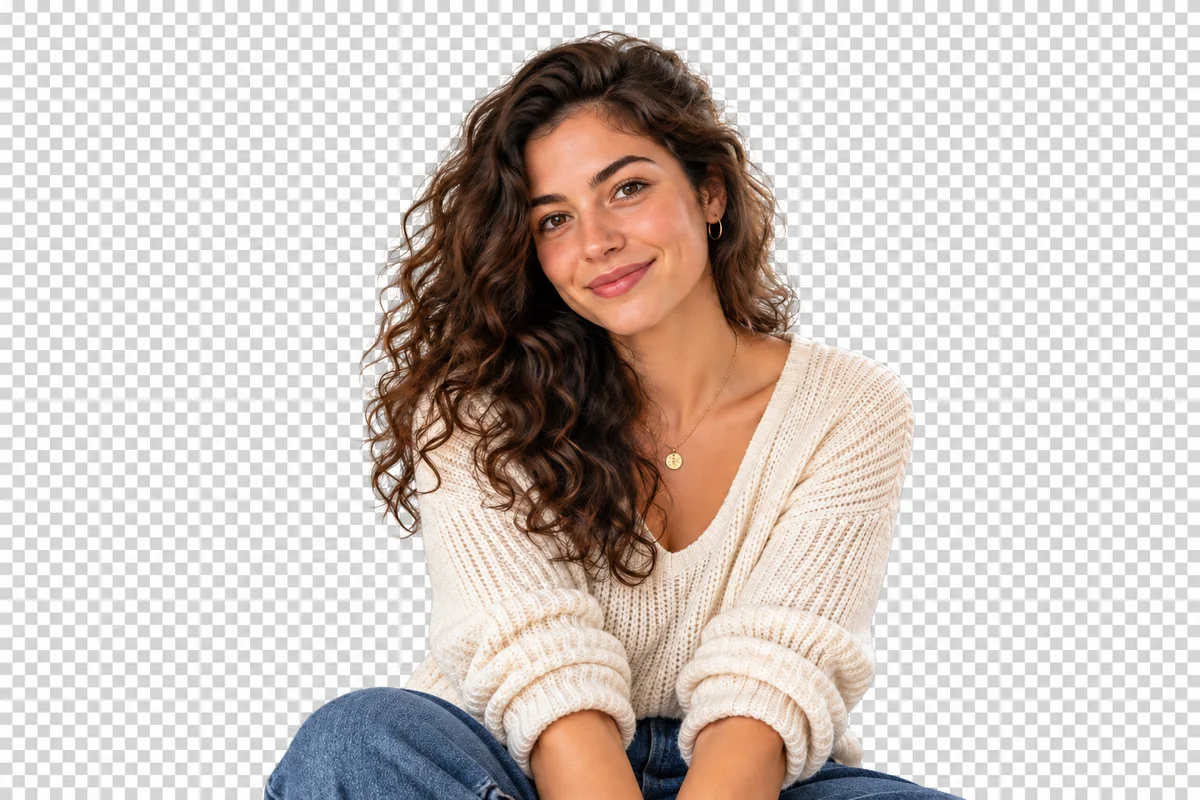
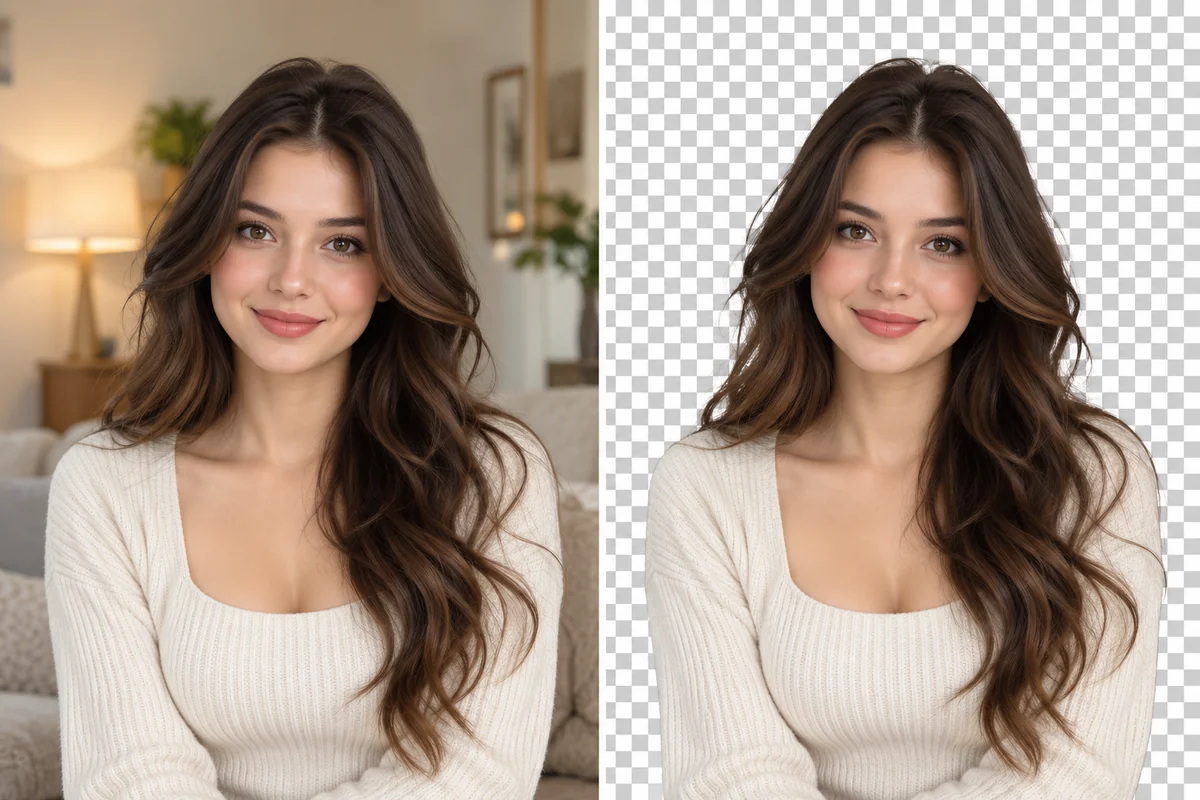
Curly-Hair Portrait
Curly-Hair Portrait
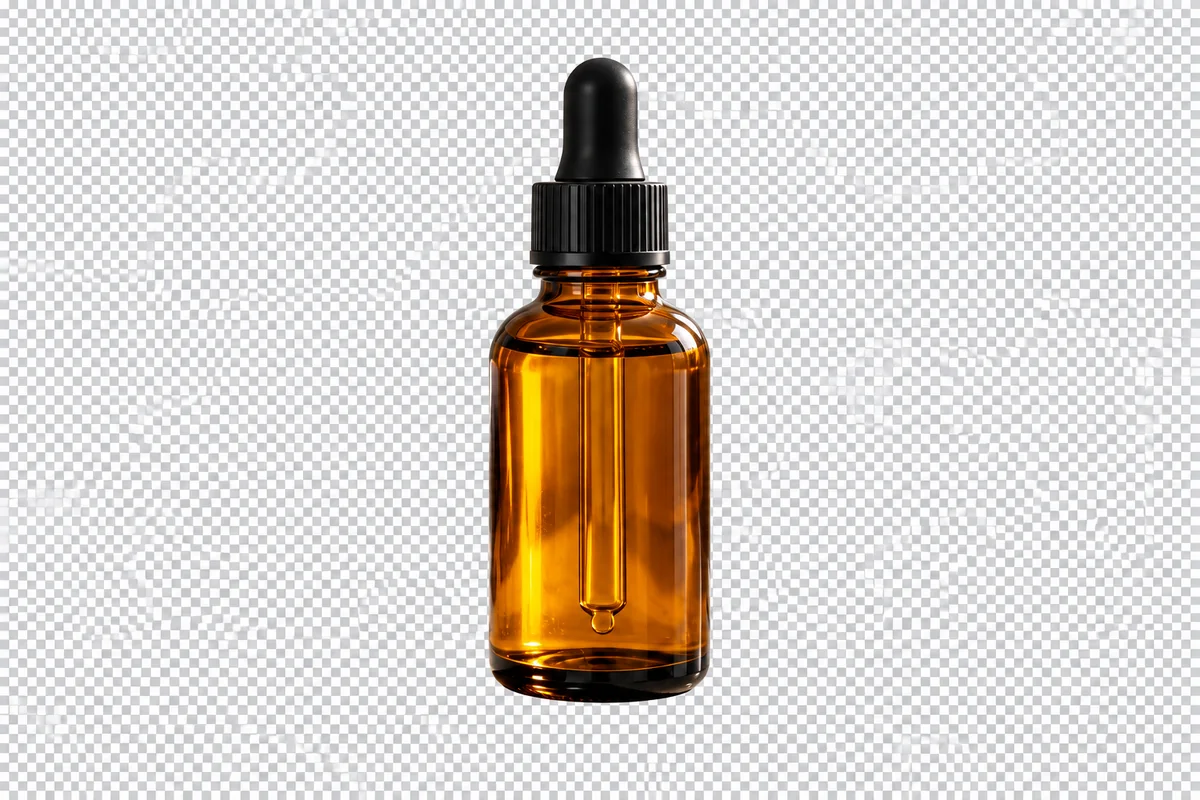
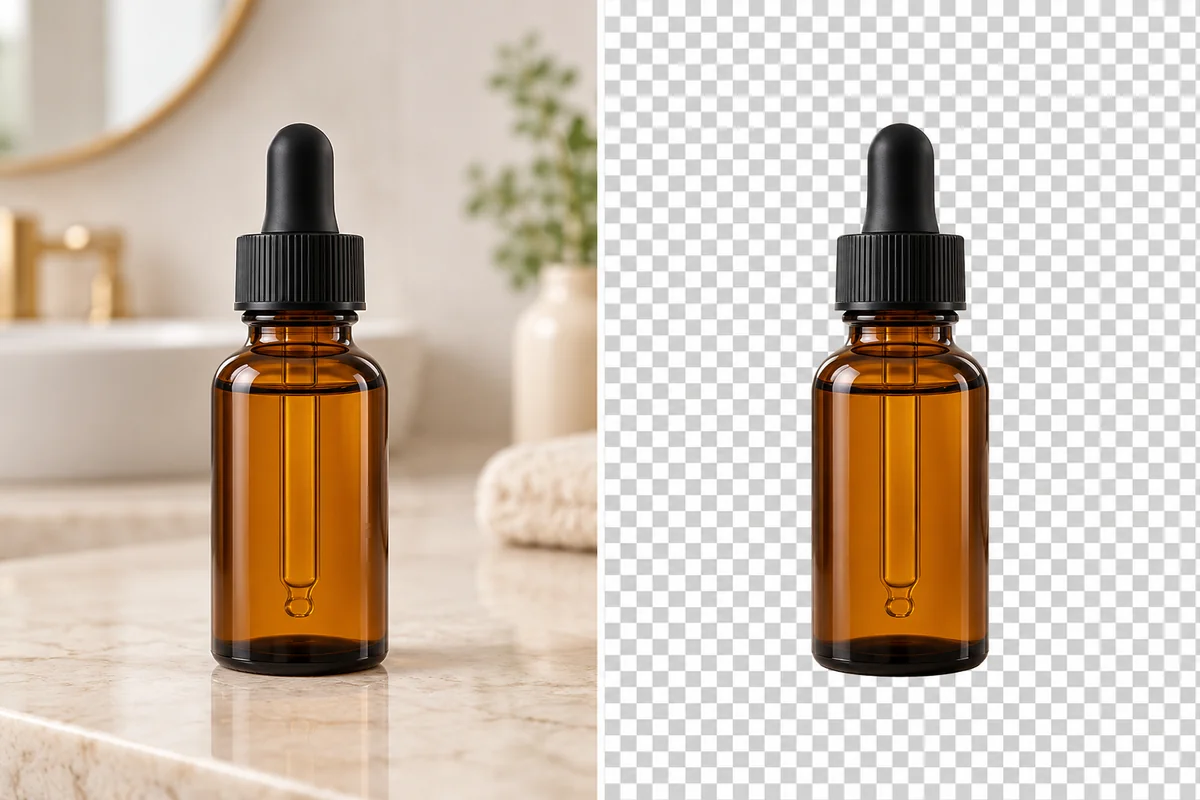
Skincare Bottle
Skincare Bottle
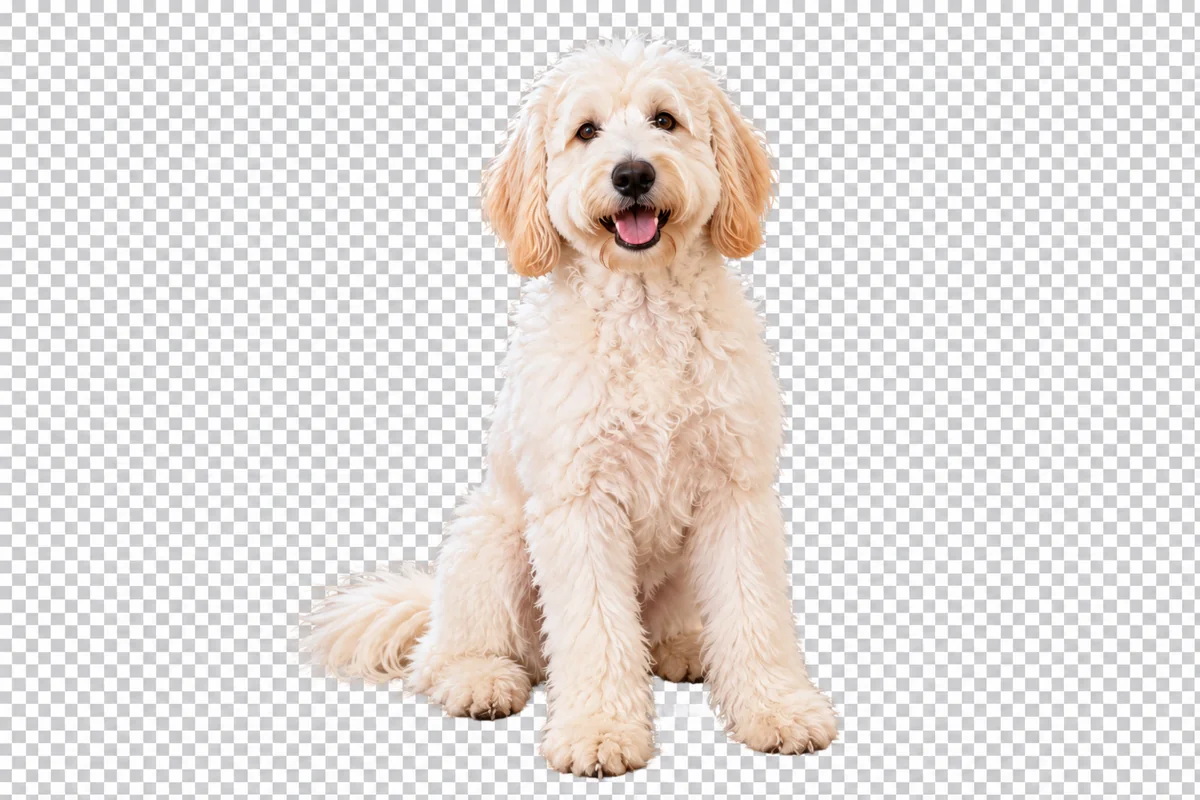
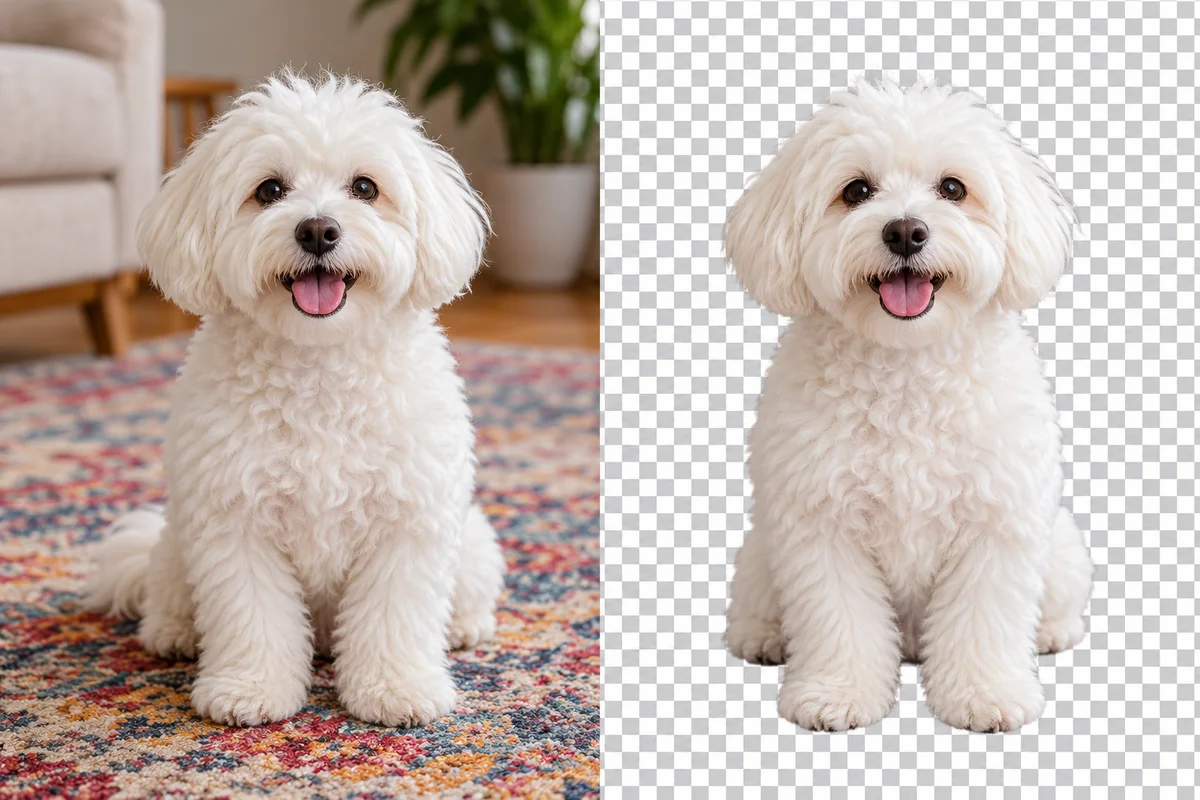
Fluffy Dog
Fluffy Dog
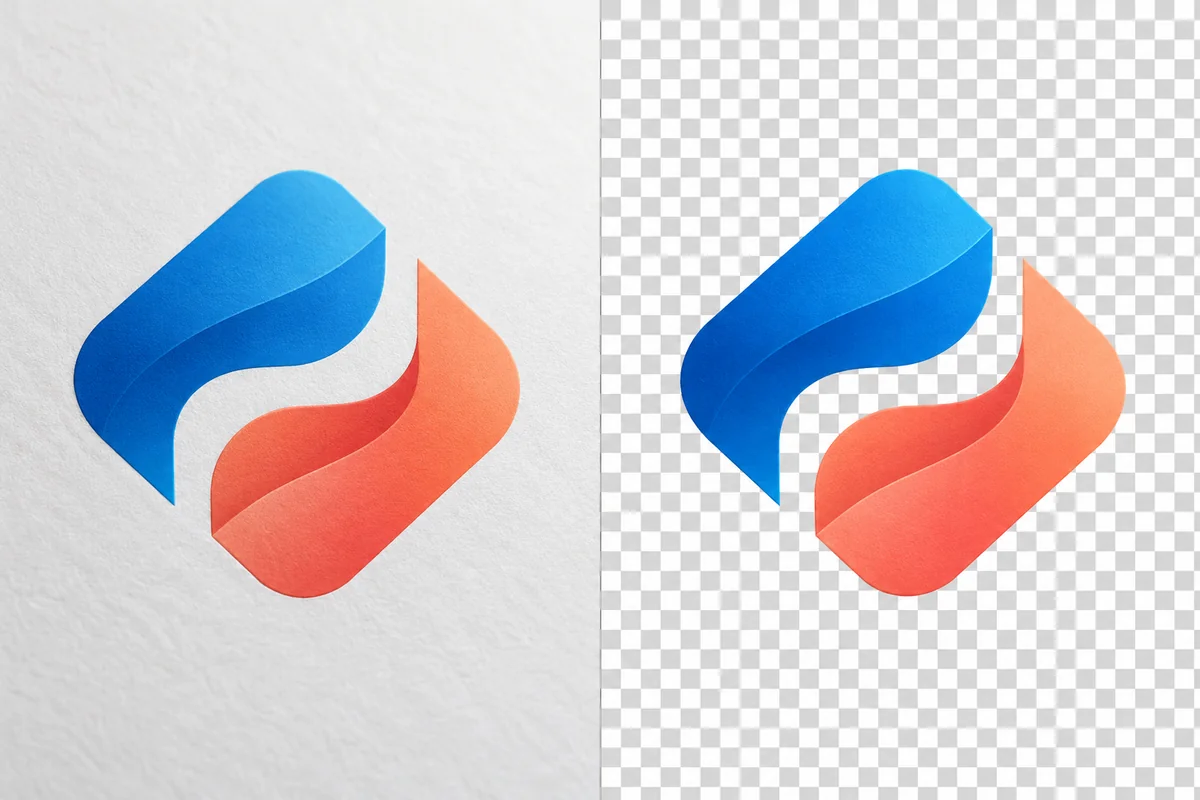
Graphic on Paper
Graphic on Paper
Upload a photo or graphic
By uploading a file, you agree to GoEnhance's Terms of Use and Privacy Policy

Make Your Image Background Transparent in Three Steps

Start with your own image and finish with a PNG ready to layer into your design.
01

Choose the image you want to reuse

Upload a JPG, PNG, or WebP containing the person, product, or artwork you want to keep. A clear source with the full subject in frame gives you more room to work in the finished design.

02

Remove the scene around your subject

Choose Transparent and let AI separate the foreground. Compare the cutout with your original so that hair, small gaps, and important details belong to the result you intend to use.

03

Download and place your PNG

Save the PNG, then add it to a slide, website, product card, or photo composition. The empty background lets the destination design show through around your subject.

Pick the Right Asset for Your Next Layout

Your projectUseful backgroundWhy it fits
Website banner or presentationTransparent PNGPlace the same subject beside text or over a brand color without a rectangular backdrop.
Product catalog or simple listingWhite backgroundPresent the product on a neutral canvas; check the destination's own framing requirements.
Social post or profile graphicCustom solid colorUse a consistent color when you want a finished image rather than a separate design layer.

Details That Help a Transparent Image Fit Your Design

DetailWhat to retainWhere it matters
Hair and furThe soft outline that gives the subject its natural shapePortrait cards, pet stickers, and close-up compositions
Openings and gapsClear space inside handles, between leaves, or around an armDesigns placed over a strong color or photograph
Logo interiorsThe intended holes in letters and symbols, alongside genuine white artworkDark website headers and brand presentation slides
Glass and reflectionsThe product's silhouette and useful surface detailBottle images layered into a promotional layout
Source dimensionsEnough pixels for the space the image will occupyLarge banners where stretching a small upload would reveal blur
Final file formatPNG transparency rather than a flattened screenshotPassing the asset to a designer or opening it in another editor

Transparent Backgrounds with the Details That Matter

Automatic Portrait Cutouts with Natural Hair Edges

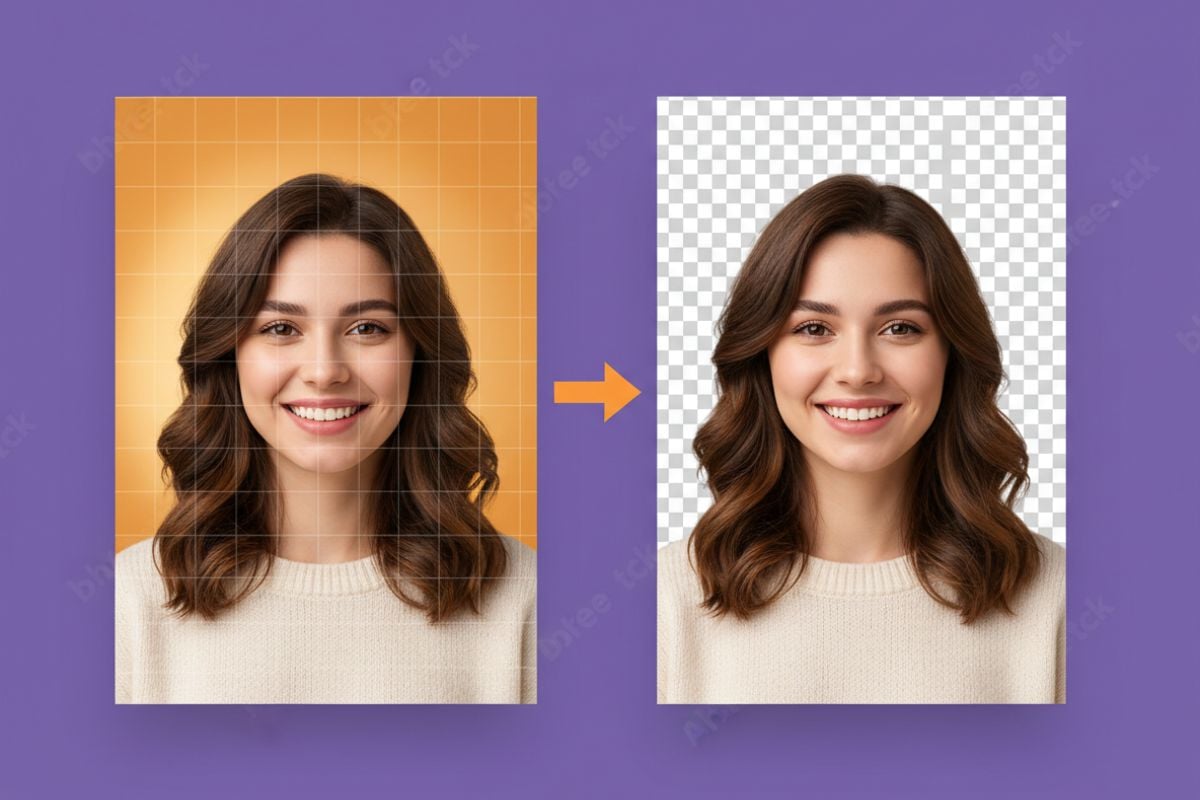
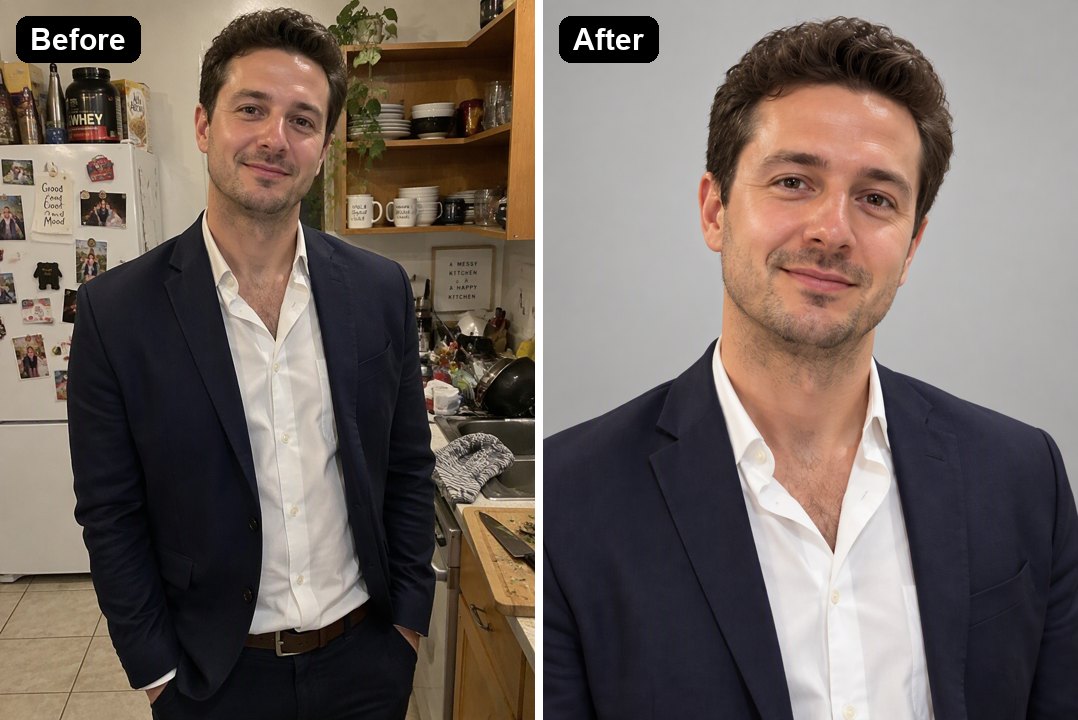
GoEnhance AI separates the person from a busy room while retaining the face, clothing, and hair outline. The transparent result gives you a recognizable portrait layer without tracing around the subject by hand, ready for profile cards and branded graphics. For more options, visit our background remover.

Before-and-after portrait cutout showing a woman isolated from the background over a transparency preview

Product Cutouts That Keep Their Shape and Label

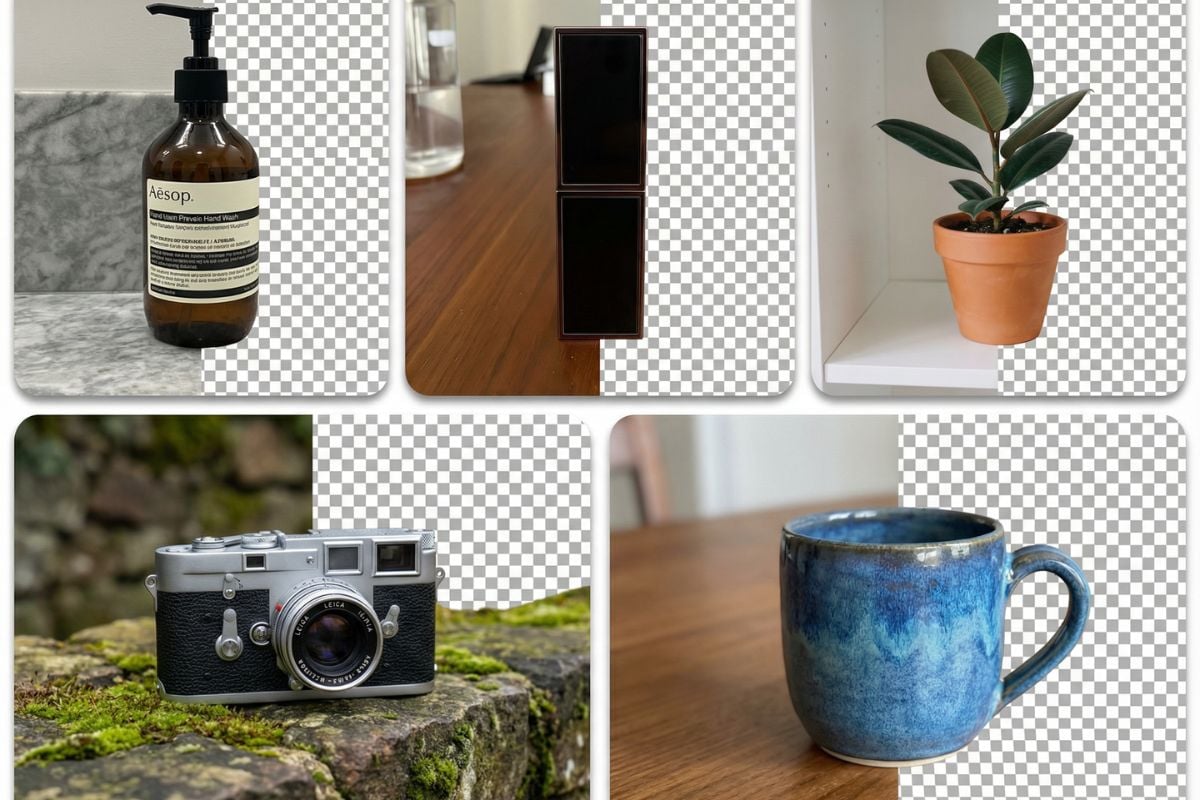
Remove the tabletop and surrounding props while keeping the product's silhouette, label, and visible surface detail. A transparent product image puts the item at the center of the design and can be reused across promotional backgrounds without repeating the cutout work.

Before-and-after skincare product cutout showing a bottle separated from its setting

Detailed Fur Separation for Pet Photos

The AI follows a pet's outline through fluffy fur rather than leaving a hard rectangular crop around the animal. Removing the room and furniture produces a separate pet image with its expression and coat still visible, giving stickers and social graphics a more natural shape.

Before-and-after pet cutout showing a fluffy dog separated from the background

Clear Logo Backgrounds, Keep the Artwork

Separate a logo or emblem from its surrounding canvas while retaining the colors and shapes that define the mark. PNG transparency removes the background box, so the same graphic fits into website headers, slides, and branded layouts with different background colors.

Before-and-after logo cutout showing a colorful graphic separated from paper

Transparent Space Between Fine Shapes

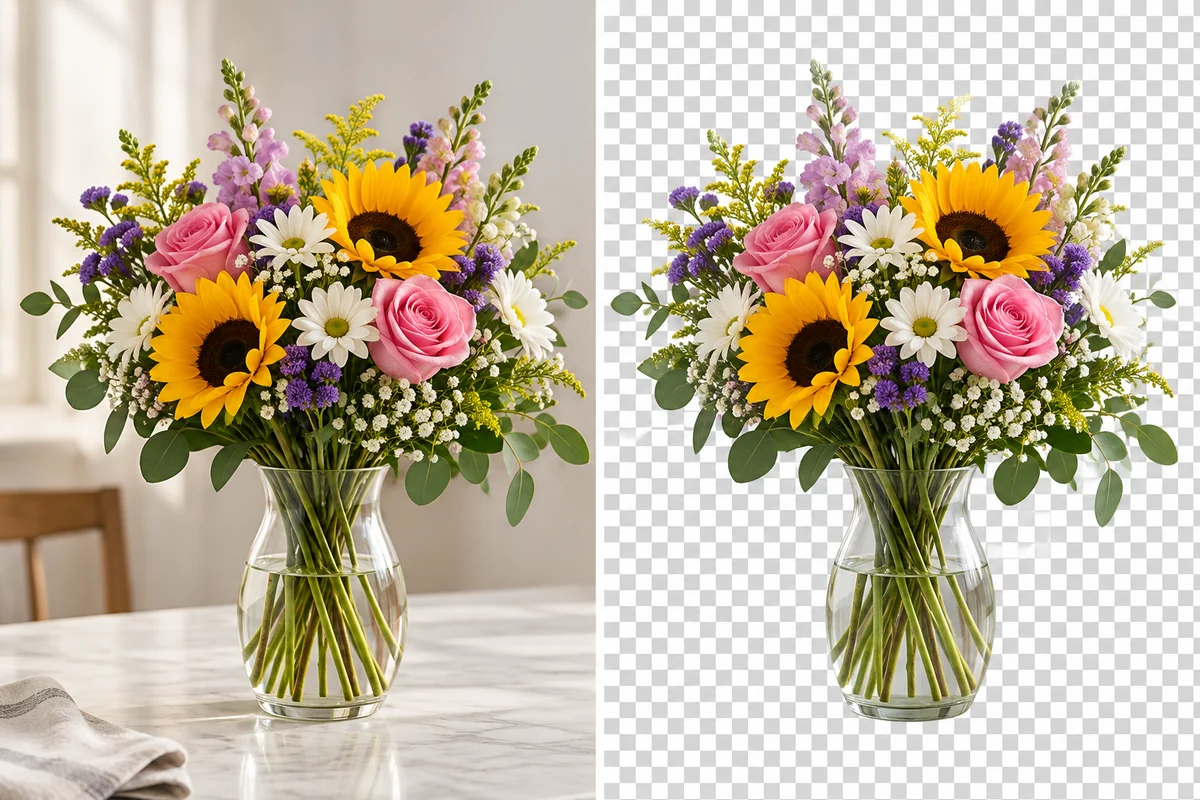
Clear the scene around a bouquet and the gaps between its leaves and stems, keeping the floral arrangement as one reusable image layer. Those open spaces let the destination background show through, helping detailed artwork blend into invitations, banners, and collages.

Before-and-after flower cutout showing a bouquet separated from its background
Build a reusable asset once, then adapt its placement to the work you are making.

A Transparent Background Image Maker for Everyday Design

Automatic subject separation

Start from a real photo or graphic instead of tracing an outline point by point. AI separates the main subject from its setting so you can move straight into composing the final design.

Transparency that travels with the file

PNG keeps the empty pixels around your cutout. Send the file to a teammate or import it into another editor without carrying the old wall, table, or white canvas into the layout.

Useful for photos and drawn artwork

Prepare people, products, pets, emblems, and illustrations through the same online workflow. Match the image mode to the source so photographic textures and drawn outlines receive an appropriate treatment.

Flexible placement and spacing

Move the subject closer to a headline, overlap it with a shape, or combine multiple cutouts in a collage. The removed backdrop gives you control over the layout rather than the original camera framing.

A reusable source for brand variations

Keep a transparent master asset and use it across campaign colors and slide themes. This reduces repeated editing when the subject stays the same but the surrounding design changes.

Browser-based preparation

Upload and download online without a desktop masking workflow. Keep the original alongside the transparent PNG, so future revisions can start from the source rather than a compressed preview.

Transparent Background Maker FAQ

How do I make an image background transparent?

Upload your image to GoEnhance AI, choose a transparent background, and generate the cutout. Download the PNG and place it in your destination design. The background should show through the empty areas around the subject.

Can I use a free transparent background maker online?

New GoEnhance AI accounts receive free trial credits. Use them to try a representative photo or graphic, then check your balance and the processing cost before preparing more images. Free trial access is limited by the available credits.

Which image files can I make transparent?

You can start with JPG, PNG, or WebP images. Use the clearest version of your source, with the subject fully visible. Download the transparent result as PNG for broad compatibility with design tools and documents.

Is making the background transparent the same as fading the whole image?

No. Background removal keeps the subject visible and clears the surrounding pixels. Lowering the opacity of the whole image also fades the subject. Use the transparent cutout when you need a person, product, or logo to remain prominent.

Can it handle hair, fur, and a busy background?

Yes, the workflow is designed for photographic subjects as well as simpler graphics. Clear focus and separation from the background help with delicate outlines. Small hairs, glass, and overlapping objects are good places to compare the result with your source.

Why does my transparent PNG look white in a viewer?

Some viewers display transparent pixels against a white canvas. Place the downloaded PNG over a colored shape in an editor to check it. If the white rectangle moves with the image, it has been flattened; download the transparent PNG rather than a screenshot.

Can I make a logo transparent without losing white parts of the design?

Yes. Treat the surrounding canvas and the logo's own white artwork as different parts of the image. Inspect letter openings and light details against a colored background so the finished mark keeps its intended shape.

Where can I use the transparent image?

Use it in website sections, presentations, thumbnails, product graphics, invitations, and collages. Keep the PNG as your editable design asset. If a destination only accepts JPG, compose it on the chosen background and export that finished version separately.

Give Your Image a Place in Your Next Design

Clear the old scene, keep your subject, and download a transparent PNG ready for your banner, slide, or social post.

Make My Background Transparent