
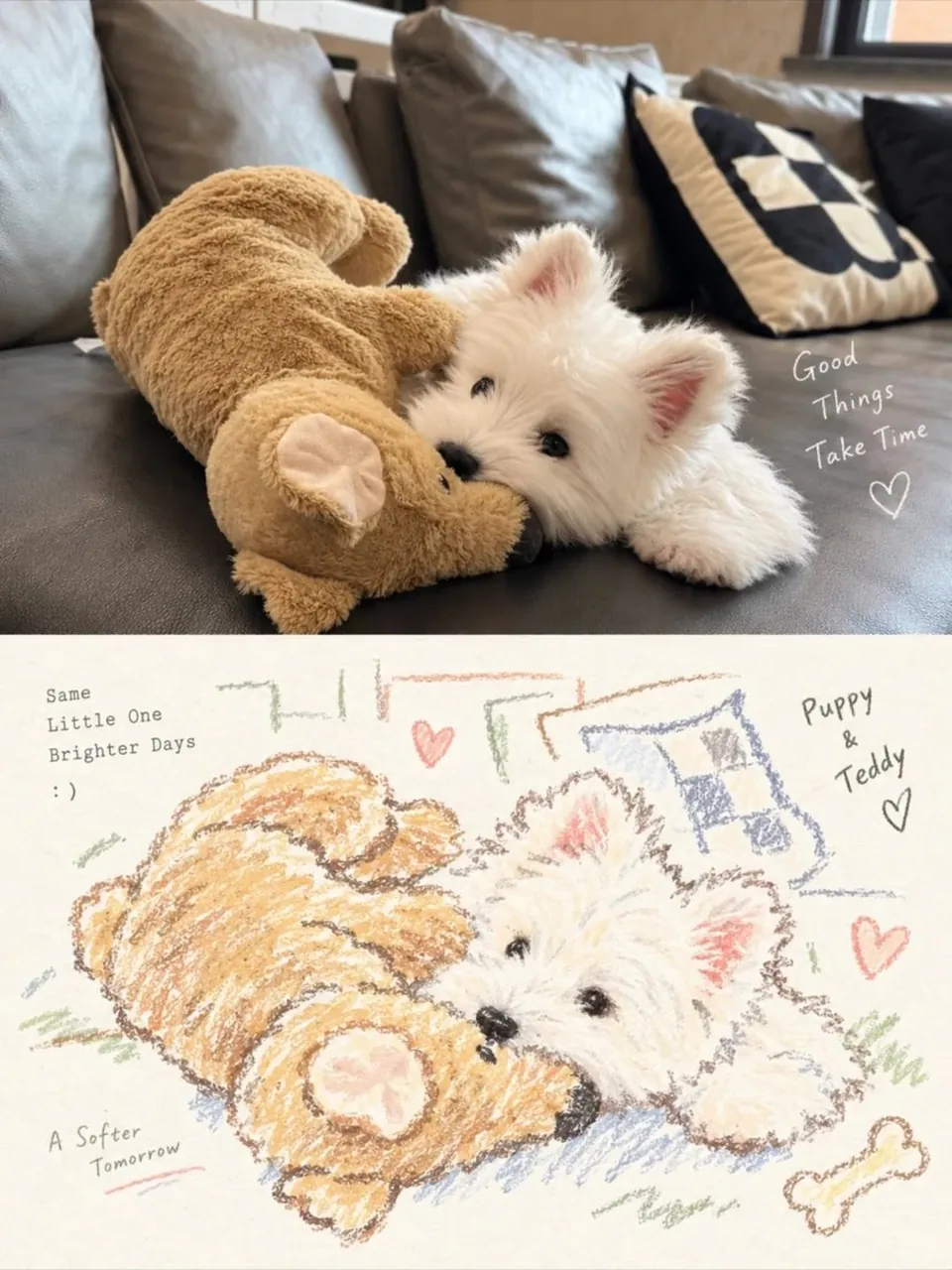
Prompt
Copy and customize
Prompt:
Transform the uploaded reference photo into a charming, hand-drawn pastel crayon illustration while preserving the original subject’s exact identity, facial features, expression, pose, proportions, clothing or accessories, and overall composition. Keep the pet exactly recognizable, including its fur color, eyes, body shape, and distinctive details. Recreate the image in a cute, nostalgic children’s storybook art style using soft wax crayons, colored pencils, and textured pastel strokes. Use a warm cream-colored textured paper background with visible paper grain, rough hand-drawn outlines, imperfect sketchy edges, and soft layered crayon shading. Add small playful hand-drawn doodles around the subject, such as hearts, flowers, stars, sunshine, grass, tiny decorative illustrations, and cute themed elements that complement the original scene. Include a few short handwritten phrases in a casual, childlike style to create a cozy scrapbook aesthetic. Use a soft, warm pastel color palette with natural earthy tones. Keep the subject large and central, with the same camera angle and framing as the original photograph. The final result should look like a beautiful handmade crayon drawing on vintage sketchbook paper, adorable, warm, playful, and full of personality. Do not change the subject or redesign the scene; only transform the photographic image into this illustrated art style.
Best for
Tips
Keep the main subject focused so Prompt Transform the uploaded reference photo into remains recognizable after style or lighting changes.
Adjust camera angle and aspect ratio before generation when the composition needs a specific platform format.