Generate Makeup Looks from a Portrait
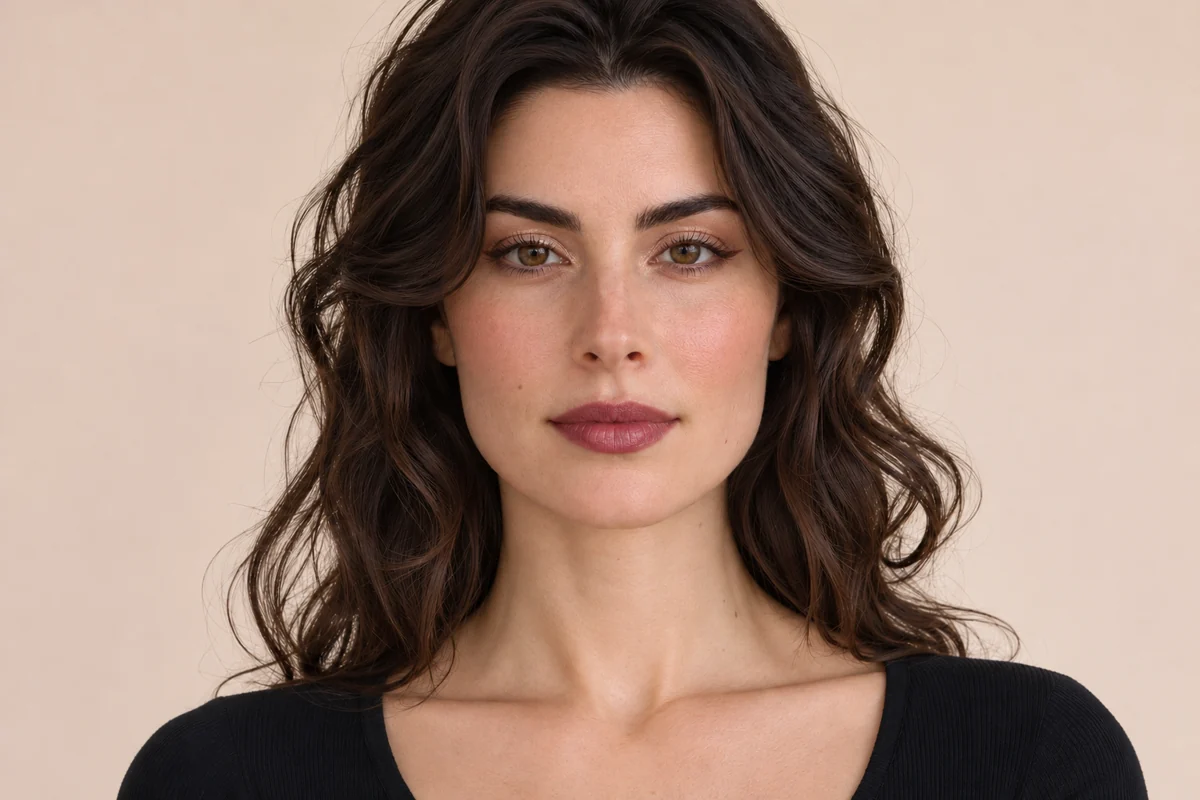
Explore a makeup idea on a portrait with a plain-language image edit. Describe the colors, finish and details you want to try, then compare the generated look with your original photo.
Soft Glam
Soft Glam
Warm Bronze
Warm Bronze
Fresh Peach
Fresh Peach
Upload a portrait and describe the makeup look to explore
By uploading a file, you agree to GoEnhance's Terms of Use and Privacy Policy

Makeup Ideas, Shown Before and After
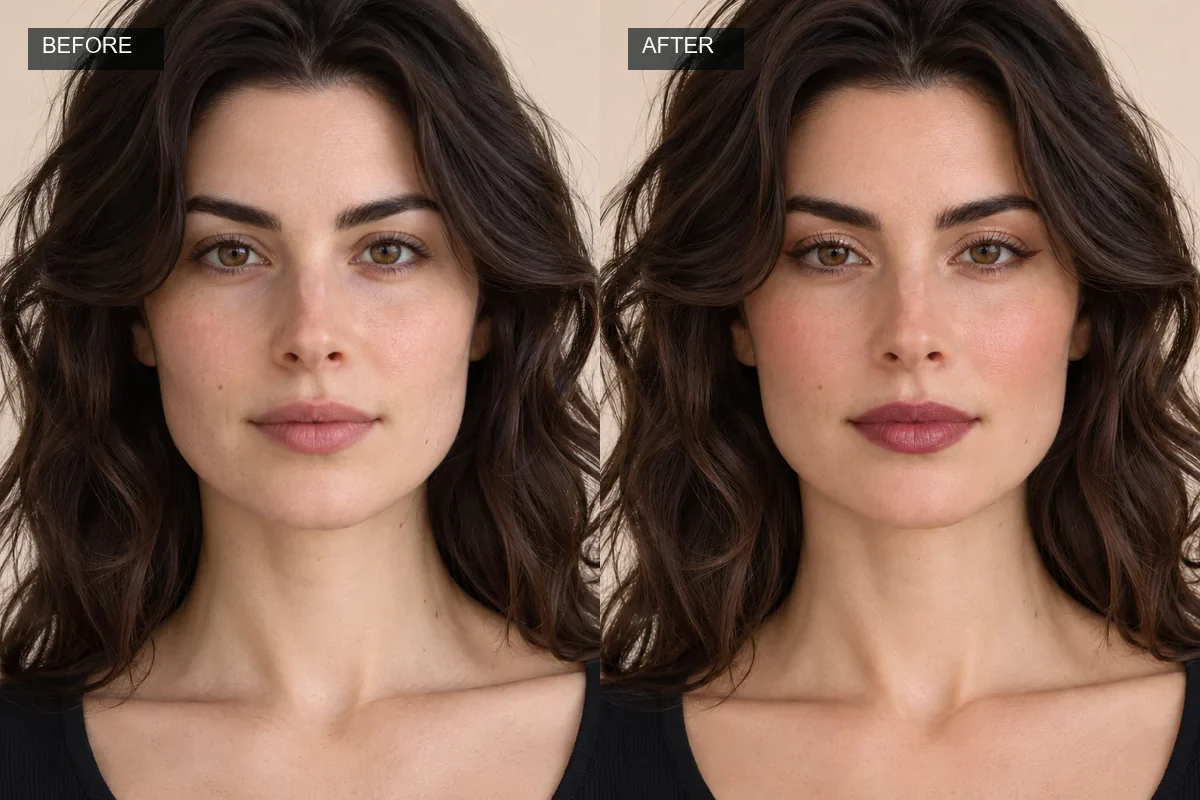
These generated examples show different prompt-led makeup directions on adult portraits. Compare the source and edit to assess color, definition and natural skin detail.
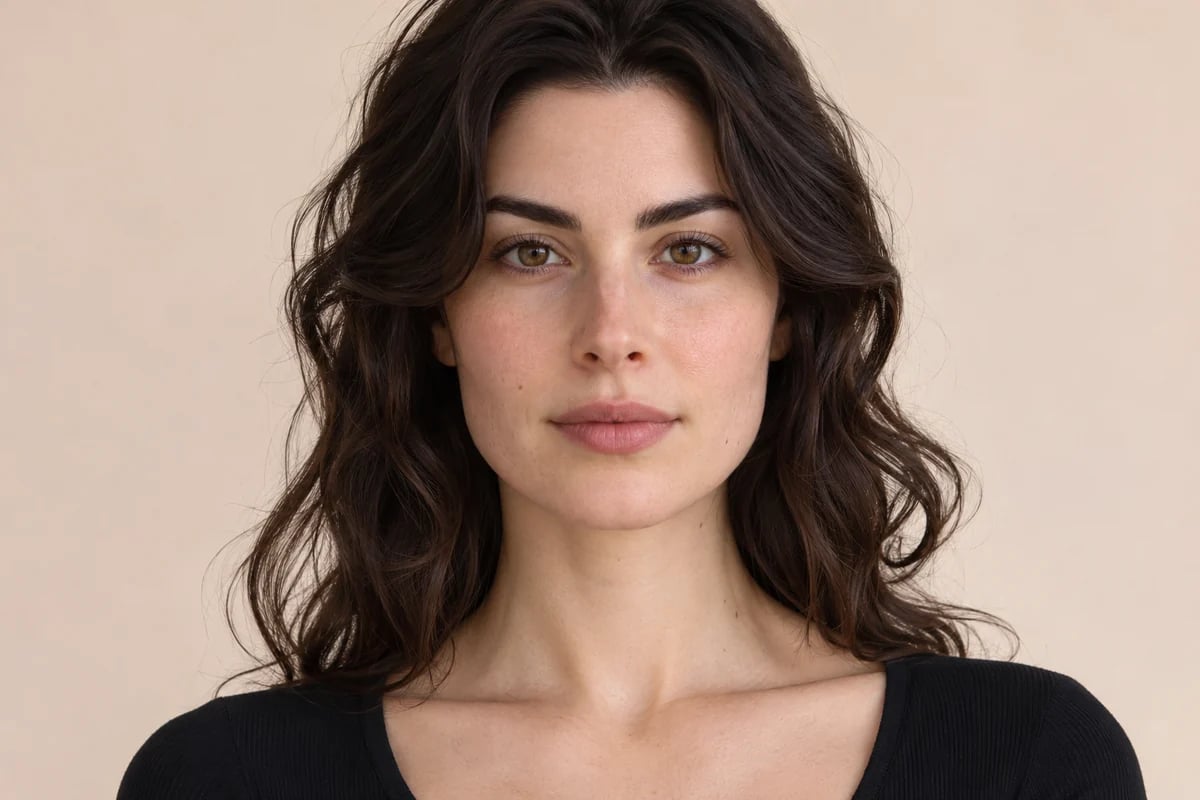
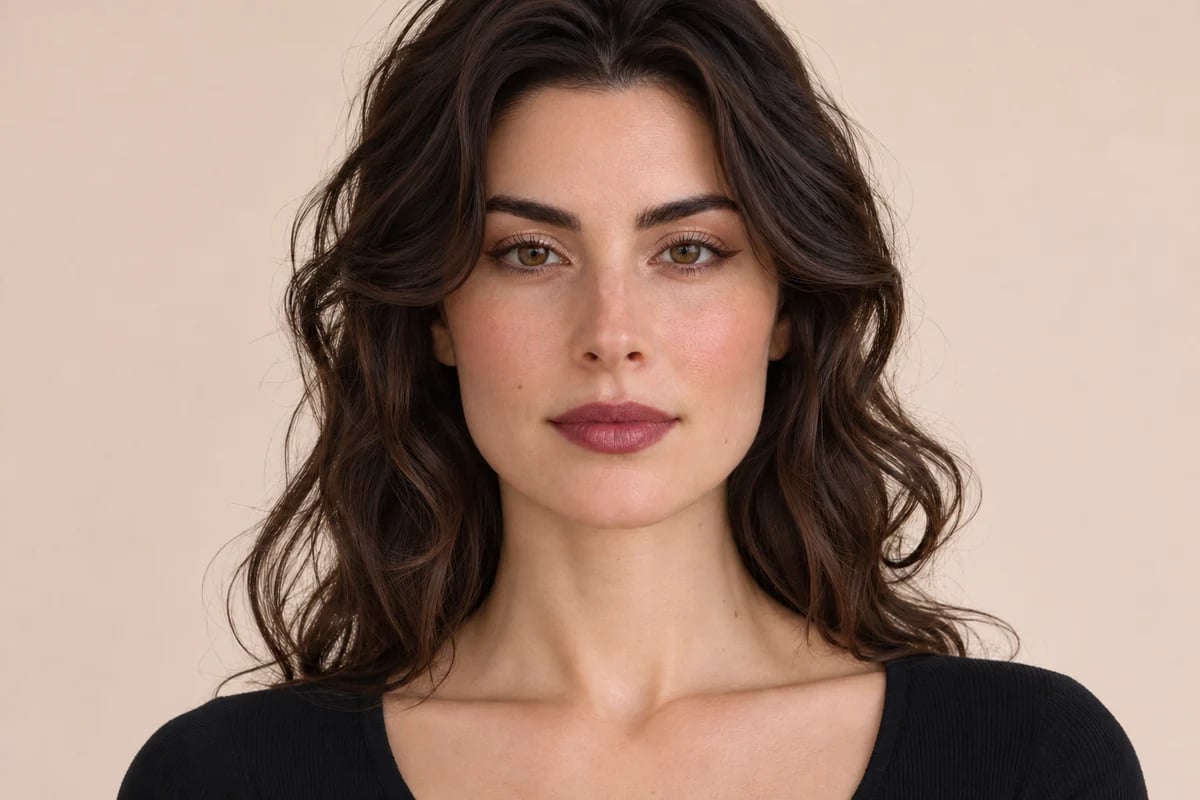
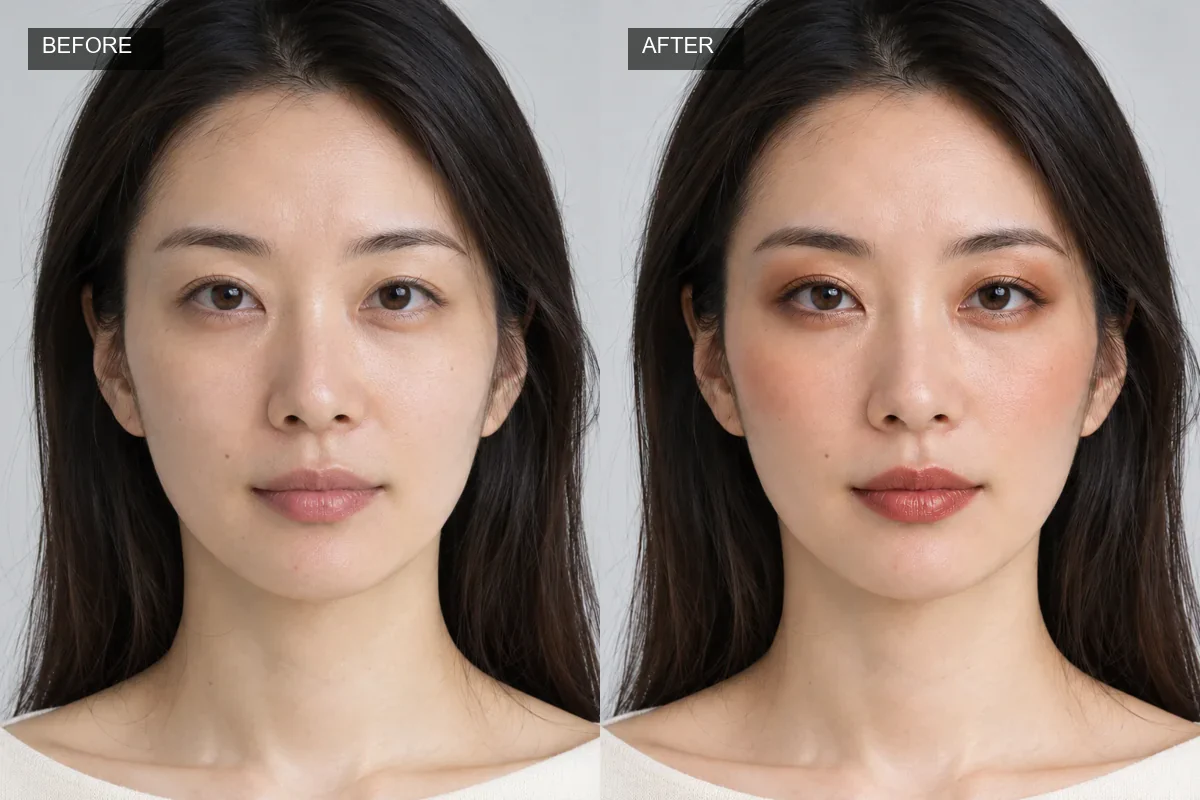
Adult portrait before and after soft glam makeup with rose blush and berry lips

Soft Glam

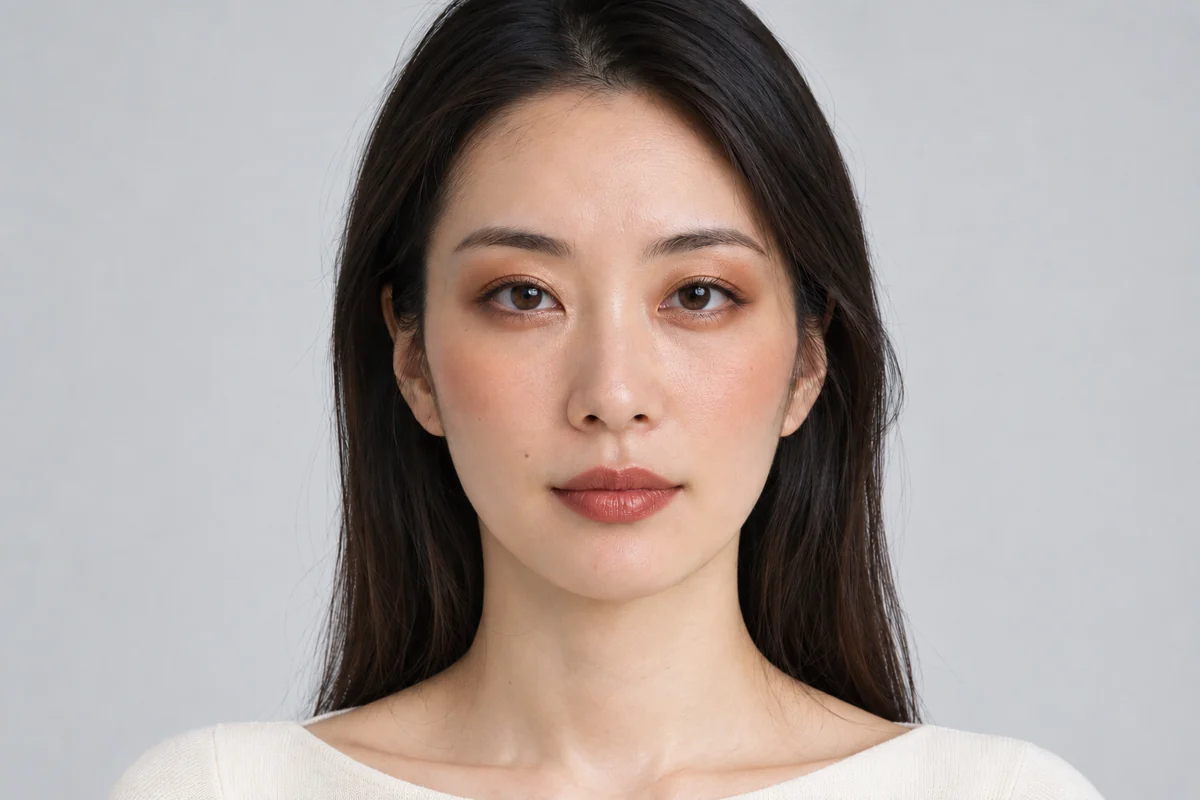
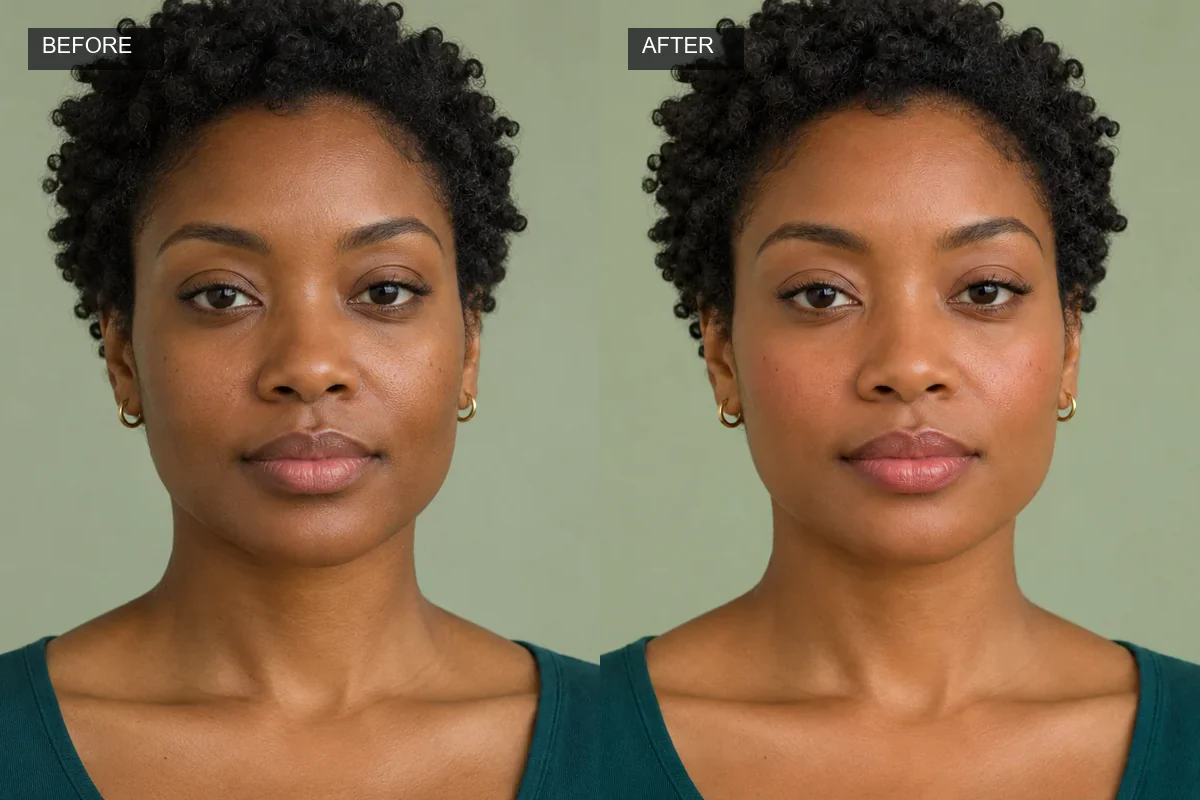
Adult portrait before and after warm bronze makeup and terracotta blush

Warm Bronze

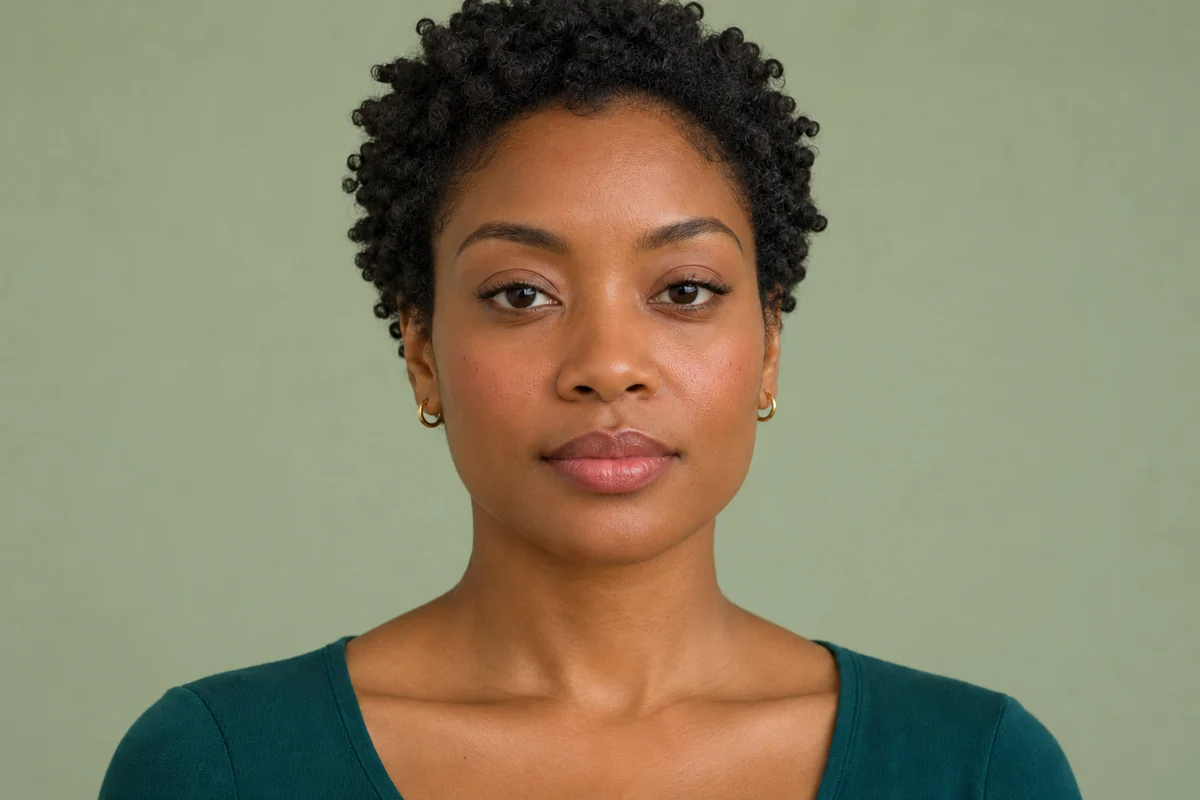
Adult portrait before and after a fresh peach everyday makeup look

Fresh Peach

Try Makeup Ideas on Your Portrait

Explore Makeup Moods on a Portrait

A makeup idea can change the mood of a portrait, from soft everyday polish to a more defined evening look. GoEnhance image-to-image editing uses the uploaded image and a natural-language description to create a visual interpretation, giving users room to explore different combinations of color and finish before recreating them with real products. The soft glam example is one direction among many looks that can be described. Results are not exact shade matches or product recommendations.

Same adult portrait before and after a soft glam makeup prompt

Compare Color Stories and Finishes

Trying a warmer or cooler makeup palette can help users compare how different beauty directions might read with the same portrait and lighting. The Photo Effects collection brings together more ways to adapt portraits and other visual concepts. A prompt-led image edit can depict a range of visual moods, from bronze and terracotta tones to softer rose or peach combinations, without being limited to the pictured example. This is helpful for inspiration, styling concepts, and beauty content drafts. Generated shades can vary with skin tone and lighting, so the image should not replace a real product test.

Same adult portrait before and after a warm bronze makeup prompt

Find a Look for Different Creative Moments

A makeup look can help a portrait feel more aligned with a personal style, content theme, or creative brief. GoEnhance creates a visual variation from the supplied portrait and text request, so users can explore subtle daytime styling as well as more expressive directions while retaining the original photo as context. The fresh everyday example shows one understated option rather than a fixed preset library. Facial details may shift during generation, and exact cosmetic colors are not guaranteed.

Same adult portrait before and after a peach makeup prompt
Explore colors, finishes, and moods on your own portrait.

Makeup Inspiration for More Than One Occasion

A Range of Beauty Directions

Explore natural, soft glam, warm, polished, or more expressive makeup concepts instead of being limited to a single look.

Color and Finish Exploration

Visualize combinations of lip color, eye makeup, blush, and overall finish as creative inspiration for different styles and occasions.

Ideas Connected to Your Portrait

Use an existing photo as the visual context for personal inspiration, creator content, styling concepts, or early beauty campaign ideas.

How to Generate a Makeup Look

01

Upload a Clear Portrait

Use a well-lit front-facing photo where the face is visible and unobstructed.

02

Describe the Makeup

Name the colors, finish and areas to edit. Add what you want to keep natural.

03

Generate and Compare

Review the edit next to your source portrait. Refine the prompt to adjust intensity or color.

Answers about generating makeup ideas from a portrait.

Makeup Look Generator FAQs

What is an AI makeup look generator?

An AI makeup look generator creates a visual makeup variation from a portrait and a text description. GoEnhance provides a prompt-led image-to-image workflow, so users can explore makeup moods and color ideas on a photo. It does not claim a fixed catalog of verified cosmetic products or exact shades.

How do I generate a makeup look with GoEnhance?

Upload a portrait to the image-to-image editor and describe the makeup direction you want to explore, including colors or finishes if useful. Review the generated image against the original and adjust your description if you want a different visual direction. The result is an image concept, not a product recommendation.

What makeup styles can I explore?

You can describe a broad range of looks, such as natural everyday makeup, soft glam, warm bronze tones, or more defined evening styling. The editor interprets the prompt rather than selecting from a verified preset or product catalog, and the result can vary.

Can it recommend makeup for my face shape?

GoEnhance can create an image based on the makeup look you describe, but this workflow does not claim to analyze face shape or provide personalized beauty advice. Use the generated result as visual inspiration and decide which ideas suit you.

Can I preview an exact lipstick or eyeshadow shade?

You can describe a color family and finish, but the generated image is not a calibrated shade match. Lighting, skin tone, and image generation can change the apparent color. Check real product swatches or test the product in person when exact shade matters.

Is Makeup Look Generator free?

GoEnhance offers a free plan with a small amount of tokens for trying its tools. Image generations use tokens, and model costs can vary. Check the current pricing page and editor for available credits before generating.

Can I use generated makeup images commercially?

GoEnhance currently permits commercial use for Standard, Pro, and Mega subscribers; free users and Basic subscribers are limited to personal use. You also need the necessary rights or permissions for the portrait and any third-party content. Review the current GoEnhance pricing and terms before commercial use.

What kind of portrait works for a makeup preview?

A clear portrait with the face visible provides useful context for a makeup edit. Strong shadows, obstructions, or a very small face in the frame can make details harder to interpret. Results can still alter facial features, so review the output before sharing it.

Try Makeup Look Generator Online

Preview a makeup idea on a portrait with a text-guided GoEnhance AI image edit. Describe the colors and finish, then review the generated look.

Open the AI Editor