Craiyon AI Image Generator

Craiyon turns written prompts into AI images and provides style and shape choices, an inspiration gallery, and in-browser image tools. Its workflow is centered on exploring and refining still images, with additional photo-to-video effects listed among its tools. It suits creators who want a quick visual starting point before deciding whether a concept needs more editing or motion.

Key Features of Craiyon AI

Prompt-led image generation

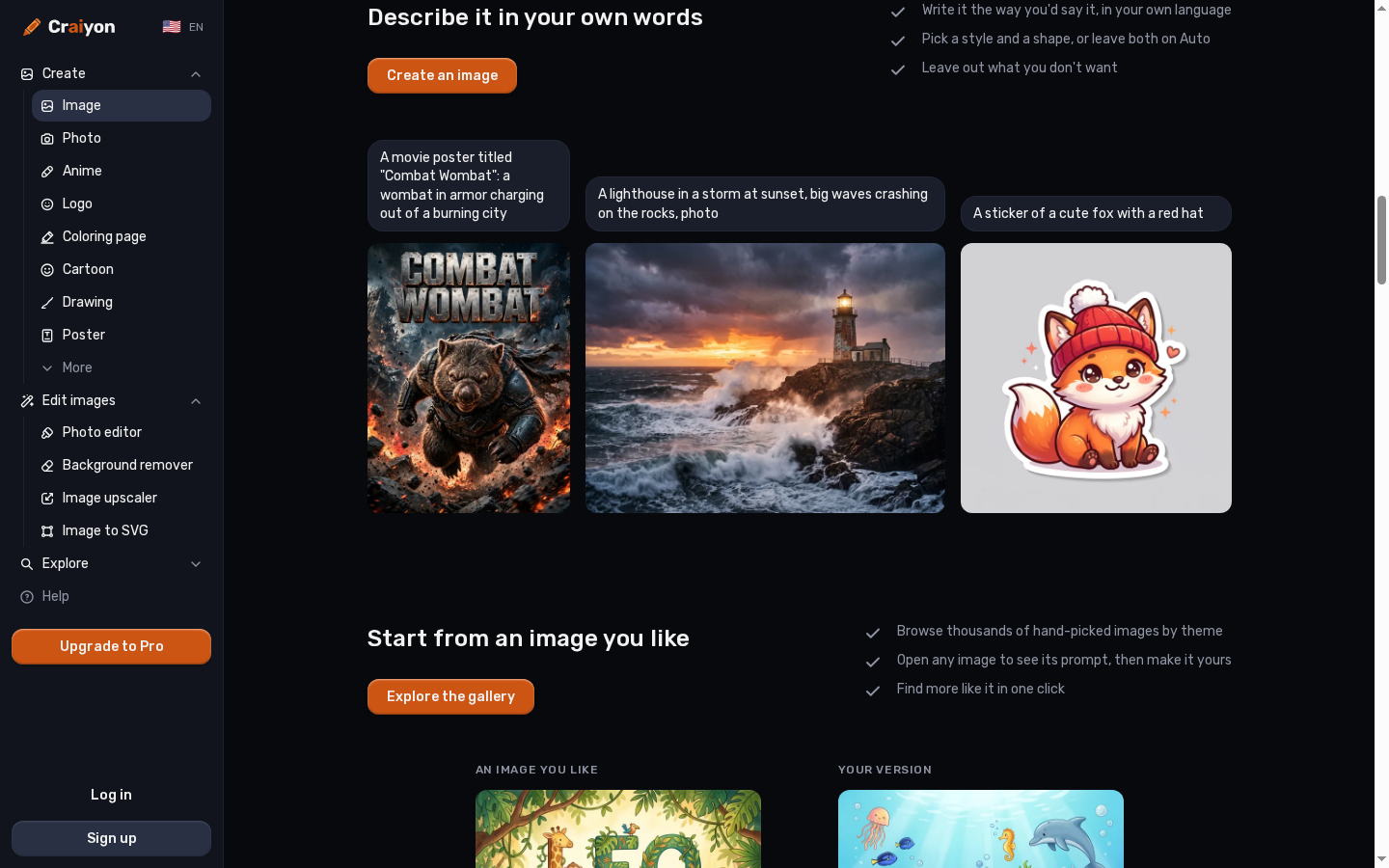
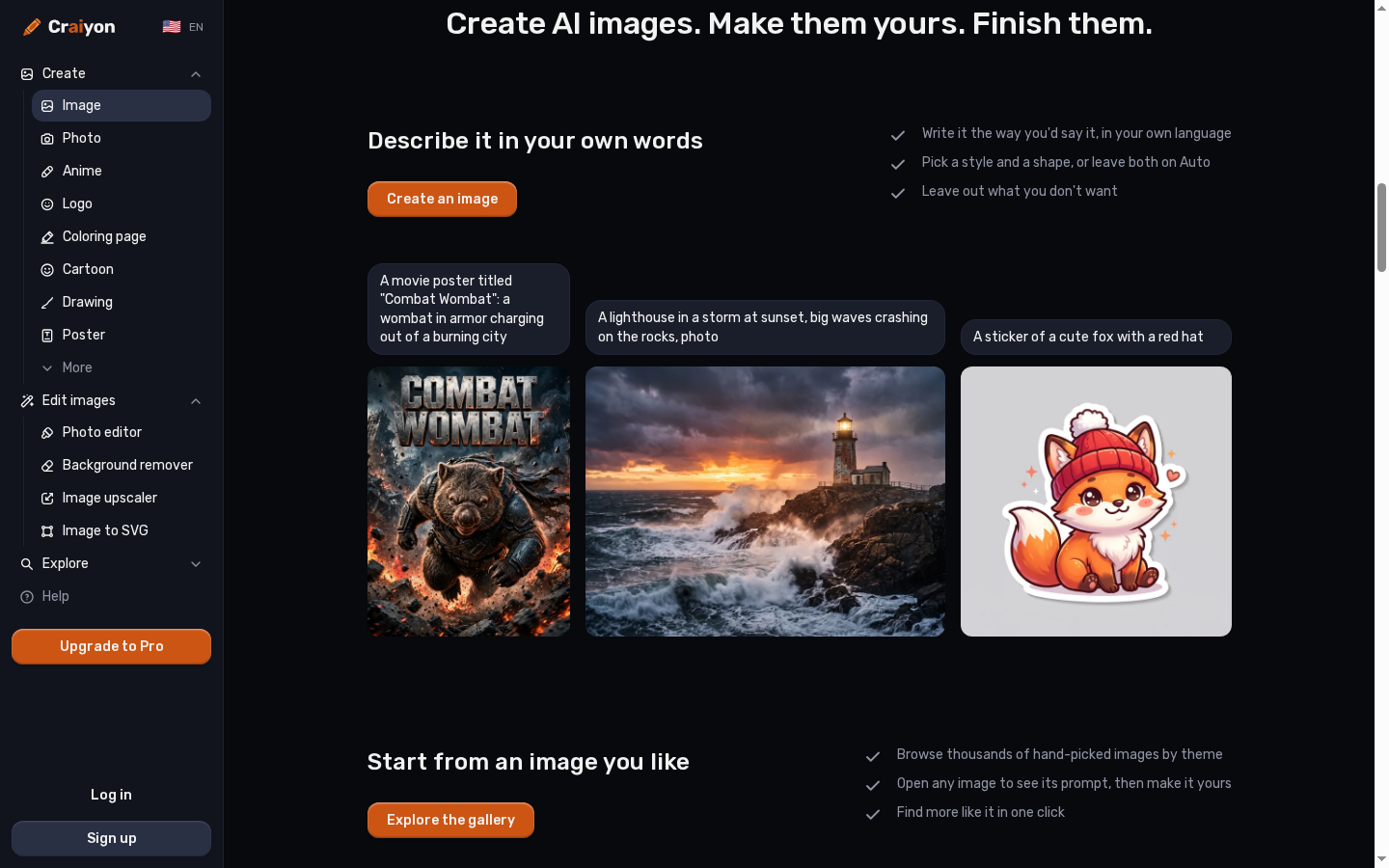
Craiyon's core workflow starts with a written description and returns a set of image options to review. This makes the tool useful for rough concepts, playful art directions, and visual references when there is no photograph to edit. Clear details about subject, setting, and mood help guide the result, while the output still depends on the model and prompt.

Craiyon AI image generator with a text prompt and generated image examples.

Style and shape controls

The generator lets users explore visual styles and image shapes alongside the prompt. A style choice can steer an idea toward a more photographic, illustrated, or otherwise stylized look, while shape settings help prepare an image for a poster, thumbnail, or social placement. The available choices and output dimensions should be checked in the live interface.

Craiyon style and image shape choices for generated art.

Gallery-led inspiration and prompt reuse

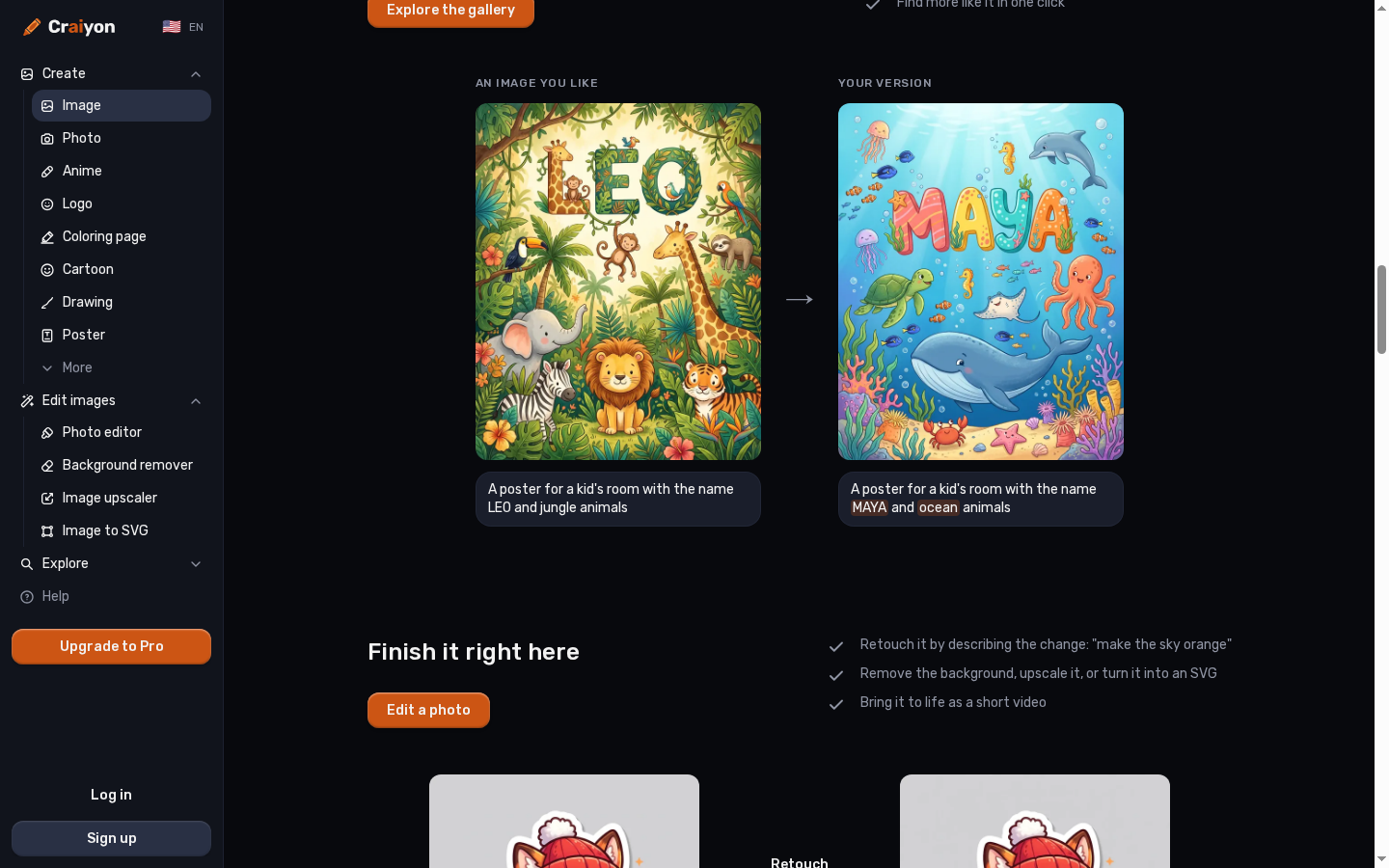
Craiyon's public gallery gives users examples to browse before they write their own prompt. Gallery images can provide a starting point for another visual direction, helping beginners see the range of ideas the generator can produce. Treat examples as inspiration and adjust the wording to match the subject and look needed for your own project.

Craiyon public gallery of AI-generated image examples.

In-browser edits and simple photo animation

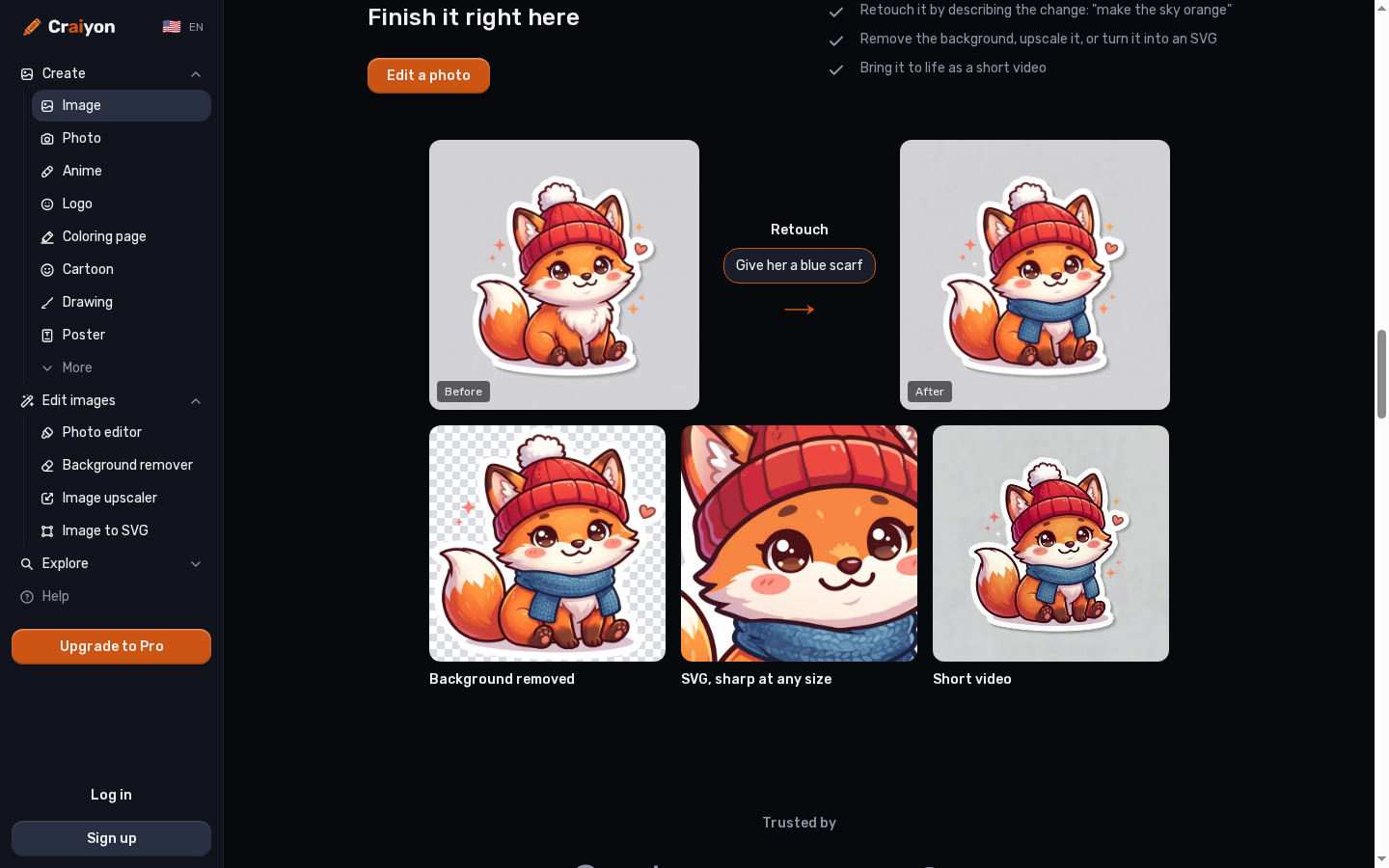
Craiyon lists finishing tools such as retouching, background removal, upscaling, and SVG conversion, with short video effects also available in its product lineup. This keeps several small post-generation tasks close to the image workflow. Once a still is ready, a separate image to video workflow can use that artwork as a visual starting point for a more deliberate clip.

Craiyon image finishing and video effect tools.

What Can You Make With Craiyon?

Move from a written prompt to a style experiment, then refine an image for its next use.
Prompt into a visual concept

Prompt into a visual concept

Describe a subject, setting, or mood to explore artwork for a post, presentation, or early campaign idea. Craiyon's text-to-image entry point is designed for quick visual exploration when you do not have a source image yet.

Animate an Image

How to Use Craiyon AI

01

Write a prompt

Describe the main subject and add details about its setting, mood, and visual style.

02

Choose a style and shape

Use the available style and image-shape controls to steer the result toward the intended placement.

03

Generate and refine

Review the image options, adjust the prompt, and open the result in the gallery or an available image tool to finish it.

Craiyon AI vs GoEnhance AI and Alternatives

PlatformCore StrengthCreative RangeBest Fit
Craiyon AIFast, prompt-first image generation and lightweight image finishingText-to-image, style and shape choices, image edits, and short photo effectsPeople exploring image ideas or simple creative assets
GoEnhance AIVideo generation and transformation from prompts, images, and existing clipsText-to-video, image-to-video, video-to-video, and video effectsCreators whose next deliverable is a moving clip
IdeogramAI image creation with a strong focus on designed visuals and text in imagesPrompt-based image generation and canvas editing toolsUsers making posters, graphics, or typography-led concepts
Adobe FireflyGenerative image and video tools in Adobe's creative ecosystemImage and video creation alongside Adobe apps and workflowsCreators already using Adobe creative software
Craiyon is centered on prompt-driven still images and simple finishing. GoEnhance is a separate option when the project needs a generated or transformed video.

When GoEnhance Fits the Next Step After a Craiyon Image

Animate a still image

Use an existing Craiyon result as the visual starting point for a short clip. This is useful when a finished illustration or product image needs movement for a story, social post, or campaign variation.

Generate from a scene description

Start with a text prompt when you have a motion idea but no final image. Describe the subject and action, then shape the result with the video options offered by the selected model.

Transform a video source

Use an existing clip as the basis for a new visual treatment. This supports a different task from generating or retouching a single still image, and the selected model determines which source-video controls are available.

Choose a video model for the brief

Review the available video models and use the one whose current options suit the intended shot. Model lineups change over time, so compare the live choices rather than assuming a fixed catalog.

Prepare motion for a destination

A video workflow makes it possible to shape a moving asset for a specific placement, such as a vertical social post or a wider campaign clip, using the format choices currently available.

Keep the image-to-video handoff clear

Craiyon can help with the initial artwork; GoEnhance can take that still into a video-generation workflow. Keeping those jobs distinct helps set expectations about what each product is designed to create.
Frequently Asked Questions

Craiyon AI FAQ

What is Craiyon AI?

Craiyon is an online AI image generator that turns text prompts into images. Its site also presents a gallery and image-finishing tools, with some short video effects in its broader tool lineup.

Is Craiyon a free AI image generator?

Craiyon advertises free text-to-image generation. Its plan page distinguishes free and paid access, including differences in privacy, watermarking, speed, and editing credits; check current plan details before relying on a specific allowance.

How do I make an image with Craiyon?

Enter a prompt describing the subject and look, select an available style or shape, and generate. Review the results and revise the prompt or use an image-finishing tool if needed.

Can I choose an art style or image shape?

Yes. Craiyon shows style and shape controls alongside the prompt workflow. The current options may change, so use the live interface to confirm the styles and dimensions available.

Can Craiyon edit or animate an uploaded photo?

Craiyon lists image editing and finishing tools such as retouching and background removal, plus short video effects. The specific upload and animation options depend on the tool and current plan.

Does Craiyon make full AI videos from text?

Craiyon's public site lists video effects and photo animation tools, but its central workflow is prompt-to-image. For a longer prompt-led video workflow, compare the current video tools before choosing a platform.

Are Craiyon images private?

Craiyon's pricing page currently distinguishes public images on its free plan from private images on paid plans. Review the live plan terms before uploading sensitive material or choosing an account tier.

How does Craiyon compare with GoEnhance AI?

Craiyon is designed around still-image generation and finishing. GoEnhance is better aligned with workflows that need to generate a video from text or animate and transform visual sources.

How much does Craiyon cost?

Craiyon offers free access as well as paid plans. Plan prices, generation limits, privacy, watermarking, and editing credits can change, so use the official pricing page for current details.

Turn a Finished Still Into a Moving Clip

Craiyon can help explore and finish an image concept. When that artwork needs motion, use a workflow built around animating a source image into video.

Animate a Craiyon Image