
Prompt
Copy and customize
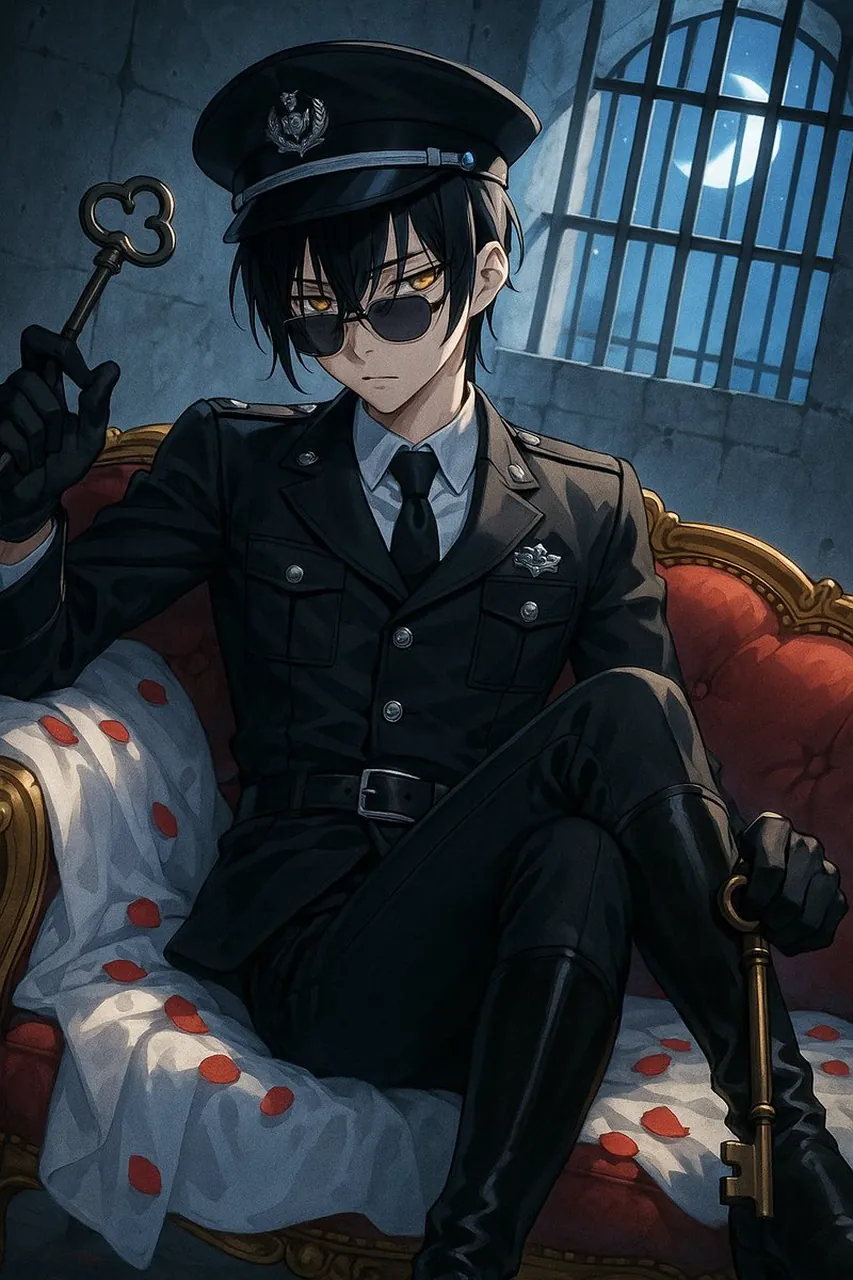
Create a dark, polished anime illustration of a stern young male prison warden or gothic officer, unnamed warden, seated confidently on an ornate red velvet Victorian sofa inside a moonlit stone prison cell. He has pale skin, messy black hair falling over his face, sharp amber-gold eyes visible behind dark round sunglasses, and a cold, serious expression. Dress him in a fitted black military-style uniform with exactly 8 visible uniform details: peaked officer cap with silver badge, silver cap band, black tie, white shirt collar, shoulder epaulettes, chest badge, two flap chest pockets, and black belt with silver buckle. Add black gloves and tall glossy black boots; pose him with one leg crossed, one hand raised holding an antique skeleton key with a clover-shaped bow, and the other hand resting on a second large brass key near his boot. The sofa should have carved gold trim, deep red tufted upholstery, and a rumpled pale blue-white sheet scattered with red rose petals; show multiple individual petals across the sheet and seat. Background: cracked gray-blue stone wall, tall barred arched window on the upper right, bright crescent moon and small stars visible through the bars, cool blue moonlight streaming in and contrasting with warm gold sofa accents. Composition: vertical portrait, dramatic low-key lighting, three-quarter view from slightly above, character centered and filling most of the frame, cinematic shadows, crisp line art, detailed cel-shaded anime rendering, moody gothic atmosphere, high detail, no text, no watermark.
Best for
Tips
Keep the main subject focused so dark polished anime illustration of a stern remains recognizable after style or lighting changes.
Adjust camera angle and aspect ratio before generation when the composition needs a specific platform format.