Transparent Logo Maker

Give your existing logo a background that fits every layout. GoEnhance AI separates the brand mark from its white or colored canvas and saves it as a transparent PNG. Keep the logo's recognizable shapes and colors, then place it on a website header, presentation, product mockup, or social graphic without an unwanted rectangle around it.
Owl Emblem
Owl Emblem
Jellyfish Mark
Jellyfish Mark
Rocket Emblem
Rocket Emblem
Upload your existing logo image
By uploading a file, you agree to GoEnhance's Terms of Use and Privacy Policy

Make Your Logo Background Transparent

Upload the mark you already use and prepare it for another layout.
01

Choose your logo file

Upload a JPG, PNG, or WebP image. Use the largest clear source available so fine lines and small letters are easy to distinguish.

02

Separate the logo from its canvas

Remove the background automatically, then inspect the outside edge, internal gaps, and any white details that belong to the design.

03

Download and check placement

Save a transparent PNG and place it over your intended page color or image. Check legibility at the size where the logo will appear.

Understand Your Logo Output

File or effectWhat it doesBest use
Transparent PNGKeeps a pixel logo with empty space around itPlacing an existing mark over designs
JPG with a solid backgroundStores every pixel against an opaque canvasFinished graphics that need a flat background
Reduced logo opacityMakes the mark itself partly see-throughA watermark effect, rather than removing its canvas

Check the Logo Where It Will Be Used

PlacementWhy transparency helpsCheck before exporting
Website headerLets the site's color show around the markLogo contrast and readable small text
Presentation slideFits the logo into different slide themesEdges against both light and dark slides
Social media graphicOverlays branding on a photo or color blockEnough separation from busy image details
Product mockupPositions the mark without its old canvasScale and proportions on the product
Business card layoutKeeps the surrounding card design visiblePixel resolution at the planned print size
Partner asset handoffProvides a reusable PNG logo fileCorrect version, filename, and transparent output

Transparent Logo Cutouts for Light and Dark Designs

Remove the White Canvas around a Logo

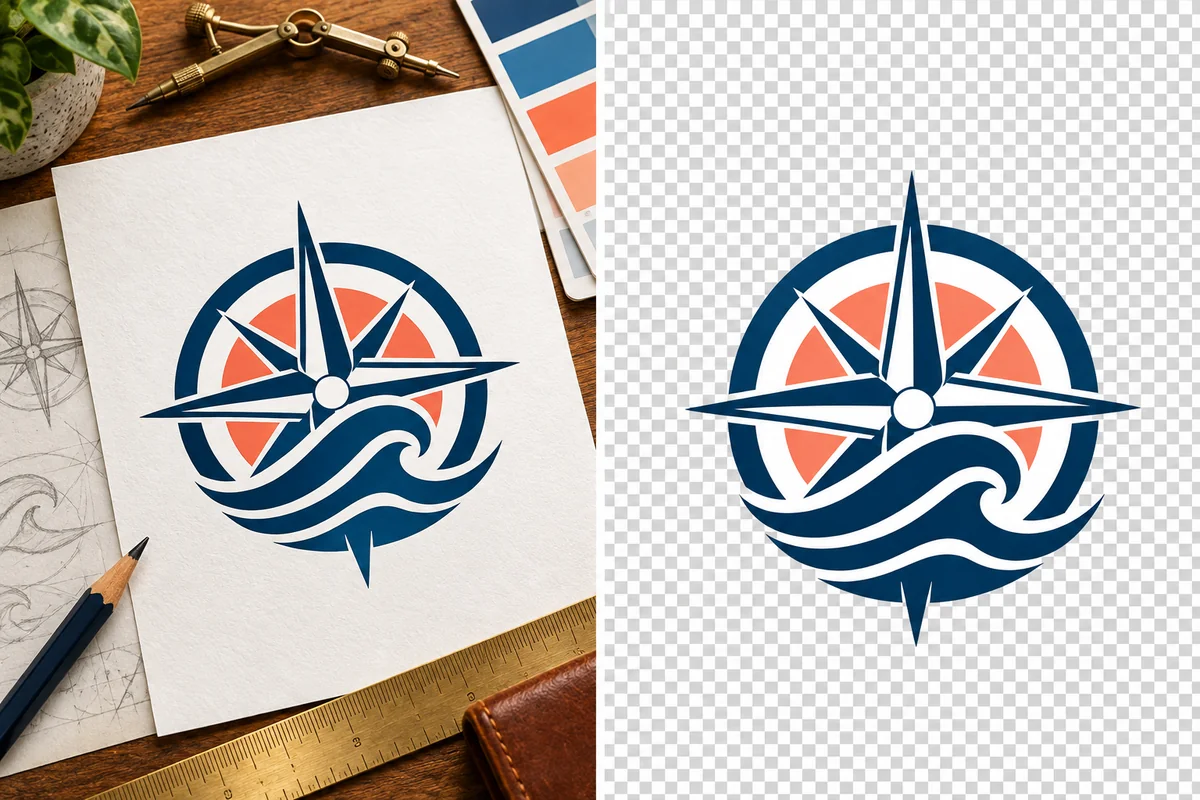
Separate the navy and coral emblem from its white paper background while keeping the artwork's original colors. The resulting PNG fits naturally into a presentation or web header without carrying a white rectangle from the source image. For more options, visit our background remover.

Navy and coral compass-wave logo displayed with a transparent cutout

Clear Colored Cards Behind a Brand Mark

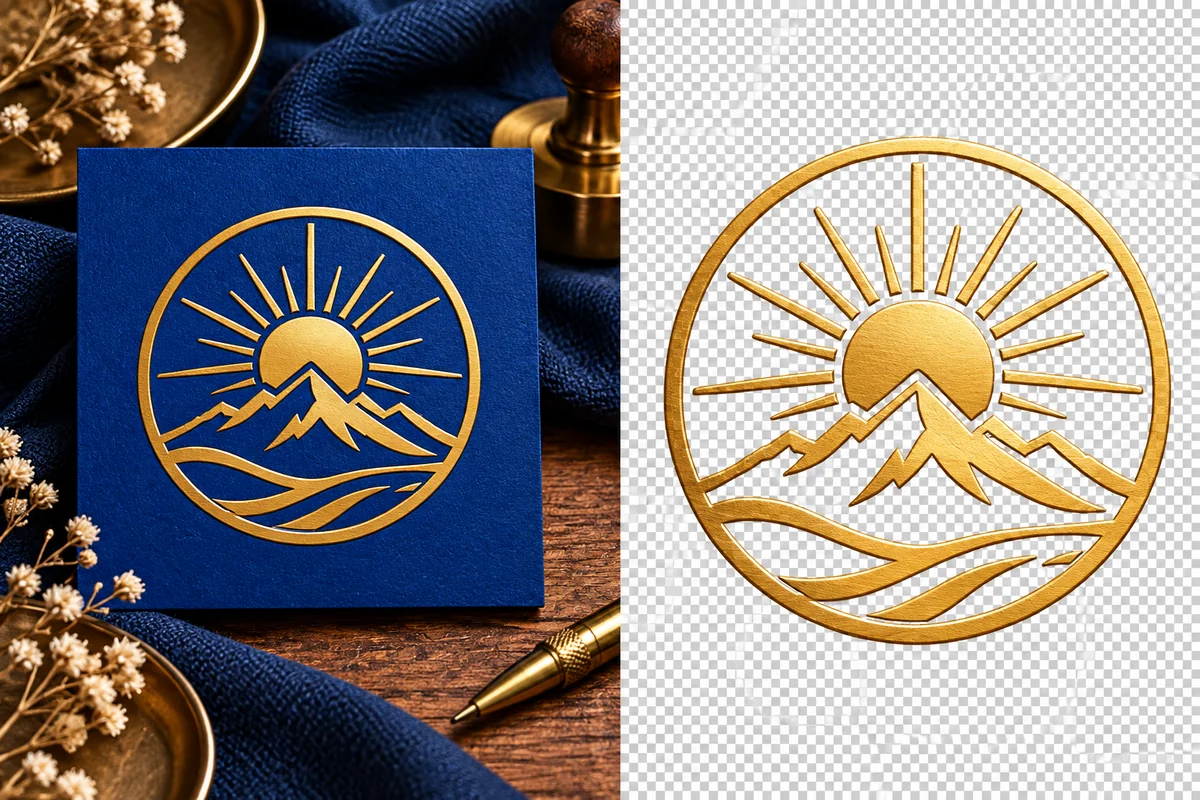
Remove the blue card around the gold sun-and-mountain design to create a transparent logo file. The original mark becomes easier to place in partner graphics, invitations, and brand layouts where the surrounding card color would otherwise clash.

Gold sun-and-mountain logo separated from its background

Retain White Artwork on a Transparent Logo

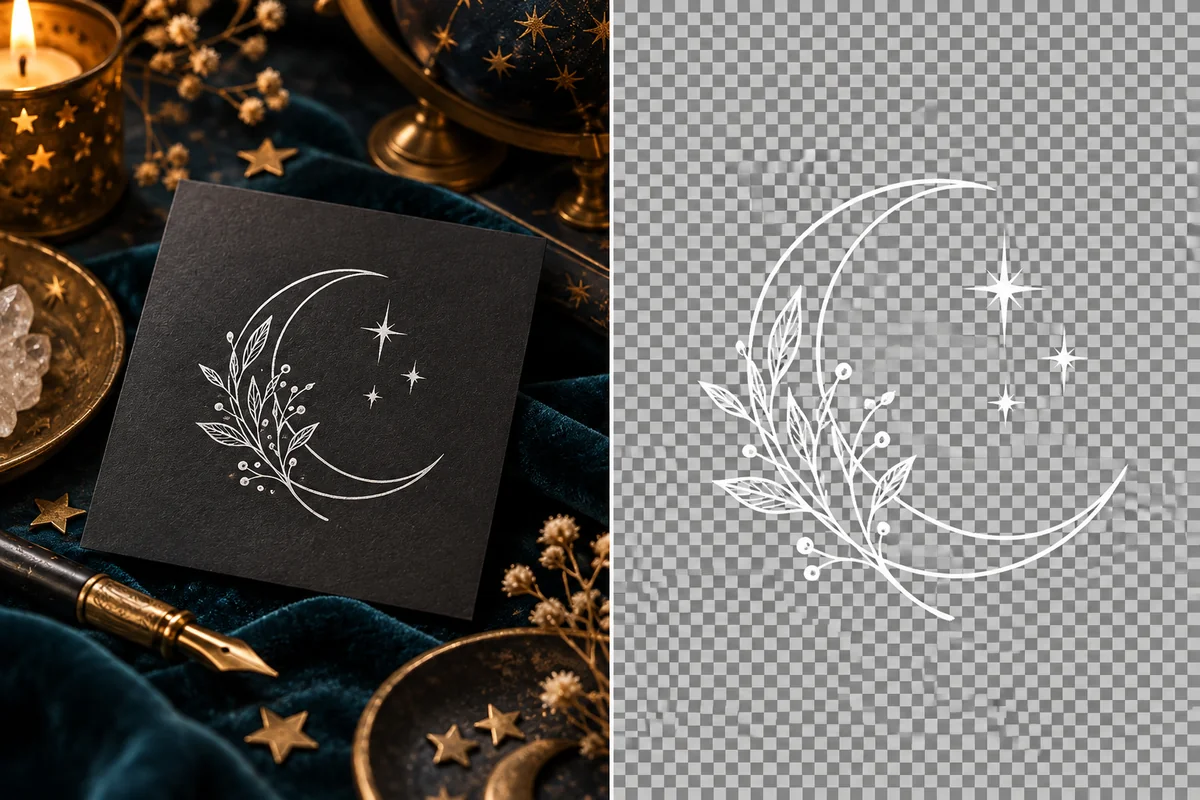
Keep the white moon and botanical design visible while clearing its dark canvas. This separates the logo artwork from the original background, letting it sit over another dark image or brand surface without losing the light shapes that define the mark.

Moon and botanical line-art logo shown as a transparent cutout

Cut Out Fine Lines and Lightweight Marks

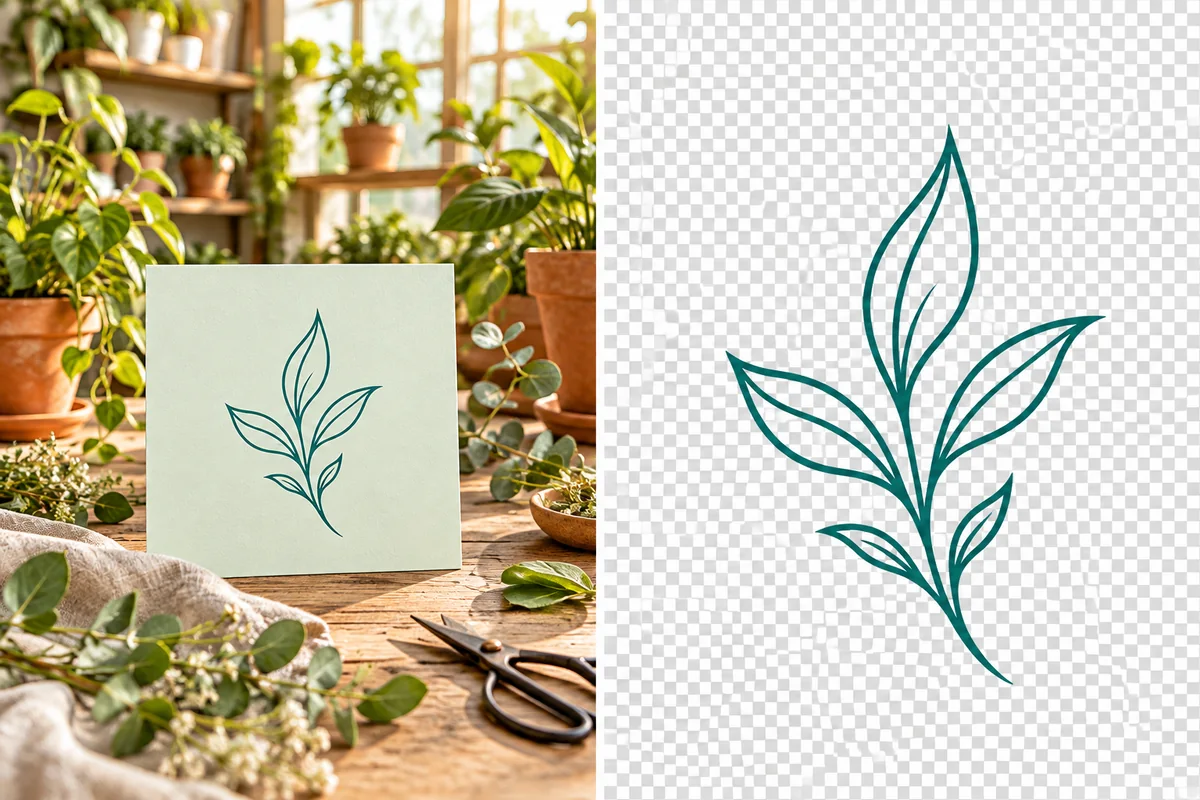
Separate the teal leaf linework from its pale card to make a transparent PNG of the emblem. Fine logo outlines remain part of the graphic while the card is cleared, making delicate brand marks easier to position in stationery and layouts.

Teal leaf logo artwork isolated from its background

Prepare Brand Graphics as Transparent PNGs

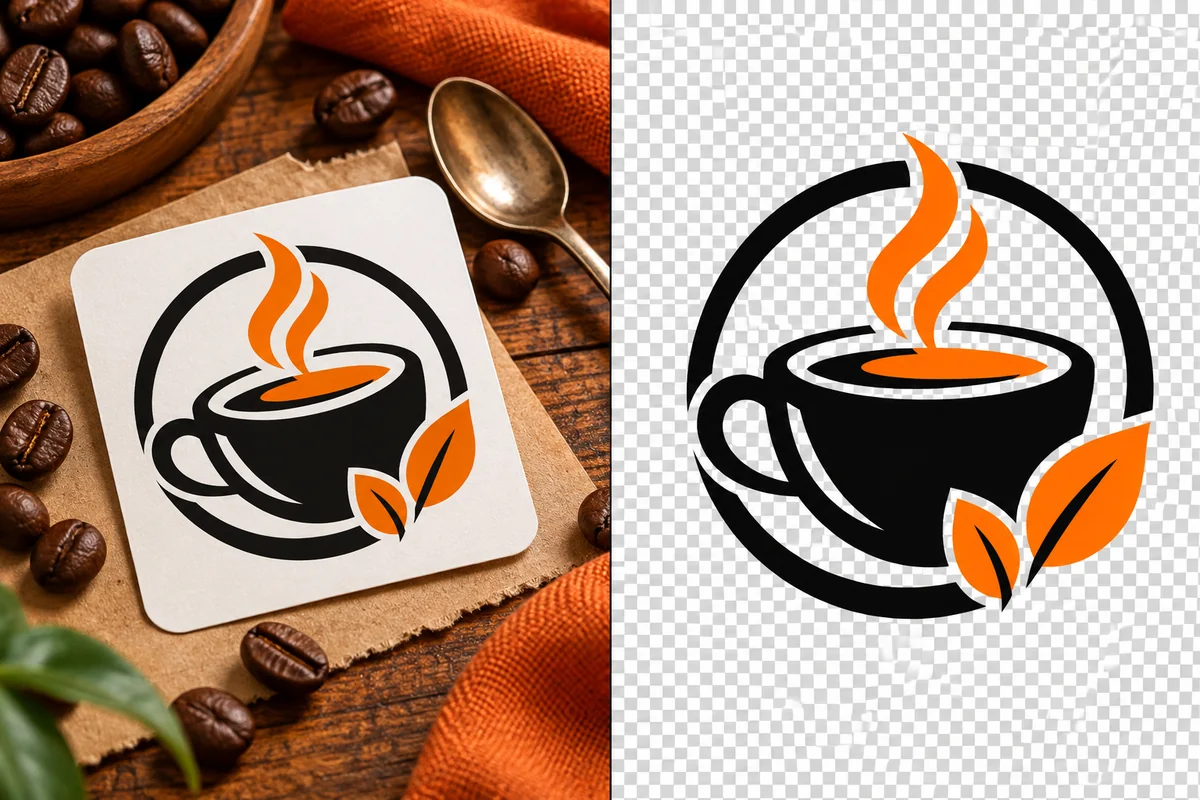
Remove the sticker-shaped background around the coffee cup emblem and retain the original black-and-orange mark. A transparent logo file can be reused across menus and promotional materials without a leftover border shaped like its original label.

Black-and-orange coffee-cup logo emblem shown as a transparent cutout
Use your existing artwork with transparent space around it.

A Logo File That Fits Your Brand Layouts

Remove White or Colored Canvases

Clear the background surrounding a logo, whether it starts on a white page or a colored surface. The finished mark can sit within another design instead of carrying its old canvas.

Keep Brand Shapes and Colors

Background separation keeps the focus on your existing artwork. Review small lettering and genuine white fills so the exported mark follows the design you already use.

Handle Fine Lines and Open Spaces

Detailed emblems have more than an outer silhouette. Check narrow linework and the gaps within letters, leaves, or symbols to make sure the background is clear where it should be.

Download a Transparent PNG

PNG supports empty space around the logo and is easy to place in common design apps. Keep this reusable image separate from finished marketing graphics that may have a solid background.

Reuse the Mark Across Layouts

Put one transparent logo into slides, social posts, website mockups, and partner graphics. Change the surrounding layout while keeping the recognizable brand artwork consistent.

Remove Logo Backgrounds Online

Prepare a logo file in your browser on a computer or phone. You can upload existing artwork and save a usable PNG without learning a full desktop design editor.

Transparent Logo Maker FAQ
How do I make my existing logo transparent?

Upload the logo image, remove its background, and select transparent output. Inspect the mark, save the PNG, and place it over another color to confirm the canvas is gone. This prepares your existing design rather than drawing a new logo.

Can I make a logo transparent for free?

GoEnhance provides trial credits to new accounts so you can try the transparent logo maker. Check the available credits in your account when preparing more versions. Free trial access is limited by your balance rather than unlimited processing.

How do I remove a white background from a logo?

Use the logo image as the upload and remove the surrounding white canvas. Review the interior of the mark as well as its outline, then download a transparent PNG. A solid white output would keep a background behind it.

What if the logo itself contains white shapes?

White artwork should stay visible while the surrounding background becomes transparent. Compare the preview with the original, especially enclosed white fills and light lettering. If the design blends into a white canvas, a clearer source or contrasting background helps.

Can I make a JPG logo transparent?

Yes, upload the JPG and remove its background, then download as PNG. JPEG cannot store transparent areas, so simply saving the result as JPG would put a solid background behind the logo again.

Does this turn my logo into an SVG?

No. A transparent PNG is still made of pixels. Removing its background does not create editable paths, fonts, or an infinitely scalable vector. Keep your original vector artwork for tasks that require SVG or very large print sizes.

Why is there a pale fringe around my logo?

The original image may contain soft pixels mixed with its old background color, especially after JPEG compression. Inspect the result over a dark surface. A clean, larger source file usually provides a better starting point than a compressed screenshot.

Why does the PNG look white in my image viewer?

Some viewers display transparent areas against a white canvas. Place the PNG over a colored layer to check whether that white area is part of the file. Also confirm your design app exports the finished asset with transparency enabled.

Give Your Logo a Place in Every Design

Remove the old canvas and download a transparent PNG you can place across your brand materials.

Make My Logo Transparent