goenhance logo

Grok Image

When you write a specific brief, you want the image to respect it—layout, mood, and key details included. Grok Image is made for that kind of work: steadier composition, practical style control, and fast iteration so you can land a “final-looking” option without endless retries. If you’ve been testing a Grok AI image generator for marketing visuals, covers, or concept shots, this flow is built to feel predictable.
Try It Free Now

Use Cases of Grok Image

How To Use Grok Imagine Image?

01

Draft a 1-Minute Brief

Use this quick template: “Subject + Setting + Lighting + Camera + Style.”

Example: “A minimal product scene, soft window light, 50mm, clean editorial.” Keep one sentence for the subject, one for the look—short prompts often stay more stable than long, messy ones.

02

Lock the Frame

Pick an aspect ratio for your use case (banner, post, cover, thumbnail). Add one framing anchor: “centered with negative space,” “rule-of-thirds,” or “close-up.” This single line usually fixes drifting composition faster than adding more adjectives.

03

Generate 3–4 Variations, Then Micro-Edit

Create a few options, choose the best structure, and only change one thing at a time (color, background, viewpoint). This is the Grok Imagine Image habit that saves time: compare, pick, tighten—rather than rewriting the whole prompt.

Explore Grok Image Highlights

Prompt-Faithful Composition

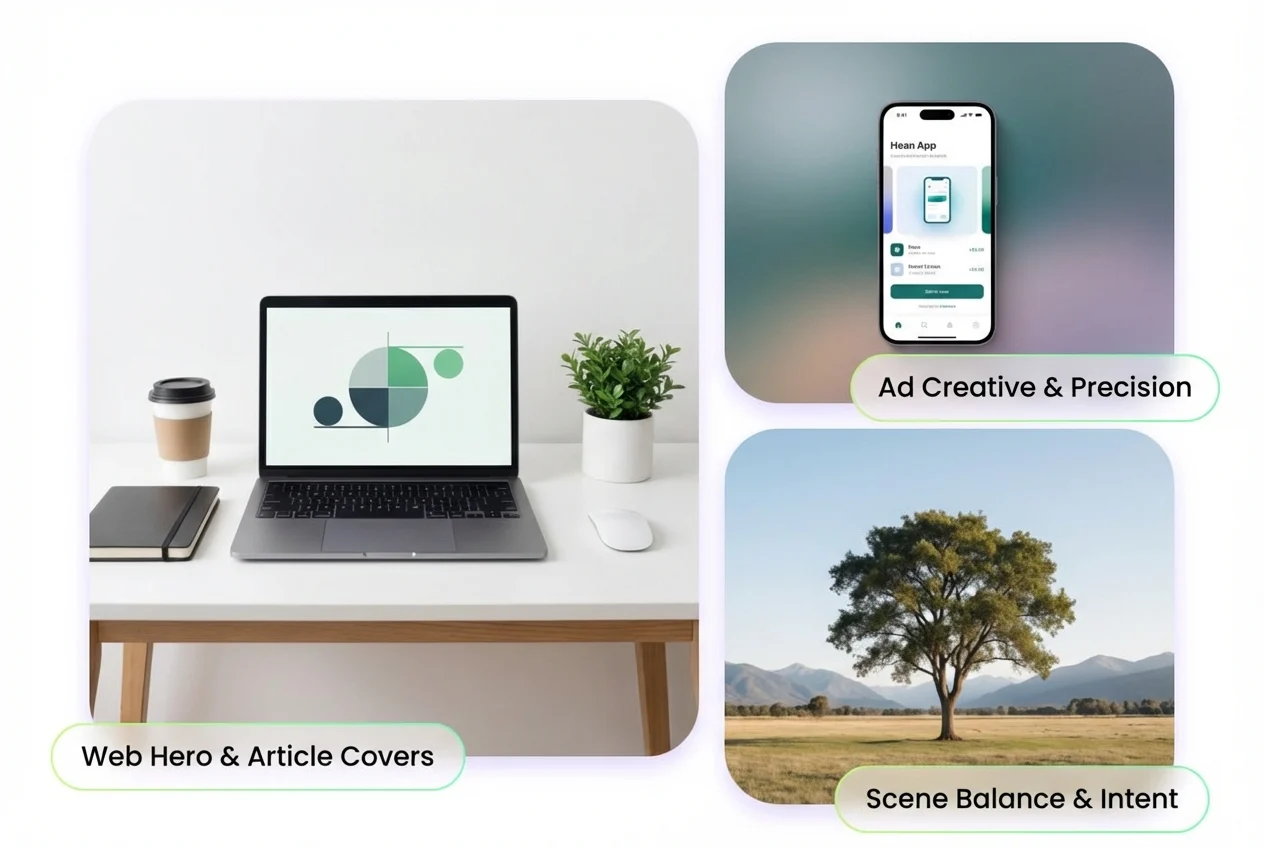
Grok Image is built to follow the brief you actually wrote—subject placement, scene balance, and background logic stay closer to your intent.

It’s ideal for web heroes, article covers, and ad creatives where “almost right” still means rework. If you want a familiar workflow, pair it with your AI image generator routine and iterate until the frame looks deliberate.

Detailed Scenes That Stay Coherent

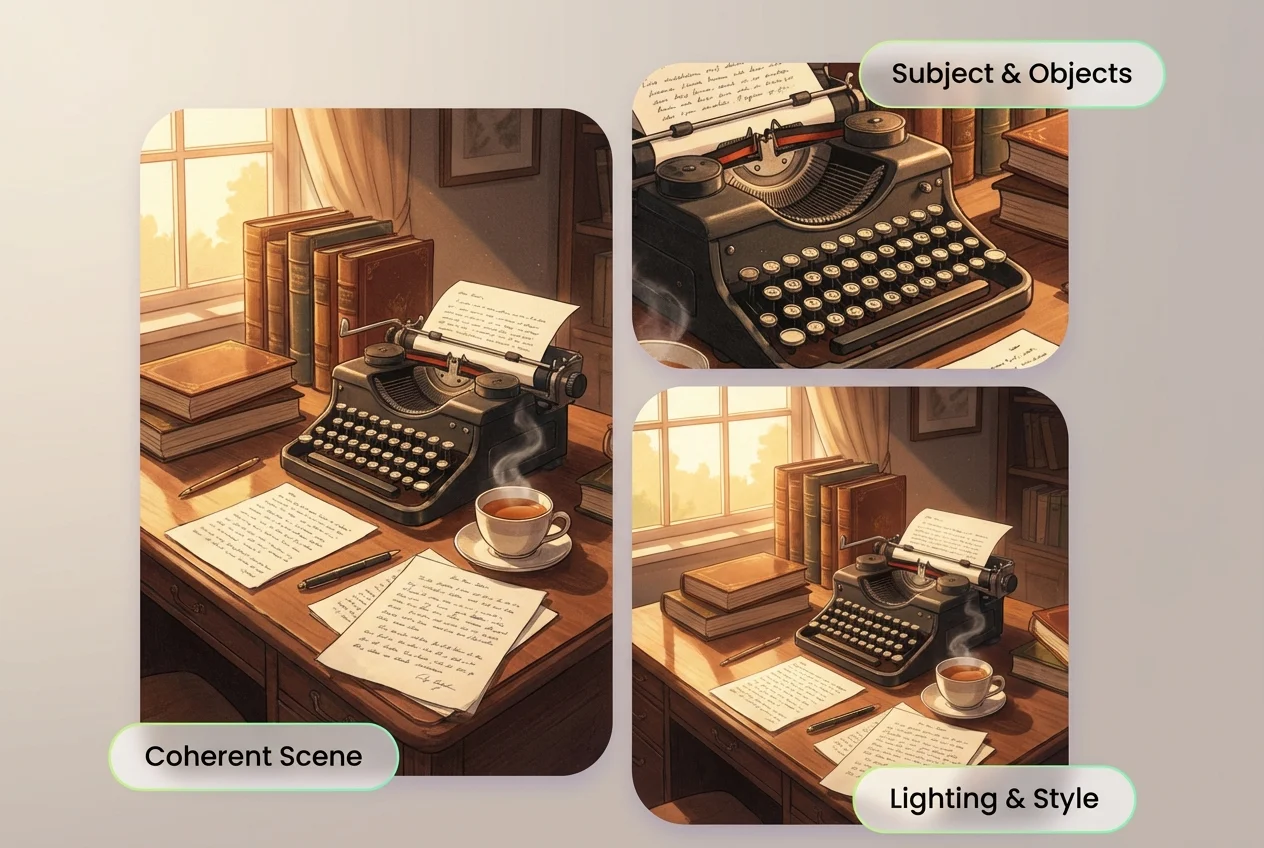
When a scene includes multiple elements—props, materials, lighting cues, and a specific mood—Grok Image helps keep the pieces from fighting each other. A useful pattern is to group details into two blocks: “What it is” (subject/objects) and “How it looks” (light/camera/style). You’ll spend less time correcting odd swaps and more time choosing the best version.

Cleaner Text, Labels, and Simple Graphics

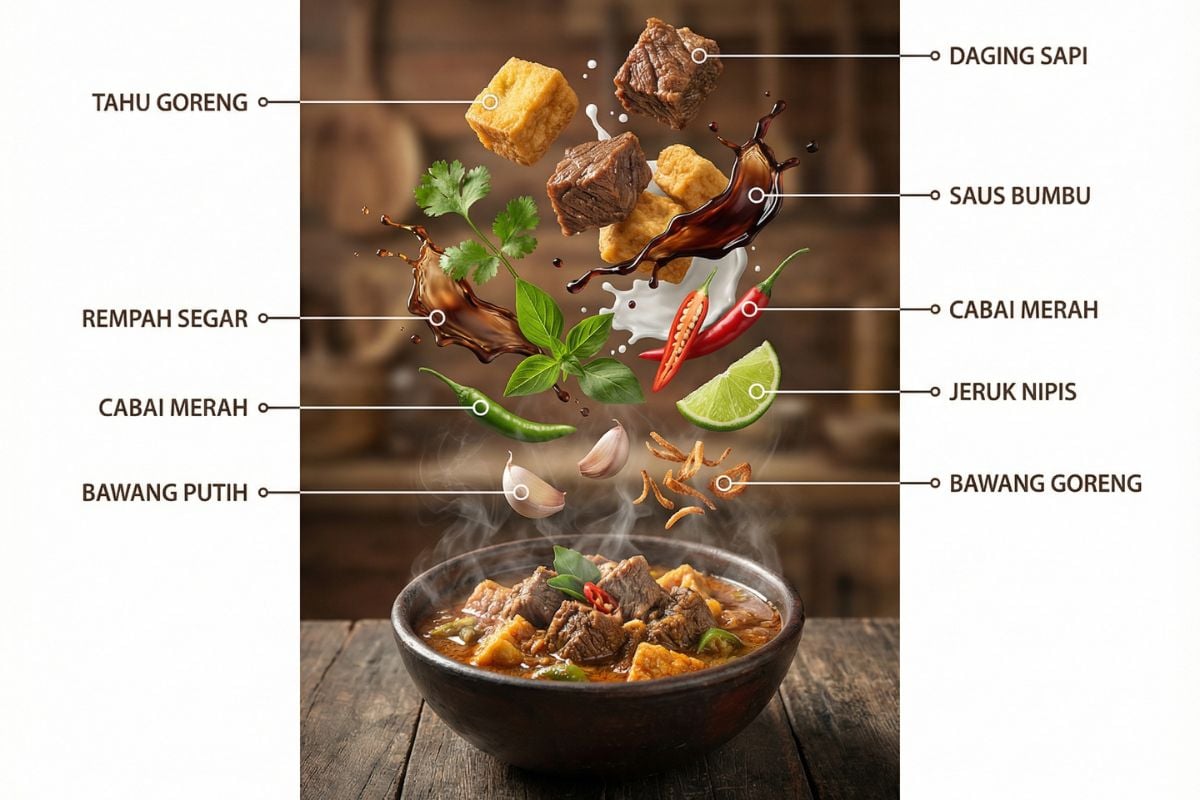
Need a label on a bottle, a short sign, or a simple poster headline? Grok Image tends to behave better when the text request is short and positioned (“top banner,” “small label,” “right-side signage”). For brand-safe results, keep wording brief, use high-contrast placement, and avoid cramming multiple lines into a busy background.

Frequently Asked Questions

You may want to know

What is Grok Image best for?

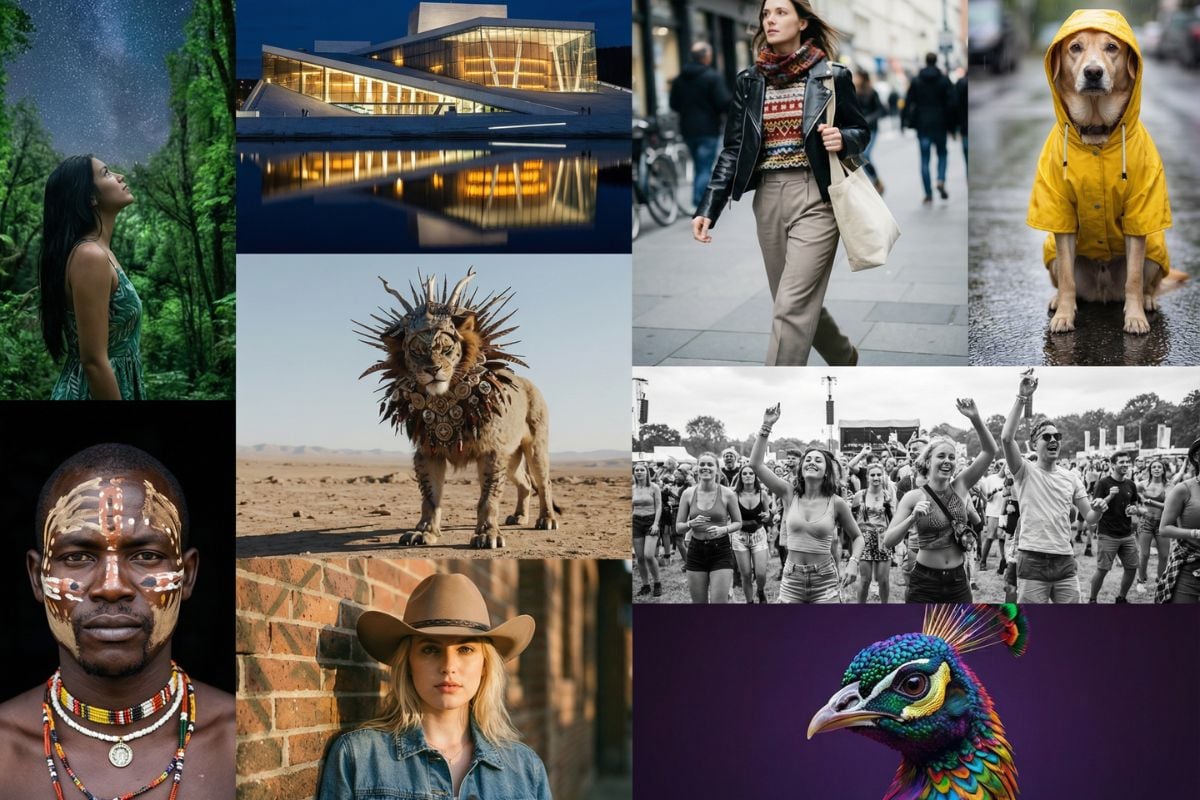
Grok Image is a strong fit for marketing visuals, blog/YouTube covers, product-style scenes, moodboards, and concept frames—anywhere composition and prompt detail need to stay steady across a few variations.

How do I write a strong Grok AI image generator prompt?

Use a simple order: subject + setting + lighting + camera + style. Example: “Minimal desk scene, soft morning window light, 35mm, editorial.” If results drift, remove extra adjectives and add one framing anchor like “centered with negative space” or “rule-of-thirds.”

Does Grok Image handle long prompts?

Long prompts can work well when they’re organized. Keep separate lines for: (1) subject/objects, (2) environment, (3) lighting/camera, (4) style. If the output becomes messy, shorten the prompt and re-add details one line at a time.

How can I keep the same look across multiple images?

Reuse the same base prompt and change only one variable per iteration (background color, viewpoint, prop). Treat your prompt like a recipe—small edits keep the identity and mood consistent.

What does “Grok Imagine Image” mean in practice?

It’s a practical workflow: write a clear brief, generate 3–4 variations, pick the best frame, then micro-edit the prompt to refine details. The goal is speed with control—fewer full rewrites, more targeted improvements.

How do I get cleaner text on signs or labels?

Ask for short phrases, specify placement (“top banner,” “small label on the bottle”), and keep the scene simple around the text area. If you need multiple lines, reduce background detail and increase contrast where the text sits.

What should I do if the composition is wrong?

Add one sentence that defines the viewpoint and layout: “wide shot,” “close-up,” “eye-level,” plus “centered,” “left-aligned,” or “negative space on the right.” Composition usually responds better to framing instructions than to more style adjectives.

How do I reduce the ‘synthetic’ look?

Dial down extreme style keywords and add realistic cues: “soft shadows,” “natural reflections,” “real materials (linen, matte plastic, brushed metal).” One or two realism cues often outperform a long list of descriptors.

Can I use Grok Image outputs for commercial projects?

Many teams use generated images for marketing and content design. Make sure you own or have permission for any uploaded materials, avoid protected logos and recognizable people without consent, and review the applicable platform terms for your specific use case (this is general guidance, not legal advice).

Do you need design skills to get strong results?

No. Start with one clean sentence, generate a few options, then refine using small, specific edits. Saving 3–5 prompt templates for your common scenarios (hero image, product scene, cover) is the easiest way to make results repeatable.

Ready to Create with Grok Image?

Get a strong first draft in minutes, then refine with small prompt edits instead of starting over. Grok Image focuses on prompt-faithful composition, practical style control, and fast iteration—so your final looks intentional, not accidental.

Try Grok Image Now