goenhance logo

FLUX.2 [klein] Image Generator


FLUX.2 [klein] is designed for the moments when you want the image to respond like a UI—type, adjust, regenerate, and refine in quick loops. It keeps a crisp photoreal look, handles edits without switching tools, and stays practical for everyday creator hardware. Think low-latency iteration, clean composition control, and a workflow that rewards small, precise changes.

Try FLUX.2 [klein]

Why FLUX.2 [klein] Feels Built for Real-Time Creative Work

Sub-Second Iteration That Changes How You Work

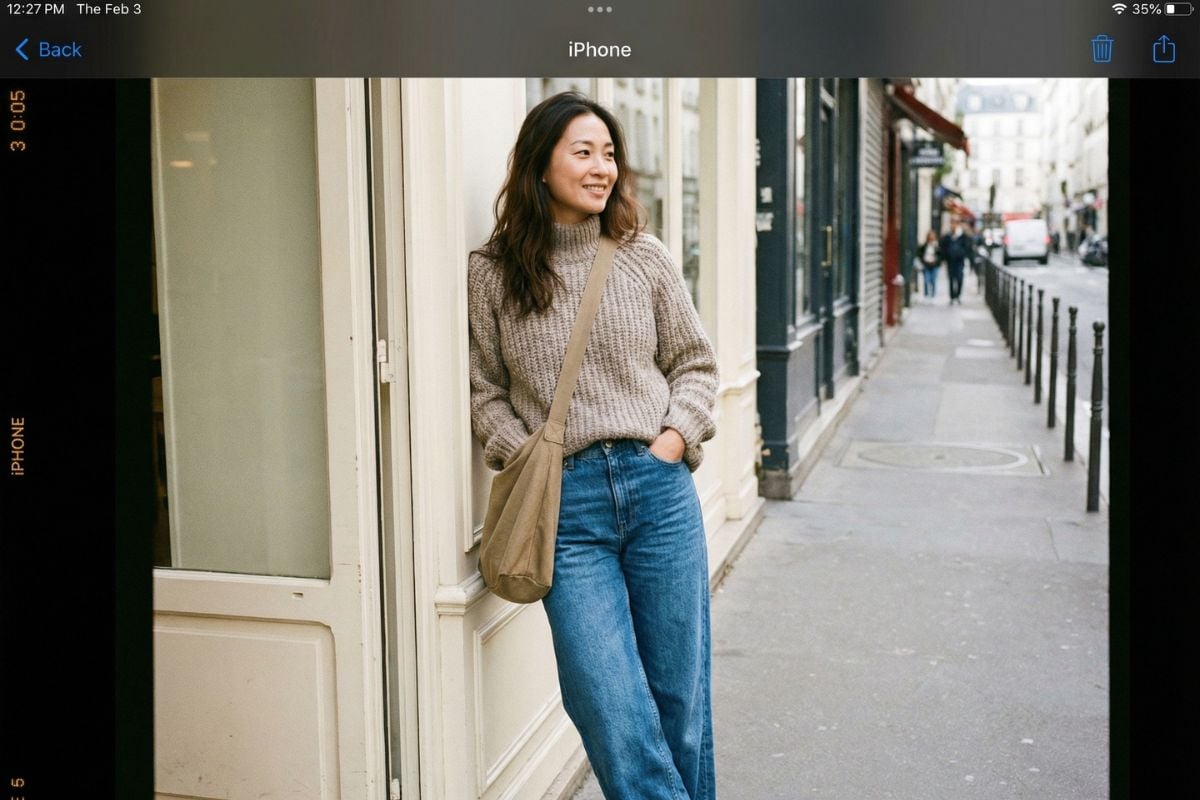
The biggest difference is pace. FLUX.2 [klein] is tuned for interactive creation—quick generations and quick edits so you can test composition, camera feel, and lighting like you’re adjusting a design mockup. If you already use FLUX.2, think of [klein] as the “fast loop” option for draft → refine → lock. It’s also a strong fit when you’re building a broader media pipeline and want stills that match your motion work (for example, storyboard frames before image to video).

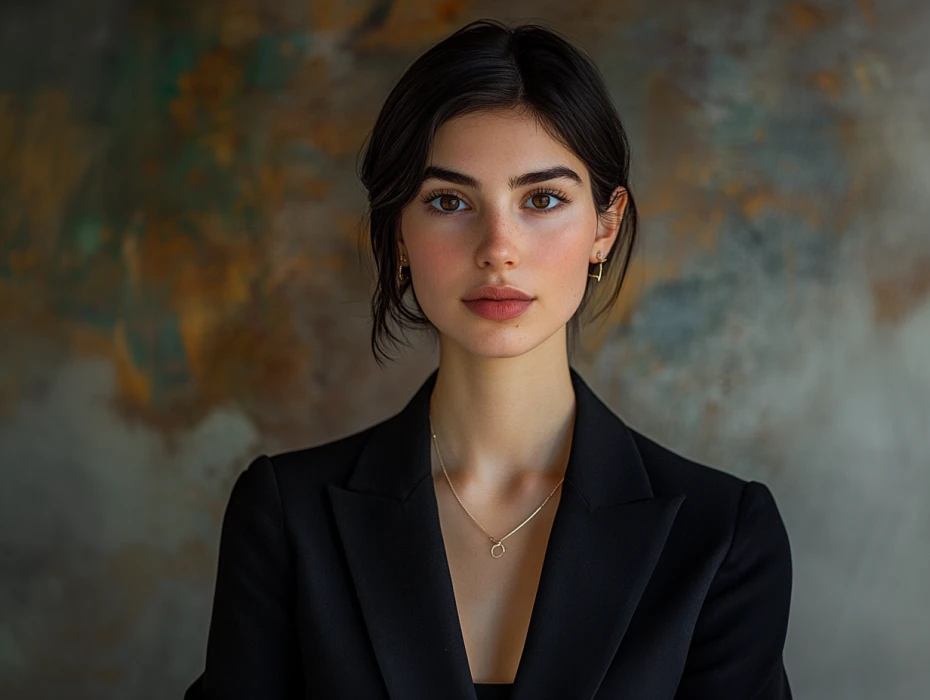
flux.2 klein fast iteration for real-time image creation with clean composition control

One Model for Generate + Edit (Less Tool-Switching)

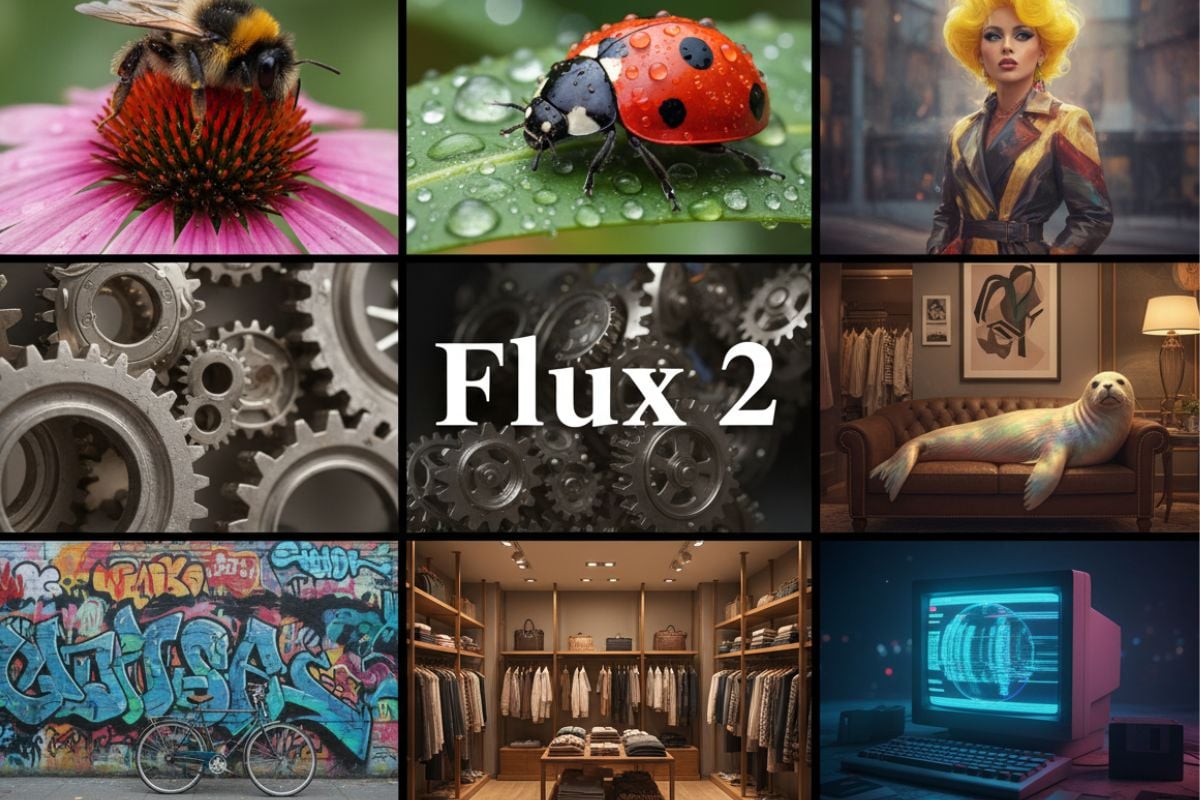
FLUX.2 [klein] is especially practical when your workflow mixes creation and revision: generate a clean base, then adjust background, mood, or local details without mentally “starting over.” This unified feel is great for inpainting-style fixes, product touch-ups, and keeping a subject readable while you refine the environment.

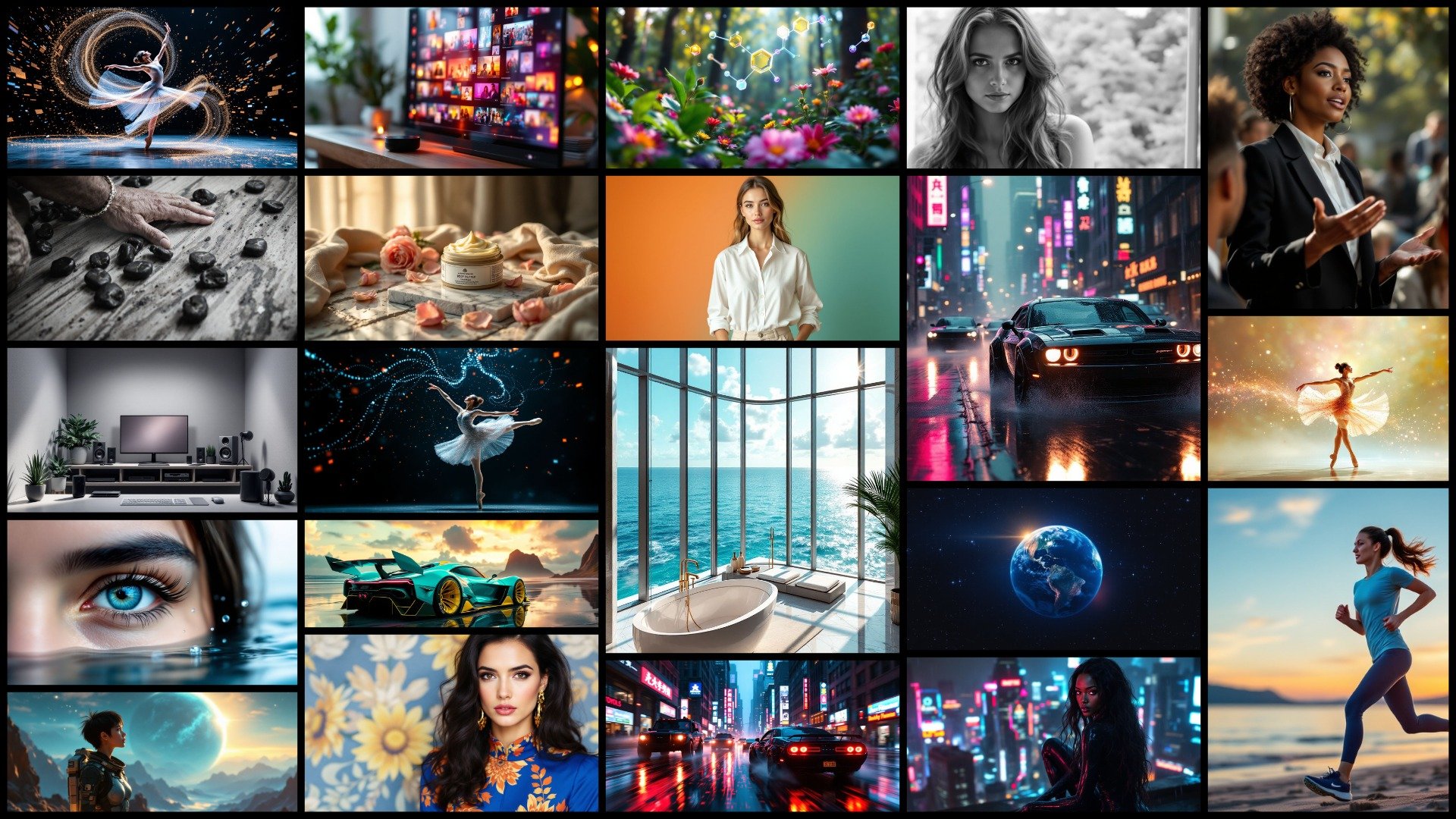
flux.2 klein unified generate and edit workflow for cleaner revisions and less tool switching

High-Quality Output on Practical Hardware

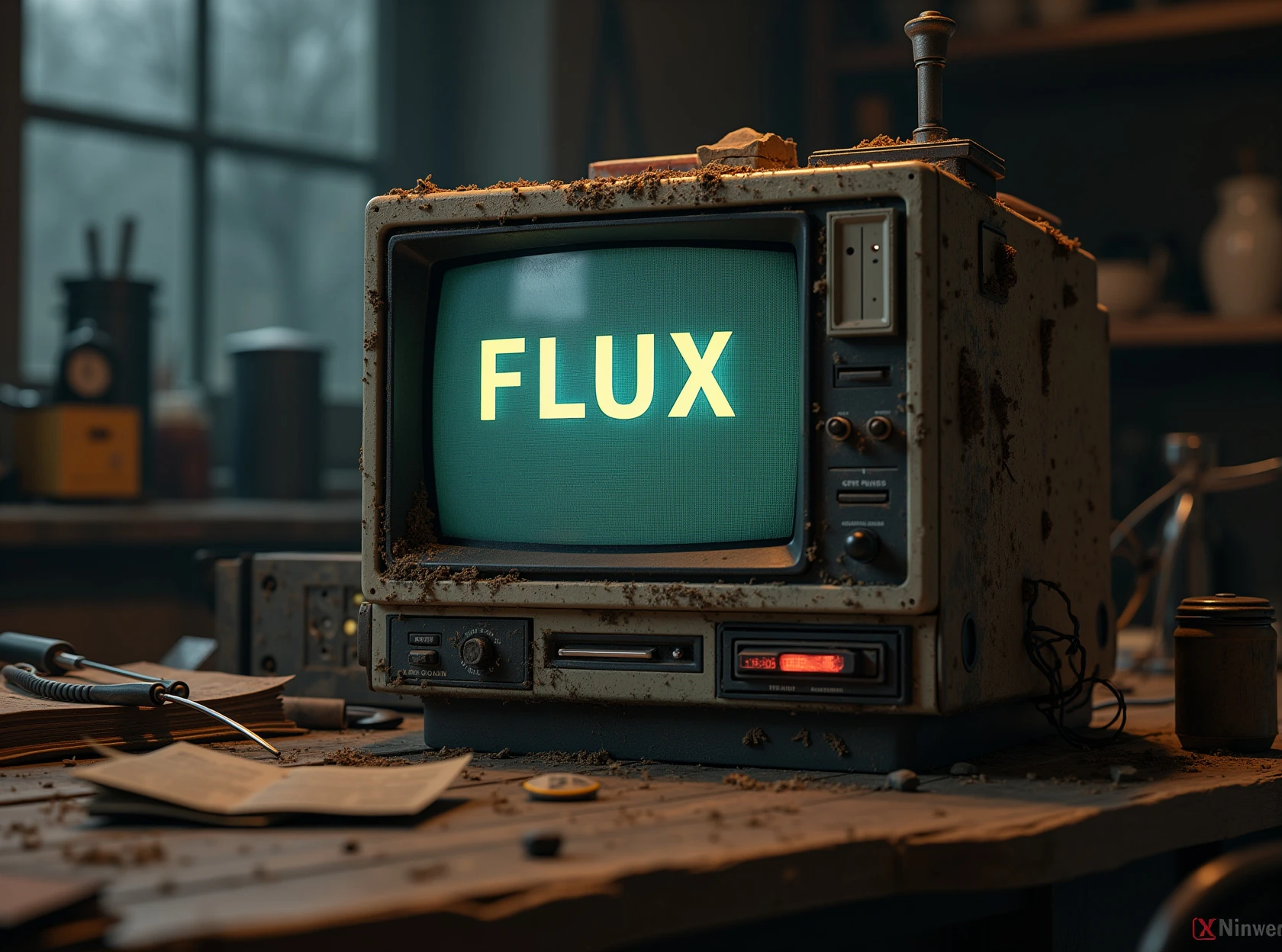
Despite the low-latency focus, the output can still look premium: sharper material cues, more natural light falloff, and solid photoreal texture in skin, fabric, glass, and metal. It’s a good middle ground when you want speed without a “drafty” look.

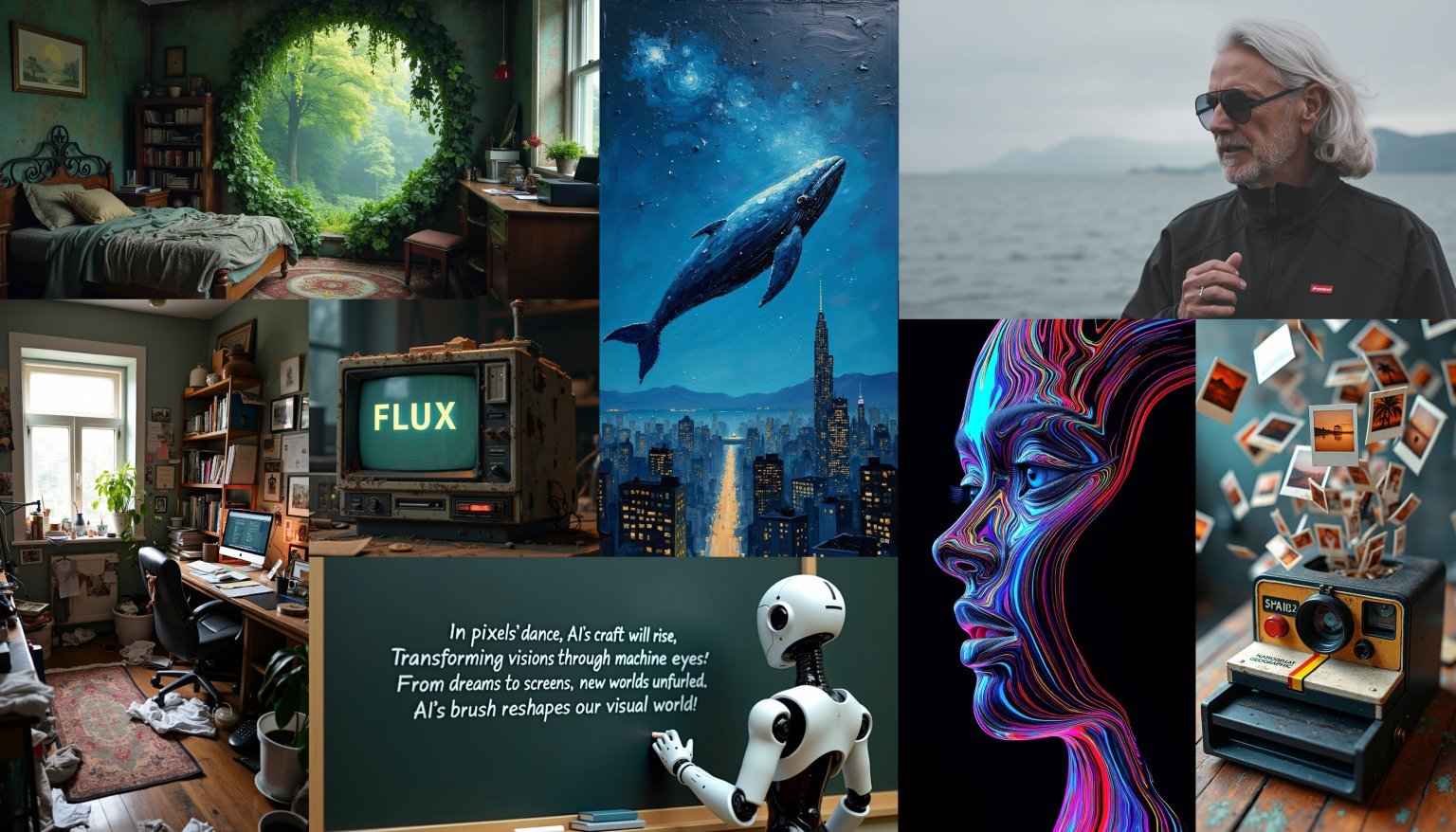
flux.2 klein photoreal materials lighting and low-latency generation for practical creator hardware

How to Use FLUX.2 [klein]?

01

Open the Workspace (Text to Image or Image to Image)

Go to GoEnhance and open the Text to Image or Image to Image workspace. This model is most fun when you plan to iterate fast—small tweaks, frequent runs, quick comparisons.

02

Select FLUX.2 [klein] and Set One Clear Goal

Choose FLUX.2 [klein] from the model list, then decide what you’re optimizing for: a photoreal product shot, a portrait, a clean background, or a specific composition. One clear goal makes prompts shorter and results more stable.

03

Click Generate, Then Iterate in Tight Loops

Hit Generate. For your next runs, change one thing at a time: lighting direction, background simplicity, lens feel, color mood, or a single prop. This “one-variable” loop is the fastest way to get consistent, high-clarity outputs.

Frequently Asked Questions

You may want to know

What is FLUX.2 [klein]?

FLUX.2 [klein] is an image model built for low-latency, interactive creation. It’s suited for fast draft-and-refine loops where you want quick feedback while keeping strong photoreal quality, clean composition, and edit-friendly results.

What is FLUX.2 [klein] best for?

It’s best for real-time iteration: product hero images, portraits, concept thumbnails, marketing drafts, and quick revisions where you want to adjust one detail (lighting, background, framing) and re-generate immediately. It also works well for creating consistent stills you can later extend into motion workflows.

How is FLUX.2 different from FLUX.2 [klein]?

FLUX.2 is a strong general-purpose option when you’re prioritizing overall quality and flexibility. FLUX.2 [klein] is tuned around speed and interactive workflows—great when you care about latency, rapid A/B comparisons, and quick edit passes. If you iterate a lot per asset, [klein] often feels more “responsive” day to day.

Does FLUX.2 [klein] support image editing and multi-reference composition?

Yes. It’s designed to handle both generation and editing in a single workflow, and it performs well on multi-reference tasks when you clearly describe what to keep (identity, product shape, style cues) and what to change (scene, lighting, layout). Keep the first pass simple, then add complexity after the structure looks right.

What prompt style works best with FLUX.2 [klein]?

Write like a short creative brief: subject + setting + camera + lighting + one constraint. Then iterate with single-variable changes. LSI-style cues that often help: “clean background behind subject,” “high readability,” “softbox lighting,” “natural skin texture,” “sharp edge definition,” “minimal clutter,” “balanced negative space.”

What’s a simple workflow for consistent results?

Start with one “locked” baseline: subject, angle, and background simplicity. Generate 3–5 quick variations, pick the best structure, then refine with small changes only (color mood, lens feel, light direction). This keeps compositions stable and reduces random drift while you polish.

Create Faster, Cleaner Visuals with FLUX.2 [klein]

Open Text to Image or Image to Image in GoEnhance, select FLUX.2 [klein], and generate. It’s built for tight iteration loops—fast drafts, quick edits, and photoreal results you can refine without slowing down.

Try FLUX.2 [klein]