
GLM-Image: Clean Text, Clear Layout, Real-World Visuals
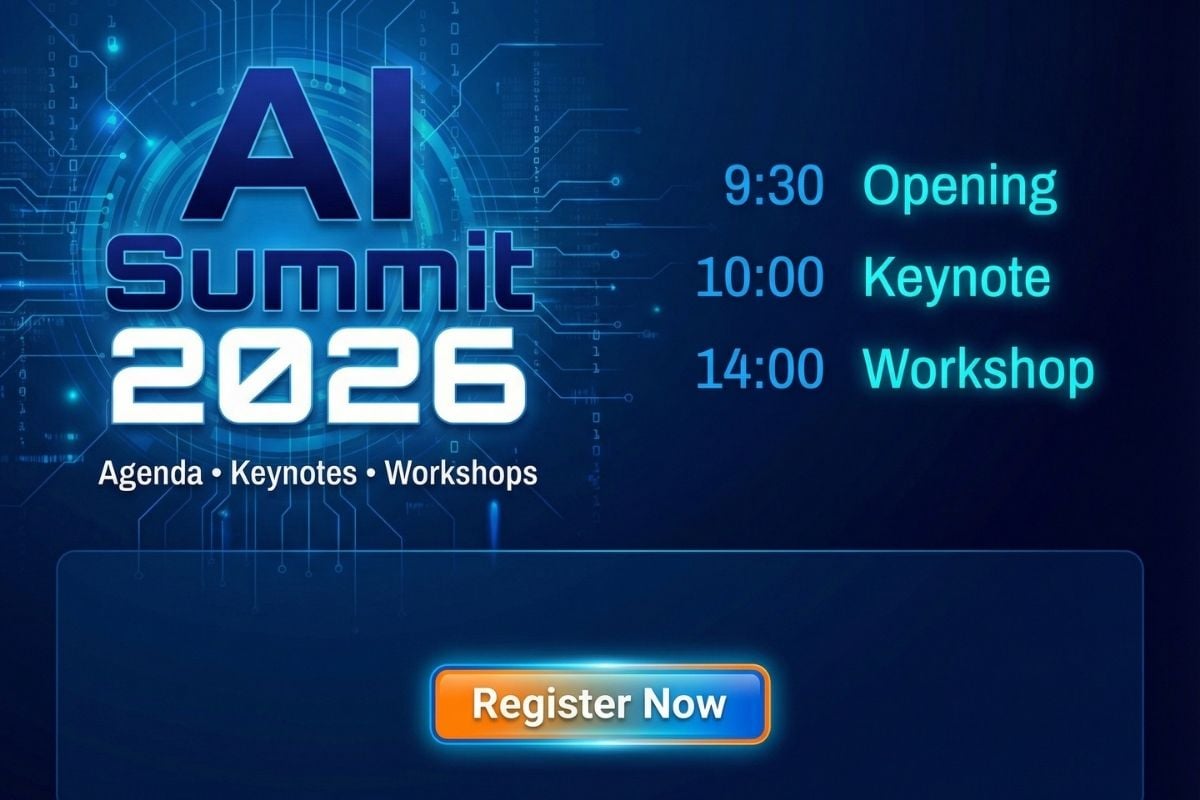
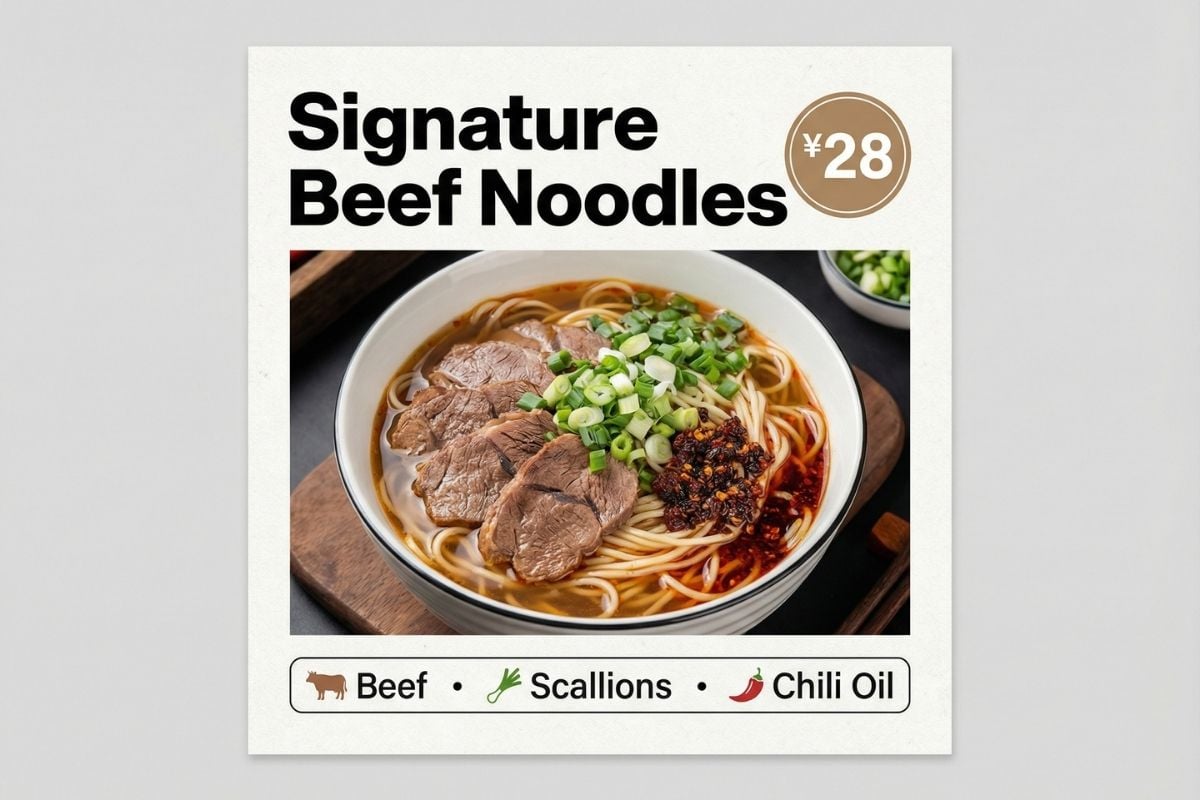
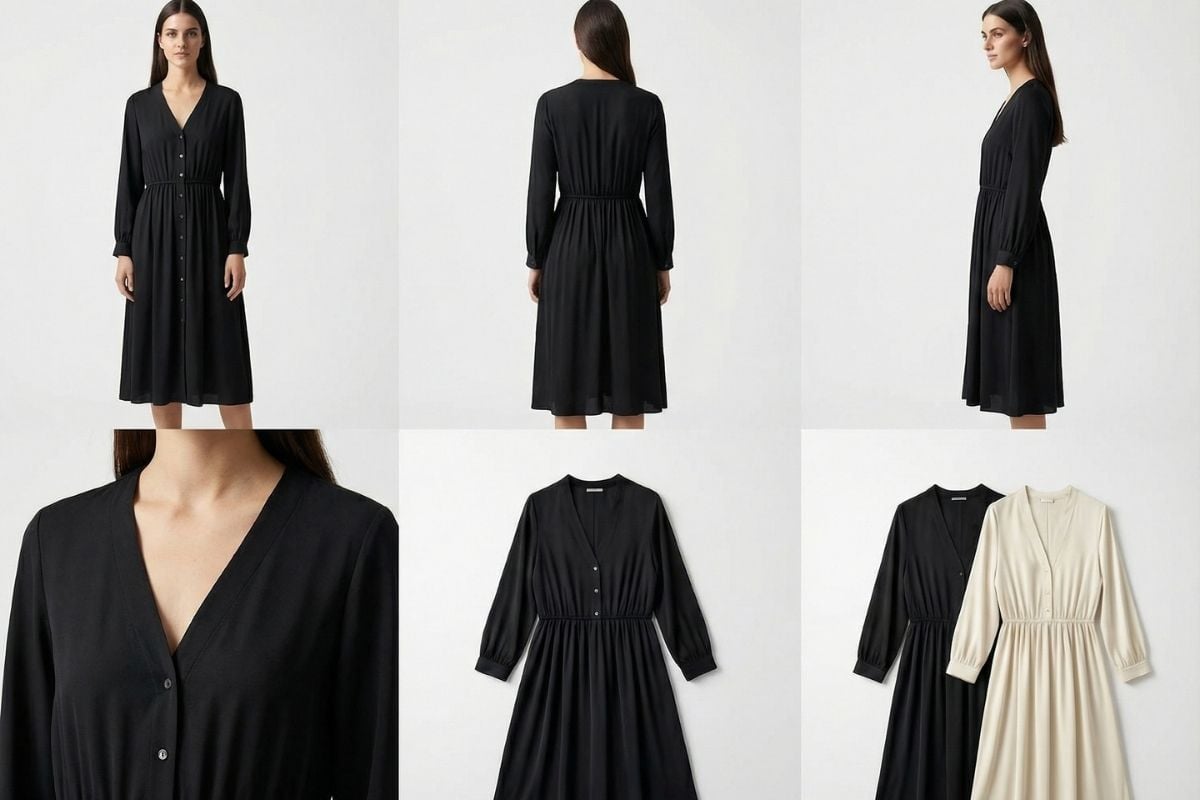
GLM-Image Gallery
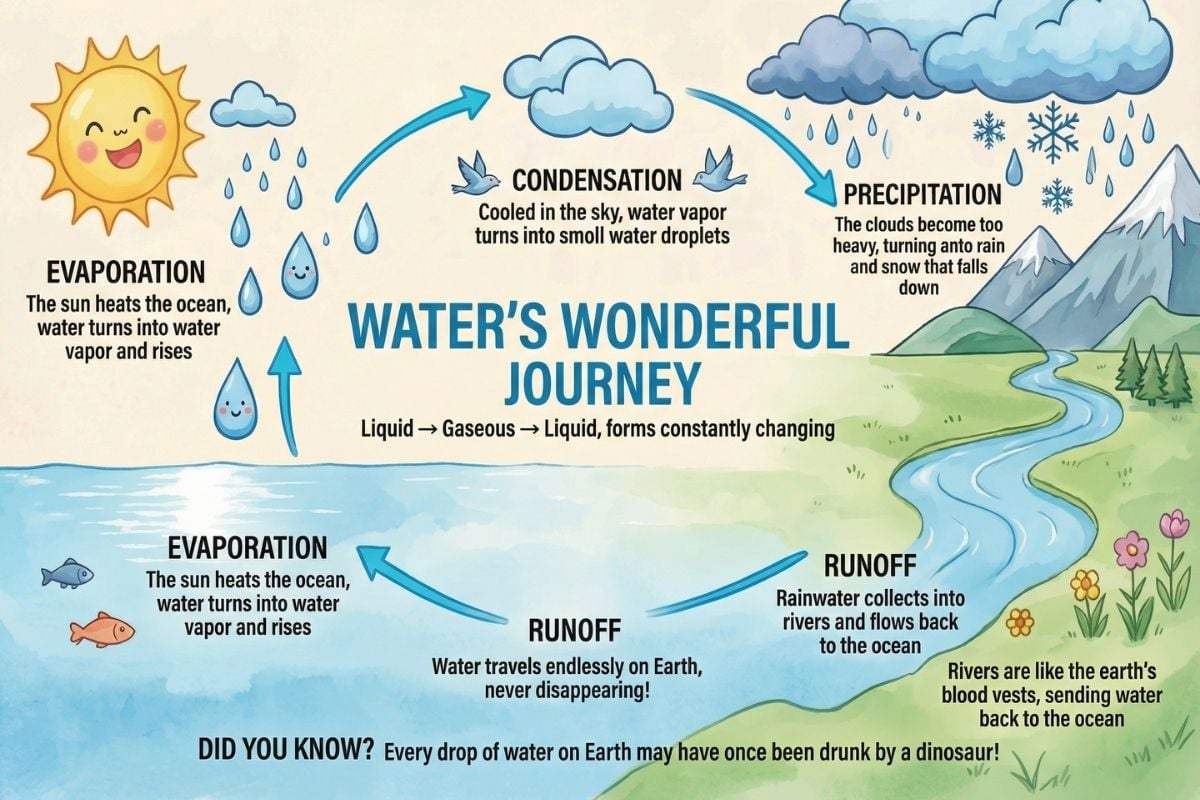
Educational infographic flowchart
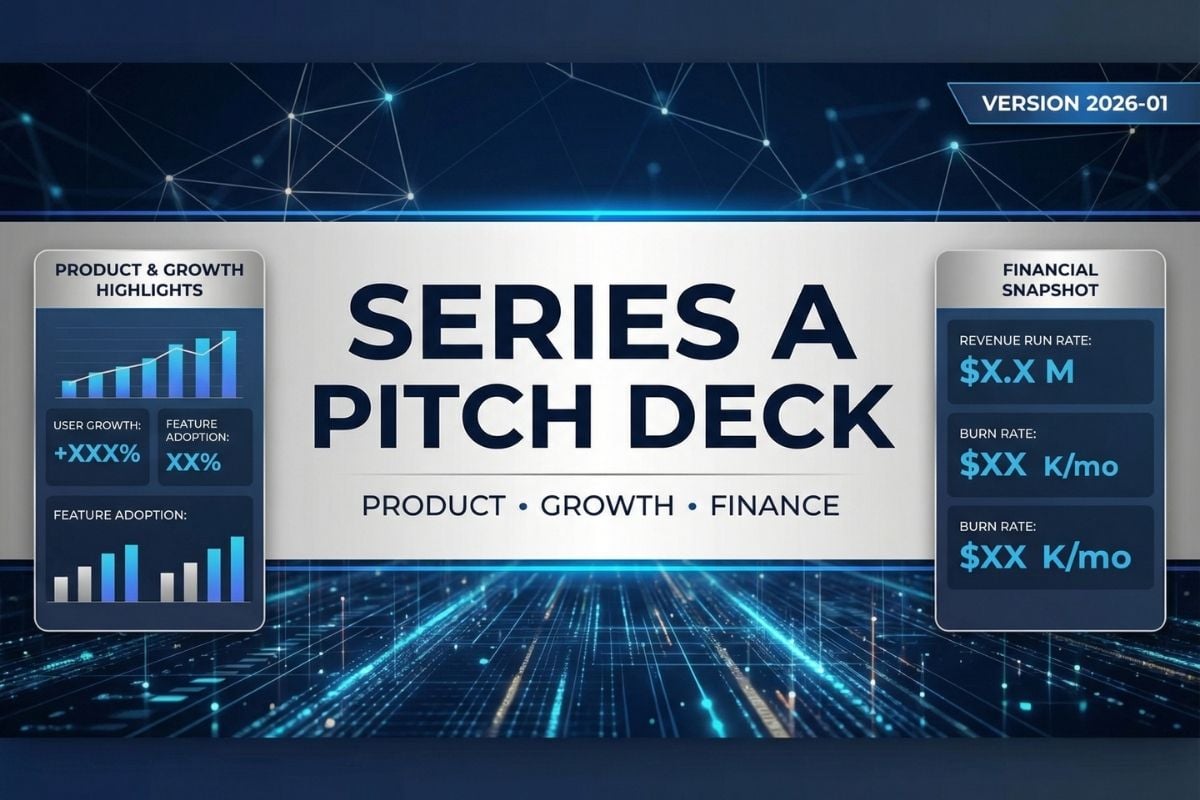
PPT cover slide

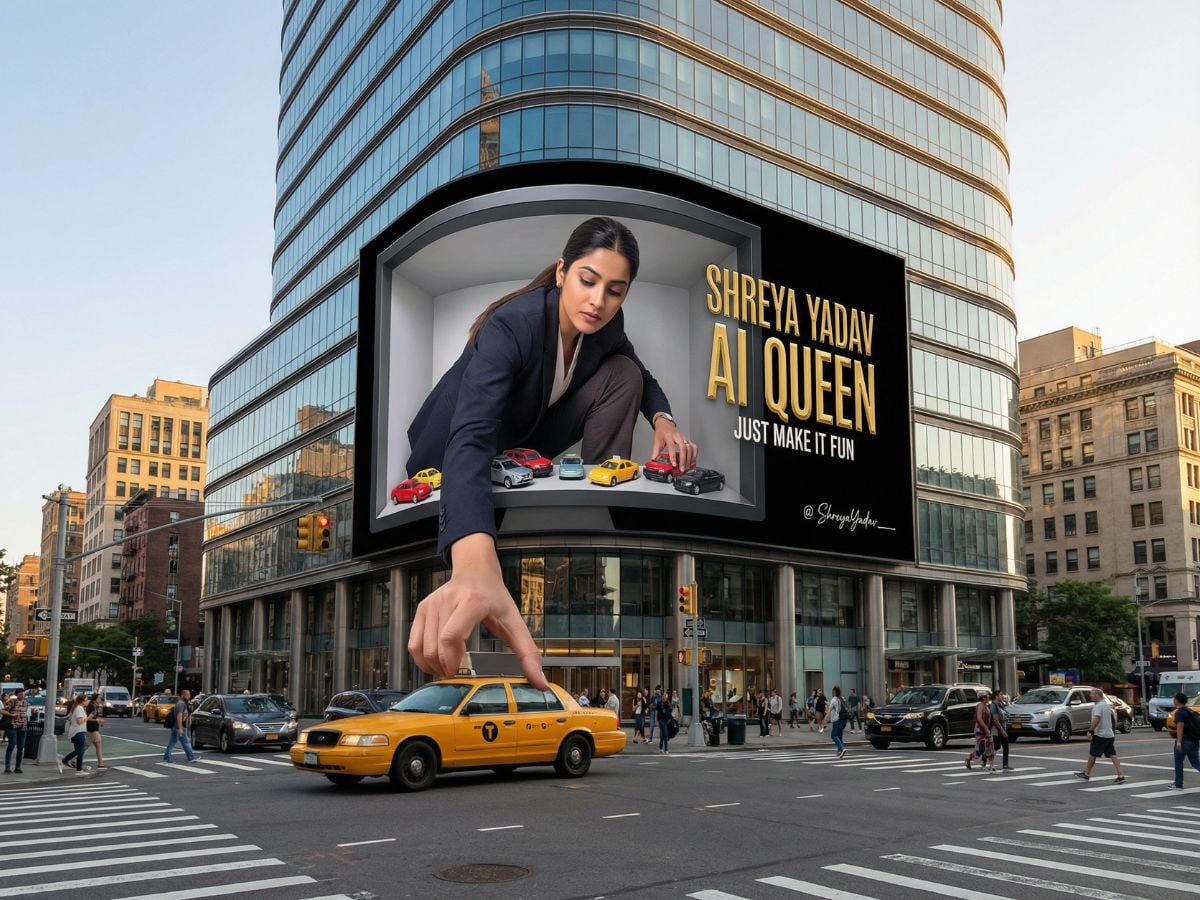
Photorealistic portrait
How to Use GLM-Image?
Open the Text-to-Image Workspace
Go to your creation workspace and start a new text-to-image project. Keep your goal in mind first: poster, infographic, cover image, or a labeled diagram.
Select GLM-Image and Pick a Ratio
Choose GLM-Image, then set your aspect ratio. Square works well for promos, widescreen for banner-style headers, and portrait for social covers and story layouts.
Write a Structured Prompt and Generate
Use a simple template: purpose → style → layout → exact text → constraints. Generate a baseline, then refine by changing one thing at a time (font mood, spacing, background complexity, or text size).
Why GLM-Image Feels Made for Text-Heavy Designs
Readable Typography: Headlines, Labels, and Small Text Hold Up
GLM-Image shines when the image must “say something,” not just look pretty. Titles stay crisp, labels remain legible, and multi-line blocks are less likely to collapse into messy glyphs—especially when you specify hierarchy (H1 headline → subhead → small captions). Start from the AI image generator workspace for fast poster drafts, then turn your best still into a short motion version with image to video when you need a scroll-stopping header clip.
Layout Control: Better Hierarchy, Spacing, and Alignment
If your prompt includes layout logic—like “centered title,” “two-column content,” “numbered steps,” or “icons with captions”—GLM-Image tends to respect the structure more reliably. It’s especially useful for flowcharts, feature grids, comparison cards, and infographic-style panels where kerning, line spacing, and visual rhythm need to look intentional.
Versatile Outputs: Posters, Covers, Multi-Panel Art, and Photoreal
Beyond text rendering, GLM-Image handles a wide range of aesthetics—from clean brand posters to scrapbook-style social covers, multi-panel product visuals, and natural-looking photography. For iterative work, it helps to lock the subject first, then adjust only one variable per run (background, lighting, typography tone, or spacing) to keep the overall design consistent and reusable as a template.
More Models You May Like
You may want to know
What is GLM-Image?
What is GLM-Image best for?
How do I write prompts that work well in GLM-Image?
How do I keep text readable in the final image?
Can GLM-Image handle complex layouts like multi-panel or step-by-step cards?
Does GLM-Image support different styles like hand-drawn, scrapbook, or cinematic posters?
Can I use GLM-Image results in client work or marketing assets?
Discussion
Create Posters and Diagrams with GLM-Image
Open GoEnhance AI, choose GLM-Image, and start generating structured visuals that read clearly. It’s a strong pick for typography-first posters, infographic cards, labeled diagrams, and social covers where layout and text accuracy matter.
Try GLM-Image