InVideo AI Video Generator Review: My Hands-On Experience After 3 Weeks of Testing

- 1. Who This Review Is For
- 2. What Makes InVideo AI Different from Other AI Video Tools
- 3. Testing the Text-to-Video Generator: What the Prompts Actually Produced
- 4. The Image-to-Video Workflow: Where InVideo Actually Earns Its Price
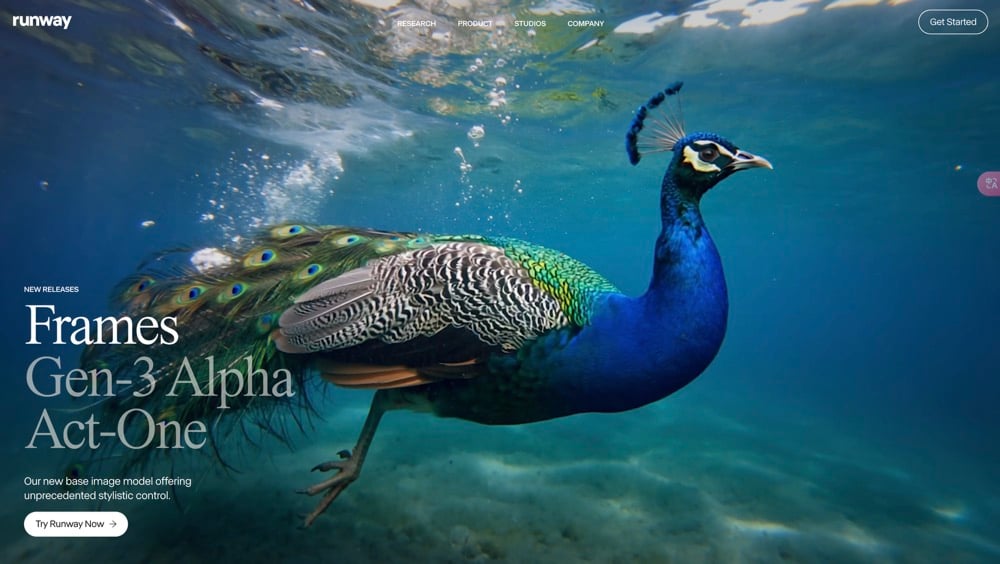
- 5. InVideo AI vs. Runway Gen-2, Kaiber, and D-ID: A Direct Comparison
- 6. Editing and Fine-Tuning: How Much Control Do You Actually Get?
- 7. Pricing Breakdown: What You Actually Get at Each Tier
- 8. Real Projects I Used This For (and the Actual Results)
- 9. Tips That Actually Changed My Results
- 10. Conclusion: My Honest Take After Three Weeks
1. Who This Review Is For
If you're a content creator, e-commerce seller, or marketer who needs to pump out short videos fast—without touching Premiere or After Effects—InVideo AI is worth a serious look. I spent three weeks running it through its paces: generating product demos, social clips, and cultural storytelling pieces, then comparing results with Runway Gen-2, Kaiber, and D-ID. This is what I actually found, including where it tripped me up.

2. What Makes InVideo AI Different from Other AI Video Tools
InVideo AI's real edge isn't raw visual quality—it's the speed of the full workflow from idea to export. Most AI video tools hand you a clip and leave you to figure out the rest. InVideo wraps generation, editing, and templates into one loop, which matters a lot when you're A/B testing five ad variants on a deadline.
Three things I kept coming back to during testing:
- Text-to-video generation that handles reasonably complex scene prompts without constant hand-holding
- Image-to-video animation that produces usable motion clips in under 10 minutes
- Template library that lets you slot AI-generated footage into pre-branded layouts instead of building from scratch
None of these are industry-firsts. But having all three in one interface, without a steep learning curve, is rarer than you'd think. According to MIT Technology Review, the current wave of generative video tools is still fragmented—most excel at one layer of the stack, not the whole pipeline.

3. Testing the Text-to-Video Generator: What the Prompts Actually Produced
Specific, structured prompts gave me broadcast-quality drafts; vague ones wasted credits. That's the single most important thing I learned running about 40 generation attempts over three weeks.
I tested three real project types:
-
E-commerce product demo — Prompted: "360-degree rotating skincare bottle on white background, soft studio lighting, slow zoom out." Result: clean, usable on first try. I usedtext-to-video AI tools to pre-optimize my workflow, which helped reduce generation inconsistencies in the final export.
-
Instagram/TikTok teaser clip — 6-second cuts for a food brand. The motion was slightly over-dramatic on the first pass—more of a blockbuster trailer than a product post. Took two prompt revisions to dial it back.
-
Cultural storytelling piece — Animated a traditional textile product with cinematic movement. This is where I hit the biggest snag: the AI misread the fabric texture and generated unrealistic warping. I ended up swapping that segment with a template clip, which actually saved the final video.
The takeaway: plan your prompts the way you'd write a shot list, not the way you'd describe a vibe. That shift alone cut my failed generations by more than half.
4. The Image-to-Video Workflow: Where InVideo Actually Earns Its Price
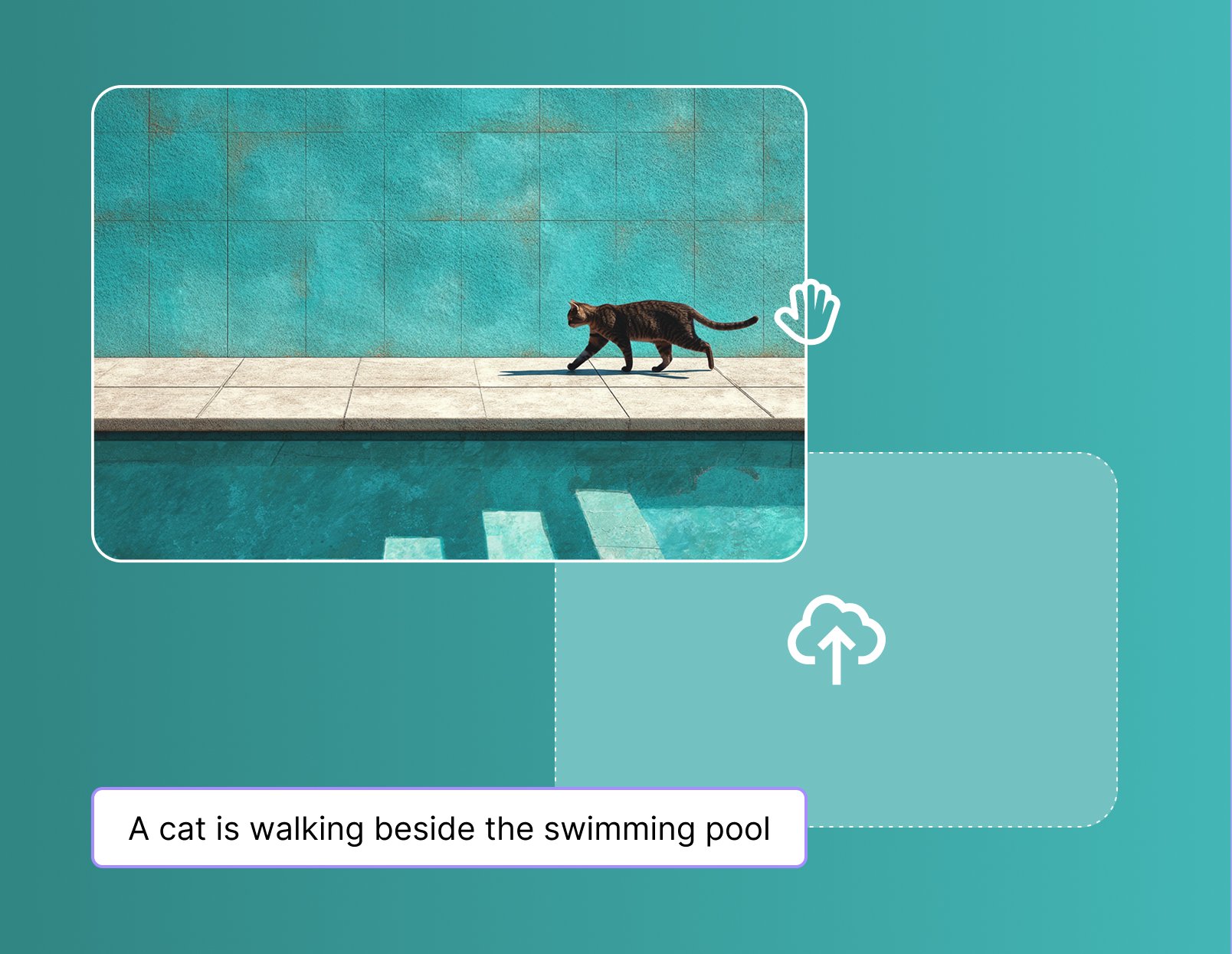
The image-to-video feature is the most reliable part of the platform—and the one I'd pay for on its own. For anyone working with product photography or static brand assets, this workflow replaces what used to take hours in After Effects.
My standard process for a product video:
- Pre-enhance the source image using image-to-video generator tools — this step made a measurable difference in output sharpness, especially for 4K exports
- Upload the high-res file to InVideo
- Select animation style — I defaulted to subtle zoom for product content and parallax for lifestyle imagery
- Run a low-res preview first (saves credits and catches obvious AI errors early)
- Adjust timing and motion scale, then export at 1080p or 4K
| Step | What I Actually Did | What I'd Do Differently |
|---|---|---|
| Source image | Shot on iPhone 14 Pro, 4K | Use a mirrorless camera for texture-heavy products |
| Animation style | Smooth zoom for most clips | Test parallax earlier—it performed better than expected |
| Preview resolution | Always ran low-res first | No changes here—this alone saved me ~20% of my credit spend |
| Export | 1080p for social, 4K for client deliverables | — |
One honest limitation: if your source image has a busy background, the motion artifacts get messy. Solid or blurred backgrounds perform significantly better.

5. InVideo AI vs. Runway Gen-2, Kaiber, and D-ID: A Direct Comparison
InVideo wins on workflow speed and template flexibility; it loses on cinematic motion quality. After running comparable prompts through all four platforms, here's how they actually stack up for the work I do:
| Feature | InVideo AI | Runway Gen-2 | Kaiber | D-ID Creative Reality Studio |
|---|---|---|---|---|
| Primary input | Text & image | Video / text | Image & text | Image & video |
| Generation speed | Very fast (5–10 min) | Moderate (15–25 min) | Fast | Moderate |
| Template library | ✅ Full library | Limited | ❌ | ❌ |
| Motion control | Basic but consistent | Advanced | Good stylized control | Limited |
| Where it actually excels | Social & e-commerce volume | Cinematic motion design | Stylized art clips | AI talking-head videos |
| Where it falls short | Complex organic motion | Steep learning curve | No template support | Narrow use case |
For my workflow—high-volume social and e-commerce content—InVideo is the right tool. If I were producing a short film or a high-production brand video, I'd reach for Runway. The Forbes AI coverage of generative video tools makes a similar point: the platforms diverge sharply depending on whether speed or quality is the primary constraint.
6. Editing and Fine-Tuning: How Much Control Do You Actually Get?
InVideo's editor gives you enough control for professional-grade social content, but hits a ceiling on complex creative adjustments. The natural language editing—where you type something like "make the transition slower" and it updates the clip—works better than I expected for basic changes. It falls apart on nuanced requests like "only apply this to the third scene."
What worked well in my edits:
- Swapping out AI-generated segments with template clips when the generation missed the mark
- Adjusting music timing and scene pacing via text commands
- Changing fonts, colors, and text animations without touching a timeline
What required workarounds:
- Fine-grained motion control on specific frames still needed manual intervention
- The natural language editor occasionally reinterpreted my instructions and changed things I didn't ask it to touch
My actual editing process became: generate → low-res preview → fix the one or two segments that need it → final export. That loop ran in about 25–35 minutes for a 30-second clip, which is fast enough for the volume I was producing.

7. Pricing Breakdown: What You Actually Get at Each Tier
The free tier is only useful for evaluation—if you're producing content at any real volume, you'll need a paid plan within the first week. Here's what I found after running the numbers on my actual usage:
- Free tier: ~10 minutes total generation, watermarked exports. Good for testing whether the tool fits your workflow, not much else.
- Entry paid tier (~$70): 2 minutes of AI-generated video. For context, a 30-second clip at high quality uses roughly 0.5–1 minute of generation time, so this covers a small campaign.
- Mid paid tier (~$130): 16 minutes of AI video. This is where it starts making sense for consistent content production.
- Export quality: 1080p included on paid plans; 4K requires a higher subscription tier.
For context on what video marketing actually costs versus DIY production tools, HubSpot's marketing statistics break down average video production costs by channel—InVideo's pricing looks competitive against even mid-range freelance rates.
One thing I'd flag: credits go faster than you expect when you're iterating. Running low-res previews before committing to a full export is the single best habit for managing your monthly allowance.
8. Real Projects I Used This For (and the Actual Results)
InVideo delivered the most measurable value on high-volume, short-format content—not on polished hero videos. Here's what I actually produced and what happened:
- E-commerce product loops (3–6 seconds): Generated 12 variants for a single product in one afternoon. Three of them went straight into paid ads without further editing. Previously that would have taken two days of manual work.
- Instagram Reels for a food client: Used the image-to-video workflow on existing food photography. The client approved on first review—something that doesn't happen often.
- A/B test creatives for a marketing campaign: Spun up 8 variants of the same concept in under two hours. The winning variant outperformed the control by a margin the client was happy with.
- Cultural storytelling piece: This one I mentioned earlier—the AI struggled with fabric texture. Final video used a mix of AI clips and templates. Honest result: serviceable, not remarkable.
The Adobe video production blog has a useful framework for thinking about when AI-assisted tools fit into a production pipeline versus when they don't—worth reading if you're deciding how much of your workflow to hand over to AI generation.
9. Tips That Actually Changed My Results
The biggest gains came from changing inputs and process, not from spending more time inside the editor. These are the adjustments that moved the needle for me specifically:
- Write prompts like shot lists — include subject, movement, lighting, and camera angle. Mood words alone don't work.
- Pre-process images before uploading — I used GoEnhance AI for sharpening and upscaling, which noticeably improved 4K export quality.
- Always run a low-res preview — takes 90 seconds, potentially saves 10 minutes of generation credit.
- Don't fight the AI on organic motion — if it keeps getting fabric or hair wrong, swap that segment with a template clip and move on.
- Keep a swipe file of prompts that worked — by week two, I had a set of 8–10 prompt structures I could adapt for almost any brief.
10. Conclusion: My Honest Take After Three Weeks
InVideo AI is the right tool if speed and volume matter more to you than cinematic perfection—and for most social and e-commerce content, they do.
After three weeks and roughly 40 generation attempts across multiple project types, my honest take is this: it won't replace a skilled motion designer for high-production work. But for the day-to-day reality of content production—product clips, social ads, marketing variants—it genuinely saves hours, and the quality clears the bar for most platforms.
The workflow I'd recommend: pre-enhance source images, write tight prompt structures, use low-res previews aggressively, and don't try to use AI generation for every segment. That combination consistently produced content I could actually ship.
If you're evaluating whether AI video tools fit your production workflow, start there.