goenhance logo

Video Cartoonizer

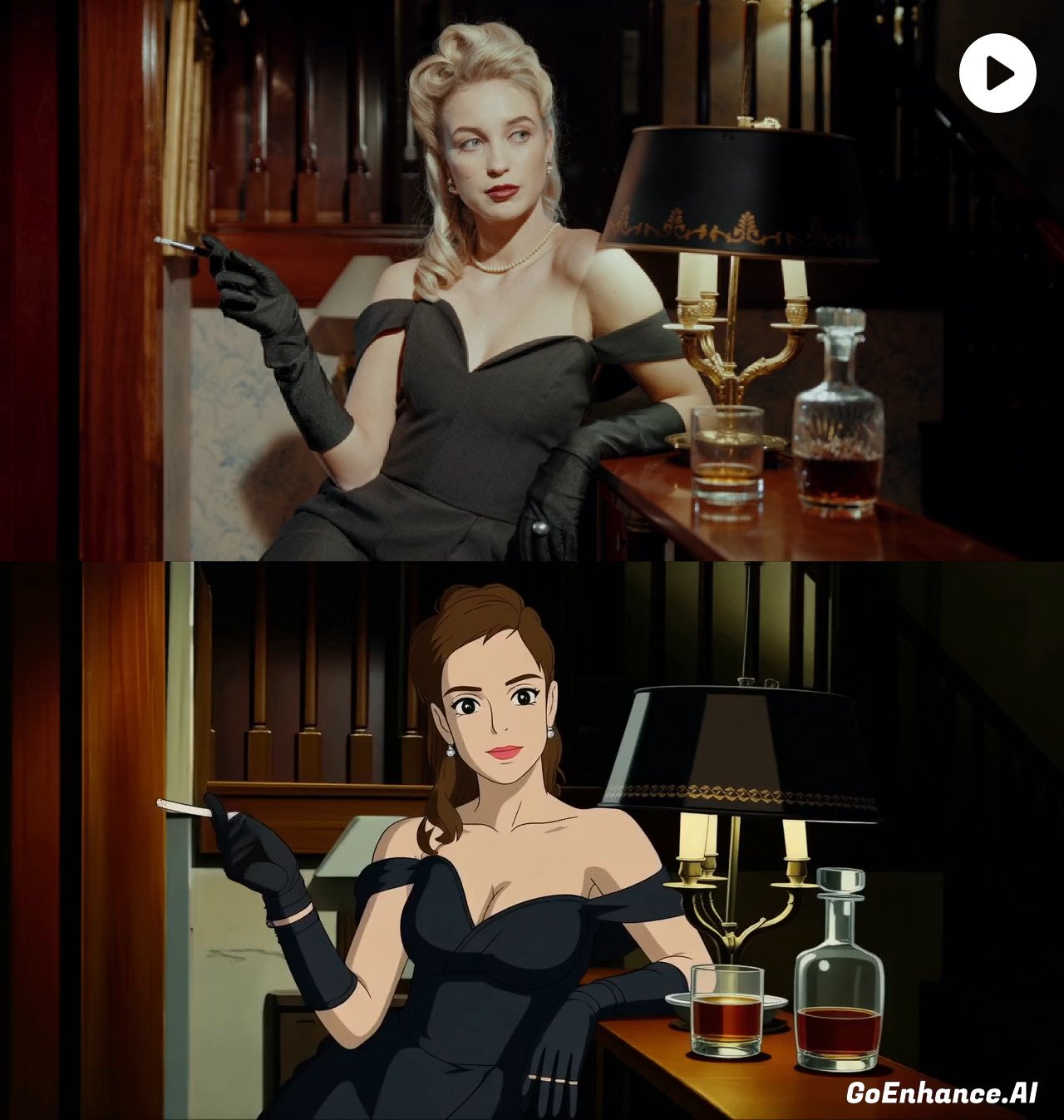
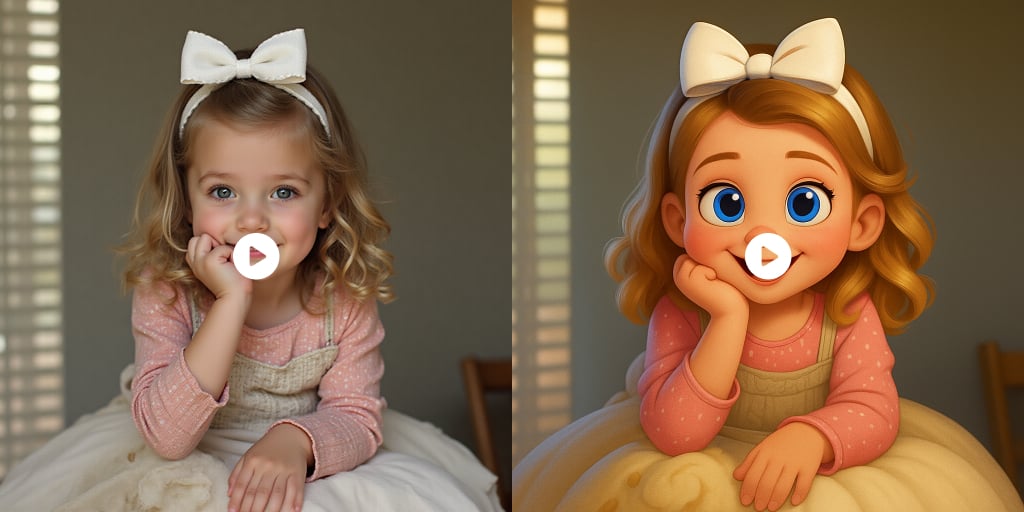
Upload a source clip and turn it into a cartoon-style video with AI. Create animated-looking edits for Shorts, TikTok, Reels, pet videos, reaction clips, product teasers, and creative concept tests while keeping the original motion easy to follow.
Cartoonize Video

AI Video Cartoonizer Features

AI Cartoon Style Conversion

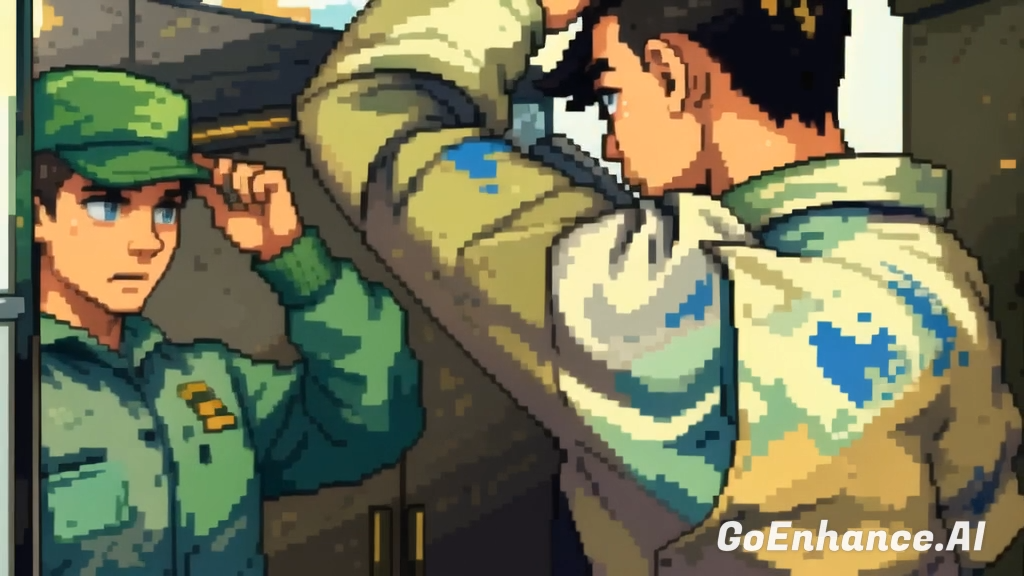
Convert real video footage into a cartoon-style clip with a cleaner animated look. Instead of only adding filters, GoEnhance AI helps restyle the whole video frame so the result feels closer to an animation draft, creator edit, or stylized social video. For broader animation-style workflows, explore the video to animation converter page.

Motion-Preserving Video Stylization

Keep the original movement, camera flow, and subject action readable while changing the visual style. This makes the tool useful for dance clips, pet videos, reaction shots, product demos, travel clips, and other videos where motion matters as much as the cartoon look.

Prompt-Guided Cartoon Effects

Control the creative direction with simple style prompts, from soft animated shading to bold comic-inspired visuals or playful creator edits. This gives users more flexibility than a fixed preset because the cartoon effect can match different content types and campaign ideas.

Creator-Ready Animated Clips

Create cartoonized videos that are easier to use in short-form content, visual hooks, channel intros, meme edits, storyboards, product teasers, and creative tests. The output works well as a fast animated-style draft before adding captions, music, trimming, or final publishing polish.

What Makes This Video Cartoonizer Useful?

Full Video Style Transformation

Turn the whole clip into a cartoon-inspired video look instead of applying a simple color filter or static image effect.

Built for Moving Footage

Designed for video clips with motion, camera changes, expressions, gestures, and scene movement, not just single-frame image edits.

Flexible Cartoon Directions

Support different creative looks such as soft animation, comic-style edits, playful social content, colorful cartoon effects, and stylized character-focused videos.

Fast Creative Testing

Quickly compare cartoonized versions before deciding which style is worth editing further, posting, or using in a campaign.

Useful Across Content Types

Works for creator videos, pet clips, reaction content, dance edits, product teasers, travel footage, meme videos, and short visual hooks.

Lower Editing Barrier

Create an animated-looking draft without manual rotoscoping, frame-by-frame drawing, complicated plugins, or a traditional animation workflow.

How to Cartoonize a Video With GoEnhance AI

Step 1

Open GoEnhance Vid2Vid and Upload Your Clip

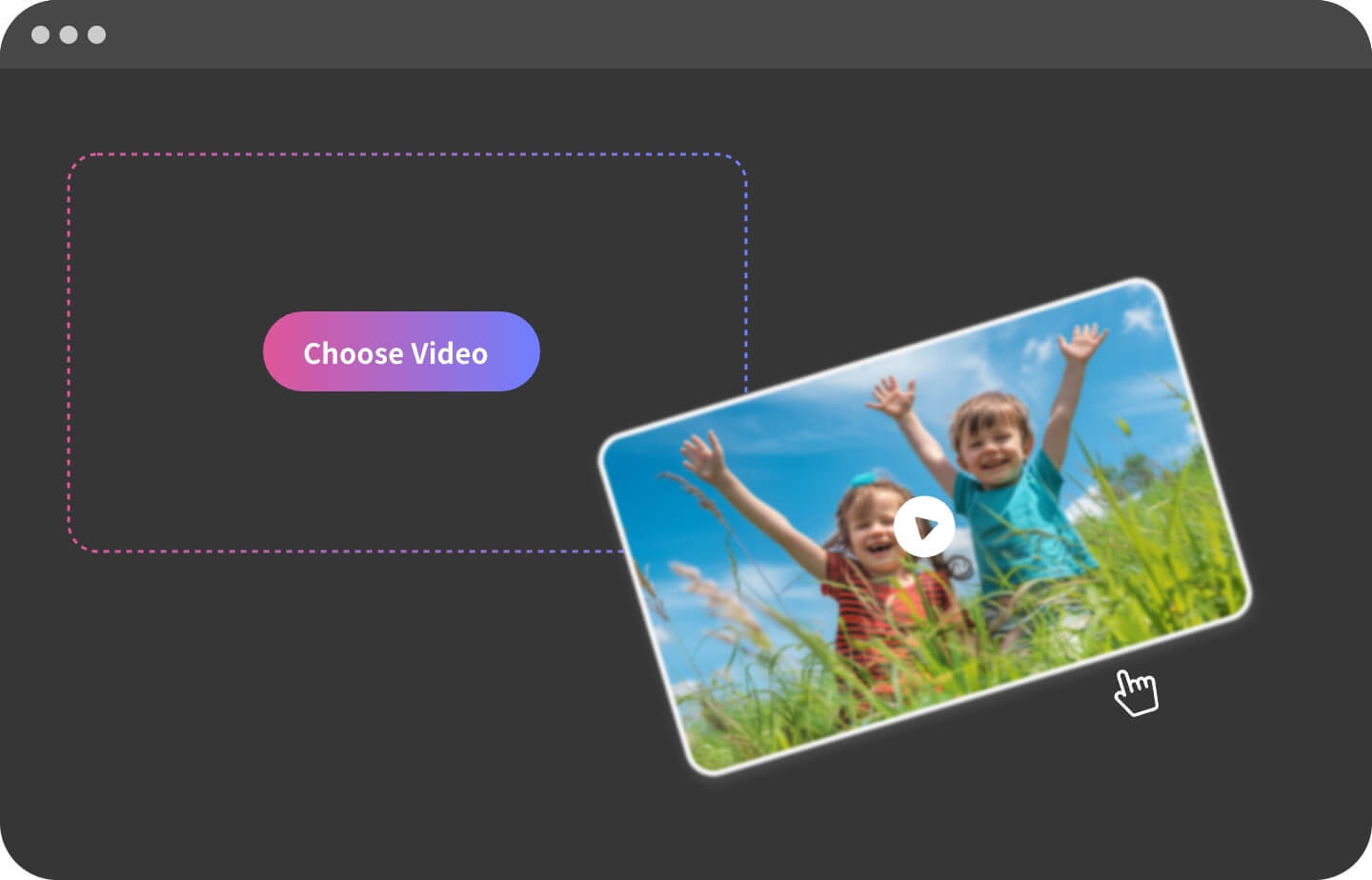
Open GoEnhance Vid2Vid at https://app.goenhance.ai/vid2vid and upload the video you want to cartoonize. A short clip with a clear subject, stable lighting, and readable motion usually gives the AI a cleaner base for cartoon-style conversion.
Step 2

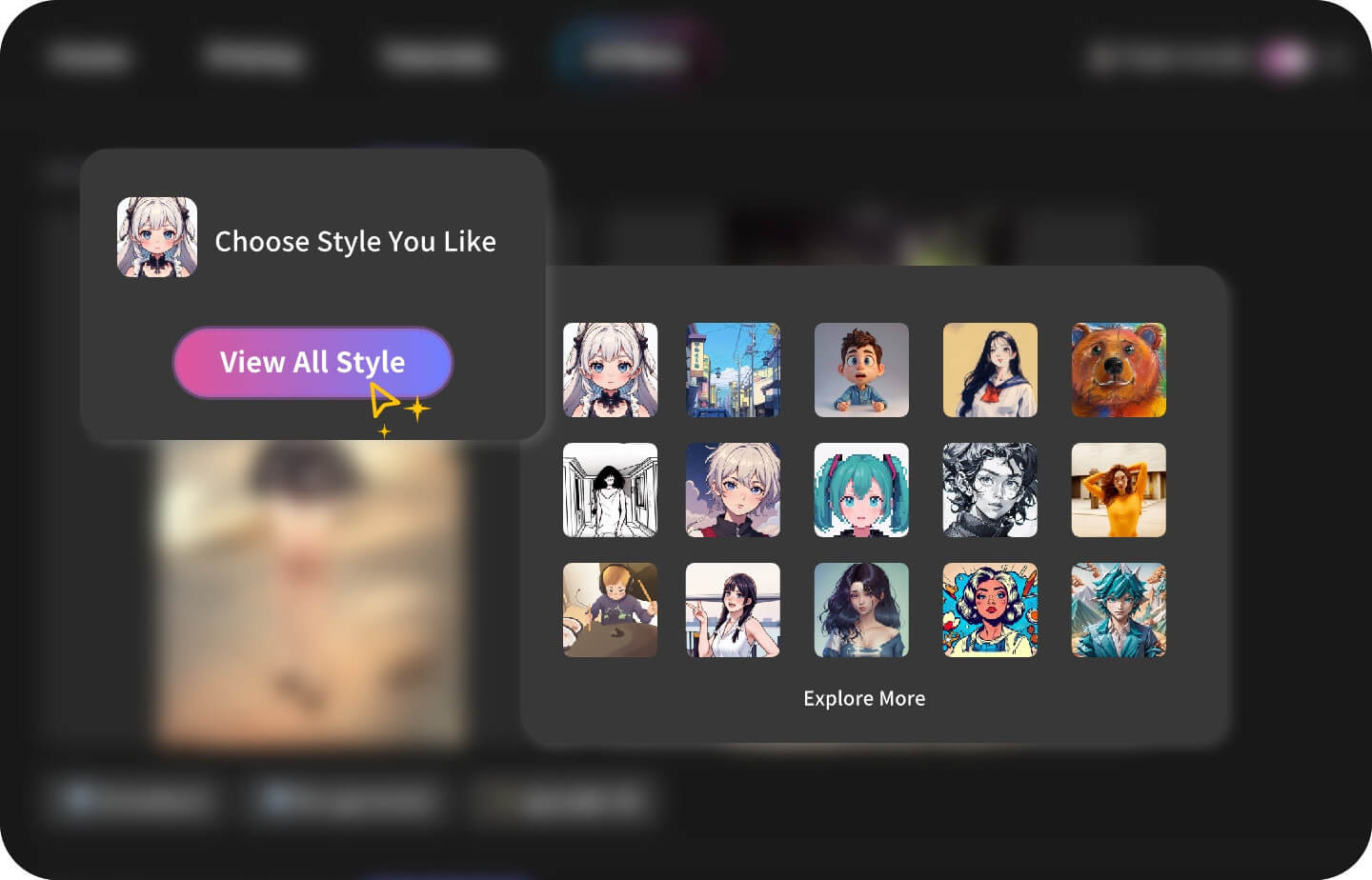
Choose a Cartoon or Animation Style

Use the video-to-video style controls and prompt box to describe the cartoon look you want. You can guide the result toward soft animation, comic-style outlines, colorful cartoon effects, or a clean animated social clip, depending on the content you are making.
Step 3

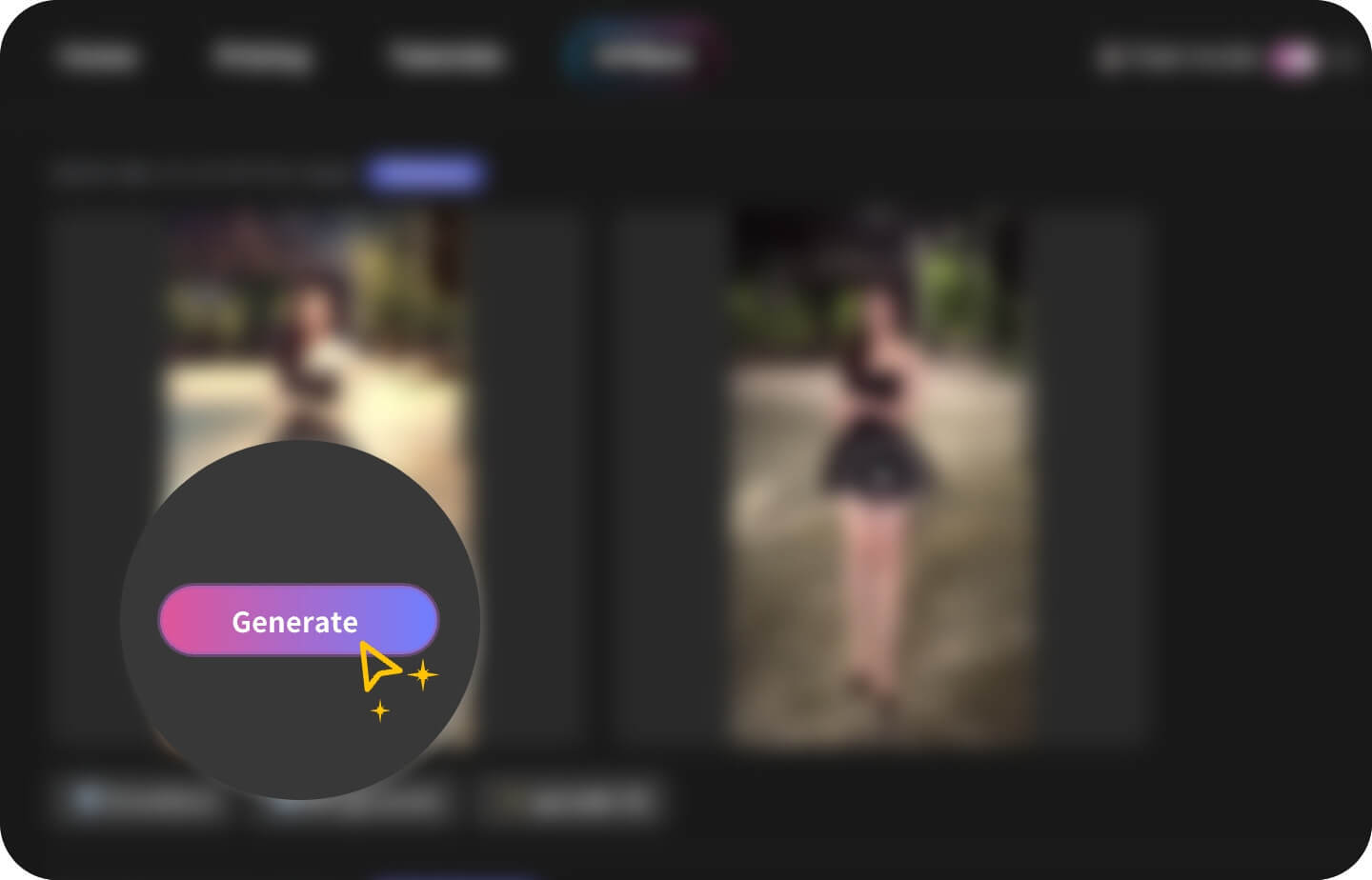
Generate and Download the Cartoonized Video

Run the Vid2Vid conversion and preview the cartoonized result inside GoEnhance AI. Check whether the subject, movement, face details, and background stay consistent, then download the result or generate another version with a refined prompt.

Video Cartoonizer FAQ

What is a video cartoonizer?

A video cartoonizer is an AI tool that changes the visual style of a source clip into a cartoon or animation-inspired look while trying to preserve the main subject, movement, and scene structure.

How do I cartoonize a video with AI?

Use GoEnhance Vid2Vid at https://app.goenhance.ai/vid2vid to upload your source clip, choose or describe a cartoon-style direction, and generate an animated-looking version of the video. After previewing the result, you can refine the prompt or download the cartoonized clip.

Can I use it as an AI video to cartoon converter free?

GoEnhance AI may provide free credits or trial access for testing. Credit amounts, export limits, watermark rules, and plan details can change, so check the current app terms before planning a larger project.

What clips work best for cartoon video conversion?

Short clips with one main subject, stable lighting, visible movement, and simple backgrounds usually work best. Heavy blur, crowded scenes, tiny faces, or sudden cuts can make the cartoon result harder to control.

Can I create cartoon videos for TikTok or YouTube Shorts?

Yes. Cartoonized videos can be used for short-form intros, reaction clips, pet videos, dance edits, product teasers, meme-style posts, and visual hooks, as long as you own or have permission to use the source footage.

Will the result look like a finished animation?

Treat the output as an AI-stylized video result or creative draft rather than a full studio animation. It can be strong for fast content production, but final publishing may still need trimming, captions, music, or another generation pass.

Can I use people in my source video?

Use footage only when you have the right to edit and publish it. For recognizable people, get consent, avoid misleading identity edits, and review the final cartoon video carefully before sharing.

Cartoonize Your Next Video With GoEnhance AI

Upload a clip, describe your cartoon style, and turn real footage into an animated-looking video for social posts, creator edits, visual hooks, or campaign tests.

Start Cartoonizing