Veo 3.1 Review: Putting AI Video Creation to the Test in 2026
- 1. Introduction
- 2. What is Veo 3.1?
- 3. How to Access Veo 3.1
- 4. Key Features & Capabilities
- 5. How to Use Veo 3.1 — Step-by-Step
- 6. Use Cases That Work Best
- 7. Limits, Challenges & Open Questions
- 8. How Veo 3.1 Compares (quick table)
- 9. Conclusion / Final Verdict
- 10. FAQs (short)
I put Veo 3.1 through everyday creative tasks to see how it performs in real workflows in 2026 — not as a lab demo but as a tool you might actually use. The focus is on practical outcomes: what proved reliable, what didn’t, and how Veo 3.1 can be integrated into short-form production without overpromising automation. Sections open with a concise judgment and expand into evidence and explanation for readers who want more depth.
1. Introduction
Veo 3.1 is a production-minded upgrade that makes short, platform-ready AI video easier to generate while still expecting clip-based assembly for longer narratives.
AI video tools have moved from flashy demos to everyday workflow tools used by creators, marketers, and educators; Veo 3.1 emphasizes reference-image fidelity, native vertical output, and tighter audio-sync so short clips feel polished and shareable. In this review I cover what Veo 3.1 does, where it helps most, how to use it in practice, and the constraints you should plan around.
2. What is Veo 3.1?
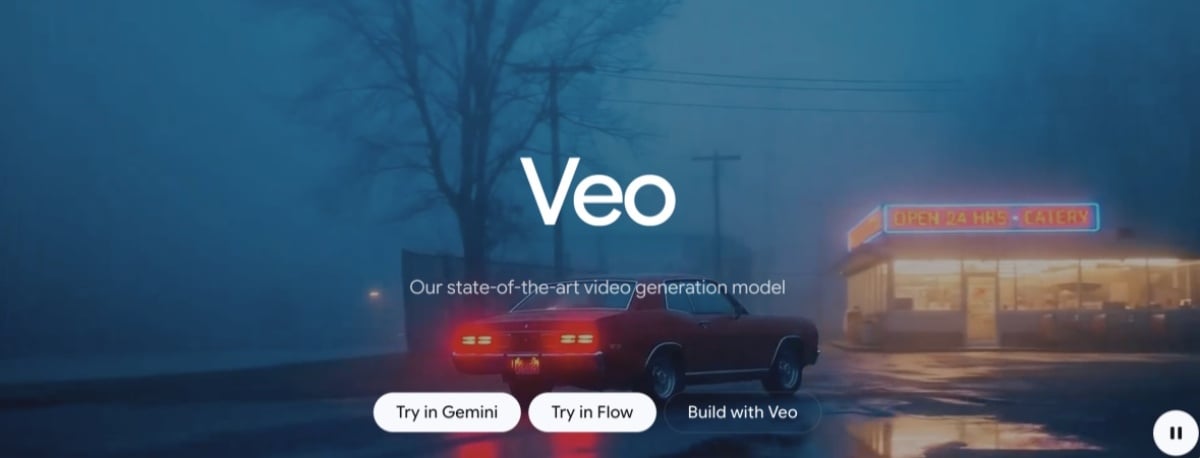
Veo 3.1 is Google’s latest generative-video model, aimed at producing short, visually coherent clips from text prompts and reference images.
It sits between consumer creativity apps and developer APIs: you’ll see it in the Gemini ecosystem, YouTube/Shorts flows, and Vertex AI endpoints. Compared with Veo 3, 3.1 improves how well the model adheres to reference images, supports native 9:16 vertical outputs, and offers more integrated audio options.
3. How to Access Veo 3.1
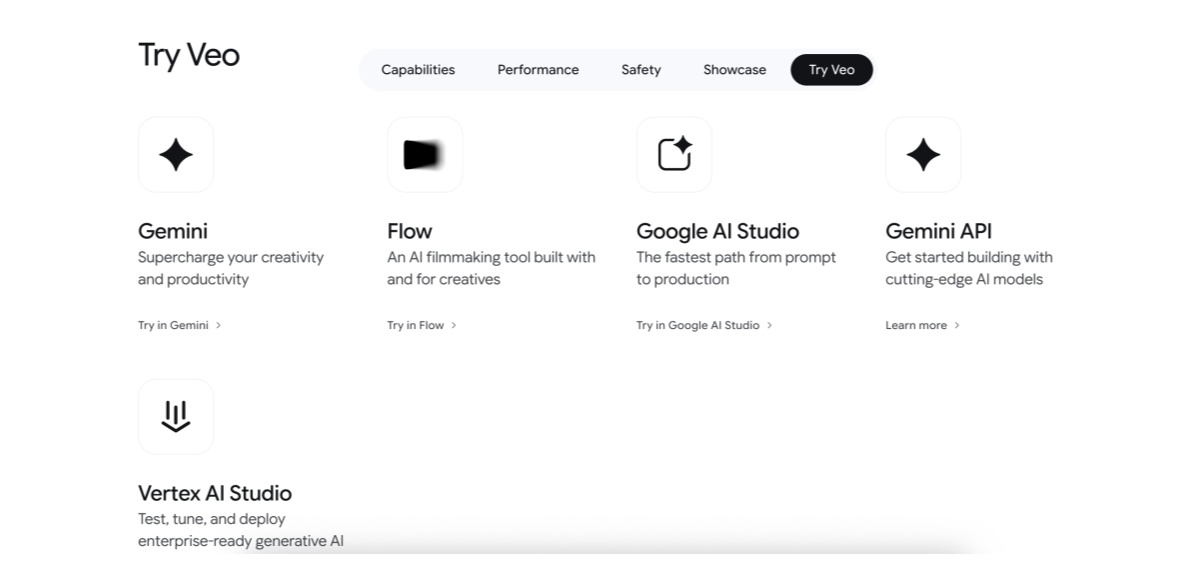
You can access Veo 3.1 through consumer apps, platform integrations, or programmatic APIs depending on whether you want quick experiments or automated production pipelines.
- For quick experiments I use the Gemini app or the YouTube Create/Shorts flows to generate vertical clips on the fly.
- For publishing workflows I rely on YouTube’s integration to produce platform-ready outputs.
- For automation and scale I evaluate the Gemini API and Vertex AI options, but keep an eye on quotas and model-variant differences.
4. Key Features & Capabilities
4.1 Video generation
Veo 3.1 reliably converts short prompts plus reference images into concise, coherent clips and supports both text→video and image→video flows.
- Inputs: text prompts, single or multiple reference images (useful for locking character looks or set details).
- Outputs: native 9:16 and 16:9 aspect ratios, common frame rates, and platform-ready durations.
- Audio: built-in speech and ambient SFX improve the end-to-end feel of short scenes.
4.2 Automatic editing & effects
Veo 3.1 automates pacing, transitions, and simple effects so you can focus on story beats rather than micro-editing.
- Scene sequencing, crossfades, and music-to-beat alignment are exposed in the consumer UI; APIs provide finer control if you build a pipeline.
4.3 Templates & styles
Templates let newcomers ship quickly while experienced users combine generated clips for longer narratives.
- Templates include social hooks, product demos, explainers, and cinematic beats.
- My recommendation: start with a template + single-subject reference, then iterate toward more custom prompt sequences.
4.4 Innovative extras
Veo 3.1 adds portrait-native generation, better reuse of objects/backgrounds across clips, and practical upscaling options that reduce manual cropping pain for vertical posts.
5. How to Use Veo 3.1 — Step-by-Step
You can test Veo 3.1 immediately using this practical flow I use when producing short social-friendly clips.
- Prepare references
- Use clear, well-lit subject images for appearance fidelity. If you want to try image-driven transforms, the image to video path is a sensible starting point.
- Pick aspect & template
- Choose 9:16 for Shorts/TikTok or 16:9 for YouTube/landscape; pick a template that matches your goal.
- Write concise prompts (how to use Veo 3.1)
- Prompt formula I use: Subject + Action + Camera + Mood + Duration.
- Example: “Young barista, based on reference image, pulling an espresso shot in a close 35mm frame under warm morning light, upbeat mood, 8 seconds.”
- Generate and iterate
- Generate a first clip, examine consistency, then tweak the prompt, reference images, or template.
- Post-edit and stitch
- For longer stories, export multiple 8s clips and assemble them in Premiere/CapCut/FCP; add precise subtitles and timing adjustments there.
- Export and publish
- Export MP4 in the desired resolution; use platform integrations for direct publishing when available.
6. Use Cases That Work Best
Veo 3.1 shines for short, attention-grabbing clips rather than single-shot longform films.
- Social-first creators: 6–12s vertical hooks, intros, and product teases.
- Marketing teams: rapid visual concepts and ad mockups for A/B testing.
- Educators: concise illustrative examples or explainer cards to embed in lessons.
- Story prototyping: quick beat visualization to inform live-action pre-production.
Practical examples (ordered):
- An 8s product demo to test motion-focused ad hooks.
- An 8s explainer card for an online course module.
- Multiple 8s clips stitched into a 60s trailer.
7. Limits, Challenges & Open Questions
Veo 3.1 raises baseline quality but still imposes practical constraints you should plan for.
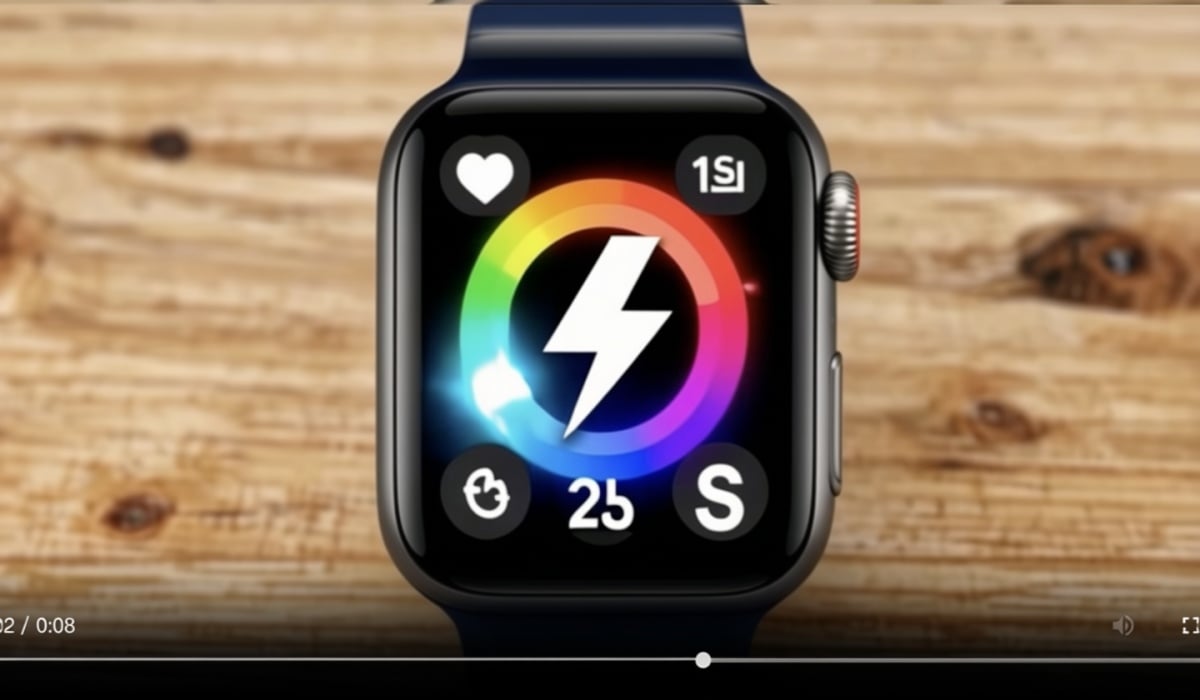
- Clip length / Veo 3.1 length limit: the common single-generation duration is short (typically ~8 seconds), so longer videos require sequencing or extension workflows. Check the endpoint docs before you commit to a workflow.
- Complex scenes: multi-character interactions, long continuous camera moves, and highly detailed cinematography remain fragile and often need extra passes.
- Upscale vs native resolution: some flows offer 4K upscaling, but that’s an upscaled result rather than native 4K capture.
8. How Veo 3.1 Compares (quick table)
In short, Veo 3.1 narrows the gap to competitors on vertical support and audio integration while keeping a clip-based workflow at its core.
| Capability | Veo 3 | Veo 3.1 | Typical competitor |
|---|---|---|---|
| Reference-image fidelity | Good | Improved (multi-image reuse) | Varies |
| Native 9:16 support | Limited | Yes (native) | Some |
| Single-generation length | ~8s | ~8s (extend via sequencing) | Some offer longer natives |
| Native audio | Basic | Improved native voice & SFX | Varies |
| Upscaling | 1080p | Upscale to 4K (upscaled) | Varies |
9. Conclusion / Final Verdict
Veo 3.1 is a meaningful, usable step forward for creators who design around short clips: it strengthens visual continuity, adds native vertical output, and makes audio-led scenes more convincing — but it does not yet replace a full production pipeline for longform projects.
If your work is social-first, iterative, and clip-based, I recommend testing Veo 3.1 in a small production run. If you need single-shot longform cinema, plan to stitch clips or combine Veo outputs with traditional production methods. For developers, consult the Gemini API and Vertex AI model pages for quotas and exact capabilities before automating large batches.
10. FAQs (short)
Q: What is the Veo 3.1 length limit?
A: Native single-generation clips are typically short (around 8 seconds); some flows support extending or sequencing clips — confirm limits in your endpoint docs.
Q: How should I search if I mistype Veo (e.g., “gogole veo 3.1”)?
A: Typos are common; use official sources such as Google’s product pages, Gemini docs, or Vertex AI model pages to avoid misinformation.
Q: Is it safe to publish AI-generated videos?
A: Platforms and providers apply safety filters and some flows add watermarking or SynthID; you should follow platform rules and obtain releases for real people or copyrighted materials.
Quick test recipe (3 minutes)
- Open Gemini or YouTube Create.
- Upload a single clear subject image.
- Use a short prompt with camera and mood, target 9:16 and ~8s.
- Generate, iterate, then export.
For production use, review Google’s official announcement and Vertex AI documentation (rel="nofollow") — e.g.:
Google blog: Veo 3.1.
Keywords included where relevant: Veo 3.1 Review; gogole veo 3.1 (typo awareness); veo 3.1 length limit; how to use veo 3.1.