Google Flow Review: I Tested Its AI Video Features, Credit Costs, and Real Limits
- 1. Quick Verdict: Is Google Flow Worth It?
- 2. What Is Google Flow? Flow vs Veo Explained
- 3. How Google Flow Works
- 4. Google Flow Features I Tested
- 5. My Hands-On Experience With Google Flow
- 6. Google Flow Pricing, Credits, and Limits
- 7. Google Flow Limits and Commercial Use Notes
- 8. Google Flow vs Veo, Runway, Pika, Kling, and Adobe Firefly
- 9. Best Google Flow Prompting Tips
- 10. Who Should Use Google Flow?
- 11. Google Flow FAQ
- 12. Final Verdict: Should You Use Google Flow?
Google Flow is worth trying if you want a Google-backed AI creative studio for video concepts, image-to-video workflows, storyboards, and short-form visual production. After testing it as a creative workflow rather than a simple prompt-to-video tool, my main takeaway is clear: Flow is strongest for early creative development, not for fully predictable production work.
It gives creators a way to plan, generate, refine, and resize AI visuals in one workspace. That makes it more useful than a basic AI video generator when you are testing campaign ideas, building a visual direction, or turning images into motion. But it still comes with the usual AI production questions: credits, plan access, output consistency, commercial-use terms, and regional availability.
At the time of writing, Google’s official Flow page presents Flow as an AI creative studio for video, images, and custom tools. It highlights models and systems including Gemini Omni, Nano Banana, and Veo 3.1 inside the Flow environment. You should still check the current official page before relying on any specific model, feature, price, or regional availability.
1. Quick Verdict: Is Google Flow Worth It?
Google Flow is worth using if your goal is to explore AI video ideas, create image-to-video drafts, build storyboards, or test short-form social concepts. It feels more like a creative workspace than a one-off generator.
The best part is workflow continuity. You can start with an idea, create visual assets, test motion, refine the output, and prepare it for different formats without treating every result as a disconnected generation. That is where Flow feels different from many AI video tools.
The weaker part is predictability. If you need fixed per-render costs, exact typography, full manual editing control, API-driven production, or guaranteed commercial clarity, Flow needs careful testing before it becomes part of your main workflow.
| Review Area | Verdict |
|---|---|
| Creative workflow | Strong |
| Text-to-video concepts | Good for drafts |
| Image-to-video workflow | Useful, especially with simple subjects |
| Storyboarding | Helpful for multi-shot ideas |
| Pricing clarity | Better than before, but still credit-dependent |
| Commercial readiness | Needs official terms review |
| Best use case | Early creative development |
My verdict: Google Flow is best for ideation, visual prototyping, AI video concepts, and social-ready drafts. It is less ideal when every frame, cost, right, and export needs to be fully controlled from the start.
2. What Is Google Flow? Flow vs Veo Explained
Google Flow is Google’s AI creative studio for creating and refining videos, images, storyboards, and visual assets. It is not the same thing as Veo.
Veo 3.1 is Google’s video generation model. Flow is the broader studio where users can plan, create, edit, and refine assets using Google’s generative models and tools. A simple way to understand the difference is this: Veo helps generate video, while Flow helps manage the creative workflow around that video.
Google’s official Flow page highlights three important model layers:
| Model or System | Role in Flow |
|---|---|
| Gemini Omni | Multimodal video creation and editing from real or generated references |
| Nano Banana | Image generation and precise image editing |
| Veo 3.1 | Video generation with creative controls, native audio, realism, and prompt adherence |
This matters because many users search for “Google Flow” when they really want to understand Veo. Flow is the workspace. Veo is one of the core video models inside that workspace.
3. How Google Flow Works
Google Flow works through a browser-based Google Labs / Flow environment. The basic workflow is simple: open Flow, sign in with a Google account, choose a creative task, generate or edit an asset, refine the result, and check credits before continuing.
The product is organized around three broad actions: planning, creating, and refining. In practical use, Flow is strongest when you do not ask it to do too much in one prompt.
A better workflow is:
- Start with one clear visual idea.
- Generate a simple video or image draft.
- Use references if you need consistency.
- Refine the result with editing or formatting tools.
- Resize or adapt the output for a social format.
- Review the final result for motion, text, rights, and brand safety.
That workflow makes Flow more useful for creators and marketers than a single prompt box. It gives you more room to develop an idea step by step.
4. Google Flow Features I Tested
Google Flow’s feature set is broad, but the most important features fall into four practical groups: video generation, image generation, editing tools, and storyboarding.
4.1 Text-to-Video
Text-to-video is the most obvious Flow use case. You write a prompt, define the subject, motion, setting, camera movement, lighting, and mood, then generate a clip.
This is useful for testing concepts quickly. The best results usually come from simple prompts with one subject, one environment, and one clear camera action. If the prompt tries to include too many actions or scene changes, the result becomes harder to control.
4.2 Image-to-Video and Frames-to-Video
Image-to-video is one of Flow’s more practical workflows. Many projects start with a static image: a product visual, a character design, a hero image, or a style reference. Flow can help turn that visual direction into motion.
This workflow is often easier to control than pure text-to-video because the image gives the model a stronger visual anchor. It is especially useful for product teasers, social ads, character motion tests, and campaign moodboards.
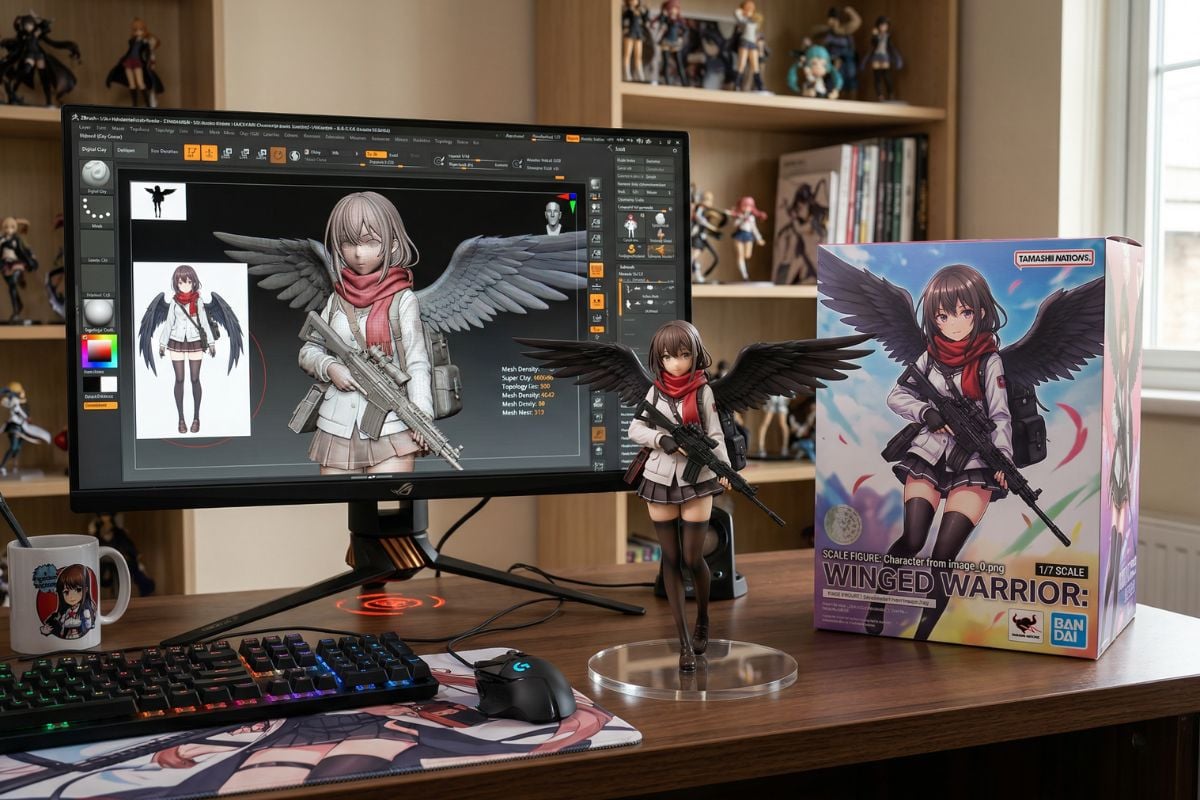
4.3 Nano Banana for Image Generation and Editing
Nano Banana is useful because many video workflows begin with images. A creator may need to design a character, background, object, poster, or campaign visual before turning it into motion.
In Flow, this makes image generation part of the video workflow rather than a separate step. You can build visual ingredients first, then use them as part of a later motion workflow.
 Nano Banana image example
4.4 Editing and Formatting Tools
Flow includes tools for resizing, overlays, mockups, image editing, shader effects, and other creative adjustments. These tools matter because the first AI output is rarely the final asset.
For social content, resizing is especially important. A video may need a horizontal version for YouTube, a vertical version for TikTok or Reels, and a square version for other placements. If Flow can reduce tool switching during that process, it becomes more valuable as a studio.
4.5 Storyboard and Character Tools
Storyboard and character tools are useful when the project needs more than one image or one clip. Instead of asking one long prompt to create a complete short ad, it is usually better to split the idea into scenes.
For example, a coffee festival promo could become:
- Coffee being poured into a cup.
- People walking into a small outdoor market.
- A warm final hero shot with event text.
This makes the output easier to review and refine.
5. My Hands-On Experience With Google Flow
I tested Google Flow as a creative workflow tool, not just a video generator. The main question was whether it could help move from a rough idea to a usable visual direction, then continue into editing or format adaptation.
The strongest impression was that Flow feels built around how creative work actually develops. You start with an idea, generate a draft, adjust the visual direction, then prepare the output for a format. That does not mean every result is production-ready. It means the workspace tries to solve more than one step.
I focused on three practical tests: a simple text-to-video prompt, an image-to-video workflow, and a storyboard/resizer workflow.
5.1 Text-to-Video Test
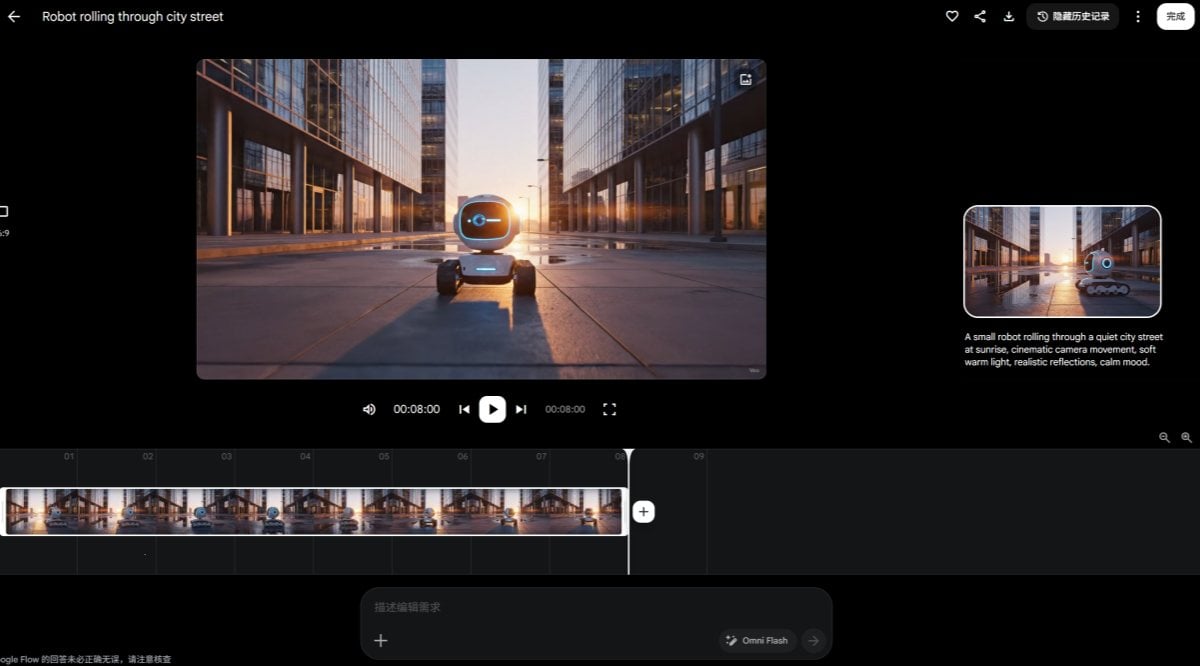
For the first test, I used a simple text-to-video prompt:
A small robot rolling through a quiet city street at sunrise, cinematic camera movement, soft warm light, realistic reflections, calm mood.
This worked best when the subject stayed simple. A small robot, one street, one lighting direction, and one mood gave the model a clear target. The result was useful for early visual exploration because the scene was easy to understand quickly.
The strongest part was the overall tone. The sunrise lighting and calm mood made the clip feel coherent. The weaker part was small motion consistency. With AI video, I still check ground contact, object stability, reflections, and frame-to-frame changes.
My score: 8/10 for early concept work, lower for final production use.
5.2 Image-to-Video Test
For the second test, I used a static product-style image:
A clean product-style image of a matte black wireless speaker on a concrete table, soft studio lighting, minimal background.
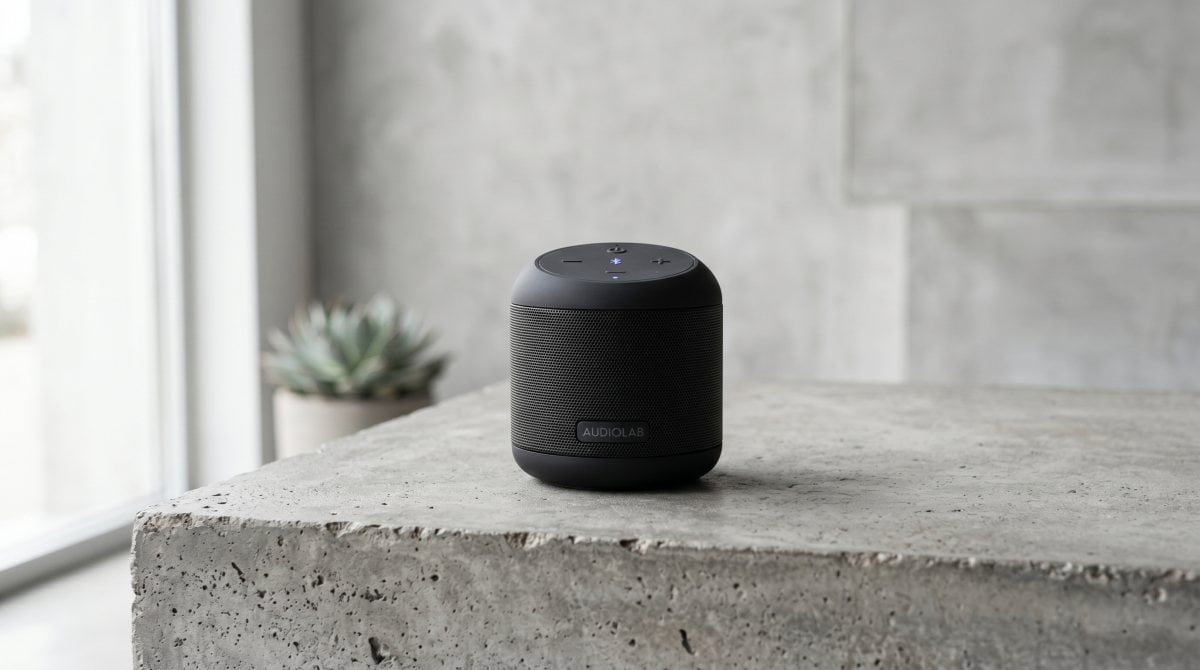
Then I used this motion prompt:
Slow camera push-in toward the speaker, subtle light movement across the surface, premium tech ad style, calm and polished.
This workflow felt more practical than starting from text every time. The image gave the output a visual anchor, and the motion prompt defined the camera movement.
The result was useful as a product concept or short social teaser. The main caution is product accuracy. If the asset represents a real product, I would not rely on the generated object unless it starts from approved product imagery and survives close review after motion.
My score: 7.5/10 for concept-to-motion, 6.5/10 for brand-controlled product use.
5.3 Storyboard, Type Overlay, and Resizer Test
For the third test, I wanted to see whether Flow could support the steps after generation.
Create a short three-shot concept for a coffee festival promo:
1. Morning coffee being poured into a cup.
2. People walking into a small outdoor market.
3. A final warm hero shot with the words COFFEE WEEKEND.
Resize the final version for vertical social media.
This was the best test for understanding Flow as a studio. The generation quality still mattered, but the bigger question was whether the workflow could move from idea to campaign structure without leaving the tool.
What worked was the sense of continuity. Thinking in shots was easier than asking one prompt to do everything. Resizing also matters because most creators need multiple formats.
The weak point was text reliability. Any AI-generated or AI-assisted text needs review. If words are central to the asset, check spelling, placement, readability, and timing before publishing.
My score: 7/10 for workflow continuity, 6/10 for final text-heavy assets.
6. Google Flow Pricing, Credits, and Limits
Google Flow uses credits, and the number of credits you receive depends on your subscription level. At the time of writing, Google’s Flow credit information lists daily or monthly credits across free and paid Google AI plans.
| Plan | Flow Credits |
|---|---|
| No subscription | 50 daily credits |
| Google AI Plus | 200 monthly credits |
| Google AI Pro | 1,000 monthly credits |
| Google AI Ultra $100 | 10,000 monthly credits |
| Google AI Ultra $200 | 25,000 monthly credits |
The important point is that Flow credits are usage limits, not a simple fixed price per finished video. The practical cost depends on the model, generation type, number of outputs, upscaling, editing, and how many attempts you need before getting a usable result.
You should also check whether credits roll over, how many generations one request creates, and whether a specific model or feature consumes more credits than another. These details can change the real cost of using Flow for repeated video work.
7. Google Flow Limits and Commercial Use Notes
Google Flow has several practical limits that matter before using it seriously.
The first limit is access. Flow availability can depend on country, account type, age, platform, and subscription tier. Some users may see different tools or limits depending on their region and plan.
The second limit is output control. AI-generated video still needs human review. Motion may drift, objects may change between frames, text may be wrong, and brand details may not stay exact. Flow can be very useful for concept work, but production assets need closer checking.
The third limit is commercial use. I would not assume every Flow output is automatically safe for ads, client work, paid media, or product campaigns. For commercial use, check Google’s current terms, your plan terms, usage policies, and any third-party rights involved in the content.
Be especially careful with prompts involving celebrities, real people, voices, logos, copyrighted characters, product packaging, music-like audio, or recognizable brand assets. The tool may generate something visually impressive, but that does not make it legally safe to publish.
8. Google Flow vs Veo, Runway, Pika, Kling, and Adobe Firefly
Google Flow should be compared by workflow, not only by output quality.
| Tool | Best For | Main Difference |
|---|---|---|
| Google Flow | AI creative workflow | Combines planning, images, video, tools, and refinement |
| Veo 3.1 | Video generation | Model layer, not the full studio |
| Runway | AI video production | More creator-focused video editing environment |
| Pika | Fast social video experiments | Lightweight and quick for short clips |
| Kling AI | Text-to-video and image-to-video | Strong video model comparison point |
| Adobe Firefly / Creative Cloud | Design and production pipelines | Better for manual control and creative software integration |
| GoEnhance AI | Image/video workflow extension | Useful for effects, style transformation, image-to-video, and social content |
Flow’s advantage is the Google creative environment around Gemini Omni, Nano Banana, Veo, and Flow tools. It is useful when your project starts with planning and continues into multiple creative steps.
Runway may be better if you already want a mature AI video production environment. Pika may be better for quick social experiments. Kling is worth comparing directly for text-to-video and image-to-video behavior. Adobe is stronger when final production requires manual design control.
GoEnhance AI fits when the work needs to continue beyond Flow’s first draft. For example, a Flow-generated concept may need image-to-video, video effects, animation-style conversion, character style changes, or social-ready format adaptation. In that case, GoEnhance AI is a practical workflow extension rather than a direct one-to-one replacement.
9. Best Google Flow Prompting Tips
Google Flow works better when the prompt is focused and the workflow is staged.
Start with one clear shot. Do not ask for a full commercial in one prompt. Define the subject, action, camera movement, lighting, mood, and style.
A good starter prompt looks like this:
A close-up shot of a ceramic coffee cup on a wooden table, steam rising slowly, morning window light, gentle camera push-in, warm editorial style.
Use references when consistency matters. If you need the same character, product, or visual style across outputs, reference-based workflows are usually stronger than pure text prompts.
Storyboard complex videos. If the idea has multiple scenes, split it into shots. This makes the result easier to judge and easier to fix.
Check credits before repeating tests. Draft first, then spend credits on the version that already has the right composition and motion.
Review text, audio, and rights before publishing. AI video can look convincing while still containing misspelled text, strange timing, unstable audio, or risky brand references.
10. Who Should Use Google Flow?
Google Flow is best for creators, marketers, designers, and visual teams who need fast concept development.
| User Type | Should Try Flow? | Why |
|---|---|---|
| AI video creators | Yes | Good for video concepts and storyboards |
| Social media teams | Yes | Useful for short-form drafts and resizing |
| Marketers | Yes, with review | Good for campaign concepts |
| Designers | Yes for prototyping | Helpful for visual exploration |
| Brand teams | Cautiously | Needs rights and consistency review |
| Budget users | Try free tier first | Credits may limit frequent use |
| Developers | Compare API options | Flow is a studio, not mainly an API tool |
The best users are people who need to explore ideas quickly. The weakest fit is users who need fixed costs, exact outputs, batch production, or full manual control.
11. Google Flow FAQ
What is Google Flow?
Google Flow is Google’s AI creative studio for creating and refining videos, images, storyboards, and visual assets. It uses Google generative models and tools inside a broader creative workflow.
Is Google Flow free?
Google Flow has free daily credits for users without a subscription. This makes it possible to test the workspace before upgrading, but it should not be treated as unlimited free access.
How many Google Flow credits do paid plans include?
At the time of writing, Google AI Plus includes 200 monthly Flow credits, Google AI Pro includes 1,000 monthly Flow credits, and Google AI Ultra tiers include higher monthly credit allocations. Always check the current official pricing and credit page before subscribing.
Is Google Flow the same as Veo?
No. Flow is the creative studio. Veo 3.1 is a video generation model that can be used inside Flow.
Can Google Flow make videos from images?
Yes, Flow supports image and video workflows. Image-to-video and frames-to-video workflows are among the most practical ways to use Flow because they give the output a stronger visual anchor.
Can I use Google Flow commercially?
It depends on Google’s current terms, your account, your subscription, the output type, and whether third-party rights are involved. Always check the official terms before using outputs in ads, client work, or paid products.
Why can’t I access Google Flow?
Access may depend on your country, age, account type, platform, subscription tier, or rollout status. If Flow or a specific feature does not appear, check the current Google Labs or Google AI plan availability notes.
What is the best Google Flow alternative?
The best alternative depends on the job. Runway, Pika, Kling AI, Adobe Firefly, and GoEnhance AI are all worth comparing depending on whether you need video generation, editing, image-to-video, effects, design control, or social-ready content.
12. Final Verdict: Should You Use Google Flow?
Google Flow is worth trying if you want a creative studio that connects AI video generation, image generation, storyboarding, editing, resizing, and Google’s latest generative models in one workspace.
Its biggest advantage is workflow breadth. Flow is not just a video prompt box. It helps you move from idea to draft, from image to motion, and from raw generation to formatted creative asset.
Its biggest limitation is predictability. Credits, model behavior, output quality, feature access, and commercial-use terms still need checking. If you want exact production control, Flow should be treated as a concept and prototyping tool first.
My hands-on takeaway is simple: Google Flow is strongest as an early creative studio for AI video and image workflows. It is best for creators, marketers, and designers who want to test ideas quickly. It is less ideal for users who need fixed costs, exact outputs, or fully cleared production assets from the first generation.