
Prompt
Copy and customize
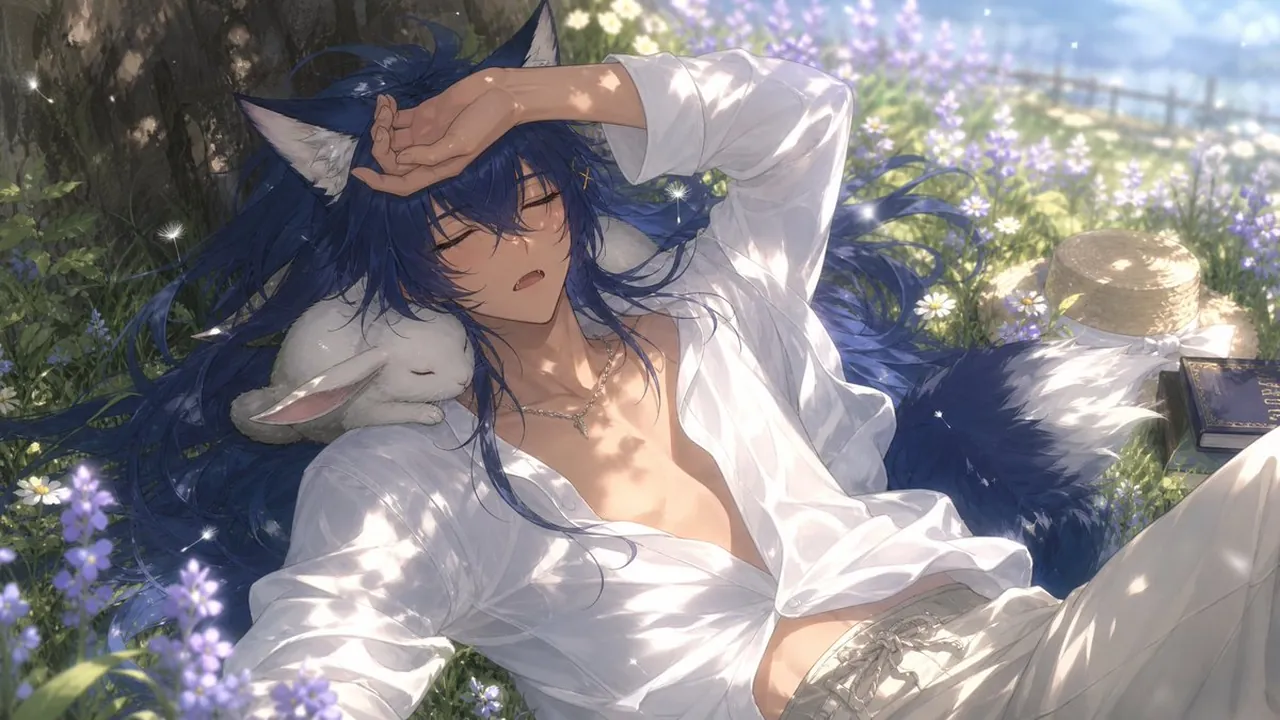
Create a highly detailed cinematic anime illustration in a soft romantic fantasy style, widescreen 16:9. Show Wolf-kun, a beautiful androgynous young wolf-eared man reclining lazily in a sun-dappled wildflower meadow beneath a large tree. He has long flowing deep navy blue hair spread across the grass, two large pointed wolf ears with pale inner fur, and one large fluffy dark blue wolf tail curling behind him. His eyes are closed, his expression is sleepy and relaxed with slightly parted lips, and one arm is raised across his forehead as if shielding his face from the warm sunlight. He wears a loose oversized white button-up shirt, open at the chest and waist, with soft folds and translucent highlights, plus light beige trousers with a lace-up waistband and a delicate silver necklace. A small white rabbit rests asleep against his shoulder. Surround him with lavender-purple flowers, tiny white daisies, green grass, drifting sparkling motes, and soft bokeh. Include exactly three visible nearby props: 1 white rabbit sleeping on his shoulder, 1 straw hat lying in the grass on the right, and 1 dark blue book with gold lettering beside the hat. The background should feel like a peaceful countryside garden with a faint fence and glowing morning light. Use painterly high-end anime rendering, delicate linework, luminous skin, realistic fabric folds, shallow depth of field, warm rim light, leaf-shadow patterns across the shirt and skin, ethereal sparkles, and a calm summer nap atmosphere. Avoid text overlays, watermark, extra characters, or exaggerated facial expression.
Best for
Tips
Keep the main subject focused so highly detailed cinematic anime illustration in a remains recognizable after style or lighting changes.
Adjust camera angle and aspect ratio before generation when the composition needs a specific platform format.