
Prompt
Copy and customize
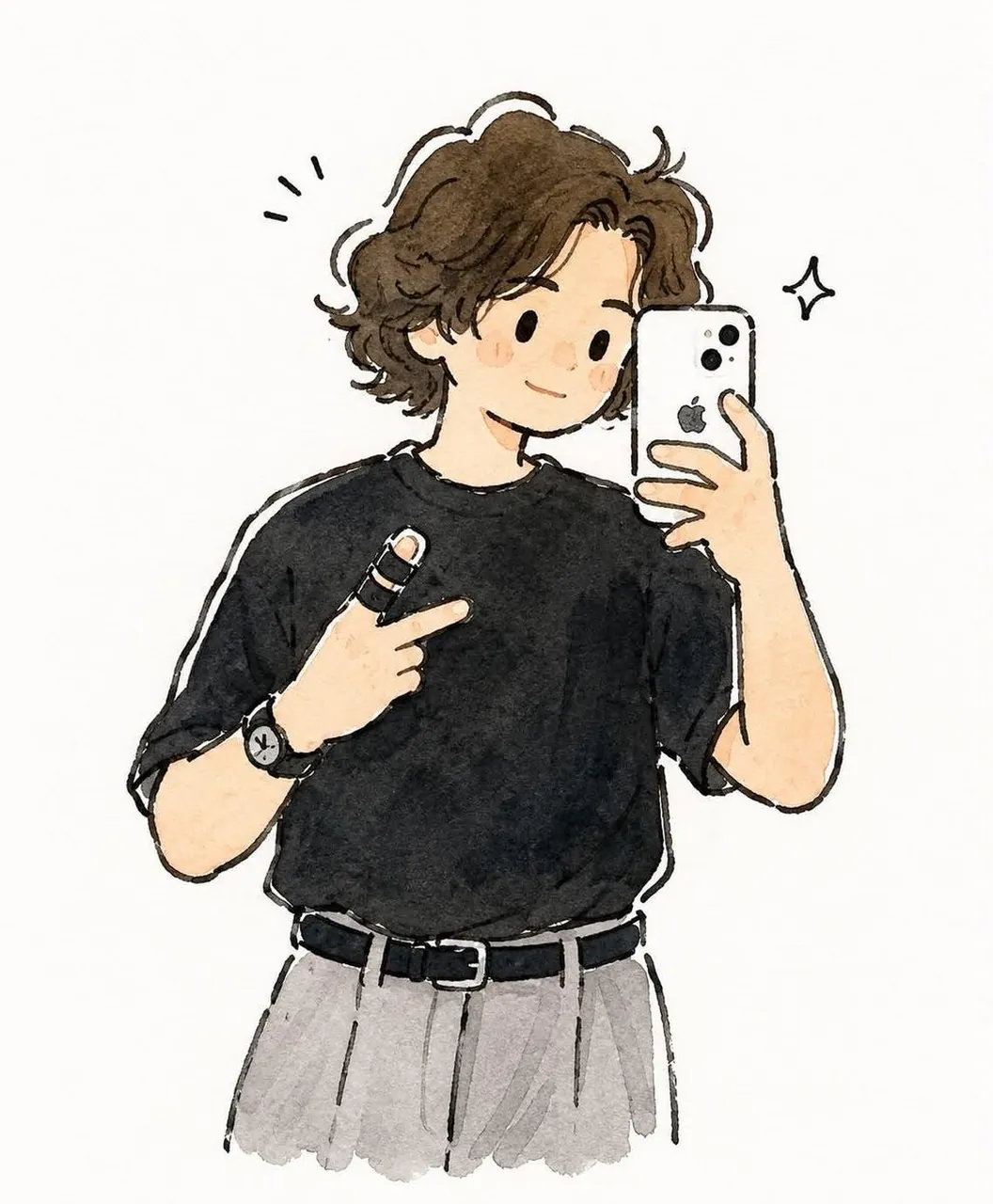
Transform the uploaded selfie into a charming hand-painted watercolor anime illustration while preserving the person's exact facial identity, hairstyle, pose, clothing, accessories, hand gesture, smartphone position, and overall composition. Keep the expression natural and friendly with a subtle smile. Simplify the face into cute rounded features with tiny black dot eyes, a tiny nose, rosy cheeks, and a soft, wholesome expression while remaining clearly recognizable.
Render using delicate hand-drawn black ink outlines with slightly wobbly sketch lines and transparent watercolor washes. Soft pastel colors with visible watercolor texture, subtle pigment granulation, gentle color bleeding, and natural cold-press paper grain. Use light, airy shading with no harsh contrast. Preserve the black oversized T-shirt, gray pleated trousers, black belt, wristwatch, finger bandage, and white smartphone exactly as in the reference.
Simplify unnecessary background details into a clean off-white watercolor backdrop with only faint hints of the mirror and room. Add a few tiny hand-drawn sparkle doodles and expressive ink marks around the character to enhance the playful aesthetic. Maintain loose brushwork, soft edges, warm neutral tones, and a cozy handmade sketchbook feel.
Style: modern Japanese watercolor illustration, slice-of-life anime, minimalist storybook art, cozy journal sketch, expressive ink line art, soft watercolor painting, clean composition, high detail, adorable, elegant, 2D illustration, 4:5 aspect ratio.
Best for
Tips
Keep the main subject focused so Transform the uploaded selfie into a charming remains recognizable after style or lighting changes.
Adjust camera angle and aspect ratio before generation when the composition needs a specific platform format.